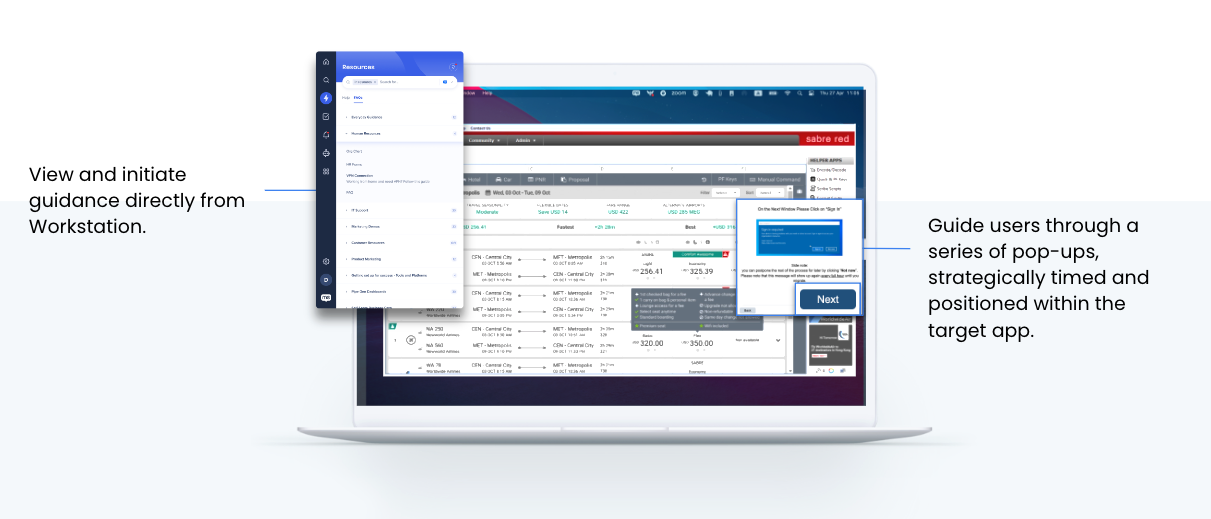
Deliver a seamless software experience with WalkMe Desktop In-App Guidance. By deploying the WalkMe Menu on your desktop, you can trigger strategically timed and positioned popups directly within any application window. This ensures users complete tasks efficiently across your entire software suite while initiating help exactly when they need it.
Enabled feature
Please request access from your Customer Success Manager or WalkMe contact.
How It Works
Set in-app guidance conditions
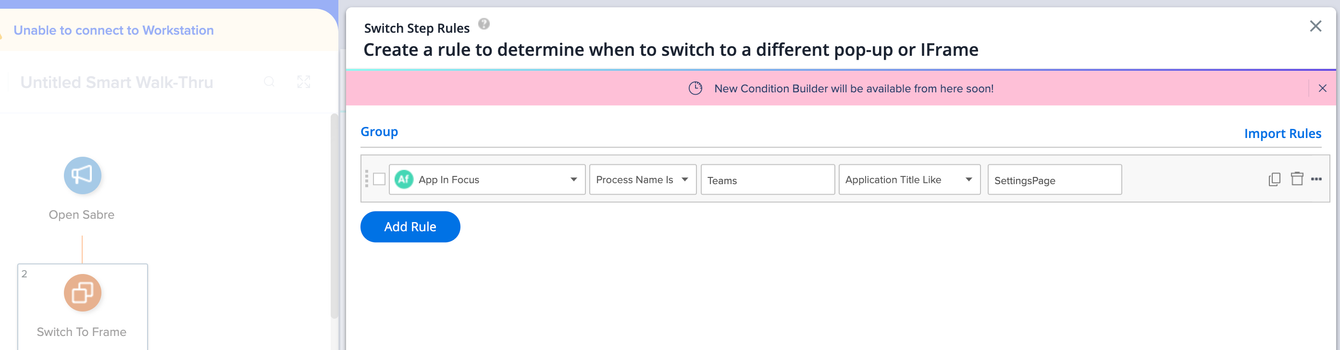
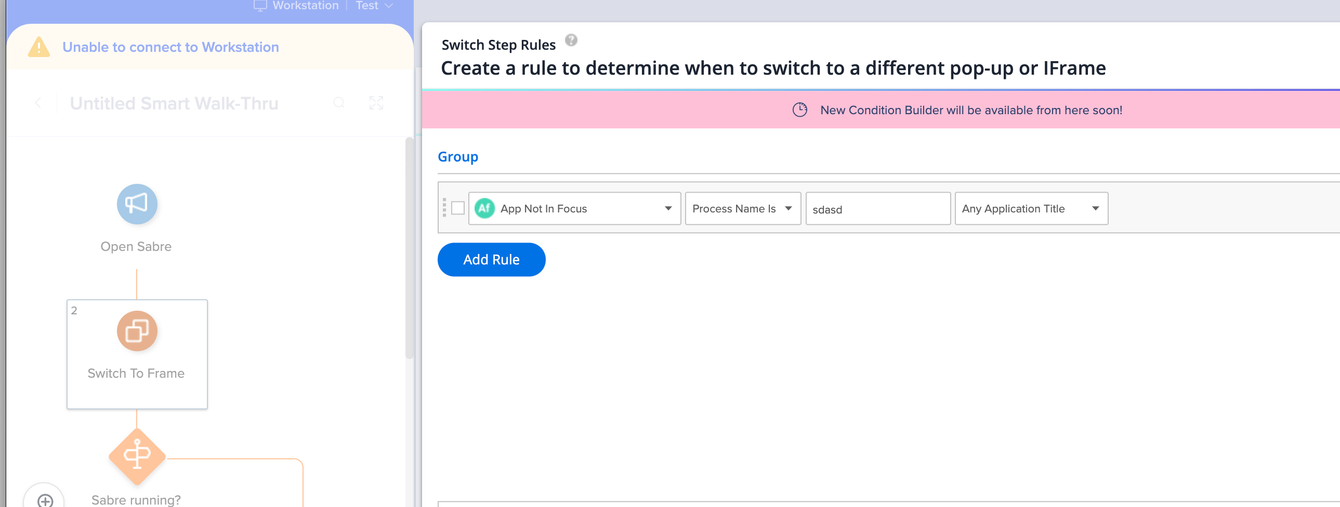
Use Switch to Frame rules to define when a Smart Walk-Thru plays in-app and specify which application it targets. Once you define these rules, all subsequent steps in the Smart Walk-Thru appear inside the specified application.
Set a rule for in-app playback:
Select Set Condition
Select App in Focus
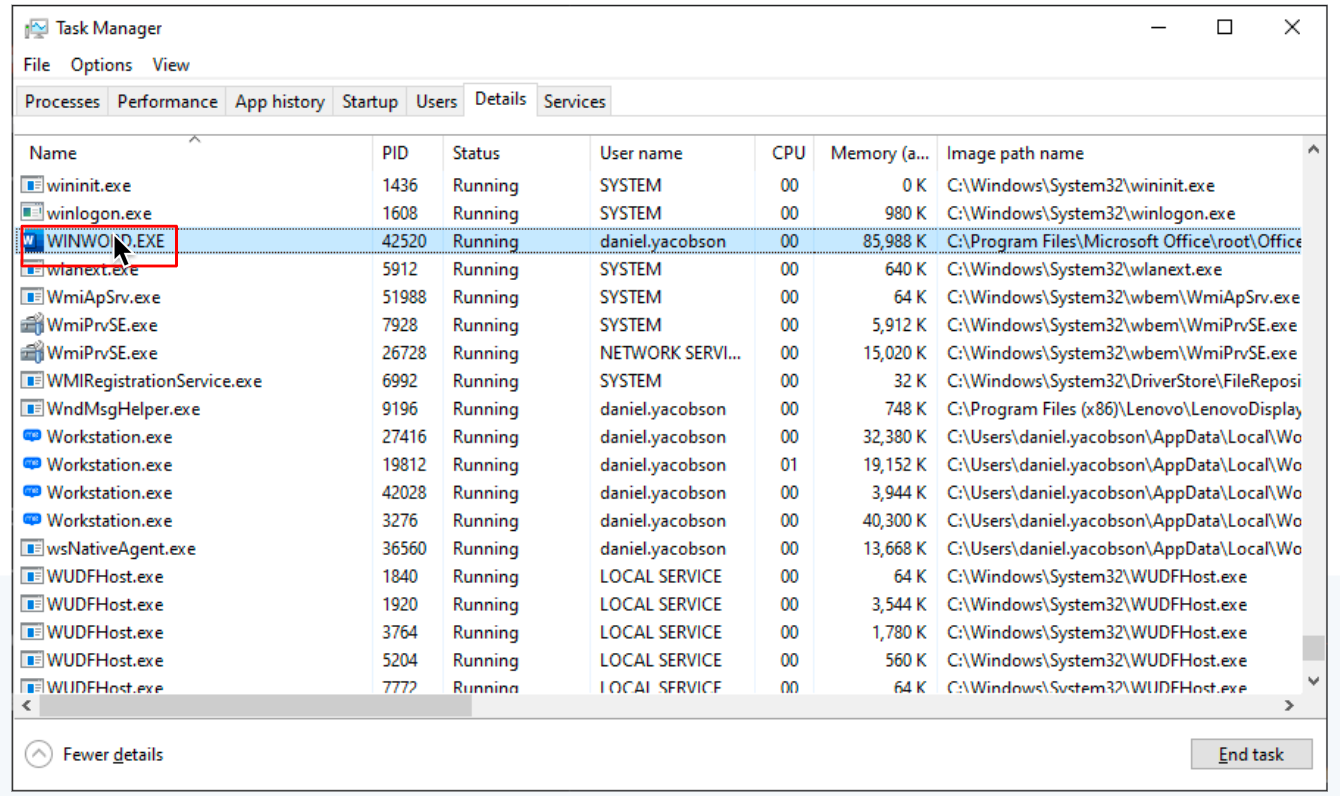
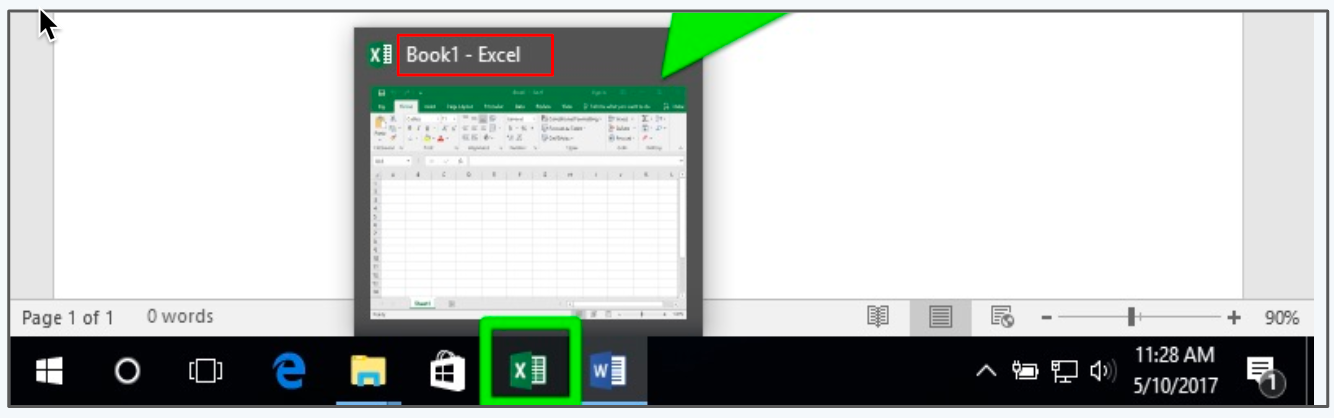
Choose the identification method:
ProcessName: Options include Any Process Name, Process Name Is, Process Name Like
AppTitle (optional): Options include Any Application Title, Application Title Equals, Application Title Like
Note
All subsequent steps in the Smart Walk-Thru will appear inside the defined app.
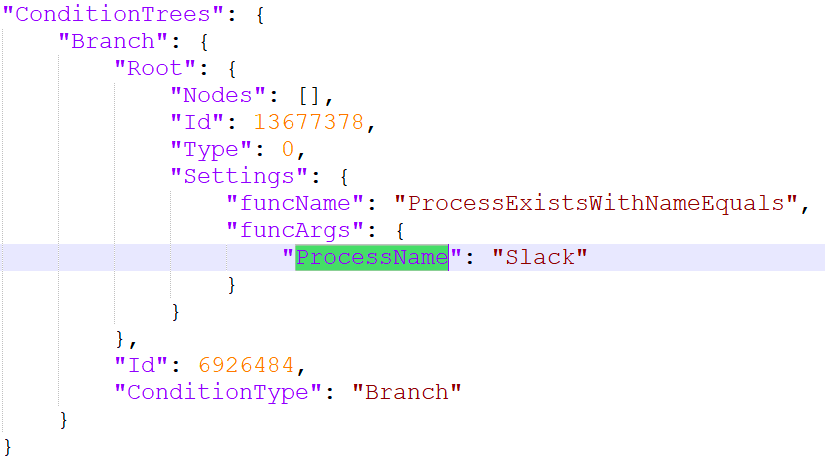
Example
Configure balloon appearance
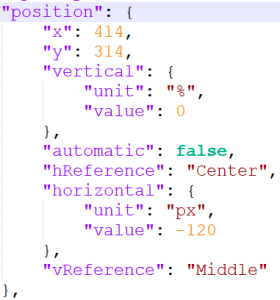
Define how popups appear within the application window to match your UI.
Location settings: Determine if the balloon appears inside or outside the application boundaries
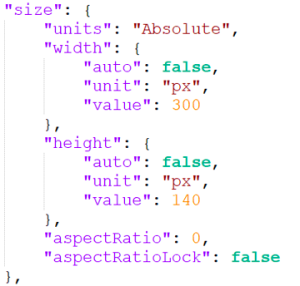
Size settings: Adjust the balloon dimensions to fit the application UI
Boundary control: All content remains within the application window boundaries
Balloon location settingsBalloon size settings
Best practices
Keep content within application boundaries to prevent clipping