Creating an contract-based system

Last Updated February 22, 2026

Brief Overview

The contract-based system setup introduces a guided system creation flow in the Admin Center. It is for SAP environments only.

When creating a new system, you will now see only the system types included in your contract. This ensures that every system you create is fully supported and aligned with your purchased capabilities.

This updated flow helps you:

  • Set up systems faster
  • Avoid configuration errors
  • Maintain alignment with your account entitlements

If a specific system type is not available, contact your Customer Success Manager or WalkMe contact to learn more.

Access

The Systems page is available in the WalkMe Admin Center for SAP data centers only.

Access

How It Works

Note:

Only users who have admin role or “manage systems” permssion in Admin Center can create these systems.

Create new web systems

All system creation flows begin the following steps:

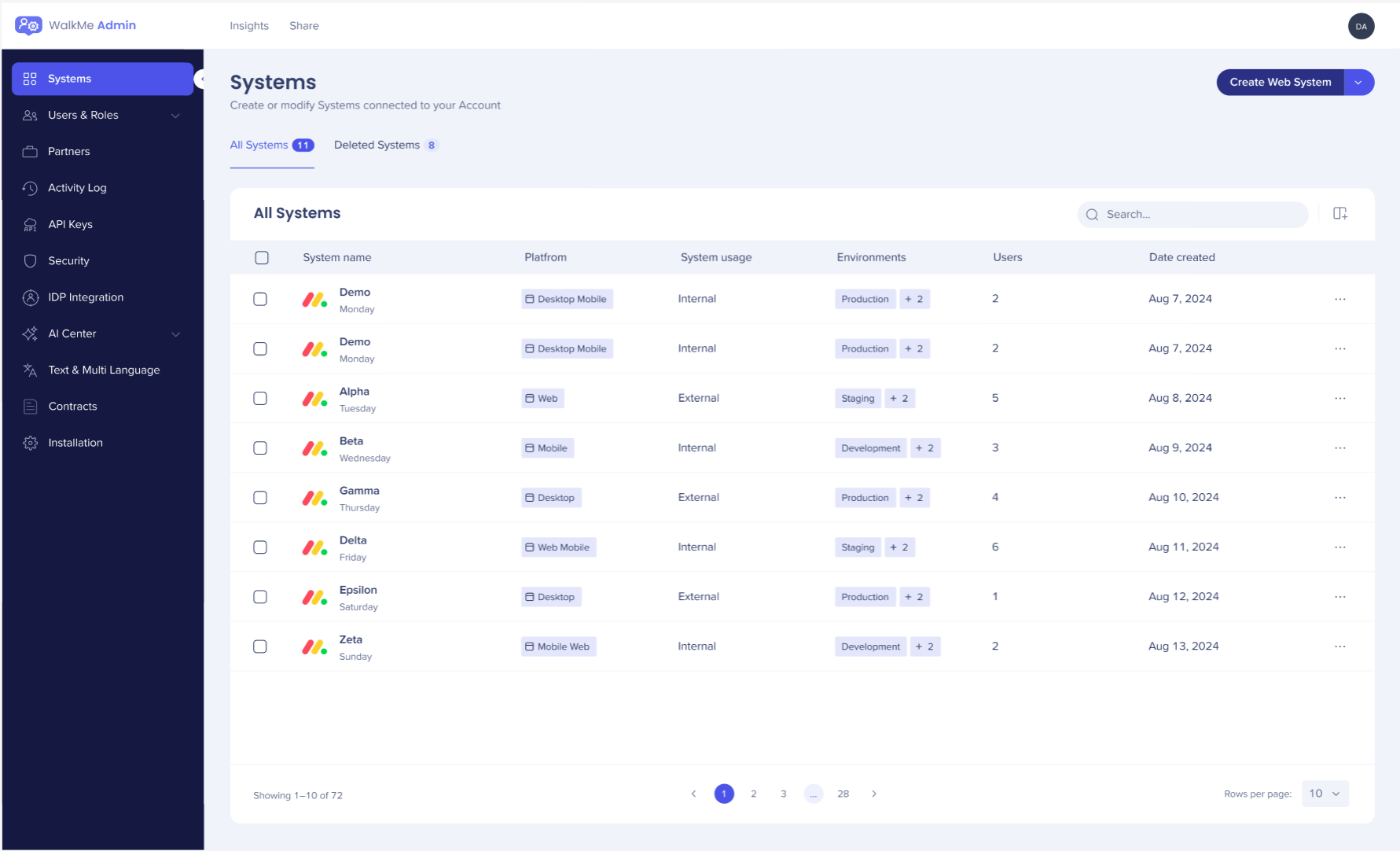
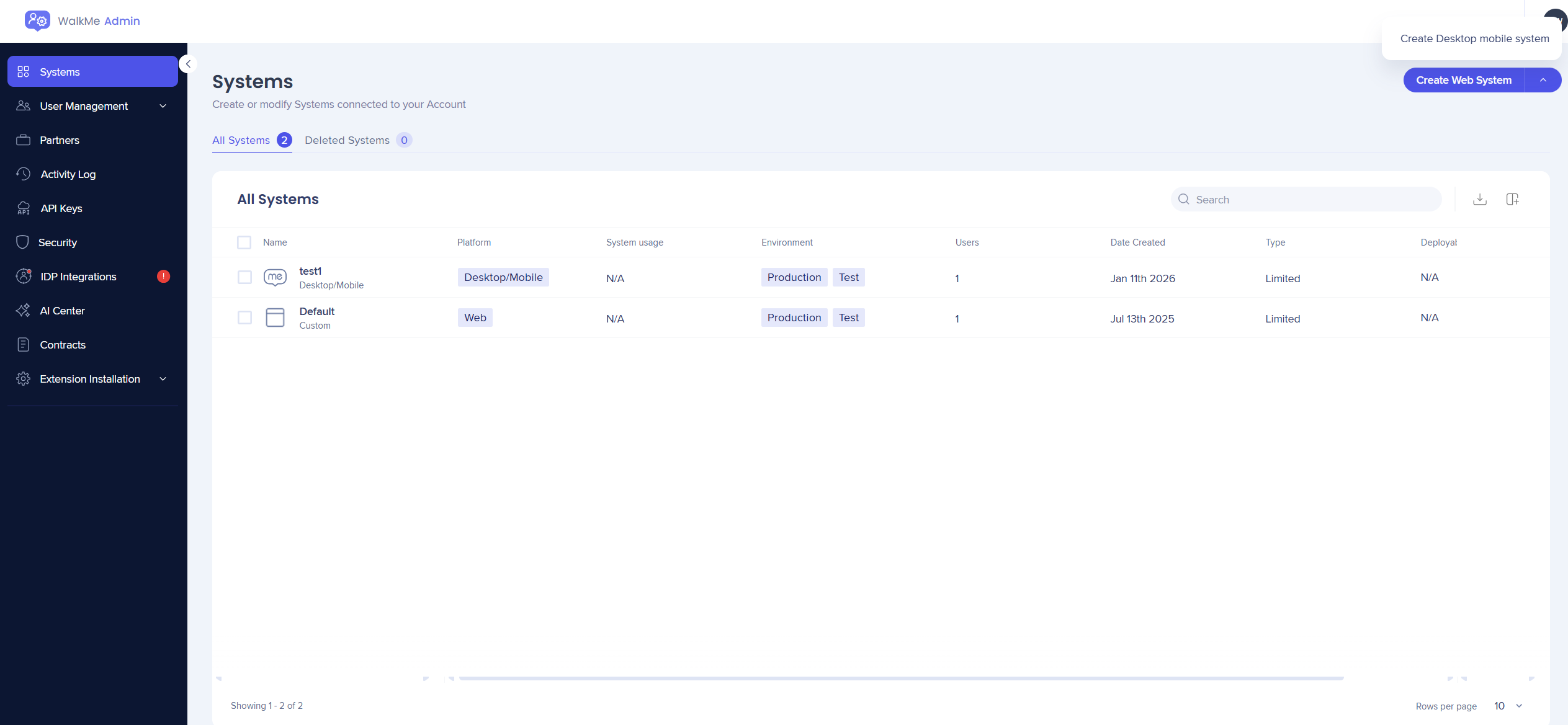
  1. Navigate to the Systems page
  2. Select Create Web System

Commercial system (based on contract)
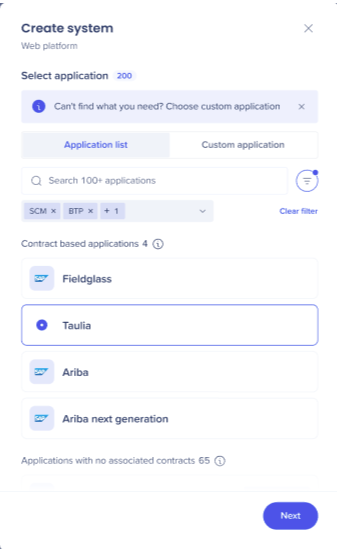
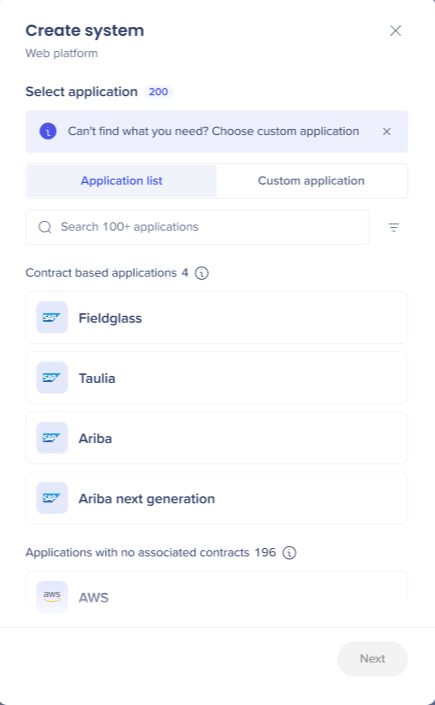
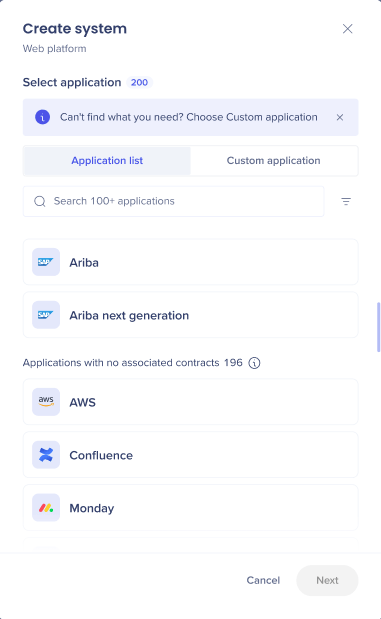
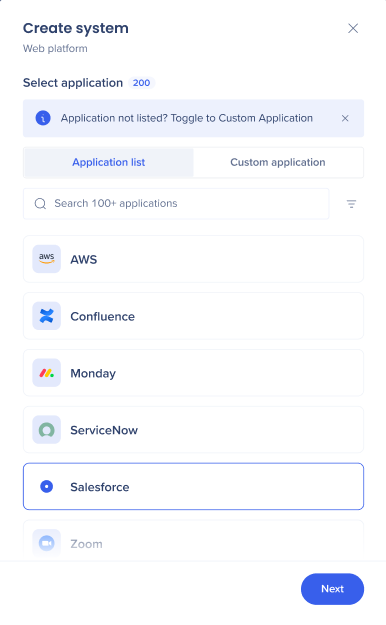
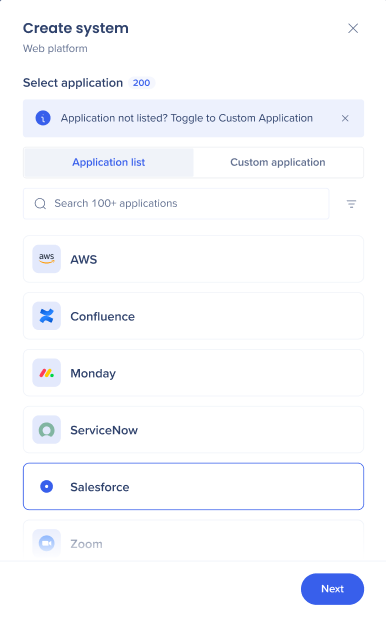
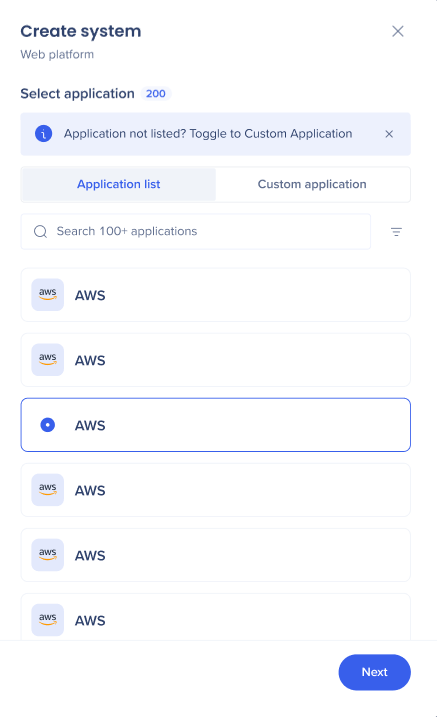
  1. The application options displayed here are those purchased as part of your contract
  2. If you can't find the applications you want you can create a custom system select from those displayed under Applications with no asociated contracts
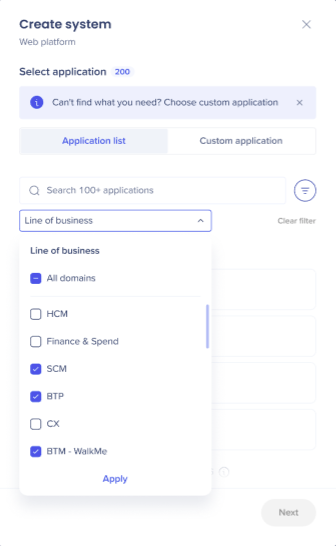
  3. You can search for applications by filtering by either Line of business or alphabetical option
  4. Select an application and then Next
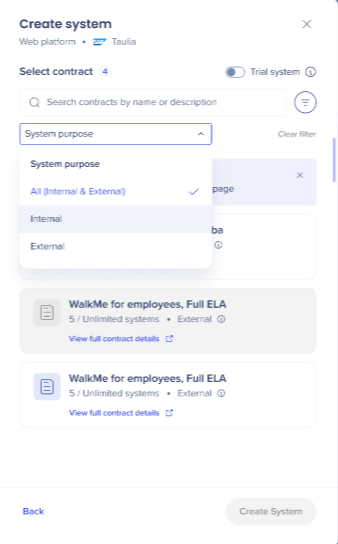
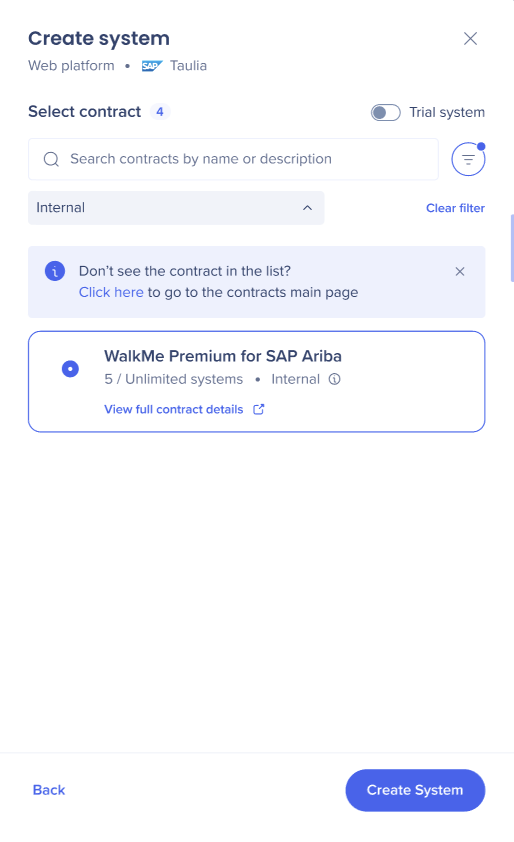
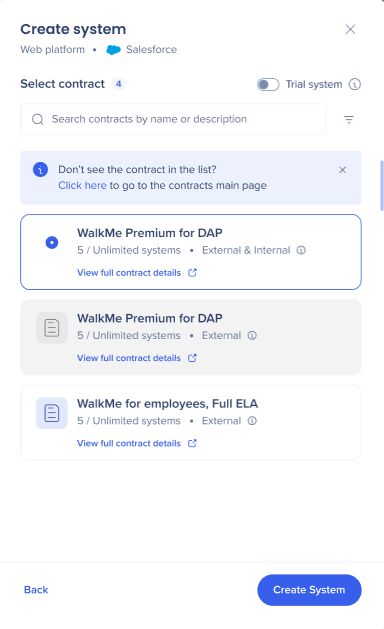
  5. The system, application and users contarct displays here. You can filter contracts by purpose either Internal (for a company's employees) or External (for a company's customers)
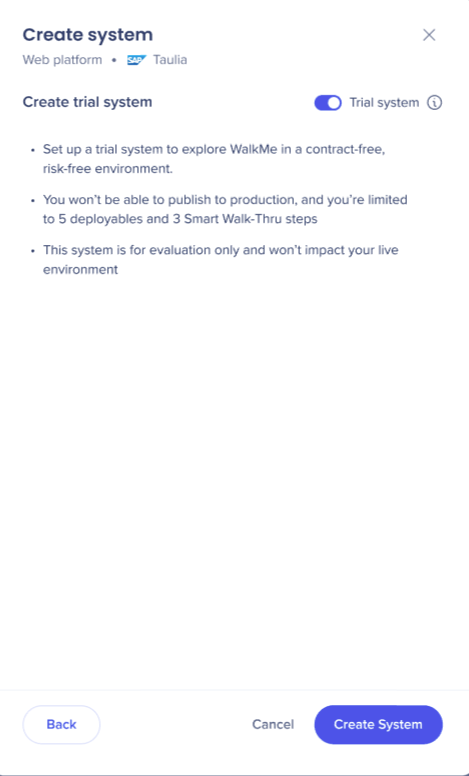
  6. You can select Create System or turn on the toggle to create a trial system
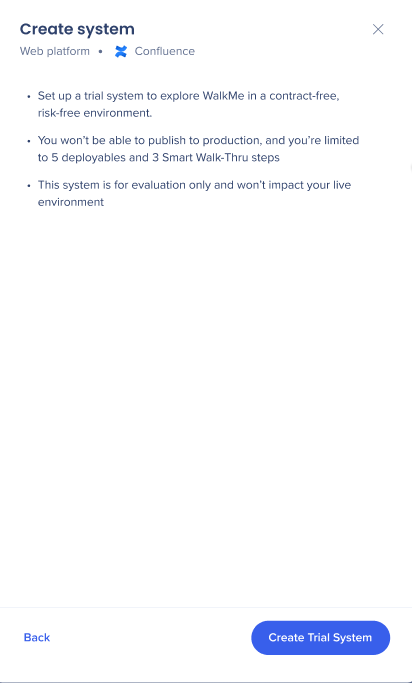
  7. The create system (trial) will display with limitations
  8. Select Create System
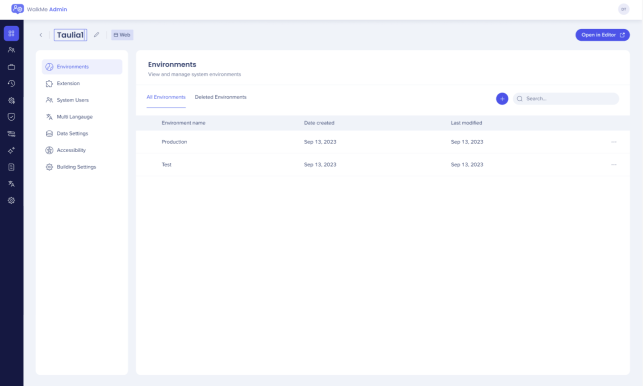
  9. The new system displays on the Enivroments page and can be renamed

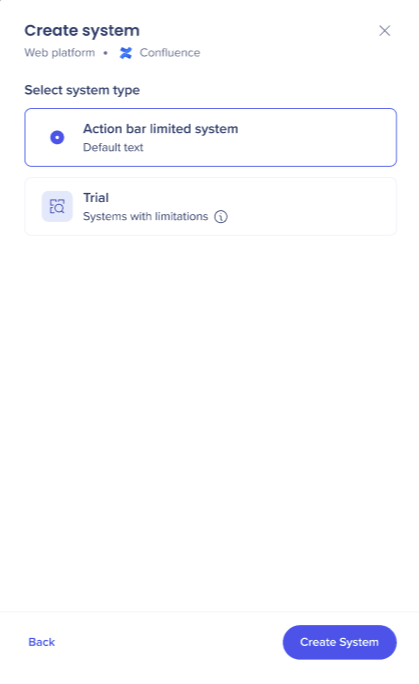
Action bar

  1. Choose the application you want to create the system on, then select Next
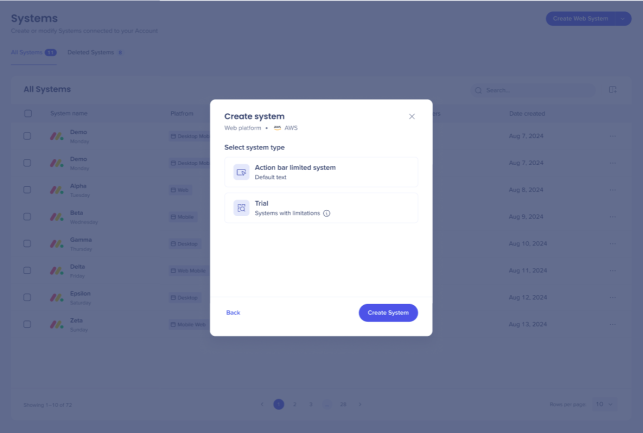
  2. Choose Action bar limited system and then Create System
  3. The new system displays on the Enivronments page and can be renamed

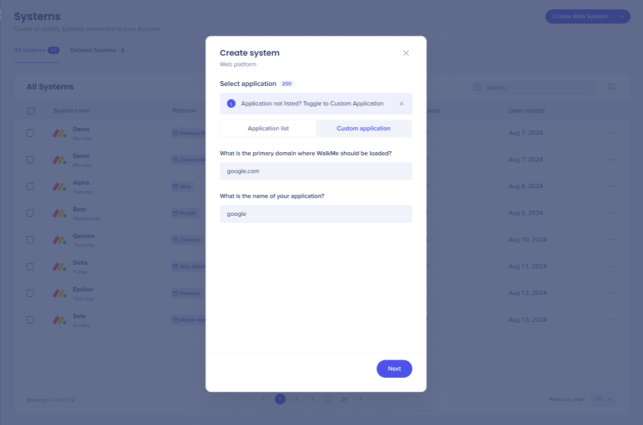
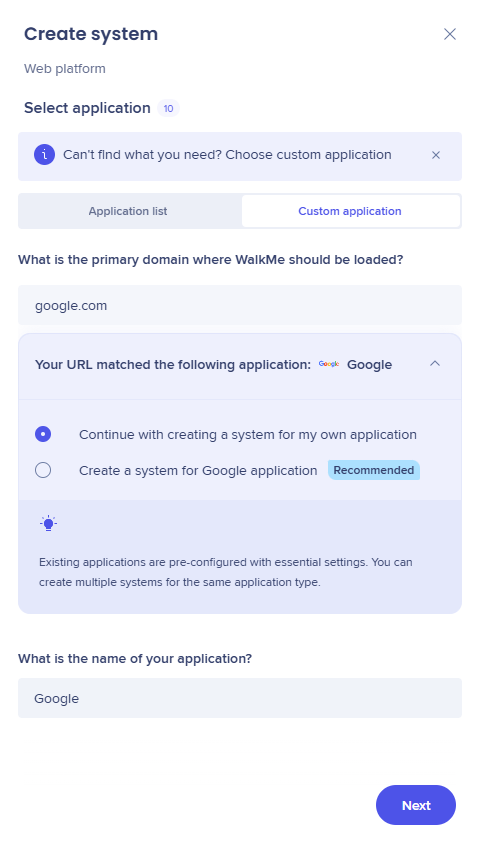
Custom application

  1. Select Custom application
  2. Enter the domain where you want to load WalkMe
  3. Name your custom application, if it is pre-existing domain a window displays offering you the option to use a standard application or to create a completely new custom one
  4. Select Next
  5. The new system displays on the Enivronments page and can be renamed

Trial system no action bar

If you have a contract for only one SAP system and want to create another system you can only create a trial system.

  1. Select from Applications with no associated contracts (limitations will display) and then select Next
  2. Select Create Trial System
  3. The new system can be seen on the Enivronments page and can be renamed

DAP contract

  1. Select a system from the list of applications and select Next
  2. Select the contract you want to create the system from and then Create System
  3. The new system can be seen on the Enivronments page and can be renamed

No contract and action bar

  1. Select an application to create the system on and the select Next
  2. Select Action bar limited system and then Create System
  3. The system displays on the Environments page and can be renamed

Create new desktop systems

  1. Navigate to the Systems page
  2. Select Create Desktop mobile system
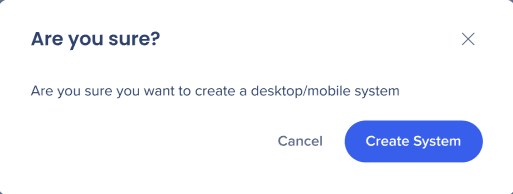
  3. Select Create System to complete process
  4. The system displays on the Environments page and can be renamed

Was this article helpful?

Thanks for your feedback!

Be part of something bigger.

Engage with peers, ask questions, share ideas

Ask the Community
×