Brief Overview
Integrating Joule in the WalkMe Console connects Joule to WalkMe, enabling Joule to work across both Joule chat and the action bar.
It extends Joule's reach across systems, allowing it to be omnipresent, always available in the user's flow of work for fast, conversational assistance wherever they are.
Once the integration is complete, Joule can be used:
- As a standalone chat assistant
- As a skills engine for the action bar, allowing builders to surface Joule-powered actions contextually in user workflows.
Configuration is completed in two steps in the WalkMe Console under the AI Chat page: Connect and Configure.
Access
- Go to the WalkMe Console:
- SAP US Database
- SAP EU Database
-
WalkMe US Database
-
WalkMe EU Database
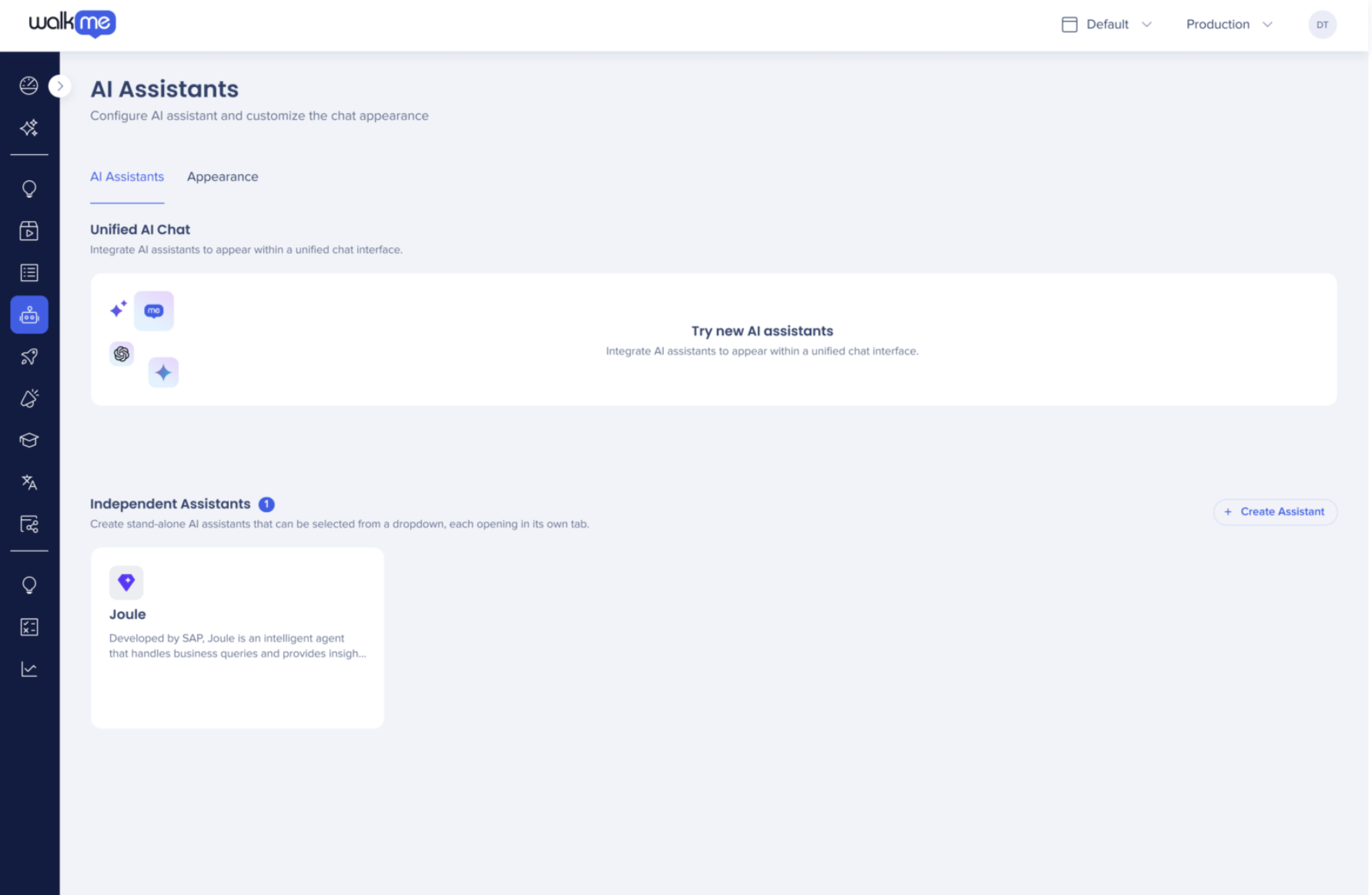
- From the left navigation, select AI Chat page
How It Works
In the Independent Assistants section, you can enable stand-alone AI assistants that can be launched from the action bar.
Independent Assistants allow organizations to configure and expose AI assistants as dedicated chat interfaces. They can also integrate Joule skills as AI Launchers from the action bar.
Step 1: Connect
- Under the Independent Assistants section, select Create Assistant
- In the wizard, select Joule from the AI Assistant Type dropdown
- Enter an AI Assistant Name, this is the chat name that will appear to your users
- Fill in the following integration fields:
- Joule tenant
- Joule tenant ID
- Client ID
- Client Secret
- IAS Domain
- IAS Username
- IAS Password
- Select Next
- Review the list of supported skills attached to your tenant
Note
Within Joule chat, all available skills can be accessed by users. For the action bar, availability refers to whether a Joule skill can be connected to an action bar launcher.
- Select at least one system and environment from the dropdown to connect the Joule assistant. Guidelines:
- Only one Joule agent can be assigned to a specific system + environment combination
- If another assistant is later configured with the same system + environment, its selection will appear disabled in the dropdown list
- You can select All Systems to assign this Joule chat to every available system; any newly added system that is not explicitly defined will automatically inherit this tenant
- Click Save and Publish
Once published, your Joule chat will appear as an Independent Assistant with the status Published.
To edit later, hover over the Joule card and click Edit.
After Integration
Once the Joule assistant is configured in the console, the connection applies to both Joule chat and the action bar.
Builders can then access and deploy Joule skills directly from the Solutions Gallery and the WalkMe Editor.
To add Joule skills to the Action Bar:
- Open the Solutions Gallery app in the WalkMe Console
- Joule skills will appear as available templates
- Download Joule skills as launchers
- Each downloaded Joule skill will be added to your Editor's item list as an out-of-the-box (OOTB) launcher
- Open the WalkMe Editor and locate the downloaded Joule skills in your item list
- OOTB content automatically appears here once downloaded
- Customize the launcher behavior and appearance as needed (optional)
- Builders can modify prompts, icons, names, and other launcher properties
- These launchers can use conditional logic to appear only when relevant, allowing customers to proactively surface Joule capabilities in context
- Publish the launchers to make them available in the action bar
After publication, users will see the customized Joule skills in their action bar, ready to provide proactive, context-aware AI assistance within their workflow.
Learn how to customize and publish launchers from the WalkMe Editor:
AI-Enabled Action Bar Building in WalkMe Editor
View a the catalog of OOTB Joule skills:
Joule Skills Catalog
Runtime Behavior
At runtime, when a user is working in an SAP application, the following applies:
- If that app is already integrated with a Joule instance and the action bar is activated
- Then the action bar will automatically connect with that Joule instance, even if the console integration was not completed
This ensures Joule remains seamlessly connected across all SAP-integrated environments.
Result
After the integration:
- Joule chat can be launched from the action bar
- Builders can design and publish Joule-powered launchers to the action bar
- Users experience a unified, omnipresent AI assistant that provides both conversational support and contextual, proactive actions


