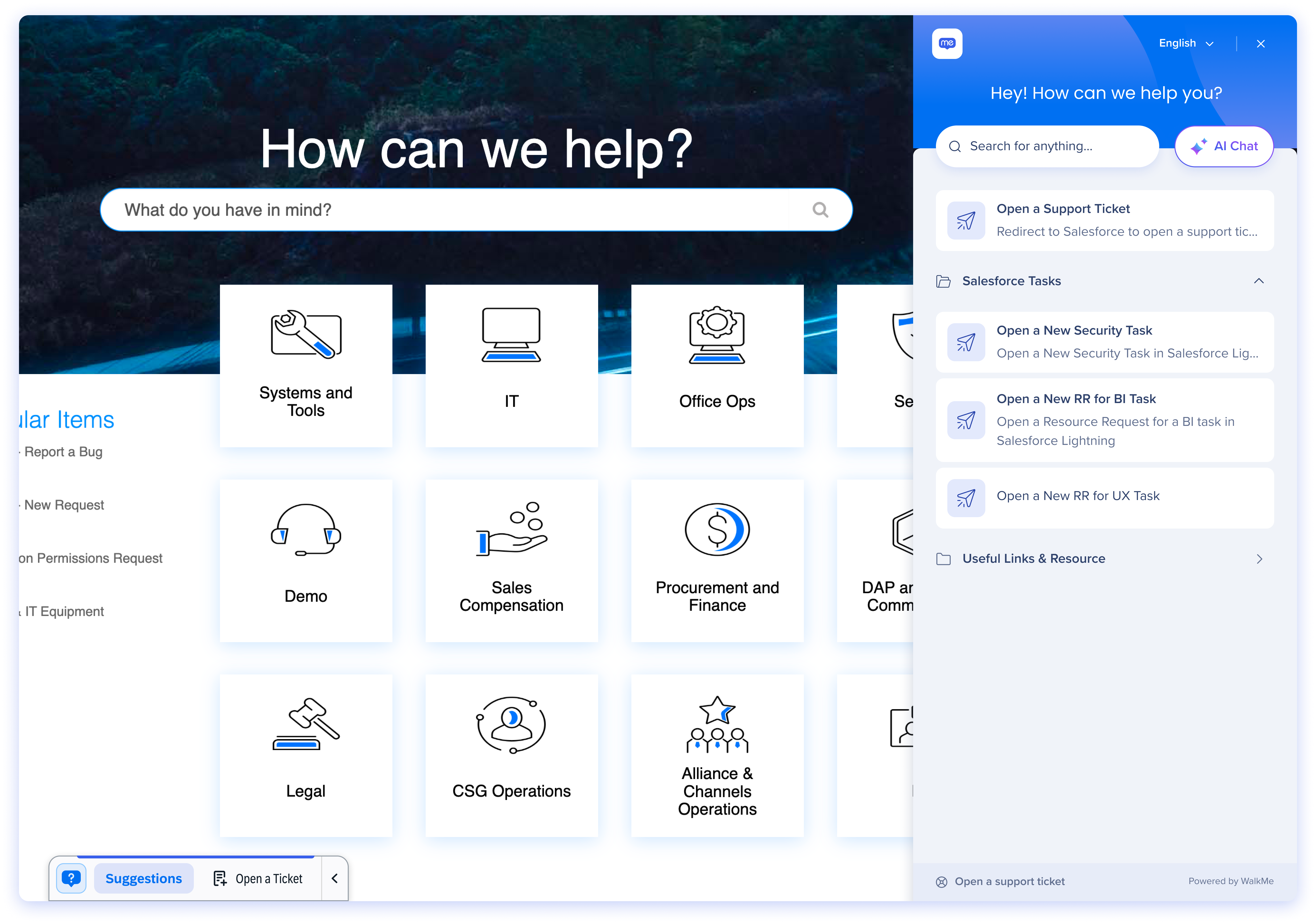
The Default Action Bar is a WalkMe widget that gives you clear, always-available access to WalkMe content—without requiring AI capabilities.
It behaves like a familiar WalkMe widget that opens the WalkMe Menu, but with an important difference: it expands into an Action Bar experience. This expanded layout enhances the visibility and accessibility of regular launchers compared to a menu-only widget, while also allowing for the potential integration of AI capabilities in the future.
Deploy
Enable the Default Action Bar from the WalkMe Editor.
-
Open to the WalkMe Editor
-
Select the Settings icon
-
Choose Customize content style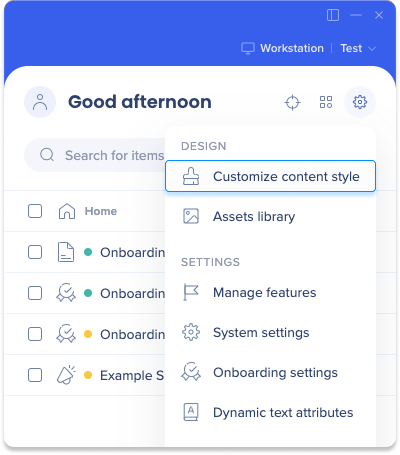
-
Choose Default Action Bar
-
Select Save
How It Works
The Default Action Bar is designed to feel familiar, lightweight, and easy to control. It gives your users quick access to relevant WalkMe launchers while staying out of the way when not needed.
What users see
-
A widget appears on the screen when standard Action Bar launchers or menu content are available
-
The widget starts expanded by default, and users can click the arrow to collapse it to just the Menu icon
-
Launchers appear as Suggestions in the bar that users can click to trigger WalkMe content
How users interact with it
Open the Menu
Click the WalkMe widget to open the Pro Menu.
Use launcher suggestions
Launchers appear as suggestions in the Action Bar. Selecting a launcher performs the launcher's configured action, which may then surface WalkMe items such as Smart Walk-Thrus and Shuttles.
Control visibility
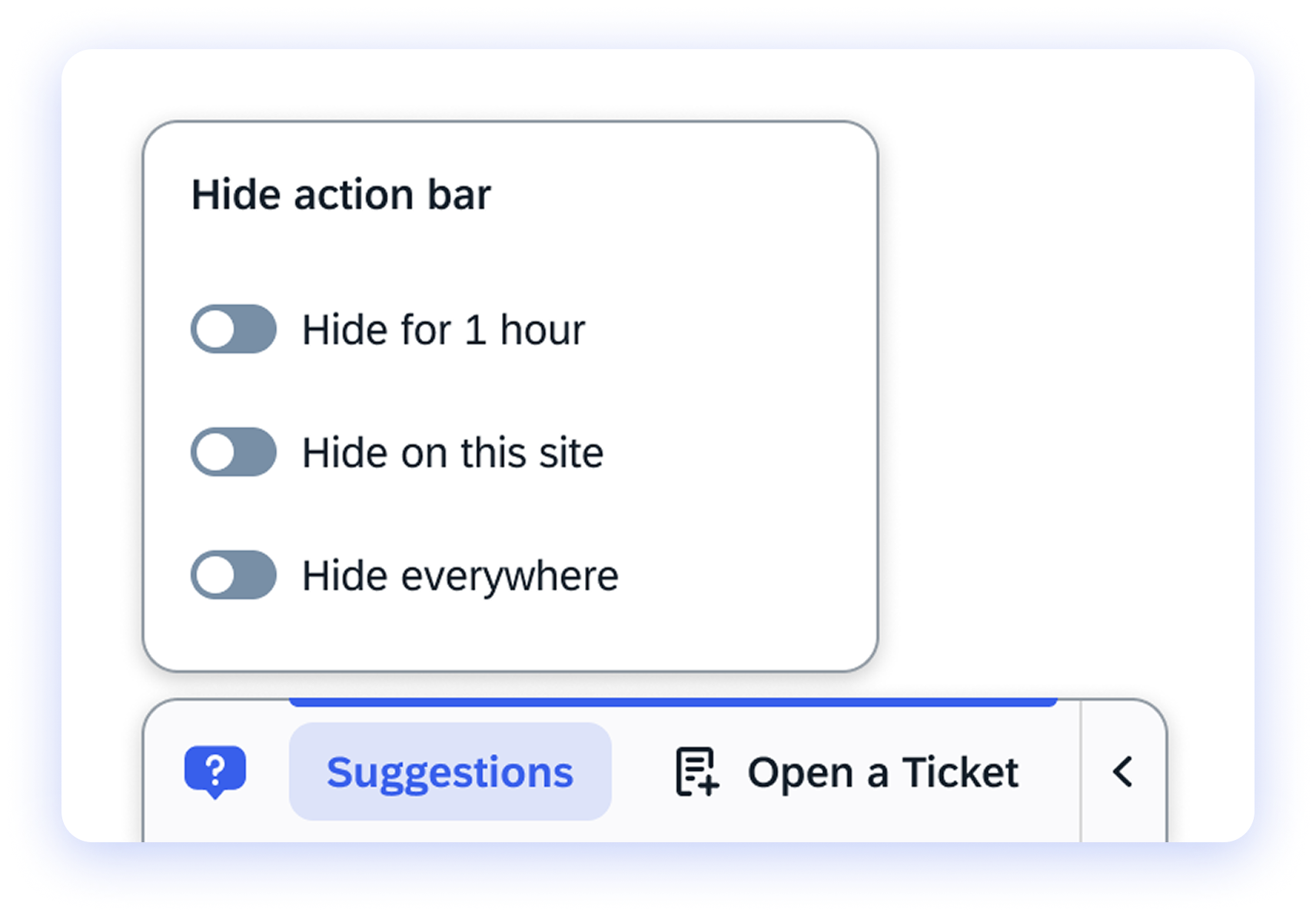
Users can right-click the widget to control when the Action Bar appears:
- Hide for 1 hour: Temporarily hides the Action Bar
- Hide on this site: Hides the Action Bar on the current site
- Hide everywhere: Hides the Action Bar across all sites
These options give users flexibility to reduce distractions while staying in control of their experience.
 Adding launchers to the Action Bar
Builders control which launchers appear as suggestions in the Action Bar by adding and managing standard Action Bar launchers in the WalkMe Editor.
Create a launcher
-
Open the WalkMe Editor
-
From the Create menu, select Launcher
-
Capture an element for your launcher
-
Select Save
-
You'll be redirected to the editor main menu
Note
To create a launcher, you need to capture an element initially. However, since the launcher will eventually be placed in the Action Bar, the specific element you choose doesn't matter. This step is just required to utilize our launcher creation technology.
Connecting a launcher to the Action Bar
-
Select the launcher you wish to add to the Action Bar
-
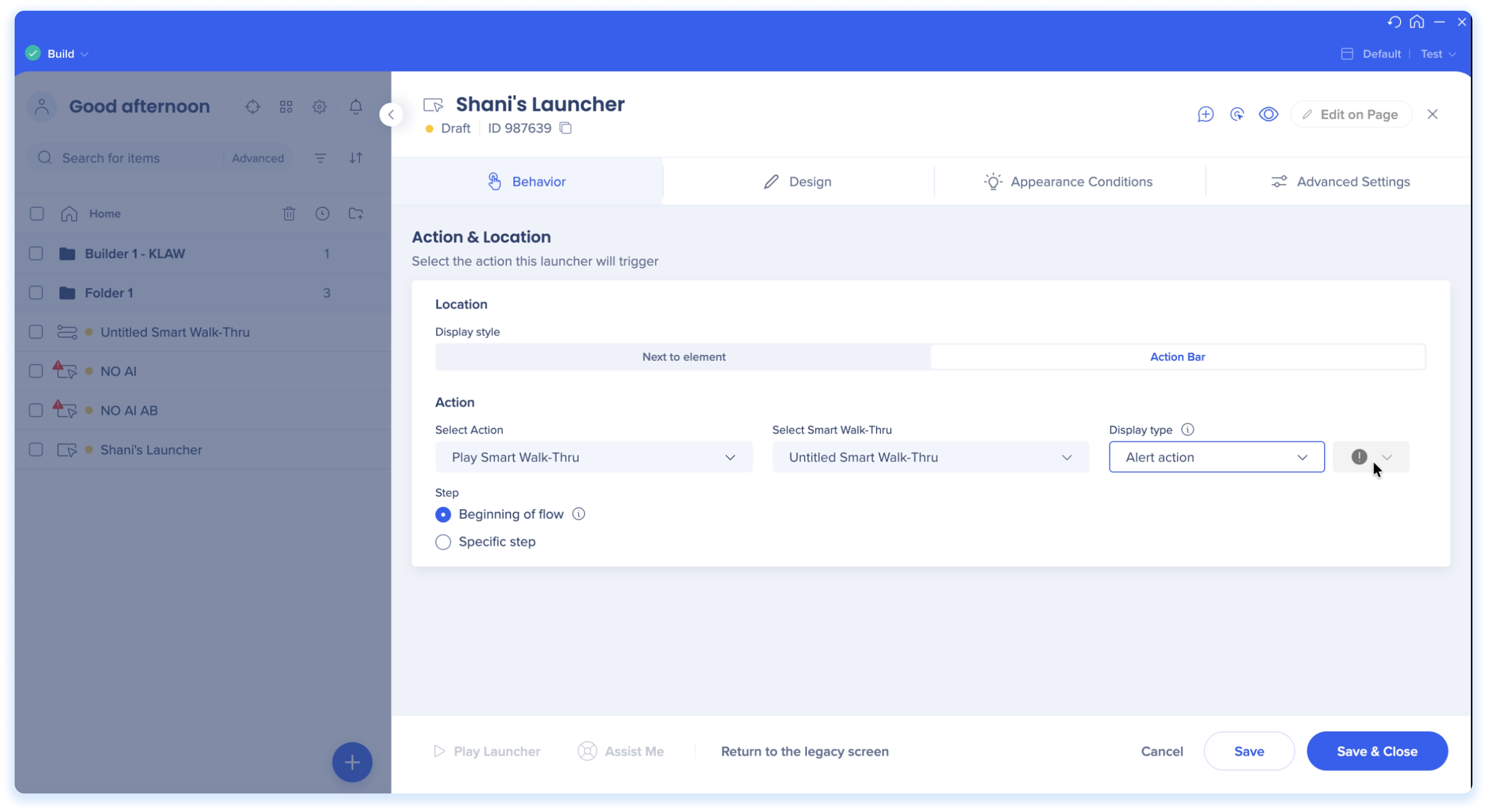
Select the Behavior tab
-
Configure the location settings:
-
Display style: choose Action Bar to display the launcher in the bar
-
Action: Choose the action you want the launcher to perform (for example, Play Smart Walk-Thru)
-
Select the specific WalkMe item
-
For Smart Walk-Thrus, choose whether to start the SWT at the beginning of the flow or a specific step within the flow
-
Choose a display type:
-
Standard action: For everyday actions that stay visible
-
Alert action: For important actions that appear only when triggered and display a red dot to grab attention
-
Choose an icon that matches your action
-
Note: Icons are not available for Alert display types
-
Click Save & Close
-
You'll be redirected to the editor main screen
-
Select the launcher and click Publish
Tip Tuesday
Creating Alerts in the Action Bar
Technical Notes
-
AI actions and AI chat are not available
-
The widget appears only when standard Action Bar launchers or menu content exist
- In Oracle environments, the Action Bar's position is fixed and cannot be moved
- To customize the Action Bar logo icon, please apply the following WalkMe custom CSS:
.walkme-logo-inner {
background-size: cover !important;
background-image: url("YOUR_IMAGE_URL_HERE")
}

.walkmex-svg-icon {
  display: none !important;
}
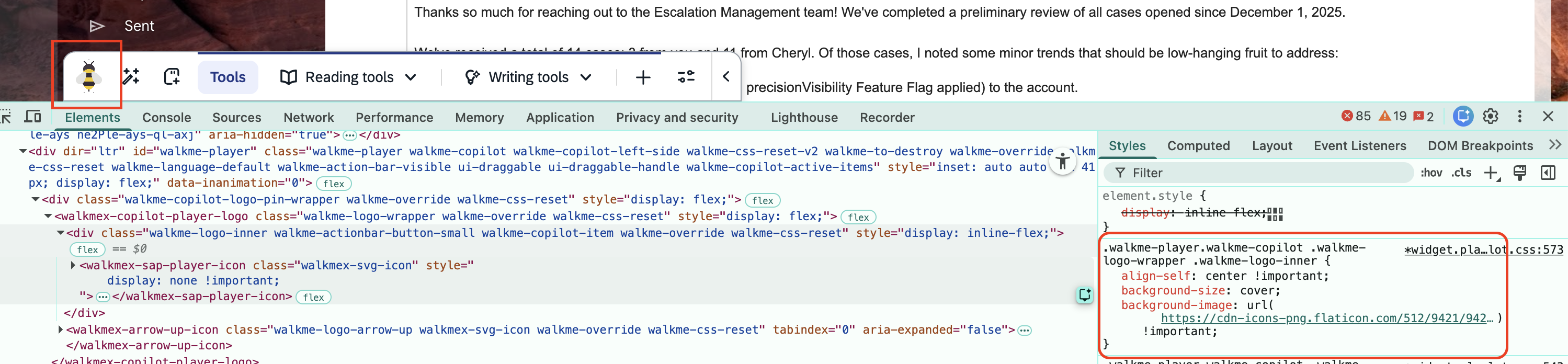
- Native support for this capability (without CSS) coming soon
Interested in AI Features?


