Brief Overview
The My Languages page is where you manage all languages available for your WalkMe content. From here, you can view your source language, add new languages, and track translation details across your account.
You can:
- Add a new language: Define the display name, short identifier, and visibility in the WalkMe Menu
- Enable machine translation: Automatically translate your content to supported languages
- Manage existing languages: Update details or remove languages you no longer need
Access
You can access the My Languages page the Multi-Language app in the WalkMe Console.
Multi-Language
How It Works
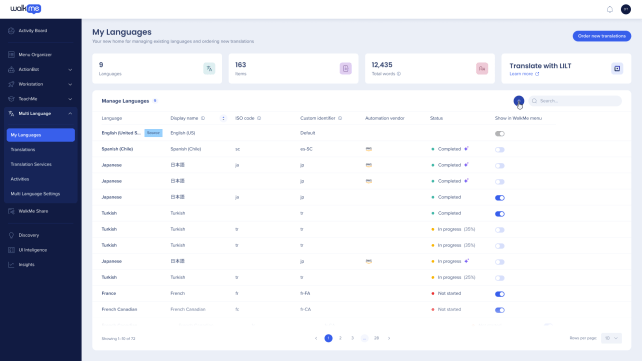
In the My Languages page you can manage existing languages and add new ones.
The language used to first build your content serves as the source language for all Smart Walk-Thrus, the WalkMe Menu, and global settings.
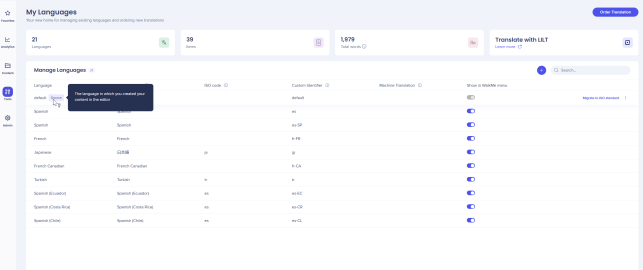
- The source language appears on the first line of the My Languages page
- The status panel displays your total word counts, active languages, and number of items
Add Languages
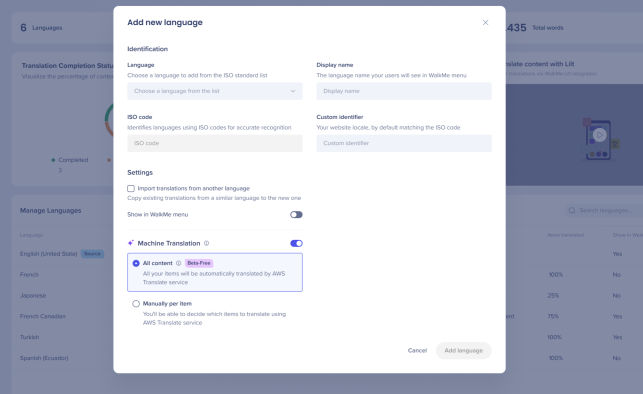
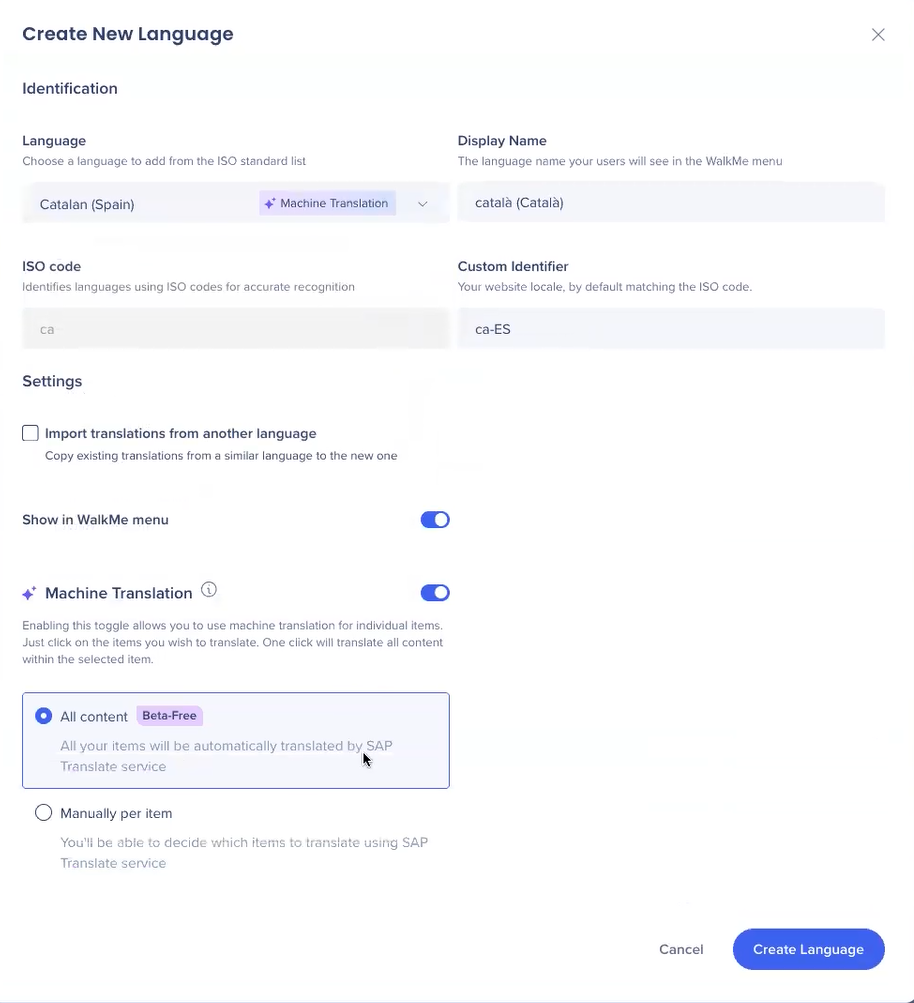
Select + and enter the new language details:
- Language: Choose the language to add from the ISO standard list
- Display Name: Enter the name users see in the WalkMe Menu
- Custom Identifier: Required for Auto-Toggle and Language Push (API) methods
- The short name can only contain alphanumeric characters and hyphens
- Import translations from another language: Check this to copy existing translations to the new language
- Show in WalkMe menu: Turn on to make the language visible to users in the menu
- Machine Translation: Turn on to automate translations for supported languages via AWS auto translate service
Select Create Language to finish.

Machine Translation
To use machine translation, you must set English as your source language.
Machine translation is offered for all languages supported by AWS. Learn more
Disclaimer
Automated translations are provided for convenience. WalkMe can't guarantee the accuracy of translated content.
All content
- AWS translates all content from English to supported languages automatically
Manually by item
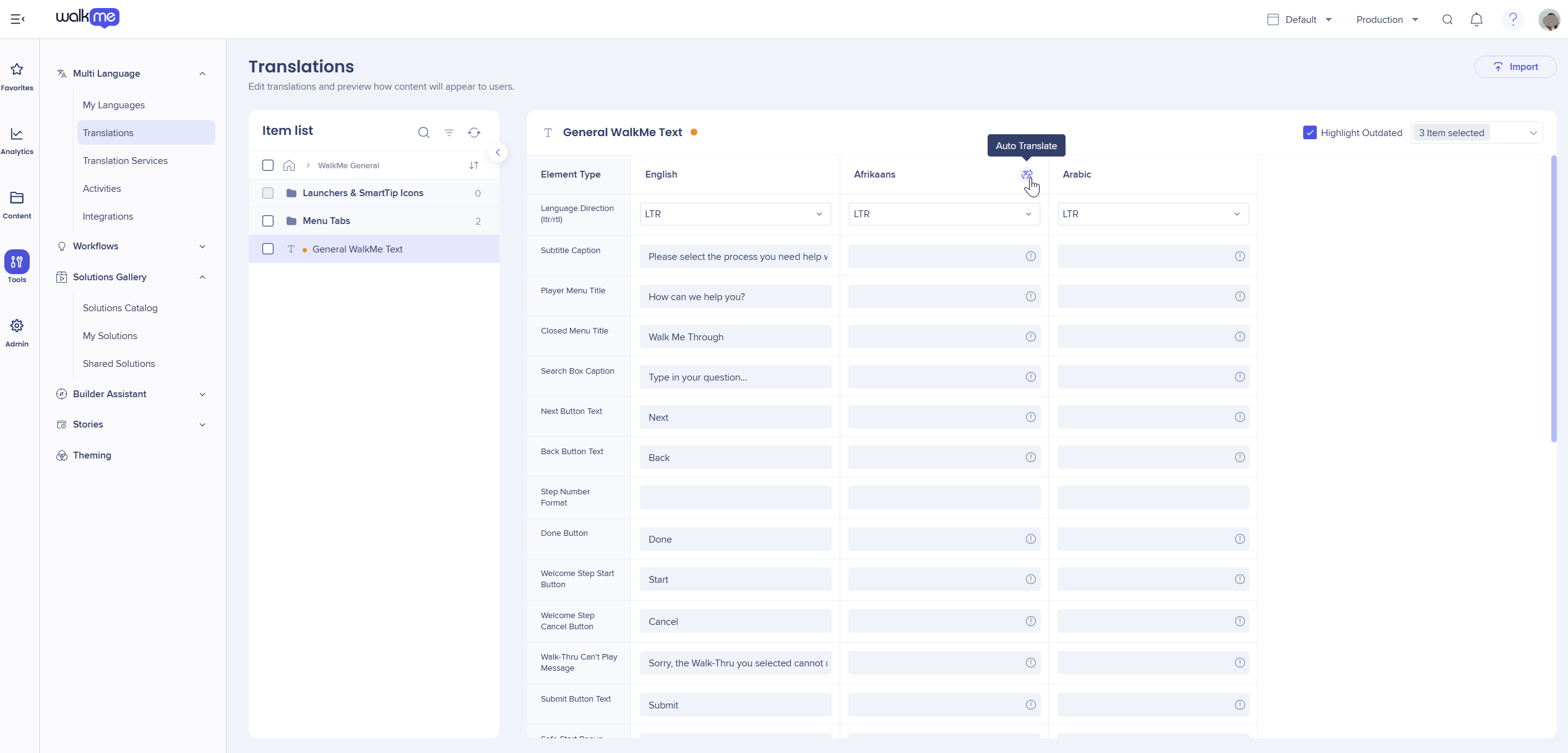
- Select Manually per item
- Go to the Translations page
- Choose the item
- Select Auto-Translate
Machine translation for SAP
For SAP data centers, enable machine translation to localize content via the LAX auto-translate service.
- Supported from English (ISO) as the default language
- Machine translation available for all languages supported by the LAX SAP Translate service
Manage Languages
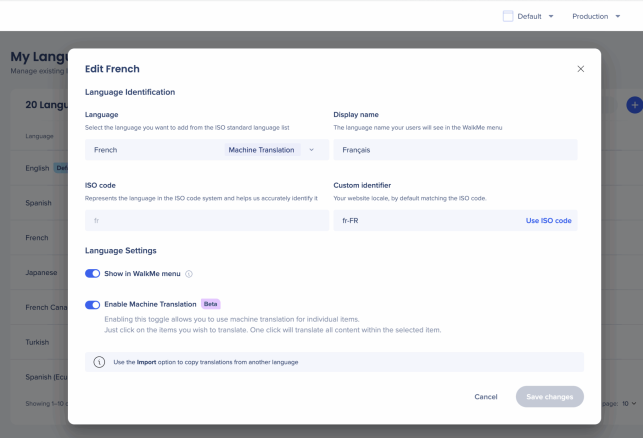
To edit or delete a language, select the language from the main My Languages page.
- Select the language to update details, then select Save changes
- Select Delete to remove a language
Warning
Deleting a language permanently removes all associated translations. This action can't be undone.
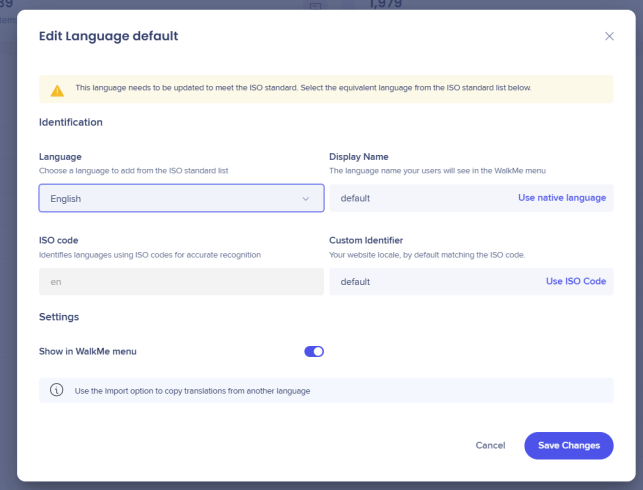
Change the source language
To use machine translation you may need to change your source language from default to English:
- Select the current default source language
- Choose an English option
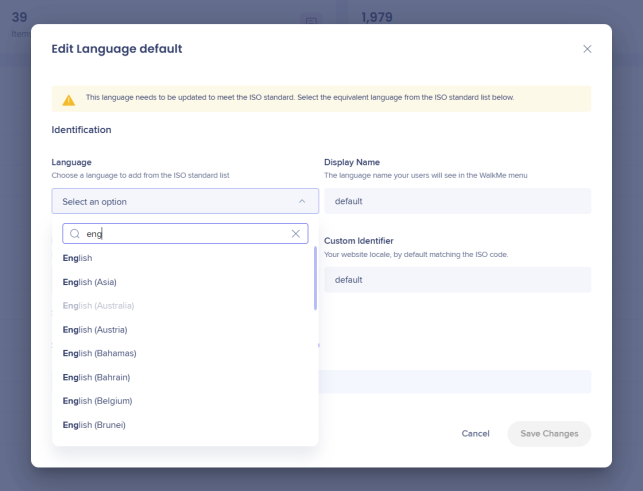
- Select Save Changes