Brief Overview
The My Languages page is where you manage all languages available for your WalkMe content. From here, you can view your source language, add new languages, and track translation details across your account.
You can:
- Add a new language: Define the display name, short identifier, and visibility in the WalkMe Menu
- Enable machine translation: Automatically translate your content to supported languages
- Edit or delete existing languages: Update details or remove languages you no longer need
Access
Access My Languages settings in the console.
- Open the WalkMe Console:
- Go to Tools category
- Select the Multi Language app
- Choose the My Languages page
How It Works
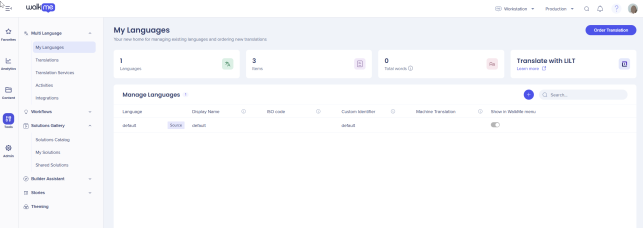
In the My Languages page you can manage existing languages and add new ones.
The language used to first build your content serves as the source language for all WalkMe items, the WalkMe Menu, and general settings.
- The source language appears on the first line of the My Languages page
- The status panel displays your total word counts, active languages, and number of items
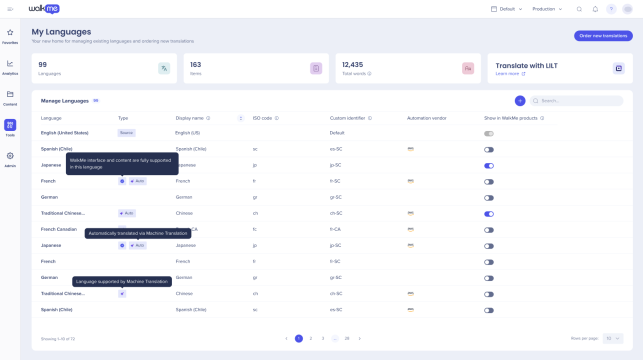
On WalkMe products we now support and, provide localization for 38 languages:
- Each language shows an indicator of whether its supported for Action Bar and Menu localization
- Languages in the 38-language list display a verified badge
- Languages added outside this list are available for translation but do not receive WalkMe-provided default translations
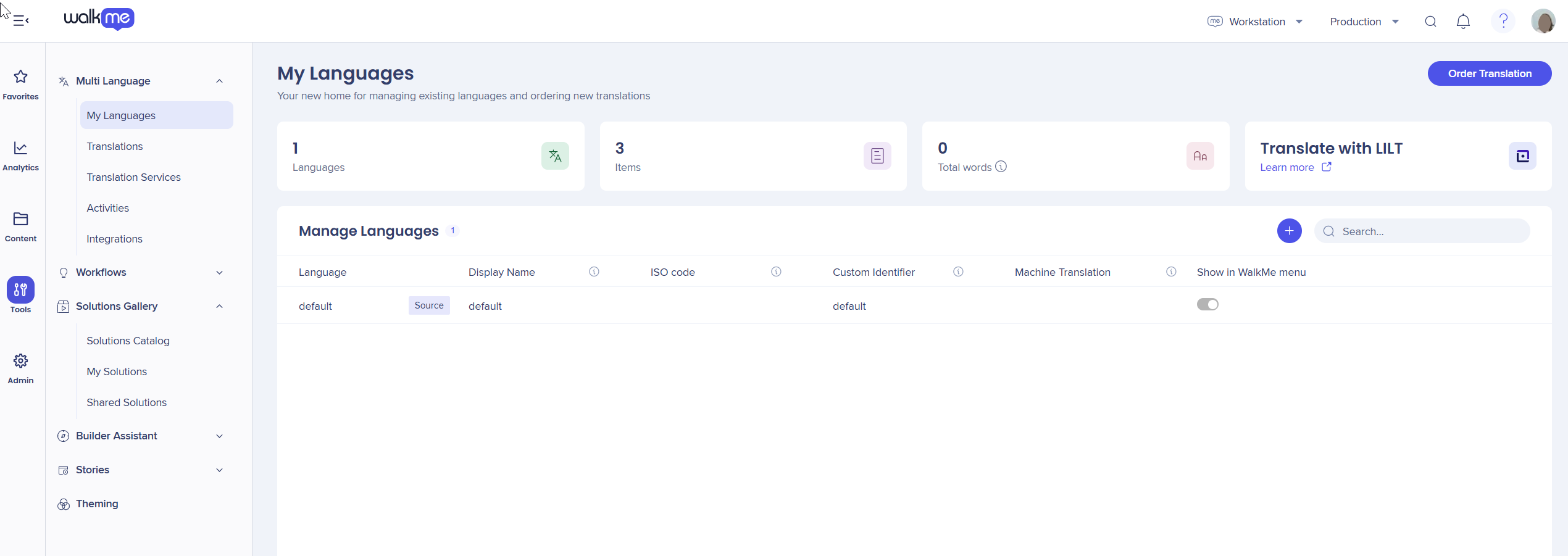
Add New Language
- Select +
- In the Create new language select the Language (choose the language to add from the ISO standard list) and the Display Name (enter the name users see in the WalkMe Menu
- Enter or select the Custom Identifier (short name) this is use in the Auto-Toggle and Language Push (API) methods
Note
The short name must contain alphanumeric characters (for example, letters or numbers), hyphens and needs to be used with '-' and not '_' .
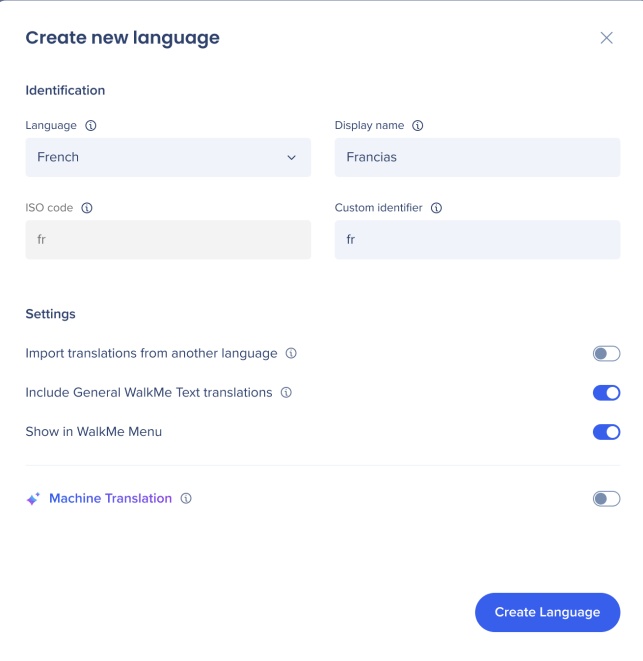
Language Settings
- Check the Import translations from another language to copy and imoprt translations to the new language
- To enable Visible to End Users turn on the toggle. When ON, the language appears in the language selector in both the Action Bar and the Menu for that system. When OFF, the language is available for content translation but not visible to end users.
- Select Create Language
For the Global system, the + Create new language button is disabled.
The 38-language list is fixed and read-only at the global level.
- Builders can add / remove languages outside of the list of 38 languages at the Global level, but without localization support on WM side
- At a global level they builders can also add translations for the multi-location launchers they have created
When you serach for a language, fuzzy search makes an appropriate suggestion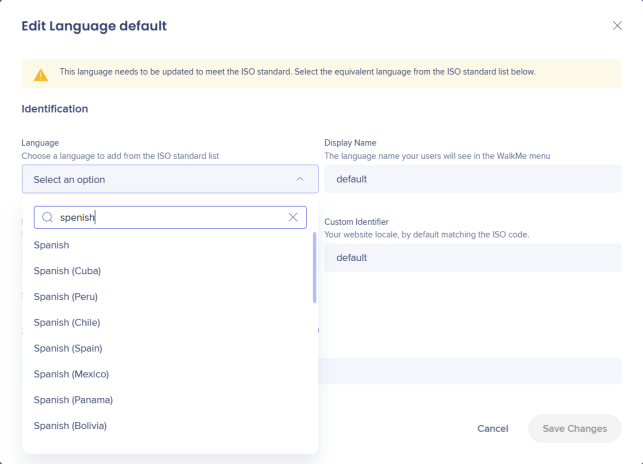
Machine Translation
Machine Translation
Manage Languages
To edit or delete a language, select the language from the main My Languages page.
- Edit information and select Save changes
Note:
Only the Machine Translation toggle can be changed ,display name, identifier and other fields are locked after creation.
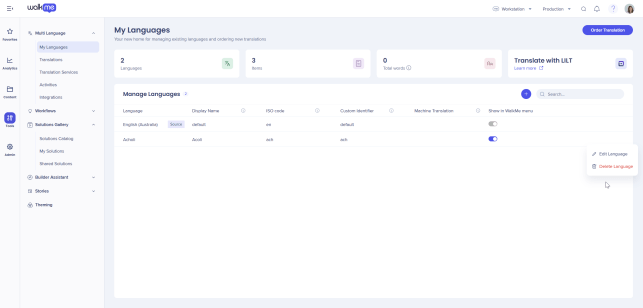 Select Delete to remove a language
Warning
Deleting a language permanently removes all associated translations. This action can't be undone.


