WalkMe EU
WalkMe US
SAP US & EU
Canada
FedRAMP
Mobile Native
Brief Overview
Use export and import to move WalkMe translation data between the console and external translation tools. Export your content for professional translation, review, or quality assurance (QA), then import the translated files to apply the changes to your WalkMe content.
You can export and import in 4 file formats: XLIFF, XLIFF Strict, Excel (XLSX), and RESJSON. Each format keeps your content structure intact so translations map back to the right WalkMe items.
Access
You can access these capabilities in the Translations page from the Multi-Language app in the WalkMe Console.
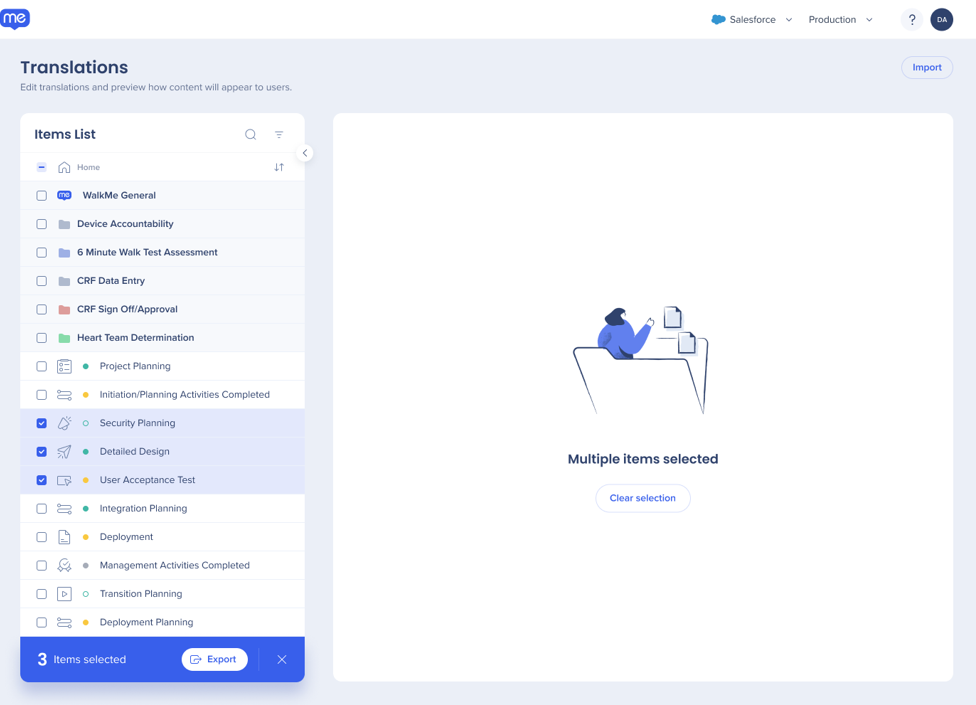
In the items list, select the items you want to export - You can select items from different folders
Select Export
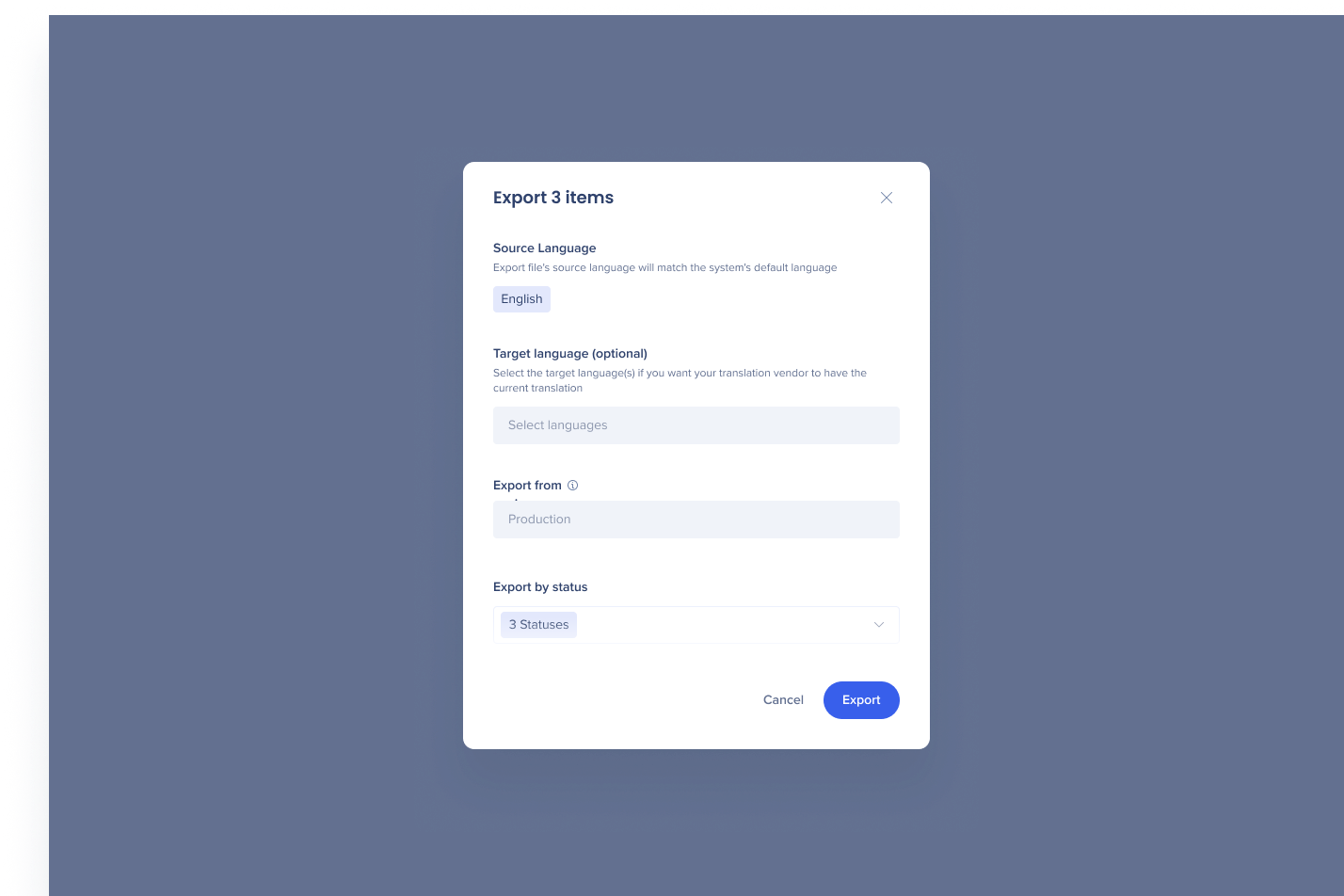
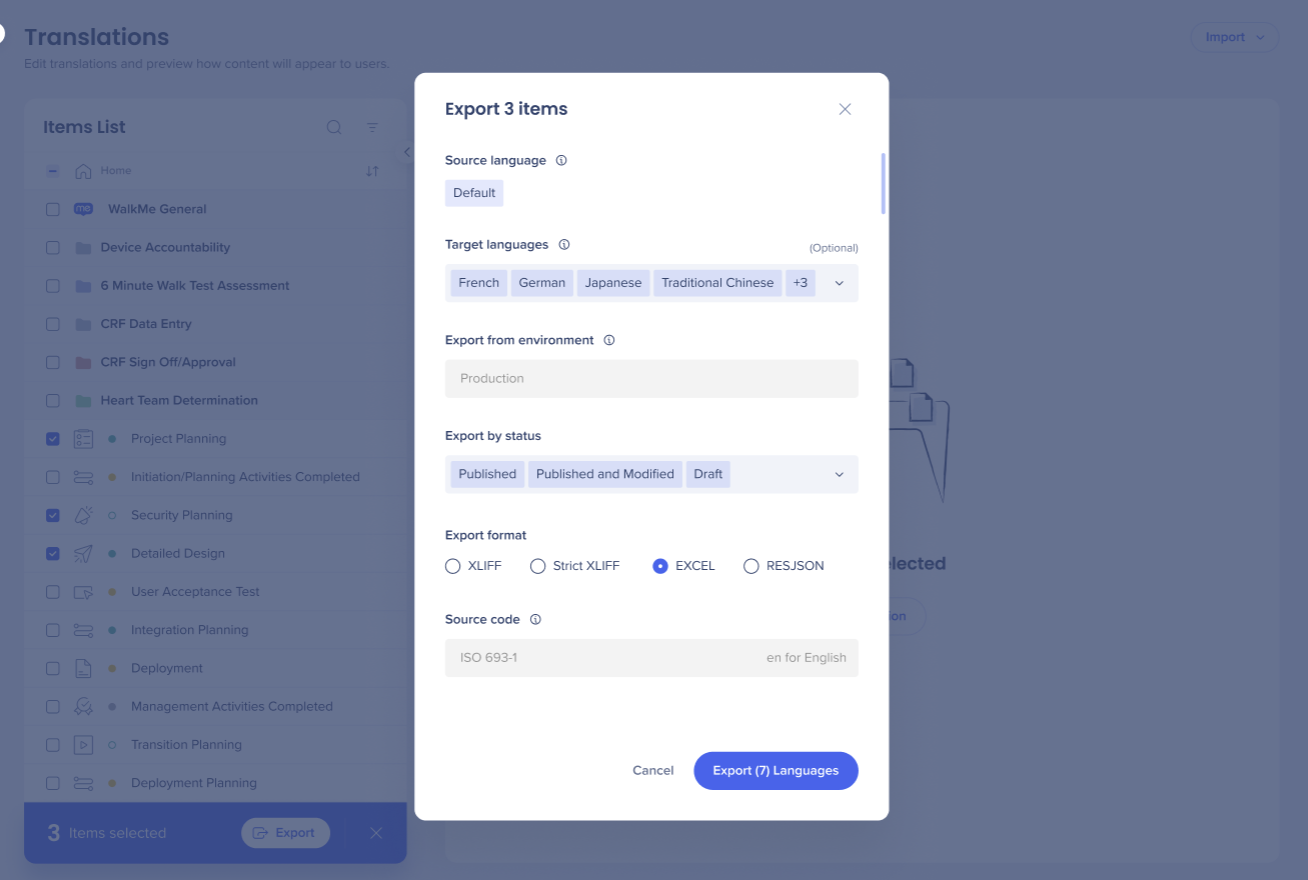
Choose the target language (optional), the environment, the status, and the file format
Select Export
You can export multiple items into multiple languages in the same export.
Best Practices
Check the target language, environment, and status before you export
Choose the format that fits your translation workflow:
XLIFF or XLIFF Strict: For professional translation tools and translation management systems
Excel: For internal review, manual translation, or QA
RESJSON: For development teams or API-based localization systems
Don't edit technical information in the file - changes to IDs or types can cause import errors
Save a backup of the file before you edit it
Choose a file format
XLIFF
XLIFF is an XML-based format for exchanging translation data between systems. Technical attributes in the file link each translation to its WalkMe item.
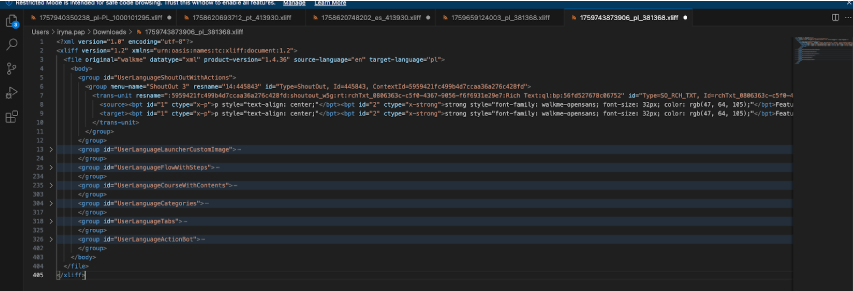
An XLIFF file is organized like this:
Groups: Translation units are organized into groups. Group IDs tell WalkMe which item type and which specific item the translation units belong to. For a Walk-Thru, the first group ID identifies the item type, and the next identifies the specific Walk-Thru
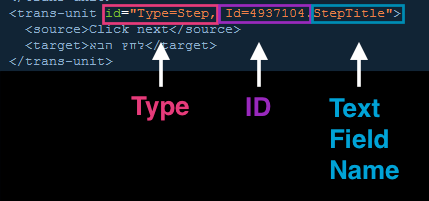
Translation units: Each translation unit (<trans-unit>) holds 1 piece of text to translate - It has a type, which shows what kind of object the text belongs to, like a step and it also has an ID and a text field name
Source and target: The <source> tag holds the original text in your default language - Type the translation in the <target> tag
WalkMe uses the types, IDs, and text field names to import the file correctly. You can also use them to see exactly what each piece of text is.
For example, in a Walk-Thru, each step's translation units have the type "Step." Each step has 2 text fields, StepTitle and StepText, so it appears as 2 translation units with the same ID and different text field names.
For items built in the Visual Designer, the group also includes a ContextId that WalkMe uses to match translations to the item. The Id attribute shows the item's ID as it appears in the editor.
Note
Don't change the source text, IDs, types, group IDs, or context references, and don't translate them. WalkMe uses them to match the file to your content during import.
XLIFF Strict
XLIFF Strict uses the same structure as XLIFF, with added validation rules:
A schema reference at the top of the file
A max-width attribute in each <trans-unit> tag that sets the maximum character length for that translation
Use XLIFF Strict when your translation vendor or workflow requires schema validation.
Excel (XLSX)
Excel shows your content as a table, which makes manual review and translation easier.
Column
Contents
Notes
A
Technical information, like the item ID and type
Hidden by default. Don't edit
B
Element type
C
Source content in your default language
D
Translation in the target language
Type translations here
Each group of rows is titled with its WalkMe item name.
Note
Don't change merged header rows. They group related translations, and WalkMe needs them to import the file.
RESJSON
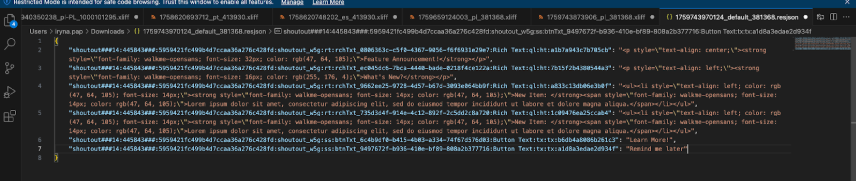
RESJSON is a JSON-based format that contains translations only, without the source text. Each key stores technical information about the item, like its type, ID, and context. Each value stores the translation.
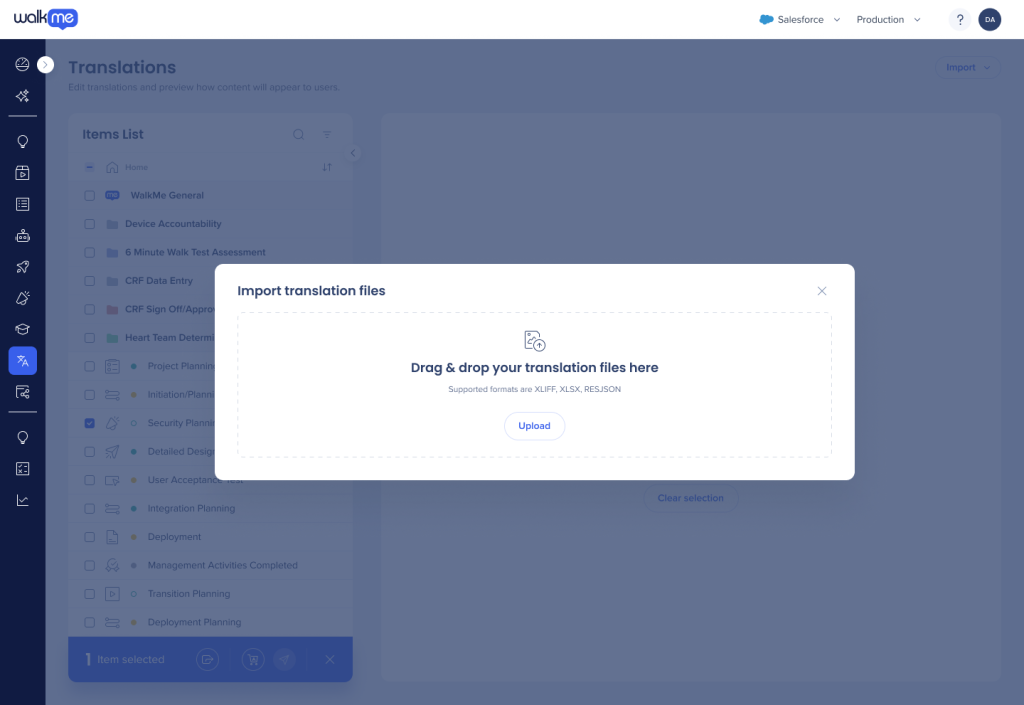
Drag your files into the window, or select Upload and choose the files
WalkMe detects each file's language from the custom identifier in the file name. For example, a file named 1729683854841_fr-CA_2905764.xliff imports as French (Canada). Make sure every file name includes the custom identifier for its language.
Technical Notes
Exports from the Multi-Language API include all WalkMe items for the selected language, filtered only by environment and status. Exports from the console are also filtered by your account configuration, so an API export can include items, like older Smart Walk-Thrus, that don't appear in a console export. To learn more, refer to the WalkMe Dev Hub: Multi-Language API
Rich text in Visual Designer content can only be edited through export and import