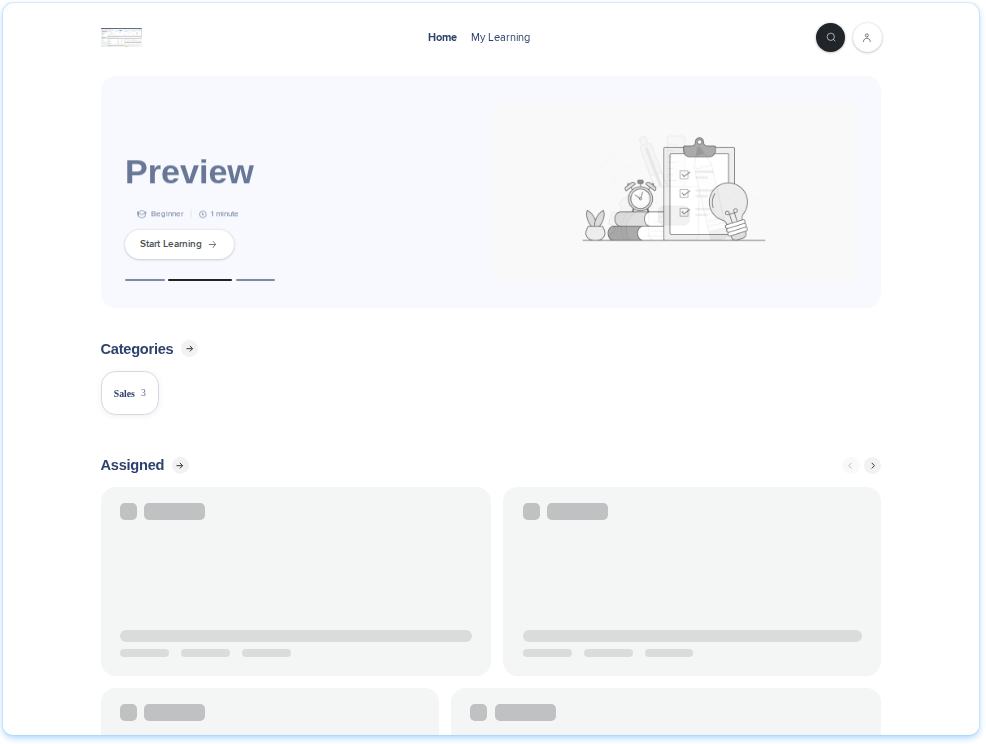
Portal Customization lets you design the homepage learners see when they open the WalkMe Learning Arc portal. You choose which blocks appear, put them in order, and set how each one looks. A preview shows the result as you work.
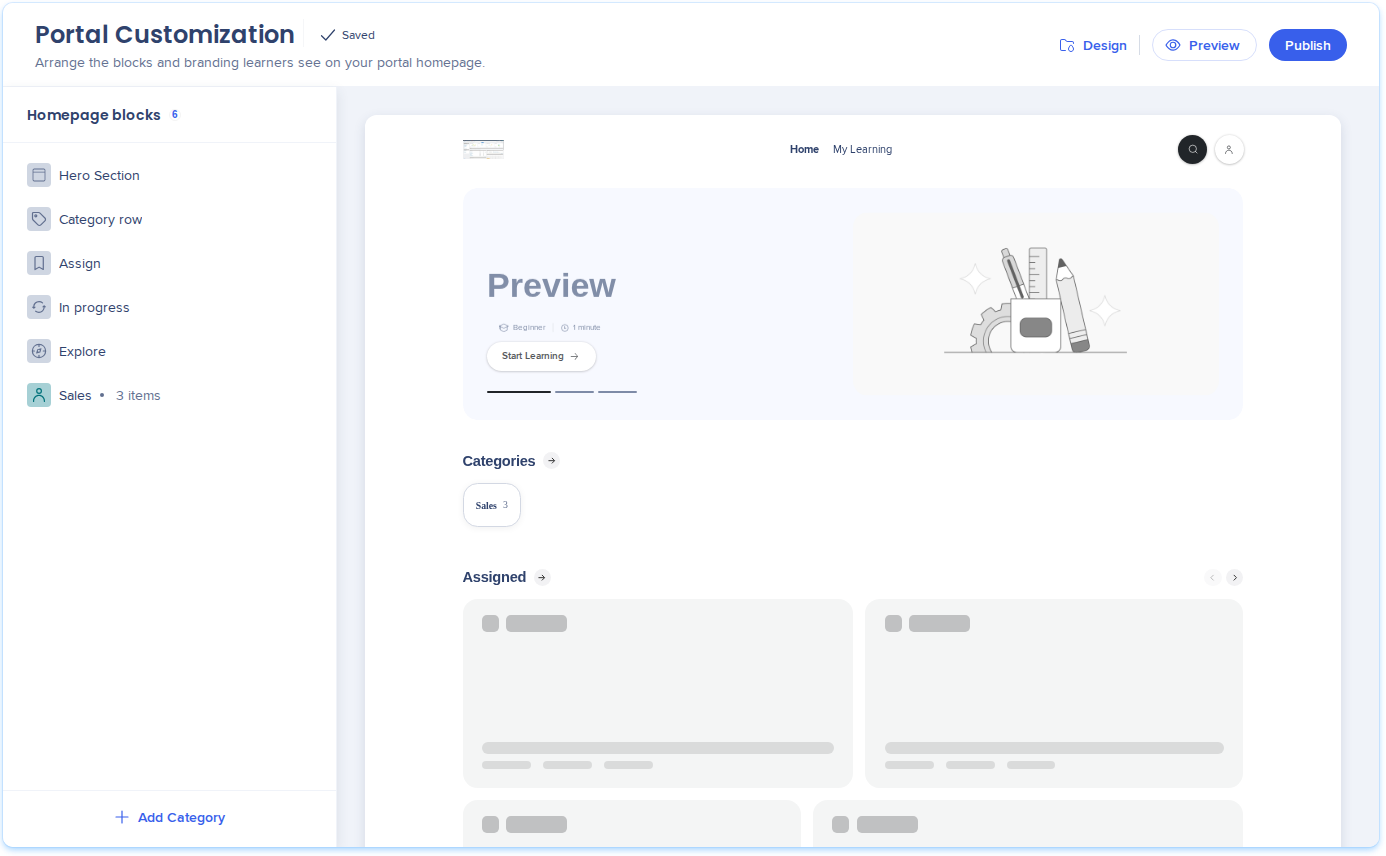
The Portal Customization page has 2 parts. Homepage blocks lists the blocks on the left, and the preview shows the homepage on the right. Select a block in the preview to open its settings. Select a block in Homepage blocks to scroll the preview to it. To set the logo, colors, and fonts, select Design.
Enabled feature
To request access to Portal Customization, reach out to your Customer Success Manager or WalkMe contact.
Use Cases
Show your portal categories on the homepage
Set the portal logo, colors, fonts, and browser tab
Welcome learners with a hero image, a title, and a short description
Put assigned training first, so learners see what they have to do
The homepage is built from blocks: Hero Section, Category row, In progress, Assign, Upcoming sessions, Explore, and up to 5 Category blocks. You can show, hide, reorder, and style each one, and set the portal design. Your changes save to a draft as you work, and learners see them after you publish.
Customize Homepage Blocks
Show, hide, and reorder blocks
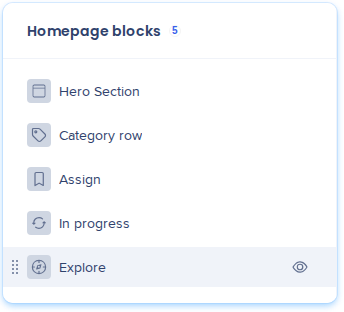
Hover over a block in Homepage blocks, and then:
To hide it, select the eye icon. The block disappears from the preview.
To show it again, select the eye icon again
To move it, drag the handle on the left of the block. You can also use the keyboard.
Add categories to the homepage
Select Add Category at the bottom of Homepage blocks
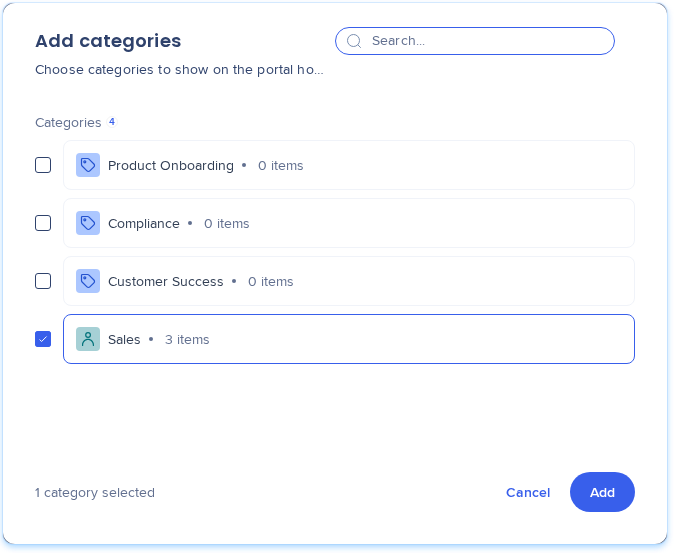
Select 1 or more categories, and then select Add
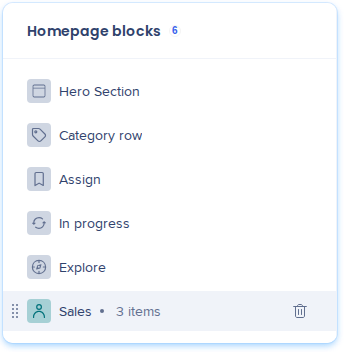
The list shows the categories from Portal Categories that aren't on the homepage yet. Each category becomes its own block, with its name and item count. Drag the block to the place you want. To remove it, hover over it and select the trash icon.
The Category row block shows the categories band under the hero. It has no settings, but you can hide it or move it.
In the preview, select the hero. Block settings opens on the right.
Setting
Options
Layout
Full width or Split
Mode
Carousel or Image
Size
Small or Large
Title
Image mode only. Up to 250 characters.
Description
Image mode only. Up to 500 characters.
Image
Image mode only. Select Insert from assets to choose an image, or upload 1 from your device. Uploaded images are saved to the Media folder in Assets. JPEG, PNG, or SVG, up to 10MB.
Style the content blocks
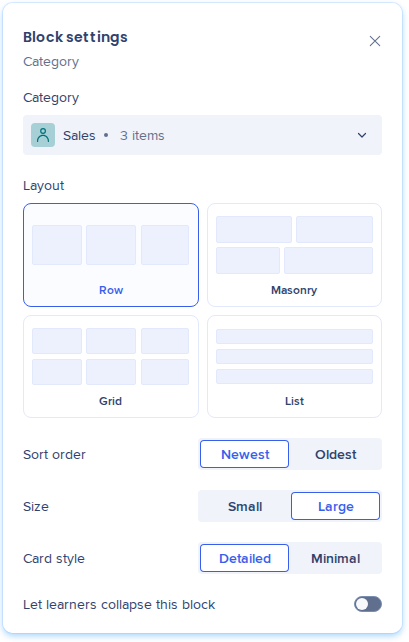
In the preview, select In progress, Assign, Upcoming sessions, Explore, or a Category block.
Setting
Options
Layout
Row, Masonry, Grid, or List. Explore offers Masonry and Grid only.
Card style
Detailed or Minimal
Size
Small or Large
Let learners collapse this block
In progress, Assign, and Upcoming sessions only
Auto-scroll cards and Speed
Explore in Masonry layout only. Speed goes from 0.5 to 2, in 5 steps.
Set the Design
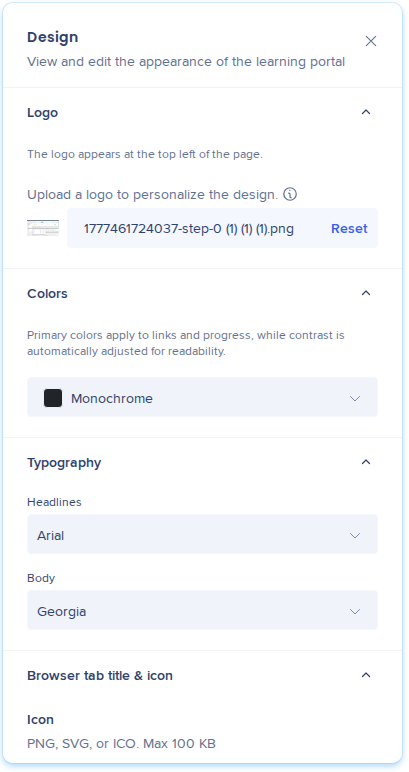
Select Design
Set any of the following:
Logo: Shows at the top left of the portal
Colors: The primary color for links and progress. The contrast adjusts automatically, so text stays readable.
Typography: Fonts for Headlines and Body
Browser tab title & icon: The icon is a PNG, SVG, or ICO file, up to 100KB
Design changes save to the same draft and go live when you publish the homepage.
Publish or Reset the Homepage
Publish the homepage
Your changes save to the draft as you work.
Select Publish
Learners see the updated homepage the next time they open the portal.
Start over
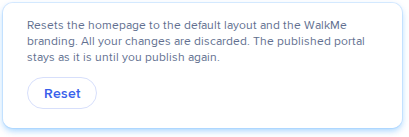
Select Reset
The draft goes back to the default layout, and the branding goes back to the WalkMe default. The published portal stays as it is until you publish again.
What Learners See
The portal homepage shows the blocks in the order you set:
Block
What learners see
Hero Section
A large banner at the top of the homepage, with an image, a title, and a description
Category row
A band of category cards under the hero
In progress
Items the learner started and hasn't finished
Assign
Items assigned to the learner
Upcoming sessions
Live sessions the learner is registered for
Explore
Content the learner can browse
Category blocks
The items in that category, newest or oldest first
Each block uses the layout, card style, and size you chose. Hidden blocks don't show.
Technical Notes
Each system has 1 homepage layout
You can add up to 5 Category blocks. You can show, hide, reorder, and style the other blocks, but you can't remove them.
There's no undo. Reset discards the whole draft and puts the branding back to the WalkMe default.
The preview shows placeholder cards, not your real content
Hero images come from the Assets library, as JPEG, PNG, or SVG files up to 10MB
You can't delete an image from Assets while a hero uses it
You create categories in Portal Categories. On the homepage, they show in the Category row block and in Category blocks.
Changes reach learners only after you publish
When Portal Customization is on, Settings has no Branding tab. You set the branding in Design.
Upcoming sessions shows only when instructor-led courses are turned on for the system