Breve descripción general
SuccessFactors ofrece un portal completamente personalizable y basado en roles. Debido a su alcance y complejidad, los Smart Walk-Thrus requieren estructuras específicas para funcionar de manera fiable. Sigue estas prácticas recomendadas al crear contenido de WalkMe para SuccessFactors.
Estructura de Walk-Thru
Todos los Smart Walk-Thrus en SuccessFactors deben comenzar confirmando que el usuario esté en el módulo correcto.
Para confirmar que el usuario está en el módulo correcto, añade los siguientes pasos al principio de todos los Smart Walk-Thrus de SuccessFactors:
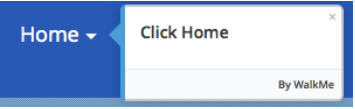
- Añade un paso y selecciona el Menú de navegación principal como elemento. En el título, escribe "Abre el menú de navegación". Asegúrate de que el activador Clic esté seleccionado. Abre la pestaña Precisión en el menú de Opciones de paso y selecciona Ignore ID.
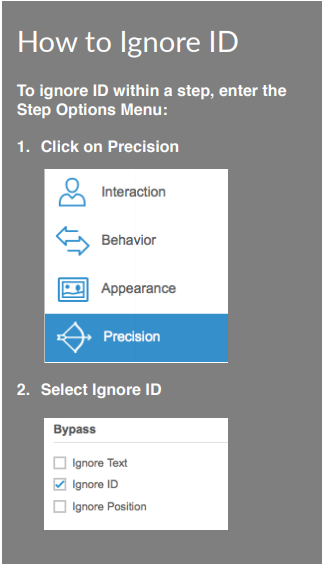
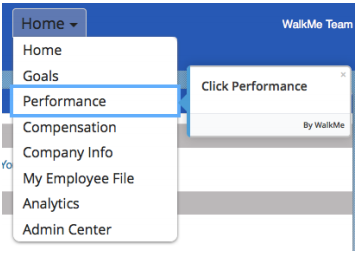
- Añade un segundo paso y selecciona el menú desplegable Módulo como elemento. En el título, escribe "Selecciona tu módulo". Asegúrate de que el activador Clic esté seleccionado. Abre la pestaña Precisión en el menú de Opciones de paso y selecciona Ignore ID.
Para evitar repetir pasos cuando el usuario ya está en el módulo correcto, utiliza un punto de inicio:
- Crea un nuevo paso
- Abre el menú Opciones para el paso y selecciona Añadir punto de inicio
- Añade una regla para que el punto de inicio se produzca solo cuando el módulo correcto esté en la navegación principal
- Por ejemplo: Elemento en pantalla — El texto es — "..."

Centro de administración
Búsqueda de elementos
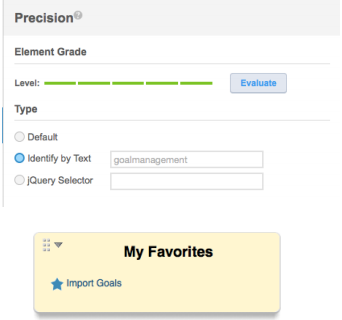
Al crear Smart Walk-Thrus en el Centro de administración, la mayoría de los elementos del menú Procesos y ciclos de la empresa deben identificarse por su texto para que funcionen correctamente.
Para identificar un elemento por texto:
- Selecciona el paso para abrir Opciones de paso
- Ve a Precisión
- Selecciona Identificar por texto
Usando accesos directos
Algunos elementos del Centro de administración se pueden marcar como favoritos y colocar en una barra lateral para acceder con un solo clic.
Incluso si un elemento es favorito, se puede pedir al usuario que visite el menú y complete un paso adicional. Para evitar la redundancia, utiliza una regla de juego paso a paso en el paso que abre el
Incluso cuando un elemento se marque como favorito, es posible que el usuario deba visitar el menú y completar un paso adicional. Para evitar la redundancia, añade una Regla de reproducción de paso al paso que abre el menú desplegable:
- Selecciona el paso para abrir Opciones de paso
- Ve a Comportamiento
- Selecciona Crear una regla de reproducción de pasos
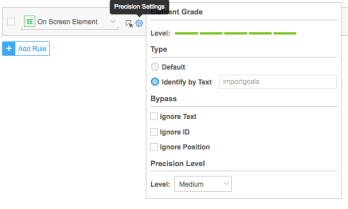
- Añade una regla de "Usar si el elemento en pantalla es visible" para que el paso se reproduzca solo cuando el elemento favorito no sea visible
- Selecciona Configuración para abrir la configuración de Precisión para la regla y selecciona Identificar por texto
Segmentación
Por módulo
SuccessFactors admite una amplia gama de acciones, lo que puede resultar en un gran número de Smart Walk-Thrus. Para mantener el menú de WalkMe Player administrable, utiliza el Centro de segmentación para asegurarte de que los usuarios solo vean los Smart Walk-Thrus relevantes para su módulo actual.
Para que los elementos del menú aparezcan solo cuando un usuario está en un módulo específico, define el segmento:
- Abre el Centro de segmentación
- Selecciona Añadir un nuevo segmento
- Escribe un nombre y elige un color
- Selecciona Definir segmento en tu paso
- Añade una regla para que los elementos solo aparezcan cuando el módulo correcto esté en la navegación principal
- Por ejemplo: Elemento en pantalla — El texto es — "..."

Por variable
Funcionalidad habilitada
Para utilizar las variables de SuccessFactors en el creador de condiciones, solicita acceso a tu Gerente de éxito del cliente o a tu contacto de WalkMe.
Cuando esta función está activada, puedes utilizar las variables de SuccessFactors, incluido el Nombre del rol, el ID del rol y el Idioma del usuario, en el creador de condiciones. Esto te permite hacer que los elementos específicos del menú aparezcan solo para ciertos grupos de usuarios en función de su rol.
Para crear un segmento con estas variables:
- Abre el Centro de segmentación
- Selecciona Añadir un nuevo segmento
- Escribe un nombre y elige un color
- Selecciona el nombre del segmento y luego selecciona Definir este segmento
- Crea una regla utilizando una de las siguientes variables:
- wmSuccessFactors.roleNames.enterRoleNameHere
- wmSuccessFactors.roleIDs.enterRoleIdHere
- wmSuccessFactors.defaultLocale.enterLanguageHere
Por ejemplo:
Datos de usuario — Variable — wmSuccessFactors.roleNames.Config Admin — es — true
Datos de usuario — Variable — wmSuccessFactors.roleIDs.713 — es — true


