Element Recognition & Lexicon

Last Updated December 29, 2025

Overview

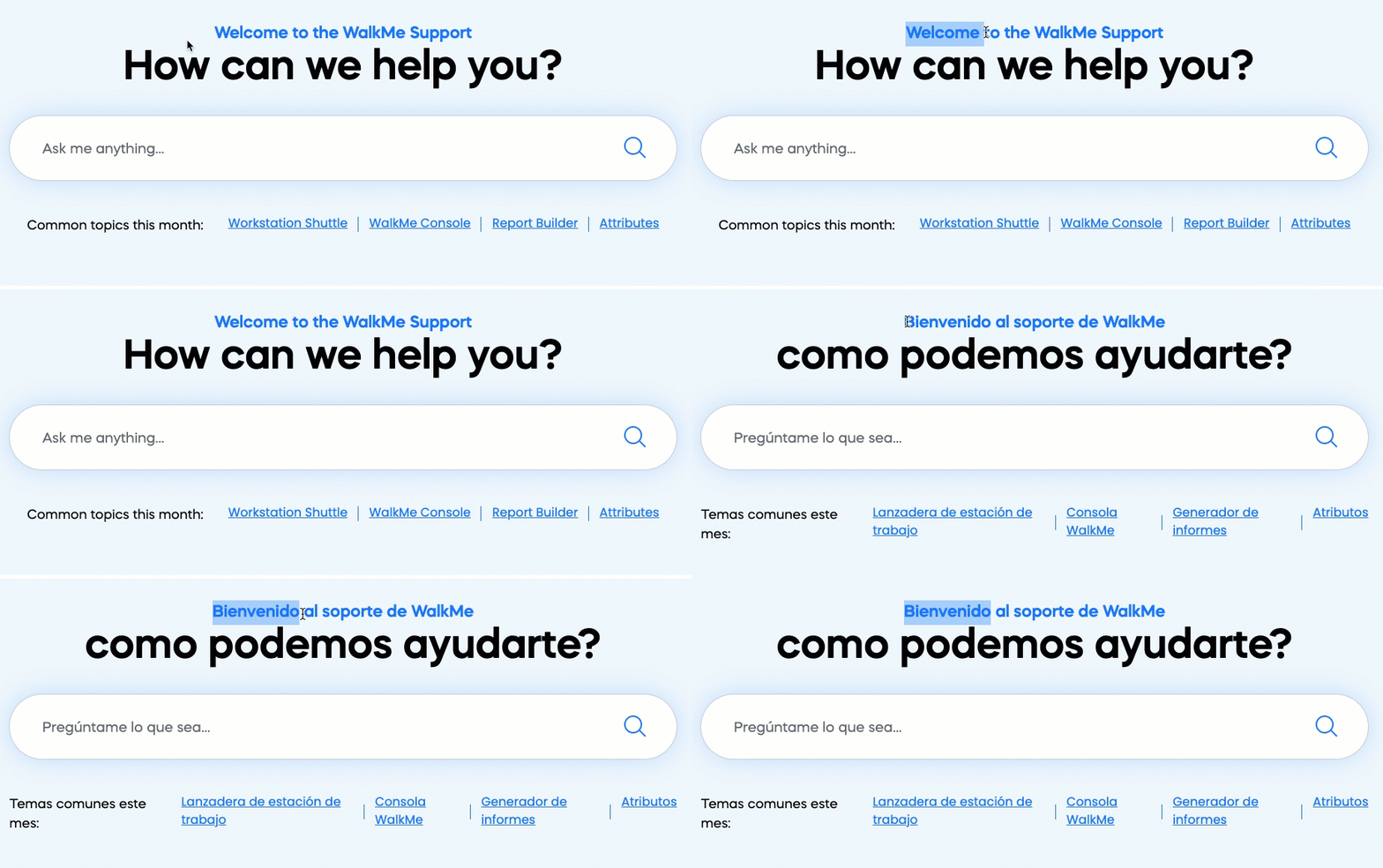
WalkMe offers full support for multi-language sites, allowing DAP professionals to engage a global audience and support end-users in their native language.

With the WalkMe Lexicon active, a builder can create WalkMe content on a site that displays their native language and site users will still see the content if they choose to browse in a different language. 

Lexicon uses WalkMe's patented Element Recognition system to identify a website's elements and UI components when users access the site in different languages. Using Natural Language Processing (NLP), our system learns the site's translations and automatically maps phrases in different languages to contextualize the elements and UI components. Since there are countless ways to translate text, WalkMe requires full exposure to the site in all its translated versions in order to recognize elements and UI components consistently across languages.

Prerequisites

  • Build on an Editor system that uses WalkMe's upgraded Element Recognition
    • See the full list of supported systems below
  • Add WalkMe to your website: deploy WalkMe to an environment with actual users who access the site in the relevant languages
    • If it isn't possible to deploy WalkMe to a live environment before content goes live:
      1. Enter Preview mode in your WalkMe Editor 
      2. Visit all the webpages you expect WalkMe content to play
      3. Repeat steps 1 and 2 for all languages you want WalkMe to support
Supported Languages

Afrikaans, Albanian, Amharic, Arabic, Armenian, Azerbaijani, Bengali, Bosnian, Bulgarian, Catalan, Chinese (Simplified), Chinese (Traditional), Croatian, Czech, Danish, Dari, Dutch, English, Estonian, Farsi (Persian), Filipino, Tagalog, Finnish, French, French (Canada), Georgian, German, Greek, Gujarati, Haitian, Creole, Hausa, Hebrew, Hindi, Hungarian, Icelandic, Indonesian, Irish, Italian, Japanese, Kannada, Kazakh, Korean, Latvian, Lithuanian, Macedonian, Malay, Malayalam, Maltese, Marathi, Mongolian, Norwegian, Pashto, Polish, Portuguese (Brazil), Portuguese (Portugal), Punjabi, Romanian, Russian, Serbian, Sinhala, Slovak, Slovenian, Somali, Spanish, Spanish (Mexico), Swahili, Swedish, Tamil, Telugu, Thai, Turkish, Ukrainian, Urdu, Uzbek, Vietnamese, Welsh

Reach out to your WalkMe contact if you need to support a language that is not listed here.

Tip:

  • WalkMe works best on sites that have consistent translations.
  • For example, if the phrase "contact owner" appears multiple times on the site's English version, but in French it's sometimes translated as "personne-ressource propriétaire" and other times as "contacter le propriétaire", this may lead to inconsistent results in French.
  • Work with your WalkMe contact to adjust this on a case by case basis if this is a site requirement that cannot be changed.

Activation

The Lexicon automatically activates under the following conditions:

  1. An Editor system is configured to support one of the following: Microsoft Dynamics, Workday®, SAP SuccessFactors, SAP Concur, SAP Ariba, Salesforce Classic, Salesforce Lightning, or Lightning Console
  2. WalkMe has detected a minimum of 50 user sessions in a secondary language within the site

Note: If you want to request manual activation or find out if the Lexicon is already active on your Editor system, reach out to your WalkMe contact.

How It Works

The Lexicon has 3 main components:

  1. Language Identification – a method to identify the language that the current page loaded in
  2. Dictionary Mapping – a unique dictionary for each Editor System
    • The initial way to populate the dictionary is by using the "Lexicon Applications Translation Upload" tool
    • Collects PII-free phrases in the environments WalkMe is deployed on in different languages to identify on-screen elements in multiple languages
  3. Natural Language Processing (NLP) – a Machine Learning engine that combines a literal translation of text with the meaning behind the words or phrase
    • Instead of manually copying the text of an element and putting it into a translation engine (which can yield many contradicting results), the Lexicon compares real phrases from the site in different languages and uses them as input for the NLP engine

Pre-Build

  1. Work with your WalkMe contact to ensure the WalkMe Lexicon is available on your Editor System
  2. Deploy the WalkMe extension or snippet to a live environment that has users in each of the target languages
    • Note: The best practice is to do this 2 weeks before going live with any built content
  3. Perform a Settings Publish to Test and Production

Building

  • For content management purposes, it's best practice to capture any WalkMe items (Smart Walk-Thru, SmartTip, etc.) in the same language end-to-end
  • If you need to add element-based conditions to your content, use the “On Screen Element is Visible” option in the Rule Engine 
    • This way, WalkMe can translate the element's text and evaluate it in the different languages

  • Do not use “Text is” conditions
    • This option will only evaluate the exact text in the condition and won't work if the element's text changes when the site loads in a different language 
  • Avoid capturing or playing content while an external service like Google Translate is overriding the site's text

Testing

  1. Run the first round of QA in the original language the content was captured in
  2. Change the site to a secondary language where WalkMe should appear
  3. Enter Preview mode in the Editor
  4. Preview all relevant content
    • Visit each page or area of the site where WalkMe items should appear
    • If content breaks in the first attempt; WalkMe uses this as a feedback loop to “learn” the site's translations
  5. Exit Preview mode
  6. Wait 15 minutes for the dictionary to complete processing
    • WalkMe requires this interval to map the site's pages in the different languages and ensure content plays consistently
  7. Begin QA in the secondary language via published Test environment

Tip Tuesday Video

Find this video helpful? Join the conversation on the WalkMe Community!

Was this article helpful?

Thanks for your feedback!

Be part of something bigger.

Engage with peers, ask questions, share ideas

Ask the Community
×
×
The trademarks and product names of Workday, Inc., including the WORKDAY® mark, are the property of Workday, Inc. WalkMe is not affiliated with Workday, Inc., nor does Workday, Inc. sponsor or endorse WalkMe, its services or its website.