Brief Overview
Modifying Session Playback settings lets admins manage how user session data is collected, stored, and protected.
You can use the available censorship and privacy controls to prevent the collection of sensitive information, define which sessions are recorded, and censor elements before data is sent to WalkMe's servers. Collection enablement and Session Playback settings let you control the scope of data captured, specify which IPs or domains to exclude, and manage recording behavior.
Session Playback
Access
You can access and modify Session Playbacback in the console:
- Open the console:
- Select Admin, the Systems Management and system page displays
- Select a system
- Select Data Collection Level from the Data Settings tab
How It Works
- Follow the steps to set Session Playback as your data collection level
- Select Session Playback
- Choose Save or Save and Publish
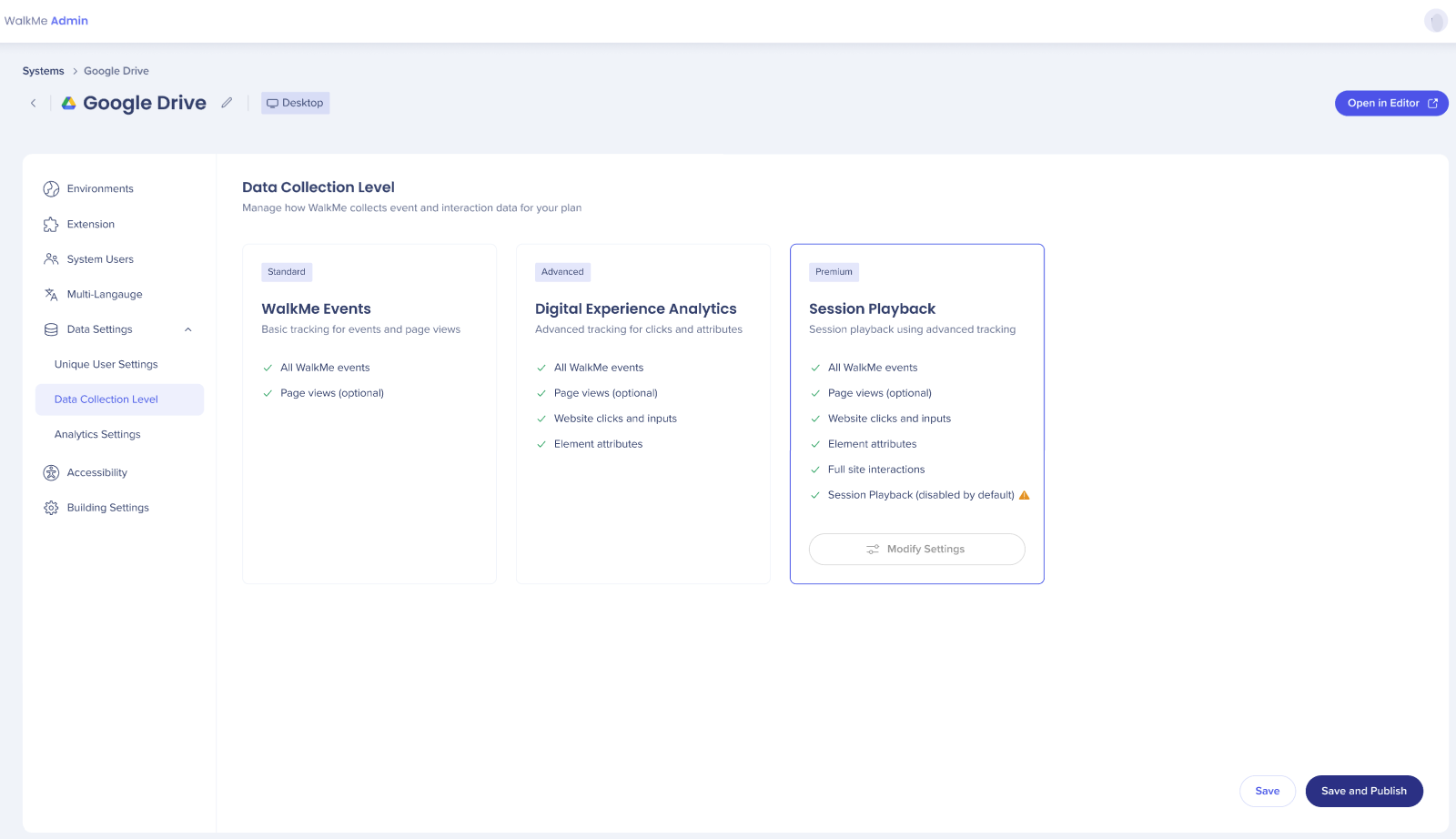
- Choose Save Changes
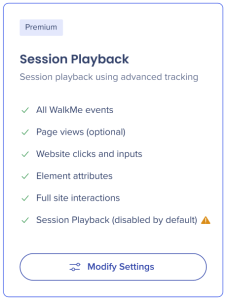
- Select Modify Settings
- Choose the environment you want to modify
- Choose the settings you want to update:
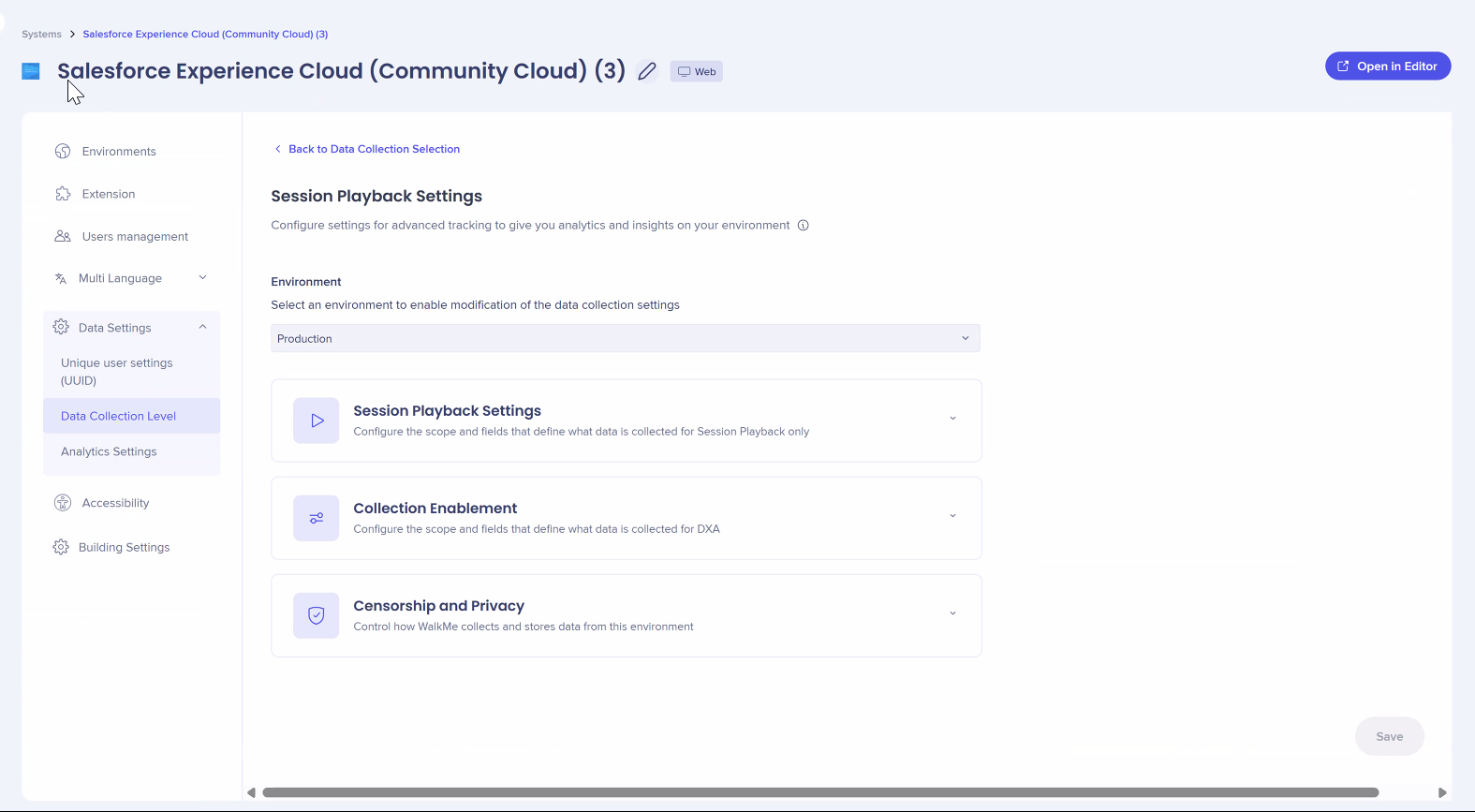
Session Playback Settings
Use Session Playback settings to define which sessions are excluded from recording and control how session playback is triggered.
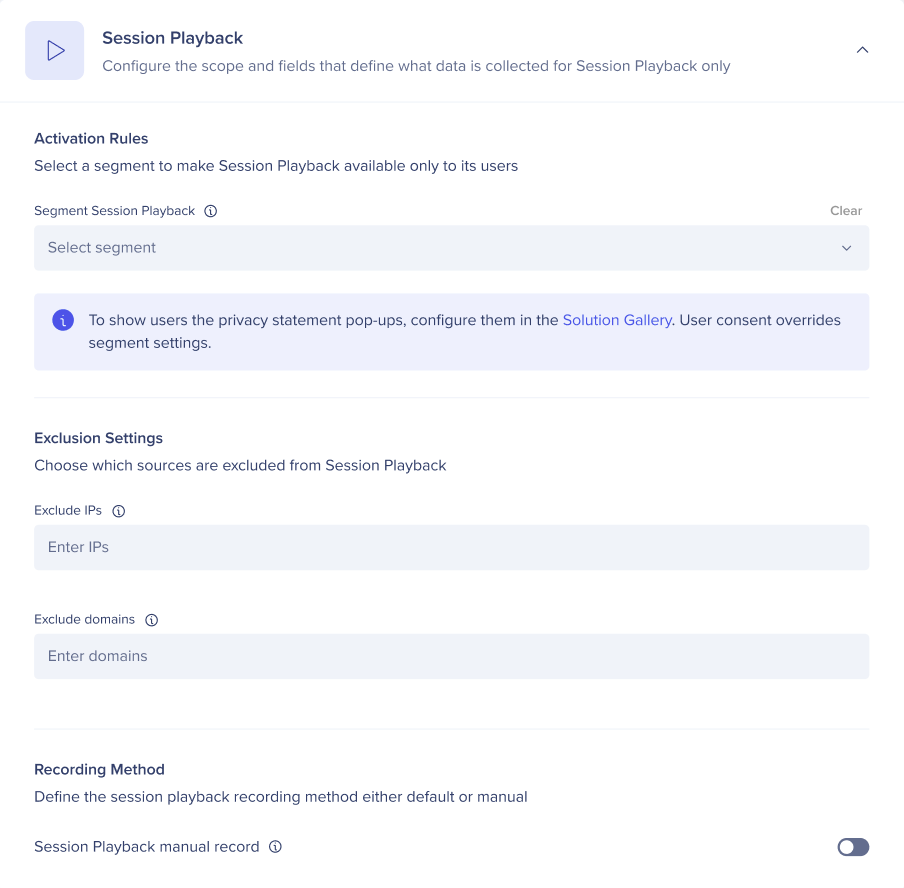
Activation rules
Activated before Q1 2026:
- For systems where Session Playback was activated before the Q1 release, the feature defaults to "Global Capture"
- If no segment is selected, all user sessions are recorded. Admins must manually apply a segment to limit data collection
- Define which customer segments are controlled when Session Playback starts and stops. User consent always overrides these settings
- Define which customer segments are controlled when Session Playback starts and stops. User consent always overrides these settings
Activated after Q1 2026:
- For any system where Session Playback was activated after the Q1 release, the feature is "Disabled by Default"
- No sessions will be recorded until a segment is explicitly selected and published
- By default all users have session playback disabled. They must select a segment to activate Session Playback
Exception:
- If a system had session playback enabled prior to Q1-2026, it would retain it's previous recording settings. This means it may have been set to record all sessions by default.
Session Playback disabled by default:
Select a segment to activate Session Playback
- Segment session playback: Select a segment where Session Playback should be disabled. Sessions that meet this segment's criteria will not be recorded. Session is not recorded, unless user consent is given.
- Session playback privacy statement: Enables configurable, trackable consent and opt-out/in for session playback. The link in the UI takes you to the Solutions Gallery where you must specifically configure the privacy and consent for your users. Admins can choose this solution to customize the consent pop-up with a personalized message and add a link to the privacy policy.
- End user opt-out/in: Your user can opt-out/in of the privacy statement, this choice will override the session segment
Exclusion Settings
Use exclusion settings to define which sessions are excluded from recording. Prevent Session Playback collection from specific IP addresses or domains
- Exclude IPs: Enter the IP addresses or ranges you want to exclude
- Press Enter after each address or range to add it to the list
- Use an asterisk (*) as a wildcard to exclude an entire range (for example, 192.168.1.* or 10.0.*)
- Exclude Domains: Enter the domain or subdomain you want to exclude
- Press Enter after each entry to add it to the list
- Use an asterisk (*) as a wildcard to exclude all subdomains (for example, test.walkme.com or *.internaldomain.com)
Recording method
Control how session recordings are started.
- Session playback manual record: When turned on, session recordings will only start when manually triggered through the API. When disabled (default), recordings start automatically when the defined recording conditions are met.
Note
Use this setting if you only want to capture specific user segments, flows, or conditions instead of recording all active sessions automatically.
Collection Enablement
Configure your collection enablement settings.
Digital Experience Analytics (DXA) Settings
Censorship and Privacy
Configure your censorship and privacy settings.
Digital Experience Analytics (DXA) Settings
Note
Refresh the editor and publish settings to apply changes.