Brief Overview
The Translations page lets you edit and manage how your WalkMe content appears in different languages. Here, you can view, update, and preview translations for all items in your account to ensure a consistent multilingual experience.
Available actions:
- View translations: Select an item to see all language versions side by side
- Edit translations: Manually update text or use machine translation (if enabled)
- Preview content: See how your translated items appear to users in real time
- Filter translations: Identify items with missing or outdated translations to keep your content current
- Use BBCode and rich text: Format content while preserving design tags and text structure
Access
You can access the Translations page from the Multi-Language app in the WalkMe Console. Choose the link for your data center.
Multi-Language
How It Works
The Translations page displays WalkMe items in a table, with the source language and translated languages shown side by side.
You can select items, filter by language or status, and edit translated text directly in the table.
View and edit translations
To view and edit translations:
- Select one or more items from the Items list
- Use the language dropdown to display specific languages
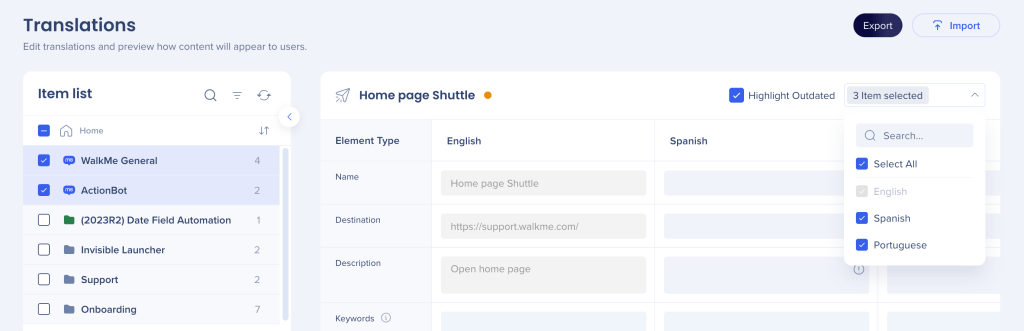
- Enter or update translated text directly in the table
Preview translated content
Use Preview to see how translated content appears to end users.
Select Preview to open a real-time view of the selected item in the chosen language.

Text direction
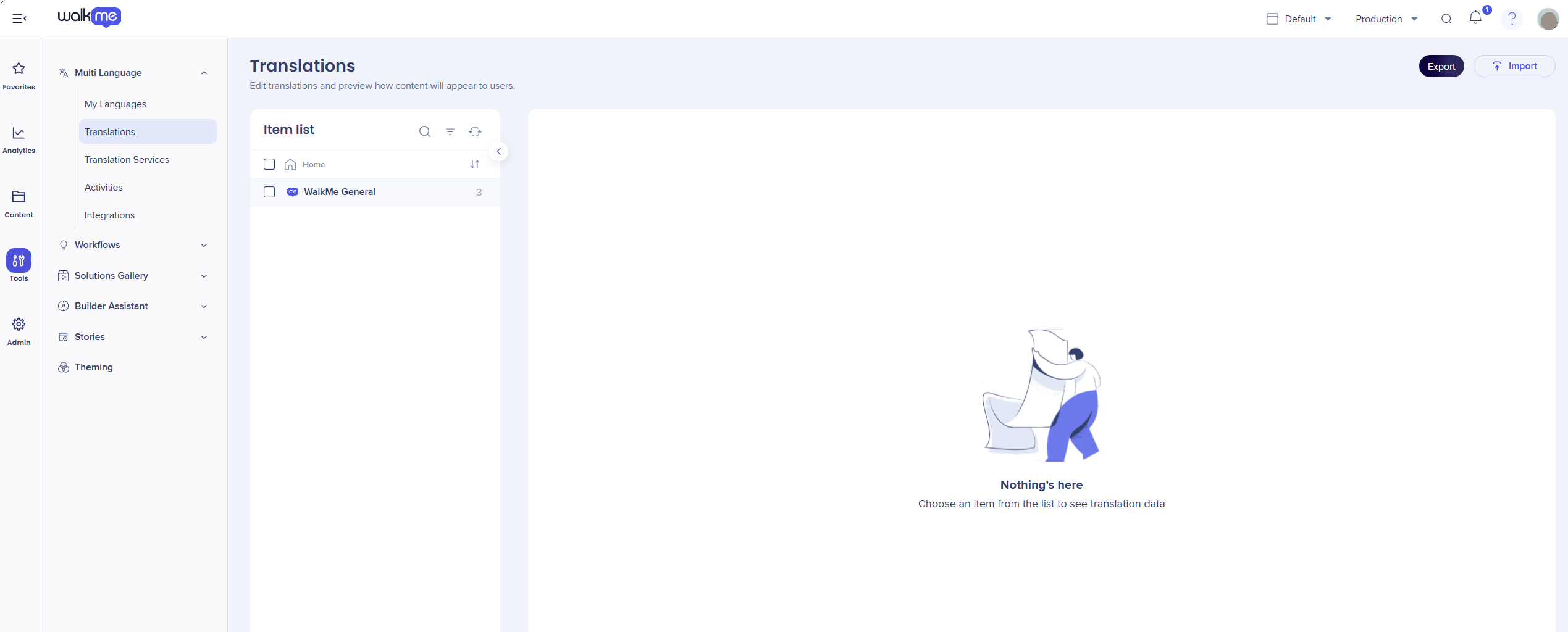
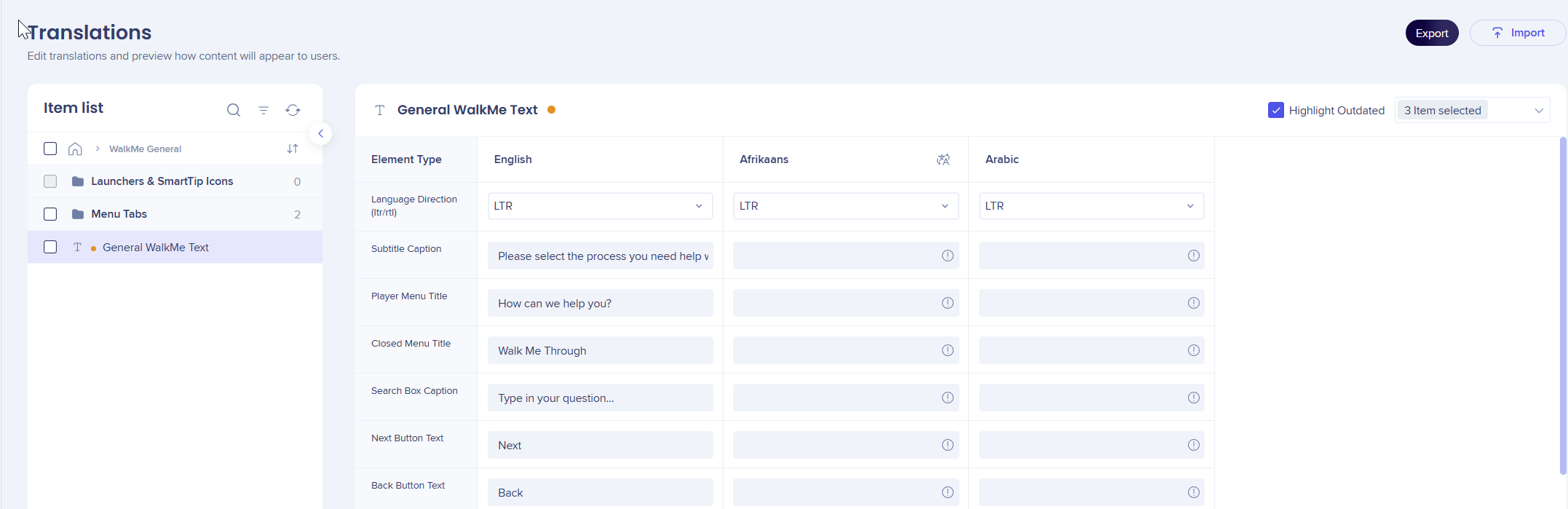
Text direction can be set from the WalkMe General folder
- Select General WalkMe Text
- From the dropdown choose LTR or RTL
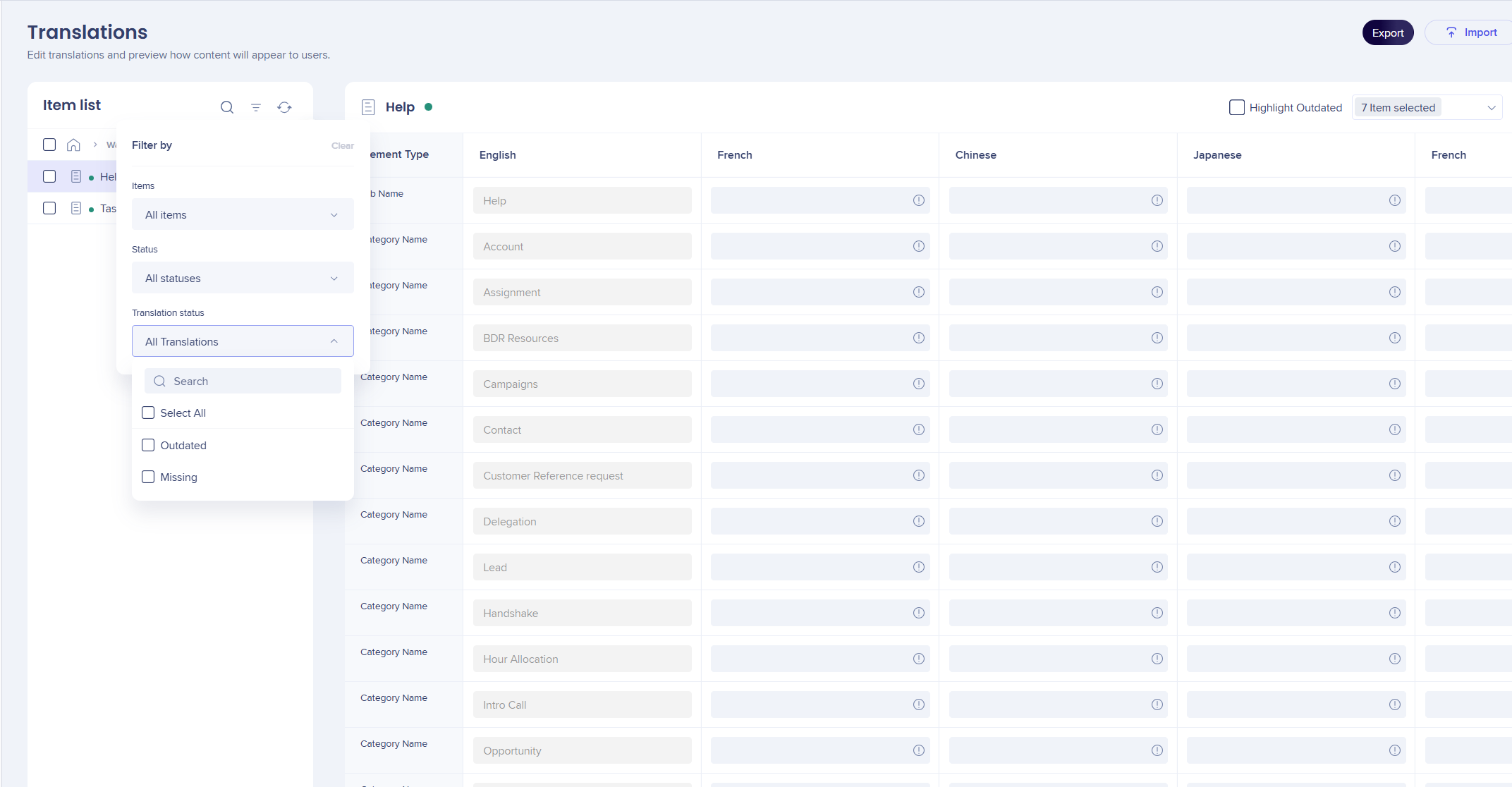
Find missing or outdated translations
Use filters to identify translations that need attention.
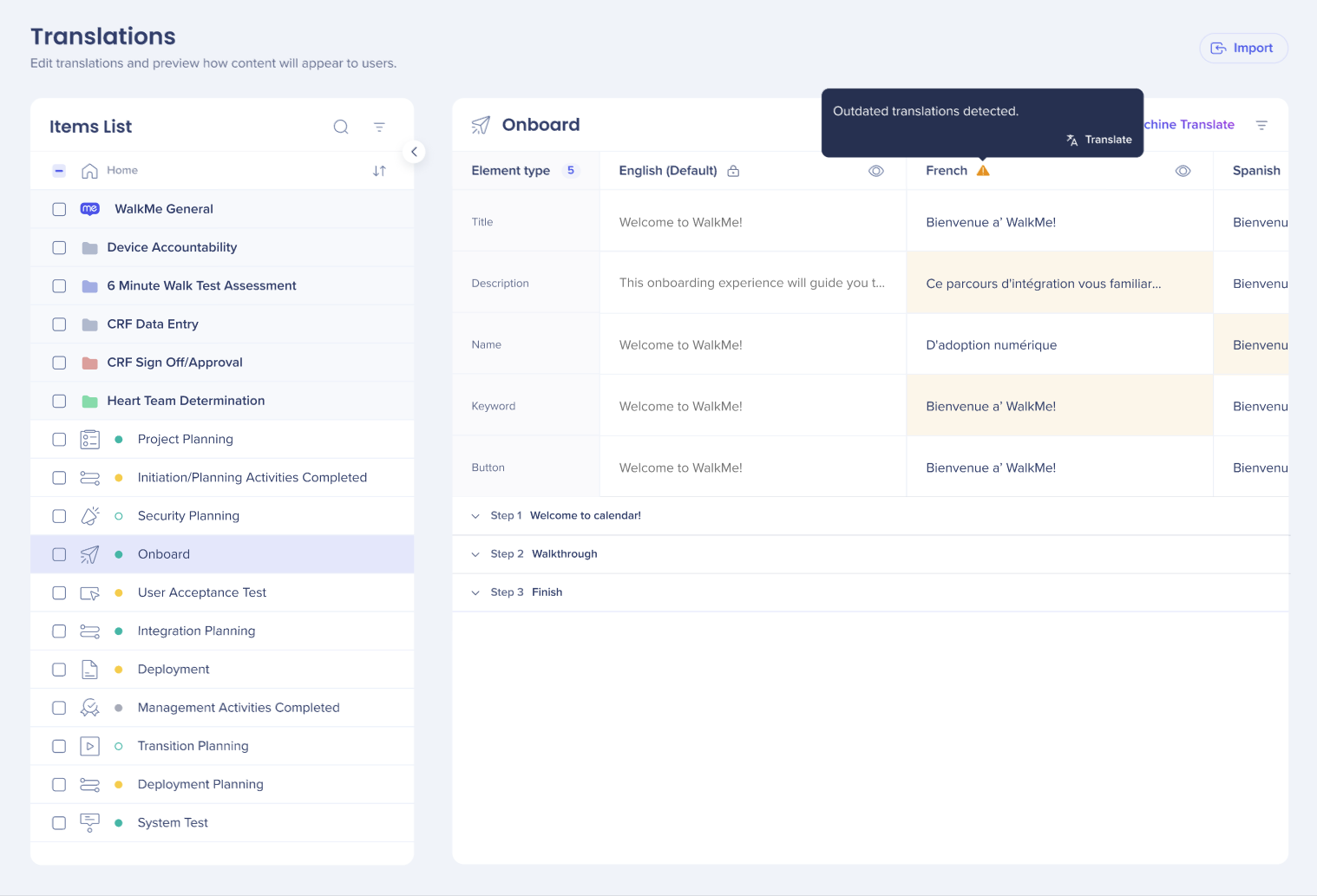
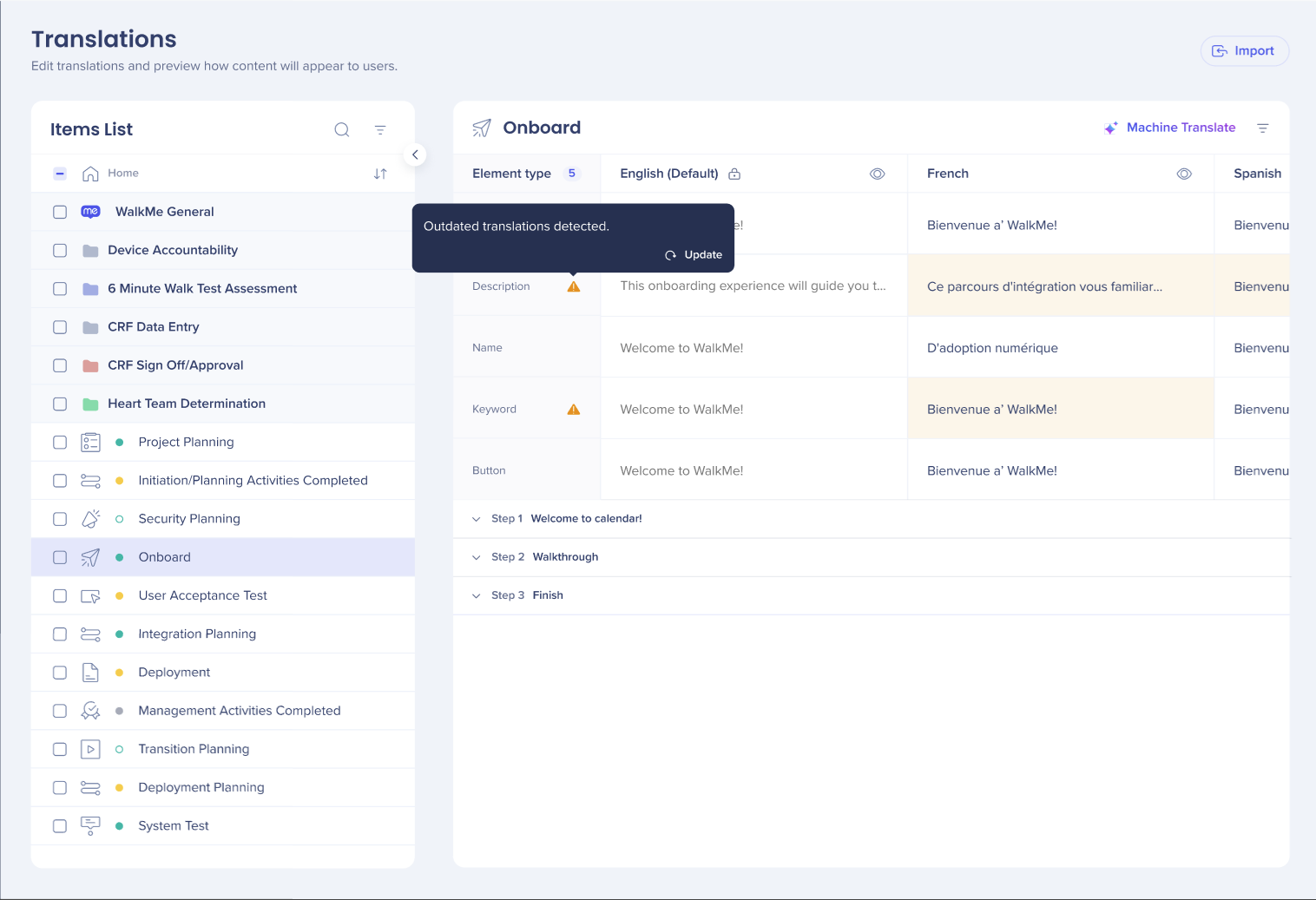
Outdated translations
- Identified by comparing translated content to the default (source) language
- Highlighted with a yellow warning triangle
To filter outdated translations:
- Select Filter by and then Outdated
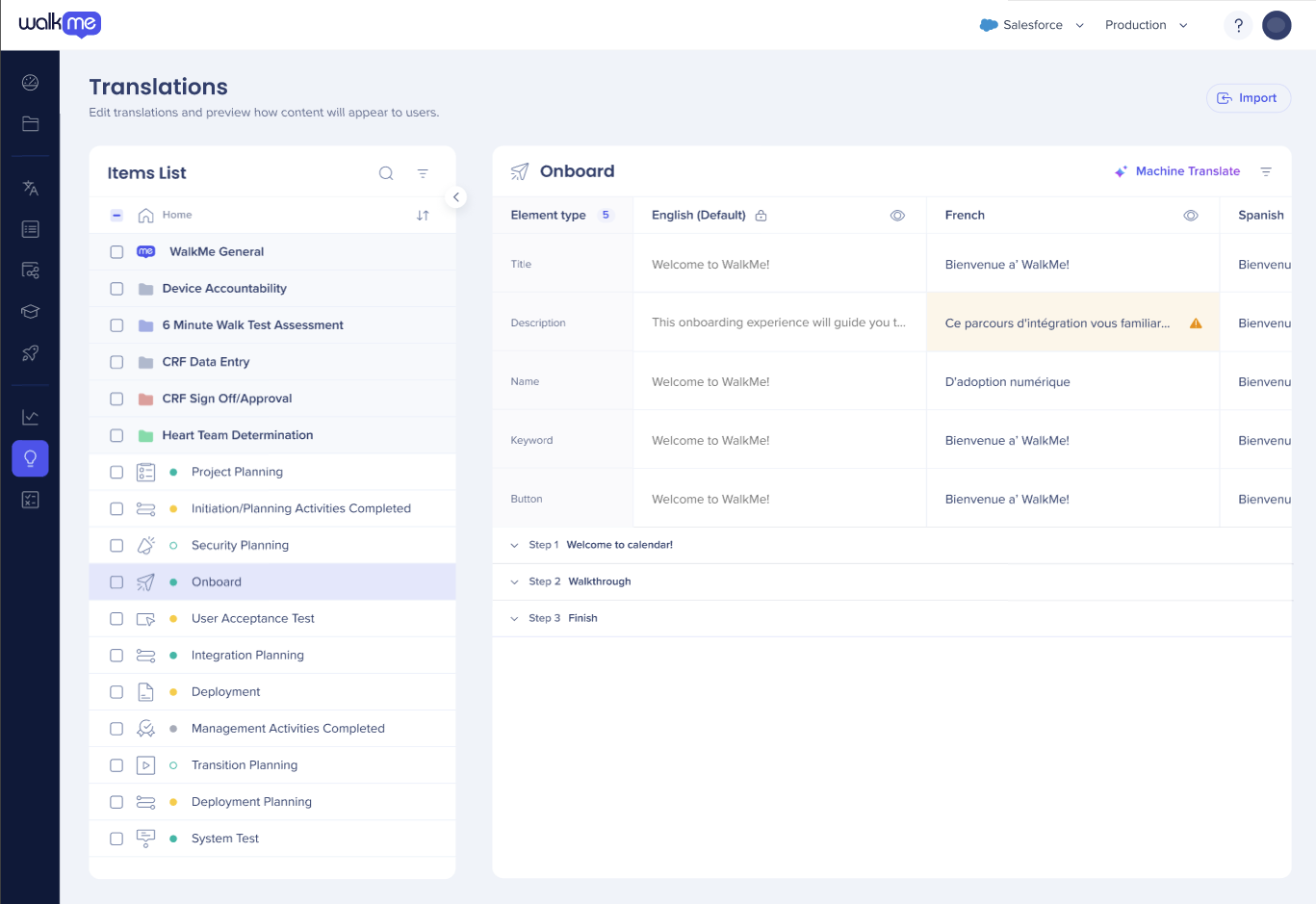
- The content can be expanded to see the full text (or remain collapsed) and then users can either select Update or Translate
Missing translations
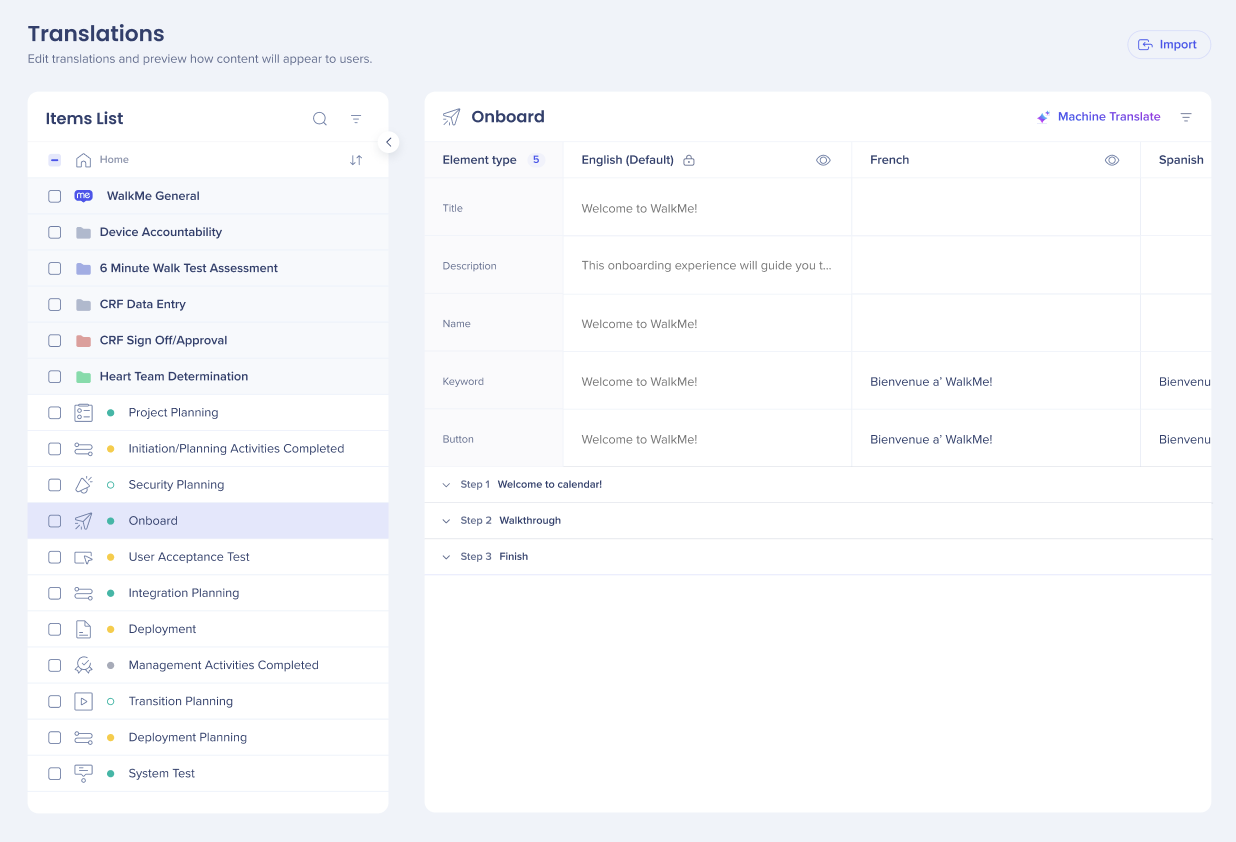
- Identified when no translated text exists for a supported language
- Highlighted with a yellow warning triangle
To filter missing translations:
- Select Filter by and then Missing
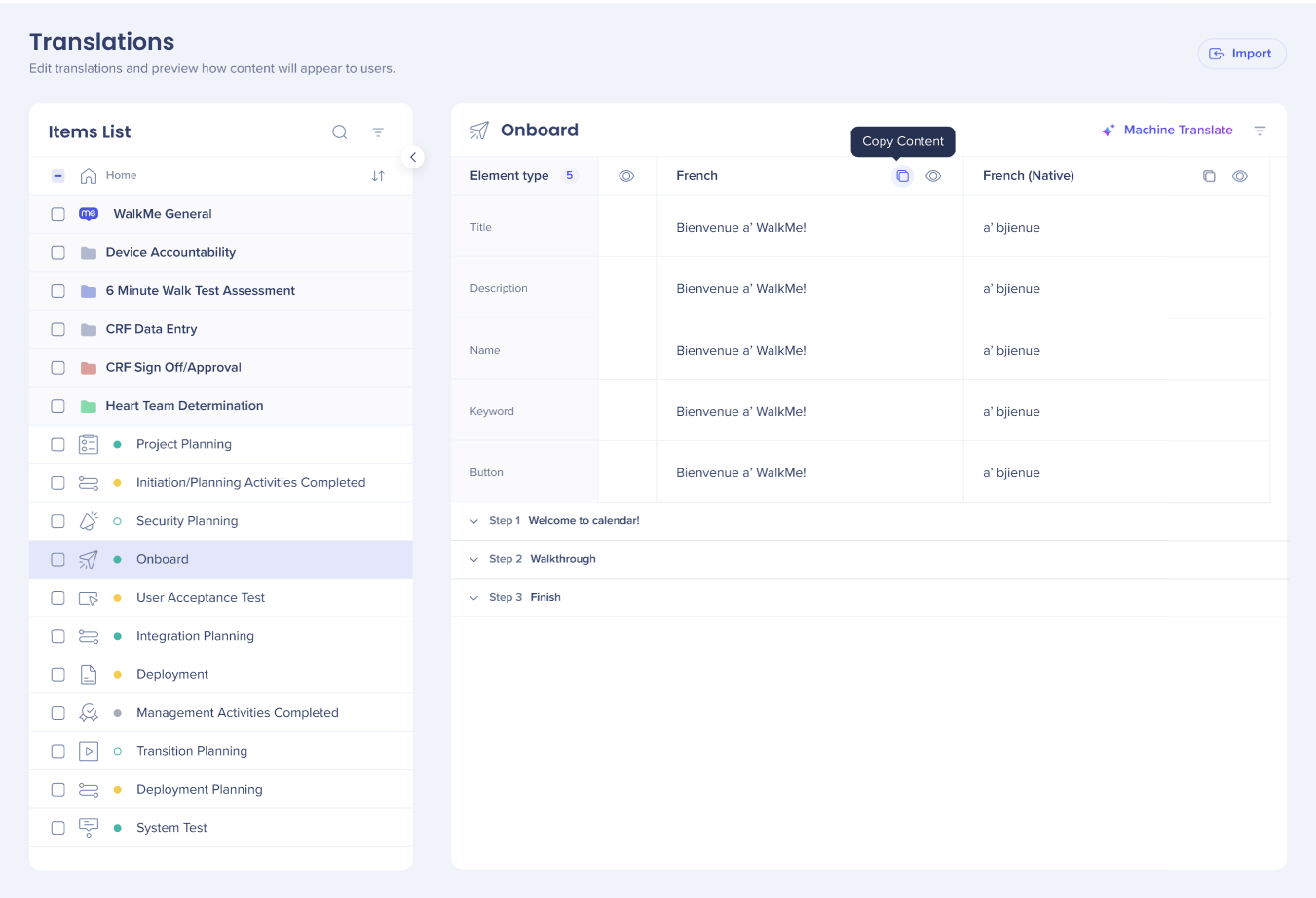
Copy Translations
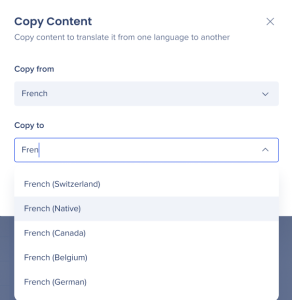
Translated content can be copied and then translated into another (similar) language. For example, Spanish to Mexican or Catalan.
- Select Copy Content
- Choose the language to copy the content from and
 Select Paste Translation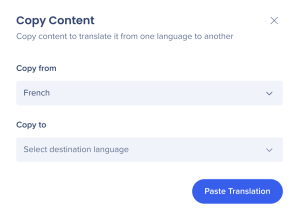
A success banner will display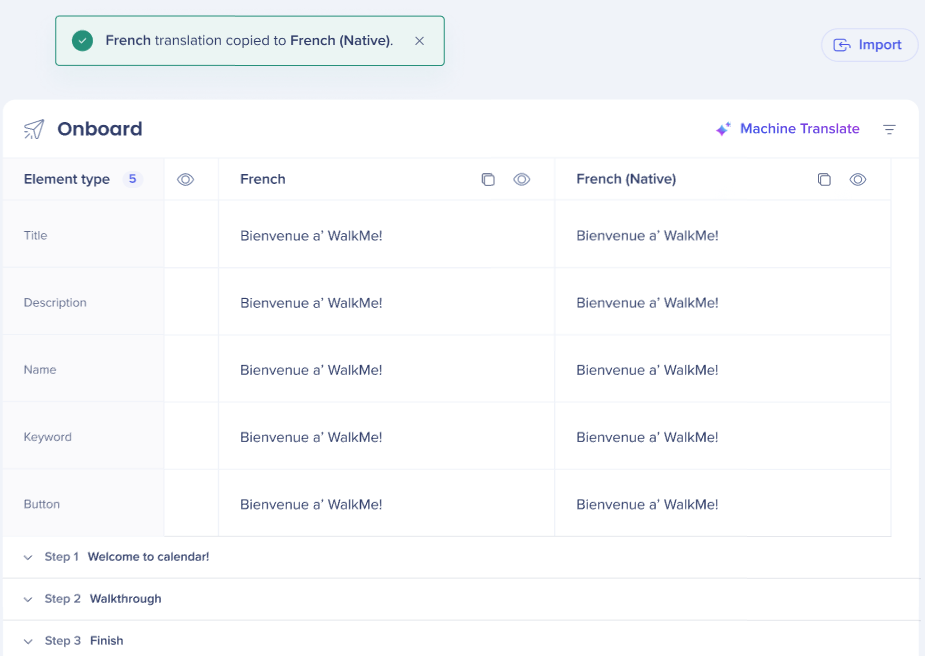
BBCode
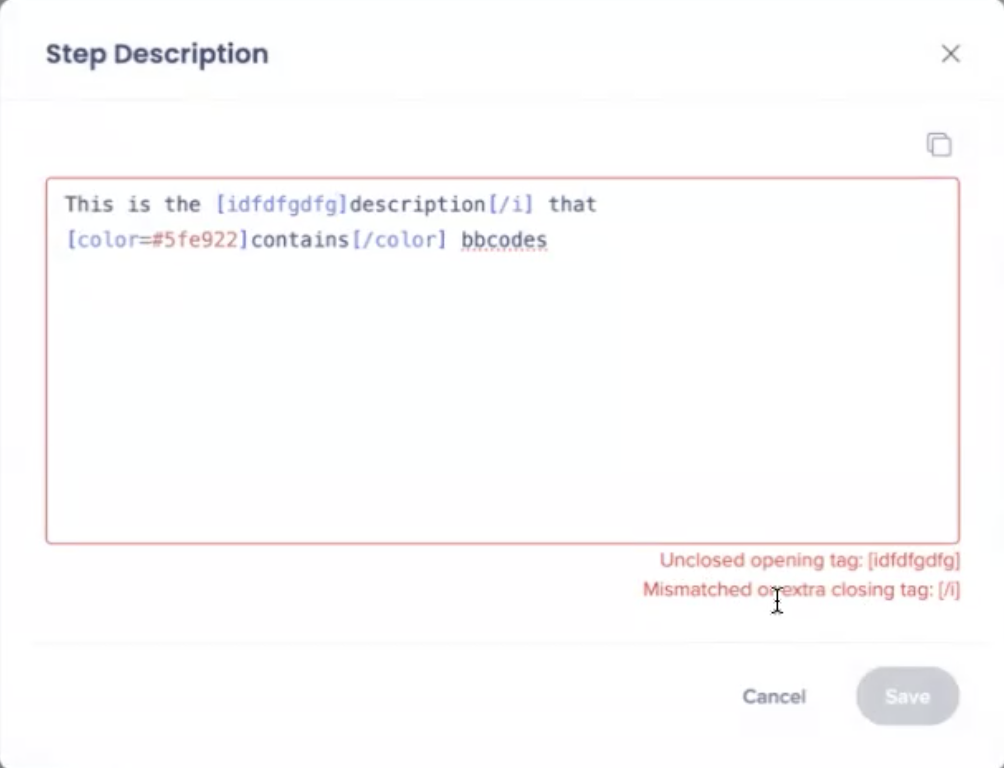
BBCode is used in regular text fields to preserve formatting (for example, bold, color, and links).
When working with BBCode, the following toolbar options are available:
- Copy all
- Paste
- Paste without formatting
- Edit
- Machine translation (Auto-translate icon available when Machine Translation is enabled)
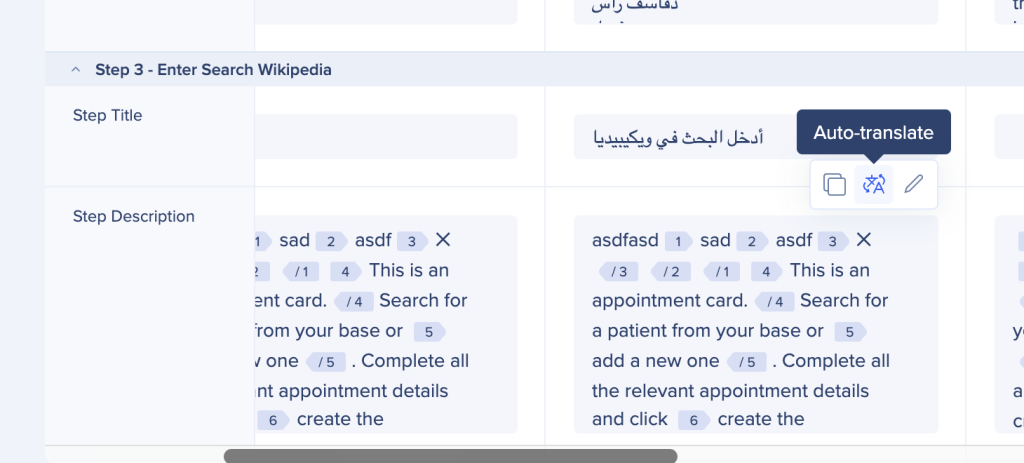
Paste behaviors
- Paste: Pastes all copied content, including BBCode tags

- Paste without formatting: Pastes only the text, without BBCode tags

- Edit: If BBCode is entered incorrectly, a red indicator appears
- Regular copy and paste (right-click or Ctrl+C / Ctrl+V) copies only the text, without BBCode tags
Rich Text
Rich text is used for Visual Designer content.
When translating rich text:
- Only the Paste option is available
- When translating a rich text textbox, a <p> tag is added automatically to enable display in the ShoutOut
Differences Between Text Elements
Regular text with BBCode
- You can remove design tags and enter the translation inside or outside the tags
- Tags appear in gray
Rich text
- You cannot remove design tags
- You must enter the translation between the tags to replace the default content
- Tags appear in green
- Can only be edited using Export/ Import
Machine Translation
After you turn on Machine Translation - Manually per item in the My Languages page, the Auto Translate option becomes available.
This option lets you automatically translate supported content using machine translation.
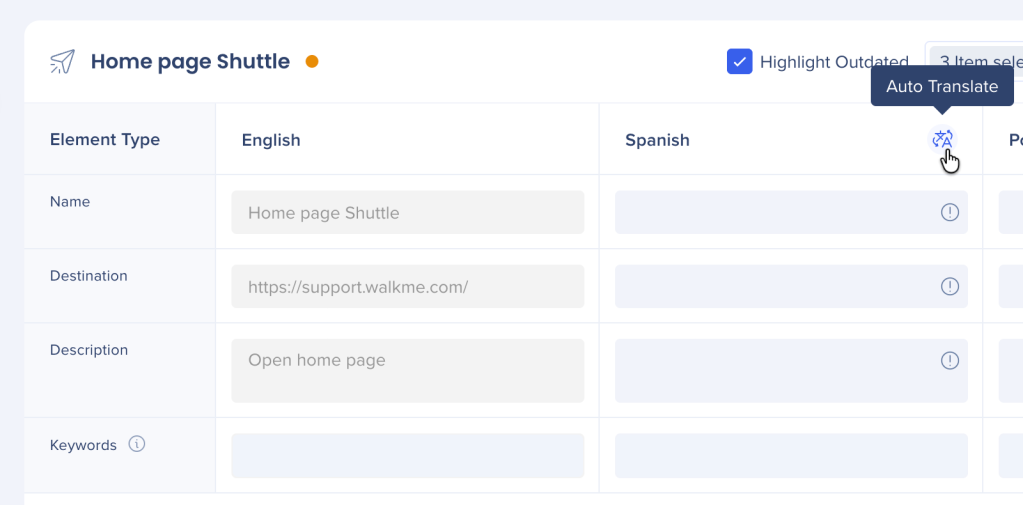
My Languages
Technical Notes
- WalkMe uses element recognition to identify on-screen elements when the language changes
- When configured, DeepUI is used for element identification
- Shared elements such as Next, Done, and Submit are located in the General Settings folder
- Yellow indicators highlight missing or outdated translations


