Brief Overview
The ActionBot Branding page is where you set your bots' design and apply it across every bot in your system. Instead of designing each bot separately, you set your brand colors and logos in one place and see the changes in a live preview before you publish.
The Branding page supports the ActionBot Pro interface only. You can apply your Pro design to a single bot, or turn on Activate globally to apply it to all bots in your system.
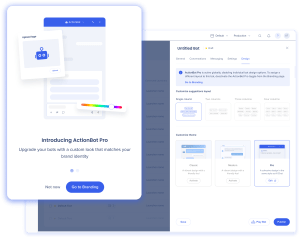
ActionBot Legacy Branding
The Classic and Modern legacy interfaces are selected during bot building and managed only from the Design tab, where their colors can be changed with custom CSS. Learn more
Access
You can open the ActionBot Branding page two ways.
From the console:
-
Open the WalkMe Console
-
Select the Content category
-
Select the ActionBot app
-
Select the Branding page
From Bots page in console:
-
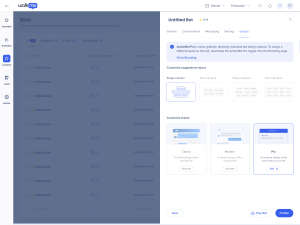
Create or edit a bot and go to the Design tab
-
For the ActionBot Pro option, select Activate or Edit
-
The Branding page opens, where you customize your design
How It Works
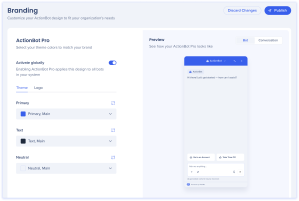
The Branding page has a customization panel on the left and a live preview on the right. Changes appear in the preview as you make them.
Activation
Turn on the Activate globally toggle to apply your design to all bots in your system. When it's on, individual bot design options are turned off.
Theme tab
On the Theme tab, set the colors that make up your bot's look. Choose a color from your theme, or use the color picker to set a custom color.
 To reuse color palettes you've already set, select the Connect icon to connect to your Theming app.
Theming: Getting Started Guide
Logo tab
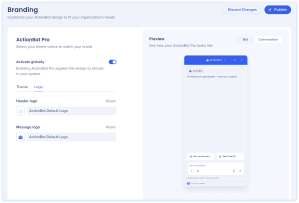
On the Logo tab, add the logos that appear in your bot:
To change a logo, select Replace image and choose a file. Drag to reposition the image, and use the slider to resize. Select Save when you're done. To return a logo to its default, select Reset.
Publish
When you're ready to publish, select Publish. To undo your changes since the last save, select Discard Changes.
Technical Notes
-
The Branding page supports the ActionBot Pro design only
-
When Activate globally is on, individual bot design options are turned off
-
Logo files must be under 500 KB
-
To change theActionBot theme to the advanced style, go to the Menu console settings page
-
AI features (AI step, call AI Assistant) run on ActionBot Pro only
-
Enabling AI Chat auto-activates ActionBot Pro design
-
Users can't disable the ActionBot Pro design while AI Chat is enabled on the system


