Brief Overview
Machine translation automatically translates your WalkMe content from English into other languages. Your users get guidance in their own language, and you don't have to translate every word manually.
You can turn on machine translation when you add or edit a language on the My Languages page. You can then choose whether to translate all your content at once or pick items one by one.
Access
Access machine translation in the My Languages page in the console.
- Open the WalkMe Console:
- Go to Tools category
- Select the Multi Language app
- Choose the My Languages page
How It Works
Machine translation uses Amazon Web Services (AWS) to translate your content from English into any language AWS supports. Learn more about supported languages.
Disclaimer:
Automated translations are provided for convenience. WalkMe can't guarantee the accuracy of translated content.
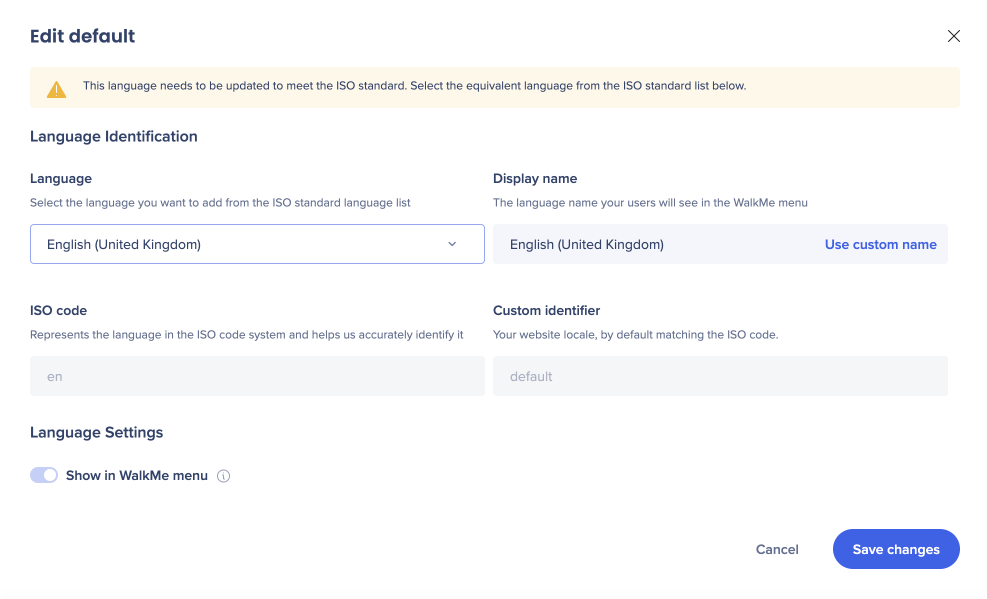
- On the My Languages page, select the source language
- Set English as the source language, and then select Save changes
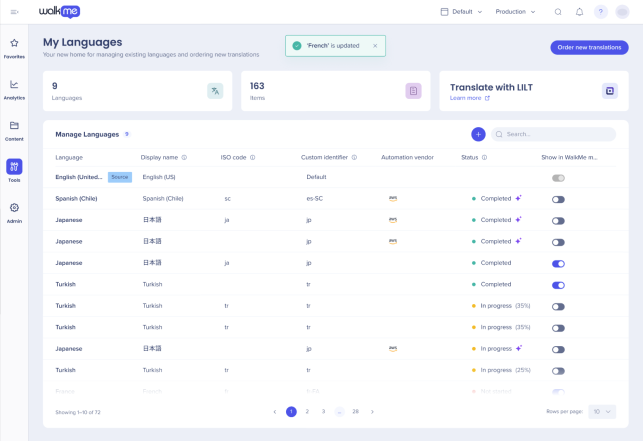
- Select a supported language to translate into
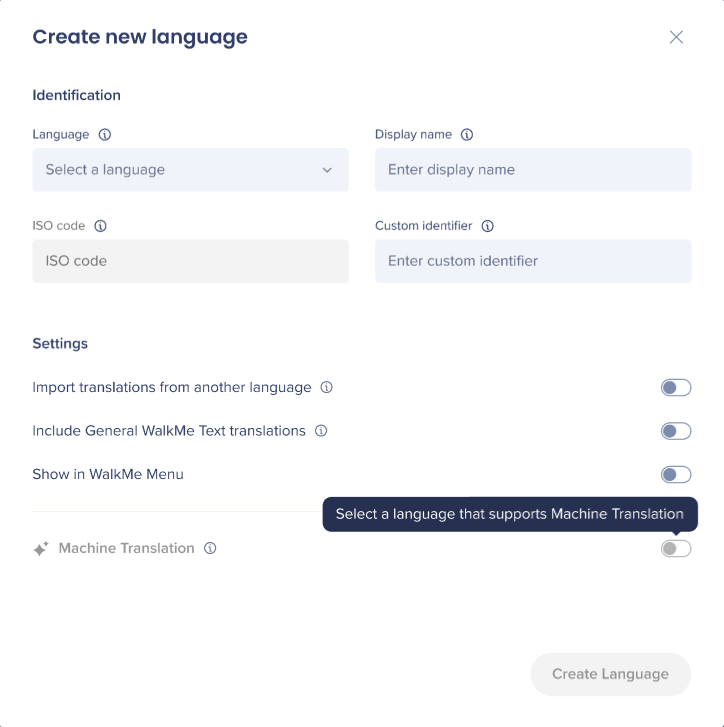
- Turn on Machine Translation
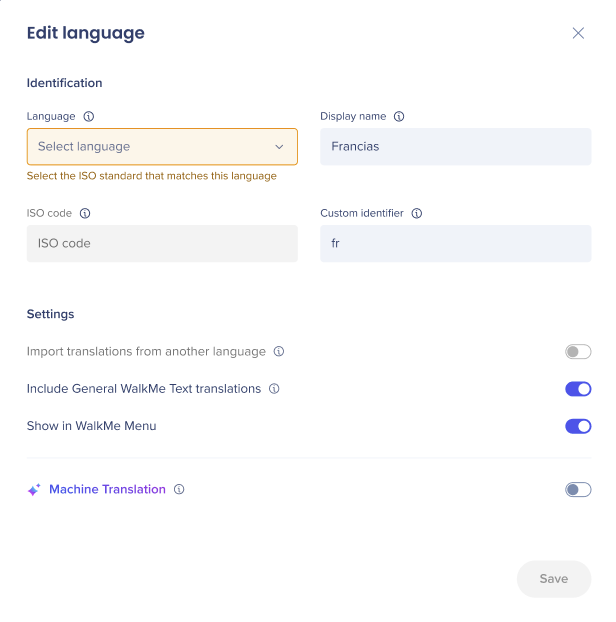
- Choose how to translate your content: all content or manually per item
Note:
After you create a language, you can only change the Machine Translation toggle. Other fields, such as the display name and identifier, can't be edited.
Translate all content
Select All content to automatically translate everything into the selected language:
- Turn on Machine Translation (for supported languages only)
- Select All content
- Select Create Language
Supported from English (ISO) as default language to selected languages provided by AWS.
SAP only
For SAP accounts, machine translation uses LAX auto-translate service instead of AWS. It supports translation from the default English (ISO) into the languages that LAX auto-translate service supports.
Enable Machine Translation for the content to be automatically translated:
- Select All content
- Select Create Language
Translate items manually
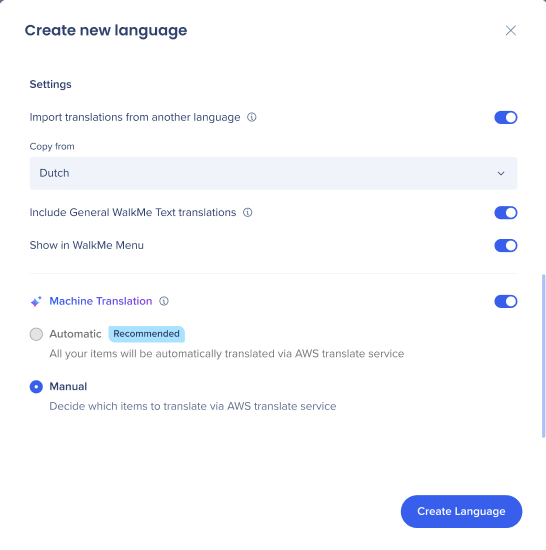
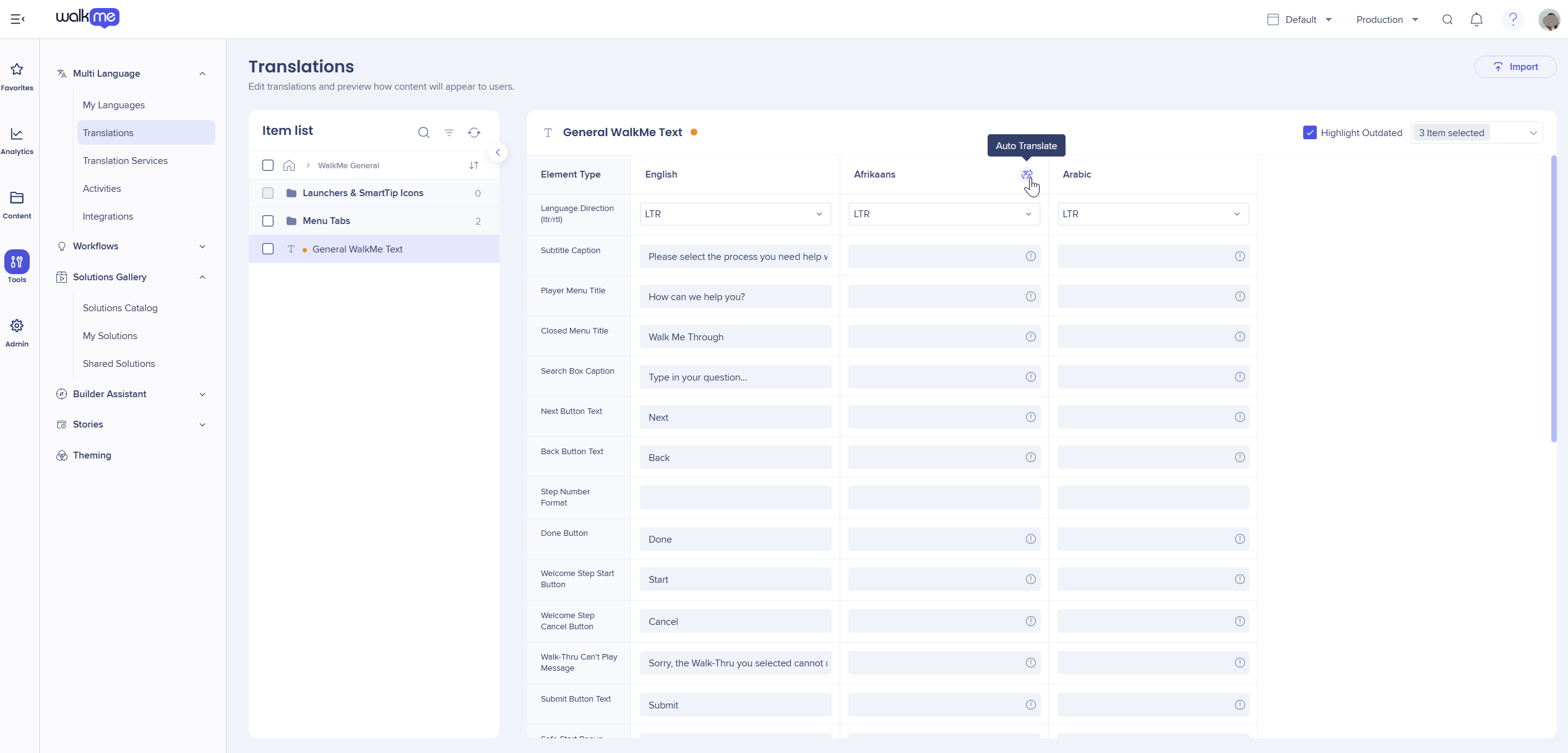
Select Manually per item to choose which items to translate:
- Select Manually per item
- Go to the Translations page
- Select the item
- Select Auto-Translate
- Select Save changes
Technical Notes
- The source language must be English
- Supported languages depend on AWS Translate, or the SAP service for SAP accounts
- After you create a language, you can only then edit the machine translation toggle
Need more help? Contact WalkMe Support.


