Brief Overview
The AI style assistant lets you create custom CSS for a Console Survey without writing any code. Upload a screenshot of a design, and the assistant applies its look and feel to your survey.
The assistant generates WalkMe-compatible CSS that you can preview, refine in plain language, copy, download, or apply to your survey.
New to Console Surveys? Start here:
WalkMe Surveys in the Console
Use Cases
- Recreate a Legacy Survey's branded styling on a Console Survey when you move to Console Surveys
- Match a survey to your organization's design standards without writing CSS by hand
- Turn a design mockup into a styled Console Survey as a starting point
- Test custom styling on a single survey, then apply it to every survey in your account
Access
Access the AI style assistant in the console:
- Open the WalkMe Console:
- Open a popup survey in the survey builder
- If the survey is new, save it as a popup survey first
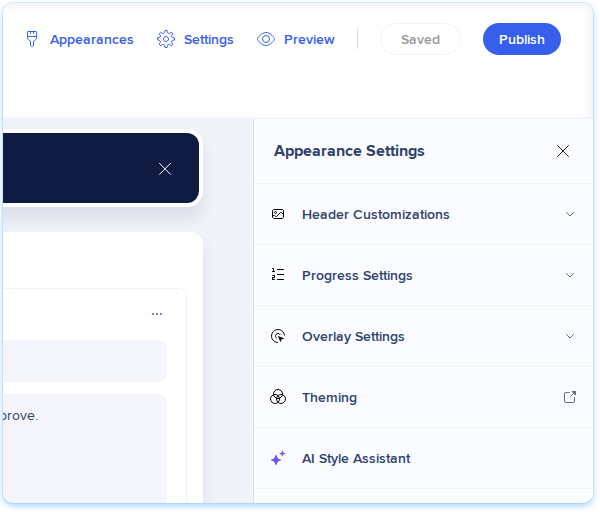
- Open the Appearance Settings panel
- Select AI Style Assistant
Note
The AI style assistant appears only when WalkMe Contextual AI is turned on. To turn it on:
- In the WalkMe Console, go to Admin
- Select Security & Audit and then Security Settings
- Select AI Settings
- Turn on WalkMe Contextual AI
How It Works
The AI style assistant styles your survey in a few steps. Upload a design or skip straight to agentic mode, choose where the CSS applies, generate and preview it, fine-tune it if needed, and then apply it to your survey.
Upload a design
Start by giving the assistant a reference to work from, like a screenshot of a survey or your organization's website.
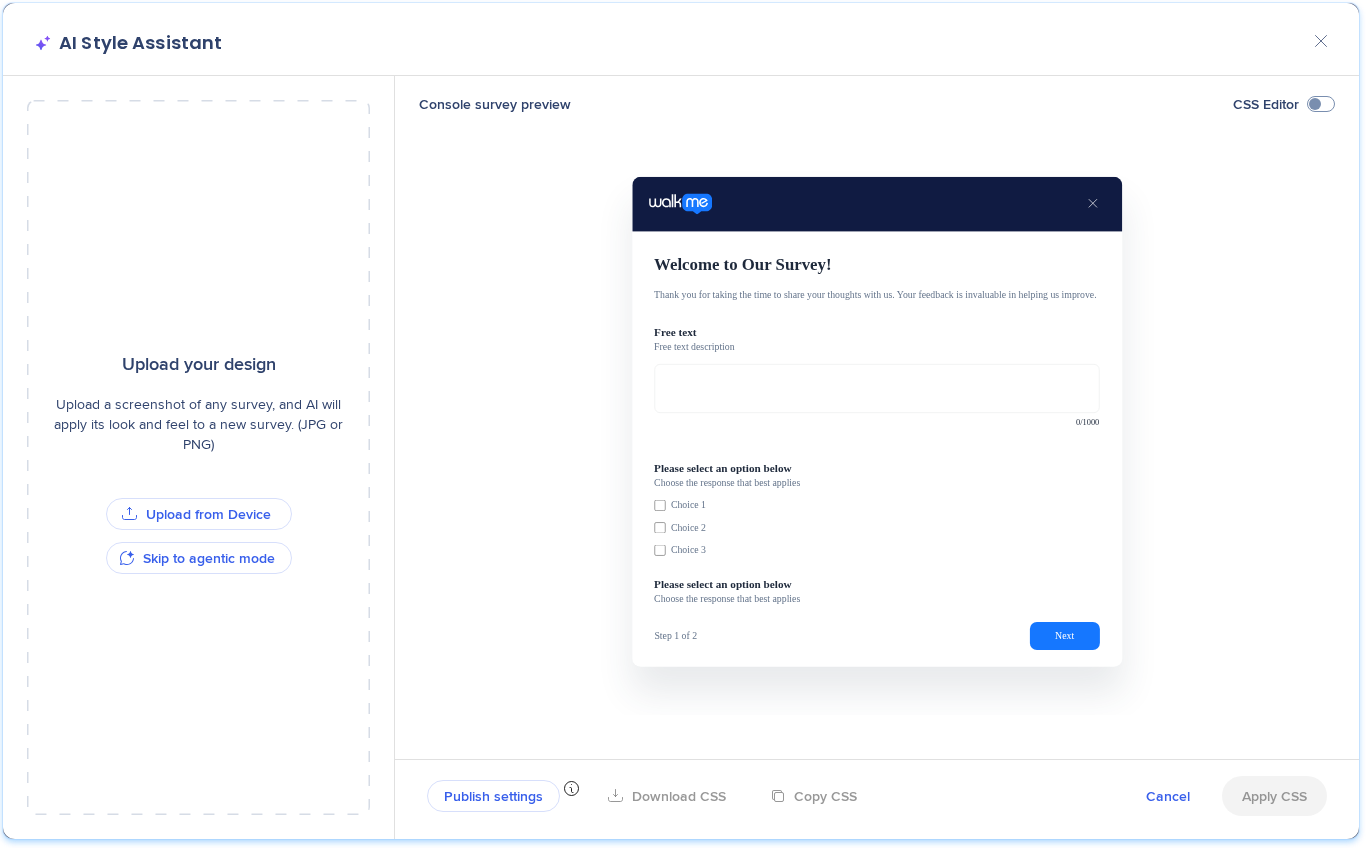
- In the AI style assistant, select Upload from Device
- Choose a JPG or PNG screenshot of your design
- To try a different design, select the Delete icon to remove the uploaded image, and then upload a new one (optional)
The assistant reads the image and applies its look and feel to your survey.
To style your survey with typed instructions instead, select Skip to agentic mode.
Choose where to apply the CSS
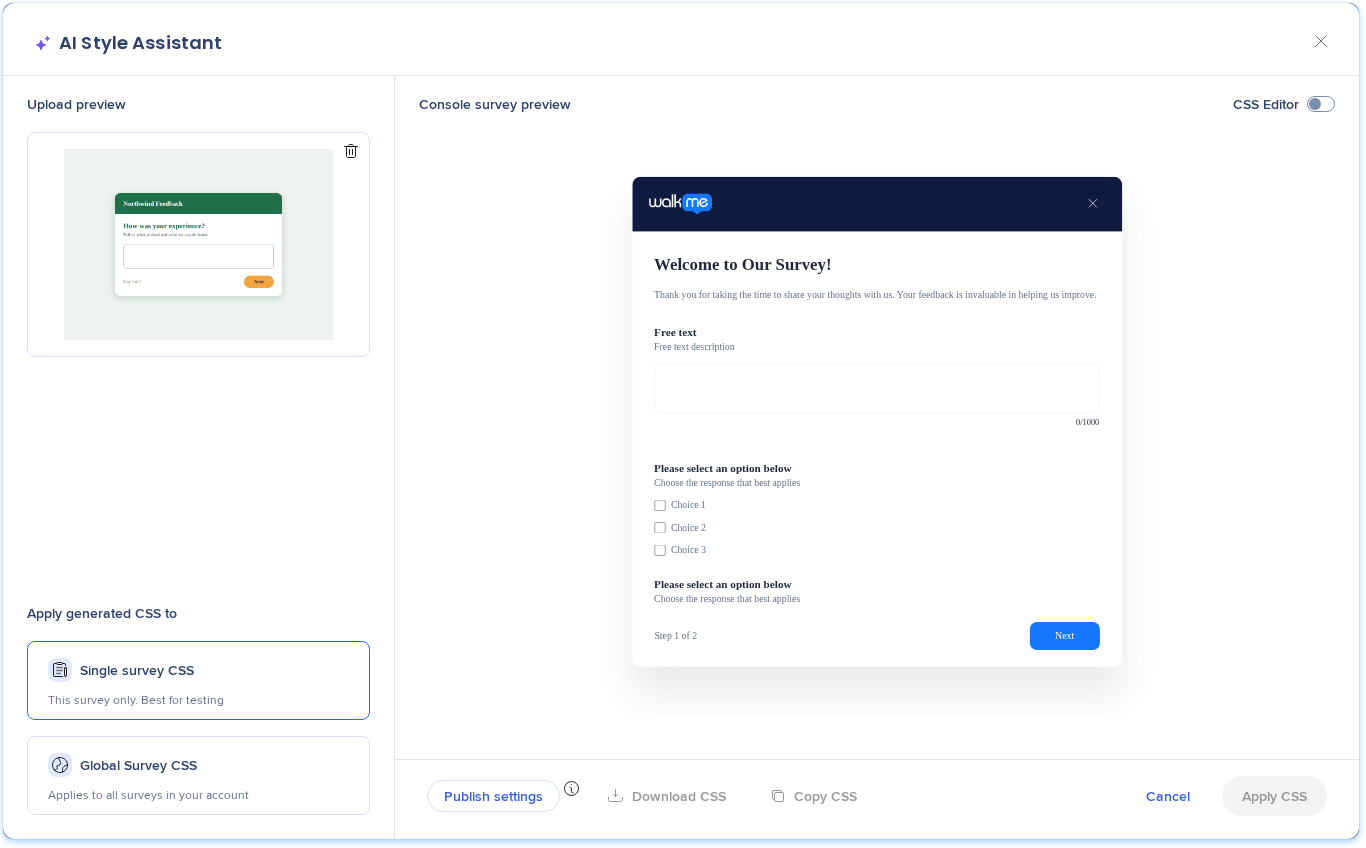
Under Apply generated CSS to, choose an option:
- Single survey CSS: Applies to this survey only. Best for testing.
- Global Survey CSS: Applies to all surveys in your account
Generate and preview the CSS
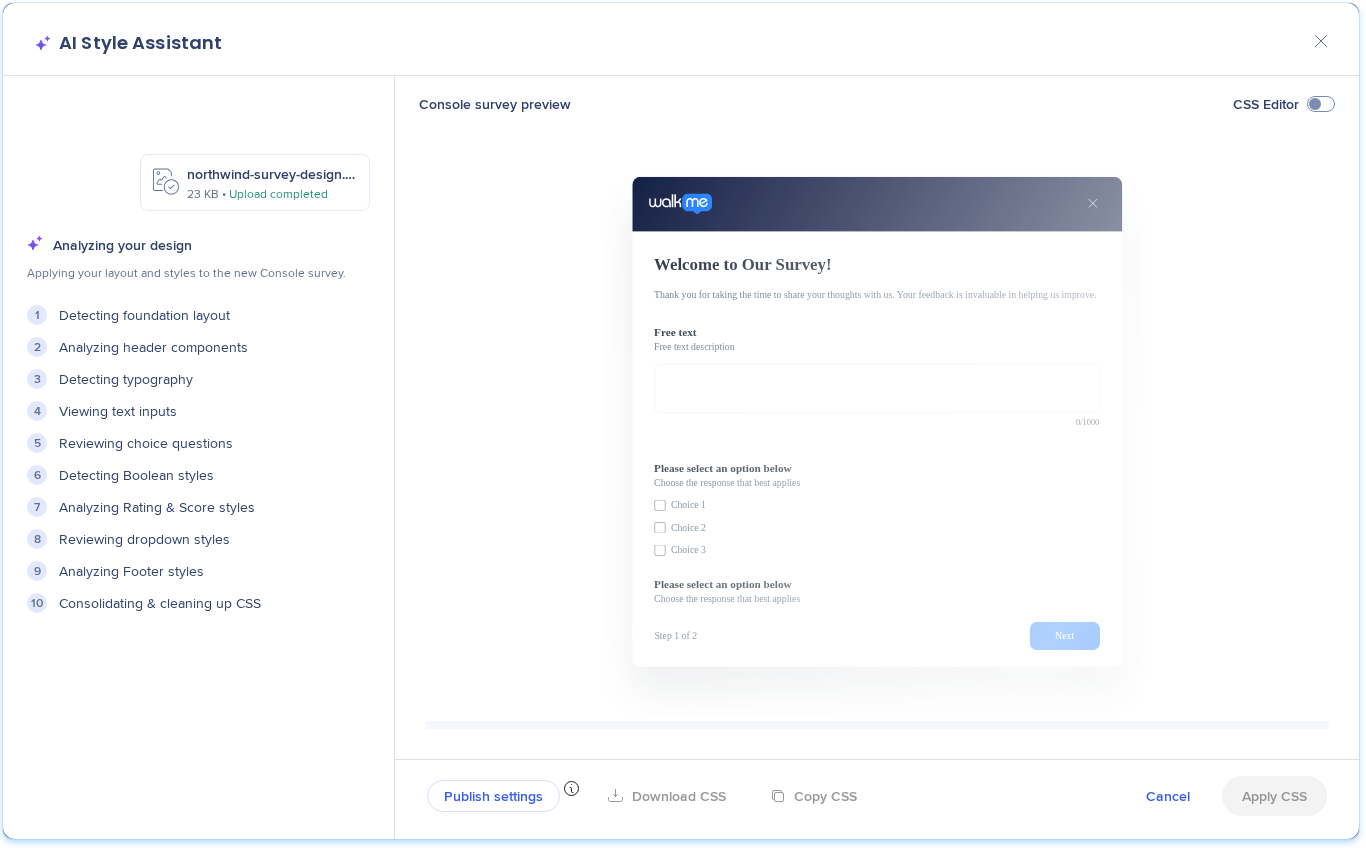
The AI analyzes your design and builds the style sheet. While it works:
- The Console survey preview updates in real time, so you can follow along
- To review and edit the generated CSS, turn on CSS Editor. The CSS shows in the CSS Console panel.
Generation can take up to a minute. If the CSS can't be generated, a message lets you know so you can try again.
Fine-tune the styling
After the design analysis, use the message field to refine the result in plain language. This is the same agentic mode you open with Skip to agentic mode.
- To change just one element, select the Target icon, and then click the element in the preview (optional)
- The element you picked shows above the message field
- Type the change you want, for example "Make this button dark green with white text"
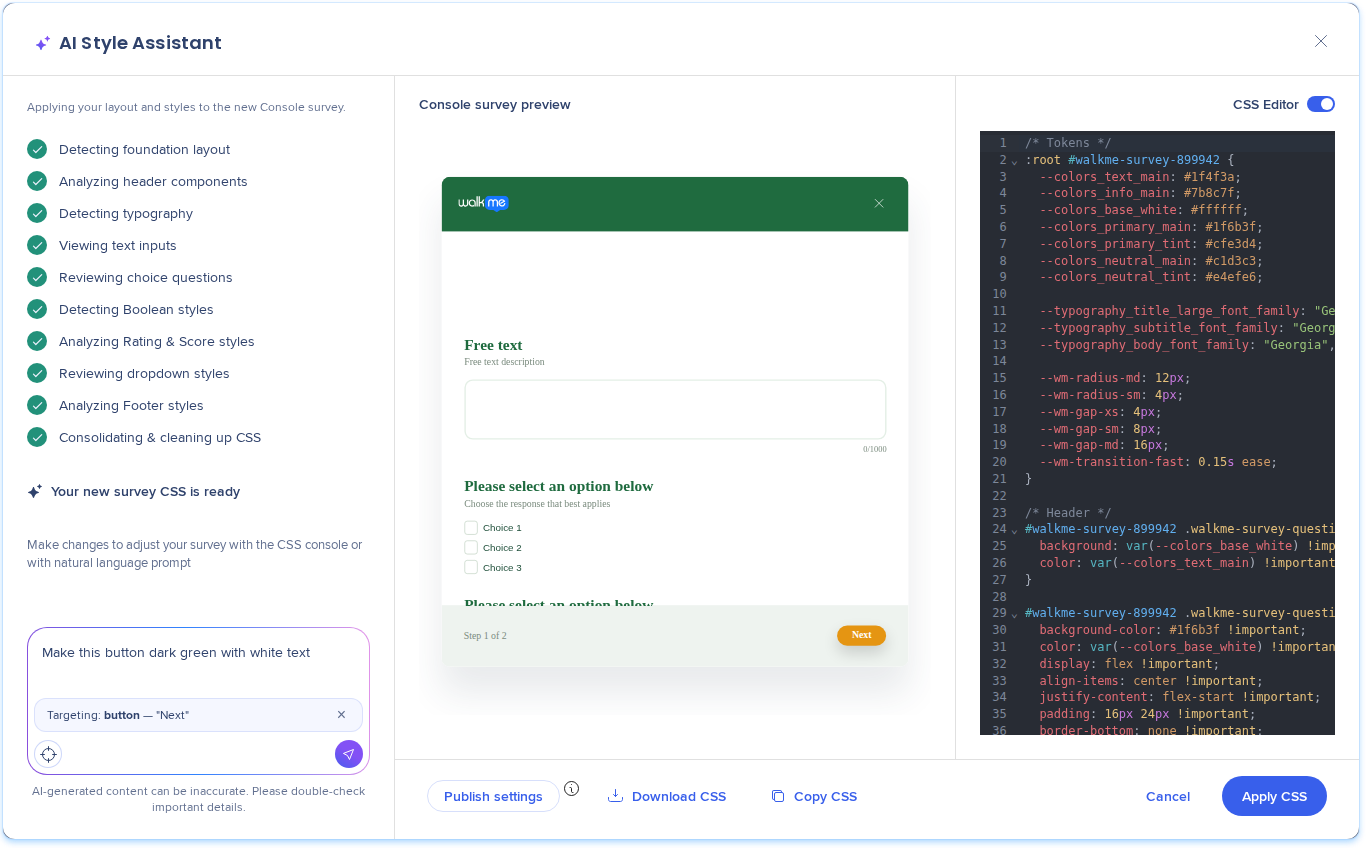
- Send the message. The change applies, and the preview and CSS Console update.
- Repeat for any other changes

Apply the CSS to your survey
When the CSS is ready, select one of the following:
- Copy CSS: Copy the style sheet to your clipboard
- Download CSS: Save the style sheet as a file
- Apply CSS: Add the CSS to the global style sheet of the system where the survey is saved
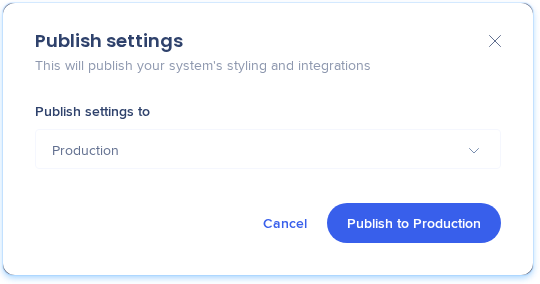
- Publish settings: Make the CSS live. From Publish settings to, choose the environment, and then select Publish to [environment].
Note
Publish settings publishes more than the survey CSS. It also publishes all of the system's styling and integrations:
- Global CSS
- Content style
- WalkMe general translations (content translations aren't included)
- Help Desk integration
- Live Chat integration
- Language identification

Technical Notes
Limitations
- Supports popup surveys only
- Uploads support JPG, PNG, Mac screenshots, and Windows screenshots
- Generated CSS recreates the key styles of a design, and works best for:
- Header
- Colors
- Fonts
- Typography
- Buttons
- Doesn't reliably recreate complex layouts or structural positioning, including:
- Element positioning
- Width and height
- Spacing and layout relationships
- Advanced responsive behavior


