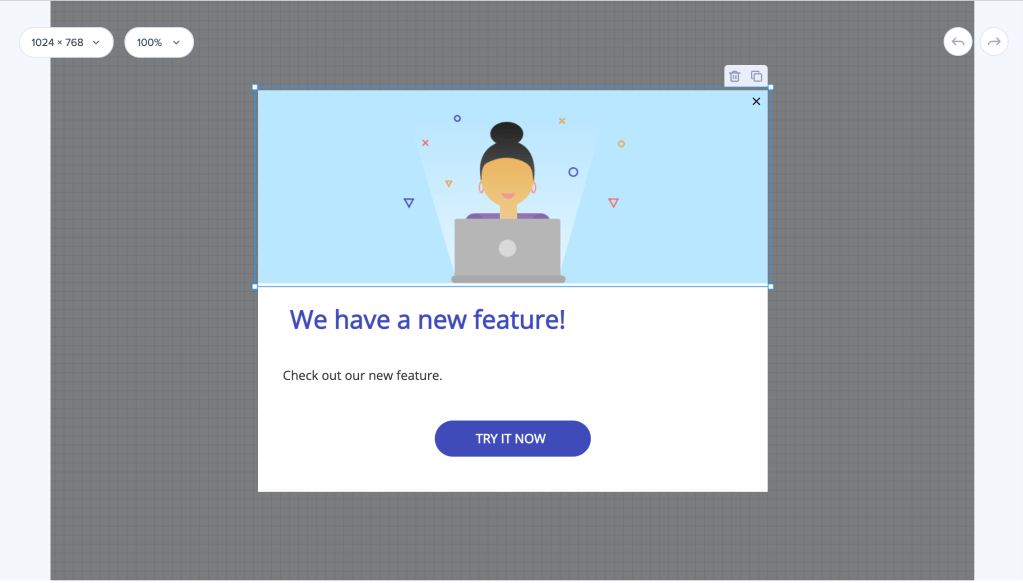
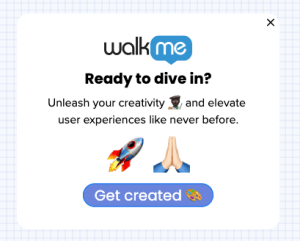
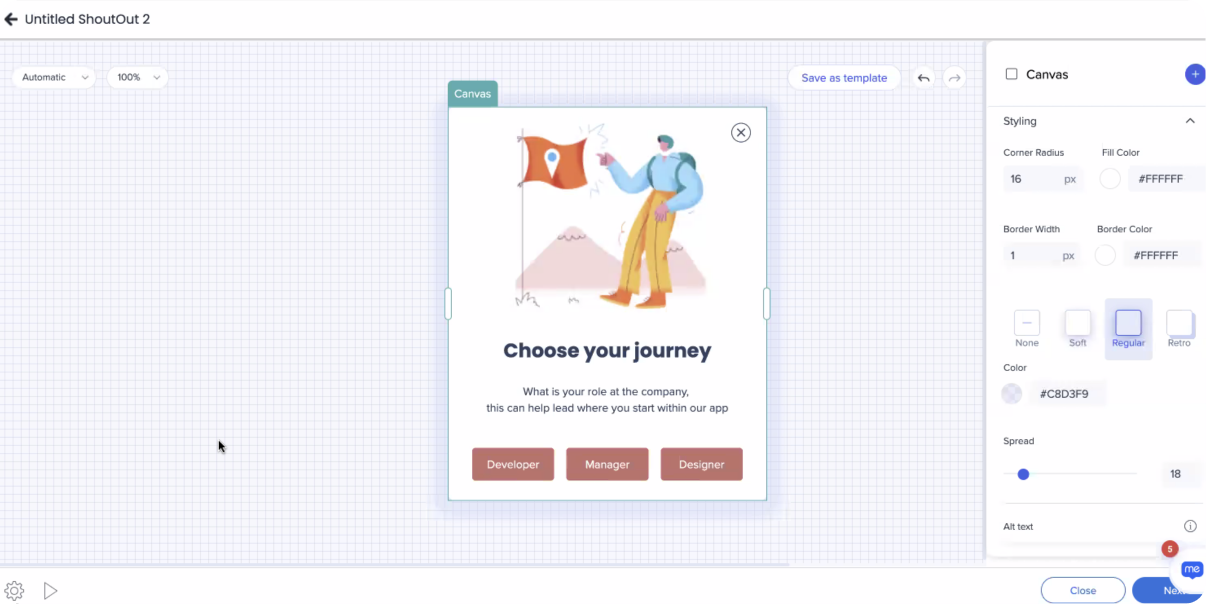
Customizing ShoutOuts has gotten much easier with the help of the Visual Designer. Create beautiful designs without the need for CSS. Giving easy control when creating and designing ShoutOuts, with capabilities like:
Frameset sites - the content will not be drawn on them
The Visual Designer supports:
Web Player - supports SO
Mobile Player - supports SO, SWT (limited), Surveys, Launchers
Desktop Player - supports SO, SWT (limited)
Accessibility is supported (on the image level and ShoutOut level)
Regular font of Open Sans looks different when item is played rather than in the Editor. We are working on fixing this.
Customization Options
Below are further details about the options available to further customize your ShoutOut using the different Visual Designer tabs:
Top Bar
Select Screen resolution, Zoom level and Undo / Redo for any editing action (also supported by Keyboard shortcuts).
Add and Delete Objects
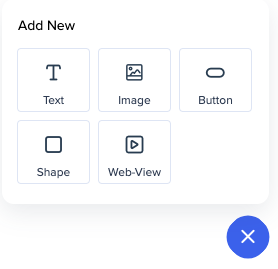
To add new items to your ShoutOut, Click the ADD NEW OBJECT blue plus icon in the right bottom corner, choose an object, and drag it into the desired location. Once in place, you can edit shape, contents, location, and more. Selecting an object in the objects tree will indicate that object within the ShoutOut.
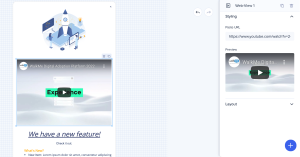
When adding an image or a video, you can preview it on the side panel. For YouTube and Vimeo there's no need to insert embed links, a regular one will be embedded automatically.
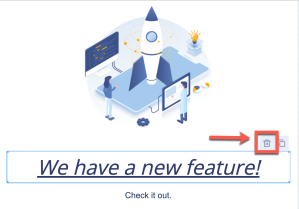
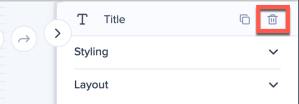
To delete an object from your ShoutOut, select the object on the ShoutOut preview display and click on the trash can icon.
Alternatively, select your object and click the same icon in the side menu.
Styling
When selecting a specific object within your ShoutOut, (text box, image, etc) the Styling tab provides you with a range of formatting options, specific to that object. Including the following capabilities and more:
Changing the ShoutOut Canvas color, opacity, and corner radius
Adding a border to the ShoutOut and adjusting the width or the border
Text direction (left to right by default)
Changing font style, size, color, and height
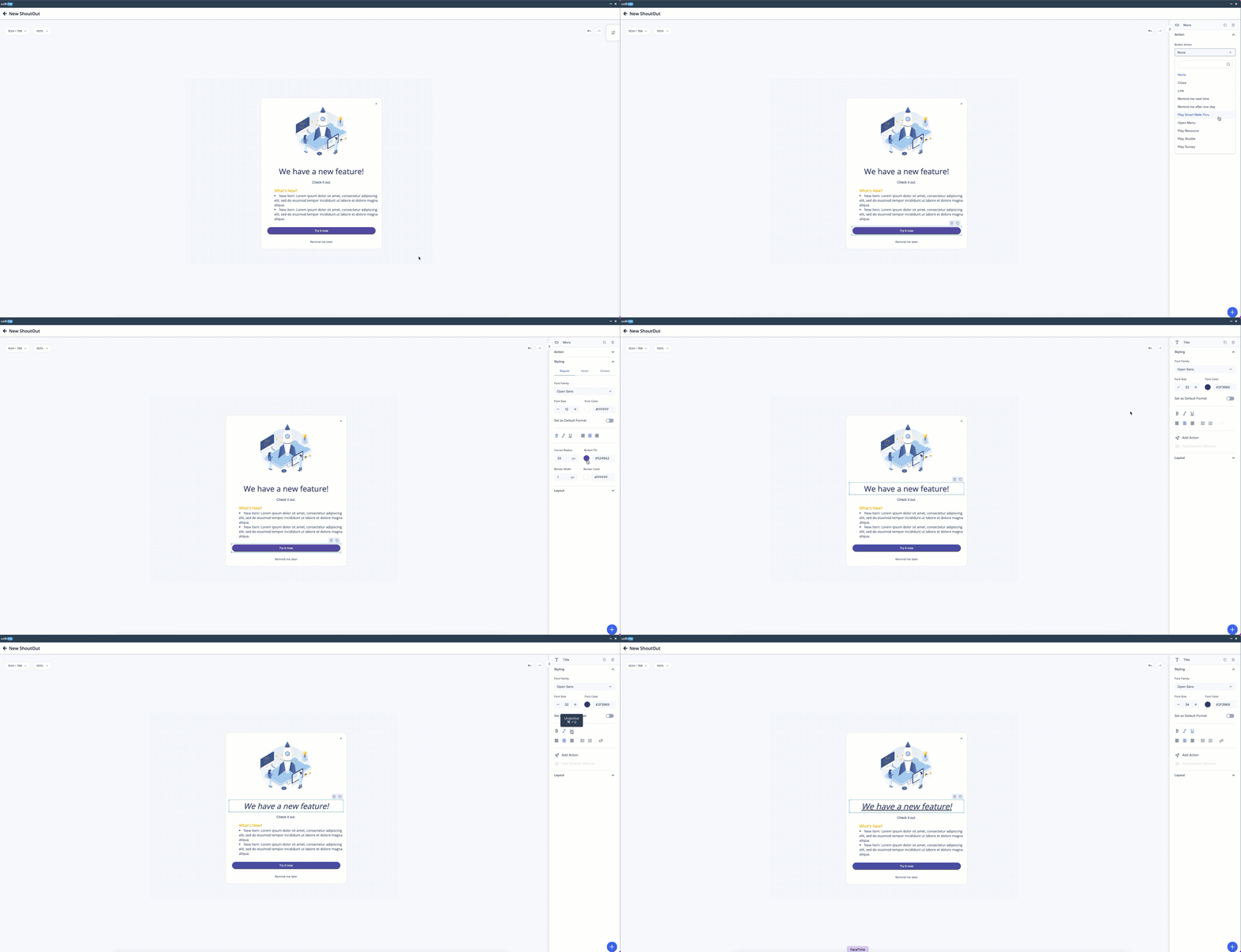
Formatting text to bold, italic, or underlined
Adjusting the alignment of text from the center, left, or right
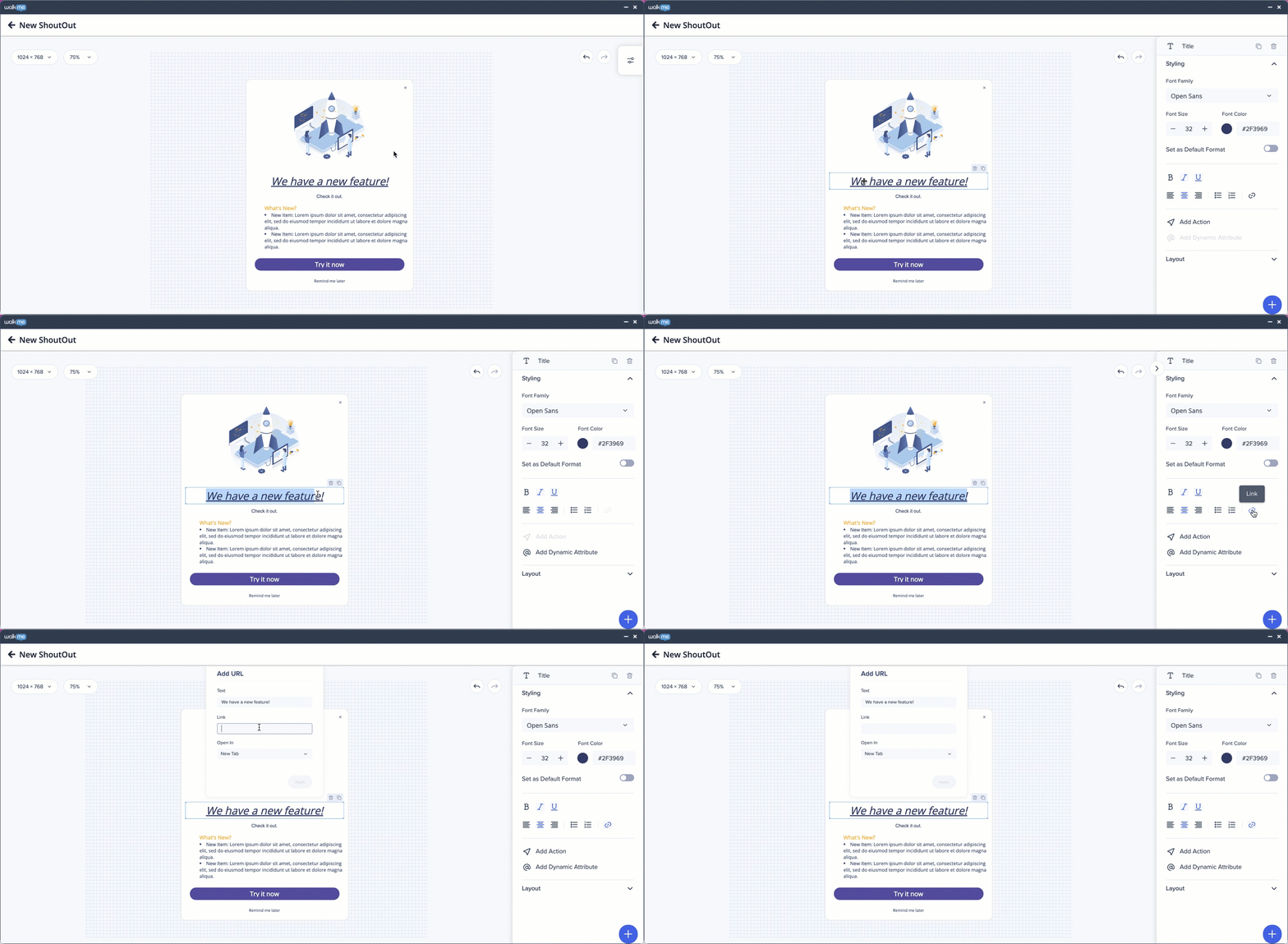
Links: Add a link to the text of your ShoutOut. Select the desired text, press the URL icon in the styling tab, insert the link and choose where you would like it to open (New Window, This Window, New Tab).
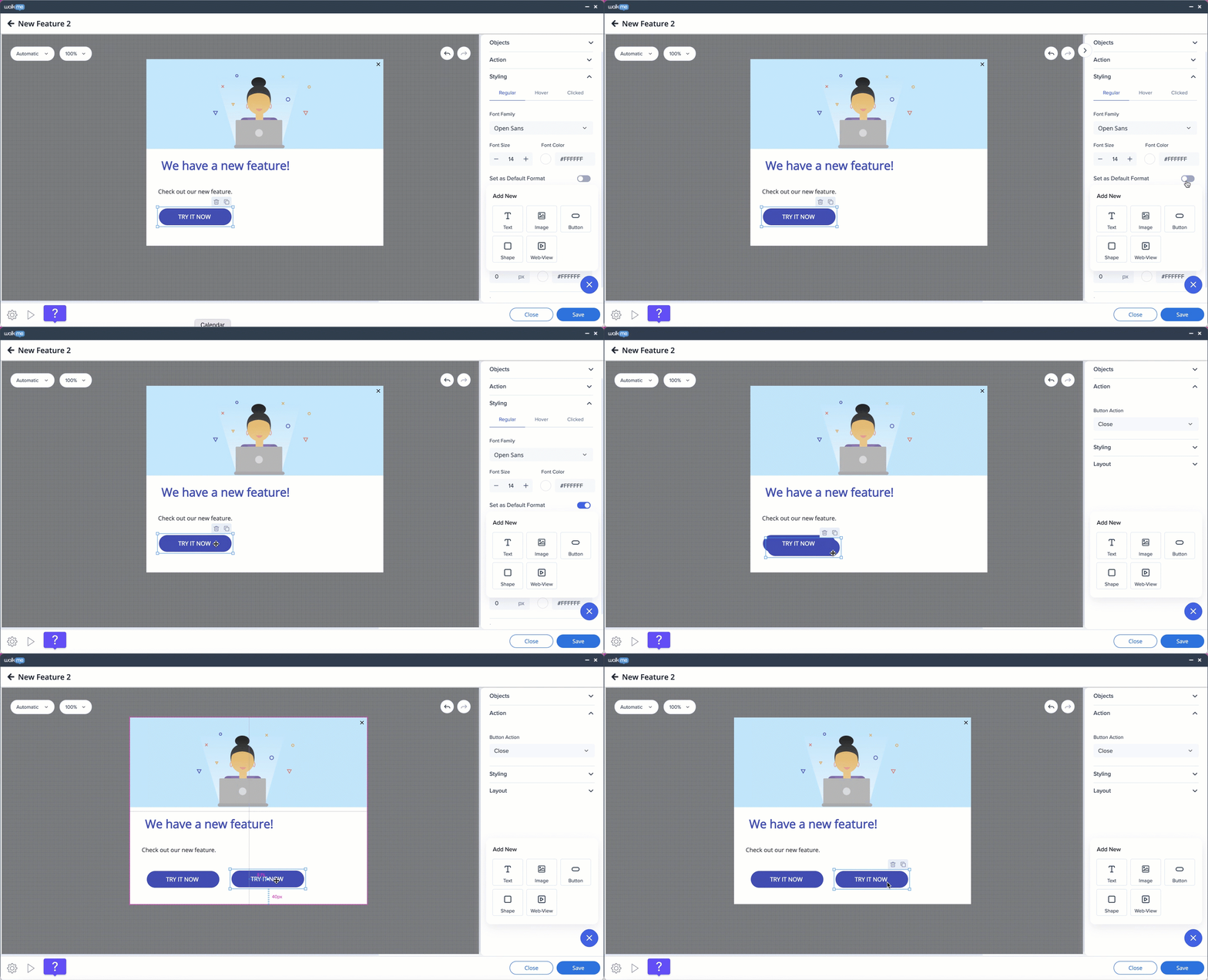
Set as Default Format: If you design a widget – e.g. a button – and toggle this feature to ON, the next buttons you add will be recreated in the same design.
Emoji: You can insert emojis into your WalkMe content. Simply add them to text or button widgets and customize their size, just like you do with fonts.
To open the emoji menu:
Windows: Press Windows + Period
Mac OS: Press Command + Control + Space
Shadow: Add a shadow to the canvas of the Shoutout.
Select between: None, Soft, Regular & Retro shadow predefined options.
Action
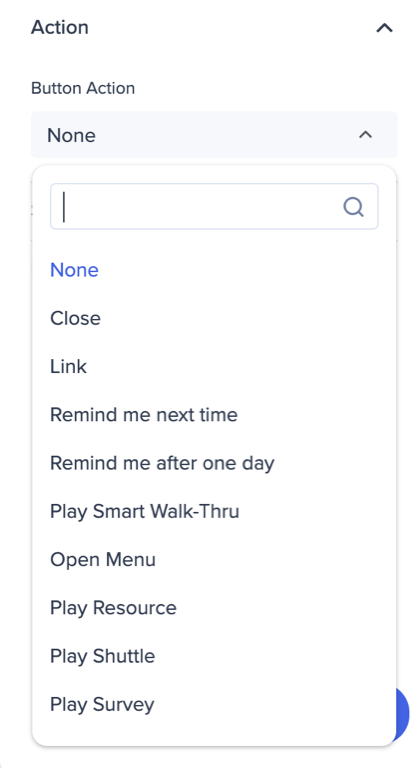
Add an Action that will be triggered when clicking on the ShoutOut object. New actions — Play Shoutout, Play Survey, Play Action Bot, Open a Link — were added.
Tip
If you want to have a button that dynamically links to another page, link to a Smart Walk-Thru, use a re-direct step, and then use BBCode to pull the dynamic part of the site - for example, [var]location.origin[/var].
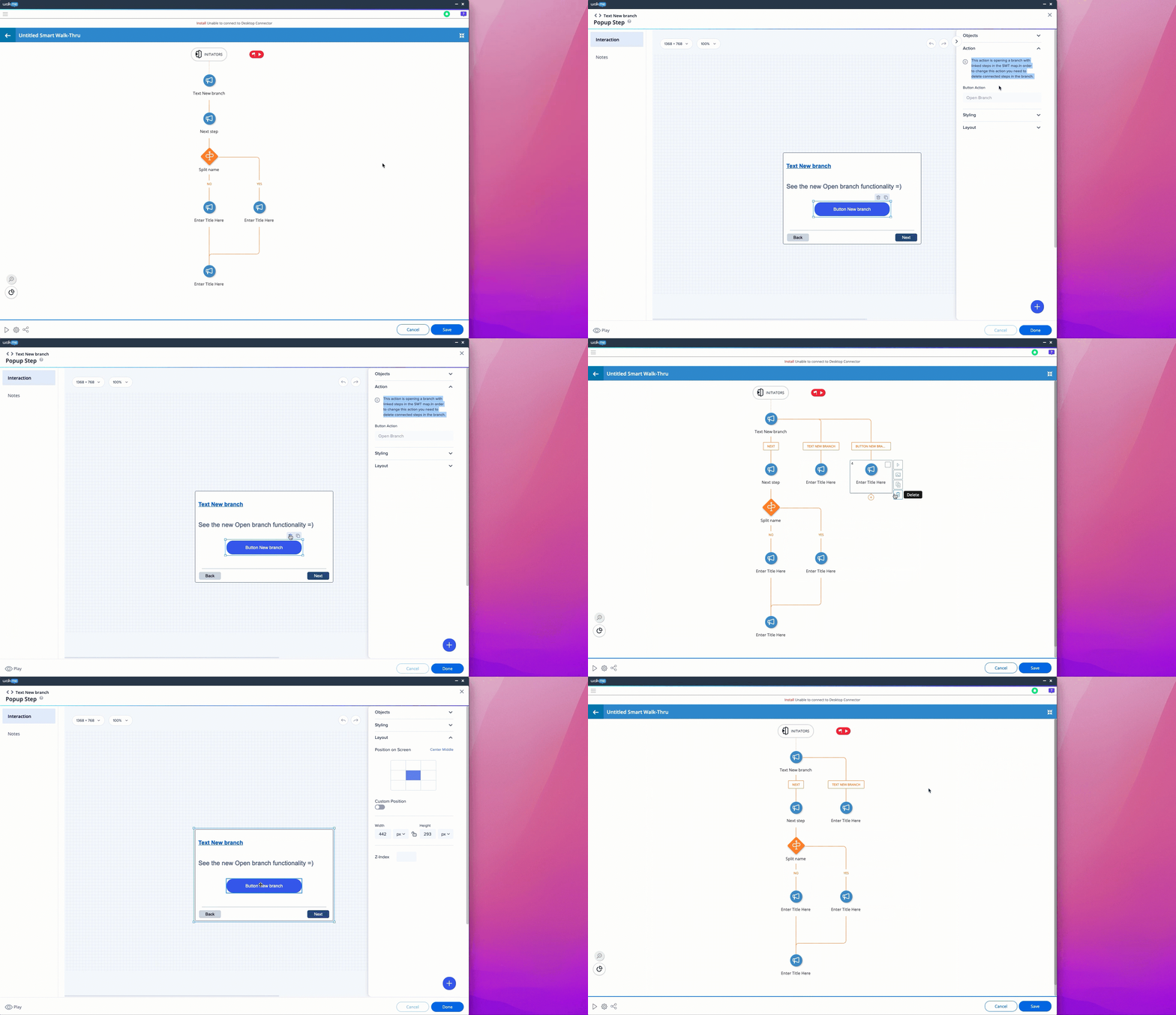
Open Branch Action (Desktop/Mobile System Only)
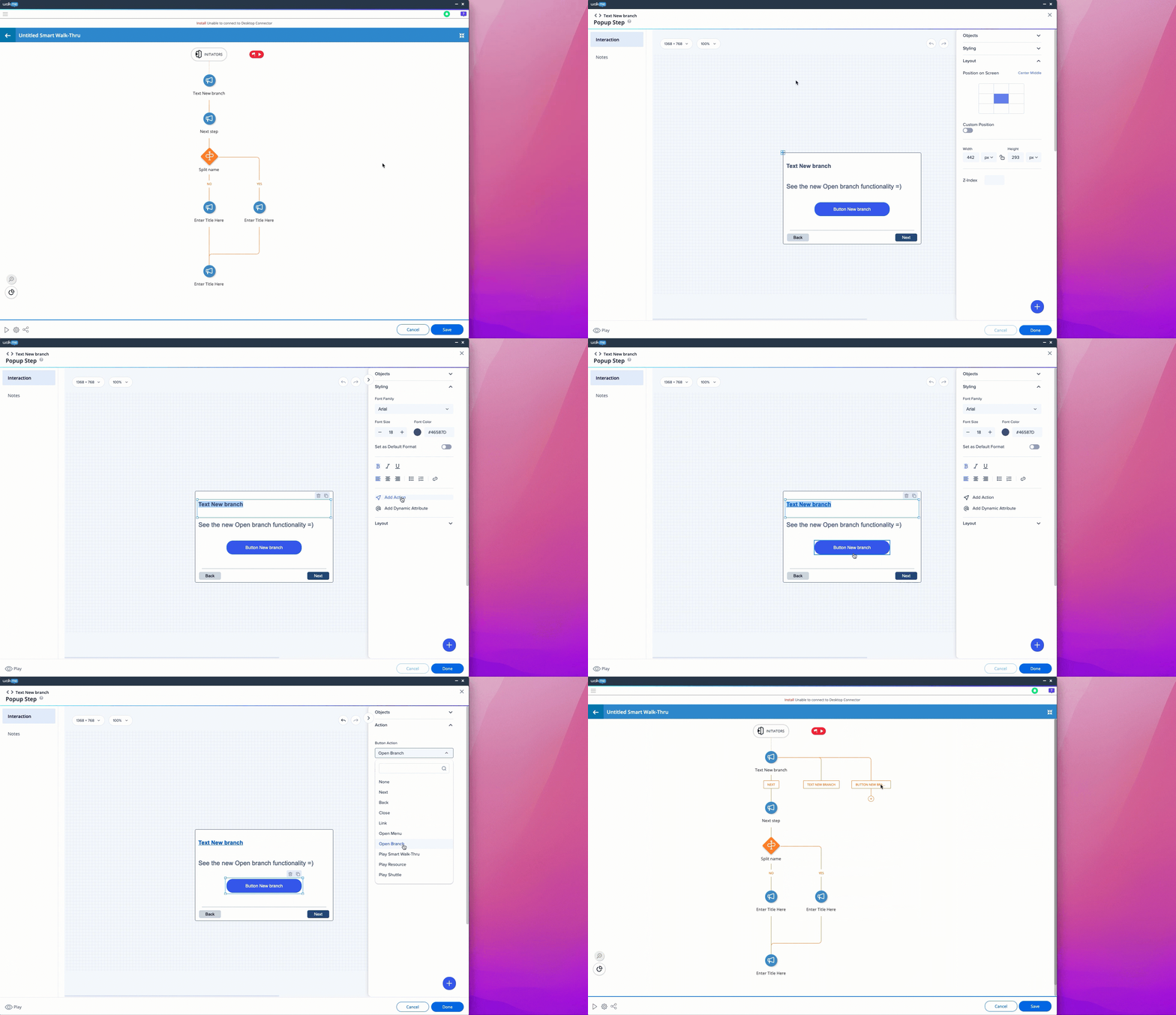
The action opens a new branch on the Smart Walk-Thru map (in the classic balloons it was done via "trg" BBcode). It can be applied to a button or text.
The feature also includes validations – if a branch has a step connected to it, the button/text which opens the branch can't be deleted.
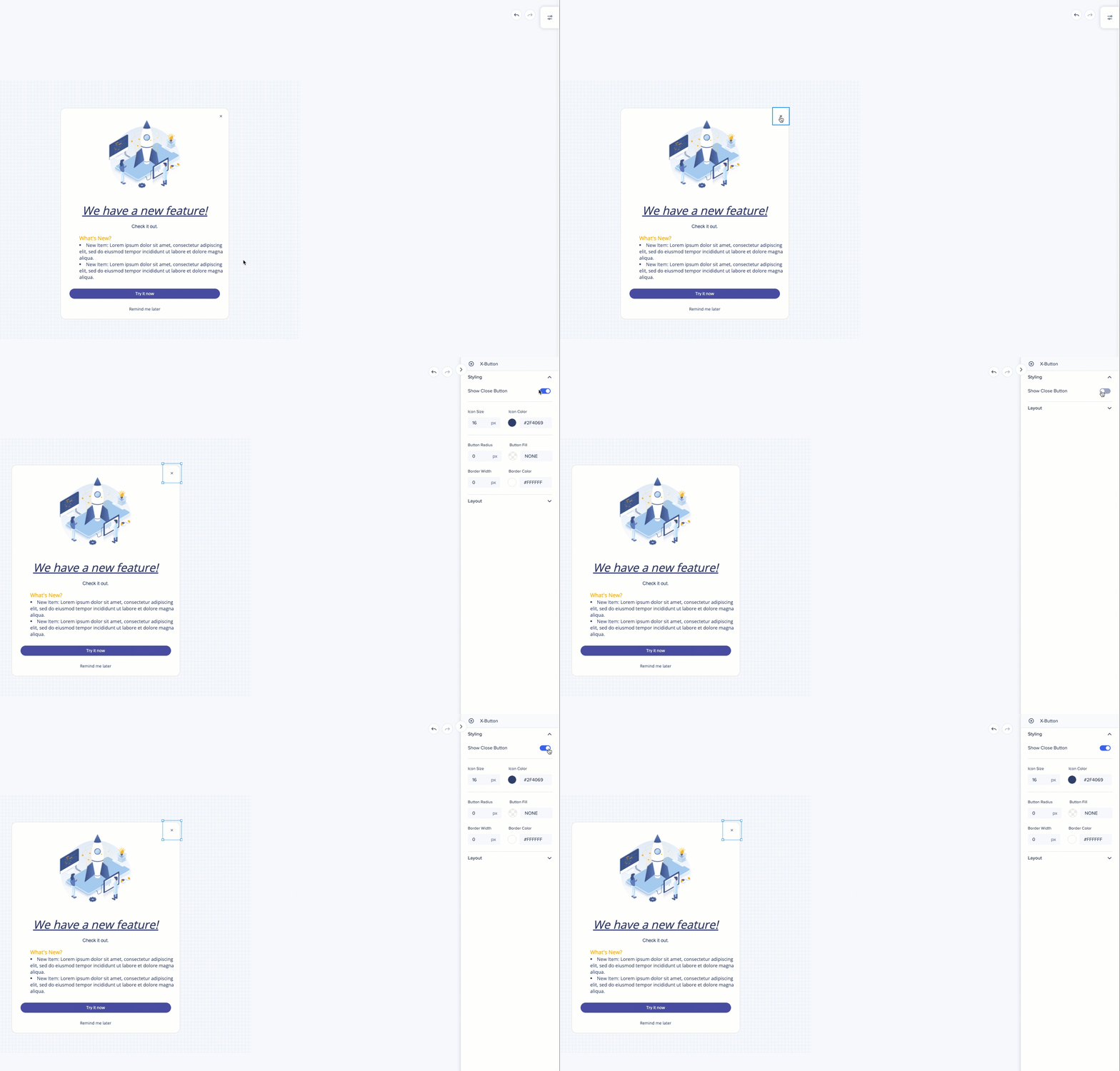
X Button
Show or hide the X Button on your ShoutOut.
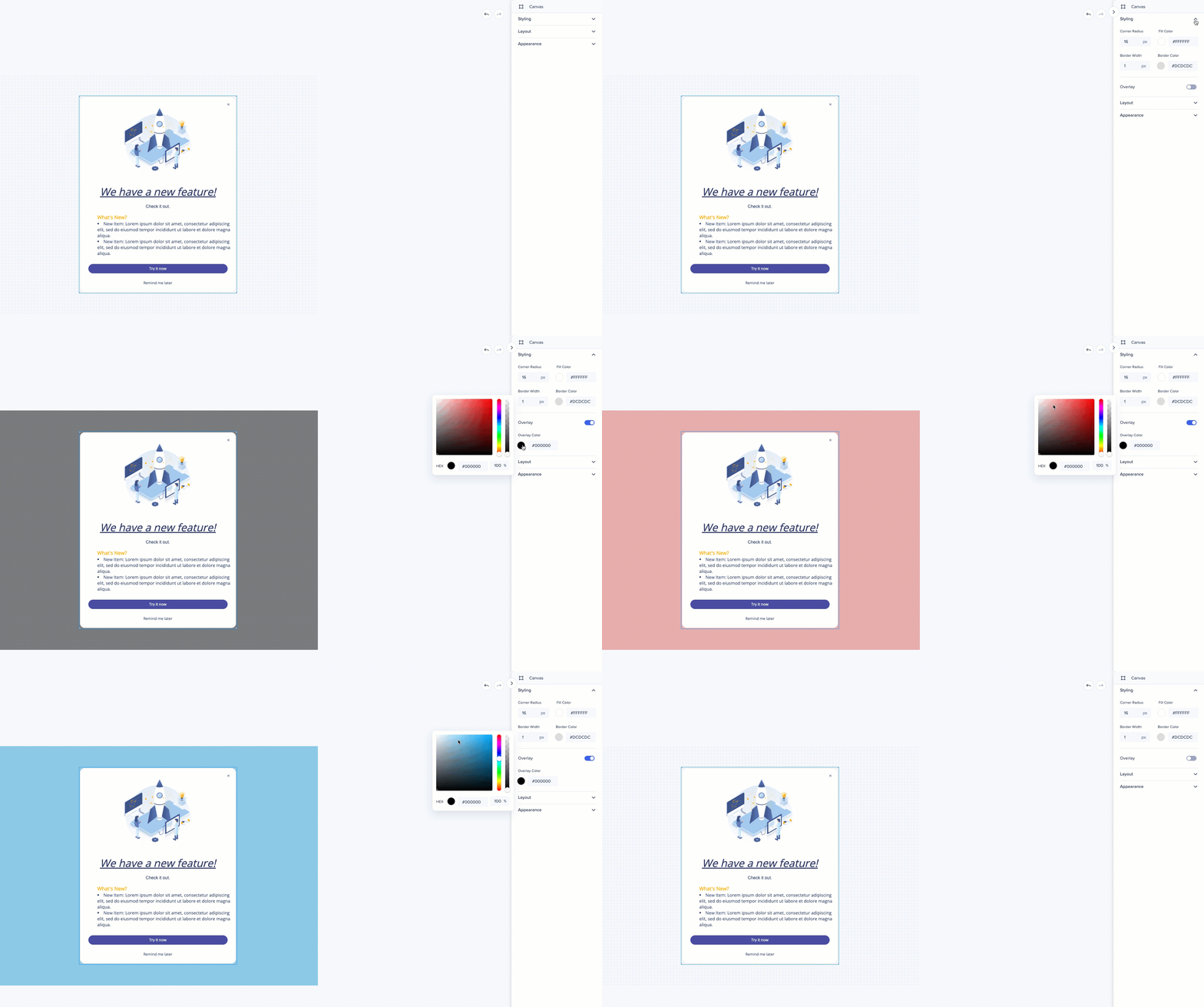
Screen Overlay
You can decide to have a screen overlay behind your ShoutOut and set the color and opacity of it. Enabling screen overlay will dim or color the screen behind and make your ShoutOut stand out.
Layout
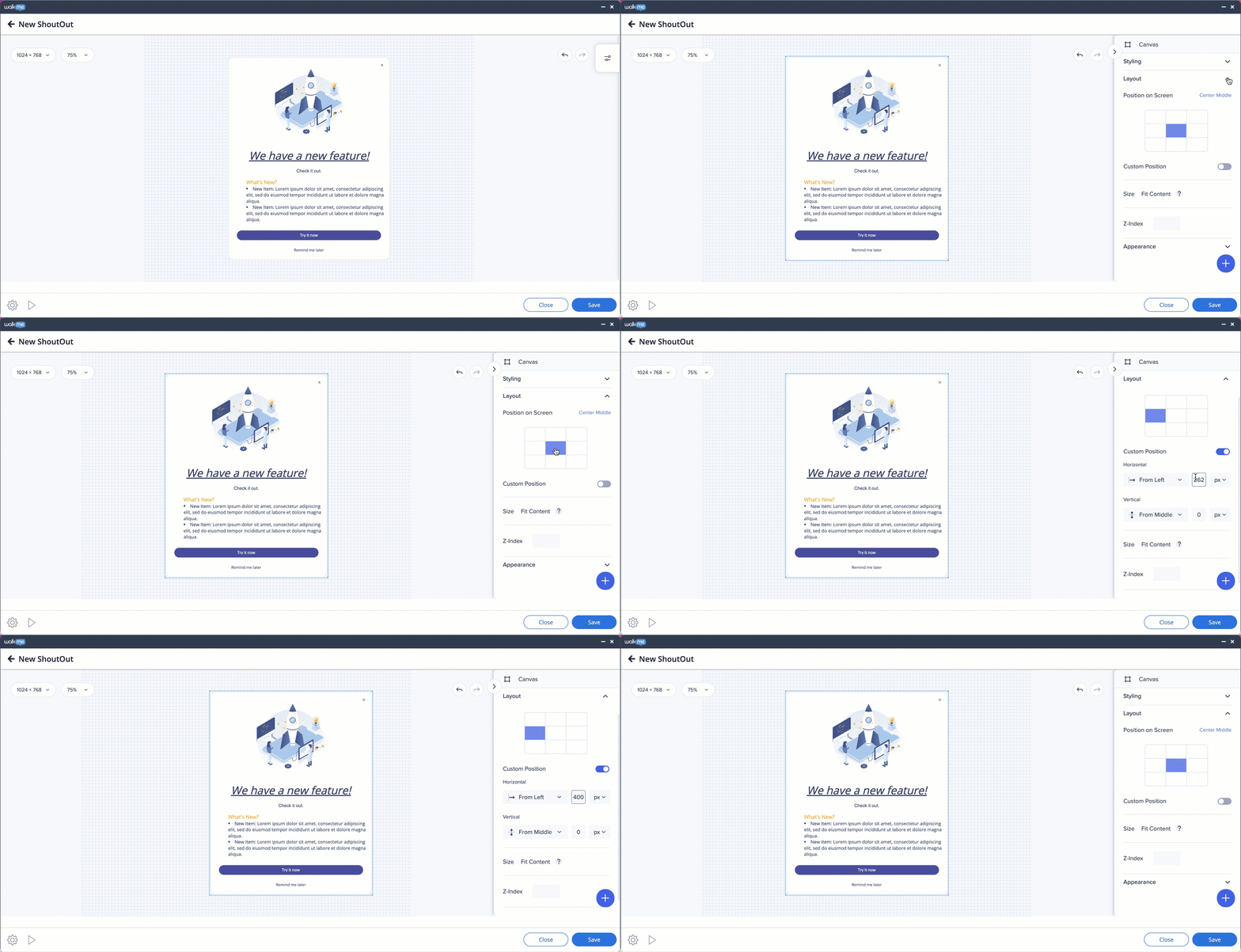
Select where ShoutOut appears on the screen — by dragging it around the preview screen, choosing one of the default position settings in the side menu, or setting a custom position.
Note
The values should be between -25% and 25% (pixels are calculated accordingly). The limitation was set so that users won't be able to position the ShoutOut outside of the screen.
Size
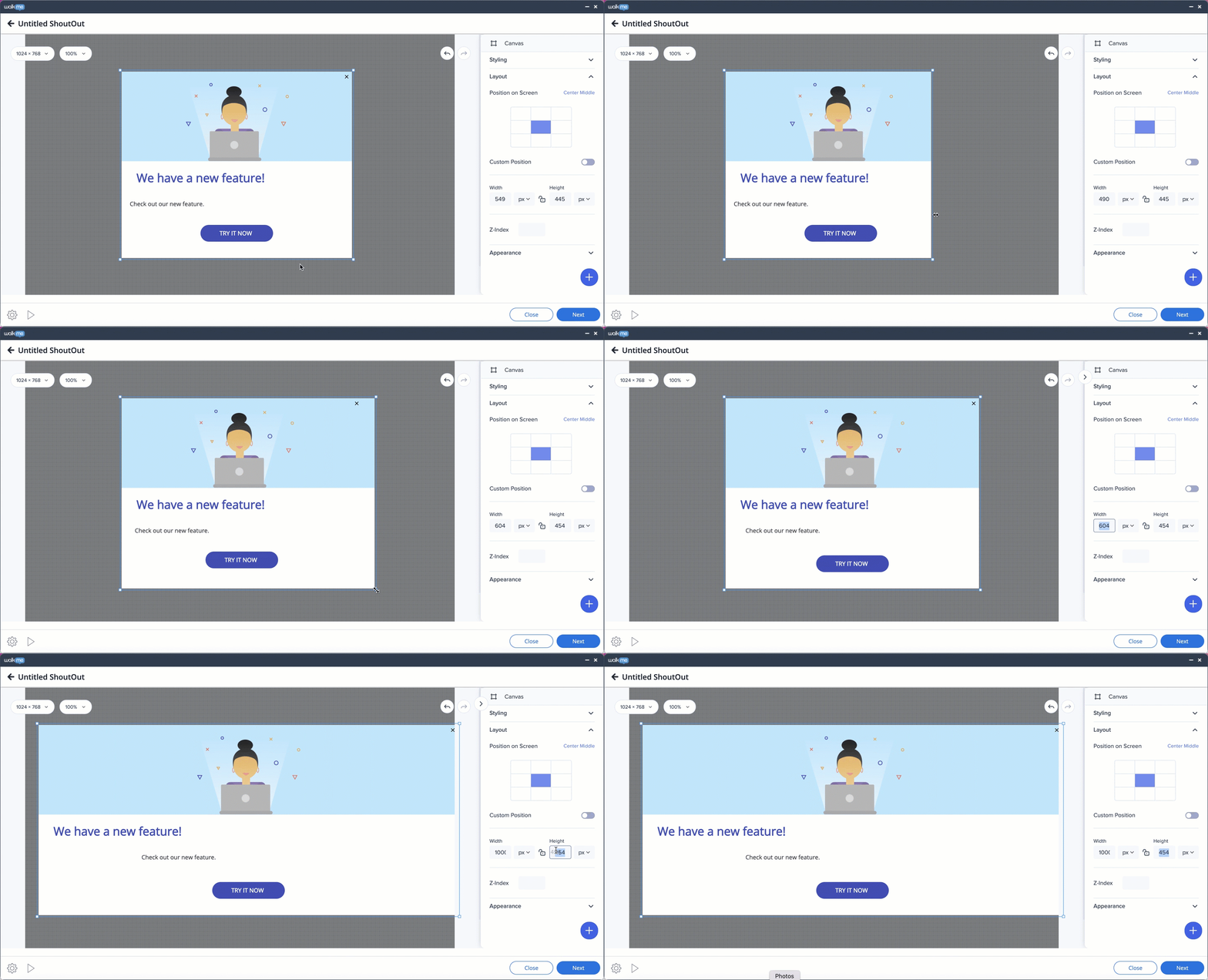
Adjust the size of your ShoutOut either manually (on the Shoutout preview screen) or by selecting the desired width and height properties in the side menu.
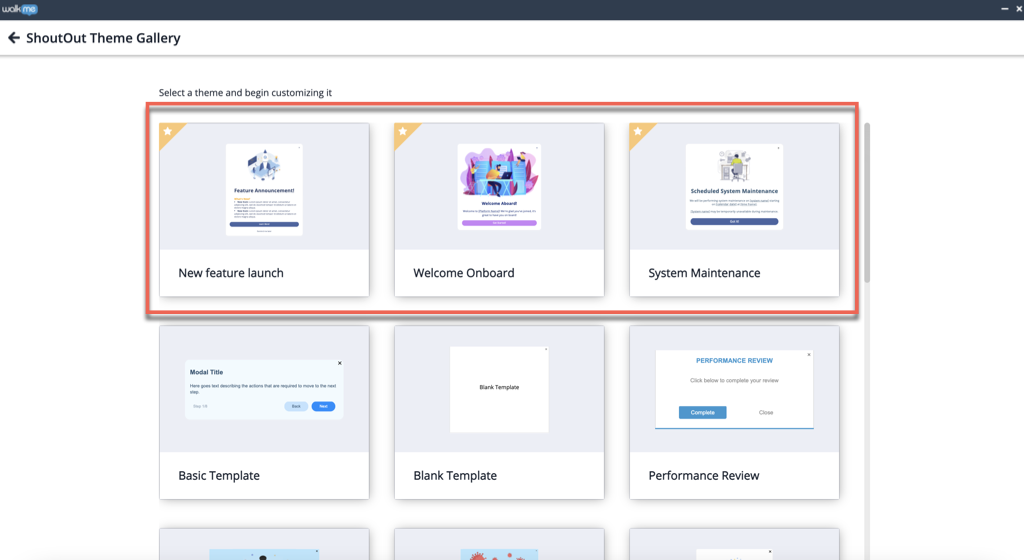
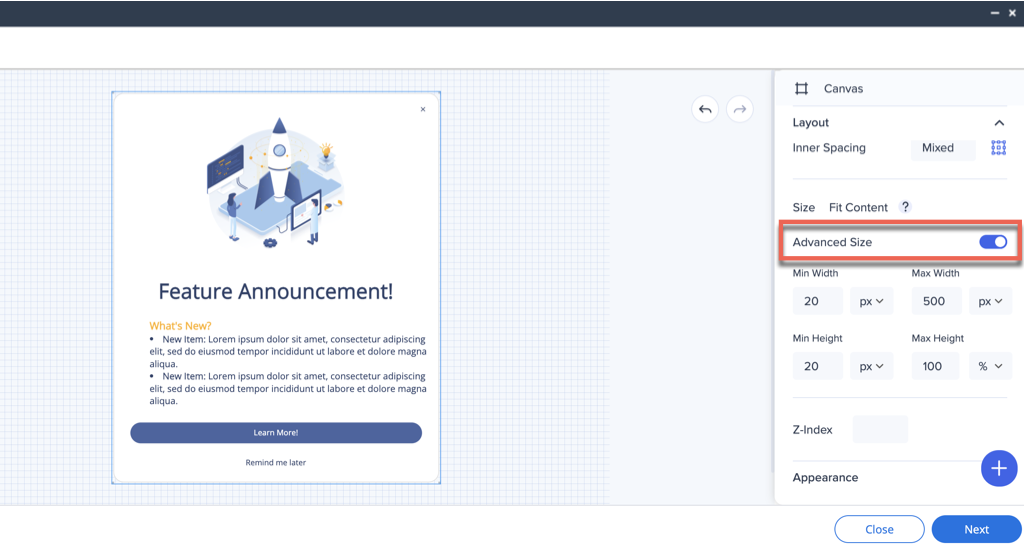
NOTE: Templates marked with a star in the ShoutOut Theme Gallery use the Dynamic Layout and have a different side menu. To change the size of such a ShoutOut, turn the Advanced Size toggle to ON.
Settings
Adjust the ShoutOut settings by clicking on the cog icon in the bottom left corner.
Right to left (RTL) text support
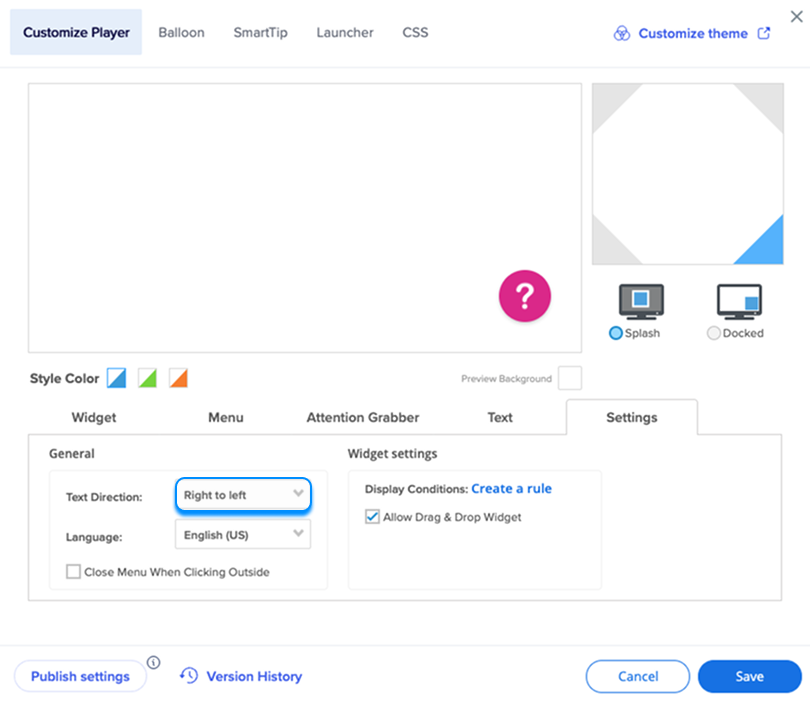
If you're creating content with text in one of the right to left languages (like Hebrew or Arabic), activate the dedicated setting for the ShoutOut to play as expected:
Go to Customize content style
In the Settings tab, select Right to left from the Text Direction dropdown
Select Save
Note
If you have ShoutOuts in both left to right (for example, English) and right to left languages, have this set to Right to left for the content to play as expected.
Translating Rich Text in Visual Editor
If you would like to translate the rich text in the new Visual Designer for ShoutOuts (not classic ShoutOuts), the process required for this translation slightly varies from what is normally expected. Please see the instructions below for how to translate a portion of this text:
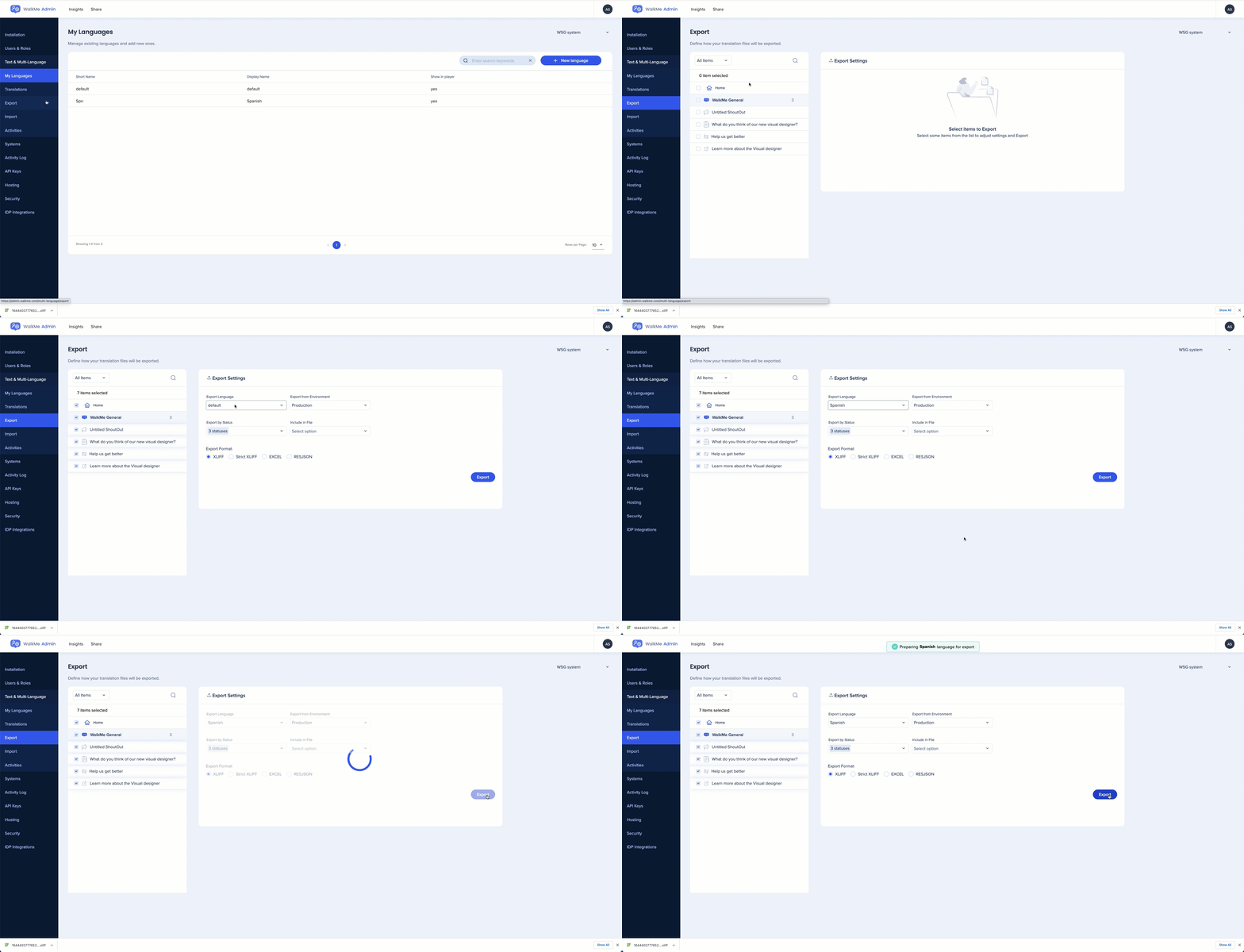
Step 1: Download the associated language .xliff file from your Text & Multi-language export tab:
Step 2: Unlike a normal field where we are expected to introduce a <target> *text* </target> for the translations, the Rich Text fields are constructed slightly differently and as a result, require a specific method:
<source><![CDATA[<p><strong style=”color: rgb(0, 95, 135); font-family: Arial; font-size: 26px;”>What can I do in View and Markup?</strong></p>]]></source>
Copy the entire structure and just modify the bolded portion:
Step 3: The end result for a whole field containing both it's original text and translated text should resemble the example below:
<trans-unit id=”Type=SO_RCH_TXT, Id=eb49a45d-7f5e-4603-8e57-fe573fbf4cc6″>
<source><![CDATA[<p><strong style=”color: rgb(0, 95, 135); font-family: Arial; font-size: 26px;”>What can I do in View and Markup?</strong></p>]]></source>
<target><![CDATA[<p><strong style=”color: rgb(0, 95, 135); font-family: Arial; font-size: 26px;”>Test?</strong></p>]]></target>
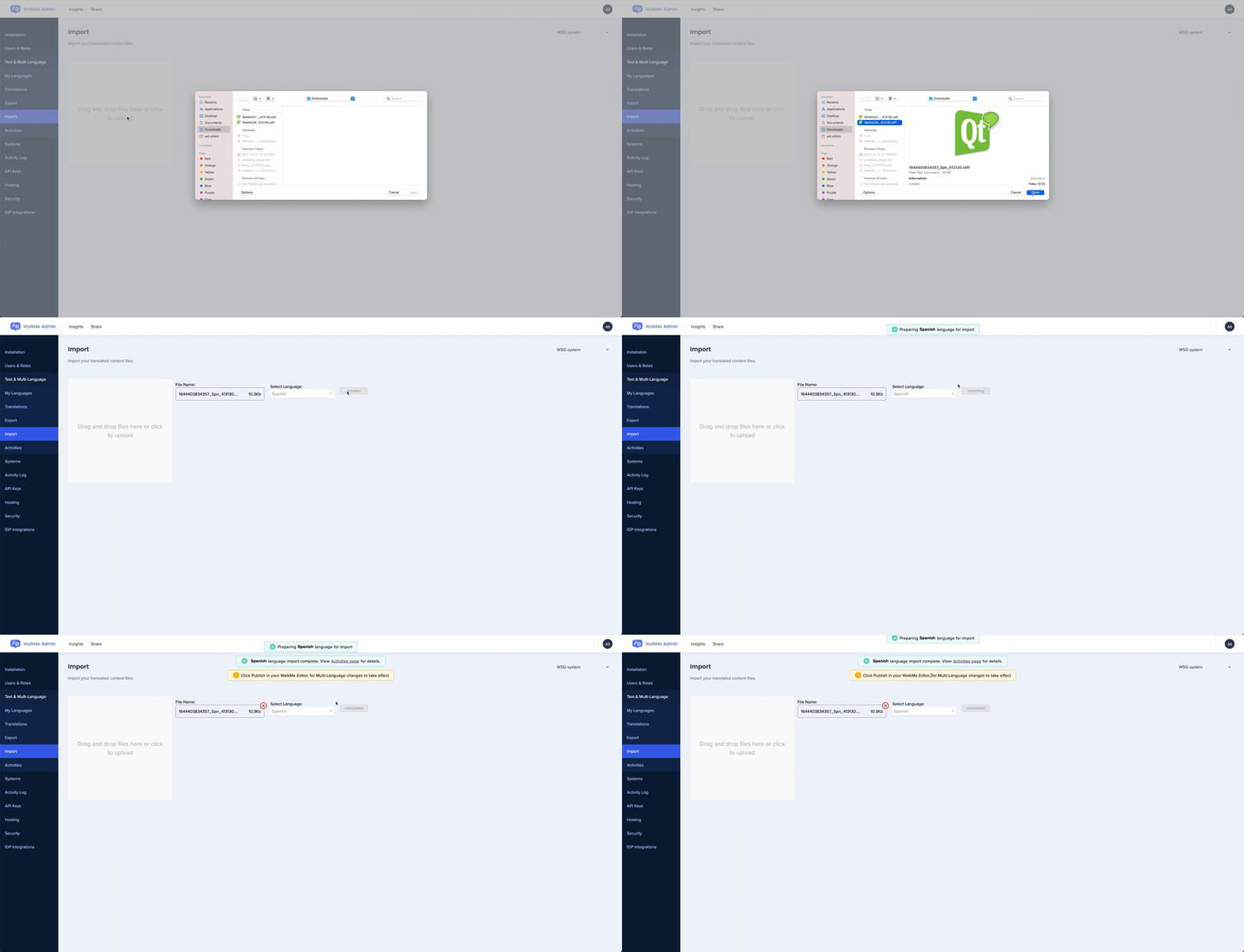
Step 4: Save the updated file in the current folder it is located within, and import it back to the multi-language section onto the relevant language – no error should be experienced if the formatting syntax is identical and only the container was modified.
Keyboard Shortcuts
Use these shortcuts to optimize your time while working with the Visual Designer.
Description
Mac Shortcut
Windows shortcut
Insert link or edit link
Command + K
Control + K
Bold
Command + B
Control + B
Italic
Command + I
Control + I
Underline
Command + U
Control + U
Delete an item when selected
Delete
Delete
Copy formatting of the selected text or shape
Command + Option + C
Control + Option + C
Paste formatting of the selected text or shape
Command + Option + V
Control + Option + V
Duplicate
Command + D
Control + D
Send backward
Command + Up Arrow
Control + Up Arrow
Bring Forward
Command + Up Arrow
Control + Up Arrow
Send to Back
Command + Shift + Down Arrow
Control + Shift + Down Arrow
Bring to Front
Command + Shift + Up Arrow
Control + Shift + Up Arrow
Redo
Command + Y
Control + Y
Undo
Command + Z
Control + Z
Technical Notes
Visual Designer does not support customizing using global or custom CSS
Frameset sites are not supported – the content will not be drawn on them