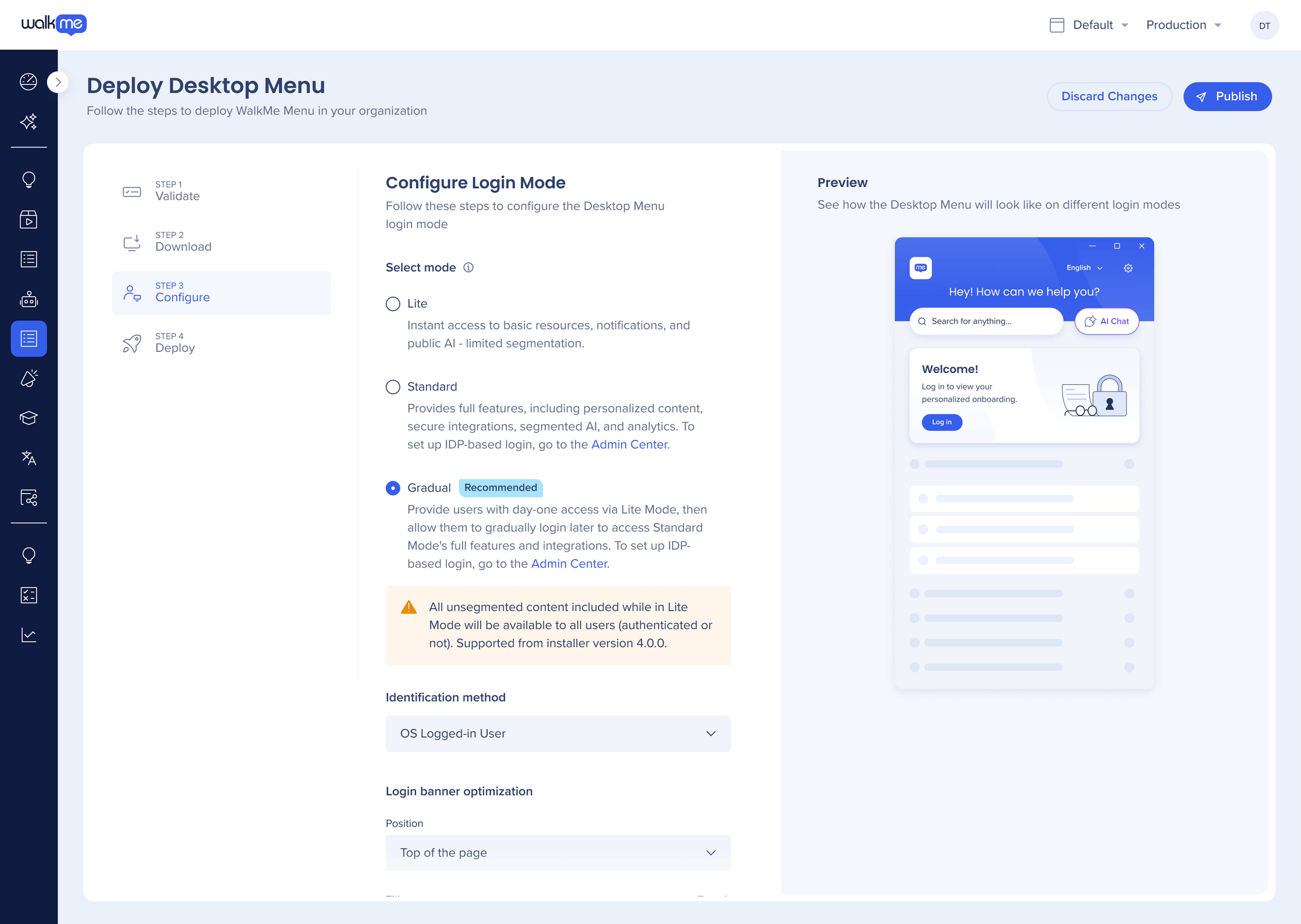
The WalkMe Menu now supports three login modes — Lite, Gradual, and Standard — giving organizations more flexibility in how users access content on the desktop menu.
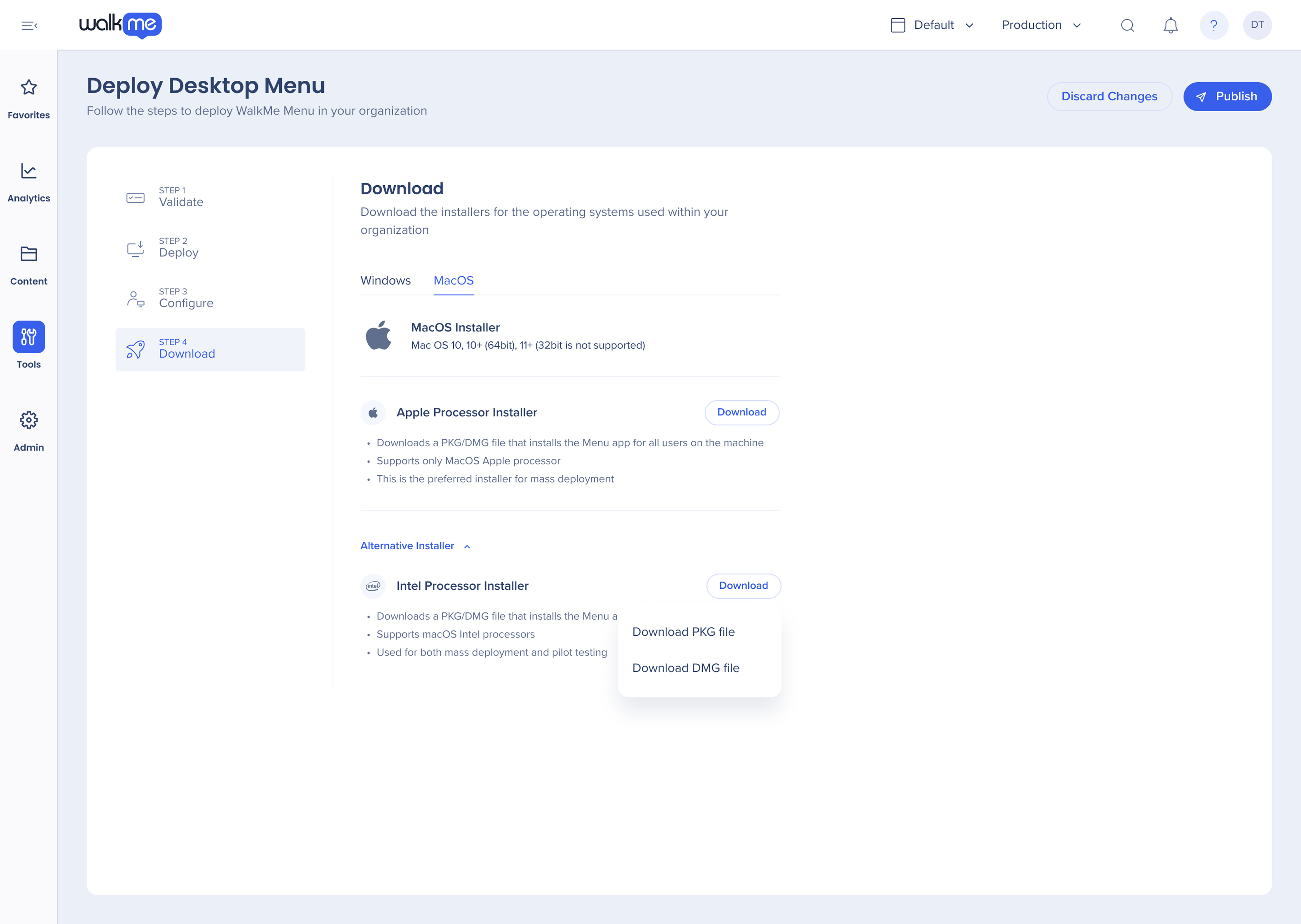
On this screen, download the installers for each of the operating systems (Windows and MacOS) within the organization.
Windows
There're three types of the Windows installers - download the installer that best suits your needs:
System Installer:
Preferred installer for mass deployment
Downloads a machine wide installer in a MSI file
Installs the desktop menu for any user on sign in
User Installer:
Downloads an EXE file that installs the desktop menu for the user that's currently logged in into the computer
Does not require user to sign out and in again after the installation
Not viable for scenarios where different users use the same machine, like kiosks
Good for piloting the desktop menu or testing it on a single machine for a specific user
Machine Installer:
Downloads an MSI file that installs the desktop menu for any user on that machine
A centralized installer placing the application in / program files / folder
Auto-updates are disabled by default
Useful for virtual desktops or when several users share the same profile
MacOS
Installer:
Downloads a PKG file that installs the desktop menu for all users on the machine
Supports only MacOS Intel processors
Used for both mass deployment and pilot testing
Mobile
The Mobile app can be downloaded via App Store or Google Play.
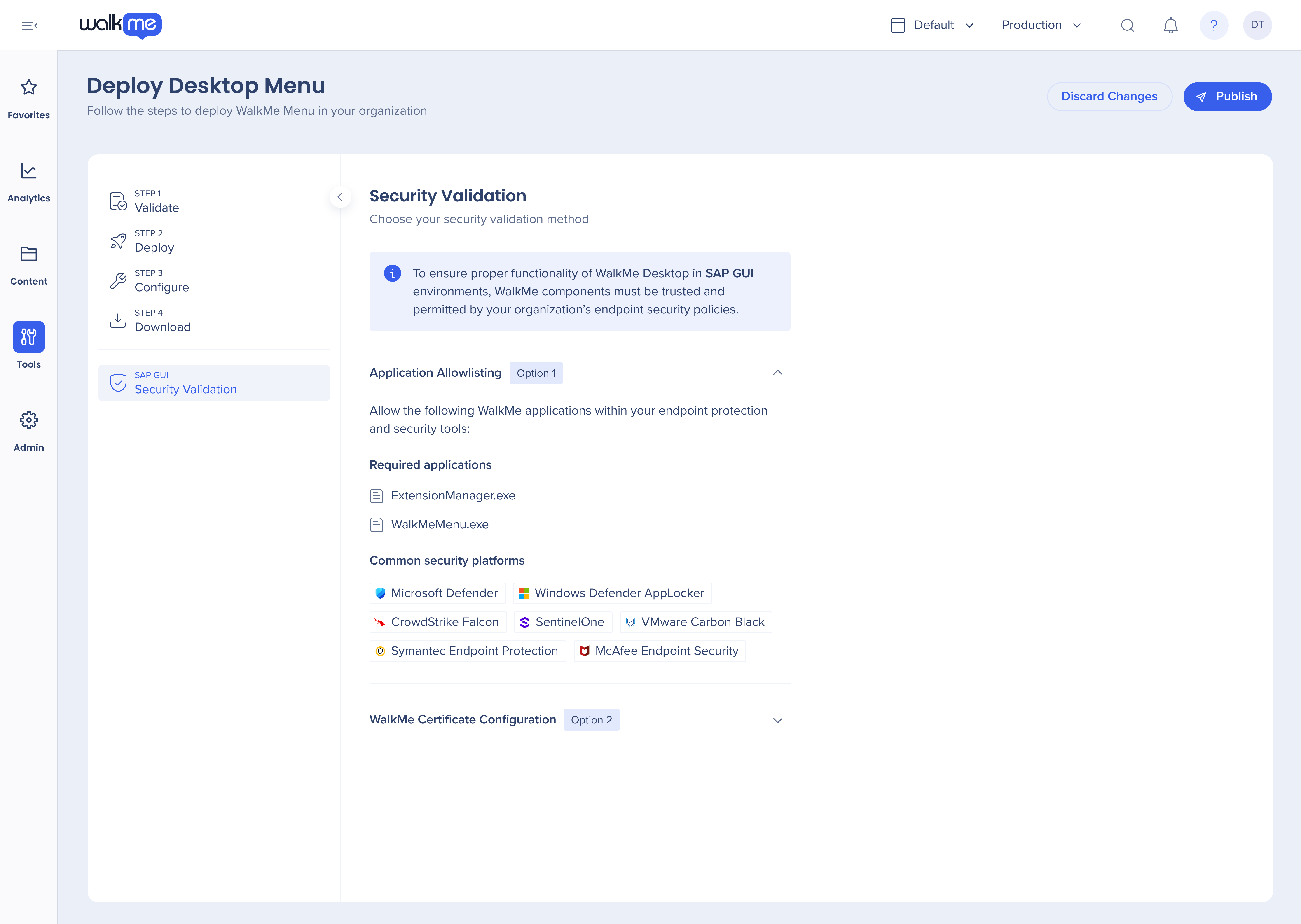
Security Validation for SAP GUI
This step appears only when the target desktop system is identified as SAP GUI.
To function in SAP GUI environments, WalkMe components must be trusted and permitted by your organization's endpoint security policies. Choose one of the two validation methods below and complete it with your IT or security team.
Option 1: Application allowlisting
Allow the following WalkMe applications within your endpoint protection and security tools:
ExtensionManager.exe
WalkMeMenu.exe
Common security platforms include: Microsoft Defender, Windows Defender AppLocker, CrowdStrike Falcon, SentinelOne, VMware Carbon Black, Symantec Endpoint Protection, and McAfee Endpoint Security.
Option 2: WalkMe certificate configuration
Alternatively, configure your endpoint security solution to trust applications signed by the official WalkMe code-signing certificate. This approach is commonly supported by enterprise security and application control platforms.
Common security platforms include: Microsoft Defender / WDAC, Windows Defender AppLocker, and VMware Carbon Black.