Breve Visão Geral
O construtor de condições é a interface para criar e gerenciar condições no WalkMe. Use-o para definir a lógica que controla quando o conteúdo aparece, como o Smart Walk-Thrus e outros itens se comportam e se as metas são cumpridas.
Casos de uso
- Segmentação: mostrar conteúdo para grupos de usuários específicos com base em uma variável, como departamento
- Fluxo Smart Walk-Thru: roteie os Usuários por diferentes caminhos com base em suas ações ou estado do aplicativo
- Objetivos: acompanhar o sucesso verificando se um usuário alcançou uma página ou clicou em um elemento
- Condições de exibição: controle do lançador e da visibilidade do recurso por página ou contexto
Acesso
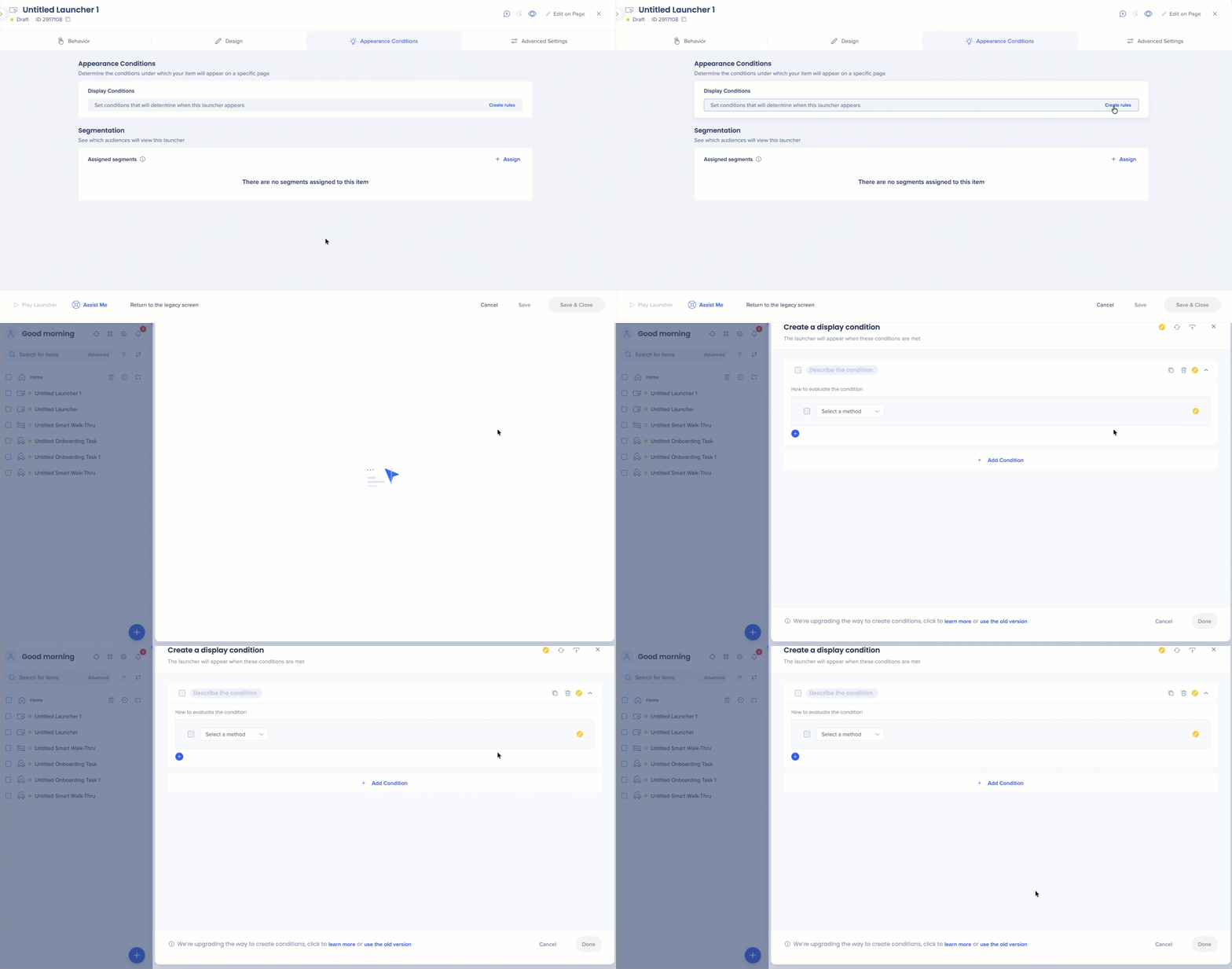
Abra qualquer item do WalkMe no editor e navegue até Condições de Aparência ou Segmentos. O construtor de condições é carregado automaticamente.
Como Funciona
O construtor de condições avalia pontos de dados no aplicativo - URL, dados do usuário, elementos na tela - e retorna Verdadeiro ou Falso. Quando uma condição é Verdadeira, a ação ou conteúdo do WalkMe associado é acionado.
Exemplo: SE o URL atual contiver /Painel, ENTÃO exiba o ShoutOut.
Definições
- Condição = o bloco lógico inteiro (o que você está criando no construtor de condições)
- Regra = uma única linha de instrução dentro de uma condição
Lógica de avaliação
- De cima para baixo: as instruções são escaneadas em ordem. O WalkMe os combina para alcançar um resultado final.
- Estado ativo do navegador: o construtor avalia a página como ela aparece no momento. Navegue até a página de destino para ver indicadores de status precisos.
- Indicadores de status: cada declaração mostra um status em tempo real à direita:
- ✓ Verdadeiro: a condição é atendida
- ! Falso: a condição não é atendida
- ? Fazer asserção: o WalkMe não pode avaliar a condição, geralmente porque a página ou elemento de destino não está carregado
Tipos de regra
Cada regra tem três partes: um tipo, um operador e um valor.
Selecione um tipo para definir o que o WalkMe deve avaliar.
- URL atual: verifica o URL da página atual
- URL de referência: verifica o URL do qual o usuário navegou
- Elemento na tela: verifica qualquer elemento da página quanto à visibilidade, conteúdo, comprimento ou tipo.
- Elemento selecionado: verifica um elemento específico já capturado no Editor
- jQuery: verifica um elemento pelo seletor jQuery, útil para elementos difíceis de identificar ou otimização de desempenho
- Variável: verifica uma variável ou função JavaScript
- Cookie: verifica um valor de cookie do navegador
- Dados do WalkMe e objeto JSON: verifica valores de dados específicos do WalkMe ou JSON
- Integrações: verifica dados de IDP, CSV, API ou integrações baseadas em comportamento.
- Atributos de usuário: verifica dados de objeto de usuário final, incluindo métricas calculadas como Primeiro Visto, Último Visto ou Número de Sessões
- Tipo de navegador e tamanho da janela: verifica as dimensões do navegador ou da janela do usuário
- Data e hora: verifica dia, mês, data específica ou hora do dia (formato de 24 horas, como 16:00). Itens de Reprodução Automática definidos para expirar em uma determinada data fazem-no no final desse dia.
- Idioma e Idioma do WalkMe: verifica o idioma ativo do WalkMe ou o idioma do navegador/sistema (o multi-idioma deve estar ativado para o Idioma WalkMe)
- Plataforma: verifica se o WalkMe está em execução no Windows, Mac ou Web (apenas tipos de sistemas Desktop/Móvel)
- Workday: verifica contextos específicos do Workday: formulário, worklet, subpágina, página ou item da caixa de entrada
- Salesforce: verifica a guia ou URL no Salesforce (requer sfVars)
- SKU/Modelo: verifica identificadores de hardware de PC ou Mac (apenas tipos de sistema Desktop/Móvel)
- Fluxo atual: verifica se um iframe, conjunto de quadros ou popup está ativo
- Tarefa de Integração, curso TeachMe e quiz TeachMe: verifica a conclusão do conteúdo de integração ou TeachMe
- Segmento: verifica se um segmento existente é atendido e permite reutilizar a lógica salva. Se o segmento referenciado estiver excluído, a condição indicará isso e interromperá a avaliação.
- Comparação de número/data: avalia comparações numéricas ou baseadas em data
Observação
Alguns tipos estão disponíveis apenas para recursos específicos ou tipos de sistema.
Opções do elemento na tela
Quando o Elemento na tela está selecionado, opções adicionais são exibidas:
- Re-selecionar Elemento: selecione Re-selecionar Elemento para alterar o elemento de destino
- Ajustes: Selecione Ajustes para ajustar os ajustes de precisão, para que o elemento seja identificado de forma consistente nos estados da página.
- Visualizar Elemento: Selecione Visualizar Elemento para ver uma captura de tela do elemento selecionado e verificar se está correto.
Observação
Elemento na tela refere-se a qualquer elemento da página. Elemento selecionado refere-se a um elemento específico que você já capturou no editor.
Operadores
Os operadores definem a lógica de comparação. Somente operadores relevantes são exibidos com base no tipo de condição selecionado.
- É: correspondência exata
- Contém: verdadeiro se o valor aparecer em qualquer lugar da string
- O valor é como: correspondência de Wildcard usando * para representar qualquer caractere ou conjunto de caracteres (como /Painel/* para corresponder a qualquer subcaminho)
- Correspondências: combina correspondência exata e curinga para correspondência de URL parcial ou completa
Observação
O operador de correspondências é sensível a maiúsculas.
- Operadores de visibilidade: é visível, não é visível, existe, não existe, contagem de elementos, verdadeiro/falso (apenas jQuery)
- Operadores fixos: Clicados (Sticky) e Hovered (Sticky) verificam continuamente a interação, em vez de uma verificação única. Entre em contato com o suporte para ativar.
- Operadores de conteúdo: Texto é, Texto é como (* curingas), Contém, Texto está vazio, Valor é maior/menor que, Comprimento/Contagem de palavras
- Tipo de operadores: Número Válido, Data Válida, Hora Válida, Número de telefone válido nos EUA, E-mail Válido, Está Selecionado (para botões de rádio e caixas de seleção)
Observação
Use O texto é com cuidado — as regras baseadas em strings de texto exato serão quebradas se o aplicativo for traduzido.
Condições dinâmicas
Compare dois elementos de tela uns contra os outros, em vez de comparar um elemento com um valor fixo.
- Capturar um atributo: selecione o primeiro elemento e defina um atributo (como um seletor jQuery)
- Selecione o segundo elemento: Escolha-o no construtor de condições
- Aplicar o atributo: digite o atributo do primeiro elemento no campo de valor para criar a comparação
Inserindo valores
- Preenchedor de valor atual: selecione o ícone de lupa para preencher automaticamente o campo com o URL da página atual ou o valor do elemento selecionado
- Expandindo campos: selecione um campo de valor para expandi-lo para facilitar a edição de strings longas
- Sensibilidade a maiúsculas: as entradas de URL não são sensíveis a maiúsculas. Os seletores jQuery e o operador Matches exigem diferenciação entre maiúsculas e minúsculas.
Várias declarações
Adicione até 60 declarações por condição. Arraste e solte para reordená-los.
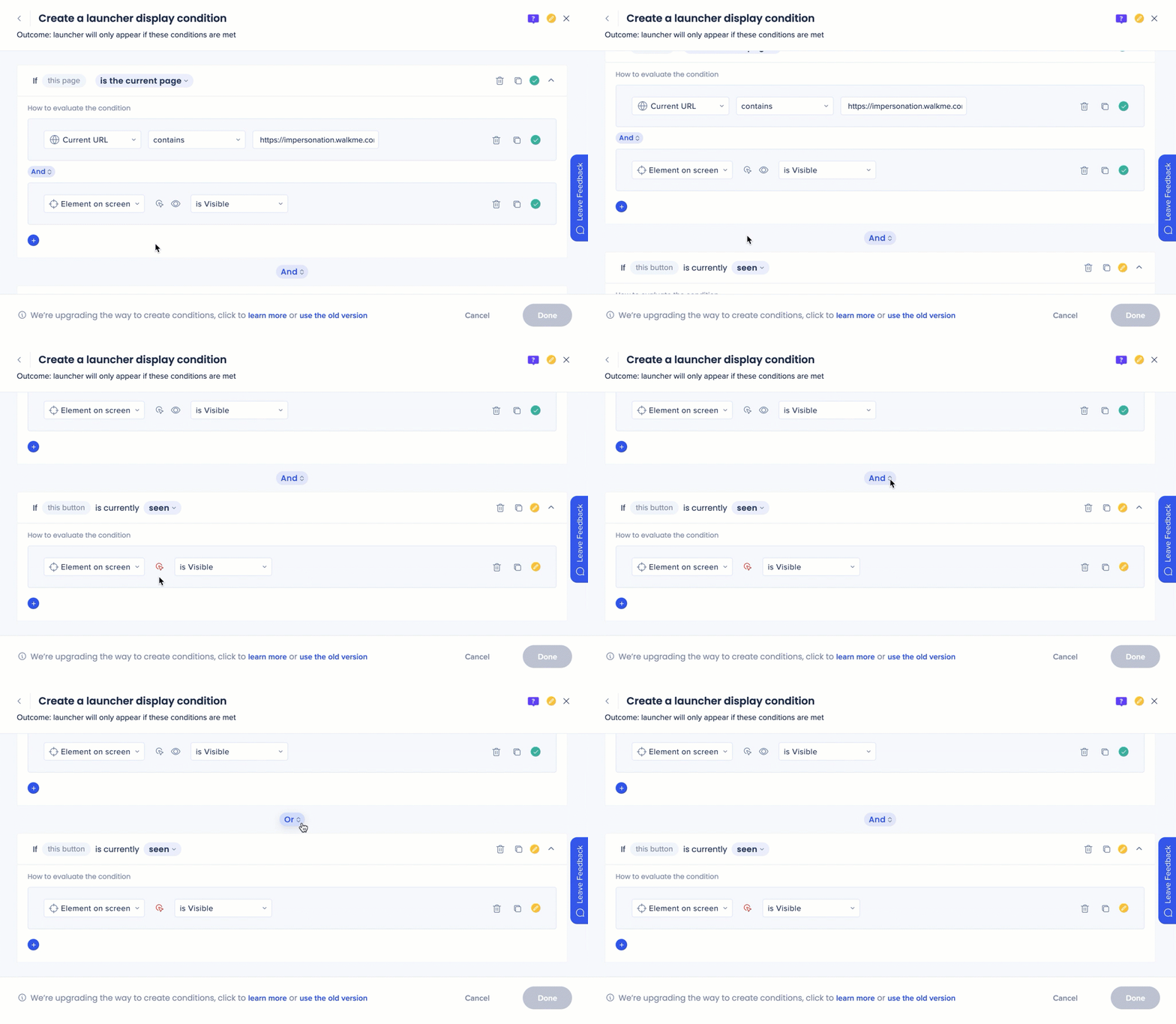
- E: todas as declarações conectadas devem ser verdadeiras
- Ou: pelo menos uma declaração deve ser verdadeira
Agrupamento
Os grupos avaliam um bloco de declarações como uma única unidade. O agrupamento é tratado automaticamente: quando duas ou mais regras existem sob uma condição juntamente com pelo menos uma regra independente, as regras agrupadas são avaliadas juntas primeiro.
Observação
Pelo menos uma declaração ou grupo deve permanecer fora de todos os grupos para que a lógica seja avaliada.
Exemplo: uma meta com duas declarações E: a Declaração 1 verifica o URL, a Declaração 2 verifica se o usuário clicou em Enviar. Ambos devem ser verdadeiros, evitando falsos positivos de outras páginas.
Vários valores
Verifique vários valores em uma única instrução usando Any("value1","value2","value3") no campo valor. Os valores são tratados como Or. Suportado para os tipos de regra URL, Elemento na tela, jQuery, Dados do usuário, Workday e Active Directory.
Expressões regulares
Use o RegEx com jQuery e Element nas regras de tela para combinar padrões complexos, útil para números de série personalizados, IDs exclusivos ou qualquer formato que os operadores padrão não possam processar. Teste padrões no Regex101 antes de adicioná-los ao construtor.
Gerenciar condições
Salvar como segmento
Reutilize uma condição complexa em outro lugar sem reconstruí-la. Abra a condição, selecione Salvar como segmento e dê um nome a ela. A condição é substituída por uma referência ao novo segmento.
Importar regras
Copie condições de segmentos ou metas em outros aplicativos. Selecione Importar Regras, escolha o aplicativo e selecione o item a partir do qual importar. Você também pode importar regras de ponto inicial para etapas lógicas do Smart Walk-Thru.
Duplicar uma declaração
Selecione o ícone Duplicar ao lado de qualquer declaração para criar uma cópia e ajustar os valores ou operadores conforme necessário.
Mover condições
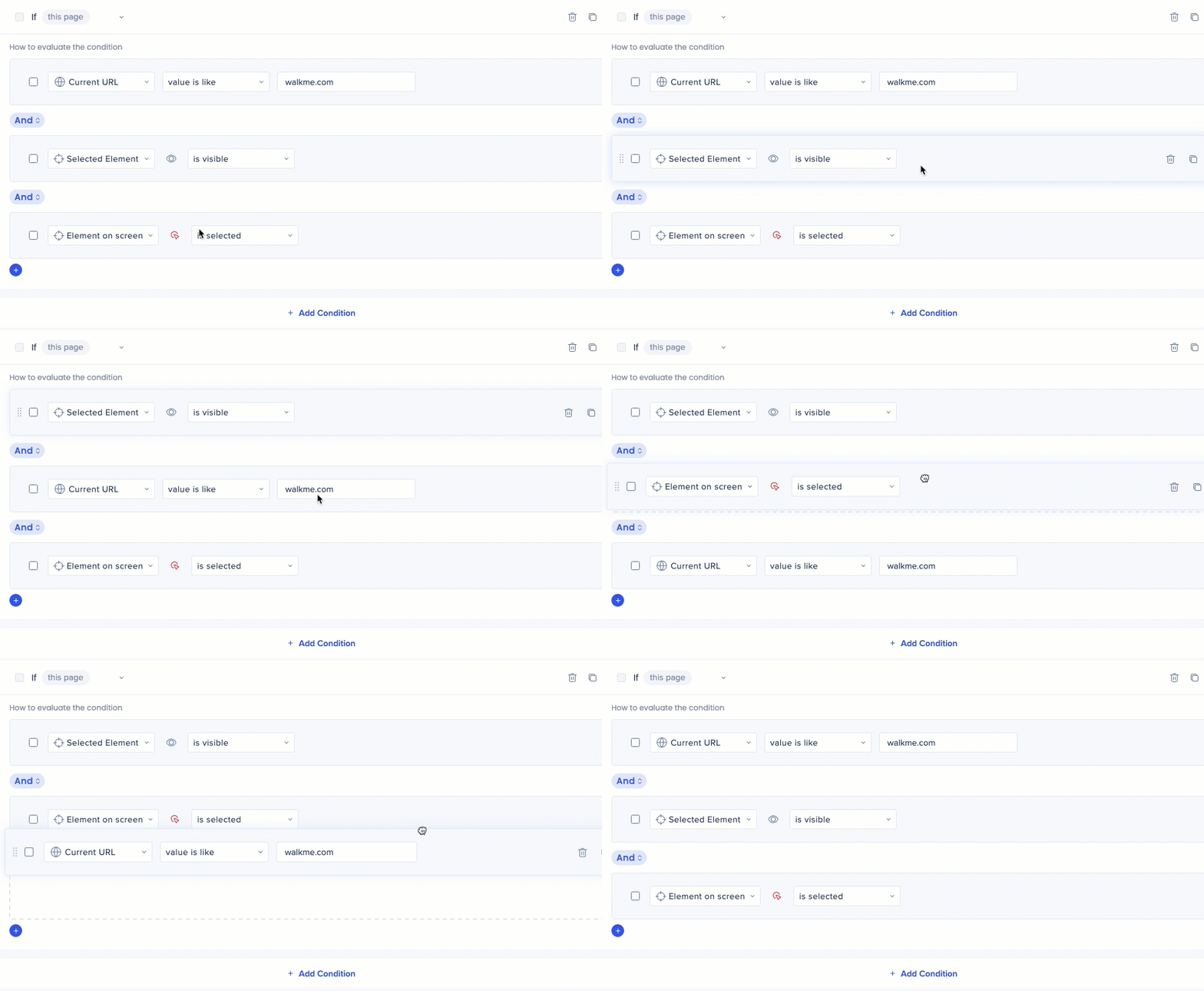
O construtor de condições suporta flexibilidade total para reordenar sua lógica.
- Arraste e solte blocos de condições para mover regras para diferentes posições dentro do construtor
Desempenho
Os tipos de regras variam no custo de processamento. Prefira regras mais leves sempre que possível, especialmente em condições com muitas declarações.
- Light: URL, Variável, Cookie, Dados do Usuário
- Moderado: Elemento na tela (Está Visível / Não Está Visível)
- Pesado: jQuery, Elemento na tela (Clicado / Passar o mouse)
Dica
Coloque uma regra de URL atual primeiro. Se o usuário estiver na página errada, o WalkMe para de avaliar imediatamente — sem necessidade de executar verificações mais pesadas.
Notas técnicas
- O construtor avalia a janela do navegador ativa. Navegue até a página de destino e faça login como o tipo de usuário correto para obter leituras de status precisas
- As condições Clicado e Passar o mouse não podem ser avaliadas enquanto o construtor estiver aberto, pois você não pode interagir com elementos da página enquanto o editor estiver ativo
- Limite de caracteres por tela de condição: 65,534
- Número máximo de declarações por condição: 60
- RegEx é suportado para jQuery e Element nos tipos de regras de tela


