Brief Overview
Connecting your ActionBot to Live Chat enables you to combine the best of automation and live human assistance in one. If the user is seeking content that has not yet been added to the ActionBot, ActionBot can be configured to show the user a direct link to Live Chat, filling in the coverage gaps.
The following how-to article explains how to connect your ActionBot to Live Chat.
Steps for Connecting ActionBot to Live Chat
Step 1: Connect your Editor account to your Live Chat vendor
Information about how to connect your Editor account to your Live Chat vendor is available in our Live Chat Integration article.
Step 2: Initiate Live Chat from within ActionBot
There are four options to initiate Live Chat from within ActionBot:
Option 1 — Prompt the user to use Live Chat when a Conversation search fails
When this option is enabled, A Live Chat prompt will appear if the user enters an invalid Conversation name more then the number of times you choose:
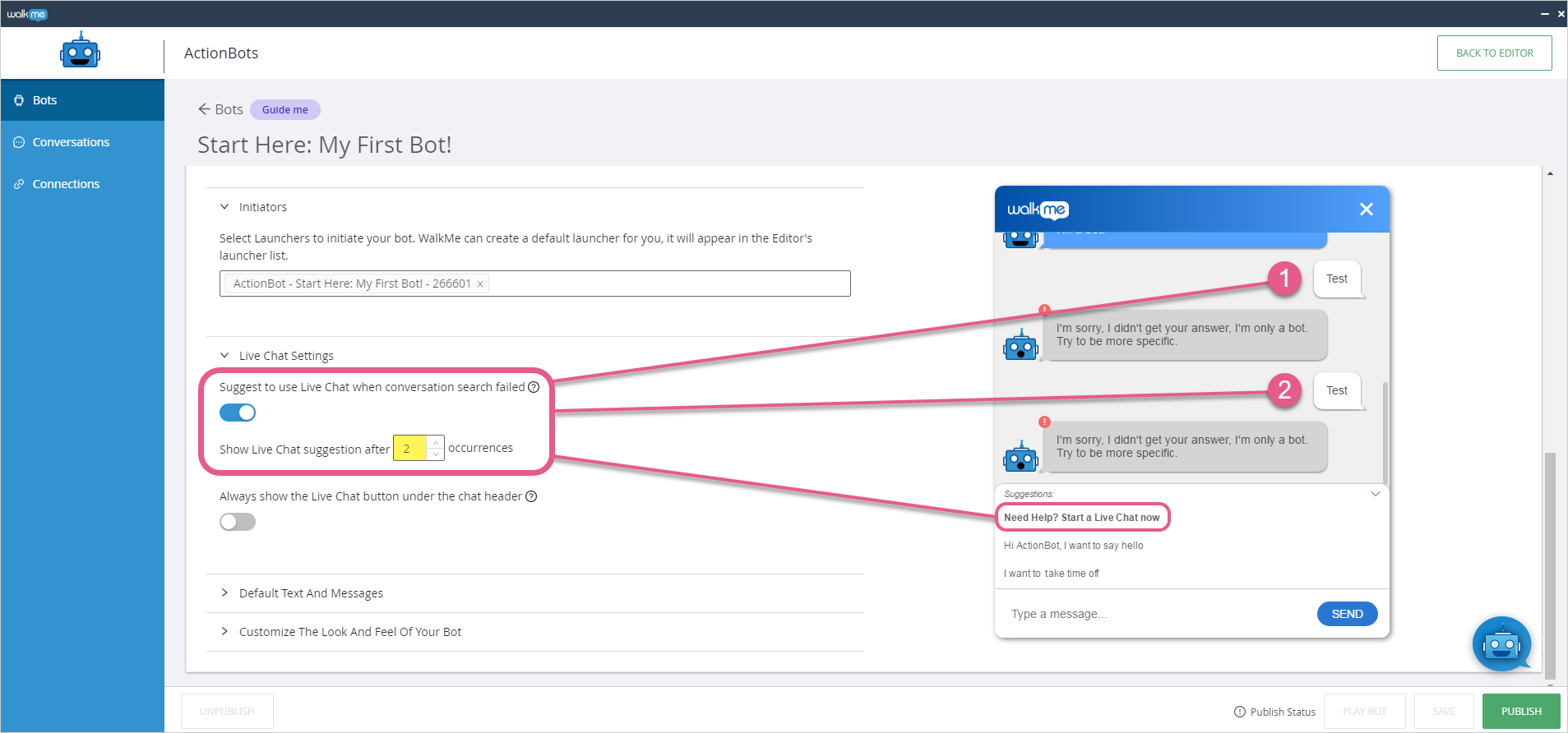
The prompt text can be changed from the Customize The Look And Feel Of Your Bot section in the Editor's Bot tab.
When this option is enabled, the Live Chat button will always appear on the top right of the dialog box:
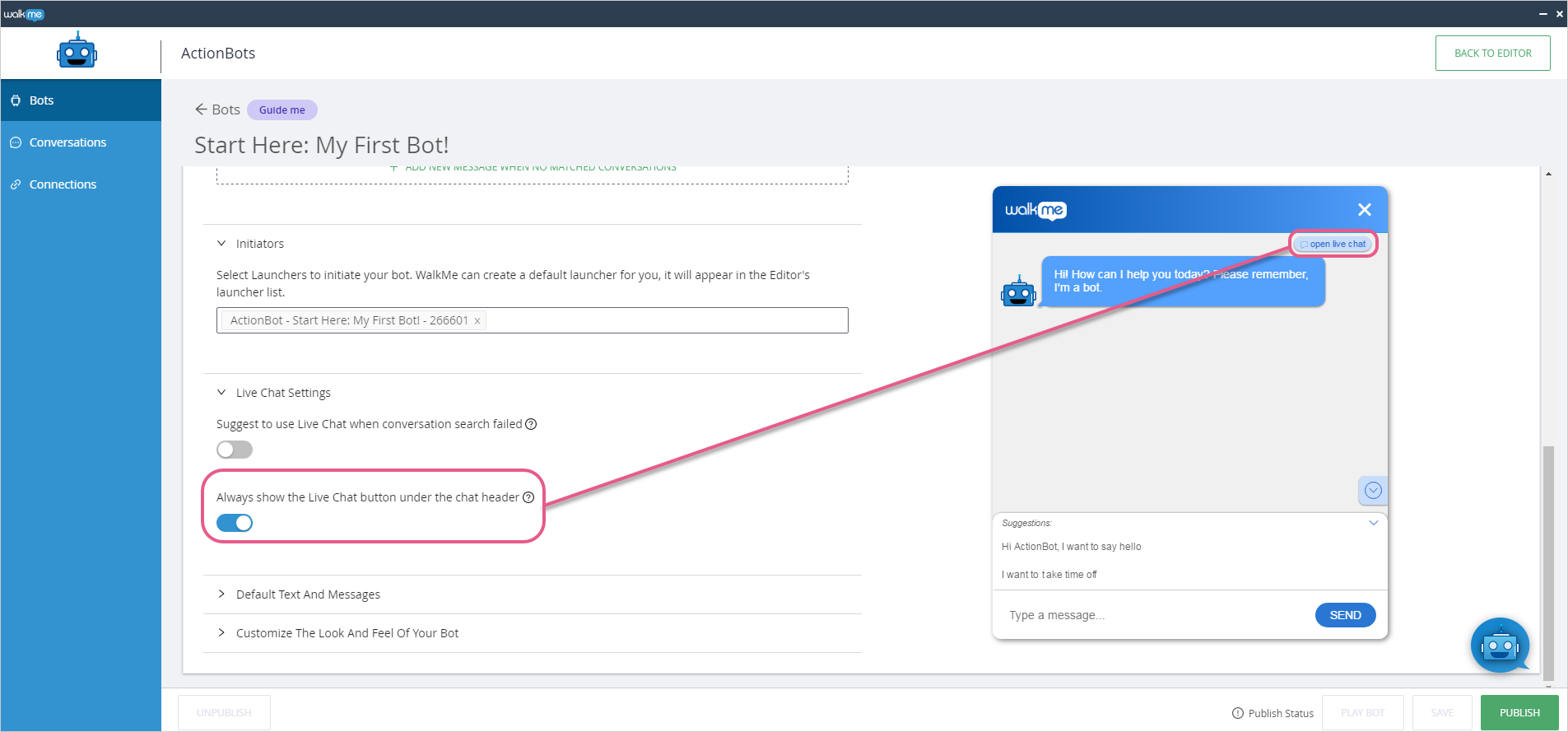
The prompt text can be changed from the Customize The Look And Feel Of Your Bot section in the Editor's Bot tab.
Option 3 — Prompt the user to use Live Chat when the user fails to answer a particular question
This option is enabled from each Conversation question individually:
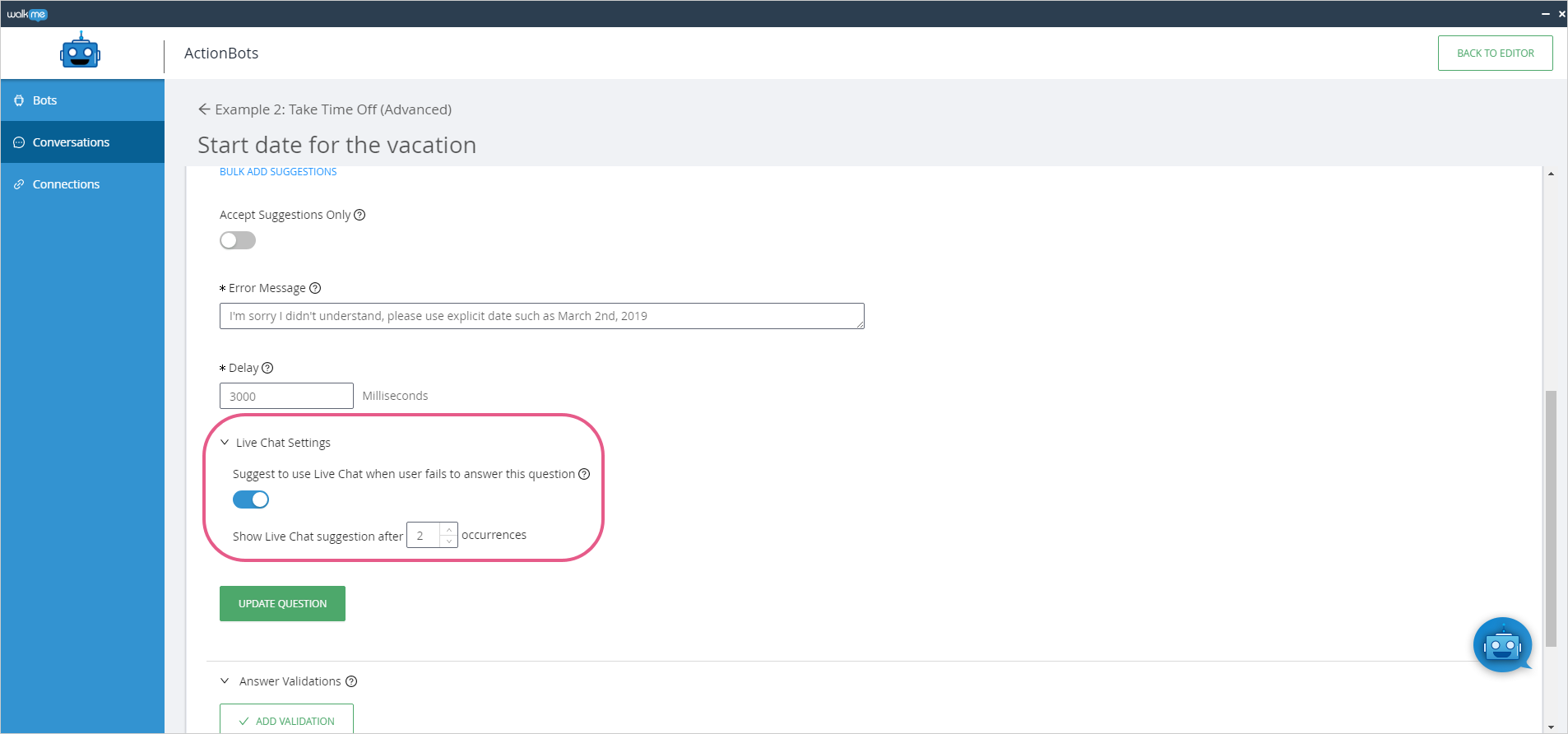
When a user enters a wrong answer more then the number of times you've chosen, a Live Chat prompt will appear in the Suggestions field:
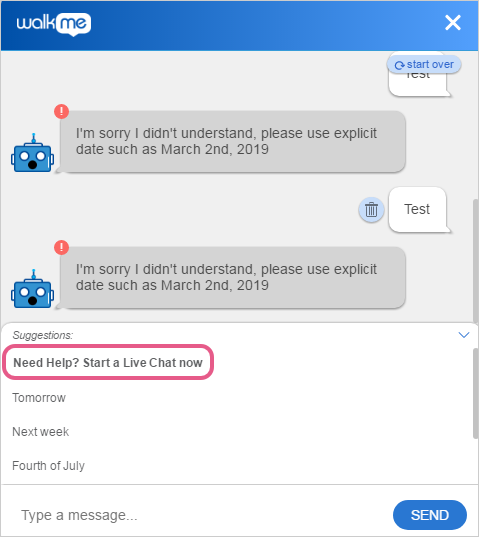
The prompt text can be changed from the Customize The Look And Feel Of Your Bot section in the Editor's Bot tab.
Option 4 — Incorporate Live Chat into a Conversation's flow
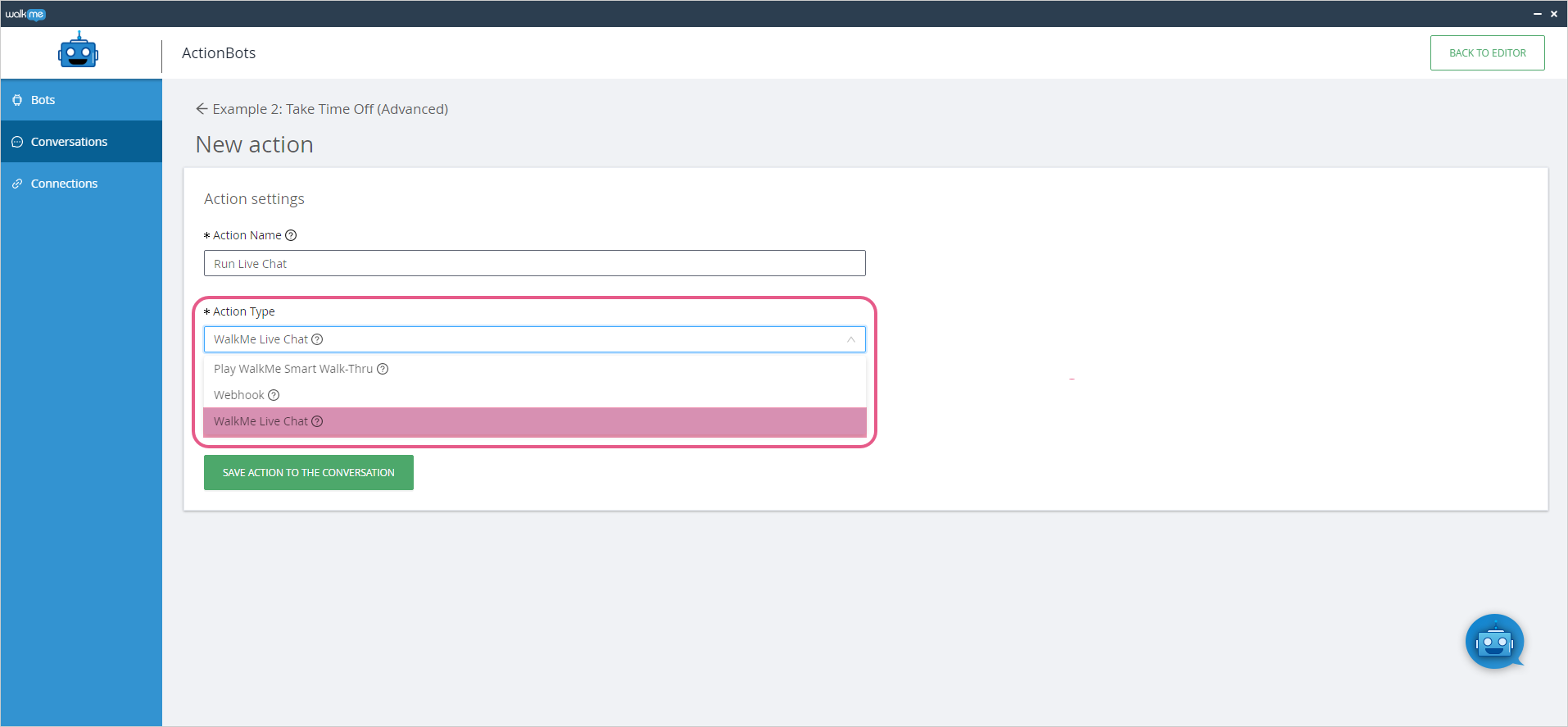
To enable this option, click ADD ACTION in the Conversation tab and select WalkMe Live Chat from the Action Type dropdown menu:
Technical Notes


