Brief Overview
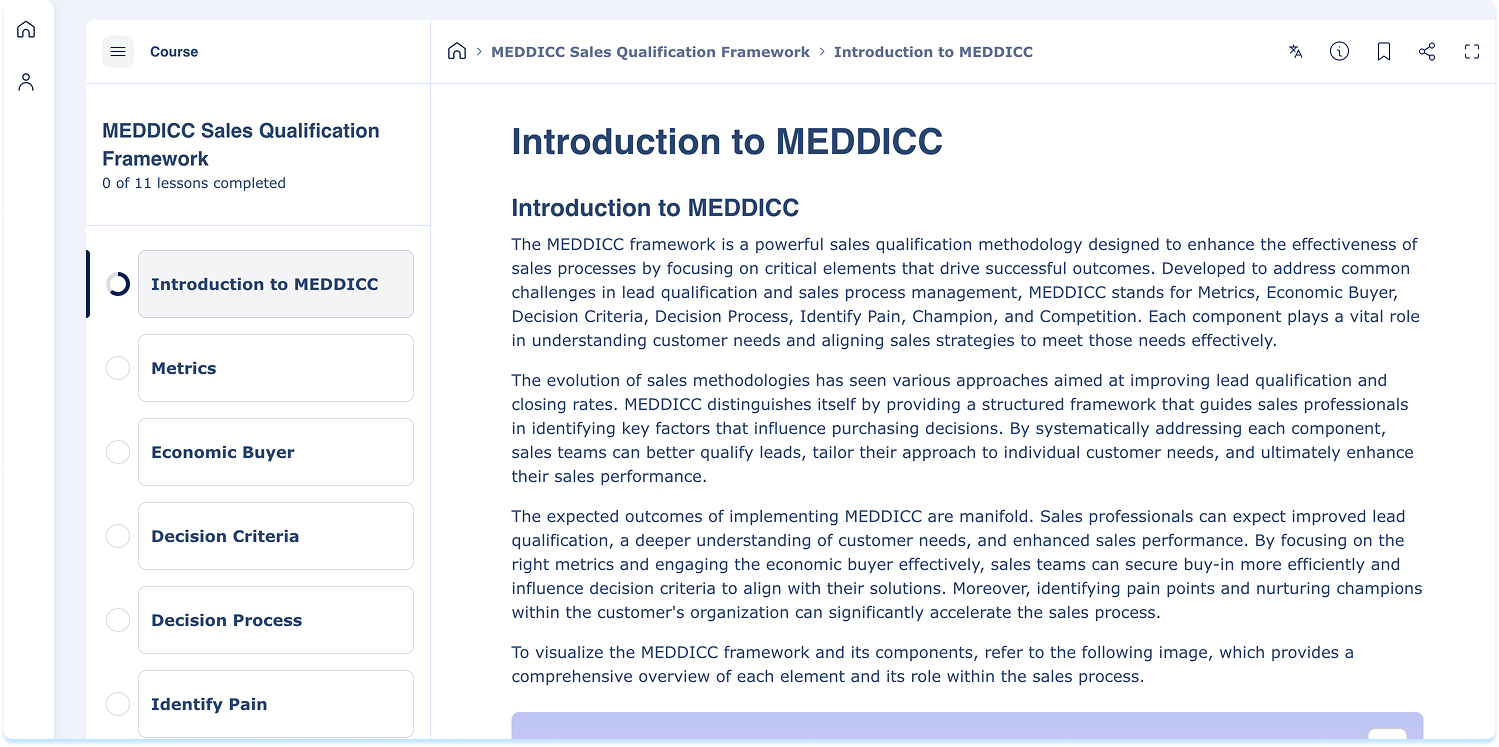
This article explains how to complete learning items in the portal. Learning items may include a course, a microlearning, or a learning journey. Depending on the type, content is organized into lessons or units. The learning workspace provides structured navigation and a focused environment to help you progress through content efficiently and track completion.
How It Works
Open a learning item
To begin or continue learning:
- Select Start Learning or Continue Learning
- The learning workspace opens
Progress saves automatically as you move through the learning item.
Navigate the learning workspace
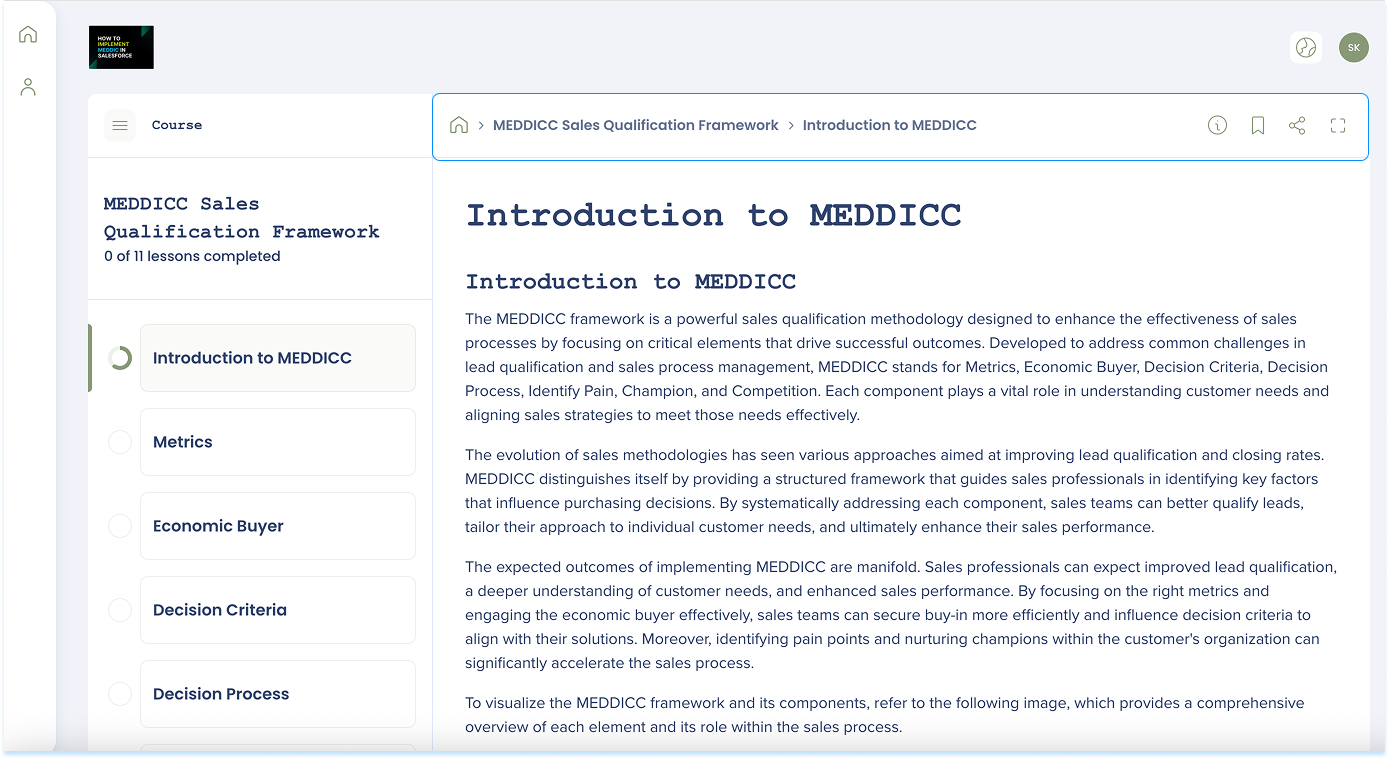
When a learning item opens, the workspace includes three main areas.
- Lesson or unit panel
- Main content area
- Top actions
Lesson or unit panel
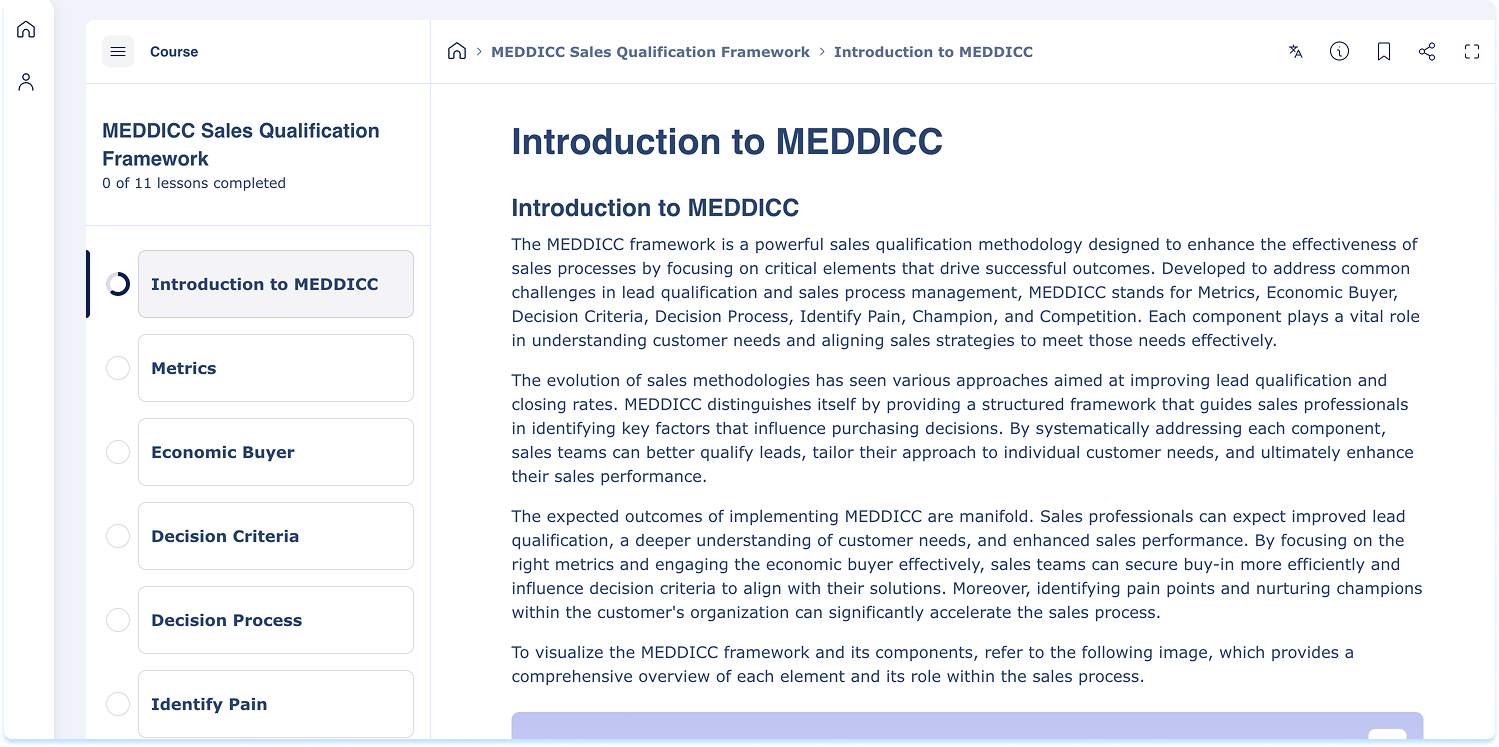
The panel on the left displays the structure of the learning item.
It includes:
The learning item title
- A list of lessons, units, or quizzes
- Progress indicators
- Completion checkmarks displayed next to finished lessons or units
You can select any lesson or unit to navigate directly.
Main content area
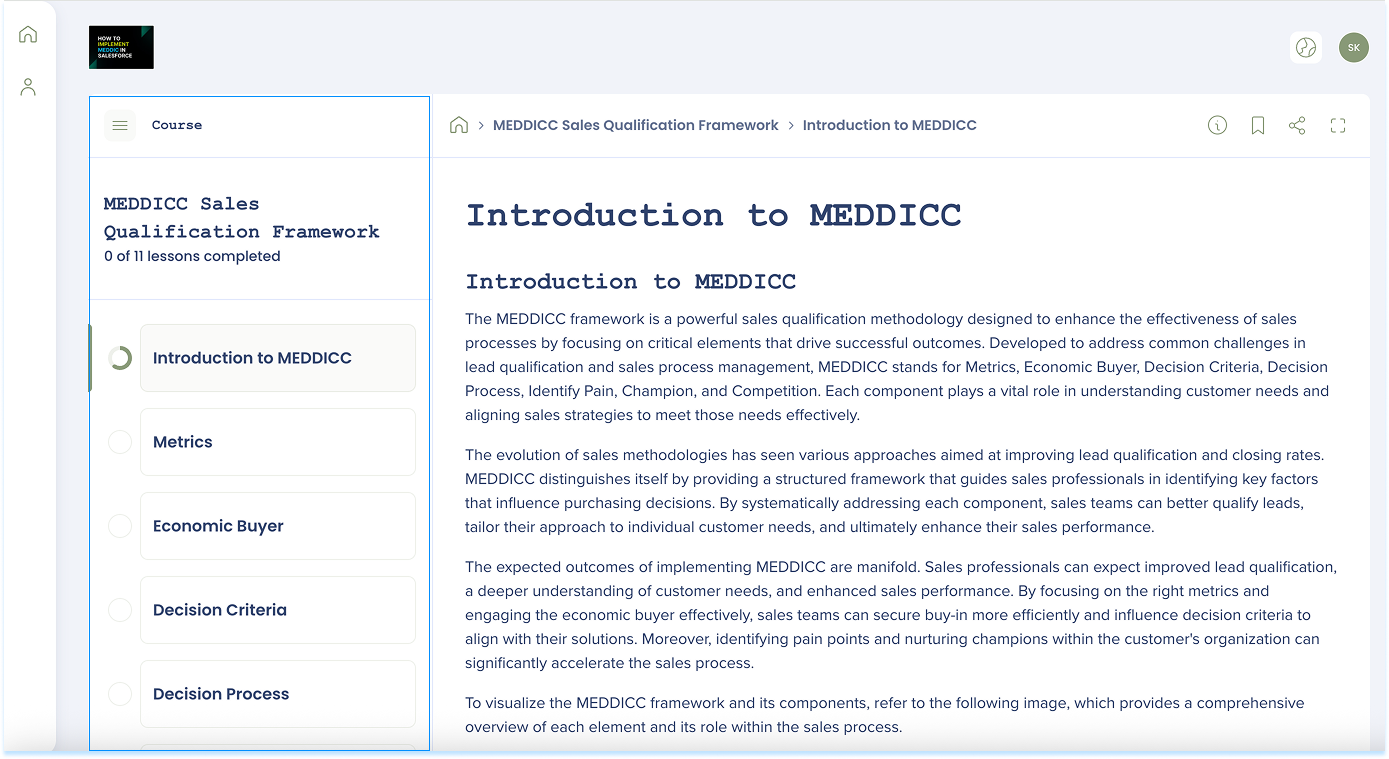
The main content area displays the active lesson or unit.
This area is used to:
- Complete and interact with lesson content
Navigation controls include:
- Next
- Previous
Progress saves automatically as lessons or units are completed.
Top action bar
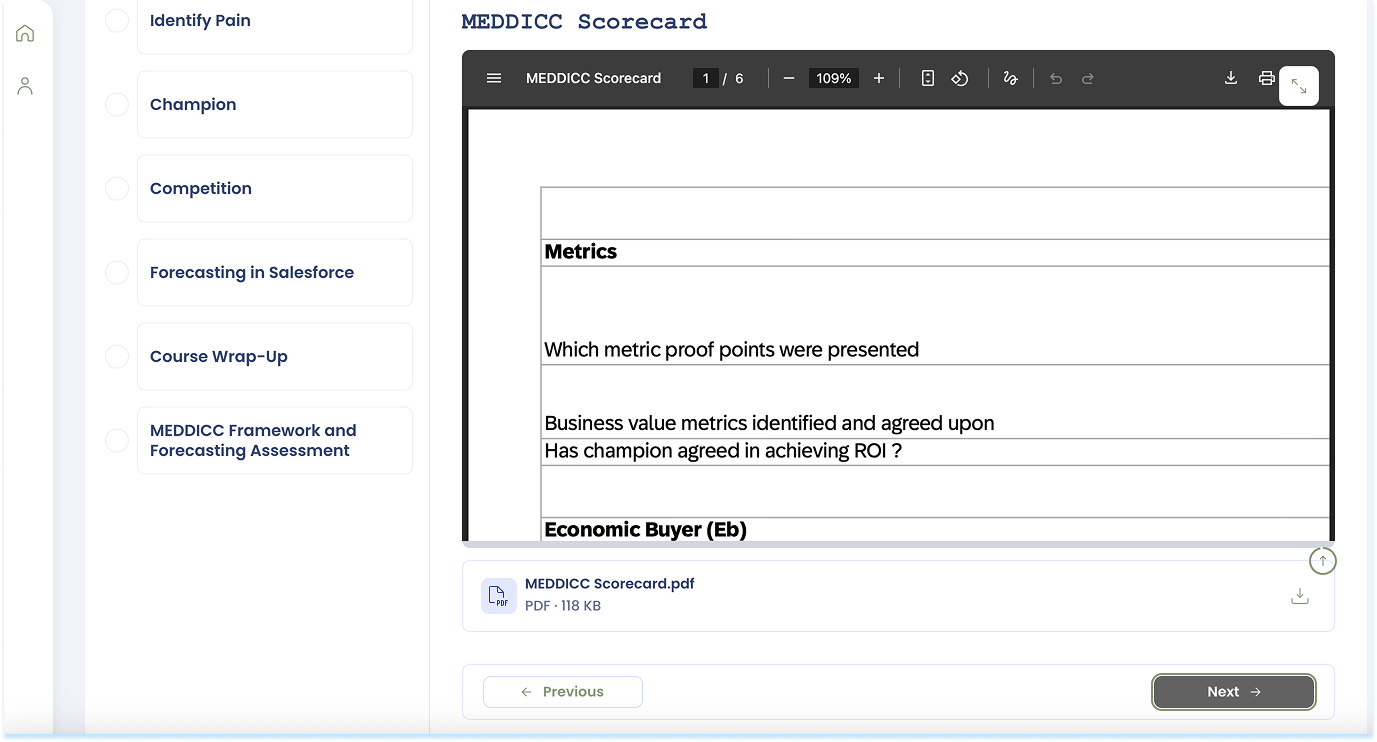
The top action bar contains controls that apply to the entire learning item.
Available actions may include:
- Translate
- About
- Save content
- Share
Note
Offline translations take priority over real-time translation. If you use a browser that does not support real-time translation, only offline translations are visible.
Learning activity types
Lessons or units may include different types of learning activities.
Simulations
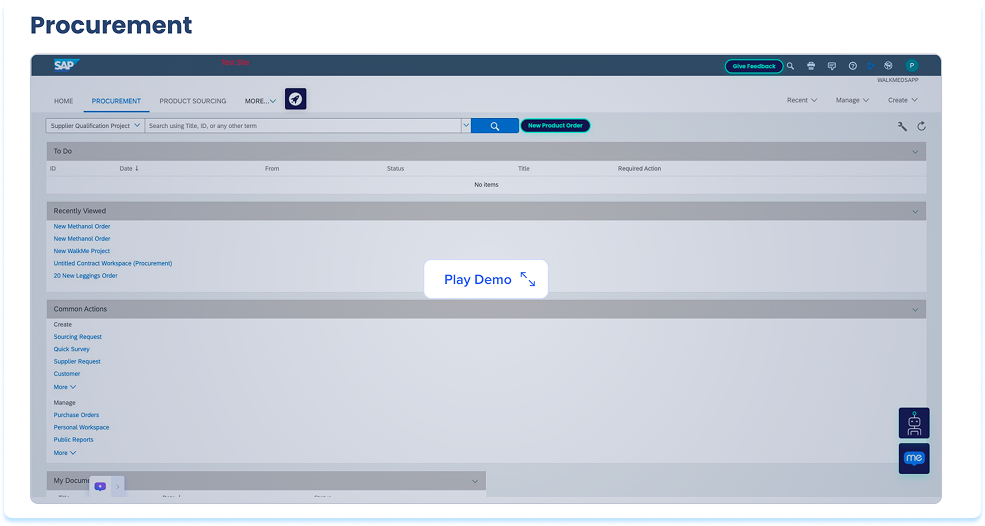
A Simulation provides interactive practice within a lesson or unit.
Depending on configuration, a Simulation may open in:
- Demo mode: Guided walkthrough
- Practice mode: Step-by-step interaction
- Test mode: Independent completion for a score
Follow on-screen instructions to complete the Simulation
Quiz
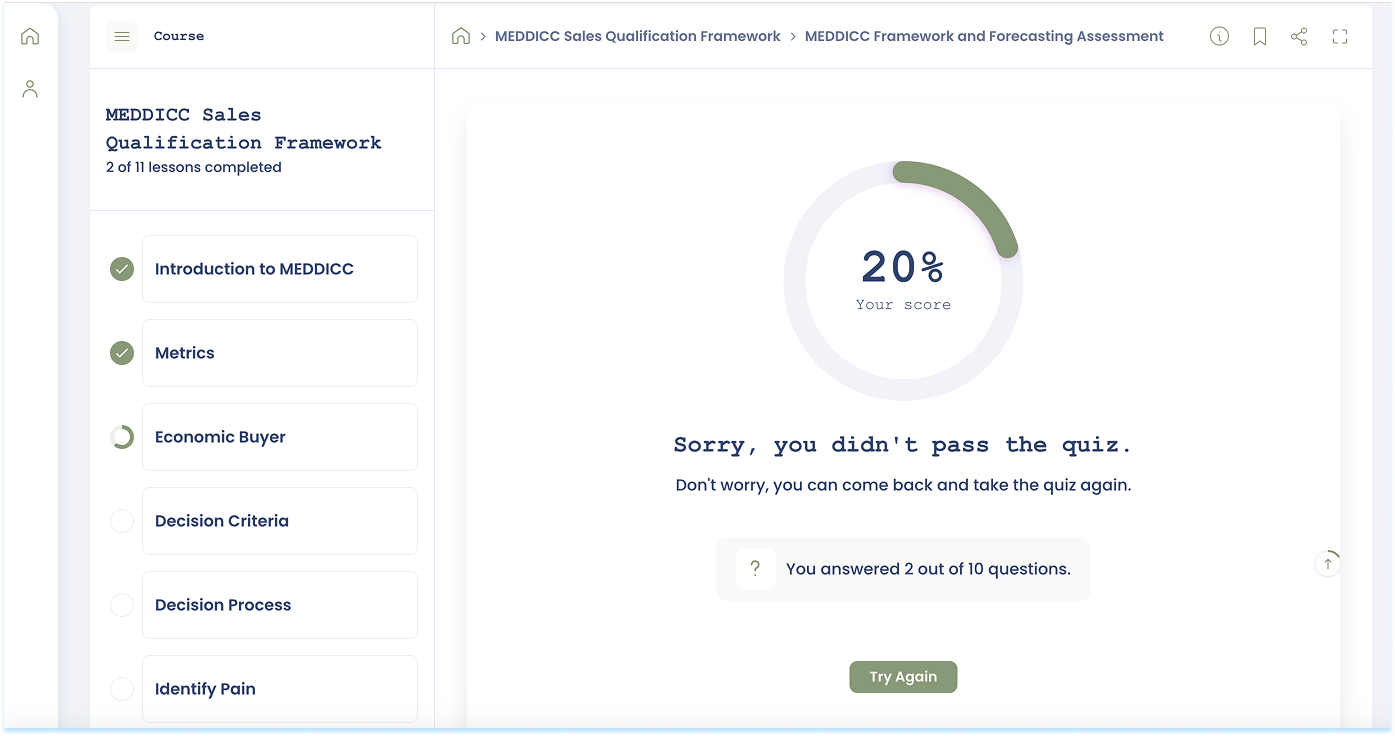
A quiz assesses understanding of the material.
To complete a Quiz:
- Review each question
- Select your answer
- Submit responses
After submission:
- A score is displayed
- Pass or fail status appears
- If allowed, select Try Again
Completion
A learning item is marked complete when all required lessons, units, simulations, and quizzes are finished.
When complete:
- Completion checkmarks appear next to required lessons or units
- The item moves to the Completed tab in My Learning
Certificates
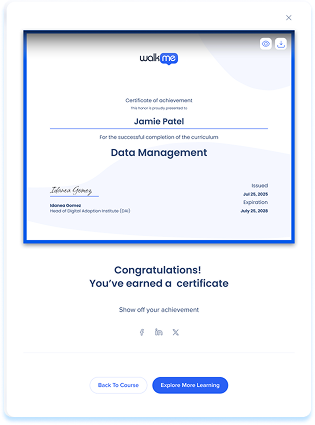
If a certificate is available:
- Open the certificate
-
You can download the certificate or share it directly to social media
Certificates are available only after successful completion.
Technical Notes


