WalkMe EU
WalkMe US
SAP US & EU
Canada
FedRAMP
Mobile Native
Brief Overview
The export and import capabilities in Multi-Language lets you move WalkMe translation data between the Console and external translation tools. Use these options to export content for professional translation, review, or QA, and then import the updated files to apply changes to your WalkMe content.
These capabilities support multiple file formats to fit different translation workflows, including XLIFF, XLIFF Strict, Excel (XLSX), and RESJSON. Each format preserves your content structure to ensure accurate import back into WalkMe.
Access
You can access these capabilities in the Translations page from the Multi-Language app in the WalkMe Console.
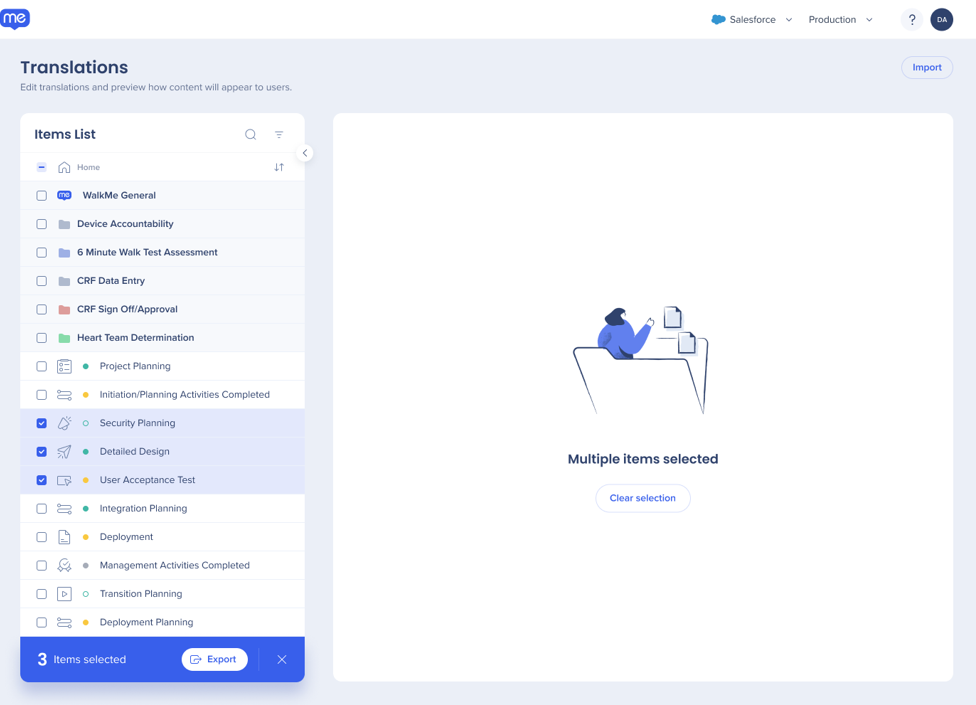
Select the items you want to export from your items list on the left
Multiple items can be selected, including items from different folders
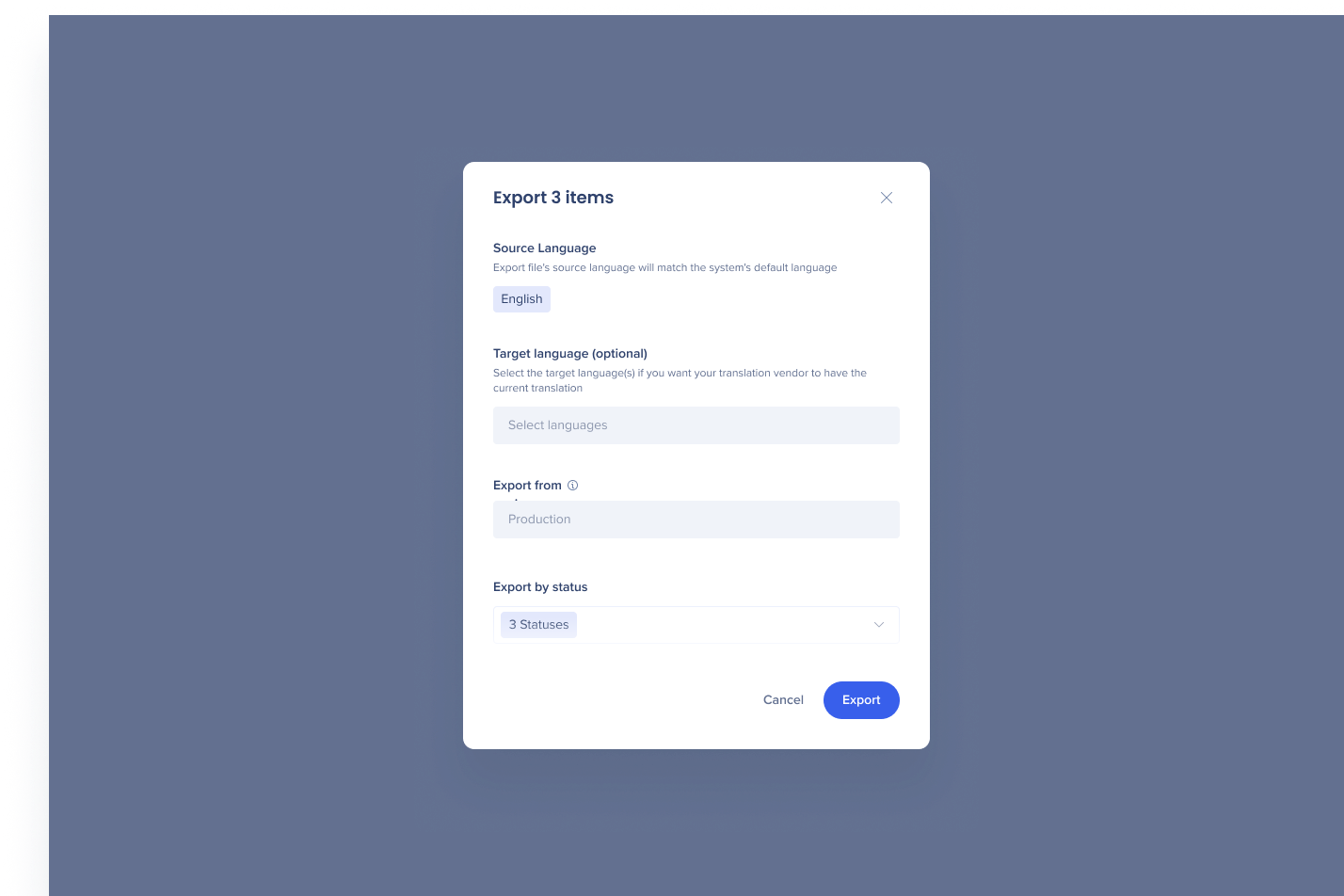
Select Export
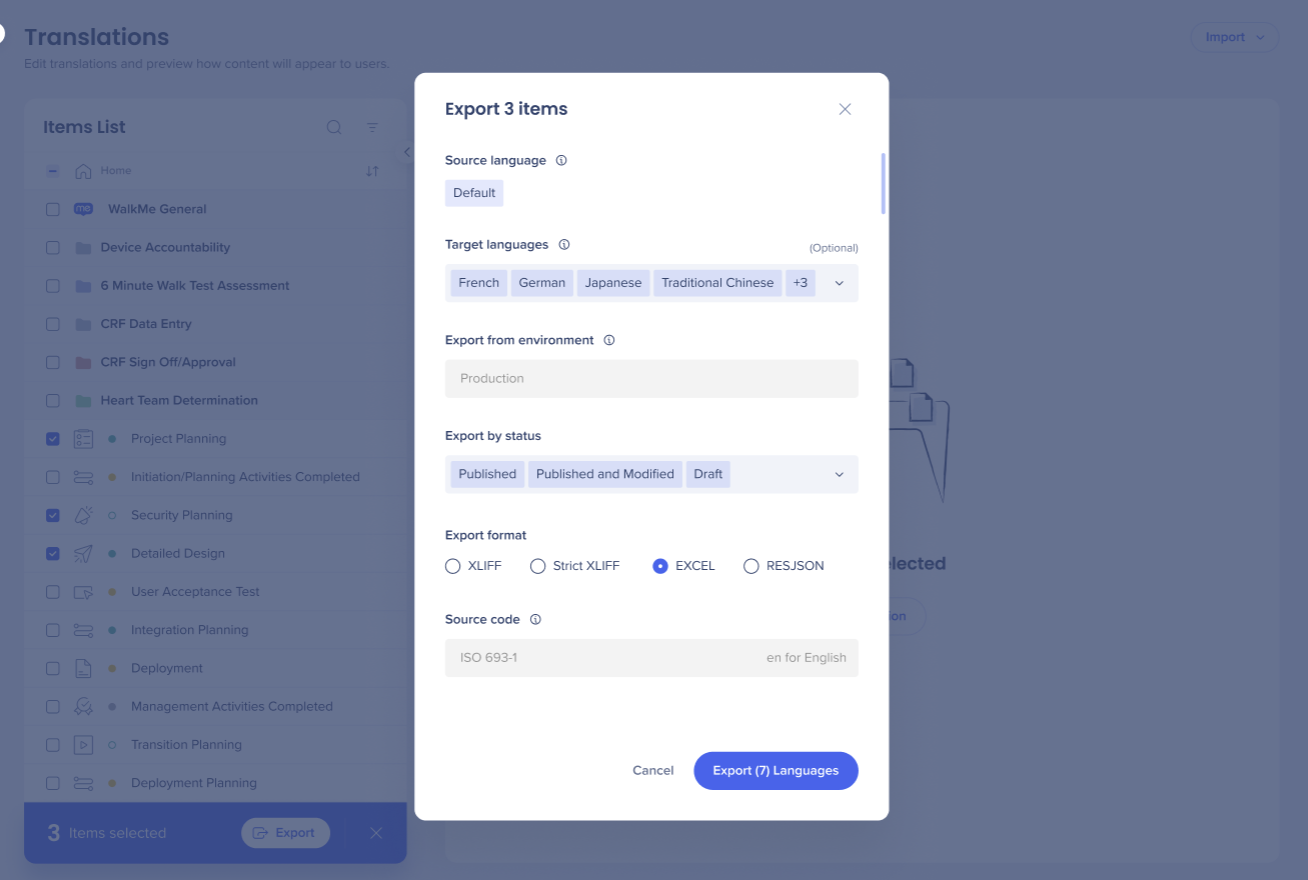
Select target language (optional) environment you want to export the file from, status, and the file type
Choose Export
You can now select multiple content items which can be translated into multiple selected languages.
Export file formats
The Export feature in Multi-Language lets you extract translation data from your WalkMe content into different file formats.
You can choose from four export options depending on your translation process and toolset:
XLIFF
XLIFF Strict
Excel (XLSX)
RESJSON
Each format includes unique structure and editing guidelines to ensure accurate re-import into WalkMe.
Best Practices
Verify the target language, environment, and status before exporting
Select the format that best fits your translation workflow:
XLIFF / XLIFF Strict: For professional translation tools or TMS platforms
Excel: For internal review, manual translation, or QA
RESJSON: For development teams or API-based localization systems
Avoid editing technical metadata — doing so can cause re-import errors
Save backups before applying edits to maintain translation integrity
XLIFF
XLIFF is an XML-based format designed for exchanging translation data between systems. It contains technical attributes that link translated content to WalkMe items.
Structure highlights
Groups by type – each item group is defined by its Deployable type title
Item details – includes item name, type, deployable ID, and context ID
Translation units – contain both source (default language) and target (translated) content
The <source> tag holds the original text (must not be changed)
The <target> tag is where the translation should be entered
Important: Do not edit any technical attributes such as IDs, types, or context references. These ensure the file maps correctly to your WalkMe content.
XLIFF Strict
XLIFF Strict follows the same structure as standard XLIFF, with additional validation and schema rules to improve translation accuracy.
Key differences:
Includes a defined schema referenced at the top of the file
Adds a max-width attribute in each <trans-unit> tag to specify the maximum character length for each translation unit
Use this format when working with translation vendors or workflows that require strict schema validation.
Excel (XLSX)
Excel format provides a table-based view for easy manual review and translation.
Column layout
Column
Description
Notes
A
Technical information (ID, type, random ID)
Hidden by default – do not modify
B
Element type
C
Source content (default language)
D
Translation content (target language)
Editable field
Each translation group is titled by its corresponding WalkMe item name.
Important
Do not modify merged header rows, they group related translation items and are required for import integrity.
RESJSON
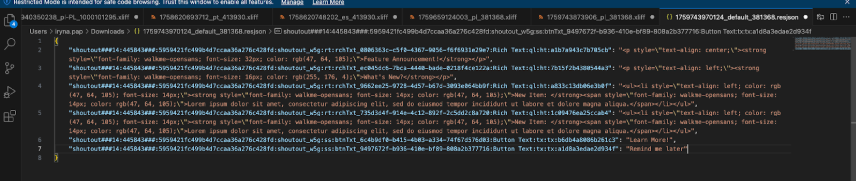
RESJSON is a JSON-based format containing only translation data, without the original source language.
Each key stores technical data (item type, ID, and context), and the value stores the translation string.
Import
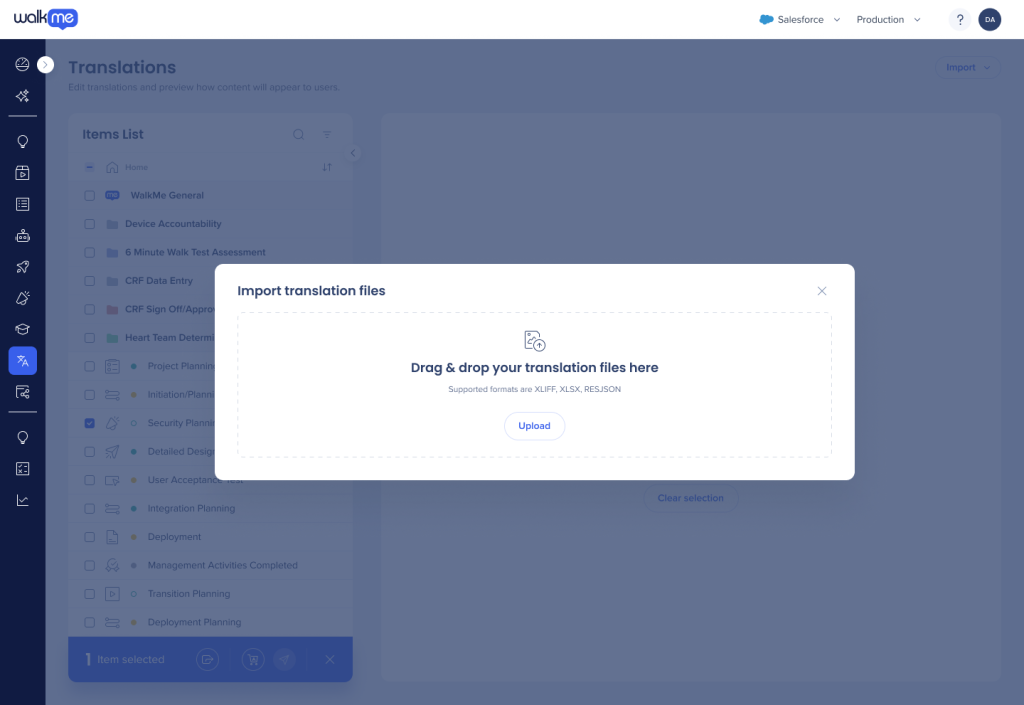
To import a file you'd like to translate, click on the Import button in the upper right corner of the page
You can either drag & drop your files, or click Upload to select files on your computer
We automatically identify the language of the imported file based on custom identifier code in the file name, for example:
1729683854841_fr-CA_2905764.xliff -> fr-CA (french canadian), so make sure your file name has it included.
Multi-Language API
The Multi-language API allows developers to automate translation management, including exporting and importing translations across multiple environments. It's ideal for large-scale localization or integration with external translation systems.
Export translations: Retrieve translation files for specific languages or environments
Import translations: Programmatically upload translated files back into WalkMe
Automate updates: Use the API to sync translations regularly or integrate with a translation management system (TMS)
This makes it easier to manage translation workflows at scale, especially for enterprise accounts or customers with frequent content updates.
Exporting through API
Retrieves all WalkMe items for the selected language, based on environment and status filters
Includes all WalkMe content, including older Smart Walk-Thrus
Feature flags (for example, haveOnlyFlow) are not applied when exporting via API — so results may include content not visible in the Console
Exporting through the Multi-language system
Filters WalkMe items based on account feature flags
Example: If the account uses the haveOnlyFlow feature flag, older Smart Walk-Thrus are excluded from export results
The Console export uses a structured tree view for selecting WalkMe items, ensuring a more precise and controlled export
Note
Because API exports ignore feature flags, they may include additional items that do not appear in manual exports.
What does an XLIFF XML file contain?
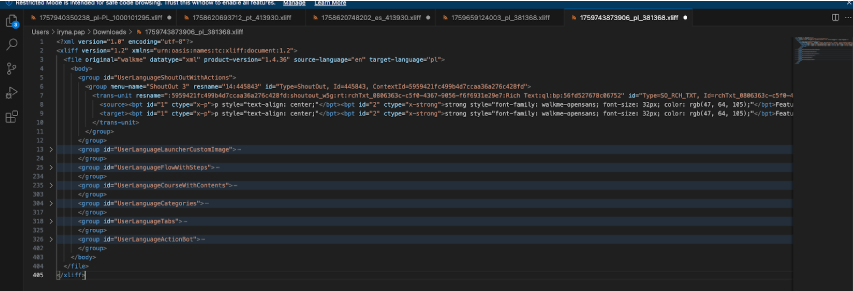
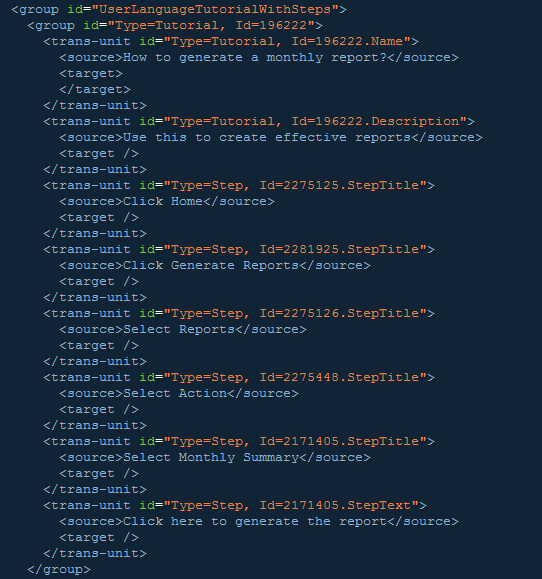
The XML file is comprised of trans-units that contain text to be translated into your desired language
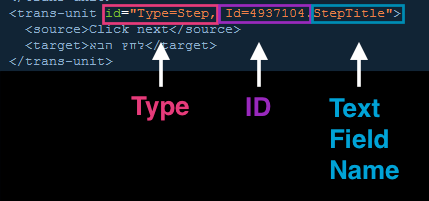
Each Trans-unit has a Type, ID, and Text Field Name
WalkMe uses this information during the import process, but you can use this information to help understand what is being translated
The trans-unit type designates the object type being translated
For the 2019 visual editor items, we will now see new values in the xliff file, as follows:
In the Group section → ContextId refers to the visual editor deployable ID as saved in the translations table in the database
The Id="<ID>" will present the item's ID as it can be found in the Editor
For example, in the image shown we are looking at steps in a Walk-Thru, so the trans-unit type is “Step”. Each step has its own unique ID which WalkMe uses to identify it and each step has two translatable text fields, the “StepTitle” and “StepText”.
Here we see that the top two trans-units have the same ID but different text field names. One display text from the StepTitle and the next is the text from the StepText.
Trans-units are organized into groups with parent IDs that WalkMe uses to identify which App and specific item the trans-units belong to
For example, the group ID for a Walk-Thru would first identify the App and then the following group ID would identify the specific Walk-Thru that the trans-units belong to
Each trans-unit would then represent the different parts of a step that can be translated
Group IDs are used by WalkMe during the import and should not be translated or removed from the XLIFF file