Breve descripción general
Las pestañas de contenido en Insights te permiten ver un análisis detallado de los elementos de WalkMe, con un panel disponible para cada tipo de contenido dentro de una descripción general del sistema específica.
Allí puedes encontrar información importante que te ayudará a comprender cómo los usuarios interactúan con WalkMe diariamente y cómo se puede mejorar una solución existente para obtener mejores resultados.
Si bien muchos de los paneles de contenido son similares, hay algunas diferencias a tener en cuenta, como la capacidad de profundizar en ciertos temas, incluidos Smart Walk-Thrus, ShoutOuts y Surveys.
Acceso
-
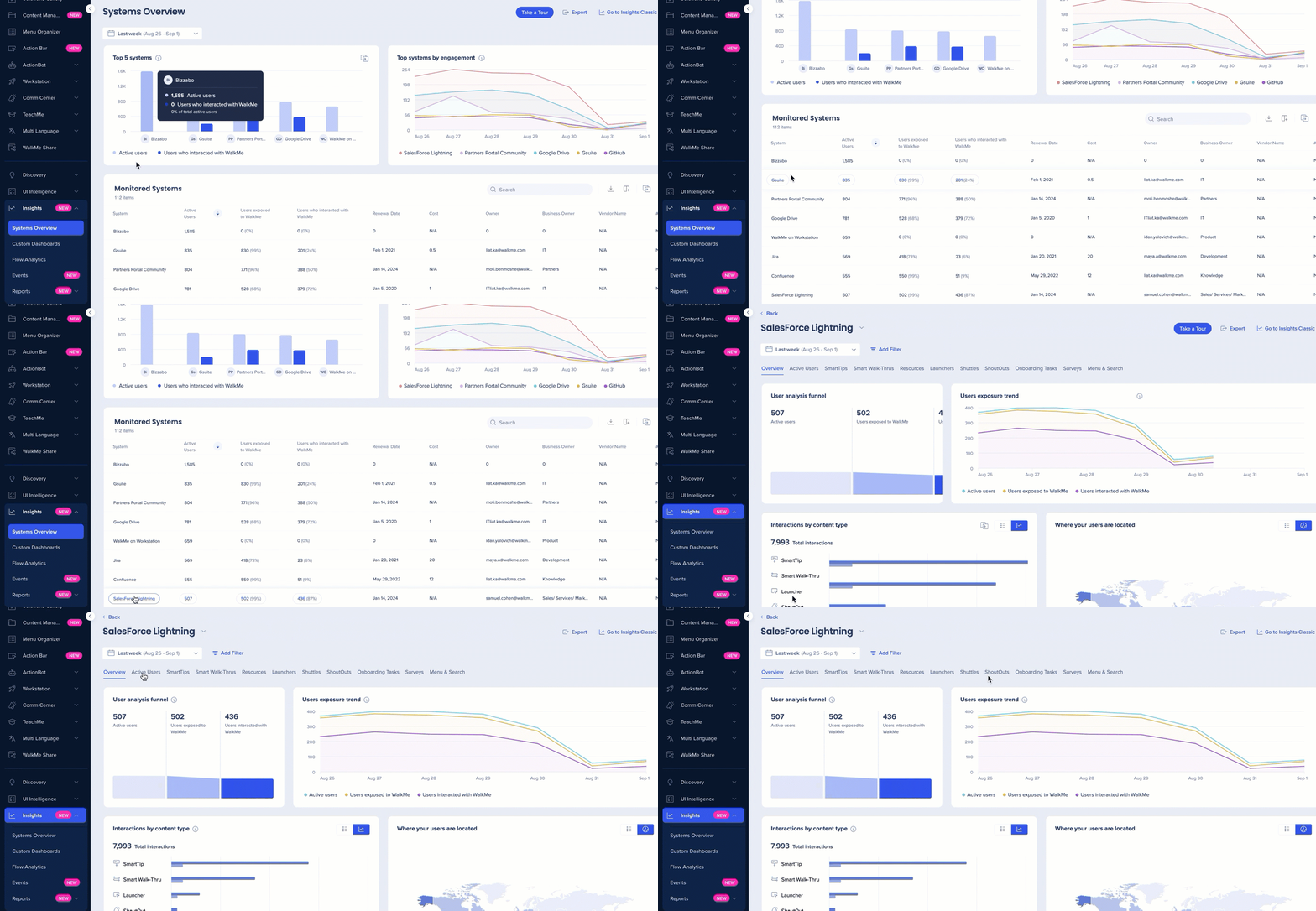
Navega hasta la página de Información del sistema en la consola.
-
Selecciona un sistema en el widget Sistemas supervisados.
-
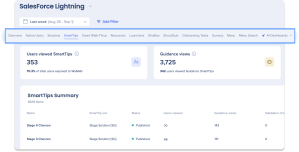
Selecciona una pestaña de contenido
Cómo funciona
Usuarios activos
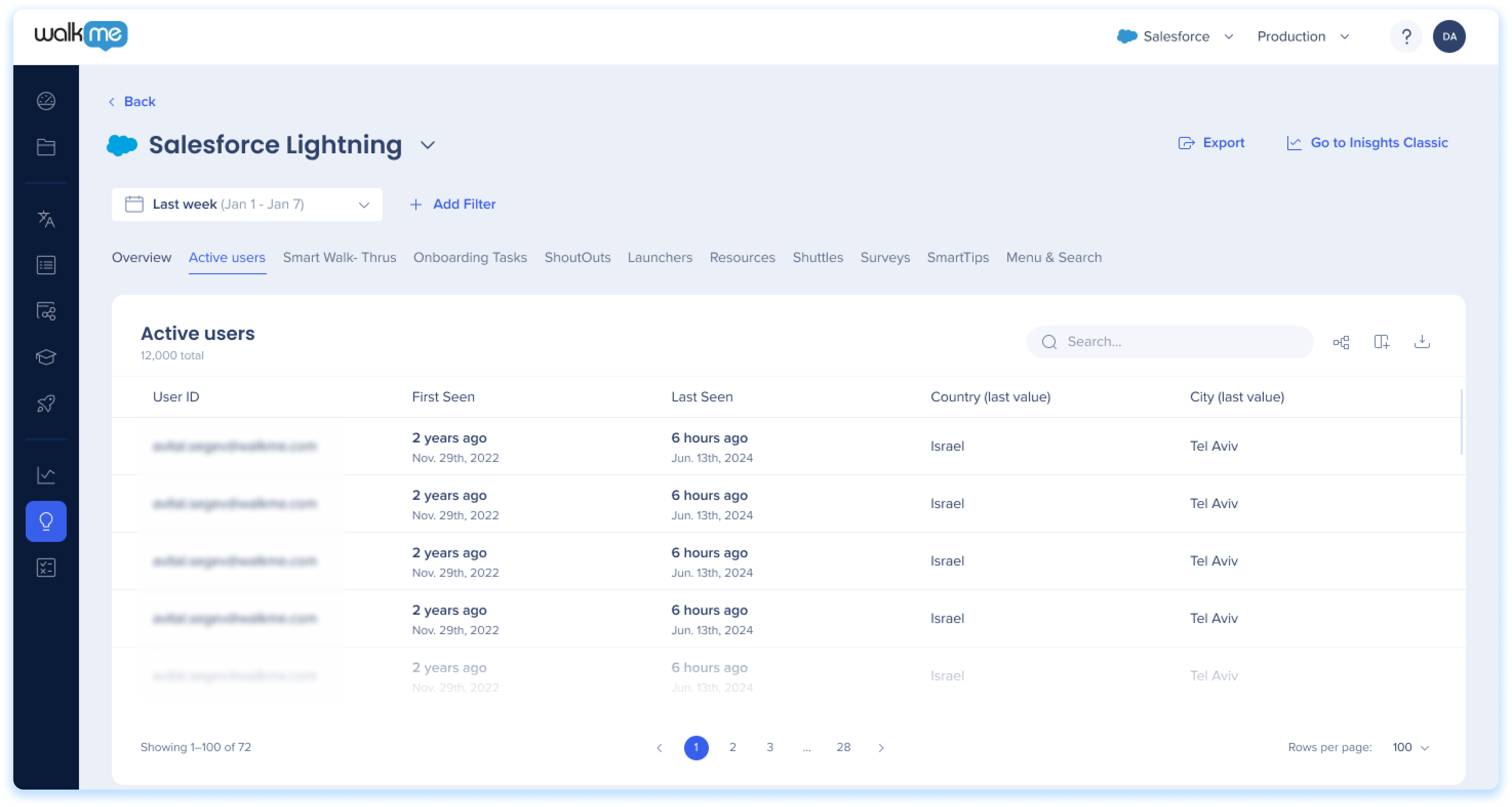
La pestaña Usuarios activos te proporciona información valiosa sobre la actividad de los usuarios en tu sitio web. Proporciona una lista completa de los usuarios que visitaron el sitio mientras WalkMe estaba activo, independientemente de si interactuaron o no con un elemento de WalkMe.
Pestaña de Usuarios de Insights
Nota
La pestaña Usuarios activos muestra un máximo de 30.000 usuarios para garantizar un rendimiento óptimo.
SmartTips
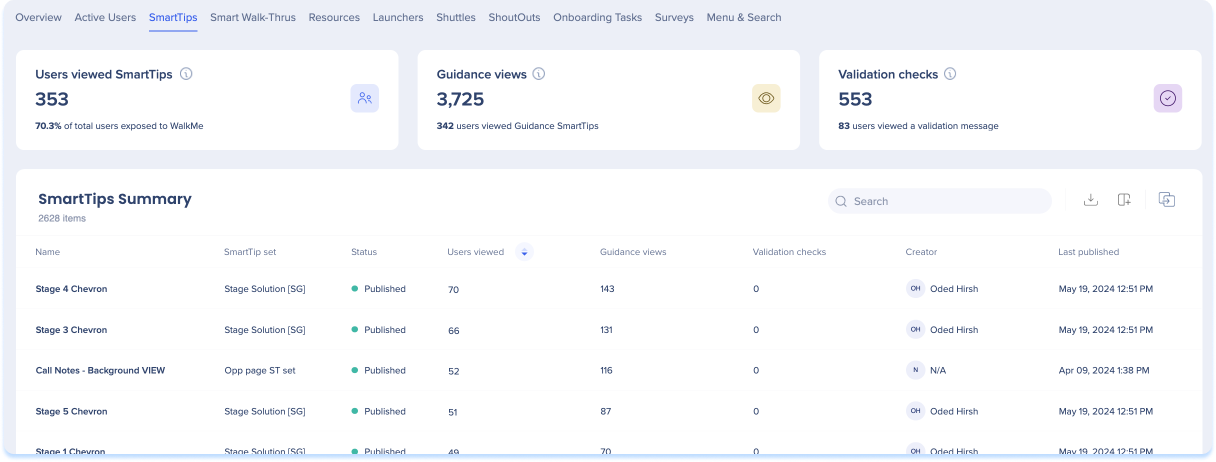
Métricas generales de SmartTips
-
Usuarios que han visto SmartTips: el recuento total de usuarios únicos que han visto cualquier mensaje de SmartTip y el porcentaje de usuarios para los que WalkMe estaba disponible
-
Vistas de orientación: el recuento total de veces que se ha visto un mensaje de orientación de SmartTip (incluidas varias vistas por el mismo usuario).
-
Comprobaciones de validación: el recuento total de veces que se ha verificado una regla de validación de SmartTip y el número total de usuarios a los que se les ha enviado un mensaje de validación.
Resumen de SmartTips
-
Nombre: el nombre que el creador de contenido ha dado a cada SmartTip que ha creado.
-
Conjunto de SmartTips: el nombre que el creador de contenido ha dado a cada conjunto de SmartTips.
-
Estado: el color del icono indica su estado de publicación:
-
Verde: Publicado
-
Gris: archivado
-
Rojo: eliminado
-
Naranja - Borrador
-
Usuarios vistos: el recuento total de usuarios que han visto un SmartTip específico.
-
Vistas de orientación: el recuento total de veces que se ha visto un mensaje específico de orientación de Smart Tip (incluidas varias vistas por el mismo usuario).
-
Comprobaciones de validación: el recuento total de veces que se evalúa una regla de validación de SmartTip dio lugar a un mensaje de validación (que incluye varias vistas por el mismo usuario).
-
Creador: el usuario que creó el SmartTip.
-
Última publicación: la última fecha en la que se publicó un SmartTip específico.
Smart Walk-Thrus
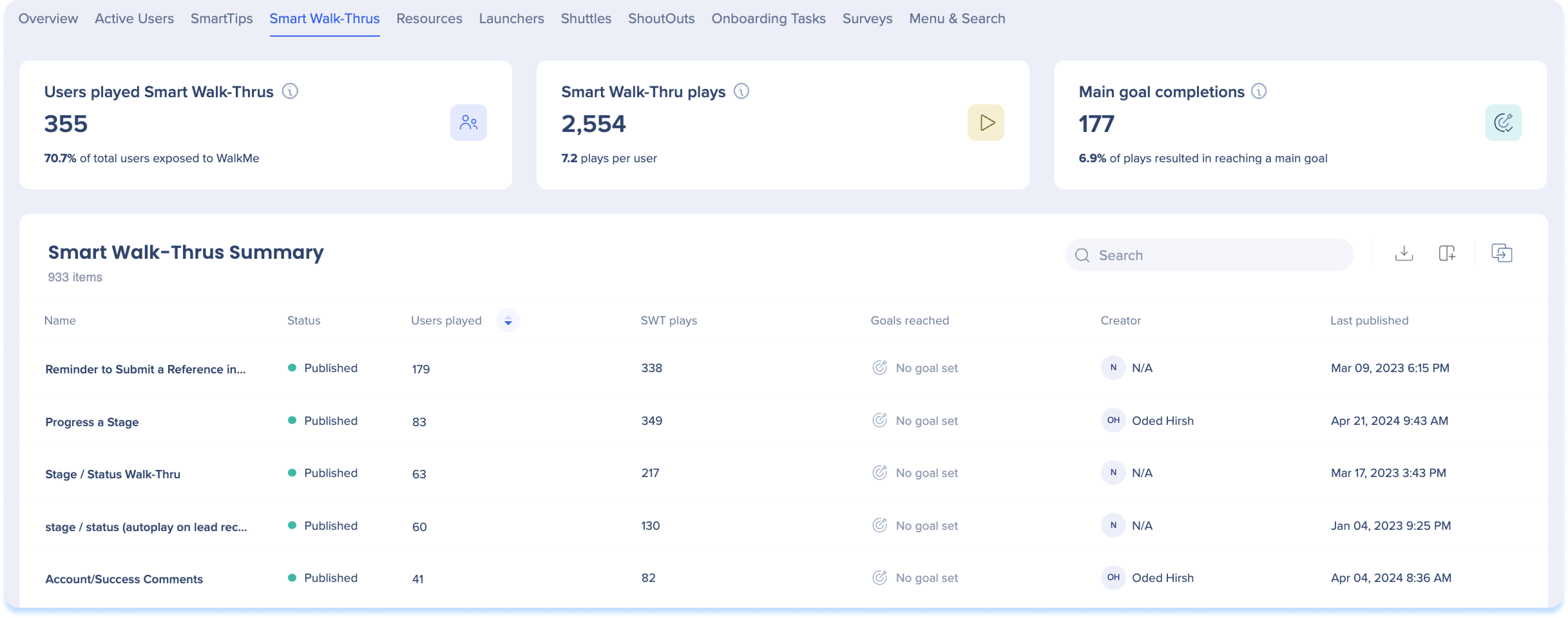
Métricas generales de Smart Walk-Thrus
-
Usuarios que reprodujeron Smart Walk-Thrus: el recuento total de usuarios únicos que han reproducido cualquier Smart Walk-Thru y el porcentaje de usuarios para los que WalkMe estaba disponible
-
Smart Walk-Thru Plays: el recuento total de veces que se ha reproducido un Smart Walk-Thru (incluidas varias reproducciones por parte del mismo usuario) y el número promedio de reproducciones por usuario.
-
Objetivos alcanzados: el recuento total de objetivos principales alcanzados a través de todas las reproducciones de Smart Walk-Thru y el porcentaje de reproducciones que han permitido a un usuario alcanzar un objetivo.
Resumen de Smart Walk-Thrus
-
Nombre: el nombre que el creador de contenido ha dado a cada Smart Walk-Thru.
-
Estado: el color del icono indica su estado de publicación:
-
Verde: Publicado
-
Gris: archivado
-
Rojo: eliminado
-
Naranja - Borrador
-
Usuarios que jugaron: el recuento total de usuarios que jugaron el Smart Walk-Thru específico.
-
Reproducciones de SWT: el recuento total de veces que se ha reproducido un Smart Walk-Thru específico (incluidas varias reproducciones por parte del mismo usuario).
-
Objetivos alcanzados (de reproducciones de Smart Walk-Thru): el recuento total de objetivos principales que se alcanzaron cuando los usuarios reprodujeron un Smart Walk-Thru específico
-
Creador: el usuario que creó el SWT.
-
Última publicación
Nota
A diferencia de la sección Métricas generales de Smart Walk-Thru, en esta sección, las reproducciones que incluyen más de un Smart Walk-Thru (por ejemplo, por ramificaciones o mediante Conectarse a Smart Walk-Thru) NO se cuentan como una sola reproducción. En cambio, cada Smart Walk-Thru que ocurre, ya sea parte de un flujo más grande o no, se cuenta como una reproducción única.
Recursos
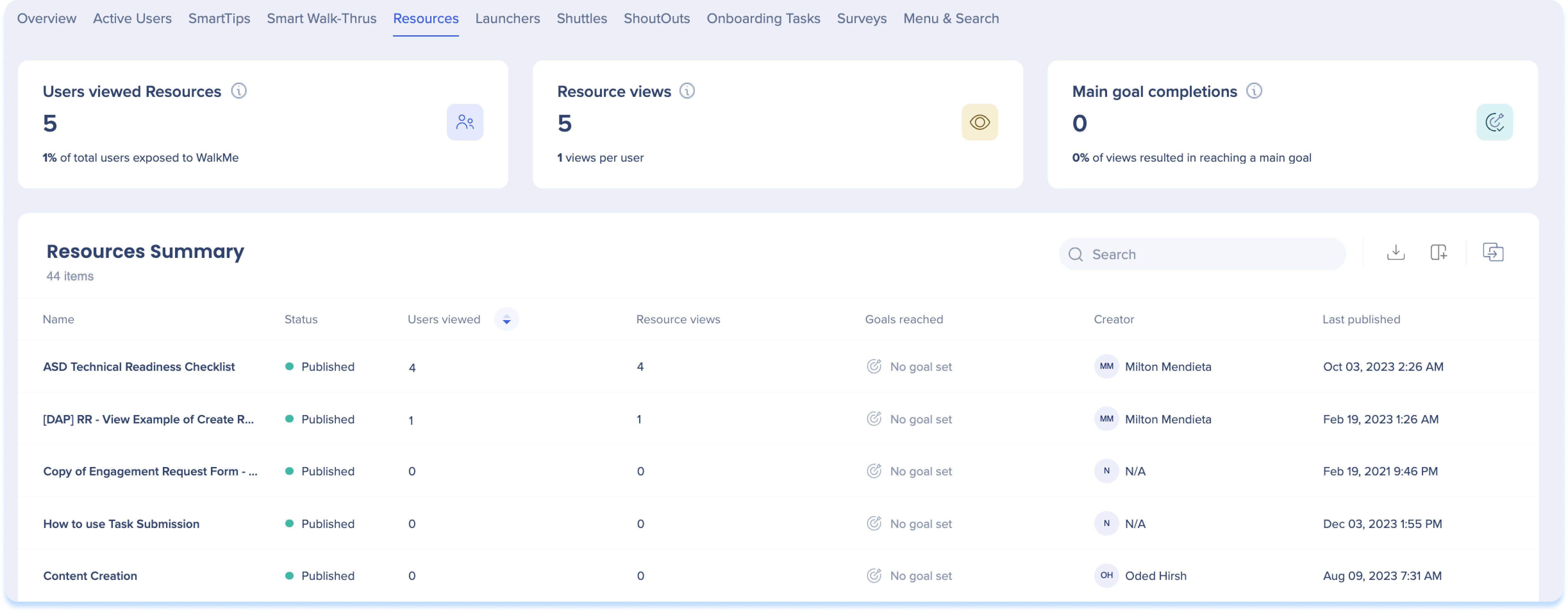
Métricas generales de recursos
-
Usuarios que han visto recursos: el recuento total de usuarios únicos que han visto cualquier recurso y el porcentaje de usuarios para los que WalkMe estaba disponible
-
Vistas de recursos: el recuento total de veces que se ha visto un recurso (incluidas varias vistas por el mismo usuario) y el número promedio de vistas de recursos por usuario.
-
Objetivo principal completado: el recuento total de objetivos principales alcanzados en todas las vistas de recursos y el porcentaje de vistas que permiten a un usuario alcanzar un objetivo
Resumen de recursos
-
Nombre: el nombre que el creador de contenido le dio a cada recurso.
-
Estado: el color del icono indica su estado de publicación.
-
Verde: Publicado
-
Gris: archivado
-
Rojo: eliminado
-
Naranja - Borrador
-
Usuarios que lo han visto: el recuento total de usuarios que han visto un recurso específico
-
Vistas de recursos: el recuento total de veces que se ha visto un recurso específico (incluidas varias vistas por el mismo usuario).
-
Objetivos alcanzados (de vistas de recursos): el recuento total de objetivos de WalkMe que se alcanzaron cuando los usuarios vieron un recurso específico
-
Creador: el usuario que creó el recurso.
-
Última publicación: la última fecha en la que se publicó un recurso específico.
Iniciadores
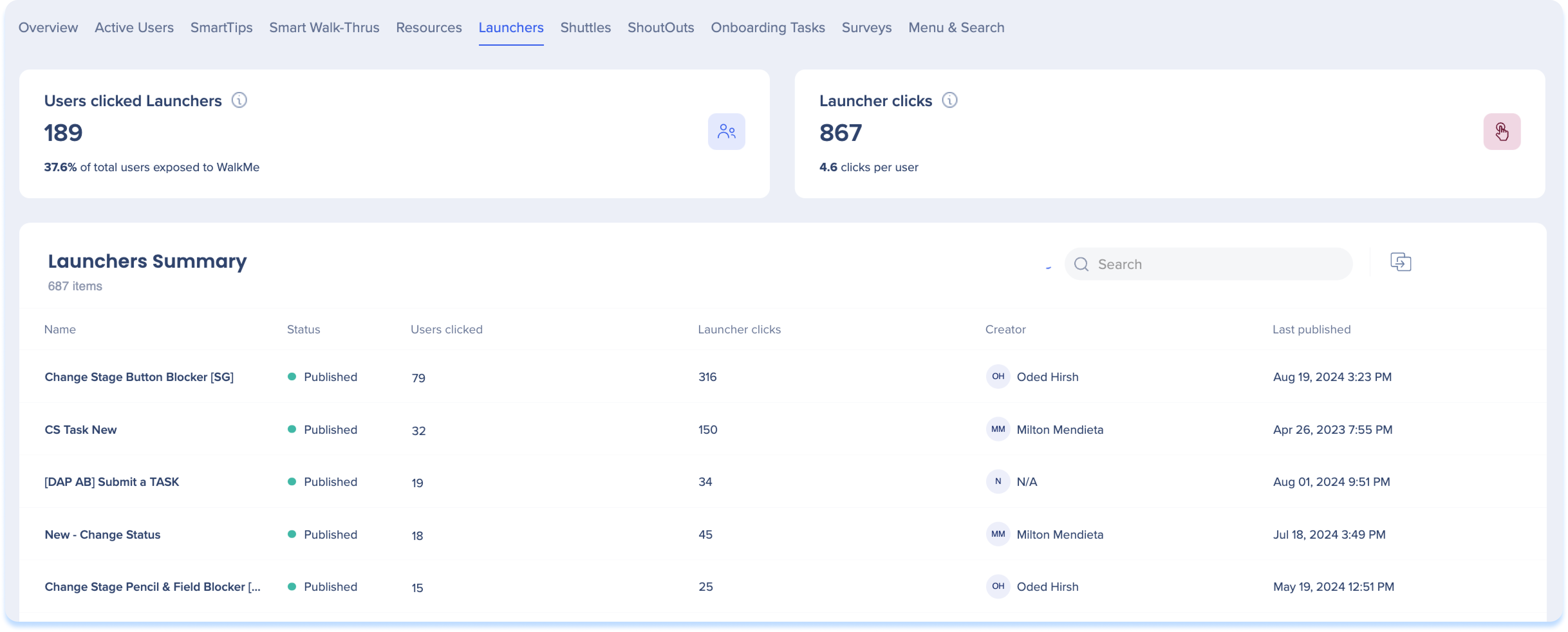
Métricas generales de lanzadores
-
Usuarios que hicieron clic en Lanzadores: el recuento total de usuarios únicos que hicieron clic en cualquier Lanzador y el porcentaje de usuarios para los que WalkMe estaba disponible
-
Clics del iniciador: el recuento total de veces que se hizo clic en un iniciador, incluidos varios clics del mismo usuario.
Resumen de lanzadores
-
Nombre: el nombre que el creador de contenido le dio a cada Lanzador
-
Estado: el color del icono indica su estado de publicación:
-
Verde: Publicado
-
Gris: archivado
-
Rojo: eliminado
-
Naranja - Borrador
-
Usuarios que hicieron clic: el recuento total de usuarios que hicieron clic en un Lanzador específico
-
Clics en el Lanzador: el recuento total de veces que se hizo clic en un Lanzador específico
-
Creador: el usuario que creó el lanzador
-
Última publicación: la última fecha en la que se publicó un Launcher específico.
Transbordadores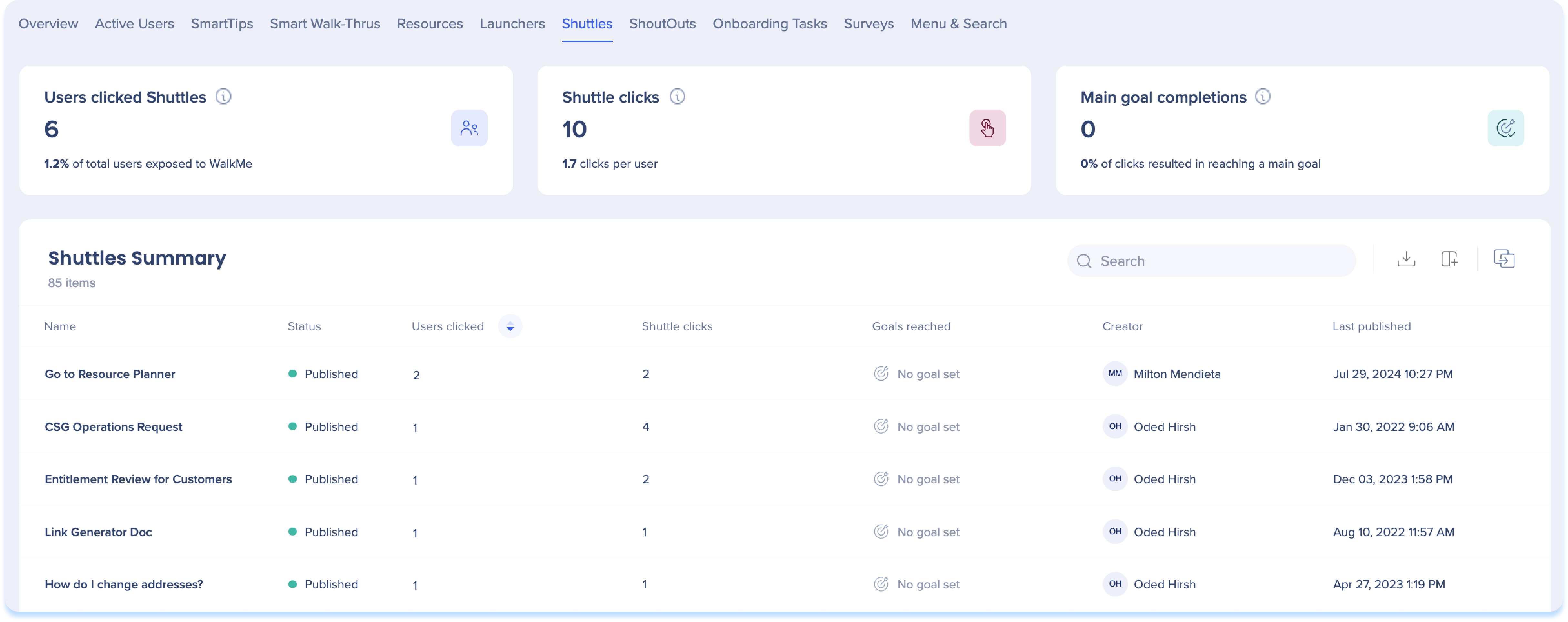
Métricas generales de Shuttles
-
Usuarios que hicieron clic en Shuttles: el recuento total de usuarios únicos que hicieron clic en cualquier Shuttle y el porcentaje de usuarios para los que WalkMe estaba disponible
-
Clics de Shuttle: el número total de veces que se ha hecho clic en un Shuttle, incluidos varios clics del mismo usuario
-
Objetivos principales alcanzados: el recuento total de objetivos de WalkMe alcanzados a través de todos los clics del Shuttle y el porcentaje de clics del Shuttle que han permitido a un usuario alcanzar un objetivo
Resumen de Shuttles
-
Nombre: el nombre que el creador de contenido le dio a cada Shuttle que creó
-
Estado: el color del icono indica su estado de publicación:
-
Verde: Publicado
-
Gris: archivado
-
Rojo: eliminado
-
Naranja - Borrador
-
Usuarios que hicieron clic: el recuento total de usuarios que hicieron clic en un Shuttle específico.
-
Clics del Shuttle: el recuento total de veces que se ha hecho clic en un Shuttle específico.
-
Objetivos alcanzados (de Shuttle plays): el recuento total de objetivos principales que se alcanzaron cuando los usuarios jugaron a un Shuttle específico.
-
Creador: el usuario que creó el transbordador.
-
Última publicación: la última fecha en la que se publicó un Shuttle específico
ShoutOuts
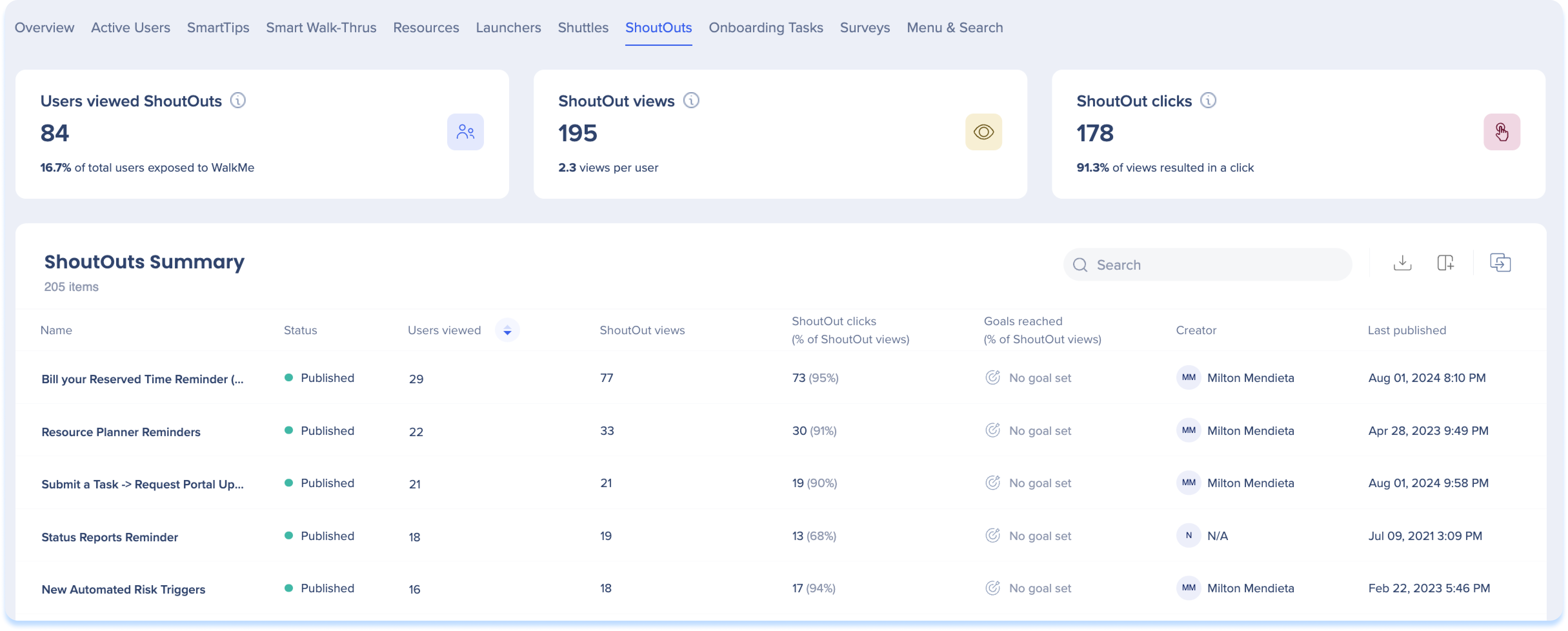
Métricas generales de ShoutOuts
-
Usuarios que han visto ShoutOuts: el recuento total de usuarios únicos que han visto cualquier ShoutOut y el porcentaje de usuarios para los que WalkMe estaba disponible
-
Vistas de ShoutOut: el recuento total de veces que se ha visto un ShoutOut (incluidas varias vistas por el mismo usuario) y el número promedio de vistas por usuario
-
Clics de ShoutOut: el recuento total de botones de acción en los que los usuarios han hecho clic en todas las vistas de ShoutOut y el porcentaje de vistas de ShoutOut que dan lugar a un clic en un botón de acción.
Resumen de ShoutOuts
-
Nombre: el nombre que el creador de contenido dio a cada ShoutOut.
-
Estado: el color del icono indica su estado de publicación:
-
Verde: Publicado
-
Gris: archivado
-
Rojo: eliminado
-
Naranja - Borrador
-
Usuarios que lo han visto: el recuento total de usuarios que han visto un ShoutOut específico
-
Vistas de ShoutOut: el recuento total de veces que se ha visto un ShoutOut específico (incluidas varias vistas del mismo usuario).
-
Clics de ShoutOut (de ShoutOut Views): el recuento total de veces que se hizo clic en un botón de acción específico de ShoutOut y la tasa de clics del total de vistas.
-
Creador: el usuario que creó el ShoutOut.
-
Última publicación: la última fecha en la que se publicó un ShoutOut específico.
Tareas de incorporación
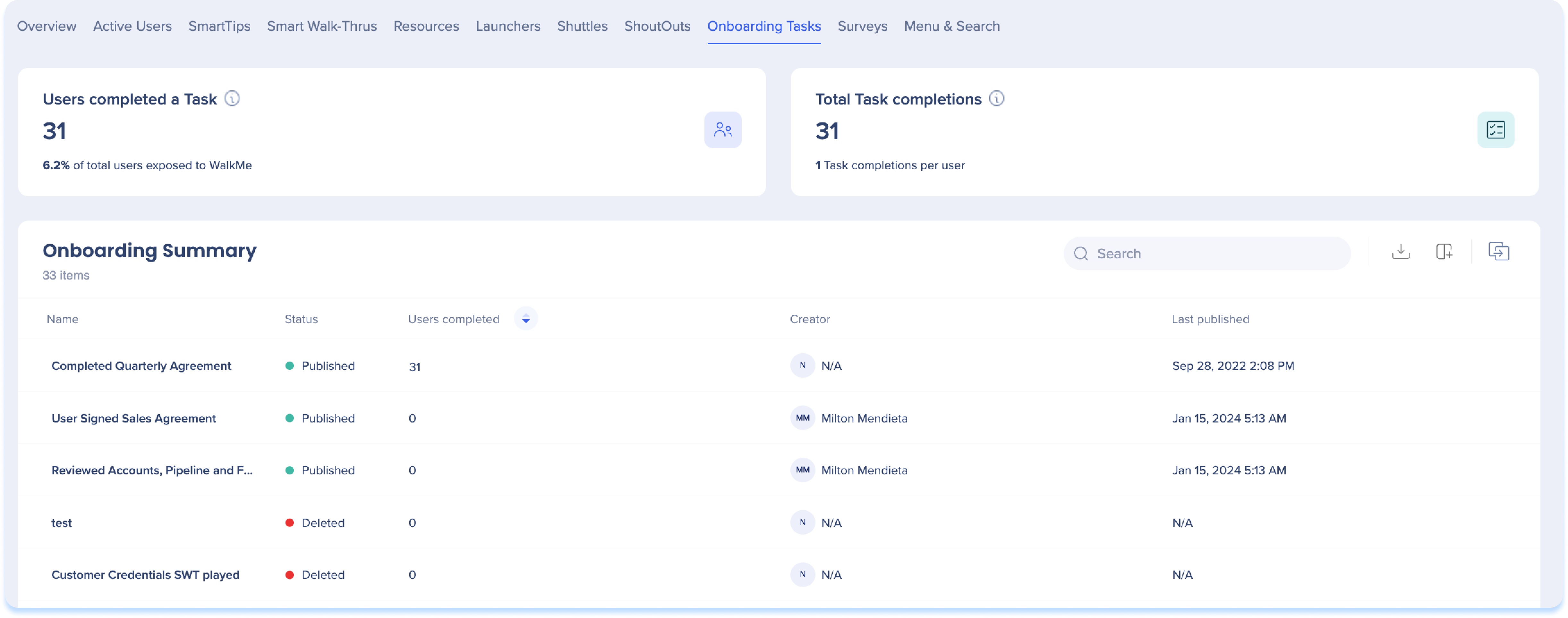
Métricas generales de incorporación
-
Los usuarios completaron una tarea: el recuento total de usuarios únicos que completaron cualquier tarea y el porcentaje de usuarios para los que WalkMe estaba disponible.
-
Total de tareas completadas: el recuento total de veces que se completó una tarea, incluidas varias completaciones por el mismo usuario.
Resumen de tareas de incorporación
-
Nombre: el nombre que el creador de contenido ha dado a cada tarea.
-
Estado: el color del icono indica su estado de publicación:
-
Verde: Publicado
-
Gris: archivado
-
Rojo: eliminado
-
Naranja - Borrador
-
Usuarios completados (del total de usuarios): el recuento total de usuarios únicos que completaron una tarea específica.
-
Creador: el usuario que creó la tarea de incorporación.
-
Última publicación: la última fecha en la que se publicó una tarea específica.
Encuestas
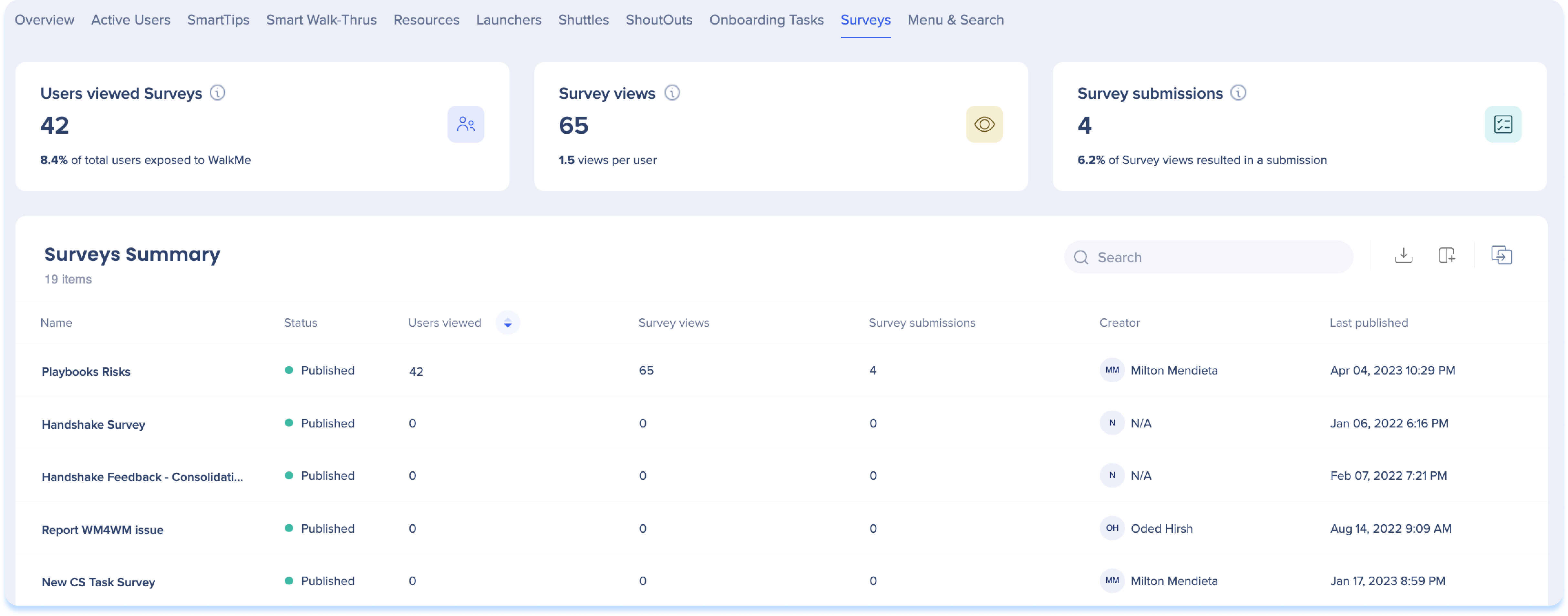
Métricas generales de encuestas
-
Los usuarios que han visto encuestas: el recuento total de usuarios únicos que han visto alguna encuesta y el porcentaje de usuarios para los que WalkMe estaba disponible.
-
Vistas de encuestas: el recuento total de veces que se ha visto una encuesta (incluidas varias vistas por el mismo usuario) y el número promedio de vistas de encuestas por usuario.
-
Envíos de encuestas: el recuento total de envíos de encuestas y el porcentaje de vistas que dan lugar a que un usuario envíe una encuesta.
Notas
- Las preguntas no obligatorias afectan al conteo: el número de envíos de encuestas incluye encuestas que se enviaron sin responder a preguntas no obligatorias. Es decir, una exportación de informes podría estar vacía incluso si se había registrado un envío.
- Impacto de las preguntas eliminadas: si se eliminan las preguntas después de que se haya enviado la encuesta, las respuestas a esas preguntas no se incluirán en Insights. Si bien el recuento del total de envíos permanecerá intacto, deberás confiar en los informes para ver las respuestas reales.
Resumen de la encuesta
-
Nombre: el nombre que el creador de contenido le dio a cada encuesta que creó.
-
Estado: el color del icono indica su estado de publicación:
-
Verde: Publicado
-
Gris: archivado
-
Rojo: eliminado
-
Naranja - Borrador
-
Usuarios que la han visto: el recuento total de usuarios que han visto una encuesta específica
-
Vistas de encuestas: el recuento total de veces que se ha visto una encuesta específica (incluidas varias vistas por el mismo usuario).
-
Creador: el usuario que creó la encuesta.
-
Envíos de encuestas: el recuento total de veces que se ha enviado una encuesta específica fuera del recuento total de usuarios que han visto esa encuesta
Métricas del menú general
- Usuarios que abrieron el menú: el número de usuarios únicos que abrieron el menú al menos una vez durante el período de tiempo seleccionado y los filtros
- Total de aperturas de menú: el número total de veces que se abrió el menú, incluidas varias aperturas por parte del mismo usuario
- Interacciones totales (nuevas): el número total de clics y reproducciones de elementos de Contenido dentro del Menú, incluidas múltiples interacciones por el mismo usuario
- Embudo de interacción del menú (nuevo): Muestra cómo los Usuarios progresan desde la apertura del Menú hasta hacer clic en el Contenido. Utiliza esto para identificar dónde disminuye la interacción
- Fuentes de contenido principales (nueva): muestra qué categorías o pestañas del menú contienen los elementos de contenido con más clics
-
- Cambia entre la visualización por categorías o por pestañas
- Muestra las 5 categorías/pestañas principales por número de clics, en orden descendente (menos si existen menos de 5)
- Muestra clics y Usuarios únicos para cada uno; pasa el cursor para ver los recuentos exactos
- Selecciona "Mostrar elementos de contenido" para abrir un panel lateral que enumera cada contenido activado desde esa categoría, con el nombre del contenido, Usuarios únicos y clics. El panel se puede buscar y exportar.
Resumen del menú
- Pestaña de contenido superior: Nombre del contenido, Tipo (por ejemplo, SWT, ShoutOut), Usuarios únicos, Interacciones, Creador, Última publicación. Al hacer clic en el contenido, se abre un panel lateral con datos basados en el tipo de contenido (Smart Walk-Thru, ShoutOut, Survey).
- Pestaña de diseño del menú: Nombre de contenido, Elementos de contenido (número de elementos dentro de esa pestaña/categoría), Usuarios únicos, Clics. Al seleccionar una pestaña o categoría se abren los elementos dentro de ella; se calculan los usuarios únicos en todo el contenido dentro de esa categoría o pestaña.
- Pestaña de puntos de entrada: Target, usuarios que abrieron el menú, Total de aperturas del menú, Usuarios que realizaron acciones, Acciones del menú. Si no se recopilan las URL, se muestra el título de la página; si no se recopila ninguno (Ajustes de PII), un mensaje indica que las URL y el título de la página no se recopilan para esta cuenta. Las partes de consulta y Hash URL no se almacenan
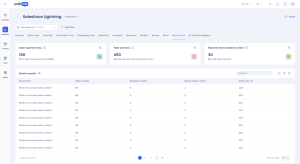
Menú general y métricas de búsqueda.
- Usuarios que abrieron el menú: el número de usuarios únicos que abrieron el menú al menos una vez durante el período de tiempo seleccionado y los filtros
- Total de búsquedas: el número total de consultas de búsqueda introducidas en el menú durante el período de tiempo seleccionado
- Búsquedas que han dado lugar a acciones: el número de búsquedas en las que el usuario ha hecho clic en un resultado
Resumen de búsqueda del menú: Término de búsqueda, Total de búsquedas, Resultó en acción, No resultó en acción, tasa de acción (el porcentaje de búsquedas que llevaron a un usuario a hacer clic en un resultado).
Integraciones de búsqueda personalizadas
La búsqueda del menú admite integraciones de búsqueda de Google y Zendesk. Todo lo demás es una integración personalizada, que no se admite por defecto; WalkMe las revisa caso por caso.
Si se aprueba una integración personalizada, tu cuenta debe tener un proveedor de identidad (IDP) para las Conexiones salientes. Un IDP autentica Usuarios y aplicaciones y añade una capa adicional de seguridad a las Conexiones.
Aprende a añadir y administrar proveedores de identidad
Paneles de control de IA
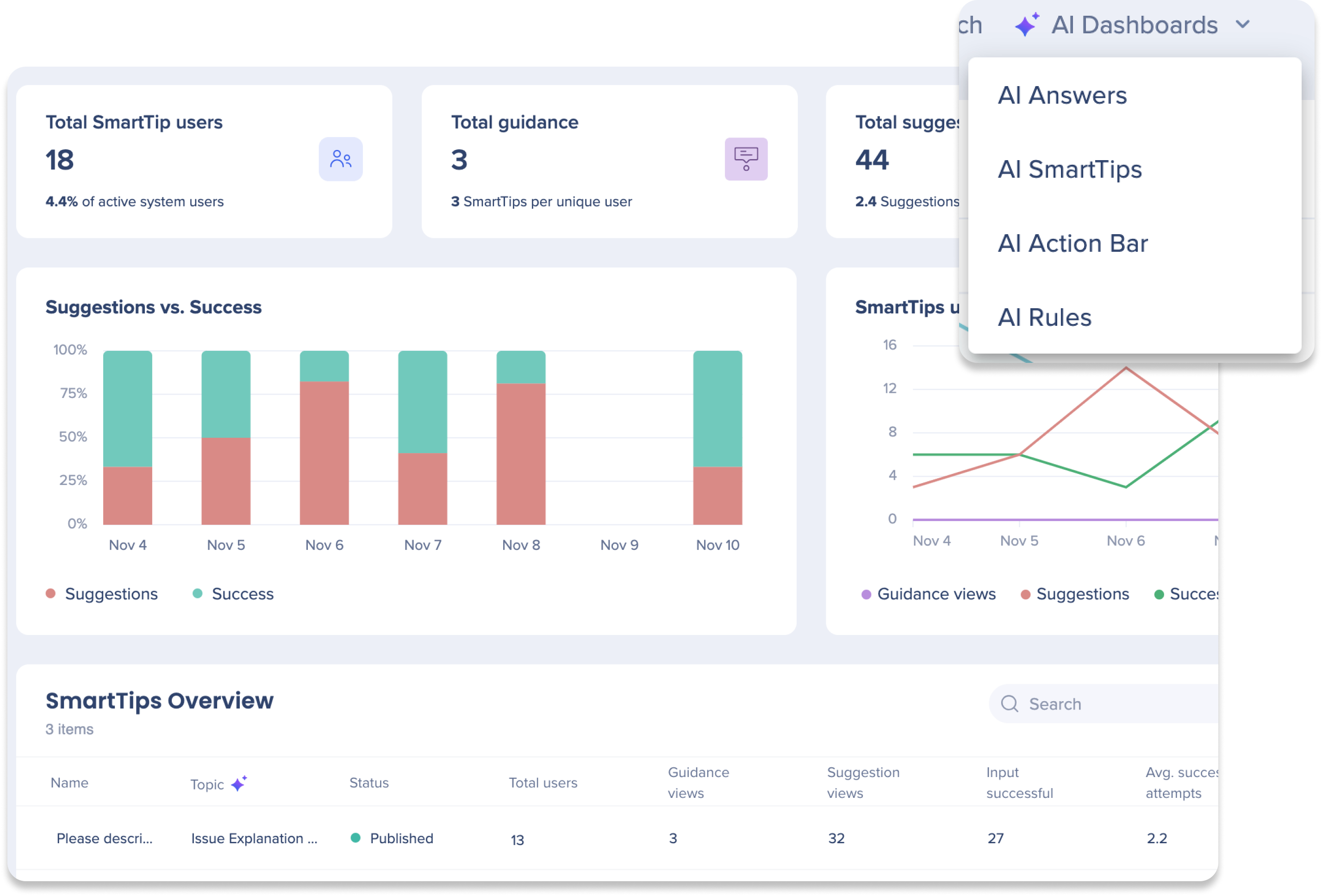
Los paneles de IA en la consola de Insights proporcionan una visibilidad completa del uso y la adopción de productos de IA dentro del flujo de trabajo. Estos paneles presentan hasta cuatro pestañas, cada una dedicada a un producto específico de IA de WalkMe: AI Answers, Barra de acción de IA, AI SmartTips y AI Conditions. Las pestañas que recibes dependen del paquete de IA.
AI Dashboards
Análisis de sistemas de escritorio/móviles
El análisis de sistemas de escritorio/móvil en las pestañas de contenido proporciona un control mejorado y una información más profunda sobre los datos de uso de escritorio/móvil para los creadores y profesionales de DAP. En esta sección, se describen las diferencias de los sistemas de escritorio/móviles en Insights.
Descripción general
Encuestas
Paneles de control de IA
Smart Walk-Thrus
-
El widget principal de finalización del objetivo no se admite en los widgets generales.
-
El objetivo alcanzado no se admite en la tabla de resumen de Smart Walk-Thru
-
El número de finalizaciones de objetivos principales no se admite en el panel lateral de inmersión profunda
Menú y búsqueda en el menú
-
La pestaña Menú y búsqueda se llama Búsqueda de menú
-
Se mostrarán 3 widgets de métricas: Usuarios buscaron, Total de búsquedas, Búsquedas que dieron lugar a acciones
-
Tabla de resumen de búsqueda del menú:
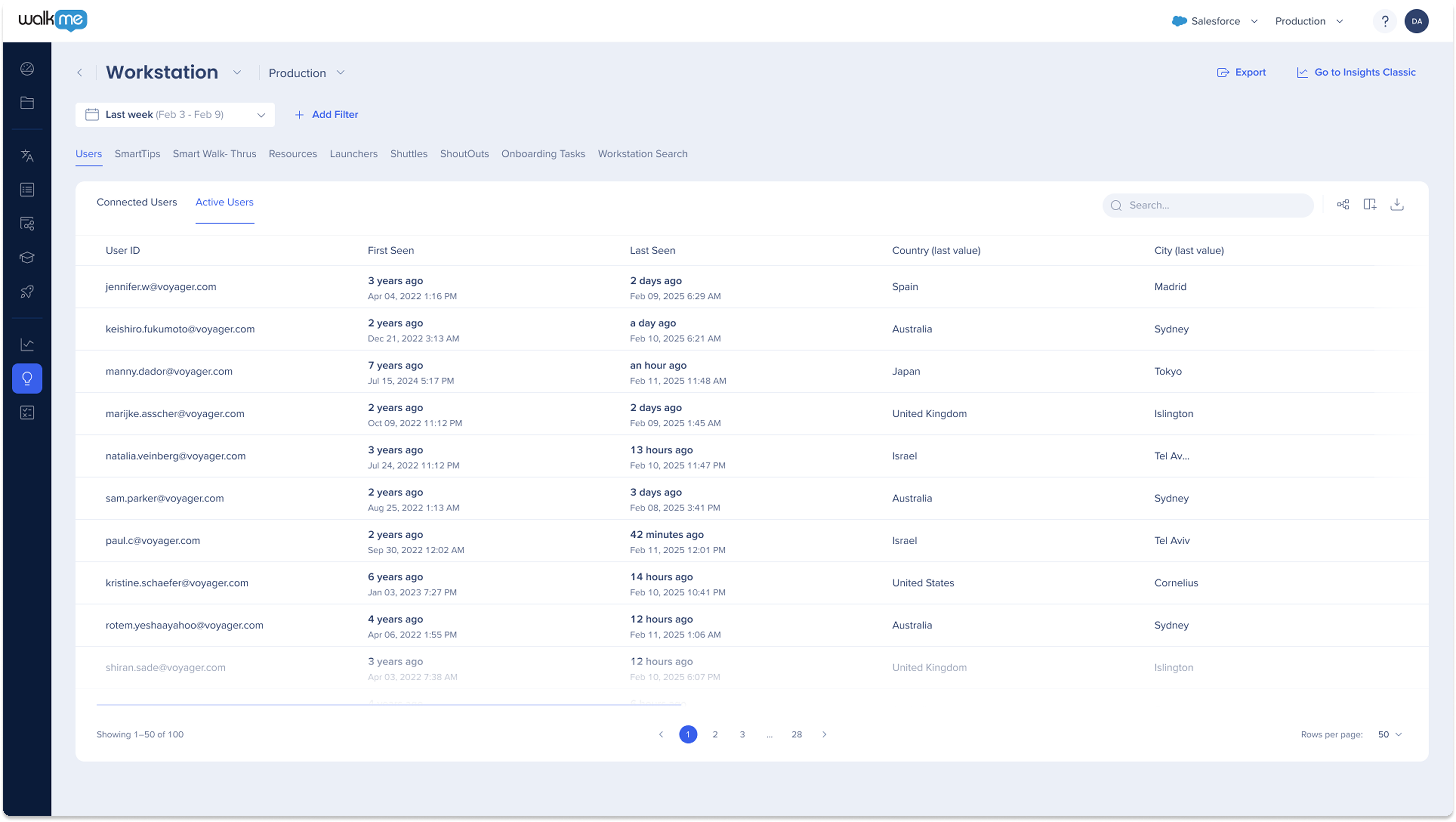
Usuarios activos
-
La pestaña Usuarios activos se llama Usuarios.
-
La tabla de usuarios se divide en dos pestañas: "Usuarios conectados" y "Usuarios activos".
-
Usuarios conectados = Usuarios que han iniciado sesión en el menú de WalkMe para escritorio/dispositivos móviles en uno o más dispositivos, pero no lo han abierto en ningún dispositivo dentro del rango de fechas seleccionado
-
Usuarios activos = Usuarios que han abierto el menú de WalkMe para escritorio/dispositivos móviles al menos una vez en cualquier dispositivo y tienen al menos uno de los siguientes tipos de eventos: entSearchClick, Widgetitemclick, WidgetActionClick, WMContentClick.
-
Cada tabla de usuarios contendrá la siguiente información sobre los usuarios: ID de usuario, Primera vez, Última vez, Atributos de integración (IDP).
Transbordadores
ShoutOuts
-
El widget de clics de ShoutOut no se admite en los widgets generales.
-
Los clics de ShoutOuts (% de vistas de ShoutOuts) y los objetivos alcanzados (% de vistas de ShoutOut) no se admiten en la tabla de resumen de Shuttles.
-
El número total de clics de ShoutOut y la información sobre el cumplimiento de objetivos no se admiten en el panel de inmersión profunda.
Recursos
-
El widget principal de finalización del objetivo no se admite en los widgets generales.
-
El objetivo alcanzado no se admite en la tabla de Resumen de recursos
-
Los recursos incluyen solo artículos y videos.
SmartTips
- Todas las métricas generales muestran los datos extraídos solo para el contenido publicado.
- El porcentaje de "Usuarios para los que WalkMe estaba disponible" se calcula mediante la siguiente fórmula: Usuarios para los que WalkMe estaba disponible/Todos los usuarios
- La métrica Todos los usuarios cuenta los usuarios en sesiones que finalizaron en el rango de fechas.
- En casos excepcionales, este porcentaje podría ser superior al 100 % si hay muchos usuarios que siguen activos en sesiones que aún no han finalizado
- En la mayoría de los casos, esto sucede cuando el rango de fechas incluye "Hoy".
-
En la pestaña Menú, la pestaña Puntos de entrada en la tabla Resumen no mostrará partes de la URL como Consulta y Hash ya que los parámetros de consulta no se almacenan
- El análisis de pasos de Smart Walk-Thru no se puede ver desde la pestaña Smart Walk-Thru debido a una limitación del Editor
-
La pestaña Búsqueda del menú solo muestra hasta 100 resultados para URL
- La pestaña de Usuarios activos muestra un máximo de 30.000 usuarios para garantizar un rendimiento óptimo
-
Los filtros existentes también se aplican a los sistemas de escritorio y móviles, excepto por las excepciones especificadas:
-
Insights solo examina la definición más actualizada del editor. Los subelementos que se eliminan no se mostrarán en Insights.
-
Todos los datos de Menú y Búsqueda de Menú están disponibles a partir del 30 de agosto de 2026 en adelante. Si estás utilizando Menú WalkMe para Escritorio, también necesitarás la versión 4.3.0 o posterior. Los datos solo aparecen una vez que los Usuarios comienzan a interactuar


