概要
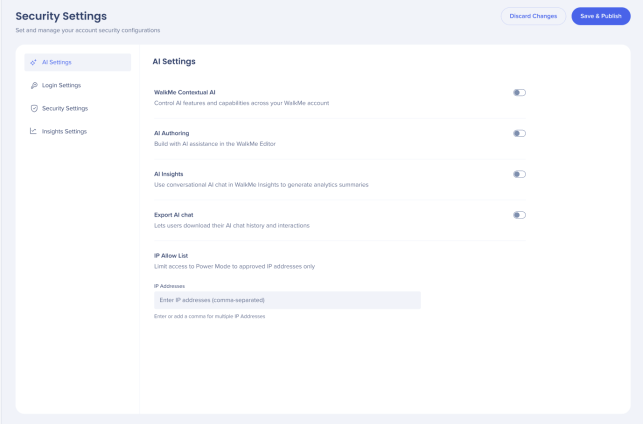
AI設定タブは、すべてのAI機能を1か所に集約し、管理者がシステムやアカウント全体にわたってAI機能やその使用状況をより適切に管理・制御できるようにします。
アクセス
WalkMe Contextual AI
Configure the availability of Contextual AI Assistance across your WalkMe account. Enabling this feature activates Pinned, Proactive, and On-Demand AI packages to use automated system intelligence to detect user intent, suggest next best actions, and improve overall productivity and compliance.
This needs to be activated on an account level first and then for selected systems.
About Contextual AI Assistance
AI Authoring
AI Authoring lets you create and modify WalkMe content by describing what you want in plain language, instead of building it manually.
This needs to be activated on an account level first and then for selected systems.
- Turn on AI Authoring to enable these features for your account and systems
AI Authoring
AI Insights
AI Insights is a conversational AI chat tool built into WalkMe Insights. It analyzes data from your connected WalkMe systems and surfaces answers in plain language.
AI Insights can be activated on an account level only .
- Turn on AI Insights to enable these features for your account
AI Insights
Export AI Chat
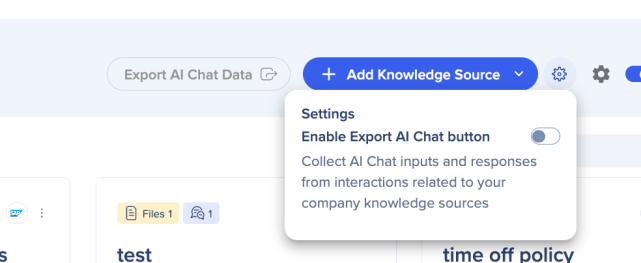
The Export AI Chat toggle enables users to collect the AI Chat inputs and responses from interactions related to AI knowledge sources. This toggle was previously in the AI Center.
- Turn on Export AI Chat, it then becomes accessible in the AI Center
Security Settings
IP Allow List
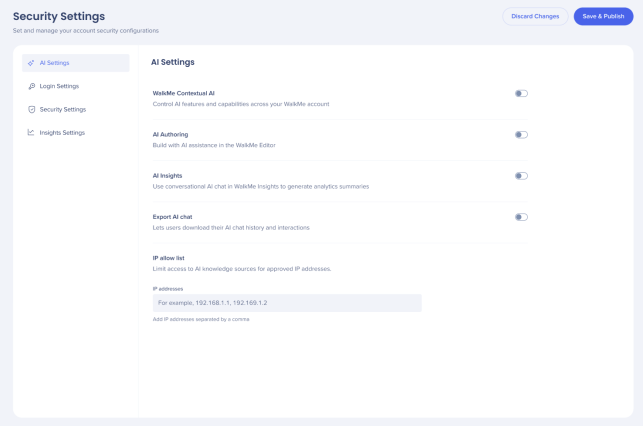
This is an account-level setting. It applies to all AI knowledge sources associated with the account and controls which users can access the uploaded knowledge source documentation.
Organizations with strict privacy requirements can use the IP allow list to control which users can access their AI knowledge sources.
The default is Public Access for your AI knowledge sources, only add the specific IP addresses to the list if you want to restrict access. Only users connecting from an allowed IP address can then access the knowledge sources.
If you want all your knowledge sources to be publicly available, you don't need to add any IP addresses.
- Add IP addresses to the field, each configured IP appears as an individual tag in the field
- Choose Discard Changes or Save & Publish
注
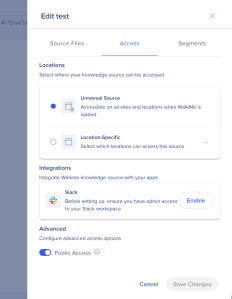
公開アクセスがオンになっている場合、どのIPアドレスでもアップロードされたナレッジソースにアクセスできます。IP制限リストは無視されます。
 技術的なノート
- システムレベルのAIは、アカウントレベルのAIが有効になっている場合にのみ利用できます
- AIチャットは、Proメニューでのみサポートされ、レガシーWalkMeメニューではサポートされていません
- AIインサイトとAIオーサリングは、カスタムLLMをサポートしていません



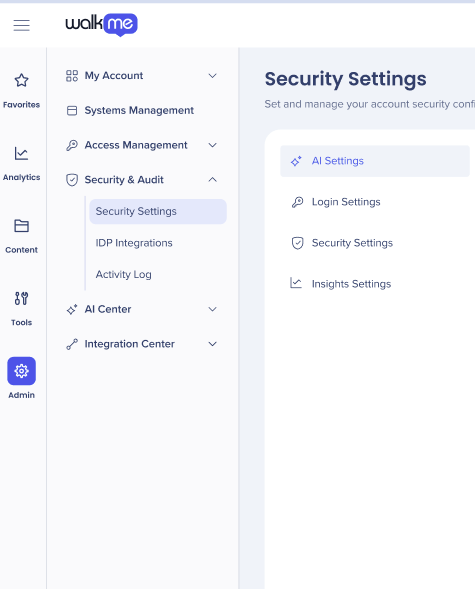 に移動します