Brief Overview
DevTools is turned off by default in WalkMe Editor version 4.16.2 and later. This article covers two ways to turn it on: for the current session and permanently.
Enable for the Current Session
Windows
- Search for the WalkMe app. It's usually located at:
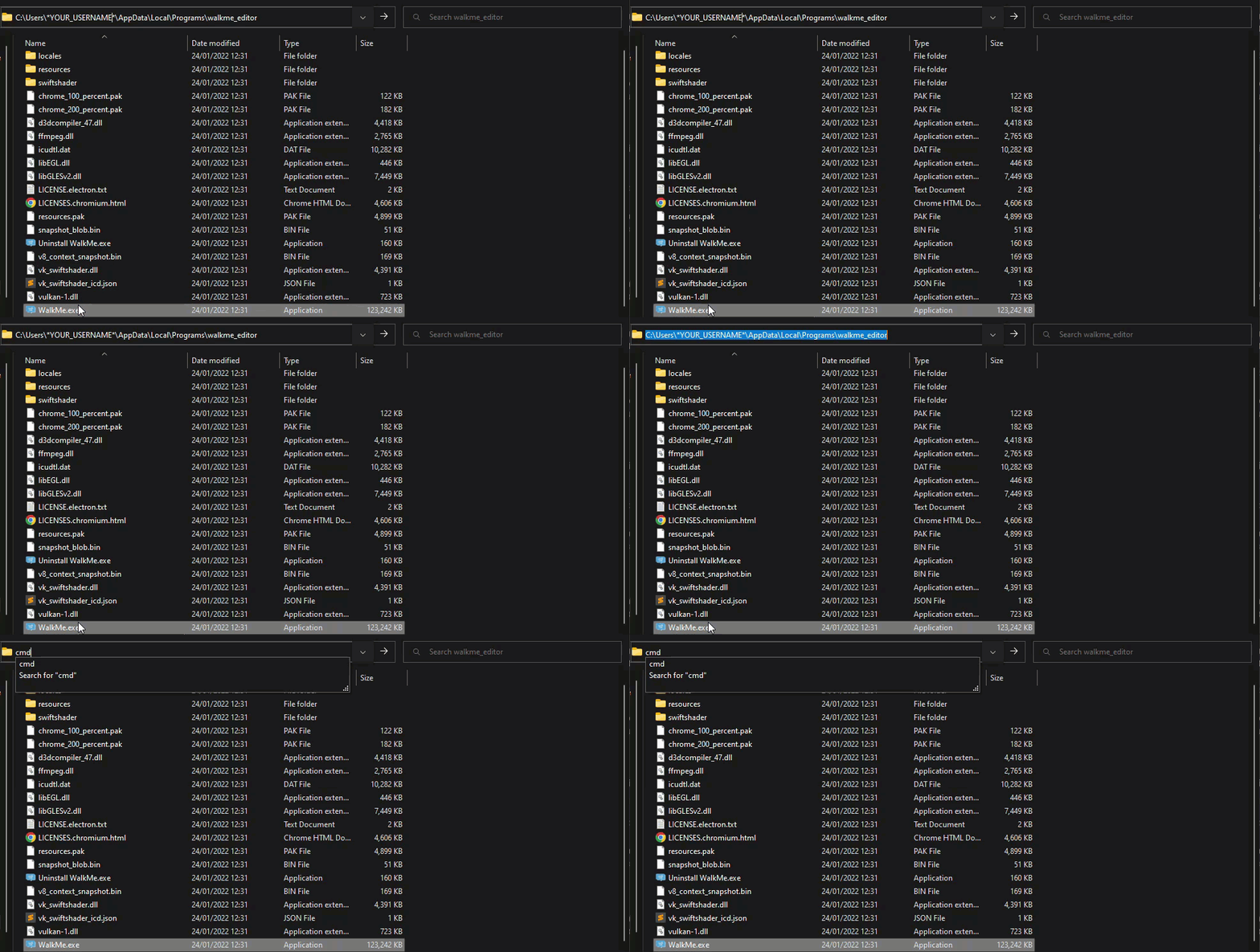
C:\Users\YOUR_USERNAME\AppData\Local\Programs\walkme_editor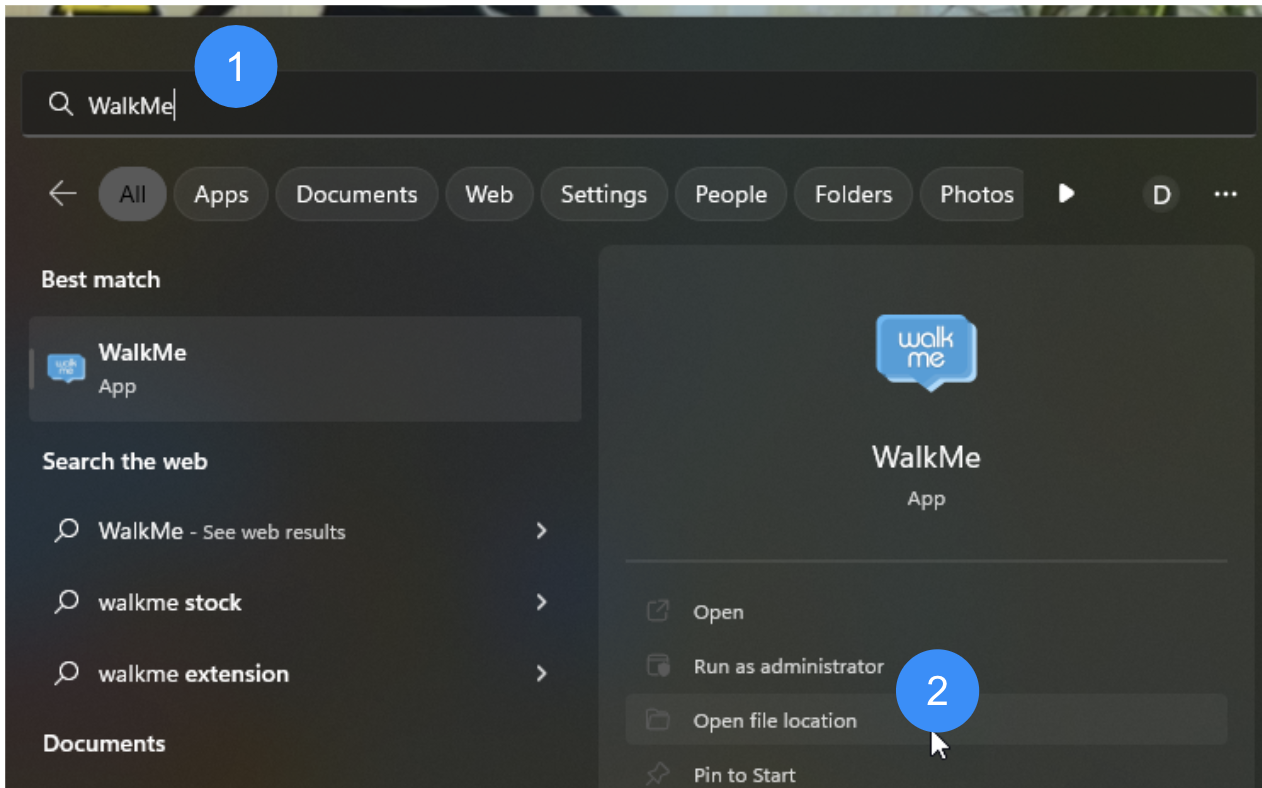
- Select Open file location
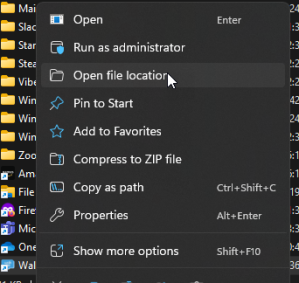
- Right-click the icon
- Select Open file location
- In the application folder, type cmd in the address bar
- Press Enter
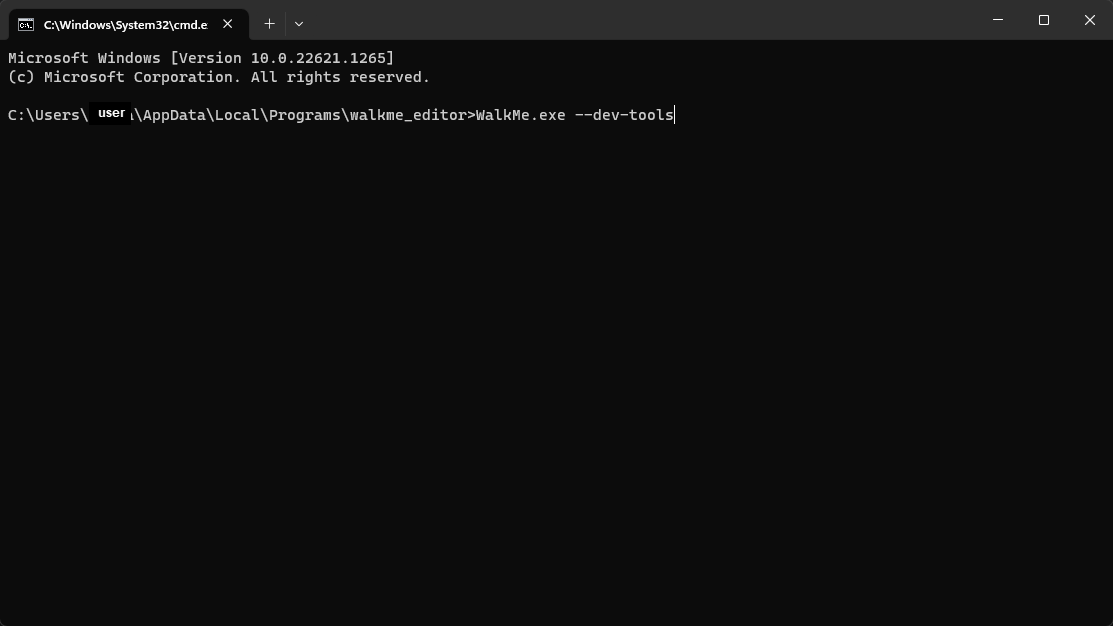
- In the command prompt, type:
macOS
- Open the Terminal application
- Type:
If the WalkMe app isn't under Applications, update the path accordingly.
Enable Permanently
Turning on DevTools this way keeps it accessible every time you open the Walkme Editor.
Note
Close the editor before beginning.
Windows
- Go to This PC, then open Drive C
- Create a new folder called WalkMe
- Download the settings file and save it in the WalkMe folder
- Open the WalkMe Editor
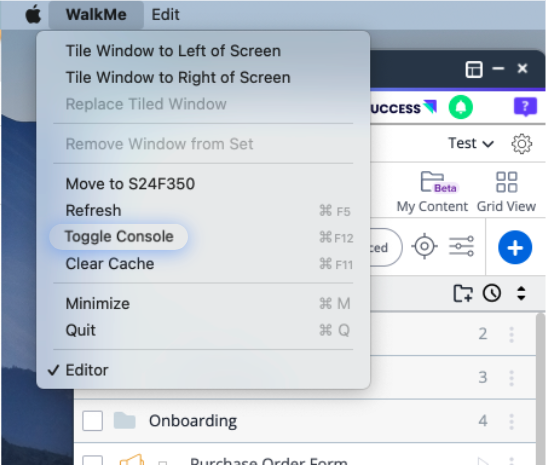
- Open DevTools
macOS
- Go to Macintosh HD, then Users, then your username folder
- Create a new folder called WalkMe
- Download the settings file and save it in the WalkMe folder
- Open the WalkMe Editor
- Open DevTools
Can't Download the Settings File?
Create a file named settings.json and add the following content (case-sensitive):
{
     "devTools": true
}
Save it in the WalkMe folder you created in step 2.
Remove the Feature
In order to deactivate the feature, you can do one of the following:
- Delete the file
- Change the value to false
- Remove the attribute altogether


