Brief Overview
Editor users aren't able to access DevTools by default (beginning version 4.16.2).
This article will go over how to unlock the feature.
How It Works
Gain one time access
Follow these instructions to gain one time access to DevTools:
Windows
- Find the WalkMe app using Windows search
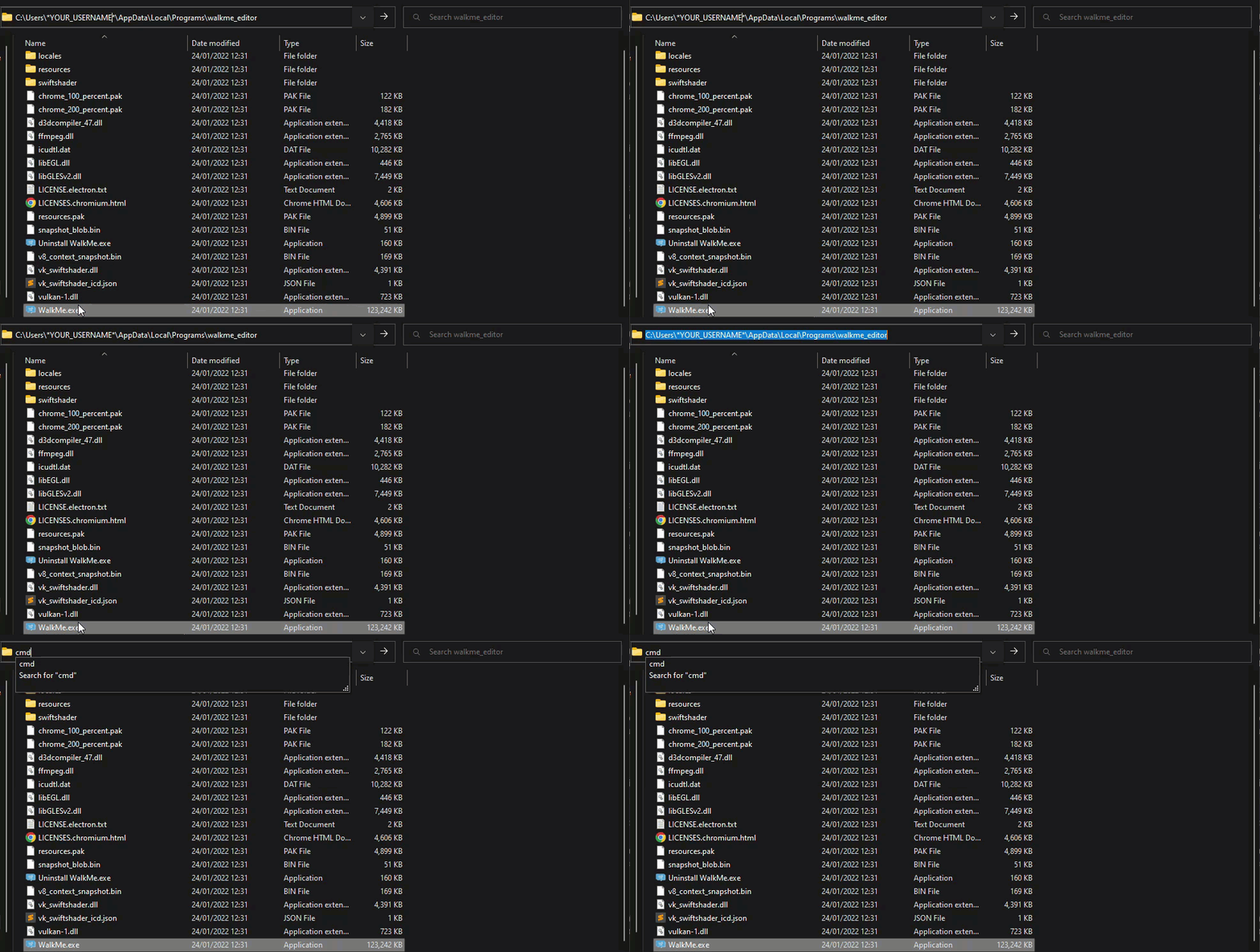
- Usual location: C:\Users\*YOUR_USERNAME*\AppData\Local\Programs\walkme_editor
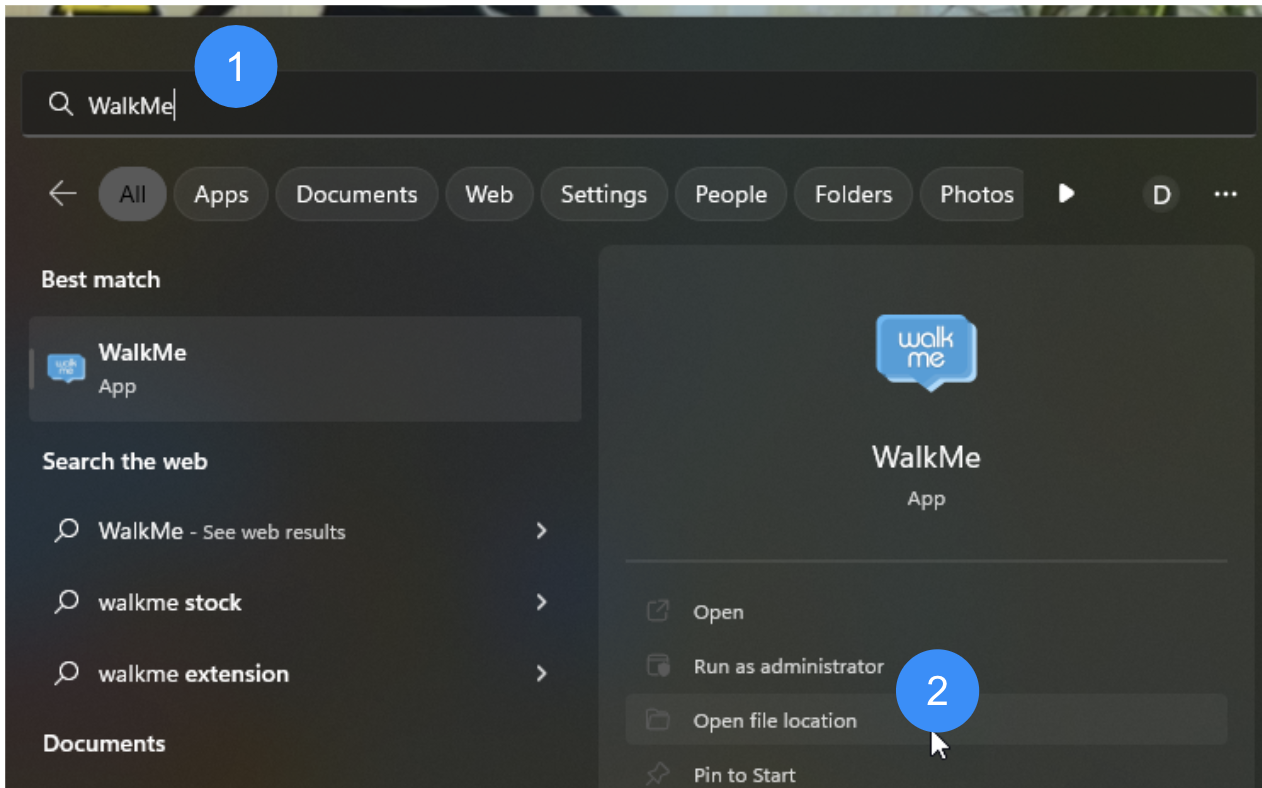
- Click Open file location
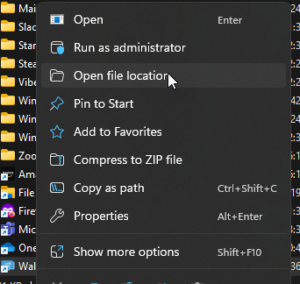
- Right click the icon
- Click Open file location
- In the application folder, type cmd in the address bar
- Press Enter
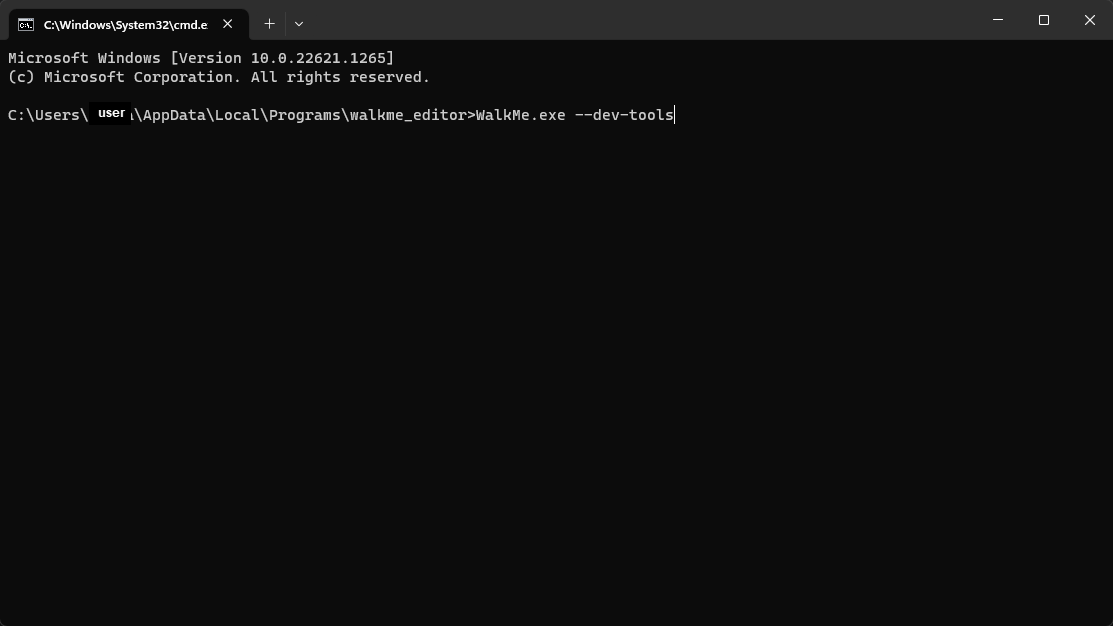
- In the command prompt, enter:
macOS
- Use the search to open the Terminal application
- In the Terminal, enter:
- open /Applications/WalkMe.app --args --dev-tools
If the WalkMe app isn't located under Applications, the path should be changed.
Add the feature
Follow these instructions to access DevTools:
Close the editor before beginning.
Windows
- Go to PC → Drive C
- Create a new folder called "WalkMe"
- Download this settings file
- Save it in the WalkMe folder
- Open the editor
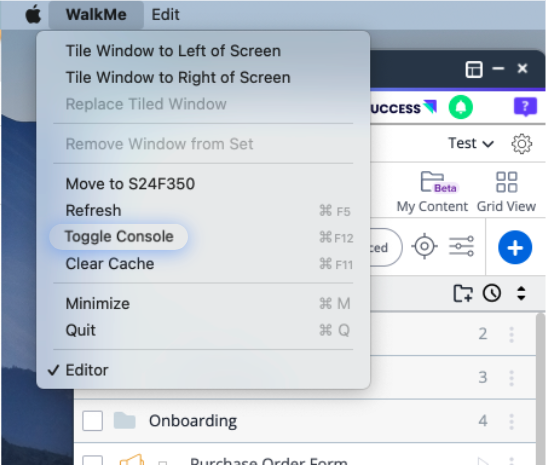
- Open DevTools
macOS
- Go to Macintosh HD → Users → *your_username*
- Create a new folder called "WalkMe"
- Download this settings file
- Save it in the WalkMe folder
- Open the editor
- Open DevTools
Not able to download file?
If you cannot download the settings file, create a file named settings.json containing the following case sensitive code:
{
     "devTools": true
}
Remove the feature
In order to deactivate the feature, you can do one of the following:
- Delete the file
- Change the value to false
- Remove the attribute altogether


