Breve descripción general
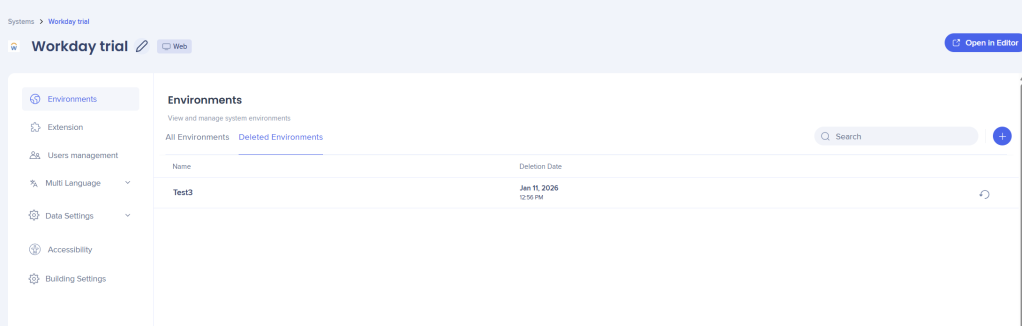
Los entornos te permiten administrar dónde y cómo se implementa WalkMe en tu sistema. Cada sistema incluye dos entornos predeterminados: Producción y Prueba, y puedes crear entornos personalizados para que coincidan con el flujo de trabajo de implementación de tu organización.
Systems Management
Acceso
Accede a los ajustes de los entornos en la consola:
- Abre la WalkMe Console:
- Ve a la categoría Administrador
- Elige un sistema en la página Sistemas
- Ve a la pestaña Entornos con
Cómo funciona
En la pestaña Entornos, administra todas las configuraciones relacionadas con el entorno:
- Los entornos predeterminados "Producción" y "Prueba" se crean automáticamente.
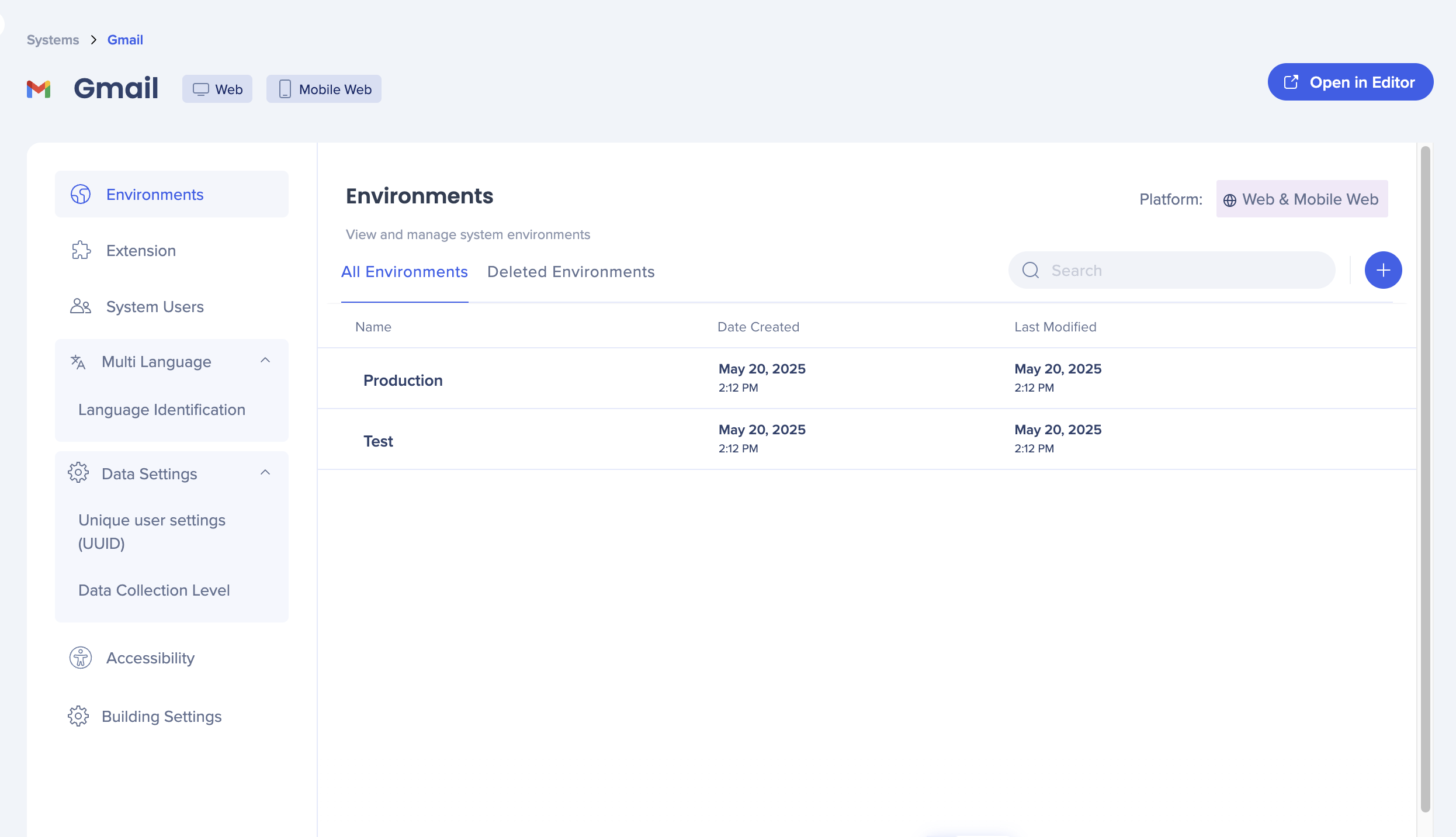 Estos entornos predeterminados no se pueden renombrar ni eliminar
- Selecciona el + azul para crear un nuevo entorno personalizado
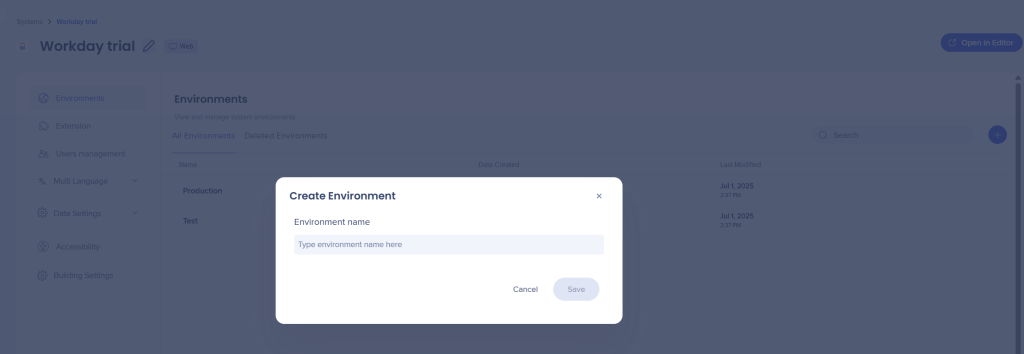
3. Introduce un nombre para el entorno
4. Selecciona Guardar
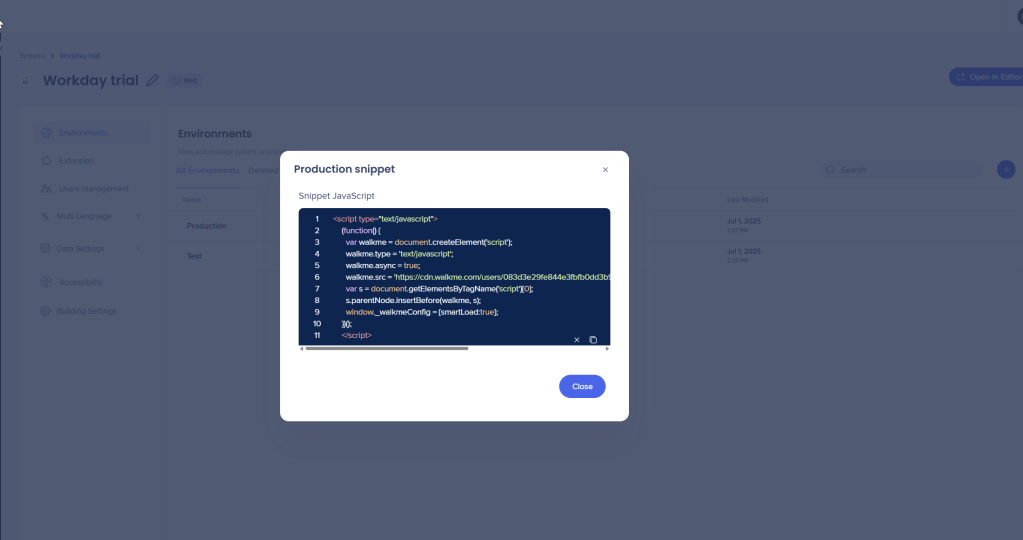
Una vez creado, puedes copiar el fragmento correspondiente para implementarlo.
Si el método de implementación utiliza una extensión, configura las URL en Extensiones.
Cambiar el nombre y eliminar entornos
Puedes renombrar y eliminar entornos personalizados, pero no "Production" y "Test".
-
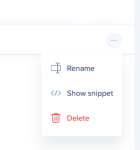
- Pasa el cursor sobre el entorno personalizado
- Selecciona el menú Opciones (tres puntos)
- Haz clic en Cambiar nombre o Eliminar
Restaurar entornos eliminados
- Ve a la pestaña Entornos eliminados
- Pasa el cursor sobre el entorno
- Selecciona el botón Restaurar para