Insights Customer Playbook

Last Updated March 16, 2026

Analyze user journeys. Find friction. Build guidance. Prove impact.

Understand Insights Capabilities

Phase 1: Understand what WalkMe Insights can measure

WalkMe Insights Overview

WalkMe Insights helps you understand how users interact with your application and how your WalkMe content is performing. It's your analytics layer for digital adoption that helps you:

  • See how users behave in your application - for example, what they click, type, or don't engage with.
  • Spot friction - where users get stuck, drop off, or take longer than expected.
  • Measure WalkMe's impact - see which WalkMe guidance drives impact across applications, segments, and time periods.
  • Visualize cross-system journeys - see how users move across applications and how WalkMe guidance contributes to process success.
  • Report on what matters most - customize dashboards with the metrics and data that reflect your business priorities.

Common Questions WalkMe Insights Can Answer

Product Analytics
WalkMe Content Analytics
How are users interacting with key features or workflows in my application?
What WalkMe content are users engaging with the most/least?
How do users navigate across pages, forms, or screens within the application?
What percentage of users are seeing or engaging with WalkMe content?
Which UI elements (buttons, fields) are users clicking, typing in, or not engaging with?
Are users achieving the goals I've defined for my Smart Walk-Thrus, Shoutouts, Resources, Shuttles, or Onboarding Tasks?
How are user interactions trending over time?
How is WalkMe guidance helping users complete tasks faster or more successfully?
Where are users dropping off in my process?
Which WalkMe experiences aren't performing as expected and where can I improve them?
Configure UUID & DXA Level

Phase 2: Configure UUID & DXA level

Set up your system so Insights can track accurate, user-level data from day one. This foundation determines the quality of every report, funnel, or dashboard you'll build later. UUID is set up by users with Admin permissions when they configure their system before WalkMe content is published. It is configured per system, not per account.

Step 1: Select how you will identify users (UUID)

The UUID (Unique User Identifier) tells WalkMe who is doing what-it's the foundation of all user-level analytics in WalkMe Insights, ensuring every click, play, and goal completion is tied back to a real user. Without a UUID, WalkMe assigns a new ID each time a user enters the system, creating duplicates in Insights and breaking Onboarding and Goal continuity.

For example:

  • Without a UUID: A Smart Walk-Thru shows 100 plays, but Insights can't tell whether this represents 100 unique users or repeated plays by the same few users. There's no visibility into who completed the Smart Walk-Thru or who dropped off. Each time a user enters the system-even if they're returning-they're assigned a new ID since there's no method to track unique users. This leads to inflated metrics and inaccurate Insights data.
  • With a UUID: Insights shows 75 unique users started the Walk-Thru; 45 completed it and 30 dropped off. You can see which users did not finish and exactly where they dropped off in the Smart Walk-Thru.

It's a recommended best practice to choose one consistent UUID method across all your environments. While several options are available, we recommend using an IDP integration for internal applications and a variable for customer-facing applications for the most accurate, persistent user tracking. If your organization requires an additional layer of security, you can request to have your UUID hashed.

UUID Type
Best For
Why Use It
IDP (SSO Integration)
RECOMMENDED
Internal applications
Most reliable; identifies users via your identity provider (e.g., Okta, AzureAD).
Variable
RECOMMENDED
Customer-facing applications
Uses a variable (like window.userId) for accurate, persistent tracking.
WalkMe ID
NOT RECOMMENDED
Testing only
Quick setup for testing or sandbox environments. Not recommended for production - the ID is not persistent and resets when cookies are cleared or a new browser is used, recording one returning user as multiple new users which can skew Insights data.

    Best Practices

  • Choose a stable, consistent UUID method from day one (IDP for internal applications, variable for customer-facing sites).
  • Validate UUIDs appear consistently in Insights user page (no duplicates).
  • Publish after changing data settings.

DO NOT

  • Leave UUID blank or rely on WalkMe ID this will reset with every cleared cookie or new browser.
  • Change your UUID configuration after deploying content unless you are upgrading to a more reliable method (IDP or variable). Changing UUIDS breaks historical continuity and resets user-level analytics.

Here are a few additional resources to help you set up your UUID: Unique user settings, IDP, Variables, UUID hashing, Roles & permissions.

Step 2: Choose how much data to collect (DXA Level)

WalkMe collects data at three different levels, each offering a deeper view into how users interact with your application and your WalkMe guidance. Together, these levels help you move from simply counting interactions to truly understanding user behavior, identifying friction, and measuring impact. DXA (Digital Experience Analytics) determines how much user-behavior data WalkMe collects beyond WalkMe engagement analytics. Different DXA levels offer different levels of visibility into how users interact with your website or application.

Data Collection Level
What It Tracks
Use It When You Want To...
How To Enable:
Engagement Analytics (Default)
WalkMe content interactions only
Measure how users engage with WalkMe content (plays, completions, steps, and goals.
Enabled by default.
Targeted DXA
Tracked Events you define, plus sampled behavioral data (1 out of ~100 interactions) that helps validate whether relevant user actions are occurring
Focus on key interactions in your application that you define with a Tracked Event (button clicks, field inputs, or page visits) while minimizing data collection.
    Ideal when you want control, privacy, and precision as it only collects data that you define through a Tracked Event.
Enabled directly by WalkMe Admins in the Admin Center under Data Settings.
Full DXA
Retroactive user interactions
Full DXA captures every click and input from the moment it's enabled, allowing you to define Tracked Events at any time to access historical data retroactively-up to 12 months back or from when Full DXA was activated, whichever is more recent.
    Important note: Full DXA provides extensive raw data, which can be complex and resource-intensive to analyze.
    Most customers do not need this level of detail; we recommend Full DXA only for customers with advanced analytics needs and the capacity to handle large datasets.
Full DXA cannot be switched on by Admins - it must be enabled by WalkMe upon request. DXA is enabled per system, not per account.
    How to enable: Contact your Account Team with the names of the systems that require Full DXA.
Session Playback
Recreations of real user sessions
Complement your analytics data to recreate how users experienced your application-providing a complete, visual understanding of their interactions.
    It's helpful if you need to: Validate behavior patterns observed in Digital Experience Analytics (DXA), Support QA and troubleshooting with visual reproductions of user sessions
Session Playback is an opt-in capability available only to customers who have purchased the WalkMe for Customers package.
    How to enable: Check with your Account Team to confirm whether your contract includes WalkMe for Customers.

    Governance and censorship controls:

    DXA includes governance controls that allow administrators to define what interaction data may be collected. If needed, use Censorship and Privacy settings to restrict the collection of specific elements on your site to align with your organization's security and compliance requirements.

    You'll know you're ready to move on when:

  • UUID and DXA are configured and validated in the Admin Center.
  • You can confirm that data is flowing into Insights (via a simple Tracked Event test).
  • Your team understands how much user behavior you're collecting and why.

Here are a few additional resources to help you set up your data collection level: Digital Experience Analytics (DXA), WalkMe Events Settings, Session Playback.

Set Up Baseline Data

Phase 3: Decide what to track and set up baseline data

To understand how users interact with your application, use Engaged Elements or Tracked Events to collect baseline data before publishing WalkMe content. Without a baseline, it becomes difficult to demonstrate how your WalkMe solutions improve user behavior. We recommend collecting baseline data for at least 30 days before publishing WalkMe content. This ensures you can confidently measure before-and-after impact. We highly recommended making this a standard practice before deploying new WalkMe content.

Events: When to use Engaged Elements and Tracked Events

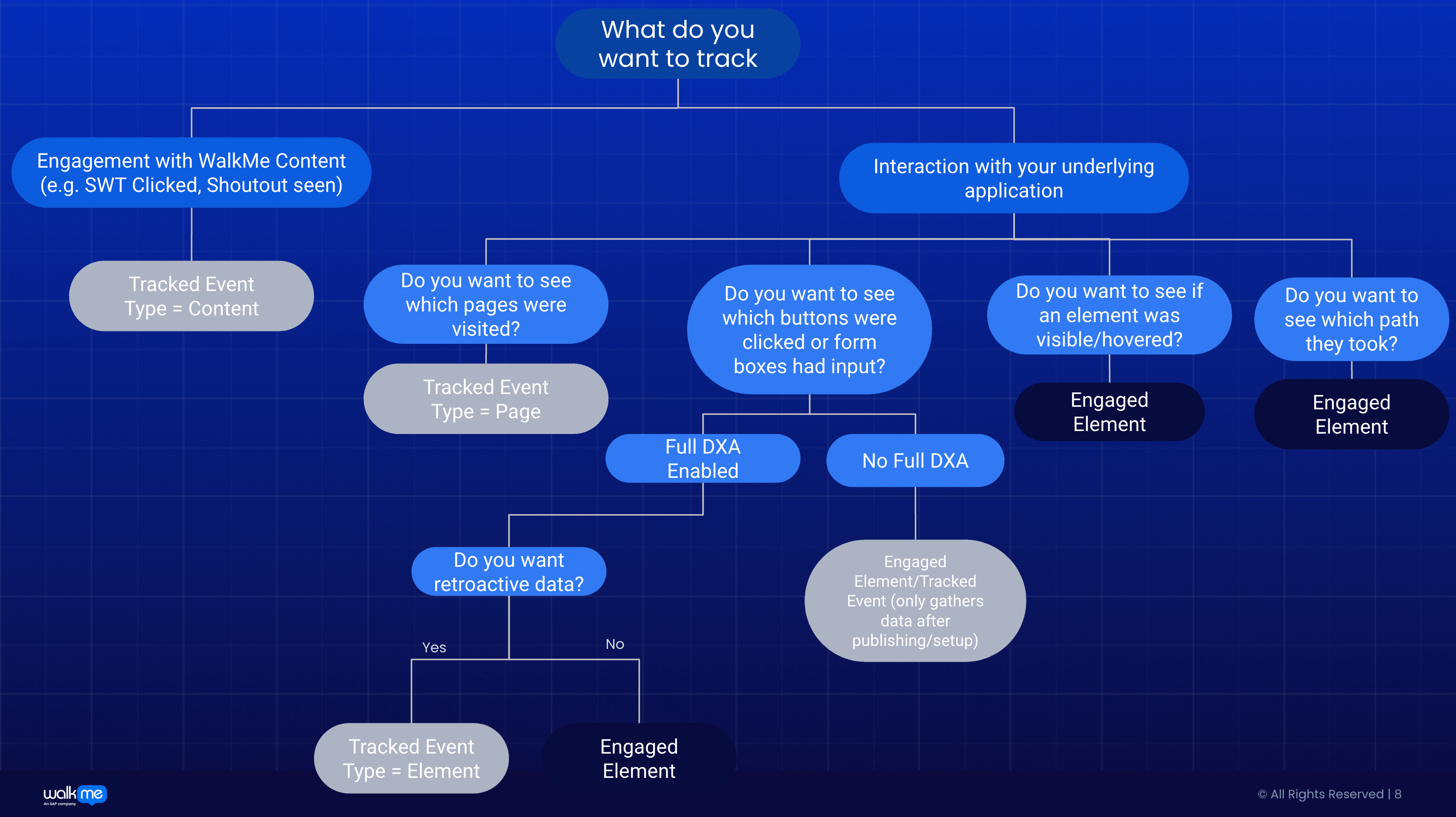
Events are the building blocks of Insights analytics. They help you understand how users interact with your application - which buttons they click, which pages they visit, etc. There are two ways to set up events: Engaged Elements and Tracked Events. It's important to know what each method captures since they form the foundation of all Insights analytics.

  • Use Engaged Elements when you want to see how users engage with specific on-page elements like clicking a button, typing in a field, hovering, or viewing a UI element. Engaged Elements are captured visually and powered by the WalkMe Editor rule engine, making them more accurate and less prone to selector changes. They also support a broader range of interaction types-including visibility, hover, text change, and input events-helping you measure user behavior with precision.
  • Use Tracked Events when you need to track page visits or need retroactive data.

If you want to see
Use
Notes
Which URLs users visit (page visits) or if they click or what they type into an input box.
Tracked Events
Requires DXA (Targeted DXA or Full DXA) to be enabled to set up a Tracked Event. Requires page collection to be enabled to see page visits.
Which underlying UI components users interacted with clicked, typed, or hovered over (not related to WalkMe content).
Engaged Elements
Limited to 20 per page for performance reasons. Must publish from the WalkMe Editor to start collecting data. Requires DeepUI to be enabled.
Retroactive engagement with elements i.e. who clicked on a specific element.
Tracked Events + Full DXA
Requires Full DXA to be enabled.

You'll know you're ready to move on when you:

  • Understand when to use Engaged Elements and Tracked Events.
  • Publish Engaged Elements or set up Tracked Events to collect baseline data for 30 days.
  • In the Events section of Insights Console, confirm your Engaged Elements or Tracked Events are sending data into Insights. Always validate after creating new events or changing rules.

Additional resources to help you set up Events: Collect Baseline Data with Engaged Elements or Tracked Events, How to create Events, About Insights Engaged Elements.

Deploy & Measure Impact

Phase 4: Deploy WalkMe & measure impact

Address the friction points you've discovered by deploying WalkMe content, then prove it made an impact. 1) Deploy WalkMe guidance where friction exists.

2) Add Goals in each Smart Walk-Thru, Shoutout, Resource, or Shuttle and a completion goal for each Onboarding Task. Goals connect usage to outcomes so you can see if users who engaged with the guidance actually achieved the outcome it was designed to achieve (e.g., "Clicked Save" or "Form Submitted").

  • Add a Main Goal to track the desired outcome.
  • Add Milestone Goals to track key progress points.

3) Publish to production and let users interact for at least a week.

4) To measure whether your WalkMe guidance is gaining traction, you need to look at how users are viewing, playing, clicking, and interacting with each content type across your system. WalkMe Engagement Analytics provides metrics that tell you how often WalkMe content is being surfaced and used. These metrics appear across most app dashboards in Insights, particularly in Smart Walk-Thrus, SmartTips, Launchers, Shoutouts, Resources, Shuttles, and Surveys.

  • Content usage metrics like number of views or displays tells you how many times the item was shown or viewed, even if users did not interact with it.
  • Engagement metrics tell you whether users interact with your content.

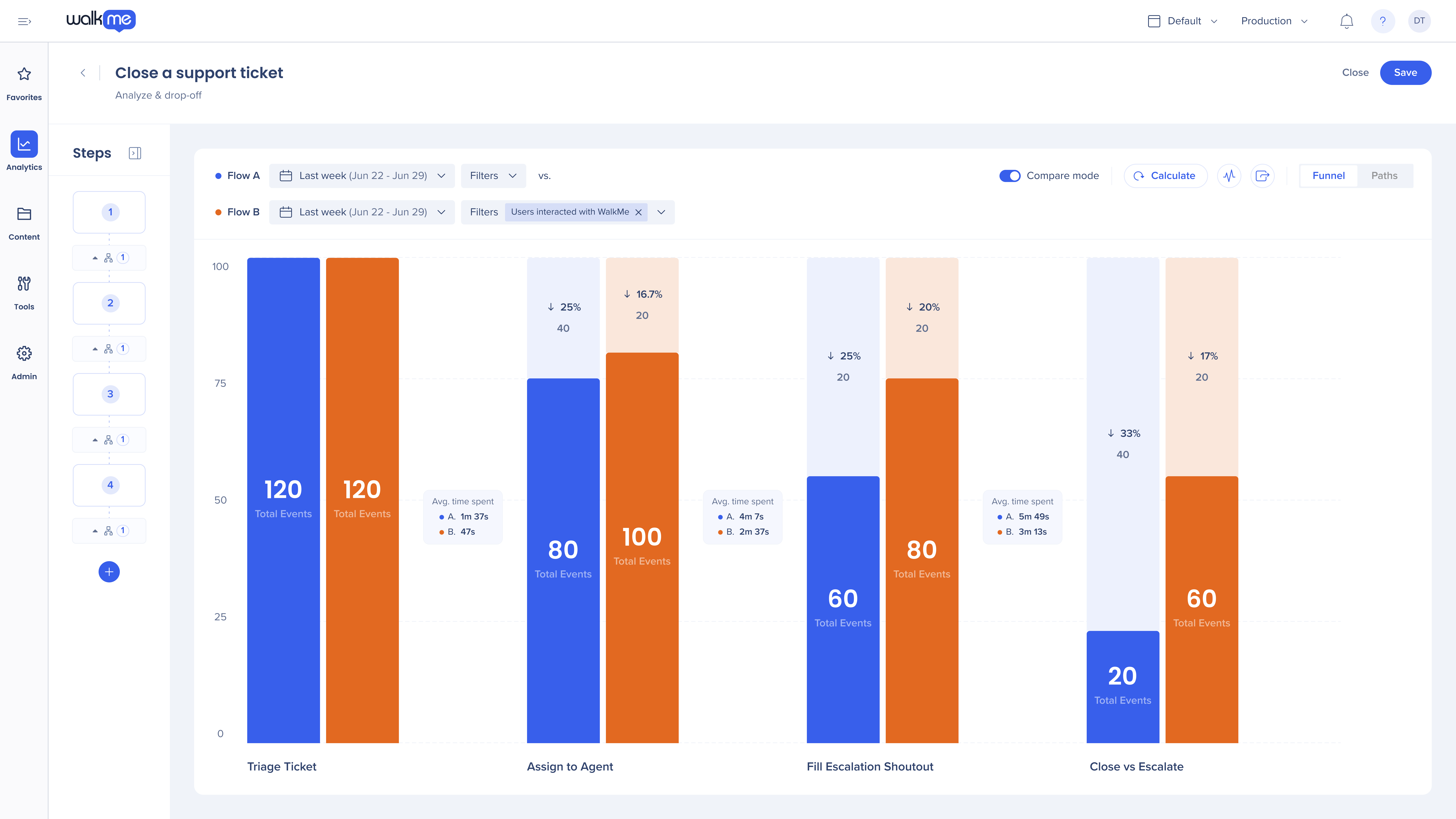
5) Use Compare Mode to visualize side-by-side how performance changes before vs. after WalkMe, or compare the same flow with different date ranges and filters. Measuring before vs. after WalkMe helps you clearly demonstrate WalkMe's impact on process success.

NOTE: The combination of using Flow Analytics and Goals help show how WalkMe made a measurable difference. Remember to effectively measure before-and-after impact using Compare Mode, baseline Events need to be set up before WalkMe guidance is deployed.

Diagnose Process Bottlenecks

Phase 5: How to diagnose process bottlenecks using Flow Analytics

Flow Analytics helps you visualize sequential user behavior. Unlike traditional analytics that track isolated events, Flow Analytics connects the dots, revealing the actual sequence of steps users take across pages, systems, and WalkMe content. It's a powerful tool for understanding where processes break down and your proof point for demonstrating the measurable impact of your improvements.

Flow Analytics works best for structured business processes with a clear start, middle, and end, where the order of steps matters. It's ideal for processes like onboarding, sales qualification, form submission, financial approvals, and other multi-page workflows. Flow Analytics is not designed for unstructured exploration or single-click analysis. Use it when you already know the sequential process you want to analyze and optimize.

Key capabilities:

  • Connects events into flows: reveals the actual sequence of steps users take across pages, systems, or WalkMe content.
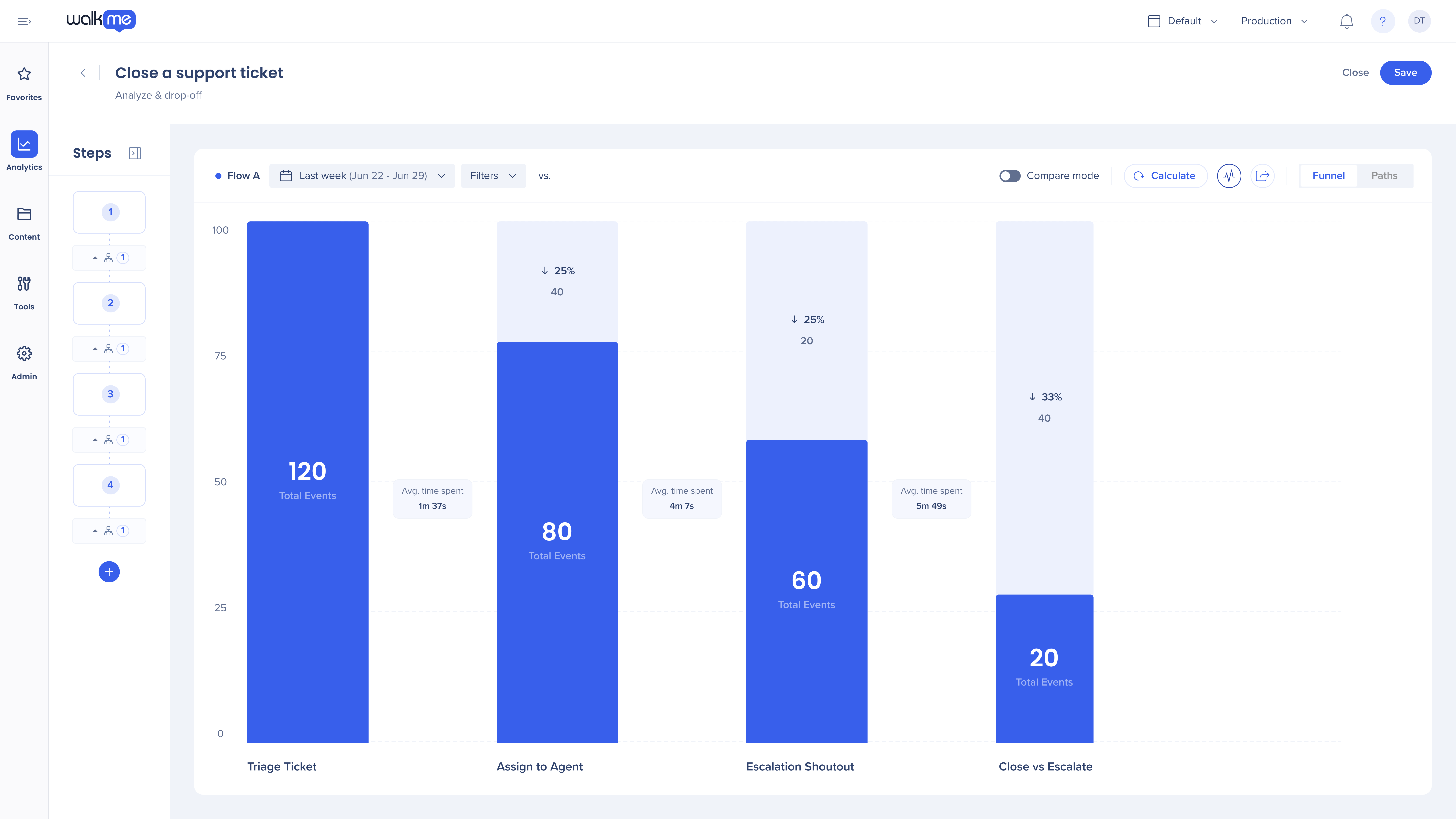
  • Tracks process effectiveness: measures completion rates, drop-offs, and time between steps.
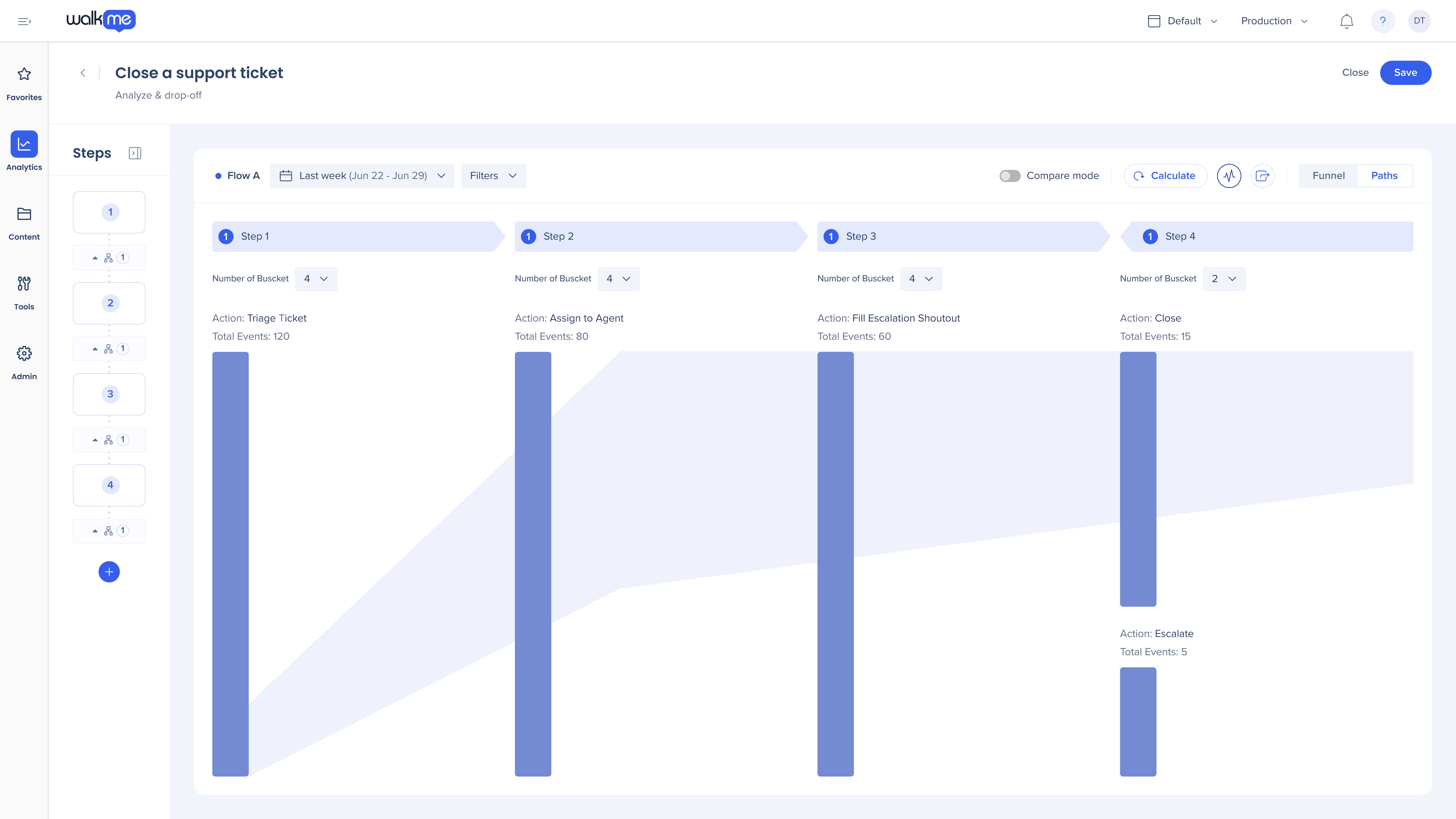
  • Shows alternate paths: identifies the most common or most successful routes to process completion.
  • Surfaces behavior differences: compares how user segments behave-by country, browser, device, role, or any property-to uncover patterns that influence completion and friction.
  • Proves WalkMe impact: compares performance before vs. after deploying guidance or between users exposed vs. not exposed to WalkMe.

Key actions to set up a Flow:

  1. Define a flow around a question for a defined process. Begin with a real process or decision point. For example: Which steps do my users take in a process? Which button do users choose at a certain step? Where do users drop off in the workflow? Do users who saw my Shoutout go on to complete the process?
  2. Set up baseline data. Ensure the key actions in your process have Tracked Events or Engaged Elements defined and published before you deploy WalkMe guidance. These Events become your "before" and "after" anchors in Compare Mode, which helps you demonstrate the impact of your WalkMe solutions. If you don't define your baseline Events before publishing WalkMe content, you lose the ability to measure the performance before vs. after deploying WalkMe in Flow Analytics, making it much harder to prove the impact of your WalkMe solutions.
  3. Create a flow for a defined process. Using your pre-defined Events, add each step in the order users must complete for the multi-step process you want to analyze. Your Events can be a combination of WalkMe content, URLs they visited, and buttons users clicked as long as it represents the sequence of user behavior in the process. Once set up, your flow should now represent the intended workflow from start to finish.
  4. Analyze your flow. Identify the steps where users struggle or slow down, and focus WalkMe guidance and optimization efforts there. Look for friction signals like large drop-off between steps, long average duration between steps, or users skipping fields or pages.
    • Funnels tell you how many users progress from Step 1 → Step 2 → Step 3, etc. in the exact order you defined. You can see where users drop off and how long each step takes. They're ideal for tracking completion rates, diagnosing drop-off, understanding time-to-completion, and measuring before/after changes when improving a process or adding WalkMe guidance.
    • Paths reveal how users actually navigate the workflow. They surface unexpected behaviors, alternate routes, loops, and confusion points, often highlighting steps you didn't know needed guidance. Paths reveal how user behavior differs from your intended sequence.
    • Comparison Mode in Flow Analytics allows you to compare the same flow side-by-side so you can measure how behavior changes across time, segments, environments, or audiences. This is one of the most powerful features in Flow Analytics because it turns your funnels into a before-and-after story, helping you clearly demonstrate where improvements worked-and where friction still remains. It transforms Flow Analytics from a diagnostic tool into an impact measurement tool, making it easier to justify decisions, communicate value to stakeholders, and guide your next round of optimizations.

Additional resources to help you set up Flow Analytics:
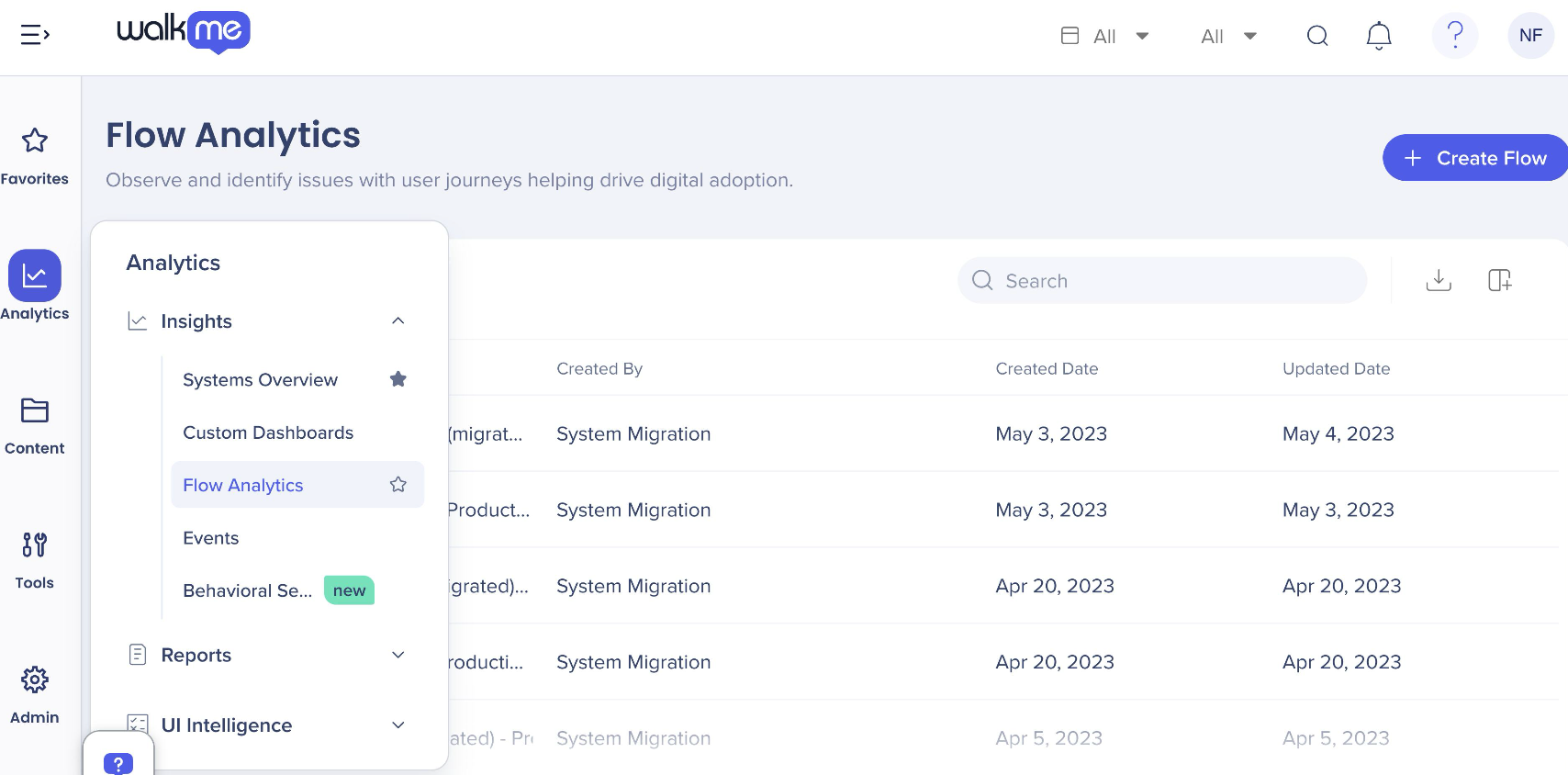
Flow Analytics
Tip Tuesday: Utilizing Flow Analytics

Optimize Based on Data

Phase 6: Optimize: Understand what the data means and what to do next

Understanding whether your WalkMe content is effective goes beyond counting plays or clicks. Content effectiveness tells you how well your guidance is helping users complete tasks, make decisions, or correct mistakes.

What to monitor:

  • Goal completion: Goals-whether tied to Smart Walk-Thrus, Resources, or Shoutouts-represent the intended outcome of the guidance content was reached. High completion for a Smart Walk-Thru means users not only consumed the guidance but successfully completed the workflow in the application.
  • Drop-off indicators: Drop-offs highlight where users begin an experience-such as a Smart Walk-Thru or Resource view-but fail to continue or complete the sequence.
  • Initiator quality: Initiation quality reflects how and when users discover your guidance: through a Launcher, proactive Shoutout, menu search, auto-start rules, or segmentation triggers. A high-quality initiation means users find the content at the right moment and choose to engage.
  • Action button click rate: Shoutouts and Resources often include call-to-action buttons that guide users into a behavior-opening a flow, acknowledging a change, or accessing help. The click-through rate indicates how persuasive and relevant the message is.
  • Validation vs. guidance ratio (SmartTips): If validation triggers significantly outpace guidance views, users may be making repeated mistakes or entering incorrect information.
  • Survey effectiveness: Survey metrics (views, submissions, per-question responses) help you evaluate whether users are willing to provide input and whether specific questions yield meaningful results.
  • Funnel results: Identify where drop-offs improve or persist.
  • Flow Comparison: Compare Mode looks at a single flow and compares how different users behave for each step of the process using different date ranges or filters. Using these filters, you could say users exposed to WalkMe complete the flow 30% faster than those who were not. Nothing demonstrates value more clearly. Examples of built-in comparison filters: Users Exposed to WalkMe, Users Not Exposed to WalkMe, Users Who Interacted with WalkMe, and Users Not Interacted.

What to do next:

  • Add Engaged Elements as questions emerge to track user behavior.
  • Use Flow Analytics paths view to identify unexpected paths or deviations within known workflows.
  • Optimize guidance based on observed user behavior.
  • Validate improvements over time using Flow Analytics and Compare Mode.

Additional best practices resources for building content and creating reports:
Best practices for building WalkMe solutions
Human-centric design tips
About Insights reports
Insights pre-build reports

Validate & Share Wins

Phase 7: Validate impact & share wins with stakeholders

5 steps to report on your data and share impact:

1) Use reports to validate how your guidance is performing.

  • The Reports Gallery is your central hub for exporting, reviewing, and subscribing to analytics reports in the WalkMe Console. Go here for raw data, scheduled reporting, or cross-system insights that help you validate performance.
  • For a quick pulse on engagement, use the Engagement by Item or Engagement by System report to see which WalkMe content is performing well and which items may need optimization.

2) If a specific item underperforms, drill into its item-level logs to uncover interaction details that aren't visible in roll-up views.

3) When standard dashboards don't fully answer your question, use Report Builder to create custom reports that add additional dimensions to standard templates, such as segments or analytics properties.

4) Use Custom Dashboards to create personalized visualization views of your data so you can highlight the metrics you care about most, all in one place.

5) Document your success stories and schedule a stakeholder readout to share measurable results.

Every digital experience has room to grow. WalkMe Insights helps you uncover hidden friction, measure what matters, and demonstrate the value of every improvement - creating a continuous cycle of optimization and digital adoption growth.

Additional resources for how to share your wins with stakeholders:
A practical guide to sharing your DAP wins

Was this article helpful?

Thanks for your feedback!

Be part of something bigger.

Engage with peers, ask questions, share ideas

Ask the Community
×