Brief Overview
The WalkMe User Extension provides the essential connection between your applications and WalkMe's guidance layer. This guide covers supported extension versions and the browser configurations required to ensure a consistent experience for all users across your organization.
If you have any additional technical questions, please reach out to your Customer Success Manager or contact WalkMe Support.
🎓 Digital Adoption Institute
Latest Extension Versions
Unique extensions automatically update to the latest version to ensure stability and access to new features. Refer to the list below for the current versions:
- Google Chrome: 4.0.359
- Microsoft Edge: 4.0.362
- Firefox: 3.3.266
- Safari: 4.0.302
- Internet Explorer: 2.2.296 (support ended Q1 2026)
- Edge Legacy: Deprecated
Internet Explorer end of support
In alignment with Microsoft's service standards, WalkMe will no longer support Internet Explorer starting February 23, 2026. To maintain security and performance, please transition to a supported browser.
Chromium Extensions
WalkMe offers two installation paths for Chromium-based browsers (Microsoft Edge and Google Chrome) to fit your deployment strategy:
- Machine-Level Installation: Installs the extension for all users on a device for consistent organization-wide deployment
- User-Level Installation: Installs the extension for an individual user profile
Installation keys
Administrators can manage extension behavior using the following configuration keys:
- Force Install: Automatically installs the extension and prevents users from removing it
- Extension Settings: Allows administrators to preconfigure settings while giving users control over installation
All-In-One Installer (AIO)
Browser Configuration
Specific browser settings must be configured to allow the extension to communicate with your applications.
Google Chrome
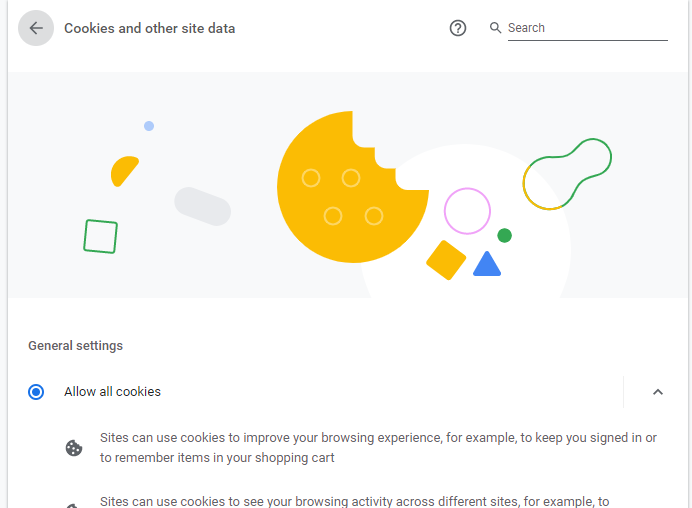
Most configurations require third-party cookies to be enabled for WalkMe to load.
- Open the Options menu in the top right corner
- Select Settings
- Go to Privacy and security
- Select Cookies and other site data
- Select Allow all cookies
Edge Chromium
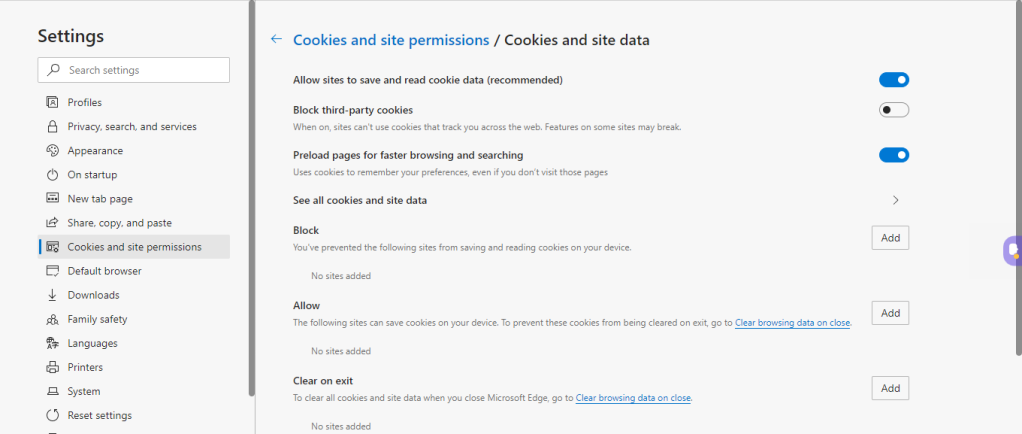
- Open the Options menu in the top right corner
- Select Settings
- Select Cookies and Site Permissions
- Turn on Allow sites to save and read cookie data (recommended)
- Turn off Block third-party cookies
Safari
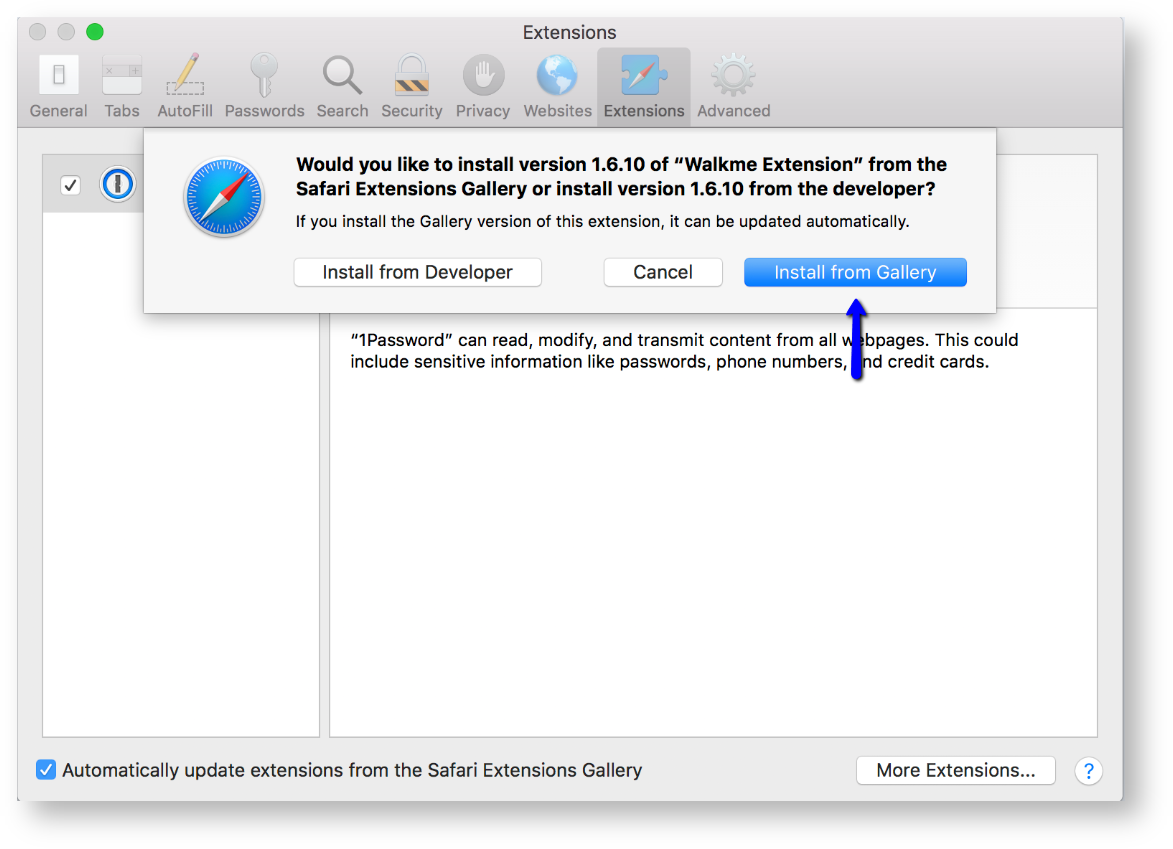
Due to Apple security requirements, Safari requires the following considerations:
- Manual approval: Users must manually approve the extension after it is deployed
- JAMF deployment: Users will be prompted to Trust the extension following a mass deployment
Note
Safari is not supported for FedRAMP, Canada, or SAP data centers.
Internet Explorer
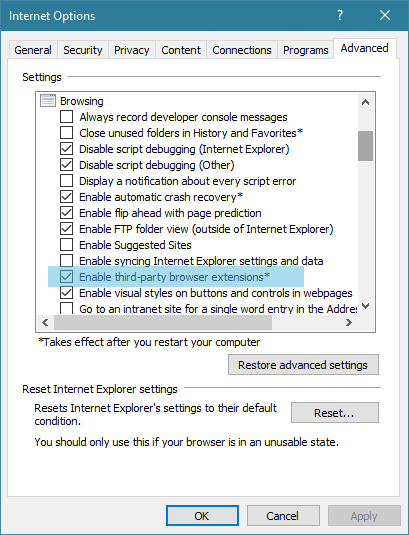
The Enable third-party browser extensions setting must be active for WalkMe to load
- Open Settings in the top right corner
- Select Internet Options, then select the Advanced tab
- Scroll to the Browsing section
- Turn on Enable third-party browser extensions
Note
Internet Explorer is not supported for FedRAMP, Canada, or SAP data centers. Contact your IT department if you cannot modify these settings.
Environment Toggle for Builders
The environment toggle allows builders to switch between Test and Production environments within a single extension, removing the need for multiple extensions on the same URL. Available for the latest version of the extension for Google Chrome or Microsoft Edge.
How to toggle environments
- Open the extension Options menu
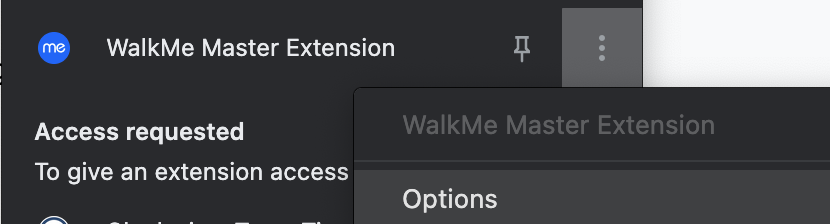 Enter the password wmBuilderMode and select Login
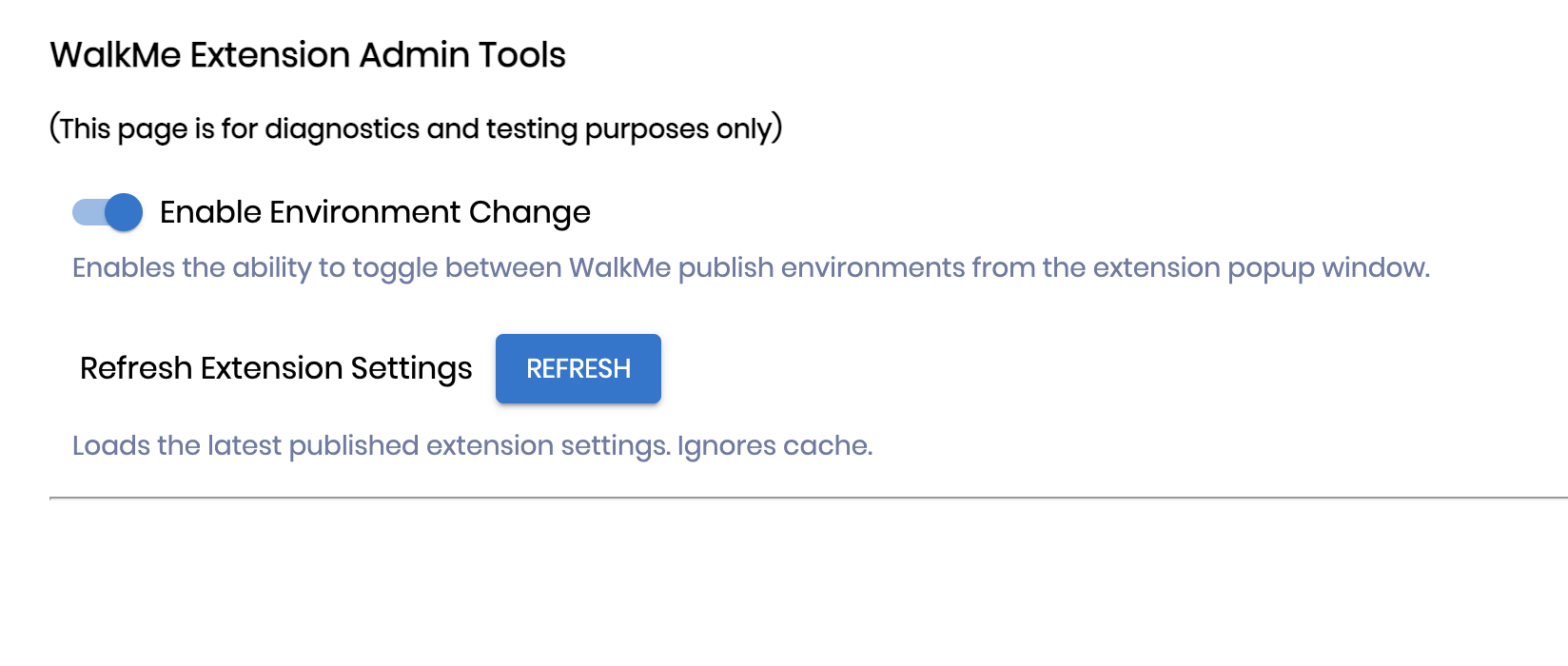
- Turn on Enable Environment Change
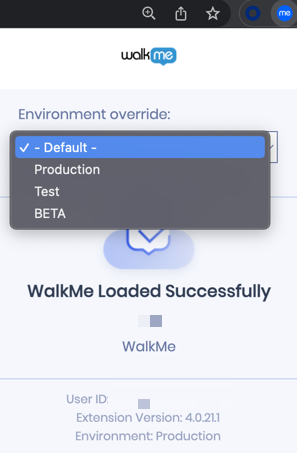
- Open your browser extensions and select WalkMe Extension
- Choose your environment from the dropdown menu:
- Default: Loads based on matching URLs or regex
- Production: Overrides settings to load the production environment
- Test: Overrides settings to load the test environment
- Custom: Overrides settings to load the custom environment
- Refresh the browser
Technical Notes
- Use the User Extension Connectivity Status article to troubleshoot loading issues after completing browser configurations
- WalkMe extensions do not currently run on Copilot URLs within Edge browsers
- Turning on Enable Environment Change only activates the feature for your individual browser
- WalkMe only loads on an overridden environment if an active extension package exists that matches both the current URL and your selected environment
- Overriding an environment to Test or Production affects all packages injected by the extension across all browser tabs
- If you override to a custom environment, all other systems will load their default environment
- Browser configurations often require third-party cookies to be enabled for WalkMe to load correctly
- Safari requires users to manually approve the extension and select Trust after mass deployment via JAMF
- Internet Explorer and Safari are not supported for FedRAMP, Canada, or SAP data centers
- Support for Internet Explorer ended February 23, 2026 to align with Microsoft service standards
- If you see the error shown in the image the extension has become corrupted after install

- Ensure for virutal environments that the file path ;\AppData\Local\Google\Chrome\User Data\Default\Extensions\' is back up in between user sessions to prevent the issue moving forward
- Once the extension has become corrupted please uninstall the WalkMe extension and re-install the extension to immediately resolve the issue


