Brief Overview
Folder permissions let you control who can access specific folders in the WalkMe Editor. You can restrict folders so that partners and builders only see the content relevant to them, helping maintain security, avoid confusion, and prevent accidental deployment of content to production.
Enabled feature
Please request access from your Customer Success Manager or WalkMe contact.
Use Cases
- Restrict folders so partners only see content relevant to their work
- Prevent builders from accidentally editing or publishing content in folders they don't own
- Manage access across teams working in the same system
How It Works
Restricting a folder
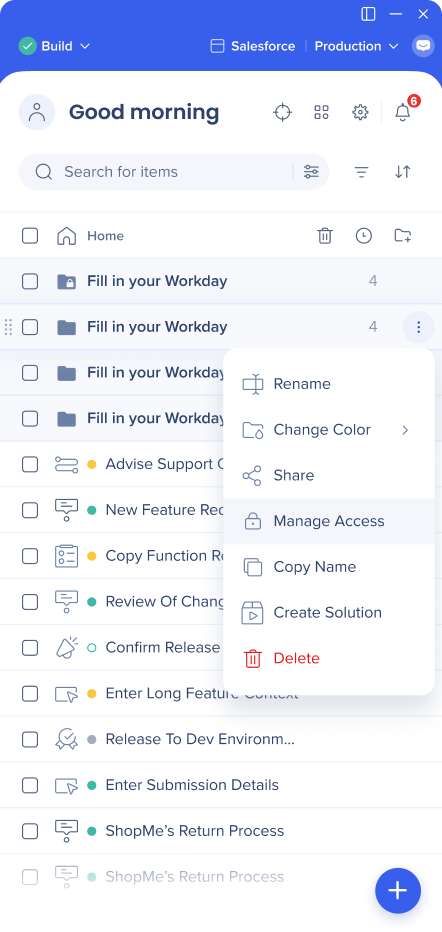
- Open the Options menu on the folder and select Manage Access
-
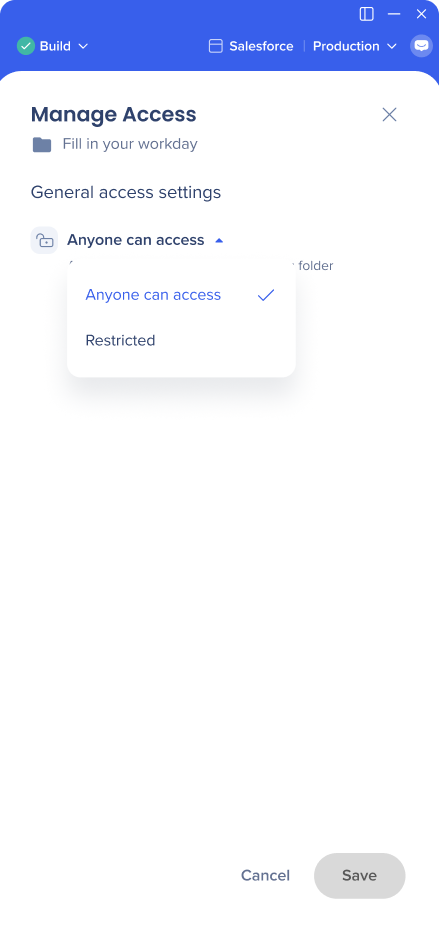
Select the arrow icon and change the setting to Restricted
-
Save the changes
Adding and removing users
- In the Manage access screen, type the names of the users you want to add in the Add users field
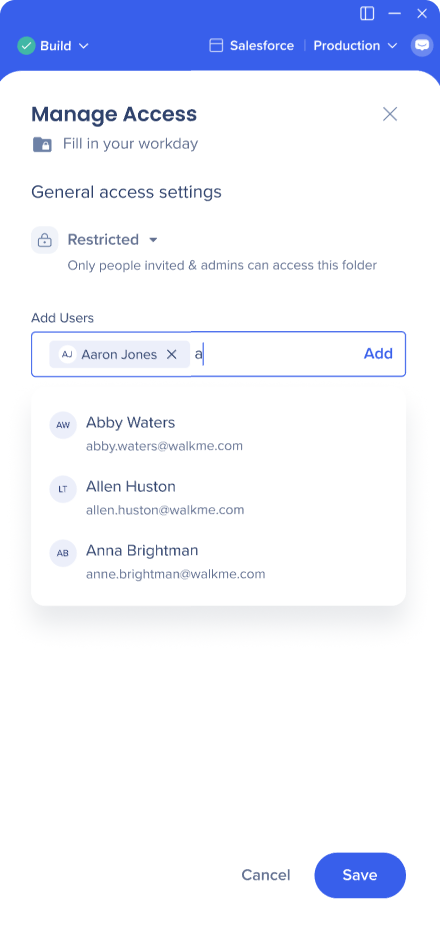
- Select Add — you can add multiple users at once
- Added users get the "Folder Manager" status
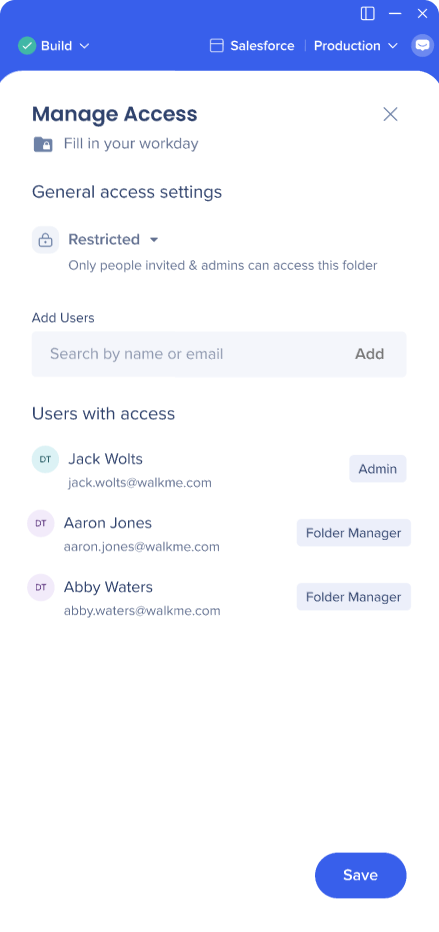
- Save the changes
To remove a user, open Manage access and remove them from the user list.
Note
If you're added to a folder that contains subfolders, you automatically get access to those subfolders too. You can't be removed from a specific subfolder if you have access to its parent folder. If you don't have access to a parent folder, you can still be added to a subfolder — a subfolder can have more users than its parent, but not fewer.
Making a restricted folder public
- Open Manage access on the folder
- Change the setting to Anyone can access
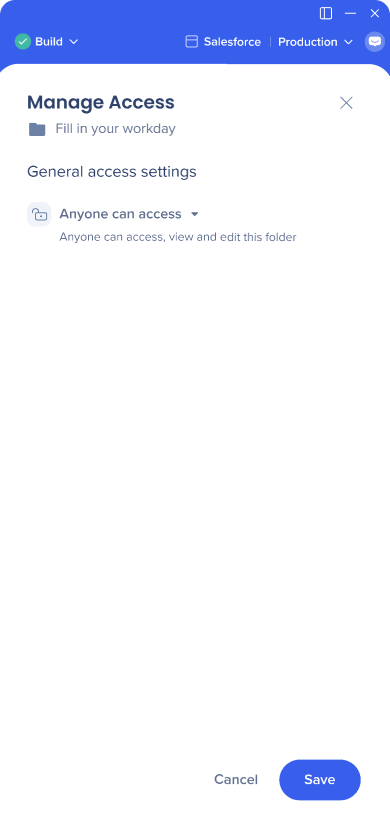
- Save the changes
Note
If the folder contains subfolders, those also become accessible to all users unless you manually restrict them. If a parent folder is restricted, you can't make a subfolder open to everyone.
Effects on the Editor
Item list view
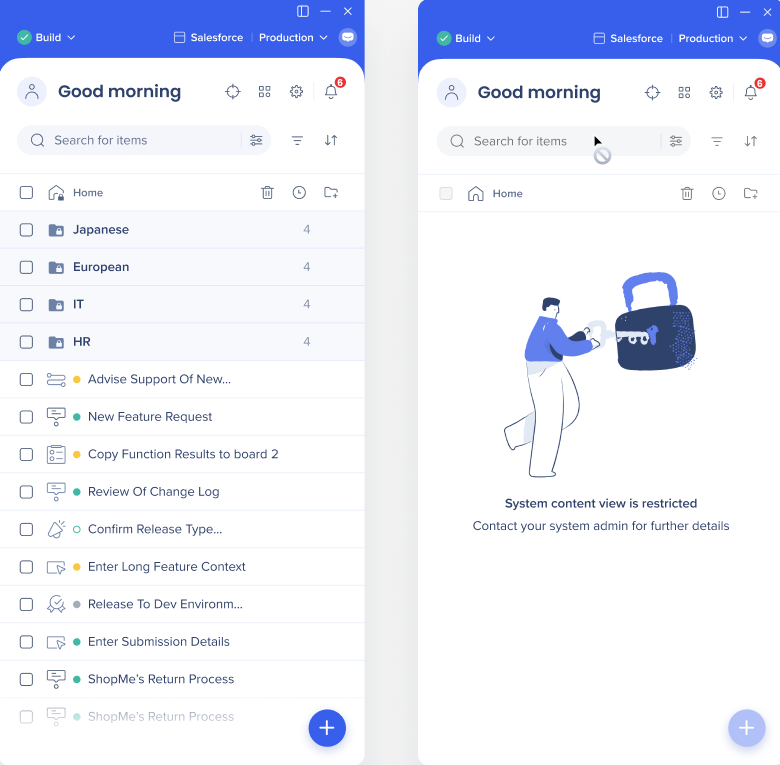
Admin users can always see the full item list. Regular users only see folders that are open to everyone or that they've been granted access to.
Shared resources
Some resources in the WalkMe Editor — like segments, attributes, the asset library, and launcher designs — are shared across folders rather than nested in a specific one. You can make changes to a shared resource even without access to all the places it's used, but you'll be notified that the change may affect restricted items.
Linked items
An item in the editor may trigger or be linked to another item — for example, a launcher that triggers a Smart Walk-Thru. If you don't have access to the linked item, you'll see its name and a note that you don't have access. You can still edit the linked item, but once the edit is saved, it can't be reverted.
Technical Notes
- Folder permissions are currently only supported in the WalkMe Editor and Menu Organizer
- Only the following roles can restrict folders:
- Admins
- System managers
- Custom roles with the granted permission


