Brief Overview
WalkMe Learning Arc lets you transition content from SAP Enable Now into your WalkMe learning system. Instead of building everything from scratch, import your existing SAP Enable Now content, convert it into microlearnings, and publish it directly to the portal for your learners.
The transition process includes:
- Hostable: Copy data from SAP Enable Now Manager into the WalkMe server using SAP Enable Now credentials
- Playable: Convert items into learning formats and publish them to the Portal
- Editable: Connect SAP Enable Now Producer to WalkMe Learning Arc to edit and sync content

Access
To access the Transition Content page, navigate to it by clicking on the Transition Content page in the console navigation or use a direct link to the page:
How It Works
SAP Enable Now Cloud
- Open the Administration menu
- Select Server Settings
- Click Features
- Under Enabled Expert Features, select DISABLE-CSRF-PROTECTION
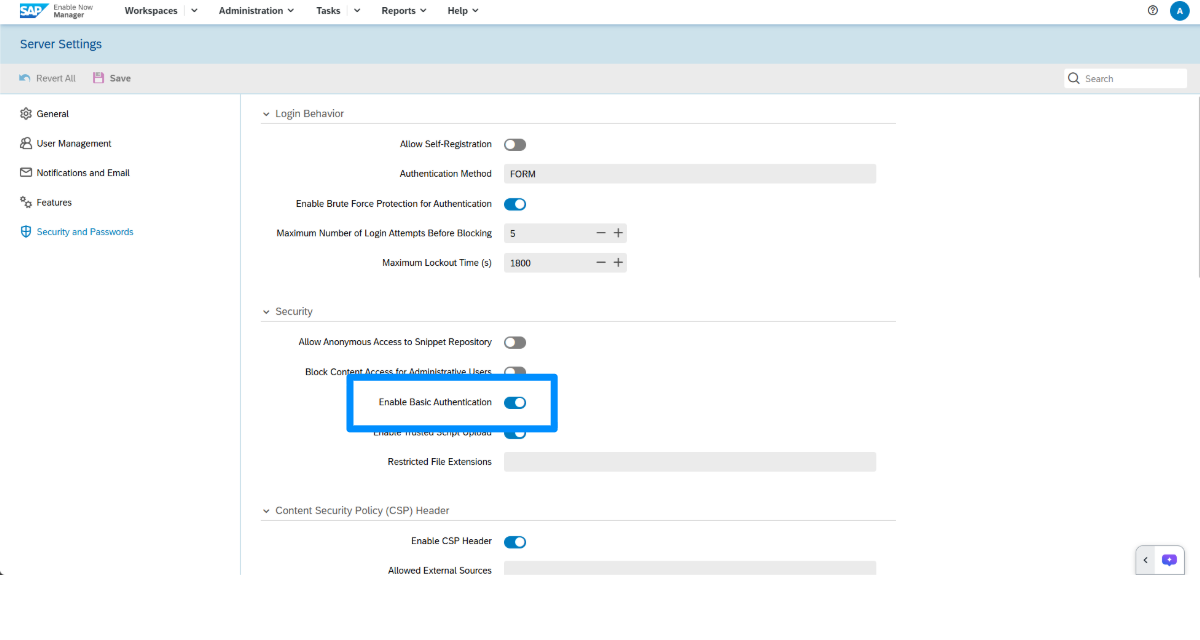
Step 2: Add a transition user in SAP Enable Now Manager
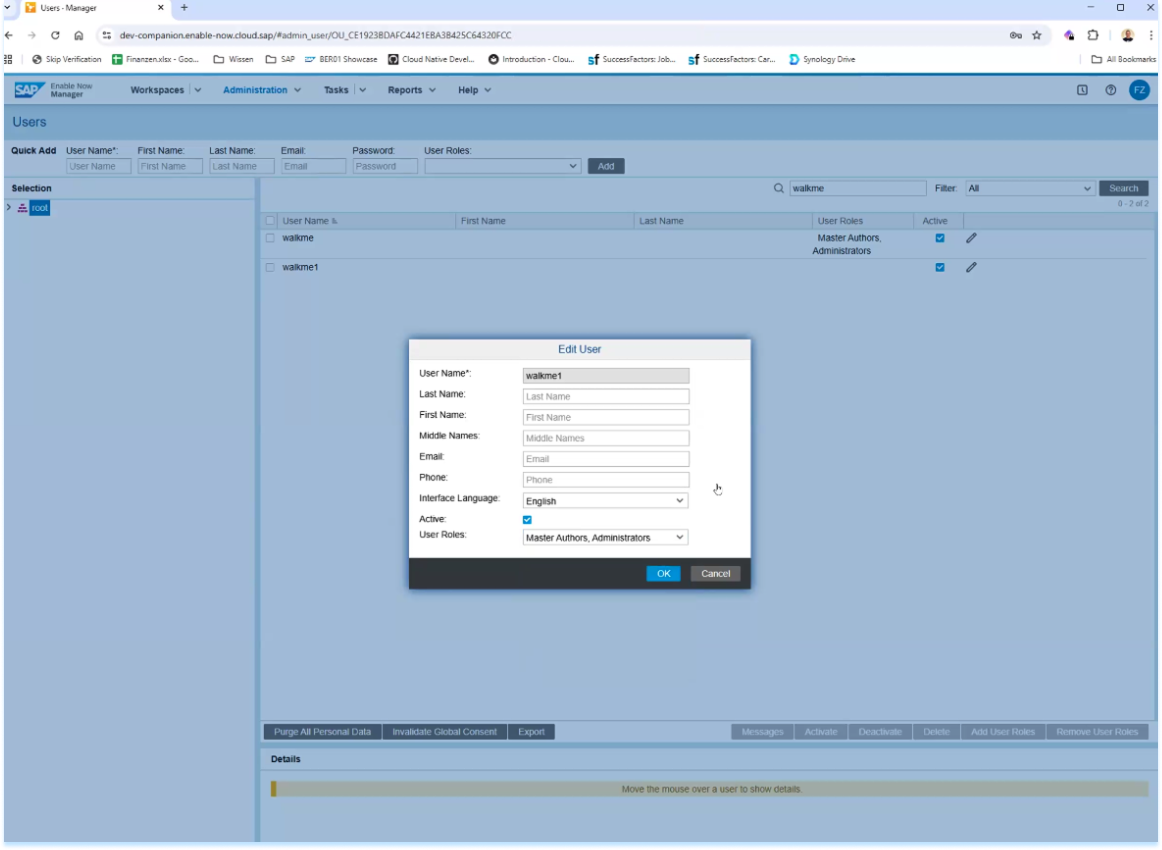
Set up a dedicated transition user in SAP Enable Now Manager with the required roles and access. This account connects SAP Enable Now to WalkMe during the transition process and has read-only privileges.
- Log in to SAP Enable Now Manager
- Open the Administration menu
- Select User Management
- Next to Quick Add, enter the user details
- Assign the role Master Authors, Administrator
- Click Add
Learn more: SAP Help Portal Users
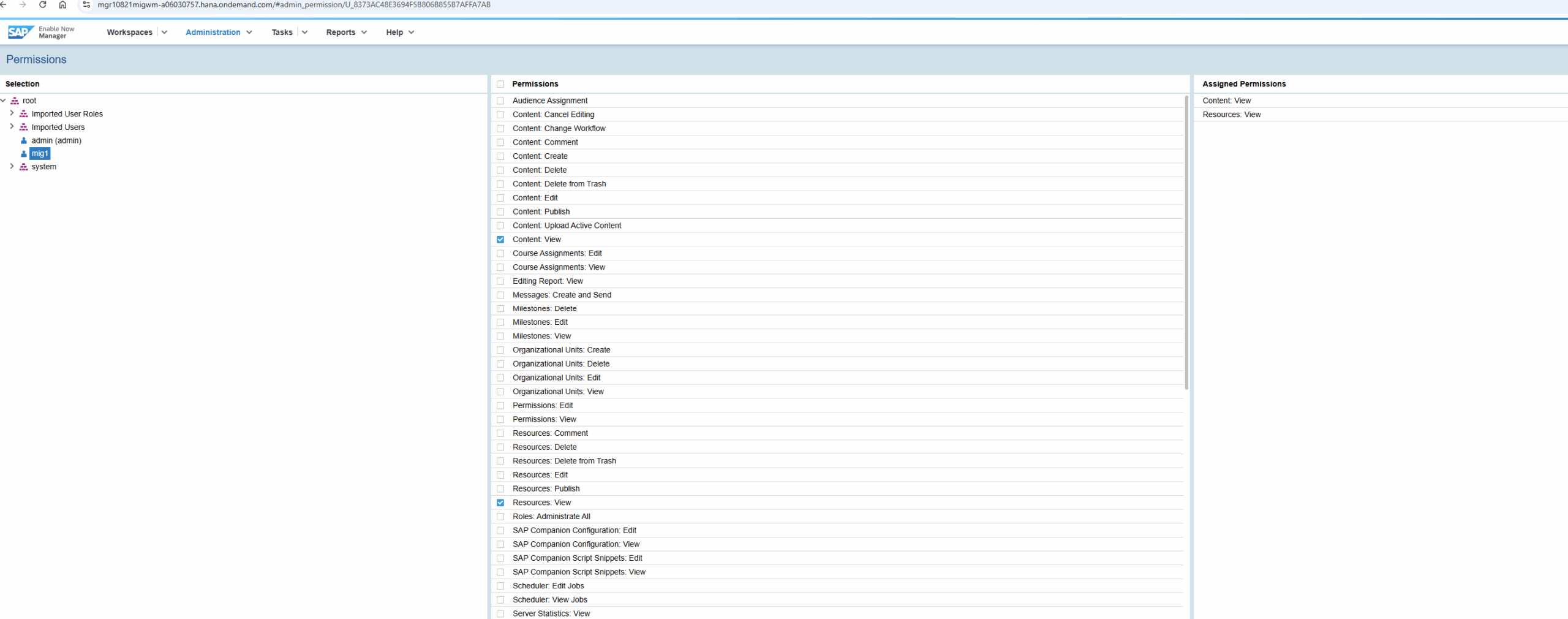
Give user permissions
- In the Administration menu, select Permissions
- Choose the transition user
- In the Permissions column, grant the following permissions:
- Content: View
- Resources: View
Grant user workspace privileges
- In the Administration menu, select Workspaces and Tags
- In the Actions: Workspace column, select Manage Access
- Choose the transition user under Selection
- Under Permissions, select:
- View Published Content
- View All Content

Activate user
- Log in to SAP Enable Now Manager using the new user's credentials
- On first login, review the Data Protection and Privacy Statement
- Select I agree, then click Send

Step 3: Copy SAP Enable Now content
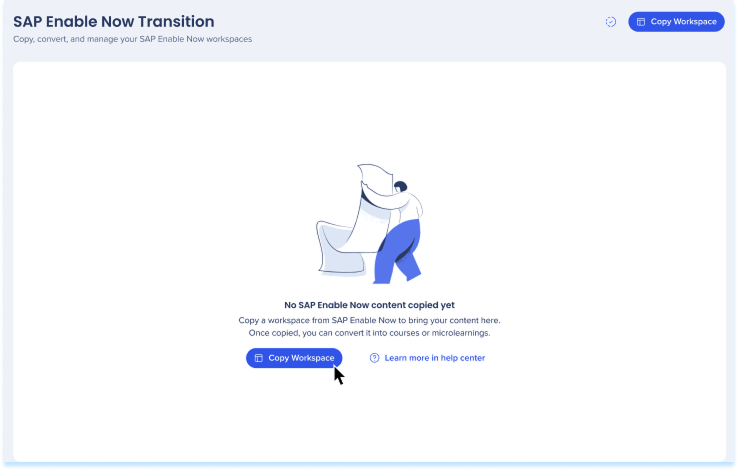
You can copy workspaces from SAP Enable Now Manager into WalkMe Learning Arc. Once copied, you will need to convert the content so learners can access it in the portal or in-app.
- In WalkMe Learning Arc Console, go to the Transition Content tab
- Select Copy Workspace
-
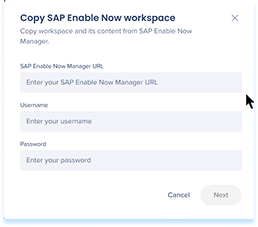
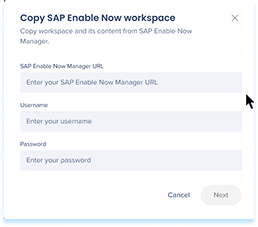
In the Copy SAP Enable Now Workspace popup, enter the transition user credentials:
-
SAP Enable Now Manager URL: Workspace URL from the SAP Enable Now Manager
-
Username: Transition user username
-
Password: Transition user password
-
Click Next
Workspace types in SAP Enable Now
Local workspace
- Exists only in the local Manager or Producer environment
- Stores its own content and resources
- Not connected to another Manager
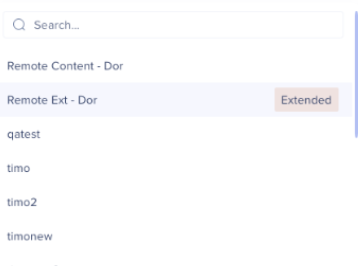
Extended workspace
- Connected to another Manager or account
- Lets organizations share or reuse content, templates, or global learning assets
- Extended content is marked in orange for easy identification
Note
Each learning system is linked to a single learning workspace. To manage multiple workspaces, you'll need to create a separate learning system for each one.
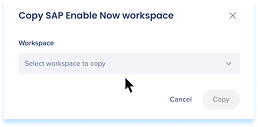
To copy a local workspace:
- Select the workspace
- Click Copy
Note
You can monitor copy progress and item count in Learning notifications.
Once complete, the workspace appears on the SAP Enable Now Transition page in the console.
To copy an extended workspace:
- Select the workspace
- Sign in again using the extended account credentials
Data copied vs not copied
Not copied:
-
Course assignments
-
Business rules (segments)
-
Head version: Only the last state is copied
-
Publish states
-
Data analytics: Analytics start fresh once content moves to WalkMe
Copied:
-
Workspace resources
-
Metadata
-
In-app context
Step 4: Convert content
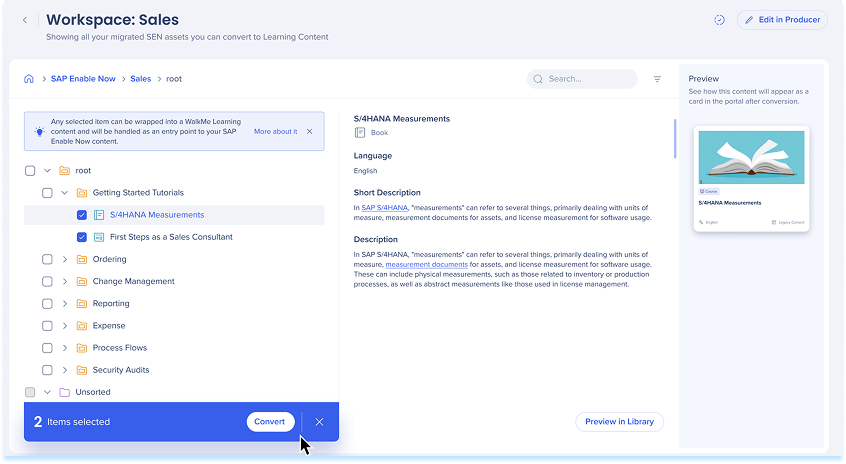
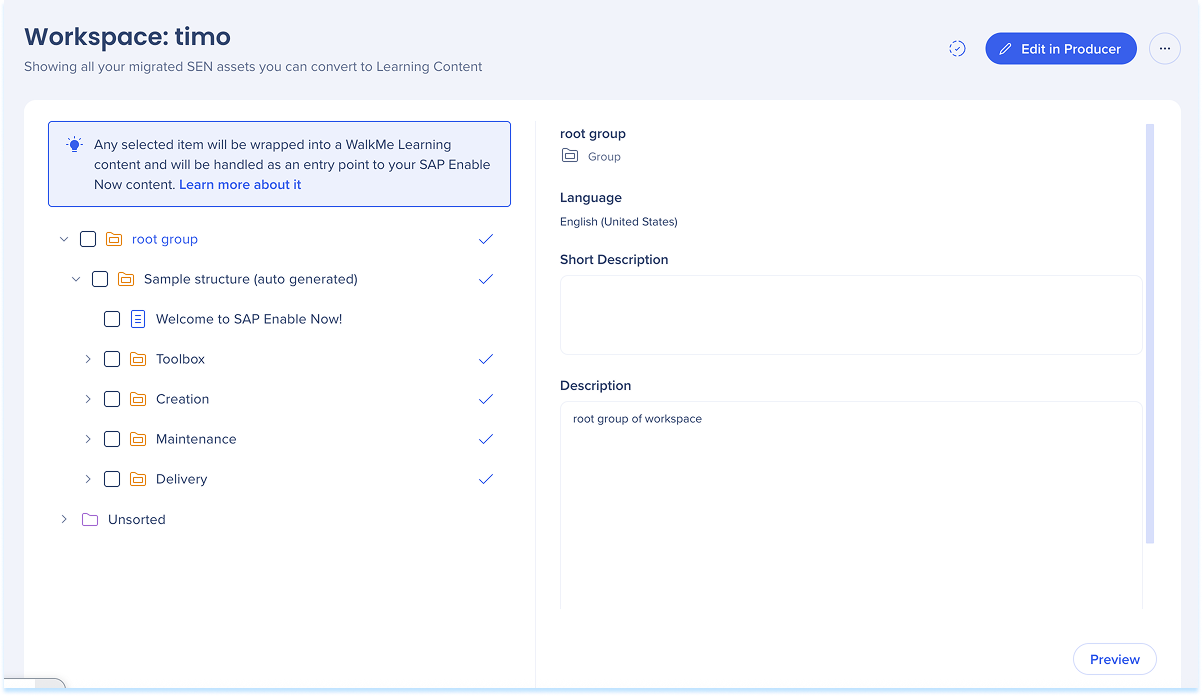
After copying your workspace from SAP Enable Now, convert the copied content into microlearning content. This process wraps each SAP Enable Now item in a microlearning format so it can be viewed and managed in the Learning Content page in the console.
- Open your workspace
- To select the items for conversion:
- Select items one by one or
- Click the Select direct children icon to select all items directly under the parent element
- Click Convert from the floating toolbar
Note
- You can monitor copy progress and item count in Learning notifications. Once complete, the workspace appears on the Learning Content page in the Converted content folder
- Items already converted display a check mark
Hierarchy and structure
- Items are organized in a hierarchy
- Each converted item becomes a card in the portal
- The content displayed inside each card depends on the level of the hierarchy you selected
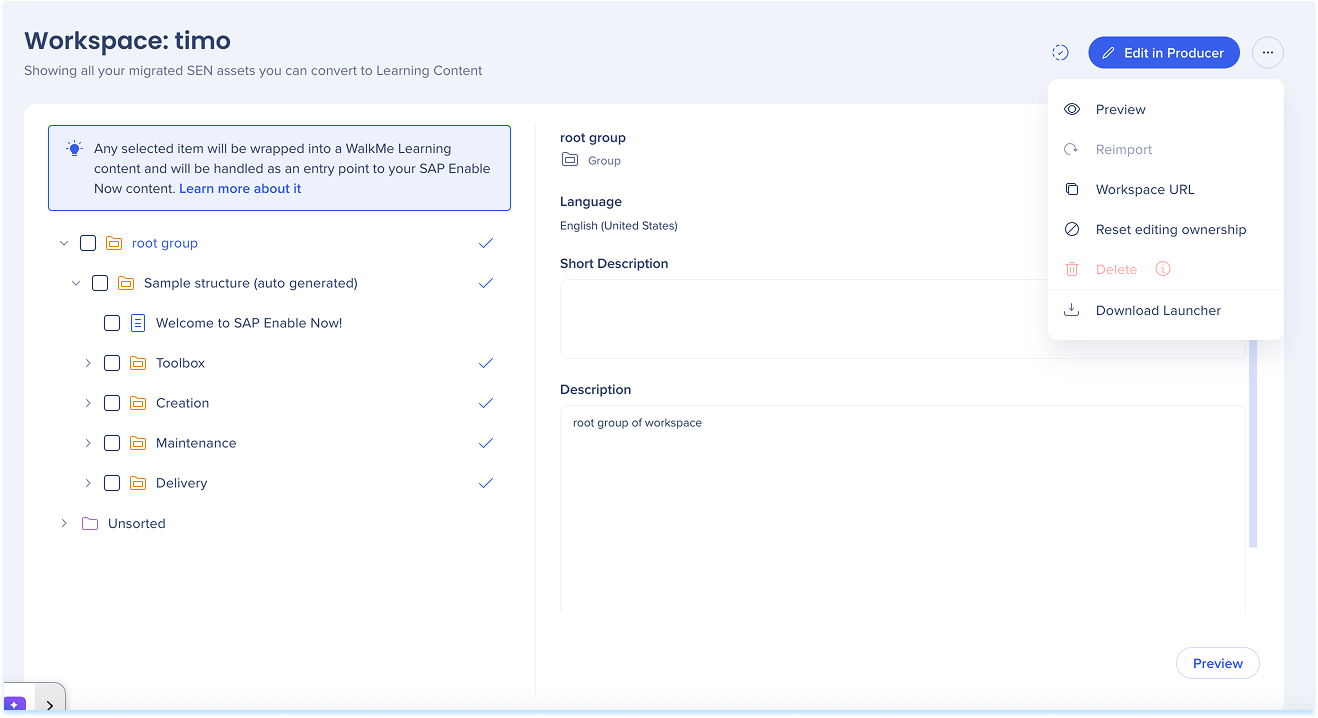
The Options menu lets you perform key actions on your copied workspace.
Available actions include:
- Preview
- Workspace URL
- Reset editing lock
- Delete
- Download Launcher
Reset editing lock
- Resetting the editing lock ends another user's active session and re-enables editing
Note
Unsaved changes will be lost.

Converted content in the Learning Content page
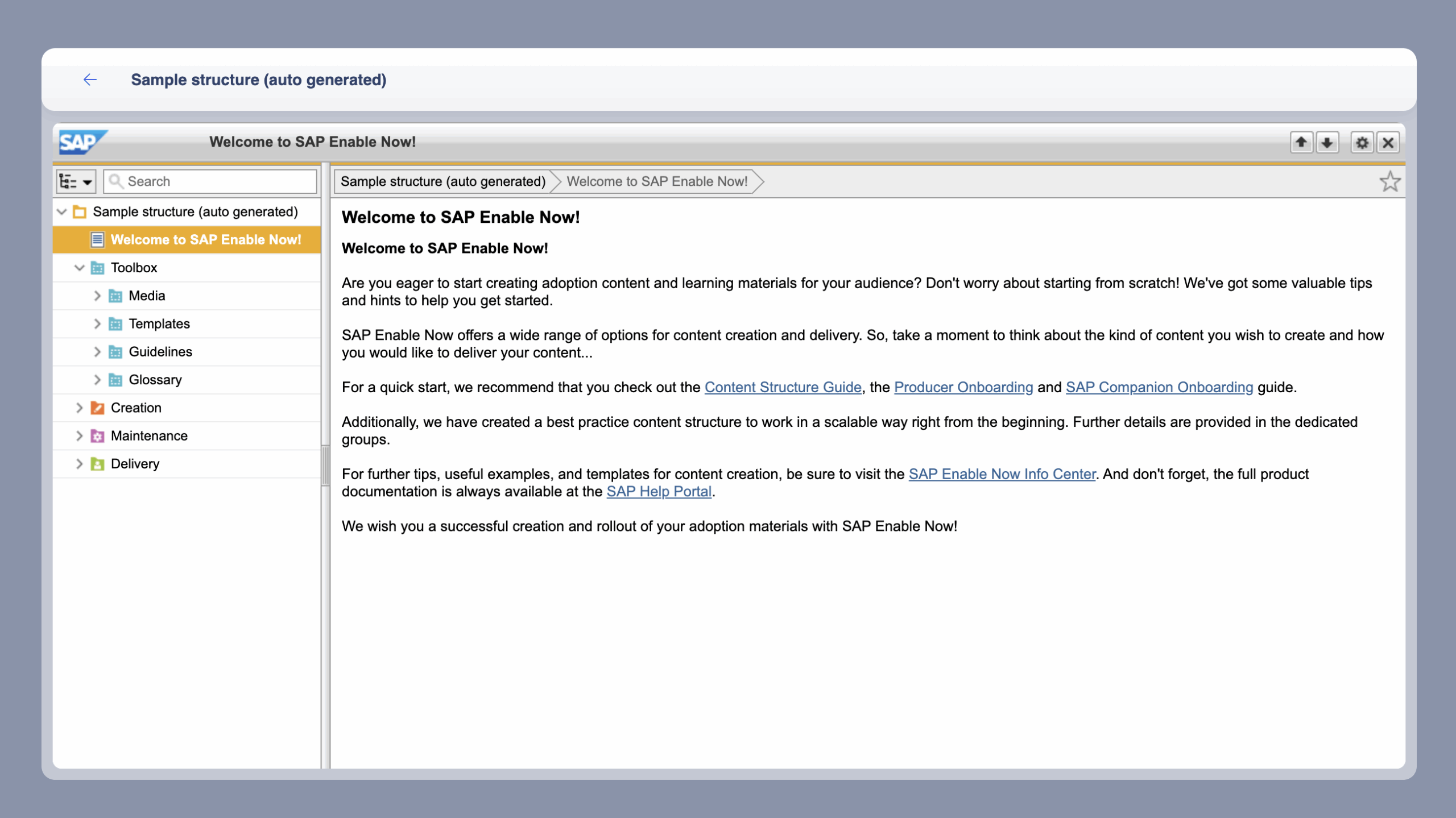
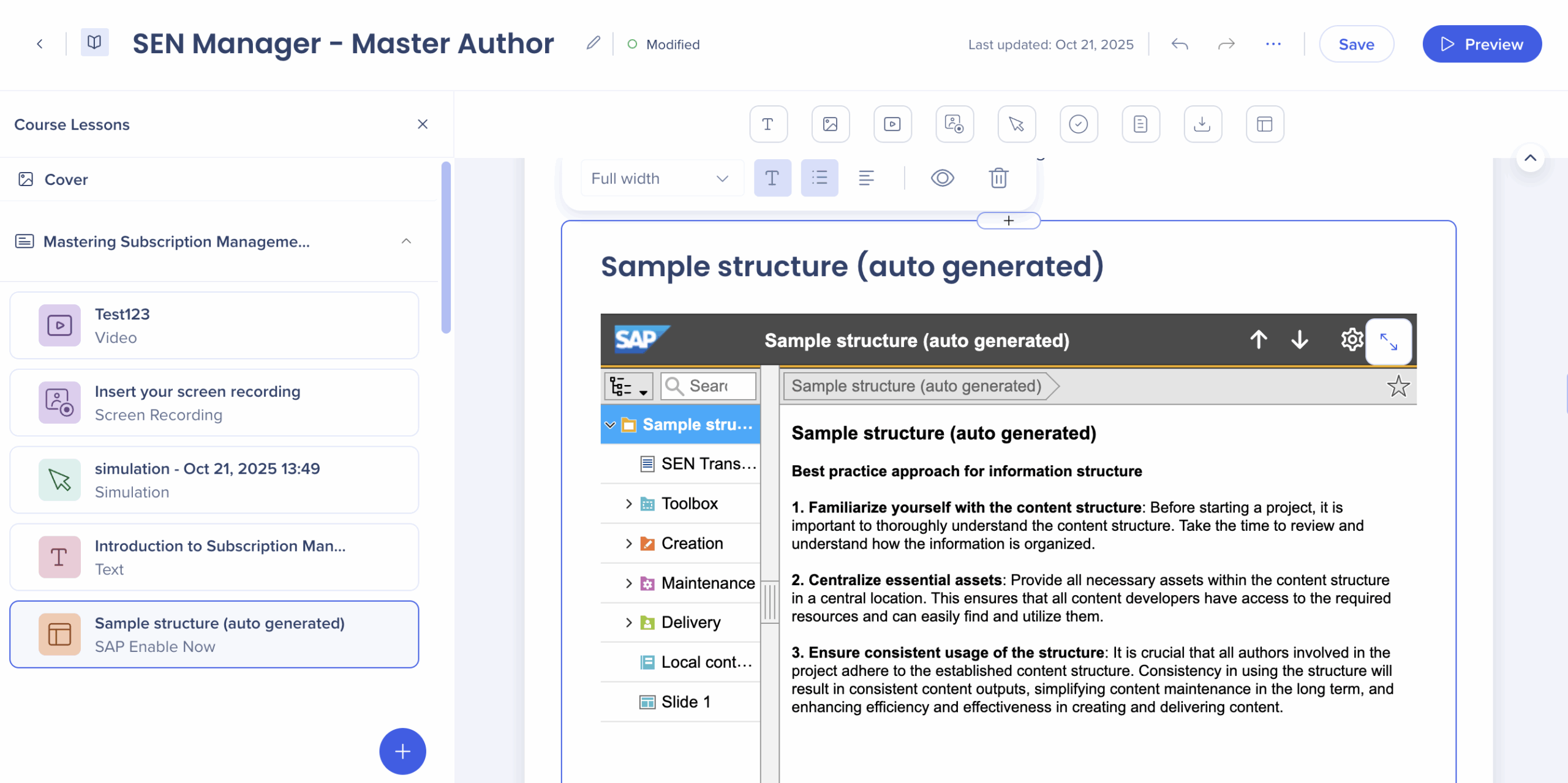
Each converted SAP Enable Now item appears as a microlearning in the Learning Content page.
You can:
-
Keep the original SAP Enable Now content as an individual microlearning
-
Add supporting elements (text, images, quizzes, recordings) in the learning content builder
-
Add the converted SAP Enable Now item as an element within other learning content
Elements in WalkMe Learning Arc
How to Create Learning Content
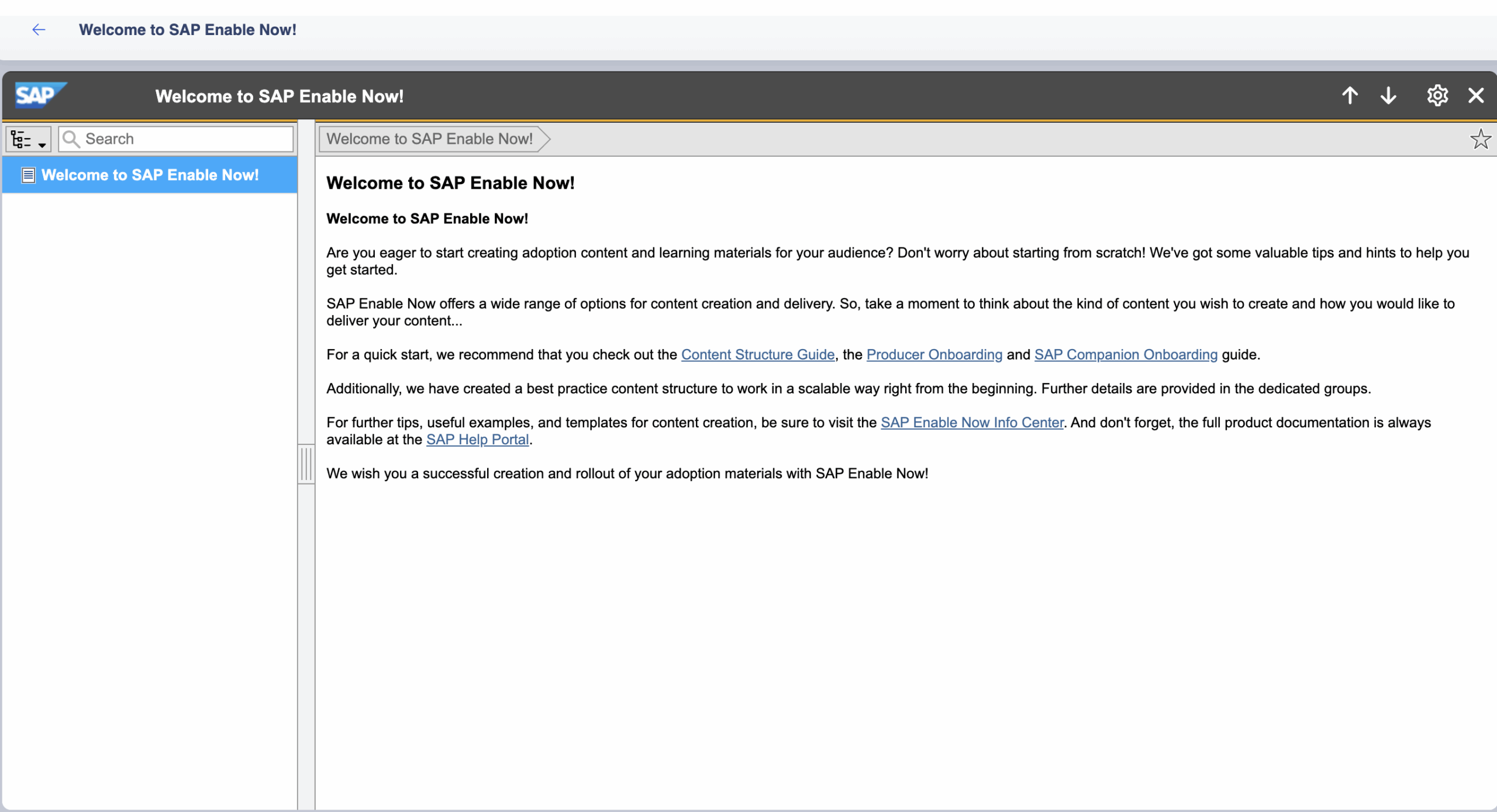
Converted content in the portal
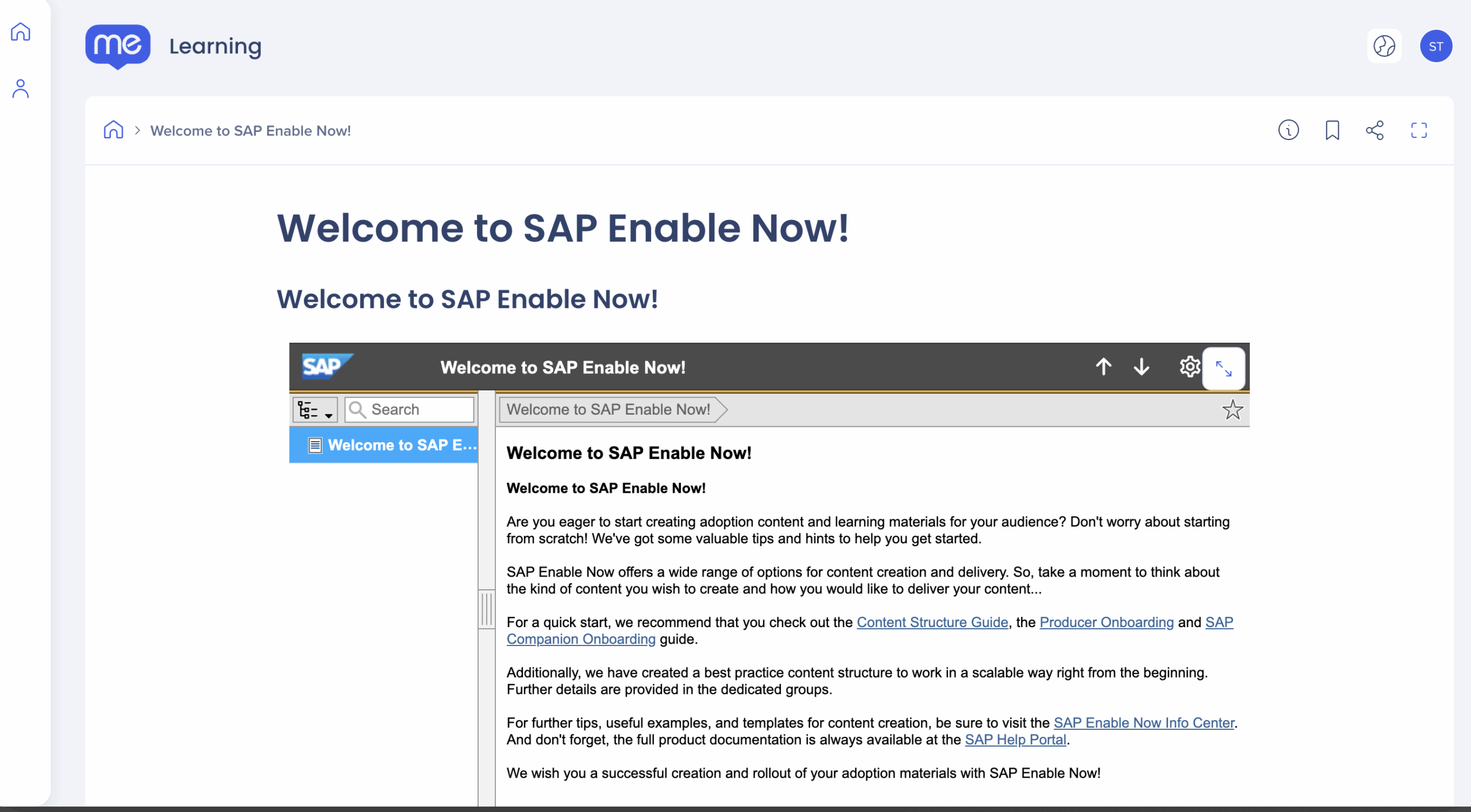
Once published, converted SAP Enable Now item becomes a card in the Learning Arc Portal.
Portal Learning Content
Step 5: Edit content in Producer (optional)
Transitioned content items are not directly editable in WalkMe Learning Arc. To make changes, connect SAP Enable Now Producer to the WalkMe sever using an API key. Once connected, you can open, edit, and sync updates from Producer back into WalkMe Learning Arc.
1. Create an API Key:
-
In the Admin Center, go to the API Keys page
-
Click Create Key
-
Enter a name for the key and define its duration
-
Under API Permissions, enable Learning Arc – Producer Integration
-
Click Create Key
-
Copy and securely save the Client Secret and Client ID- it will not be displayed again
WalkMe Admin Center
2. Connect Producer
-
In WalkMe Learning Arc, open the Transition Content page
-
If the Producer isn't installed:
-
Click the Options menu
-
Select Download Launcher
-
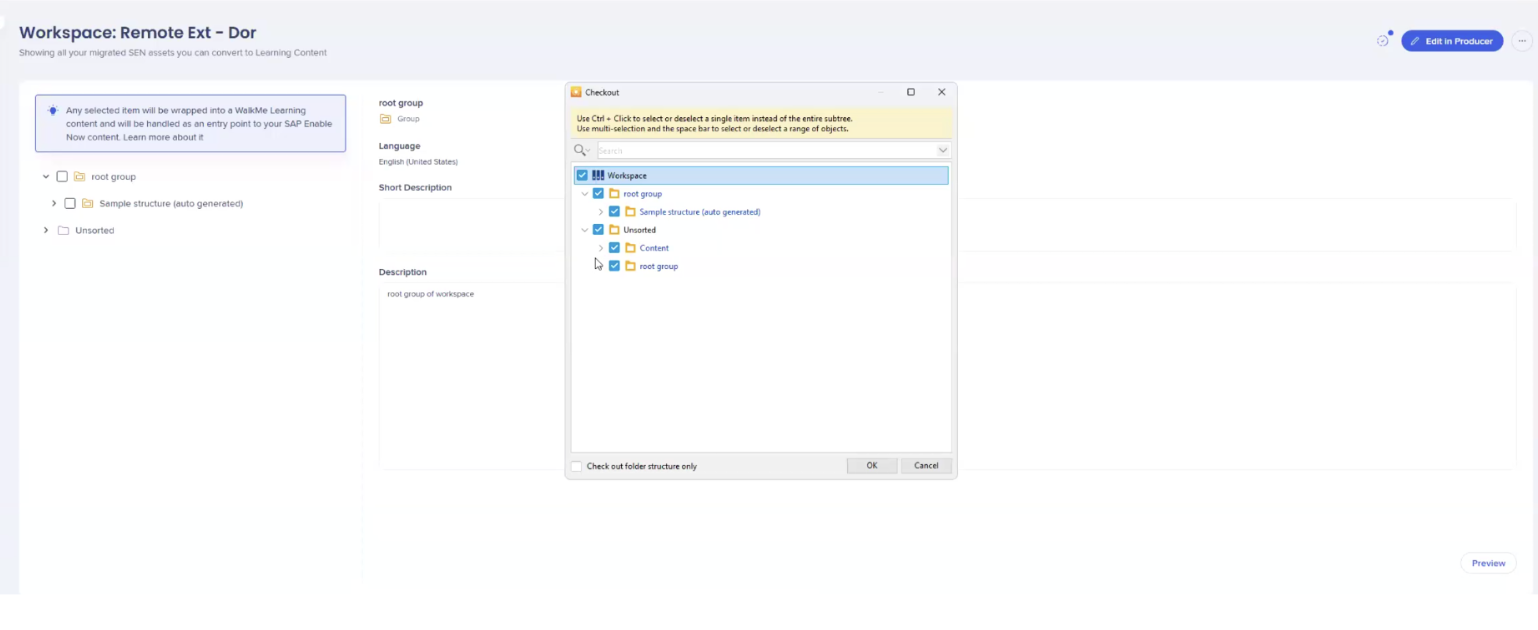
When the Producer Authentication application opens enter the credentials:
-
Username: Client ID
-
Password: Client Secret
-
Click Ok

-
Select the content you want to download from the server
Note
Once completed, all learning content from the server is downloaded to your device as a local version.
3. Sync changes
- View, edit, or add content in Producer
- Click Sync to Server to sync your changes back to WalkMe Learning Arc

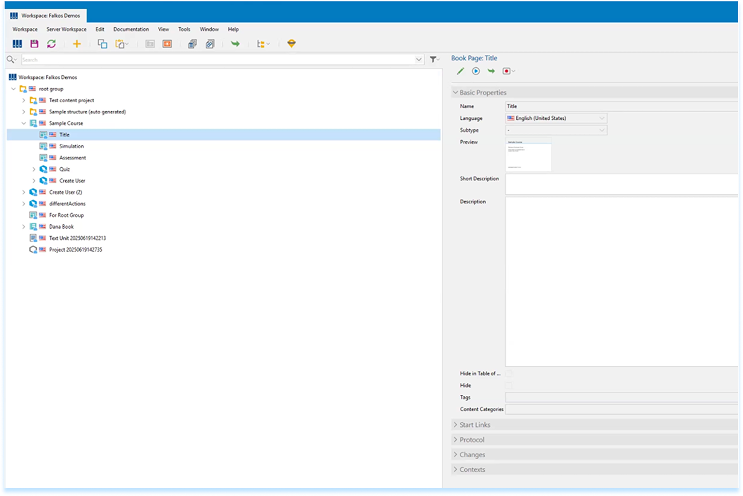
Once synced:
-
Return to the Transition Content page
-
Refresh the page to view the updated content
Technical Notes
-
Only customers transitioning from an SAP Enable Now contract get access to the transitioning options and with that the SAP Enable Now Producer
- For legacy SAP Enable Now customers, support tickets may be transferred to SAP Support if required
-
When converting SAP Enable Now items to WalkMe Learning Arc courses, there's a limit of 20 items per conversion
-
Only Admin users can view and select API keys when connecting Producer


