Brief Overview
The User Extension includes a built-in status indicator that shows whether WalkMe content loaded correctly on a web page. Use this indicator to quickly confirm that WalkMe is running or to identify why WalkMe content is not appearing.
This article explains each connection status message and provides common causes and solutions to help you troubleshoot issues.
Note
The extension status messages pop-up and design on this page will remain for the following browsers and versions only:
- Firefox (all versions)
- Safari (all versions)
- Edge and Chrome (versions below 4.0.308)
For all versions above 4.0.308 see Extension Status Popup window redesign.
How It Works
The User Extension checks whether WalkMe can load and communicate with the current web page. Based on this check, the extension displays a status message that reflects the current connection state.
Connection Status Messages
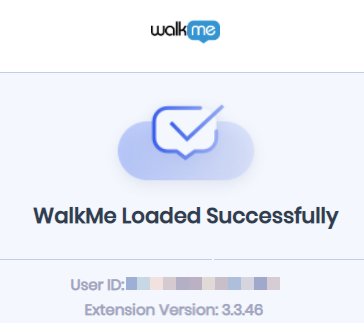
WalkMe Loaded Successfully
This status means the extension is working correctly on the current page and WalkMe content loaded as expected.
When WalkMe loads successfully, you can also view:
- User ID
- Extension version
WalkMe Failed to Load
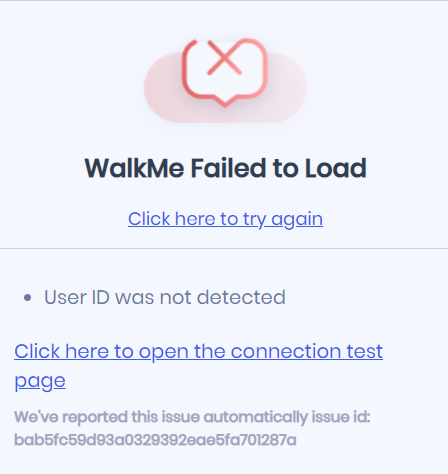
This status appears when the extension encounters an error that prevents WalkMe content from loading.
When this happens, the extension provides:
- A link to the connection test page
- A unique issue ID for WalkMe Support
- A specific remove reason
Common remove reasons include:
- Removed by condition
- Unique User Settings are not supported by server storage
- Could not retrieve end user identifier
- Safe Switch
WalkMe is Not Running on this Site
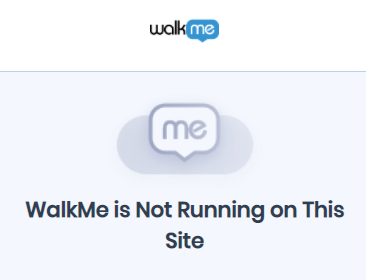
This status means the extension is active but WalkMe is not configured to load on the current URL.
Common causes include:
- WalkMe is not configured to load on the current page
- The current URL does not match any enabled system configurations
- The WalkMe Editor is open and connected to the browser, which takes precedence over the extension
- Access is limited by your organization's manifest settings
WalkMe Snippet is Running on this Site
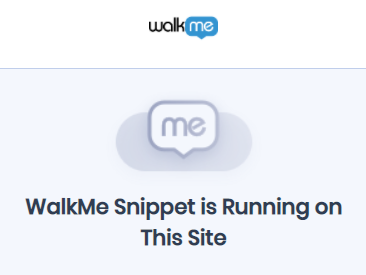
This message means a site snippet is taking precedence over an extension.
Common Issues and Resolutions
If you encounter a failure message, refer to these common technical issues and their solutions.
Settings file URL is not defined
This error typically relates to the initial installation of the extension.
Cause:
- Deployment instructions were not fully completed
- The settings file is missing or placed in an incorrect location
Solution:
- Verify that the settings file exists in the correct location
- Check for conflicts with other registry keys
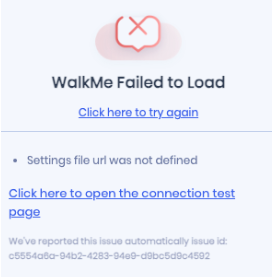
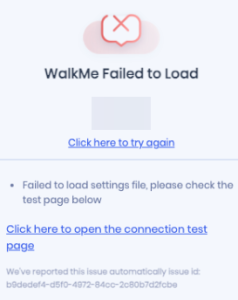
Failed to load settings file, please check the test page below
This issue occurs when the extension cannot read the configuration file.
Cause:
- Network issues such as proxy servers or firewalls blocking extension files
- Self-hosting configurations that are not set up correctly
- Missing permissions required to access the settings file
Solution:
- Open the connection test page to verify connectivity
- Review network and firewall settings
- Confirm that the extension has the required permissions
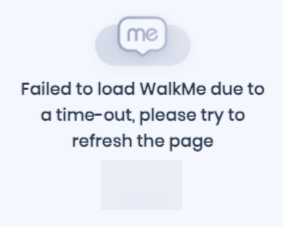
Extension timeout
A timeout appears when communication between the web page and the extension fails.
Cause:
- Network latency
- Security software interfering with the extension
Solution:
- Refresh the page
- If the issue continues, contact your IT team to review local network or security settings
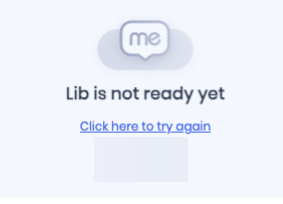
Lib not ready
This status appears when the WalkMe library has not yet loaded on the site.
Cause:
- The page requires more time to finish loading
- A Content Security Policy (CSP) is blocking the WalkMe library
Solution:
- Wait for the page to fully load
- Check for native website code conflicts or CSP restrictions
If the issue persists after completing the relevant troubleshooting steps, contact WalkMe Support and include the issue ID shown in the User Extension status message.


