Brief Overview
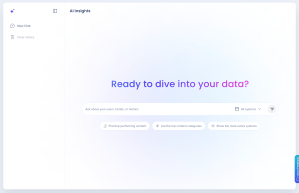
AI Insights is a conversational AI chat tool built into WalkMe Insights. It analyzes data from your connected WalkMe systems and surfaces answers in plain language — so your team can make faster, more confident decisions about your digital adoption program.
Ask questions in plain language and get data-backed answers with clear context and a suggested next step. AI Insights can also generate widgets from your data that you can save directly to a new or existing Insights custom dashboard — no manual chart-building required.
Use Cases
- Get a quick summary of your program health across error rate, engagement, and onboarding completion
- Find broken or failing content and prioritize fixes by flow criticality
- Surface stale content that hasn't been updated in a set timeframe
- Compare completion times for a process across 2 regions or systems
- Build dashboard widgets directly from a conversation, without switching tools
Access
Access AI Insights in the console:
- Open the WalkMe Console
- Go to the Analytics category
- Select Insights
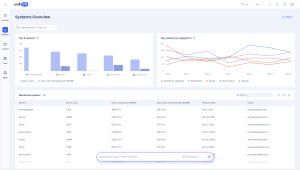
- Select the AI Insights page — or start a chat directly from the Systems Overview page
How It Works
AI Insights interprets natural language questions about data from your connected WalkMe systems. It responds in the most useful format for each query — table, chart, plain text, or widget.
Asking questions
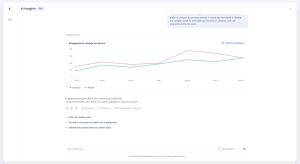
Type a question or statement in plain language — no special syntax or commands required. AI Insights always states any assumptions it made (timeframe, system scope, and so on), so you can correct them before acting on the result. After every answer, it offers a relevant follow-up question to keep your analysis moving.
Managing your chats
Each session with AI Insights is a chat. From the interface you can:
- Start a new chat at any time
- Review past chats in your chat history
Context carries through a single chat session. If you start a new chat, AI Insights starts fresh without memory of previous conversations.
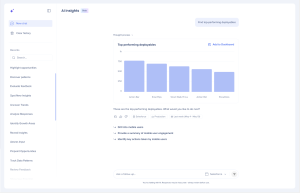
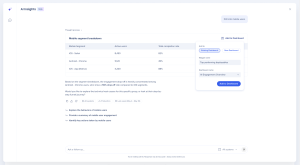
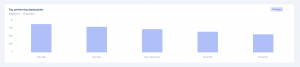
Widget creation lets you turn any data result into a trackable dashboard widget without leaving the chat.
To create a widget:
- Ask a question about your data
- When the result is a metric or visualization worth tracking, AI Insights offers to create a widget
- Approve the widget
- Choose to add it to an existing Insights dashboard or place it on a new one
For other response types — tables, plain text, charts — copy the content from the chat directly.
Transparency and Accuracy
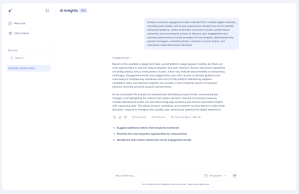
AI Insights uses phrases like 'This may suggest…' or 'The data points toward…, though other factors may be at play' rather than presenting inferences as facts. If the data contains an anomaly relevant to your question, it flags it proactively. For example, it will note that a weekend dip in engagement is expected behavior for a workplace tool, not a sign of a problem.
If AI Insights can't produce a confident answer — because the data doesn't support a clear conclusion or the question is outside its accessible scope — it tells you directly rather than guessing. It will suggest a related question it can answer, or ask you to clarify so it can try a different approach.
What You Can Ask
Here are examples of questions to get started:
"Do I have a good DAP program?"
- A summary across error rate, engagement rate, and onboarding completion
"What content is broken?"
- A table of failing items with content type, failure count, and reason
"What hasn't been updated in 6 months?"
- Stale content items to review or retire
"Compare completion times for this process across 2 regions"
- A breakdown table with optional WalkMe-exposure filtering
The more specific your question, the closer the answer. For what to include in a question, and what to do when a result surprises you, refer to: AI Insights: Best Practices.
AI Insights as an MCP server
AI Insights is also available as an MCP server, so MCP-compatible clients can connect to it directly. This capability isn't enabled by default — to use it, request access from WalkMe Support.
How to request access:
- Submit your request through the WalkMe Support Portal
- Select Enable or configure a WalkMe feature, and enter AI Insights MCP as the feature name in the description
Note
The MCP server is currently available to WalkMe customers only. It isn't available in SAP data centers
Once you have access:
{
  "mcpServers": {
    "insights-ai": {
      "url": "https://api.walkme.com/public/v1/data-platform/data-ai/mcp",
      "headers": {
        "Authorization": "Bearer $TOKEN"
      }
    }
  }
}
Technical Notes
Where the data comes from
- AI Insights draws on the same data already collected in your Insights account — no additional data is collected to power AI Insights. Specify a date range in your question, and AI Insights applies it as stated.
Saving results from a conversation
- Data results can be saved as widgets and added to any Insights dashboard, where anyone with dashboard access can view them. For other response types, copy the content directly from the chat.
How your data is stored
- Data used to generate an answer isn't stored within the AI model. If you save a result as a widget, that widget lives on your Insights dashboard the same as any other widget — it reflects the same underlying Insights data, not a separate copy created by the AI.
Chat history and context
- Context is maintained within a single chat session. Starting a new chat starts fresh. You can review past chats in your chat history to refer back to an earlier result.
Using AI Insights outside the console
- AI Insights is available as an MCP server, so MCP-compatible clients can connect to it and query your systems' data. Contact WalkMe Support to request access to this feature.
Known limitations
- AI Insights cannot create, configure, modify, or delete WalkMe content, flows, tracked events, or funnels
- Cannot access data related to tracked events or saved filters
- Cannot access data related to changes made in the WalkMe Editor (for example, last publish date or folder location)
- Cannot read content shown on your screen
- Cannot compare your data with data from other customers or organizations — external benchmarks are not available; generic industry benchmarks may be substituted where relevant
- LLM Integration isn't supported
Privacy and security
- AI Insights is scoped to the WalkMe systems connected to your current session. It cannot access data from systems or accounts you don't have permission to view, and it will tell you clearly if a question falls outside its accessible scope.
Models
- Currently, WalkMe uses Gemini models for AI Insights. However, WalkMe reserves the right to change the LLM vendor in the future to enhance the performance and quality of the service.
Admin control
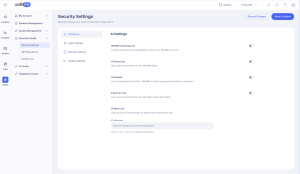
- Account admins can turn AI Insights on or off from AI Settings in the Admin Center.
Admin Security & Audit