Overview
When you enable the WalkMe Action Bar, a little advance communication goes a long way toward ensuring a smooth rollout and generating excitement and ongoing adoption.
This guide gives you ready-to-use email templates, a FAQ you can publish to your knowledge base, and guidance on how to use WalkMe to announce the change in-app.
You don't need to use every asset here. Mix and match based on your team's bandwidth, your users' needs, and your go-live timeline.
Here's to your ongoing success!
Recommended rollout timeline
Use this as a starting point and adjust based on your organization's communication style and go-live date.
1–2 weeks before go-live
Send pre-launch email to end users
Publish FAQ to your knowledge base or intranet
[Optional] Deploy "Coming Soon" ShoutOut in-app
Day of go-live
Deploy "Now Live" ShoutOut and Smart Walk-Thru
[Optional] Send a short go-live notification via email or Slack/Teams
1 week after
Follow up with users who haven't yet engaged with the Action Bar
Templates: Email and Slack/Teams
These templates are meant to be customizable, so you can add your application name, go-live date, support contact, internal branding, and other details specific to your deployment.
Using these templates
Some templates include two closing versions, depending on whether you've built WalkMe content to support the go-live.
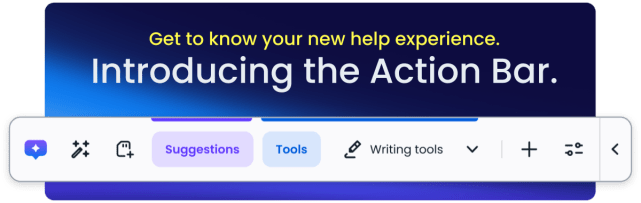
You'll see sample visuals that you can use to show your users what the Action Bar will look like – but we recommend customizing to suit your unique deployment.
Pre-launch emails
Send a pre-launch email 1-2 weeks before your go-live date. This gives your users time to prepare, reduces first-day confusion, and sets a positive tone for the change to boost excitement and adoption.
We've included two pre-launch email templates depending on your starting point.
- Use Option A if your users currently access WalkMe content via an existing widget.
- Use Option B if your users are new to having a WalkMe widget.
Option A: Switching from another widget or menu
Subject options:
- Your [Application] help menu is getting an upgrade
- Coming Soon | A better way to get help in [Application Name]
- [Application Name] update: new help experience coming [Date]
Hi everyone,
On [Date], we're upgrading how you access help and guidance in [Application Name] — and we think you're going to love it!
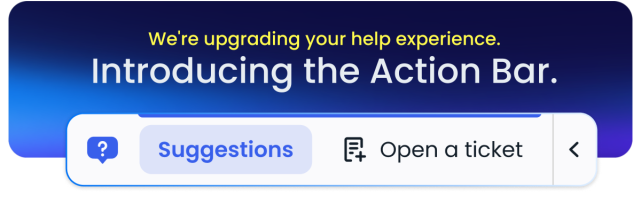
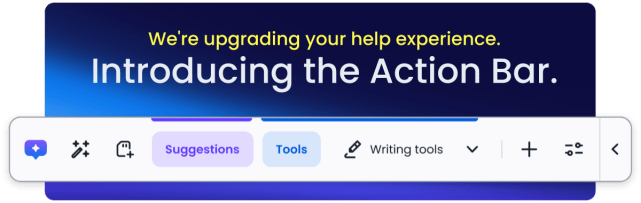
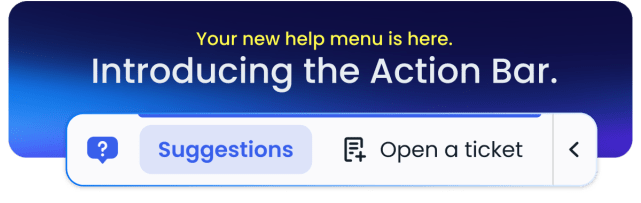
What's changing: The "?" help menu icon is getting an upgrade! We're launching WalkMe Action Bar (see screenshot): an always present on-screen overlay that gives you instant access to all of the quick actions and help resources you already rely on – and will automatically surface suggested next steps based on where you are in the system.
What isn't changing: No content is being removed. All the guidance you could access before is still there.
What to expect:
- You'll see a new icon → click it to open the menu of in-app guidance and help resources, just like you do today
- You'll start to see "Suggestions" as you navigate the system → the Action Bar will automatically expand with suggested actions based on where you are in the system or process. Click any suggested action for timely assistance.
[Insert visual here. We recommend a Before/After image showing your previous widget icon on the left and the new Action Bar on the right. A screenshot of the Action Bar in context or a short GIF also works well. We've included a sample Action Bar screenshot below; if you've customized the Action Bar icon, use your branded version so users recognize it when it appears.]
Use Version A if you've configured a Walk-Thru for go-live. Use Version B if not. Note: if you have the WalkMe Action Bar (AI-enabled), you can use our out-of-the-box guided onboarding experience. Learn more about how to enable it and see the UX here.)
Version A: What do you need to do? Nothing! The first time you log in after [Date], you'll see the Action Bar, and a short guided tour will walk you through the functionality.
Version B: What do you need to do? Nothing! The Action Bar will be there automatically on [Date]. it's easy to explore from the start.
Questions? Reach out to [support contact or team name].
Thanks! [Your Name / Team Name]
Sample visuals
You can right click and save to download any of the below images to use in your communications.
Sample email headers:
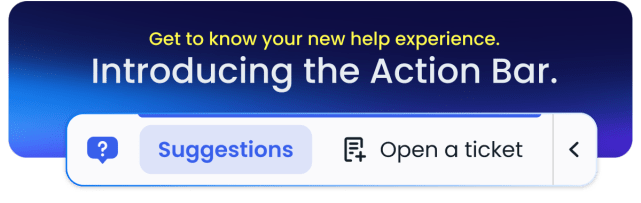
- Action Bar (Default)
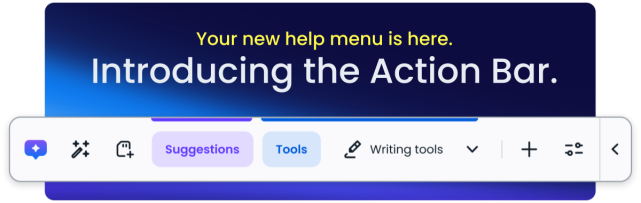
- Action Bar (AI-enabled)
Sample widget icons (the before):
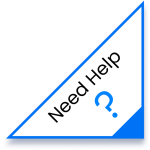
- California
- Allenby
- Mississippi
- Zambezi
Sample Action Bar visuals (the after):
- Action Bar (Default)
- Action Bar (AI-enabled)
Option B: No prior WalkMe widget
Subject options:
- Coming soon | Smarter, faster help in [Application Name]
- Something new is coming to [Application Name] — and we think you'll love it
- New WalkMe [or internal brand name] feature for [Application Name]
Hi everyone,
On [Date], we're upgrading how you access help and guidance in [Application Name] — and we think you're going to love it!
What's new: On [Date], the WalkMe Action Bar goes live: a new overlay that sits at the bottom of your screen and gives you instant access to quick actions and help resources, based on where you are in the system. It's designed to make your experience smoother and help you get things done faster, without ever breaking your flow.
What to expect:
- You'll see a new icon at the bottom of your screen → click it to open the menu of in-app guidance and help resources
- You'll start to see "Suggestions" as you navigate the system → based on where you are in a system or process, the Action Bar will automatically expand with suggested actions. Whenever a suggestion appears, click on it to launch timely, relevant in-app guidance designed to help you complete tasks faster.
What does it look like? The Action Bar appears as an icon and banner at the bottom of your screen (see screenshot below). You can expand or collapse it, and it only surfaces content relevant to where you are — so it stays helpful without getting in the way.
[Insert a screenshot or short GIF of the Action Bar here, ideally showing it in context at the bottom of the screen. We've included a basic example below; if you've customized the Action Bar icon, use your branded version so users recognize it when it appears.]
What do you need to do? Nothing. The Action Bar will appear automatically on [Date].
Use Version A if you've configured a Walk-Thru for go-live. Use Version B if not. Note: if you have the WalkMe Action Bar (AI-enabled), you can use our out-of-the-box guided onboarding experience. Learn more about how to enable it and see the UX here.)
Version A: The first time you log in after [Date], a short guided tour will walk you through the functionality.
Version B: It's easy to get started — just click the Action Bar to explore.
If you have any questions, reach out to [support contact or team name].
Thank you! [Name]
Sample visuals
You can right click and save to download any of the below images to use in your communications.
- Action Bar (Default)
- Action Bar (AI-enabled)
Sample Action Bar visuals:
- Action Bar (Default)
- Action Bar (AI-enabled)
Day-of-launch quick messages
Send these on go-live day to remind users that the change is live, head off any questions, and nudge them to explore.
Slack or Teams message
📣 Now Live! The new Action Bar is now available in [Application Name].
Look for it at the bottom of your screen — click to get access to an always-on help menu and watch it auto-expand with helpful suggested quick actions, right when you need them.
Questions? See our FAQ [link to Knowledge Base] and reach out to [support contact or team name].
Optional add-on if a Walk-Thru is configured: The first time you log in today, a quick guided tour will show you around.
Sample visuals
You can right click and save to download any of the below images to use in your communications.
- Action Bar (Default)
- Action Bar (AI-enabled)
Short email
Send this in response to your original pre-launch email, or as a standalone message
Subject: The Action Bar is live in [Application Name]!
Hi everyone,
The Action Bar is now live in [Application Name]. You'll see it at the bottom of your screen the next time you log in – and we're excited to bring this update to you!
This is your new “home” for in-app guidance that will auto-expand with suggested quick actions and enable you to access a menu of help options at any time.
- [If Walk-Thru configured: Look out for a short guided tour on your first login today.]
- [If FAQ published]: Check out the FAQ for more information.
[📸 Visual placeholder: We've included a sample image of the Action Bar below, which you can use as-is or replace with your own example to show people what's new and boost excitement.]
We'll continue to add functionality over the coming weeks and months.
Questions, feedback, or ideas for new suggestions? Reach out to [support contact or team name].
We can't wait to hear what you think!
[Your Name / Team Name]
Sample visuals
You can right click and save to download any of the below images to use in your communications.
Sample email headers:
- Action Bar (Default)
- Action Bar (AI-enabled)
Sample Action Bar visuals:
- Action Bar (Default)
- Action Bar (AI-enabled)
1–2 week post-launch follow-up
Send this 1-2 weeks after go-live to engage users who haven't yet interacted with the Action Bar – or send a gentle reminder to all users. If you have access to WalkMe Insights, you can target this to non-adopters specifically.
Follow-up email
Subject options:
- Your in-app help menu is waiting for you
- A quick reminder about the new Action Bar in [Application Name]
Hi everyone,
A week ago, we launched the new Action Bar in [Application Name] — and we wanted to make sure you've had a chance to check it out.
If you haven't tried it yet, look for the icon at the bottom of your screen (screenshot below) the next time you log in. Click it to open your help menu, or watch for suggestions to appear automatically as you navigate the system.
[Visual placeholder: Insert a screenshot or short GIF of the Action Bar here. If you've customized the Action Bar icon, use your branded version so users recognize it when it appears – or simply use one of the sample images we've included below. ]
A few things you can do with it:
- Launch guided walkthroughs for key tasks
- Access help resources without leaving the page you're on
- Click any suggestion for instant, contextual guidance designed to help you get your work done faster
[If Walk-Thru still active: You can also relaunch the guided tour anytime from inside the Action Bar.]
[If FAQ published: Check out the FAQ if you have questions about how it works.]
We'd love to hear what you think — feedback and ideas for new suggestions are always welcome. Reach out to [support contact or team name] to share!
[Your Name / Team Name]
Sample visuals
You can right click and save to download any of the below images to use in your communications.
Sample email headers:
- Action Bar (Default)
- Action Bar (AI-enabled)
Sample Action Bar visuals:
- Action Bar (Default)
- Action Bar (AI-enabled)
End-user FAQ
Publish your end-user FAQ to your internal knowledge base, help portal, or intranet before go-live, ideally at the same time you send the pre-launch email. You can also share it in Slack or Teams as a pinned message.
This FAQ is designed to address common questions your users may have, but this is just a starting point!
Customize and create entries specific to your organization, such as who to contact for WalkMe-related questions, specific applications or use cases where you've deployed Action Bar, where to find your internal help resources, and more.
Sample FAQ
Frequently asked questions: The WalkMe Action Bar
What is the Action Bar? The Action Bar is your new go-to for help, guidance, and quick actions in [Application Name]. It surfaces suggested actions based on where you are in the system, so relevant help is available without having to go looking for it. The Action Bar will automatically expand with “Suggestions,” and you can click the icon to open a full menu of resources and guidance.
Will I lose access to my walkthroughs or resources? No. All existing interactive guidance, in-app quick actions, and help resources are still available
What are the “Suggestions” suggested actions that appear in the bar? The Action Bar surfaces shortcuts to relevant WalkMe content like guided walkthroughs and other help items based on where you are in the system. Click any suggestion to trigger that content directly.
Can I move or hide the Action Bar? Yes.
To move, simply click and drag. To collapse to just the icon, click the arrow on the bar.
To temporarily hide it from view, right-click and select Hide for 1 hour.
Who do I contact if I need help or have an idea for a new suggested action? Reach out to [support contact or team name] with any questions.
Sample solutions: In-app guidance
Using WalkMe to announce the Action Bar is the highest-impact option available to you. We've created three sample solutions below, but these are just a starting point for you to customize to suit your needs.
Pre-launch ShoutOut
What it is: A message that appears in-app before go-live to notify users about the upcoming change.
When to use it: Deploy 1-2 weeks before go-live. This is optional but effective, as users who've seen a heads-up are less likely to be surprised on launch day – and can get excited about what's coming soon.
How to set it up: Create a ShoutOut in the WalkMe Editor and configure it to appear once on login. Set it to cancel auto-play once the user clicks 'Close button' and 'X button.' Remember to disable it on your go-live date when the Action Bar is live.
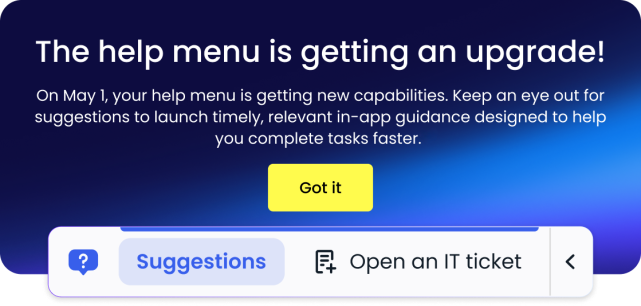
Sample ShoutOut copy
Something new is coming soon!
On [insert date] your help menu is moving to the Action Bar, a new overlay that sits at the bottom of your screen and gives you instant access to help resources and guidance tailored to where you are in your workflow. [Got it]
Suggested visual: We recommend providing a visual of the Action Bar so users know what it will look like. Before your Action Bar goes live, you might not have an open suggestion/alert to show what the Action Bar will look like, so we've included a few examples below.
Sample Visuals
You can right click and save to download any of the below images to use in your communications.
- Action Bar (Default)
- Action Bar (AI-enabled)
Day-of-launch solutions
Use one of these two solutions to introduce your end users to the Action Bar on go-live day: The first is a standalone ShoutOut, and the second is a ShoutOut paired with a Smart Walk-Thru (recommended).
"Now Live" ShoutOut only
What it is: A message that appears on the go-live day to let users know the Action Bar is live and encourage them to explore its functionality.
When to use it: Use this if you want to announce the change at launch but don't want to build a full Walk-Thru. This is the minimum recommended option for all customers.
How to set it up: Create a ShoutOut in the WalkMe Editor configured to appear once on login after your go-live date. Keep it active for 2 weeks after launch, then disable the ShoutOut.
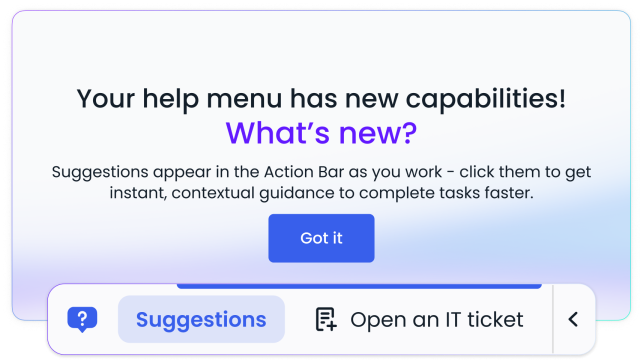
We've included some example copy to get you started below, but please customize to suit your company's branding, your unique deployment, et al.
Sample ShoutOut copy
Your help menu has moved to the Action Bar, a new overlay at the bottom of your screen that gives you instant access to help resources and guidance tailored to where you are in your workflow. [Got it]
Suggested visual: We recommend providing a visual of the Action Bar so users can connect the ShoutOut text to the in-app experience. We've included a few examples below, but ideally, you can include an image from your own environment.
Sample Visuals
You can right click and save to download any of the below images to use in your communications.
- Action Bar (Default)
- Action Bar (AI-enabled)
"Now Live" ShoutOut + Smart Walk-Thru (recommended)
What it is: A go-live ShoutOut that launches an optional guided Walk-Thru, walking users through the Action Bar's key capabilities upon their first login. Note: if you have the WalkMe Action Bar (AI-enabled), you can use our out-of-the-box guided onboarding experience. Learn more about how to enable it and see the UX here.)
When to use it: This is the highest-impact option, as it turns the transition itself into a guided product experience and drives immediate engagement with the Action Bar.
How to set it up: Create a ShoutOut as described under "Now Live" ShoutOut only, and configure the "Show me" button to trigger the Smart Walk-Thru below. Build the Walk-Thru in the WalkMe Editor targeting the Action Bar elements. To have the Smart Walk-Thru step point to the Action Bar, use the jQuery selector of #walkme-player as the Selected Element.
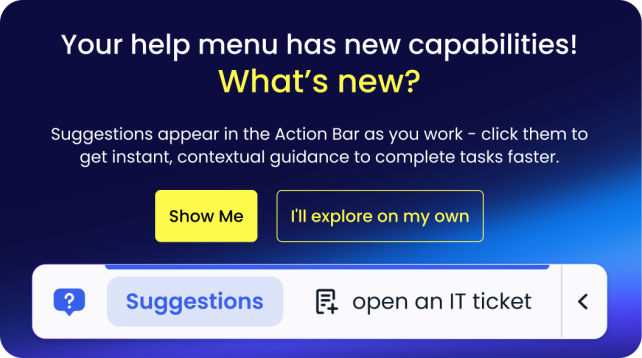
We've included some example copy to get you started below, but please customize to suit your company's branding, your unique deployment, et al.
Sample ShoutOut copy
Your help menu has moved to the Action Bar, a new overlay at the bottom of your screen. It gives you instant access to help resources and guidance tailored to where you are in your workflow. [Show me →] [I'll explore on my own]
- "Show me" triggers the Smart Walk-Thru
- "Got it" dismisses without launching the Walk-Thru
- Keep active for 2 weeks after go-live
Sample Smart Walk-Thru script
Step 1 — Introduce the Action Bar
Meet the new Action Bar. This replaces the help menu you used before. Everything you relied on is still here, and there's more. Click to open it. [Next]
Step 2 — Highlight how suggestions work
Something new: Suggestions! This is quick guidance that automatically appears based on where you are on the site. Next time, click on one of the suggestions that appears in the Action Bar for you!
[Visual recommendation: Insert image or GIF of your Action Bar with a Suggestion as one may not appear on the current page for a user.]
[Next]
Step 3 — Reminder on opening the menu
Even if there are no Suggestions, clicking the Action Bar icon opens the WalkMe Menu you already know and love, so you can find guidance on any page.
If the Action Bar ever gets in your way, use the arrow to collapse Suggestions or click and drag the widget to move it around on your screen.
Step 4 — Close
You're all set. The Action Bar is your go-to for help, guidance, and quick actions. You can relaunch this tour anytime from the menu.
[Done]
Sample Visuals
You can right click and save to download any of the below images to use in your communications.
- Action Bar (Default)
- Action Bar (AI-enabled)
Conclusion
With these templates and guidance in hand, you're ready to give your users a smooth, exciting introduction to the Action Bar.
Looking to learn more about Action Bar's capabilities as you prepare for launch?
Check out the WalkMe Action Bar coursework in the Digital Adoption Institute.