This article walks you through creating and configuring launchers in the Action Bar console app. The setup experience is the same whether your account has AI enabled or not. Launcher types that require AI appear in the panel but are greyed out and unavailable if AI is not enabled for your account.
For an introduction to the Action Bar console app and the launchers table, see:
Click the Create icon from the Action Bar page to open the Create a launcher side panel.
Step 1: Select Location Type
Choose where your launcher should appear. Available launcher types depend on the location type you select here.
Location Type
Description
Available Launcher Types
Single Location
Appears on one specific system
Shows in the WalkMe Editor
Supports element capturing and text from page
All launcher types
Multiple Locations
Appears on multiple systems
Does not appear in the WalkMe Editor
Supports text from page
All launcher types except Tag Verification and Structured Summary
Universal (AI-Enabled only)
Appears on all sites and locations
Does not appear in the WalkMe Editor
All launcher types except Tag Verification and Structured Summary
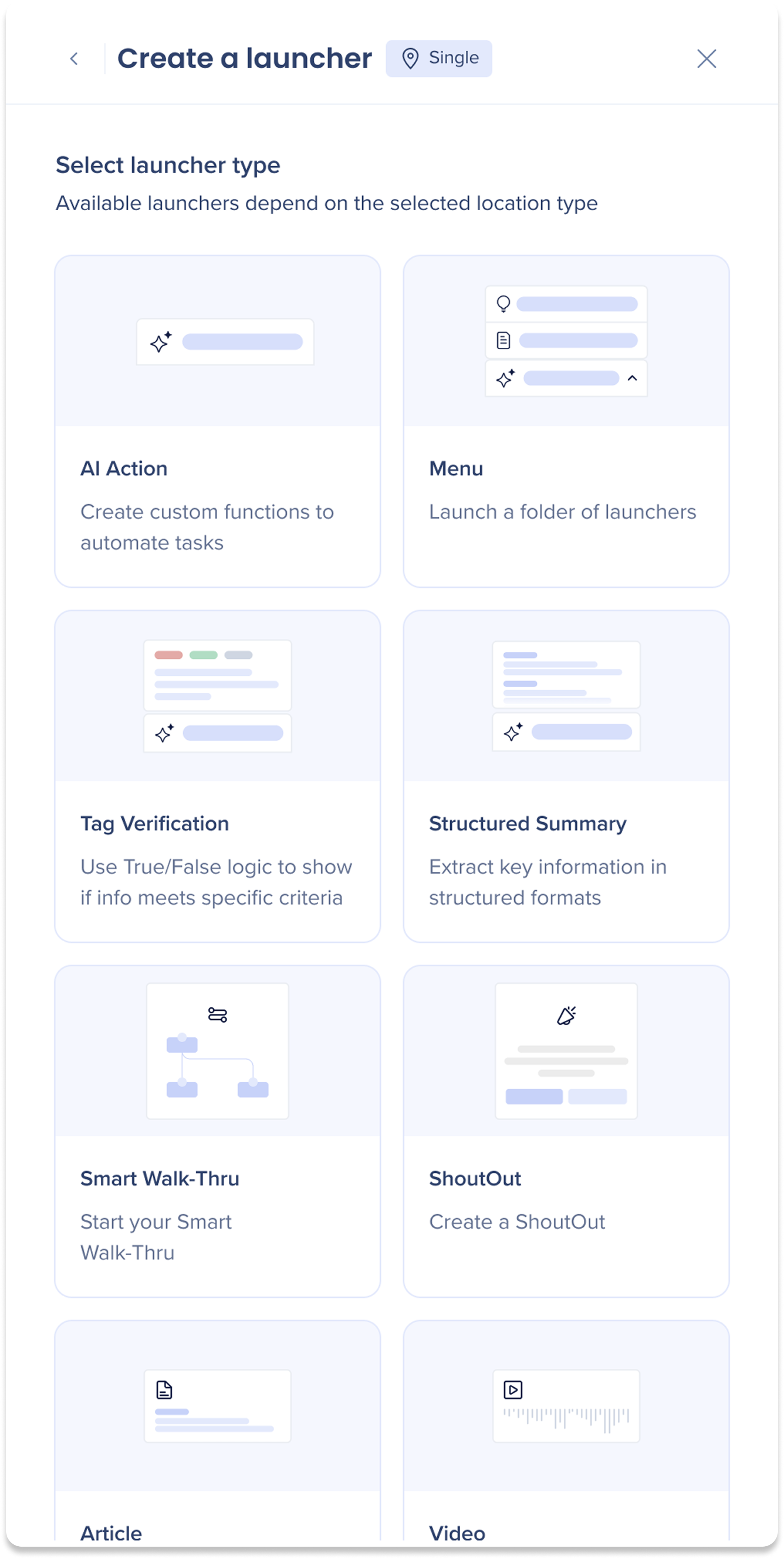
Step 2: Select a Launcher Type
Choose a launcher type to customize for your organization's needs. Available launcher types depend on the location type selected in the previous step.
Note
Launcher types that require AI are greyed out if AI is not enabled on your account
Launcher types that are not compatible with the location type selected in the previous step are also greyed out
Launcher Type
Description
AI Required
Location Type
AI Action
Create custom functions powered by AI that respond to a personalized prompt
Yes
All
Menu
Create a customizable list of launchers and folders to organize tasks and streamline access
No
All
Tag Verification
Use True/False logic to show if information meets specific criteria
Yes
Single only
Structured Summary
Extract and present key information in structured formats
Yes
Single only
Smart Walk-Thru
Trigger a step-by-step Smart Walk-Thru
No
All
ShoutOut
Display a pop-up message or announcement
No
All
Article
Link to a relevant help resource
No
All
Video
Play an embedded or linked video resource
No
All
Survey
Collect user feedback with a survey
No
All
Shuttle
Redirect users to a specific webpage
No
All
Multiple SmartTip Validation
Run a SmartTips set to validate form field inputs
No
All
ActionBot
Launch a bot to automate tasks through conversation
No
All
AI Chat
Get answers from company and public knowledge
Yes
All
Open WalkMe Menu
Launches the central hub for exploring content
No
All
Example of Tags Summary...
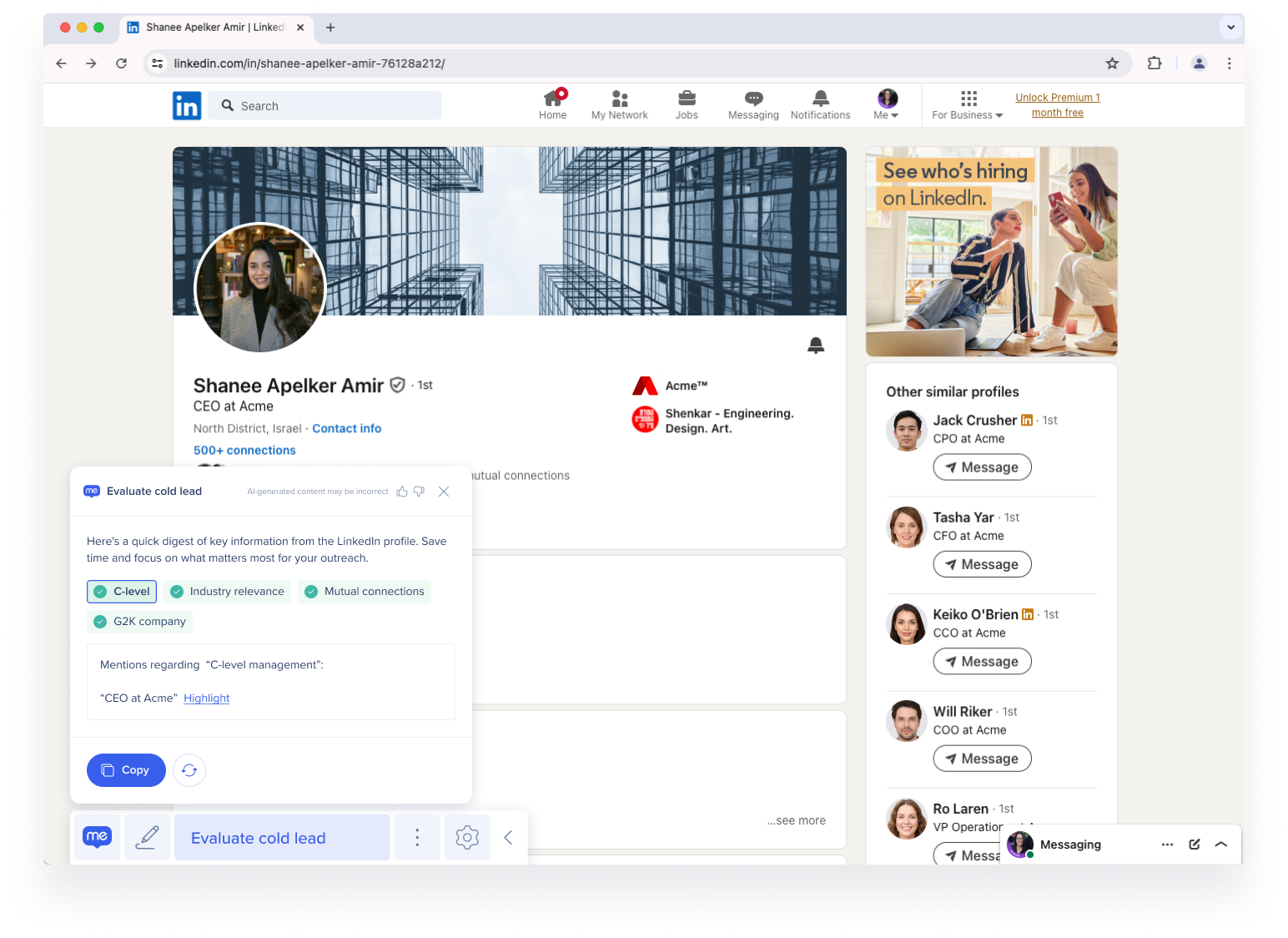
LinkedIn Tags Summary Example
Console Build: In this example, the builder captured a LinkedIn page and created the following tags: C-level, Industry relevance, Mutual connections, and G2K
AI Action: The AI checks if these tags are present on the page based on “true” and “false” conditions set by the builder
Result: All tags were found and therefore are shown as green
The AI provides a brief quote from the page for each tag, along with the option to highlight its location on the page
All tag colors and meaning
Green: True
Orange: False
Grey: Undetermined
Step 3: Complete launcher settings
The following section provides an overview of the launcher type settings. Each launcher has three settings pages: Appearance, Behavior, and Visibility.
Appearance Settings
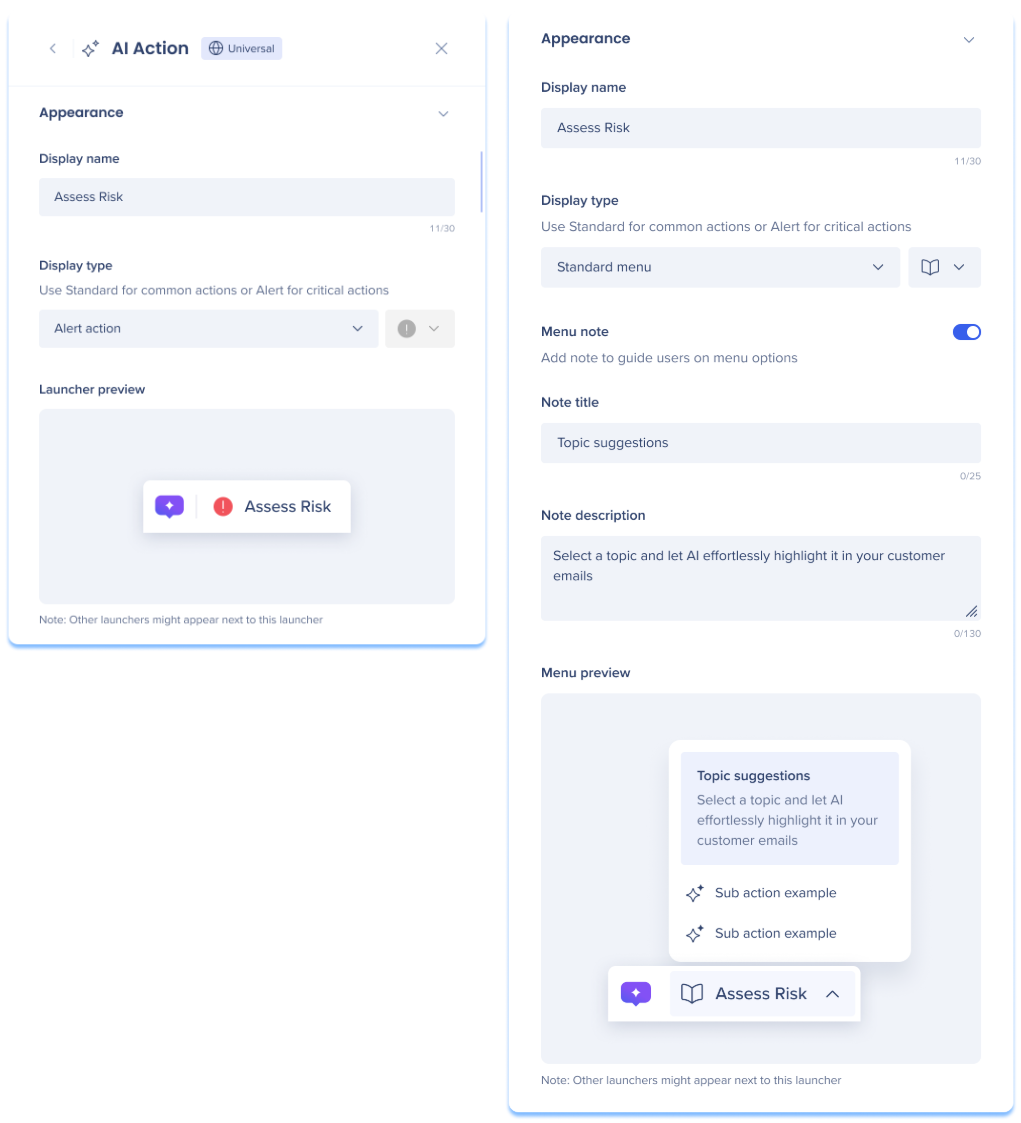
Display name
Enter a name for your launcher that will appear to end-users in the Action Bar.
Display type
Display types control how your launcher appears in the bar, either as a “standard” or “alert” action/menu. Select a display type from the dropdown and an icon if “standard” is selected.
Standard action/menu: Ideal for routine tasks, this option displays actions in the Action Bar with a custom icon
Alert action/menu: Ideal for condition-based critical tasks, the option displays a fixed icon when triggered, or a red alert dot if actions are hidden
Alerts will prioritize the action or menu by placing in first in the Action Bar
Launcher/Menu preview
View how your launcher will appear in the Action Bar.
Note
Other launchers may appear next to this one if additional launchers are created or default launchers are enabled.
Menu note Menu launchers only
Turn on the Menu note toggle to add a note that guide users on menu options. We couldn't load the file.
Note title: Enter a title for your note
Note description: Enter a description for your note
Behavior Settings
WalkMe Item Behavior Settings
Applies to: Smart Walk-Thru, ShoutOut, Article, Video, Survey, Shuttle, Multiple SmartTip Validation, ActionBot, and AI Chat.
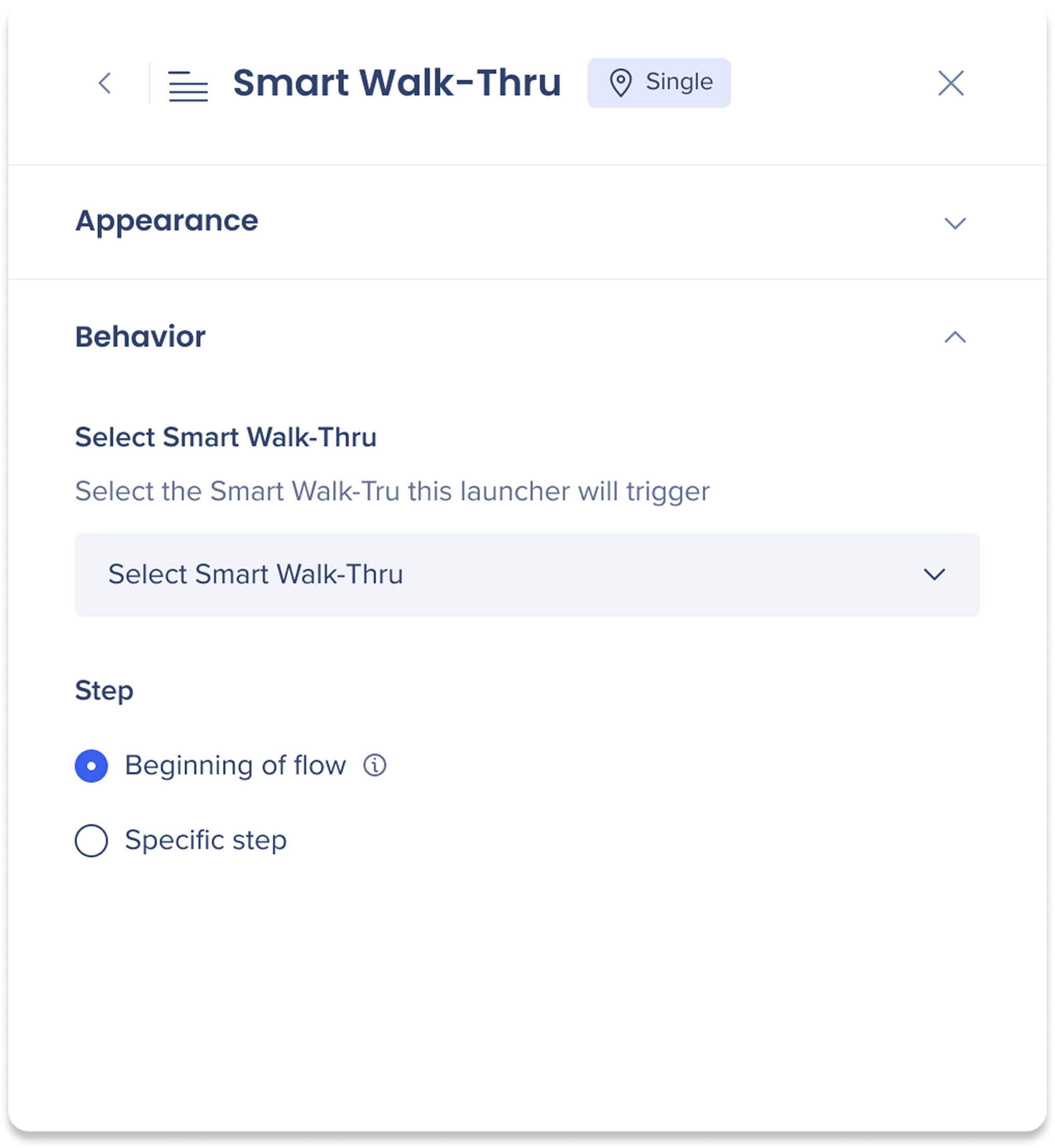
For these launcher types, the behavior settings panel allows you to select the WalkMe item the launcher will trigger. Use the dropdown to select the relevant item from your WalkMe account.
Smart Walk-Thru only: After selecting a Smart Walk-Thru, choose which step the launcher will start from:
Beginning of flow: The Smart Walk-Thru starts from the first step
Specific step: The Smart Walk-Thru starts from a specific step you select
AI Action Behavior Settings
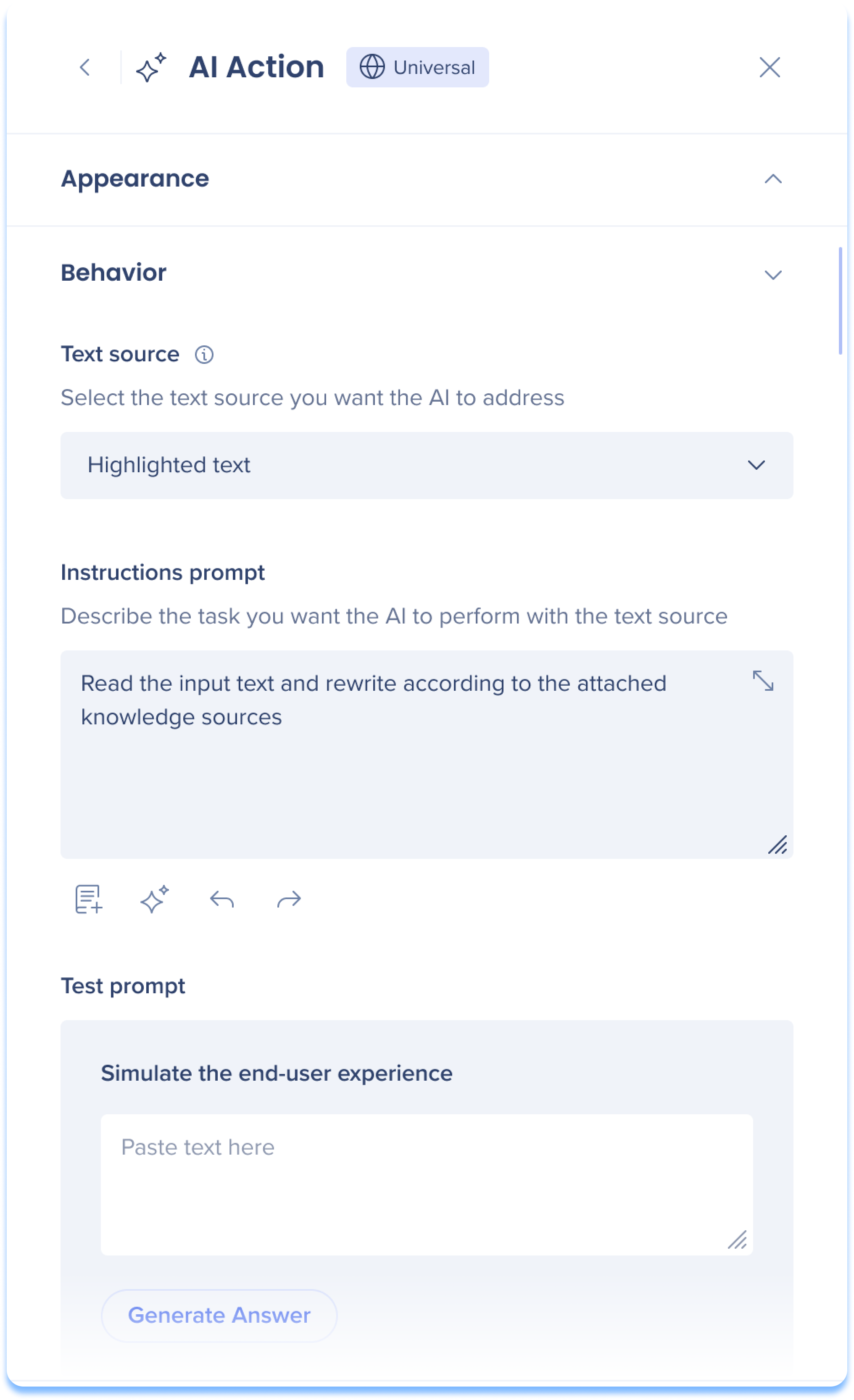
Text source
Select the text source you want the AI to process.
Text on screen: The launcher appears without specific context and performs AI text processing on the entire page, or specific text if highlighted
Element on screen: The launcher appears when a specific element appears on screen and performs AI text processing on the selected text
By default WalkMe captures the full page body element
Recapturing specific elements is supported with single location launchers only
Highlighted text: The launcher appears when text is highlighted by the user and performs AI text processing on the selected text
Instructions prompt
Enter a prompt to instruct the AI what task to perform with the text source.
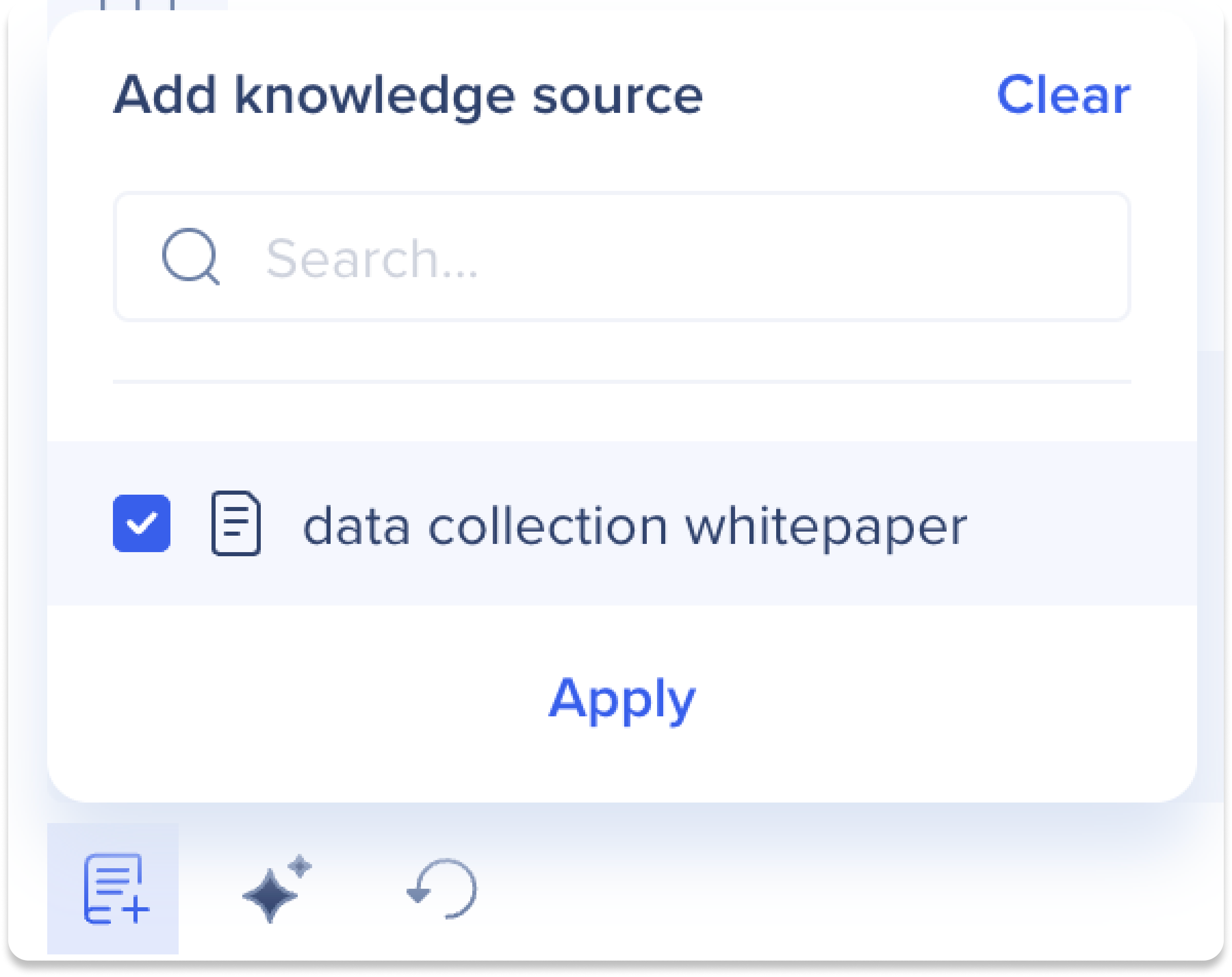
Prompt tools
Add knowledge source: Add knowledge sources to help end-users compare on-screen text with their policies and documentation using these sources in prompts
Improve my prompt: Enhance your prompt using AI
Undo/Redo: The undo reverts the last action, while redo reapplies an undone action
Test prompt
Test your launcher by simulating the end-user experience. Enter text as an end-user and click Generate Answer to see the results.
Menu Behavior Settings
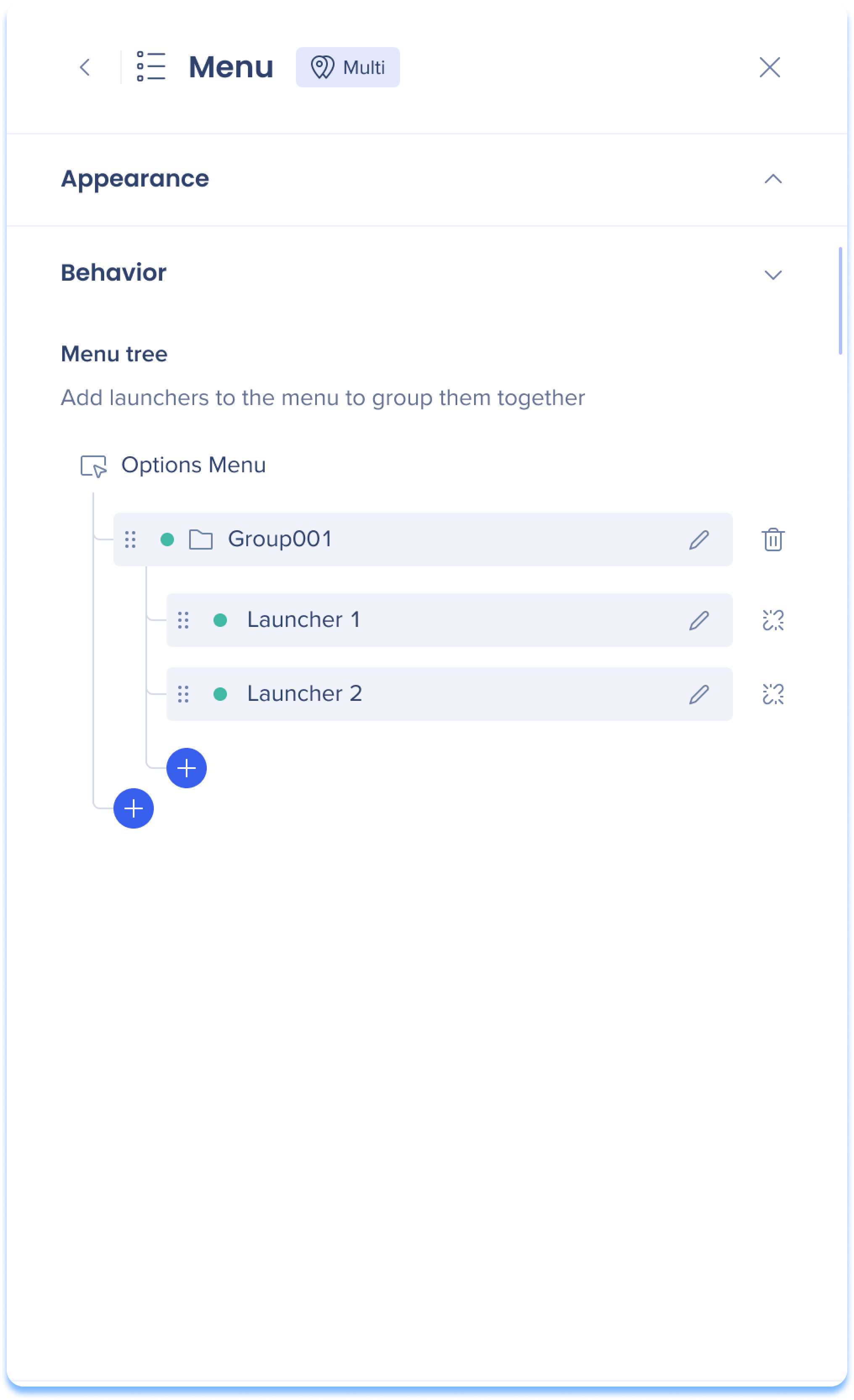
Menu tree
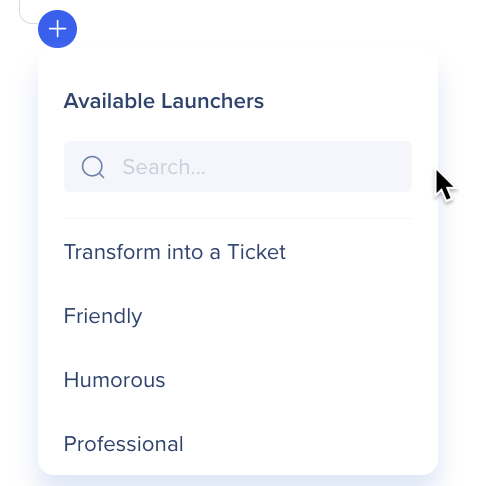
Add launchers to the menu to group them together in folders. Click the Create button to add items to your menu tree.
Add a Folder: Adds an additional folder to your tree that can hold another list of launchers
Select a Launcher: Choose from a list of launchers that you've already made
Create a New Launcher: Opens a modal to create an AI Action launcher from behavior settings
Note
You can only select launchers of the same multi or single location
Adding or updating launchers in menus inherit the locations of the parent menu launcher
Adding a launcher to a published menu launcher requires the menu launcher to be re-published in order to publish the new launcher
Unlinking a published nested launcher converts the sub-launcher to a regular launcher and archives it
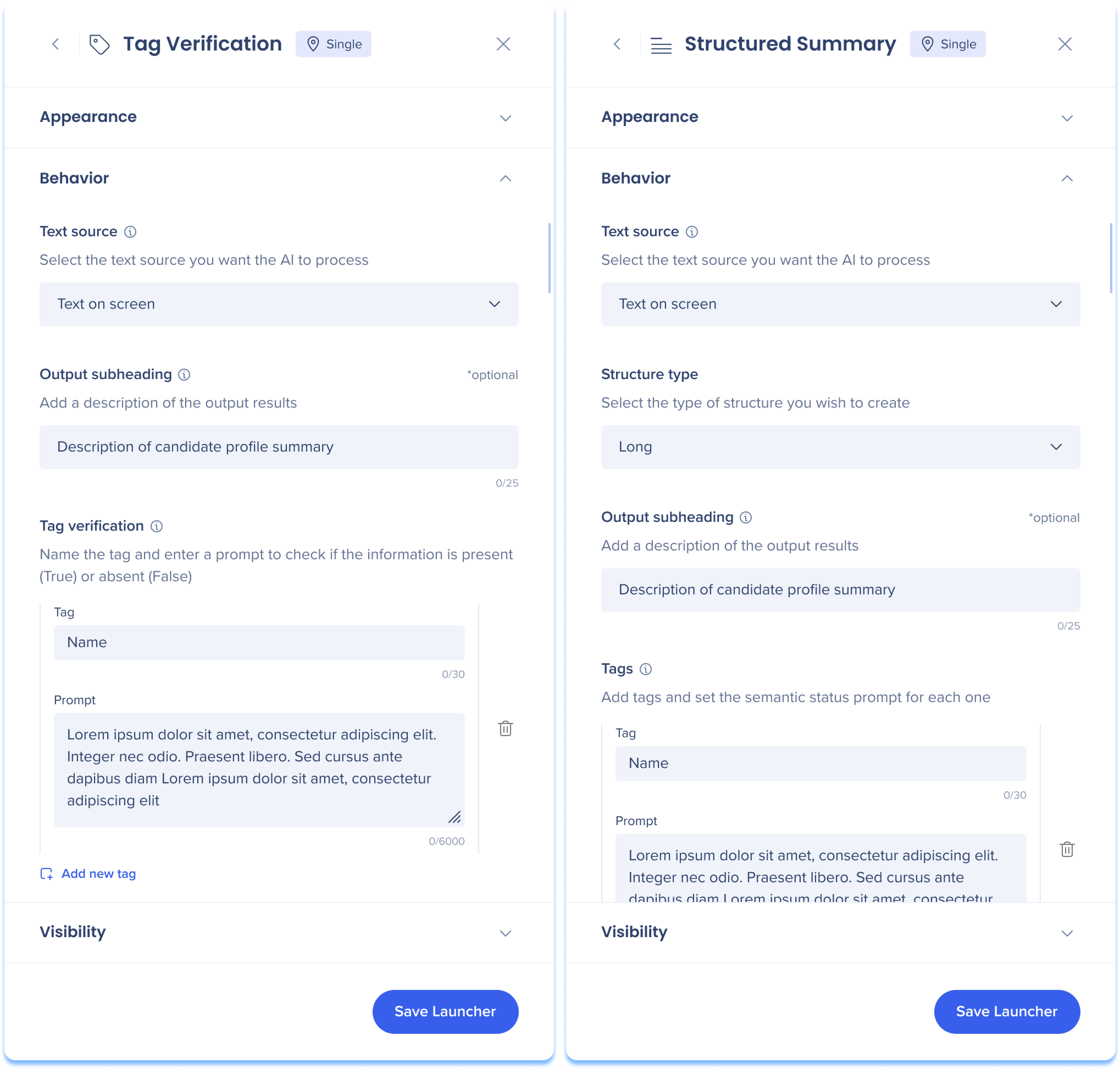
Tag Verification and Structured Summary Behavior Settings
Text source
Select the text source you want the AI to process.
Text on screen: The launcher appears without specific context and performs AI text processing on the entire page, or specific text if highlighted
Element on screen: The launcher appears when a specific element appears on screen and performs AI text processing on the selected text
By default WalkMe captures the full page body element
Recapturing specific elements is supported with single location launchers only
Highlighted text: The launcher appears when text is highlighted by the user and performs AI text processing on the selected text
Output subheading
Add a description of the generated output results. The output subheading will be located below the launcher name.
Tag verification only
Tag verification
Name the tag and enter a prompt to check if the information is present (True) or absent (False).
Tag: Enter tag name
Prompt: Instruct the AI what criteria to scan for to present whether the tag will appear to users as “true” or “false”
Add new tag: Click Add new tag to continue adding more tags
Structured summary only
Structure type
Select the type of structure you wish to create:
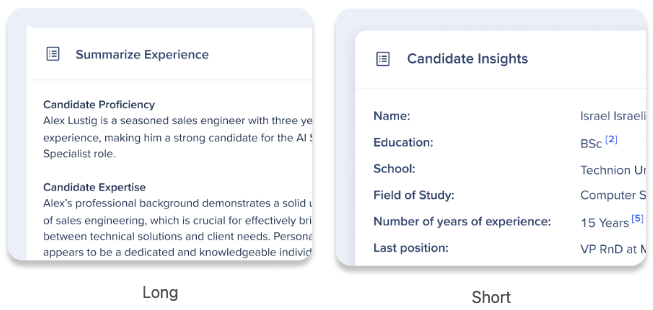
Long: Add tags of the information you wish to extract from the text to create structured section for the summary, the result will populate the sections
Short: Add tags of the information you wish to extract from the text to populate the list on the left, and the summary results will appear on the right
Tags
Add tags to the title of a section in the summary and enter a prompt to define its content.
Tag: Enter the section name
Prompt: Instruct the AI what specific information should go under this section in the summary
Add new tag: Click Add new tag to continue adding more sections for your summary
Visibility settings
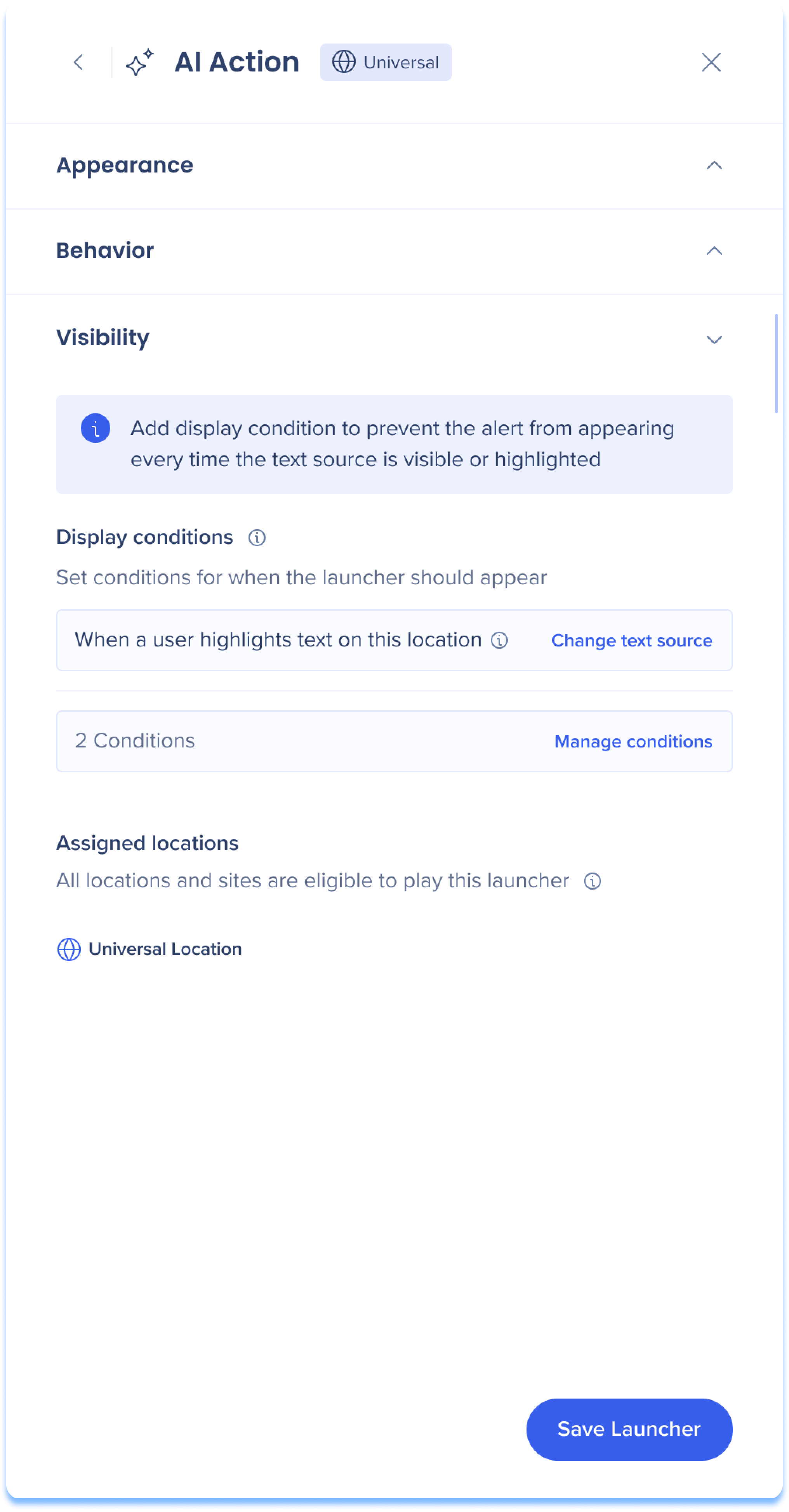
Ensure your launcher appears in the correct location and situation by managing display conditions and locations.
Display conditions
Launcher display conditions use our condition builder technology from within the Action Bar app. Learn more
Change text source: Edit the text source to control when the launcher should appear
Manage conditions: Add conditions or edit existing ones to control when the launcher should appear
Assigned locations
Review the locations type that defines where this launcher will play.
Info notification
The info notification appears when AI Action and the "Alert" display type are selected. To avoid unnecessary interruptions, we recommend adding a display condition for alerts. Without this, the alert will appear whenever the text source is visible or highlighted.



 Click the Create icon from the Action Bar page to open the Create a launcher side panel.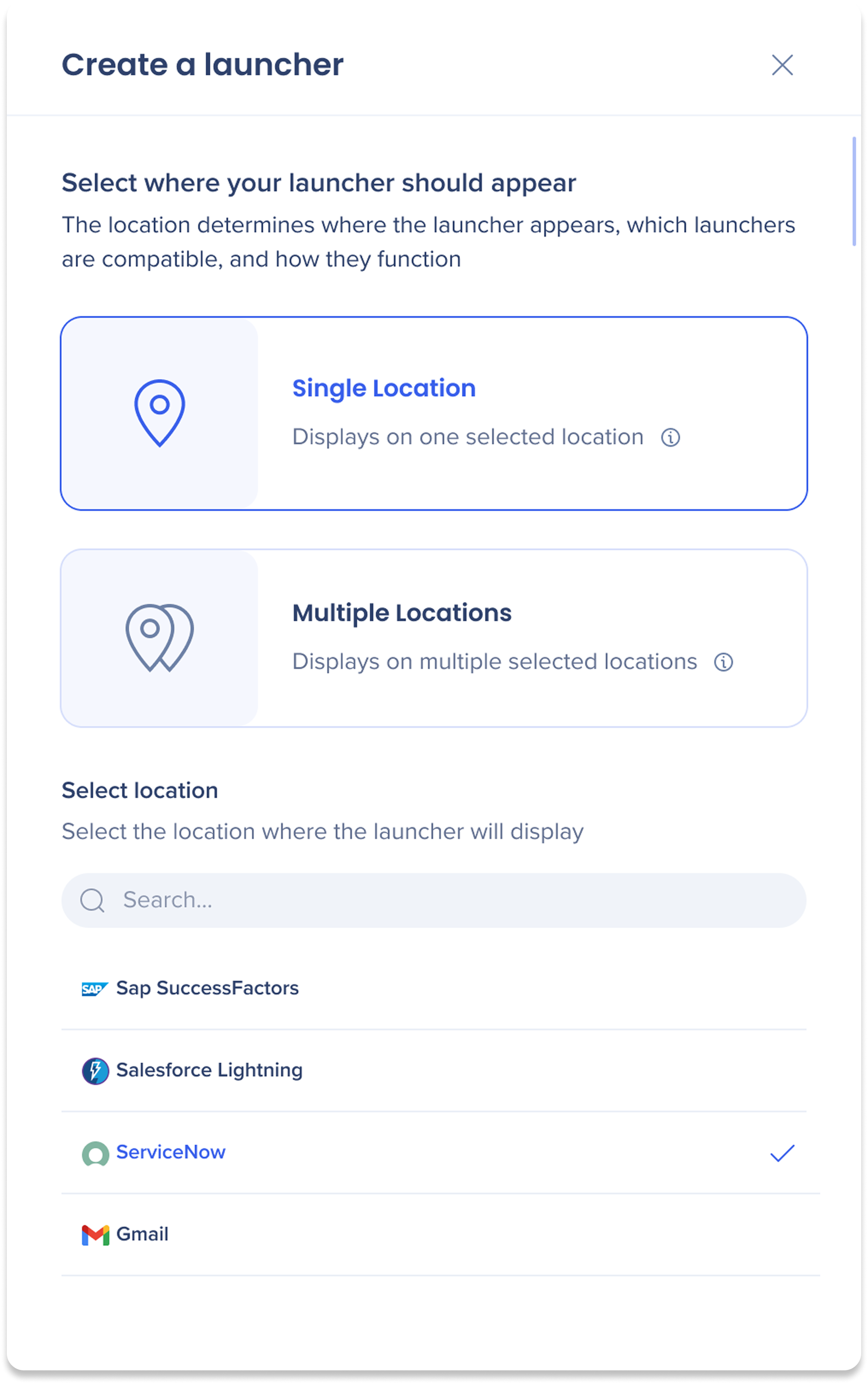
 Text source


 Menu tree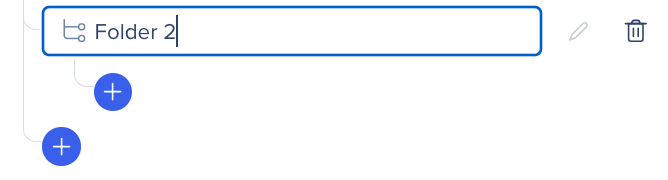
 Text source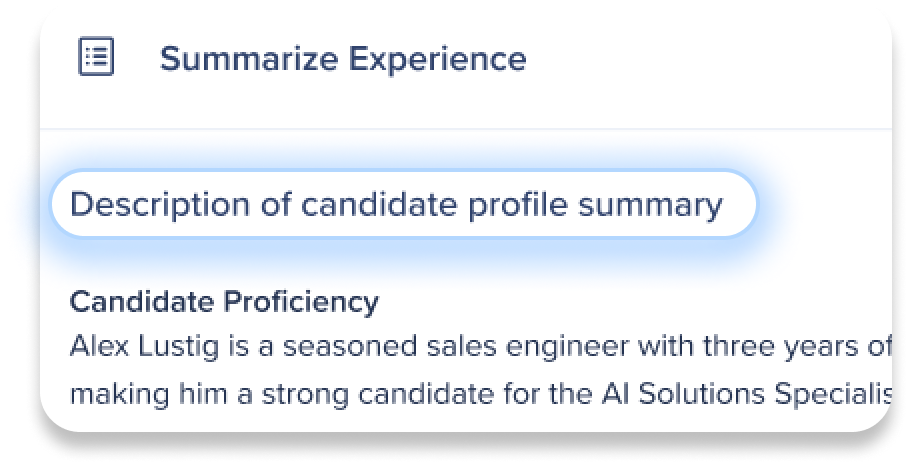
 Ensure your launcher appears in the correct location and situation by managing display conditions and locations.