Brief Overview
SmartTips are advanced tooltips that help your users understand your website or product. Use SmartTips to add helpful guidance to confusing areas, verify that users are filling out forms correctly, or provide AI-powered suggestions that improve input quality in real time.
SmartTips are created in the editor. Individual SmartTips are created within a set — a group of SmartTips that appear on the same form or page. SmartTips can be used instead of or in addition to Smart Walk-Thrus. AI SmartTips can also be created directly from the console using UI Intelligence.
AI SmartTips
SmartTips: Getting Started Guide
🎓 Digital Adoption Institute
How It Works
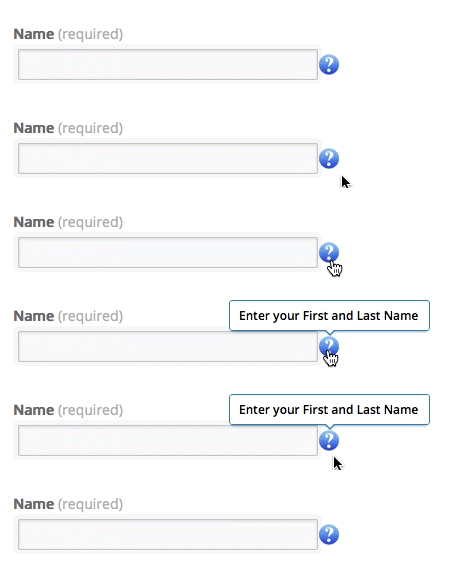
SmartTips can display tooltips either on an icon or directly over the selected element.
Guidance SmartTips
A guidance SmartTip only displays a message to the user. Guidance SmartTip messages appear when you hover over the icon or if you display the message on the element then it appears when you hover or focus on (click or tap into) the element. This message can be displayed either on the anchored element or the SmartTip icon.
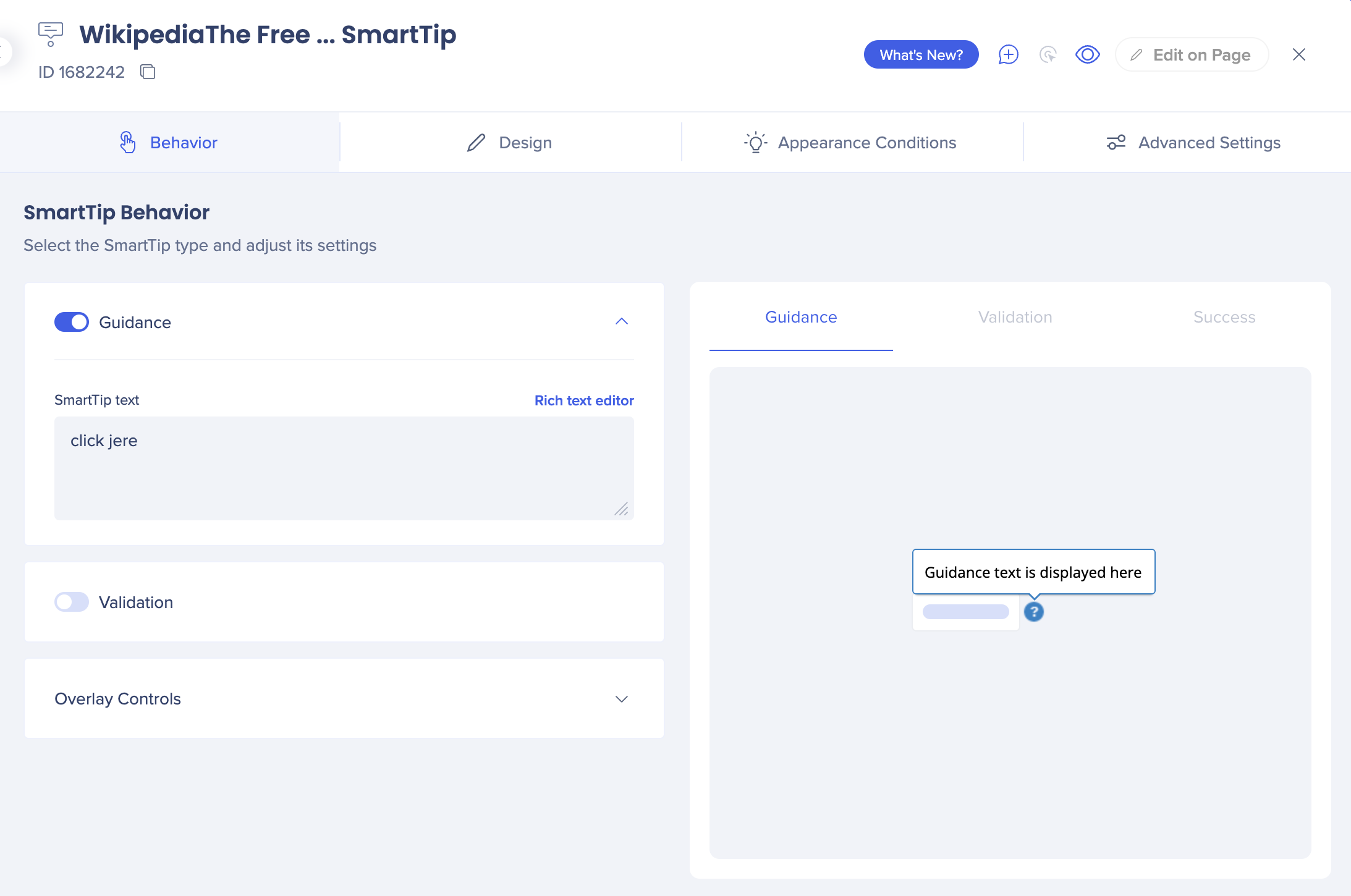
Using the Behavior tab, you can configure these settings and access the Rich text editor to customize the design of the SmartTip.
Validation SmartTips
Appear when a user focuses out (clicks or tabs out) of a field and the input is incorrect (the validation rule evaluates to false), providing real-time feedback before form submission.
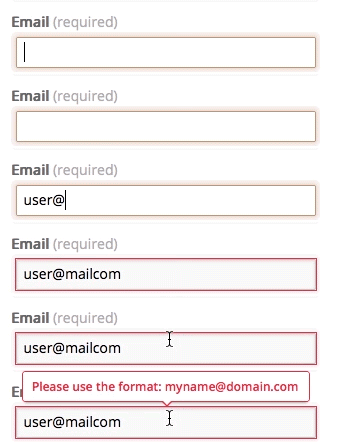
When using both Guidance and Validation on the same field, the guidance message is placed over an icon and the validation message appears over the selected element.
Validation SmartTips
For a step-by-step guide on creating SmartTips:
SmartTips: Getting Started Guide
AI SmartTips
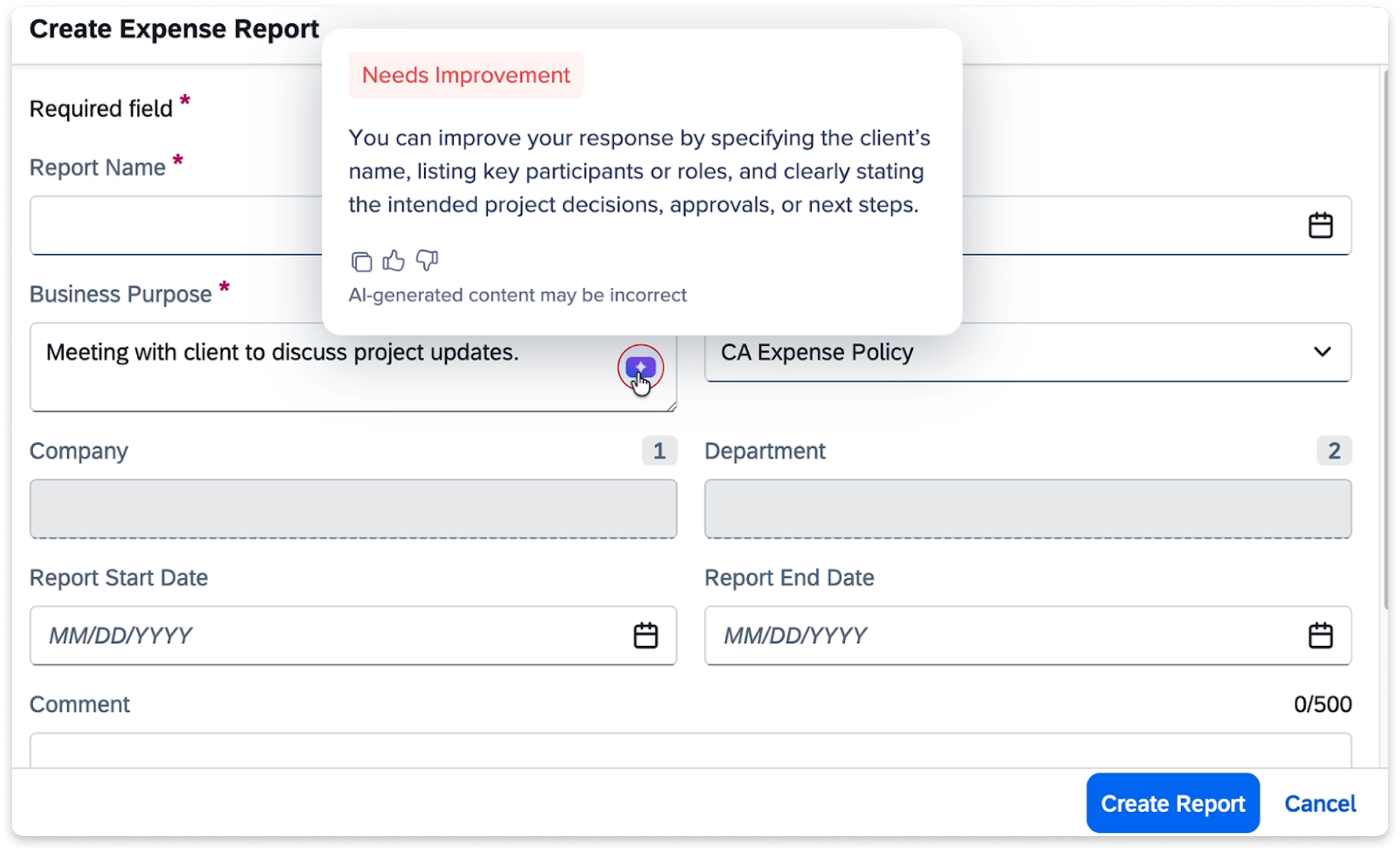
Evaluate the user's input when they exit the field and display a color-coded indicator: green when the input meets the validation rule, red when it needs improvement. When the input is red, the AI generates a suggestion to help the user improve their entry. AI SmartTip is now the default SmartTip type for all eligible customers — when you open the capture popover to add a new SmartTip, it defaults to AI SmartTip.
AI SmartTips
Note
If you prefer not to use AI SmartTips, you can switch the type at any time during capture. To disable the feature entirely, contact your CSM or WalkMe Support.
Sets
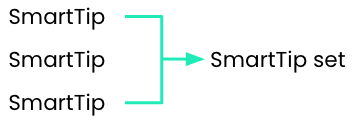
A set is a group of related SmartTips. Much like Walk-Thru steps, SmartTips are created as a group within a set. No single SmartTip can be independent of a set just like no single step can exist independent of a Walk-Thru. Your first step when creating SmartTips is to create the set in which the related SmartTips will be grouped.
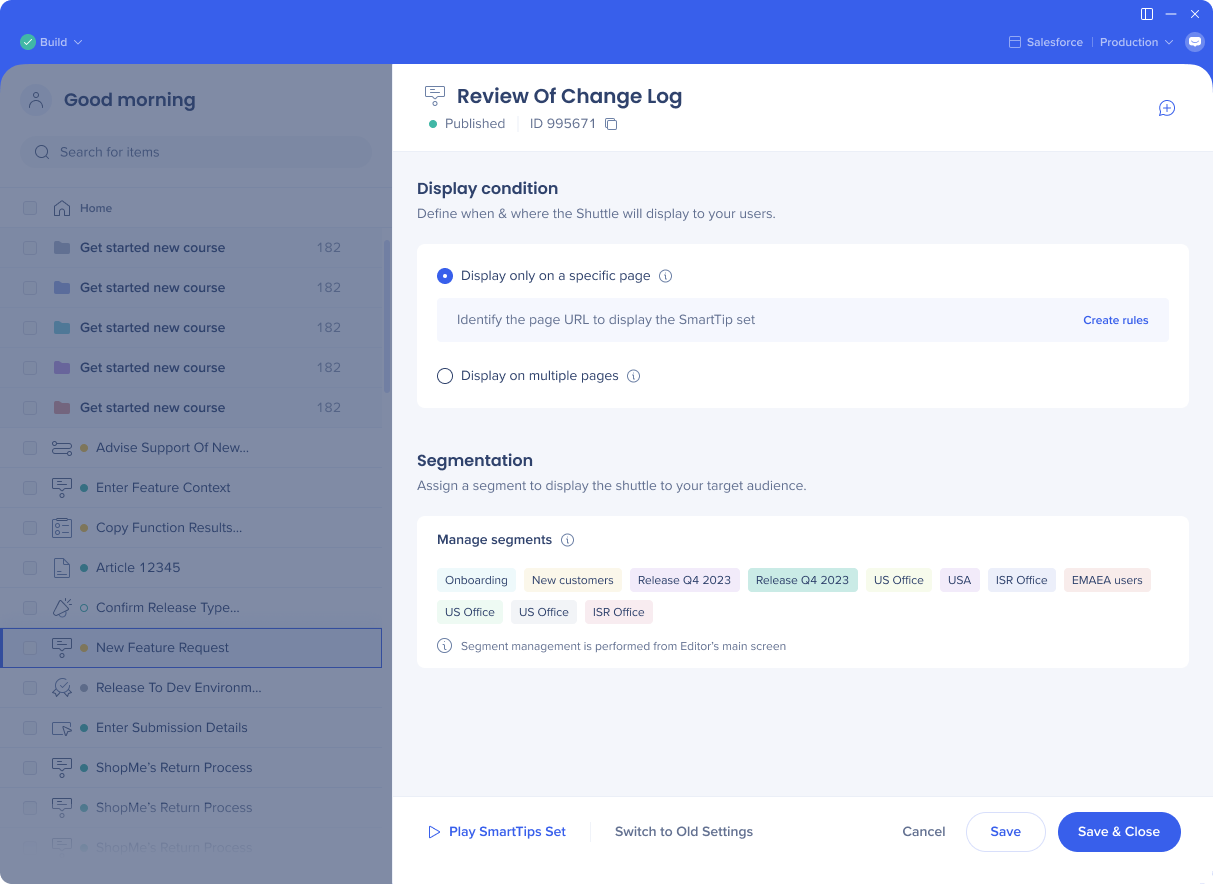
Settings of a Set
When creating a set, you will first be prompted to determine where this set will play: on a specific page or on multiple pages.
- Display only on a specific page requires using the rule engine to define the page (most commonly used is the URL rule type). Defining a specific page, maximizes performance.
Note
Please refrain from using on-screen element in the set conditions. Those are evaluated on page load and will cause the SmartTip to not appear on an SPA system. Place all on-screen element conditions in the SmartTip display rules.
- Display on multiple pages will play the set on all pages, you will not need to create a rule.
Segmentation Settings
Before displaying SmartTips, WalkMe checks the set's segmentation rules to see if the rule is true. If it is, WalkMe simultaneously runs all the SmartTips within the set.
Add the set to a segment to target a specific audience. For a form that applies to both admins and sales, apply both global segments to the Smart-Tip set.
You can add your segments from the editor.
Segmentation
Notes
Click on the + Add Note icon in the upper right corner to create notes.
Notes can be used to collaborate with team members in the editor and will not appear to your users.
Some examples for notes use cases are:
- Leave yourself a reminder of an action to do later on an item
- Leave a comment for your colleague
- Explain in your own words what you built and why
Tip Tuesday video
Global Customization
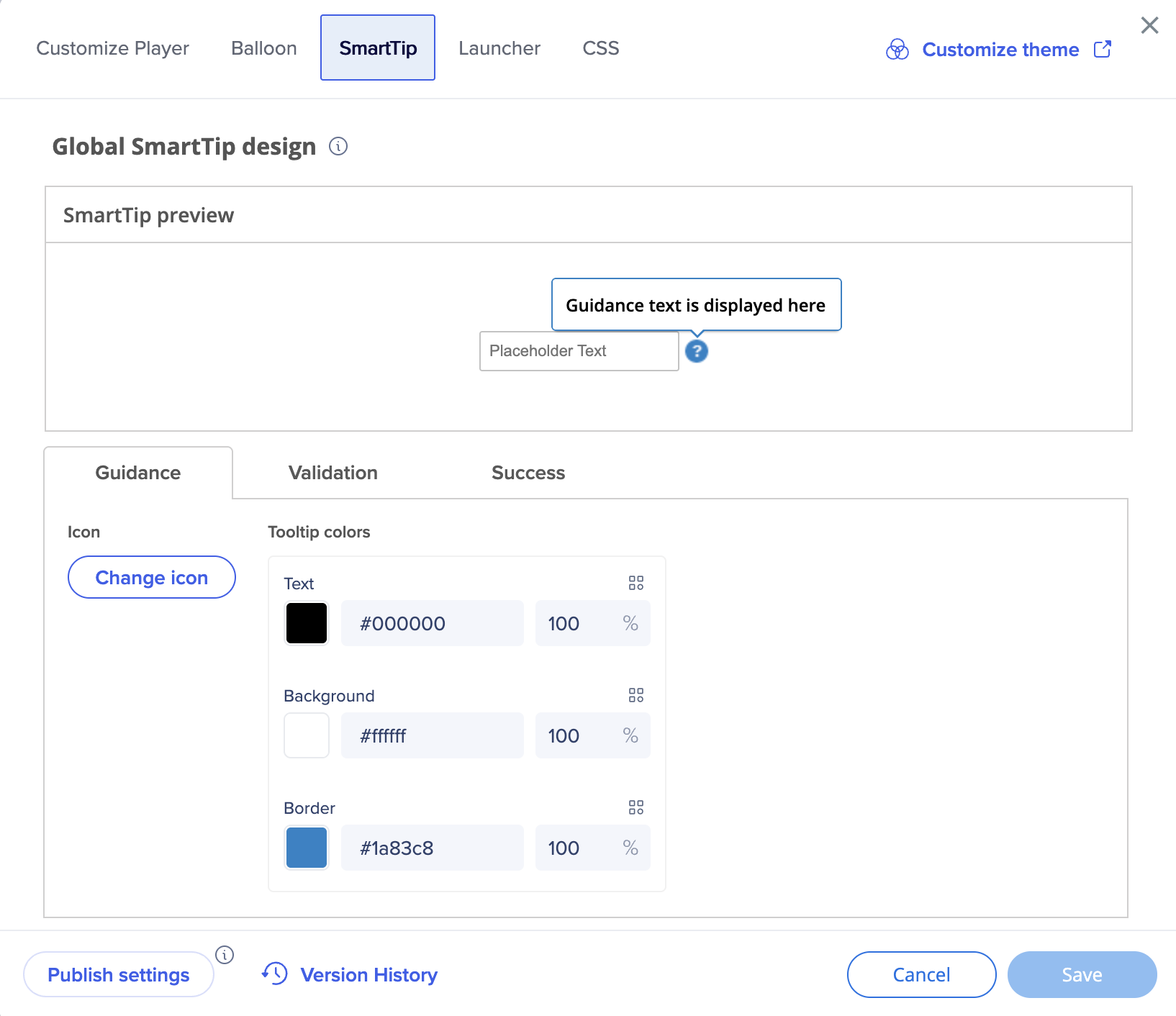
Global customization enables you to change the design for all SmartTips, without the need to customize individual SmartTips as they are being created. Using global customization keeps a consistent look and feel for all SmartTips.
The best practice is to set one style for error tooltips to keep uniformity within the platform. Global customization does not apply retroactively, and will only affect SmartTips created after the design is saved.
To access the global settings:
- In the editor, select Settings
- Select Customize content style
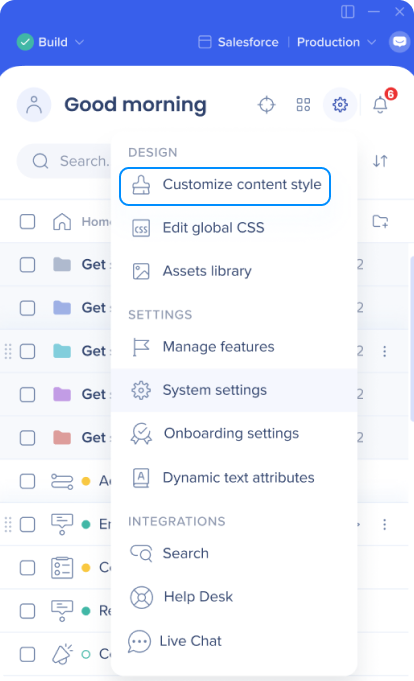
- Go to the SmartTip tab
You can override global color, text, and icon styling for guidance SmartTips in the SmartTip settings. This is because there are different use cases for guidance SmartTips and you may not always want the same style.
Tip
Validation SmartTips can only use the global default style and cannot be individually customized.
Publishing
When you are ready to publish your SmartTips, select the SmartTip set and then Publish.
Note
Publishing a Set will publish all the SmartTips within that set
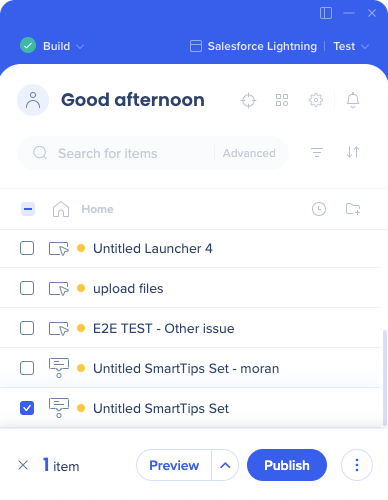
If you would prefer not to publish one or more of the SmartTips in your set, you can disable them by opening the Options menu next the the SmartTip and selecting Disable SmartTip.
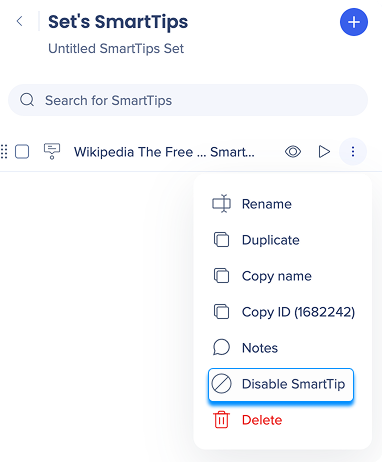
Similarly, individual SmartTips cannot be archived, only whole sets. To retire an individual SmartTip, disable it from the Options menu.
SmartTips not showing?
If none of the SmartTips in the set are showing:
- Check the set's page display rules
- Check the set's segmentation rules
If individual SmartTips aren't showing:
- Check the SmartTip's display rule; both the display rule AND the set segmentation must be true for the SmartTip to show.
- Try recapturing your element If a Validation SmartTip is not appearing and check the validation rule. When the rule evaluates as true, the validation message will display.
If your SmartTips still aren't showing, contact Support.
Technical Notes
Disable AI SmartTips
If you prefer not to use AI SmartTips, you can select SmartTip from the SmartTip type dropdown at any time during capture. To disable the feature entirely, contact your CSM or WalkMe Support.
SAP users
SAP users will have to enabled AI on their account and sign the WalkMe AI terms and conditions.


