Brief Overview
The system settings tab serves as a central hub for each account and its connected systems, giving streamlined management and single-login access to all associated systems. Administrators can create and configure systems within each account. Every system is equipped with a unique JavaScript snippet that facilitates the deployment and distribution of its content.
You can manage existing systems, specifying environments where WalkMe should be active, configuring URLs for WalkMe loading, and assigning user access to particular systems.
Access
To access Systems Settings in the console:
- Open the WalkMe Console:
- Select Admin
- In the Systems Managements page, select a system
- From Systems Overview, select the System Settings tab
How It Works
The System Settings tab now houses a new heirarchy of system capabilities for you to be able to manage aspects of your system. 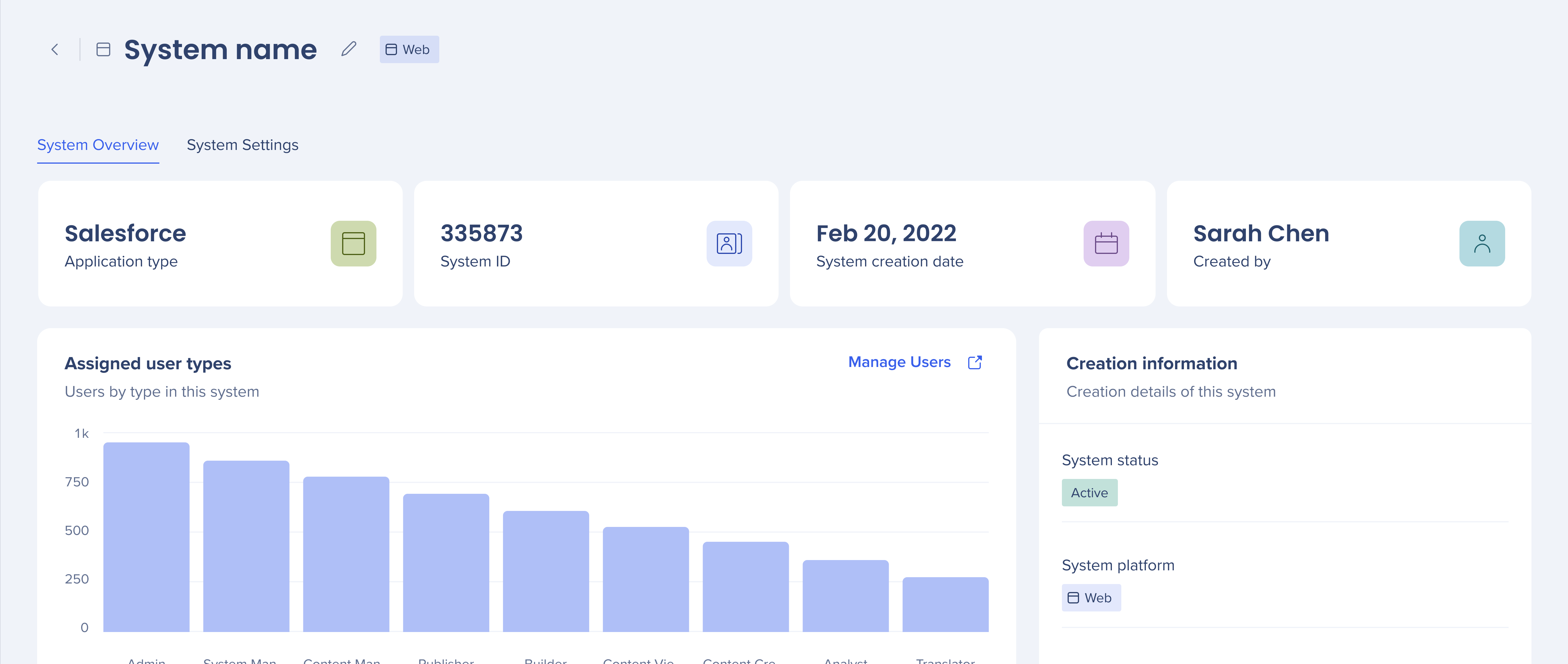
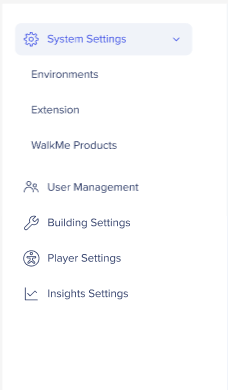
- System Settings
- Users Management
- Building Settings
- Player Settings
- Insights Settings
System Settings
Environments
The Environments tab lets you set up and manage the deployment environments for your system. Two default environments — Production and Test — are created automatically and can't be renamed or deleted. You can create custom environments and copy their deployment snippets for use in your build.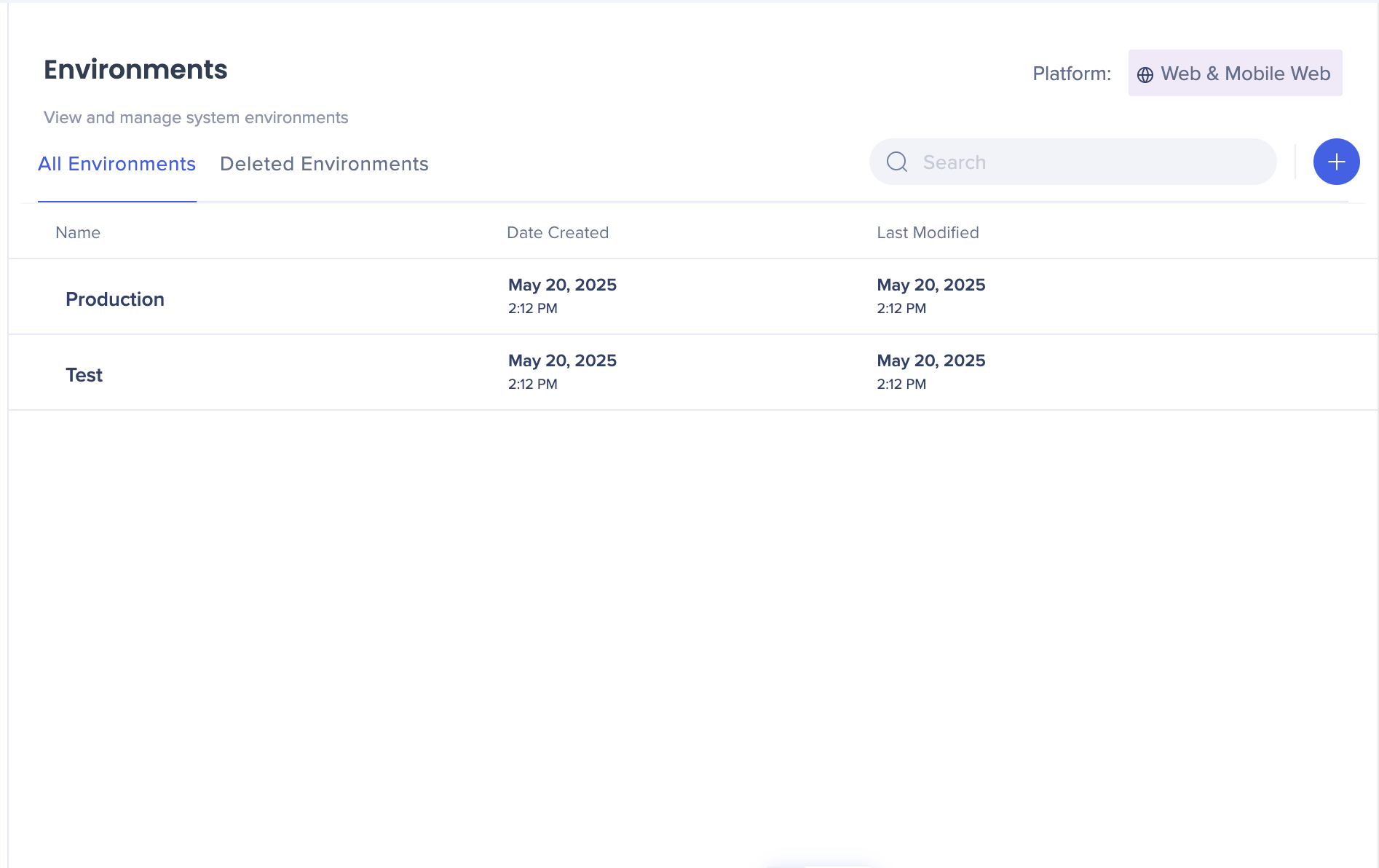
System Environments
Extension
This lets you configure the URLs your extension uses per environment. Each account includes one extension automatically. New systems are added to it but remain inactive by default.
Extension in Admin Center
WalkMe Products

View and manage your WalkMe product entitlements for a specific system.
WalkMe Products
Users Management
View and manage the users and groups assigned to your system. Users can be assigned to groups, and roles apply across all systems — not per system.
System Users Management
Building Settings

Building Setup
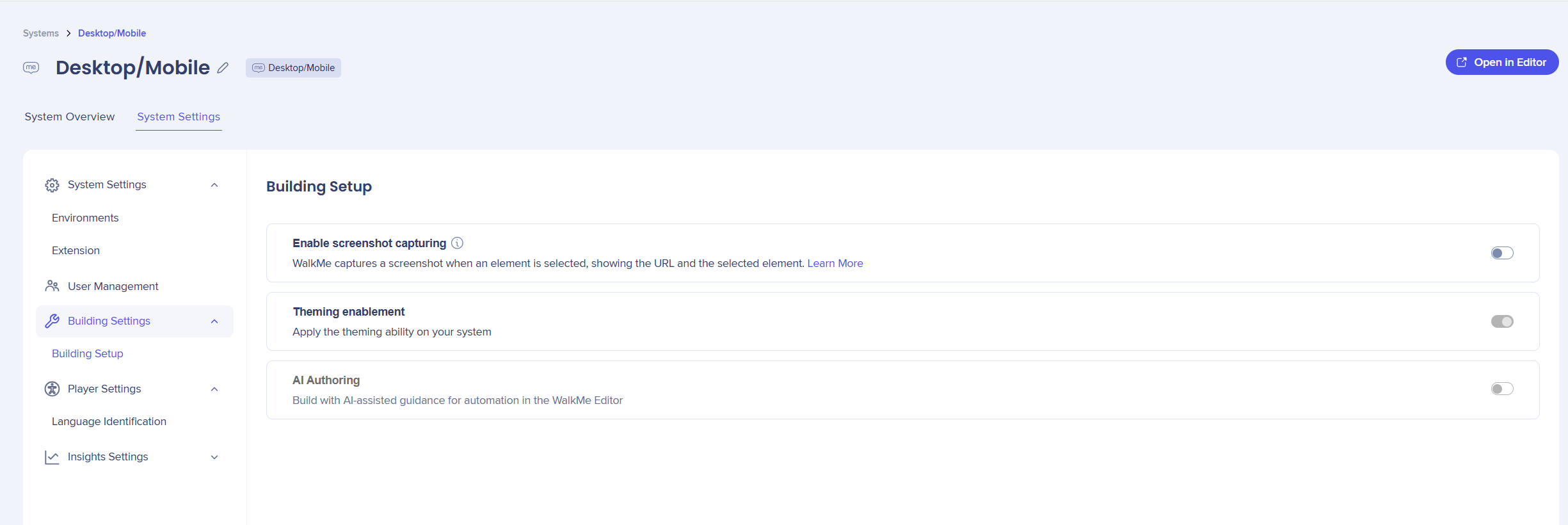
- Turn on Enable screenshot capturing to save a screenshot each time an element is captured for a step, rule, SmartTip, or launcher
- The screenshot will include the element highlighted by the element selector
- Select Blur the screenshots if you want the screenshots to be blurred
Screenshots
- Turn on Theming enablement to enable theming for the system
Theming
- Turn on AI Authoring to enable you to create and modify WalkMe content by describing what you want in plain language, instead of building it manually
AI Authoring
Player Settings
Accessibility
Accessibility Settings
Language Identification
The Language Idnetification tab lets you select how WalkMe identifies the language of your site. This determines which language version of your WalkMe content is shown to users.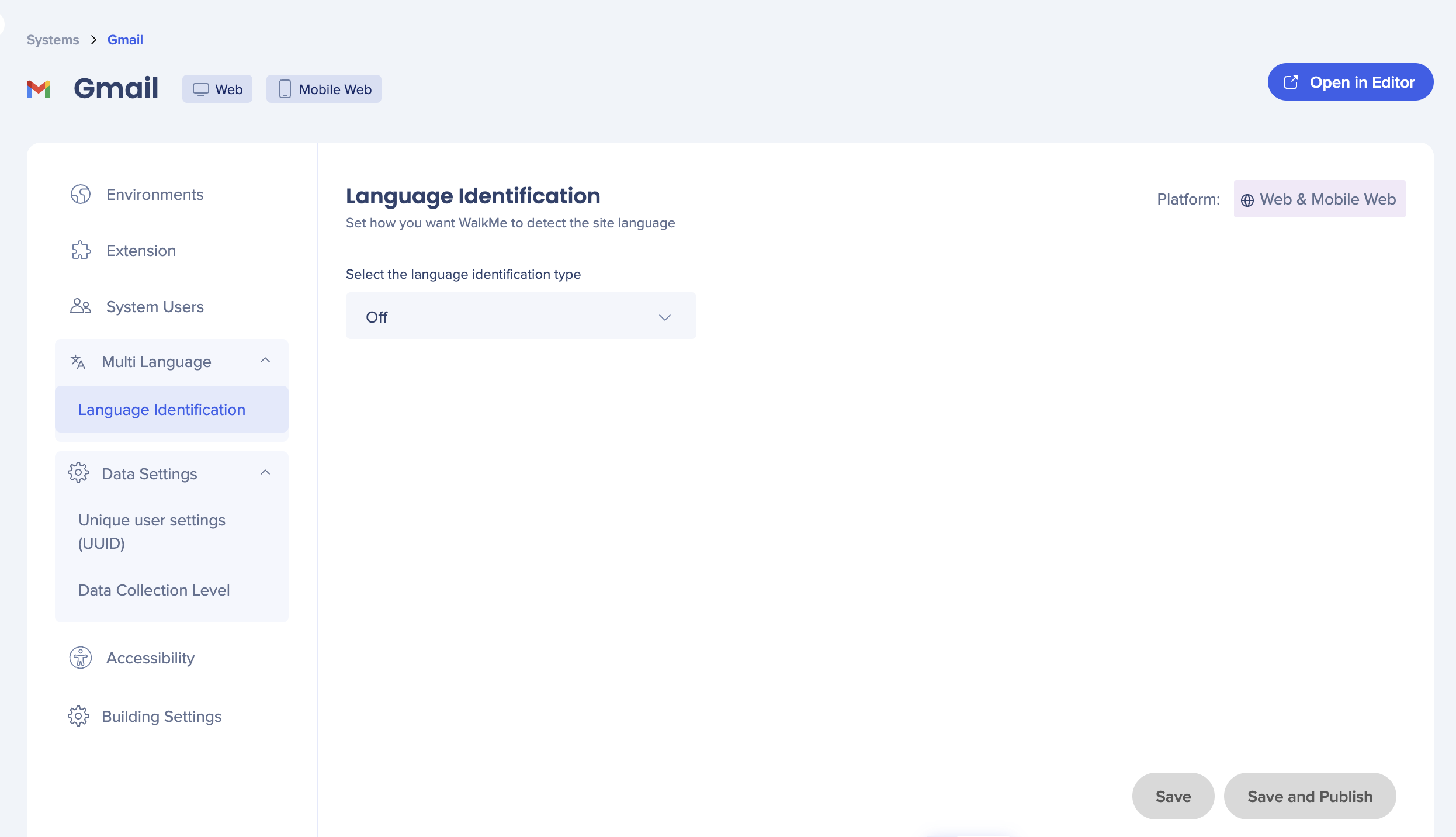
- Select how WalkMe detects the language of your site and displays the correct content to your users
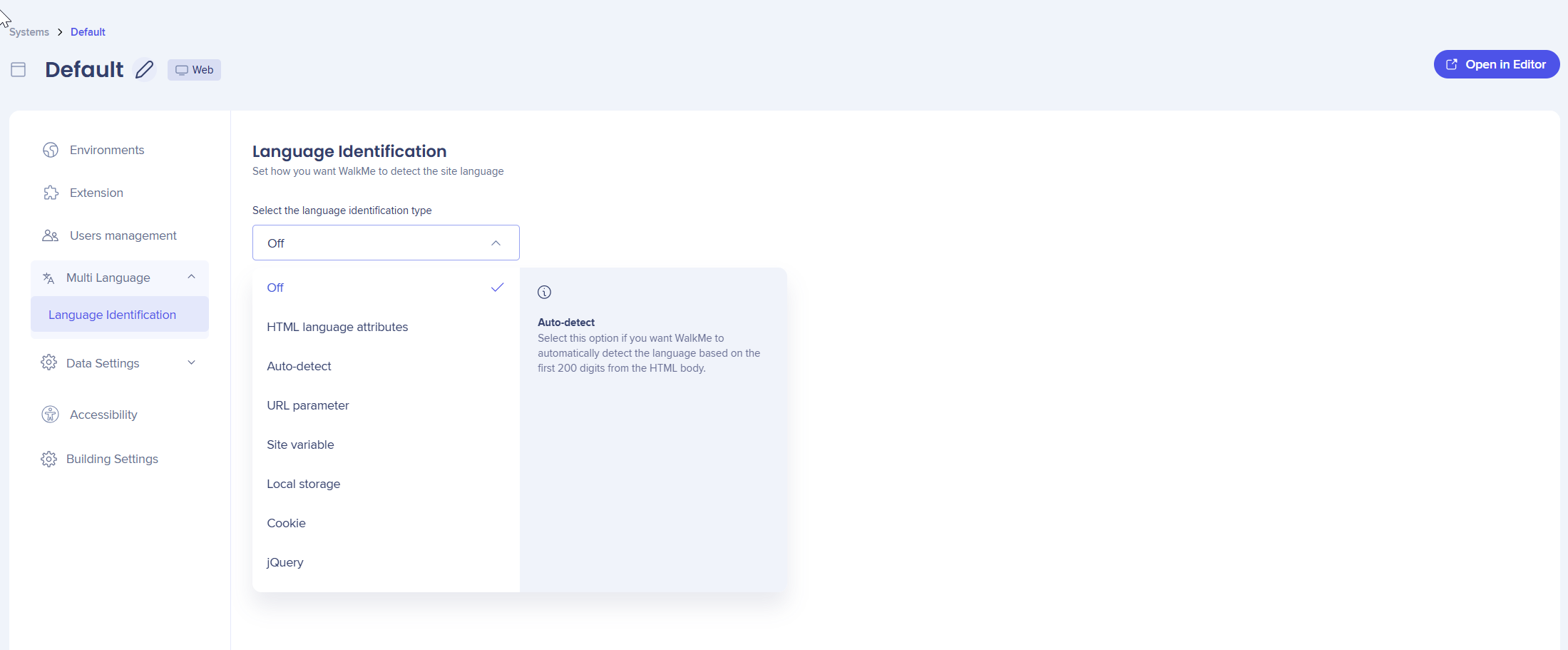
Set the site language detection method:
- Choose the method that matches your site setup
- Select Save
Lexicon

The Lexicon page lets DAP professionals upload application translation files directly into the Lexicon dictionary. Now available for Mobile Web.
Lexicon Translation Upload
Self-Healing
Enable Self-Healing on Smart Walk-Thrus for specific systems.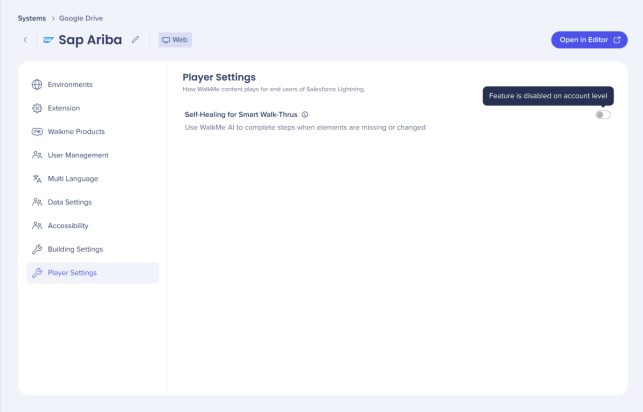
Insights Settings

In the WalkMe Admin Center, data settings are managed under the new Insights Settings tab from the Systems page. Here, you can configure various aspects related to data collection and management.
Insights Settings