Brief Overview
The Settings page in WalkMe Discovery provides users with a range of options to add integrations and configure data collection for their Discovery dashboards. Integrations serve as additional data sources for Discovery and increase the levels of insights. The WalkMe Extension identifies users and their activity. If IDP integration already exists via Admin Center, Discovery will leverage it automatically. CSVs can also be uploaded to enrich the users, departments, and licenses dashboards.
This article will expand on what the Settings page is and how to use it.
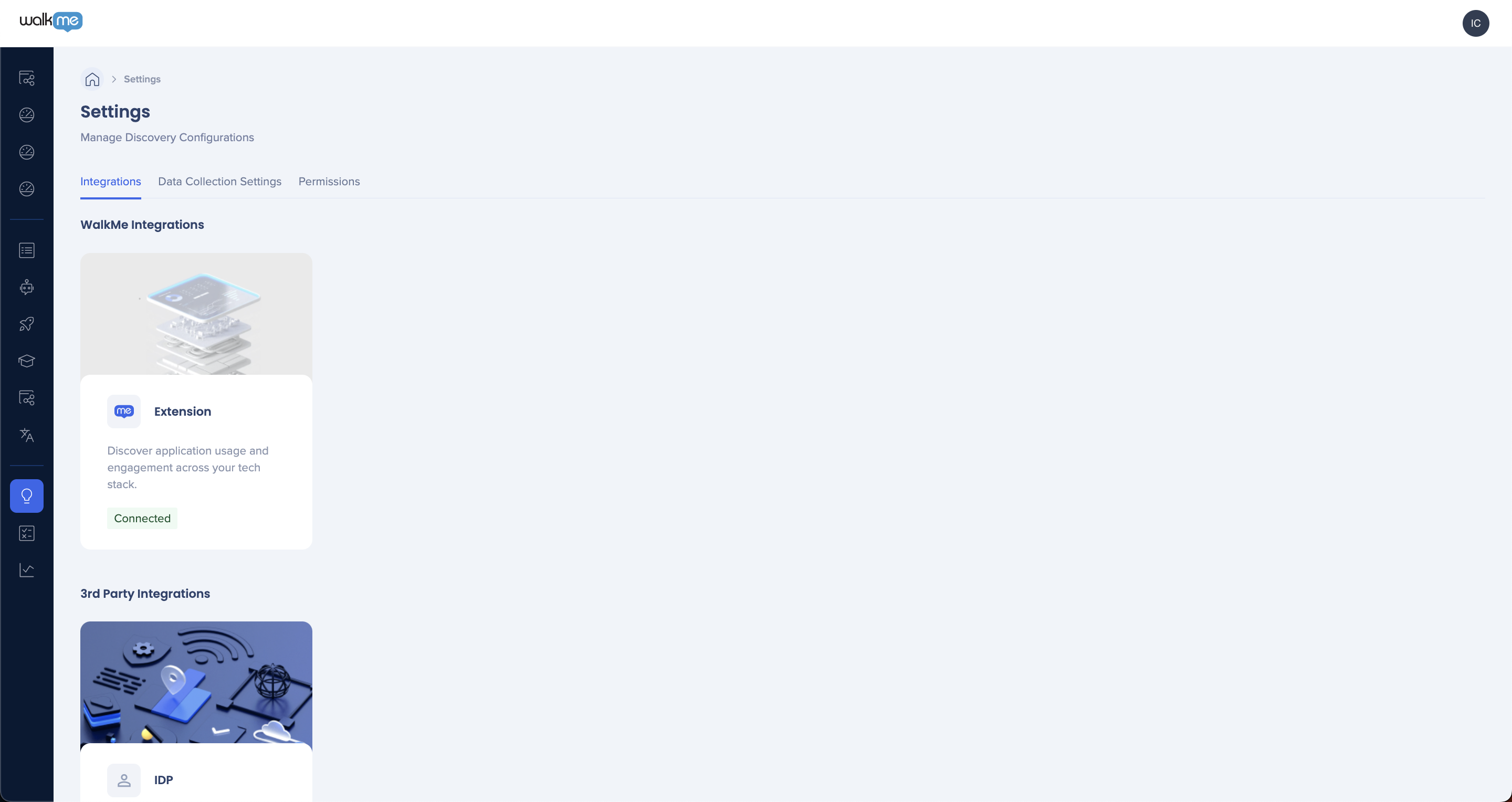
Get to Know
From here, you can manage Integrations, Data Collection Settings, Permissions and more. Let's go over the different features.
Integrations
The Settings page in Discovery offers a variety of integrations to enhance the accuracy and scope of the data collected. The WalkMe Extension integration collects user activity, enabling identification of end-users and their actions. Third-party integrations, such as IDP, offer more insights into employee info. Additionally, you can manually integrate their data by uploading CSV files with user details or relevant app IDs, app names, licenses count, and costs. This information is then aggregated with data collected by the Extension and displayed in the Users & Departments and Licenses Optimization Dashboards, respectively. By leveraging these integrations, you can gain deeper insights into their software usage and optimize their software expenses.
Extension
Using the WalkMe extension is required to gather data for Discovery, which provides valuable insights into user behavior by identifying end-users and their activity.
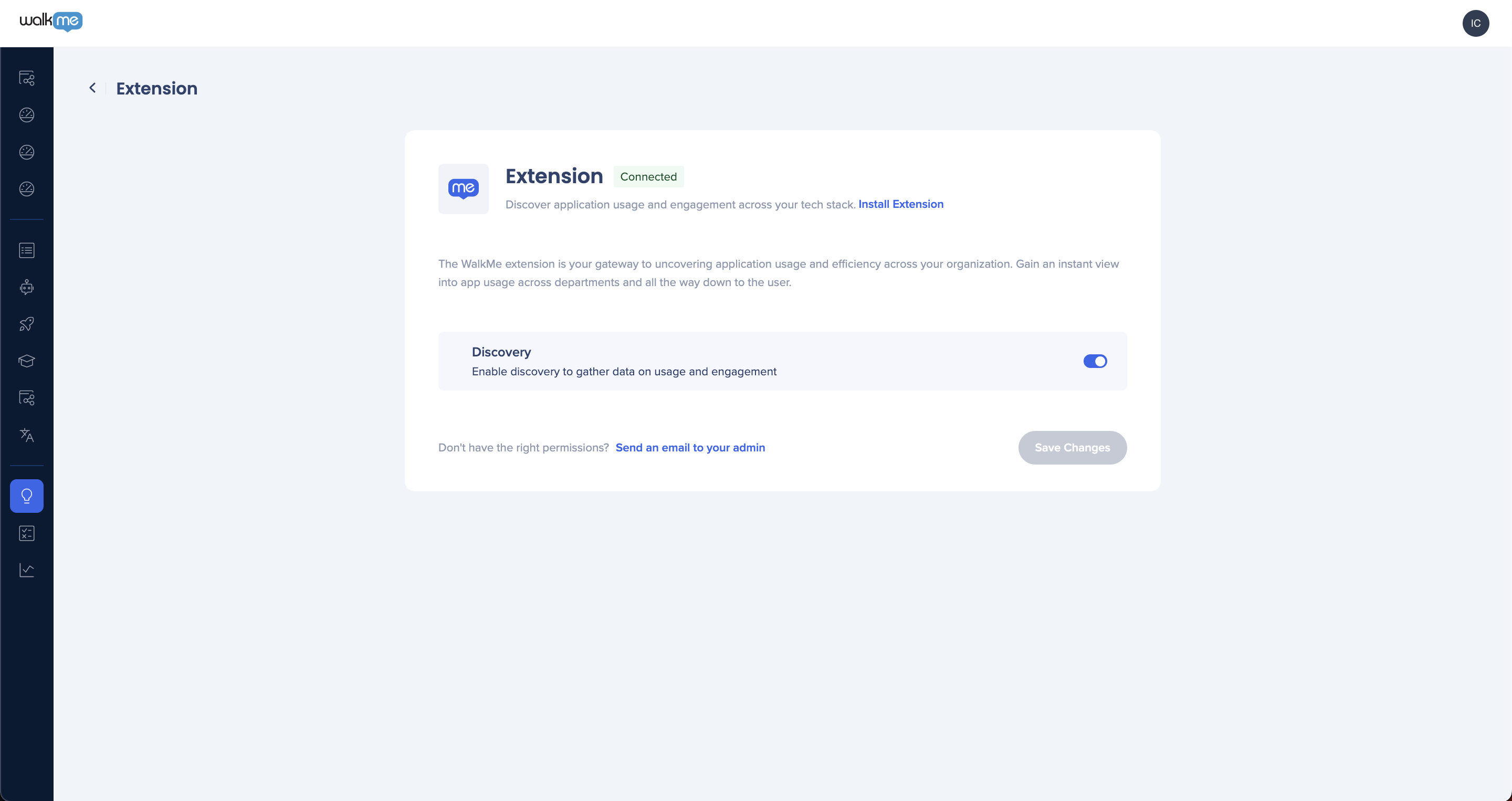
To enable data collection via the WalkMe extension:
- Go to the WalkMe Console -> Discovery -> Settings
- Click on the Extensions card
- Turn ON the toggle for Discovery
- Click Save Changes
3rd Party Integrations
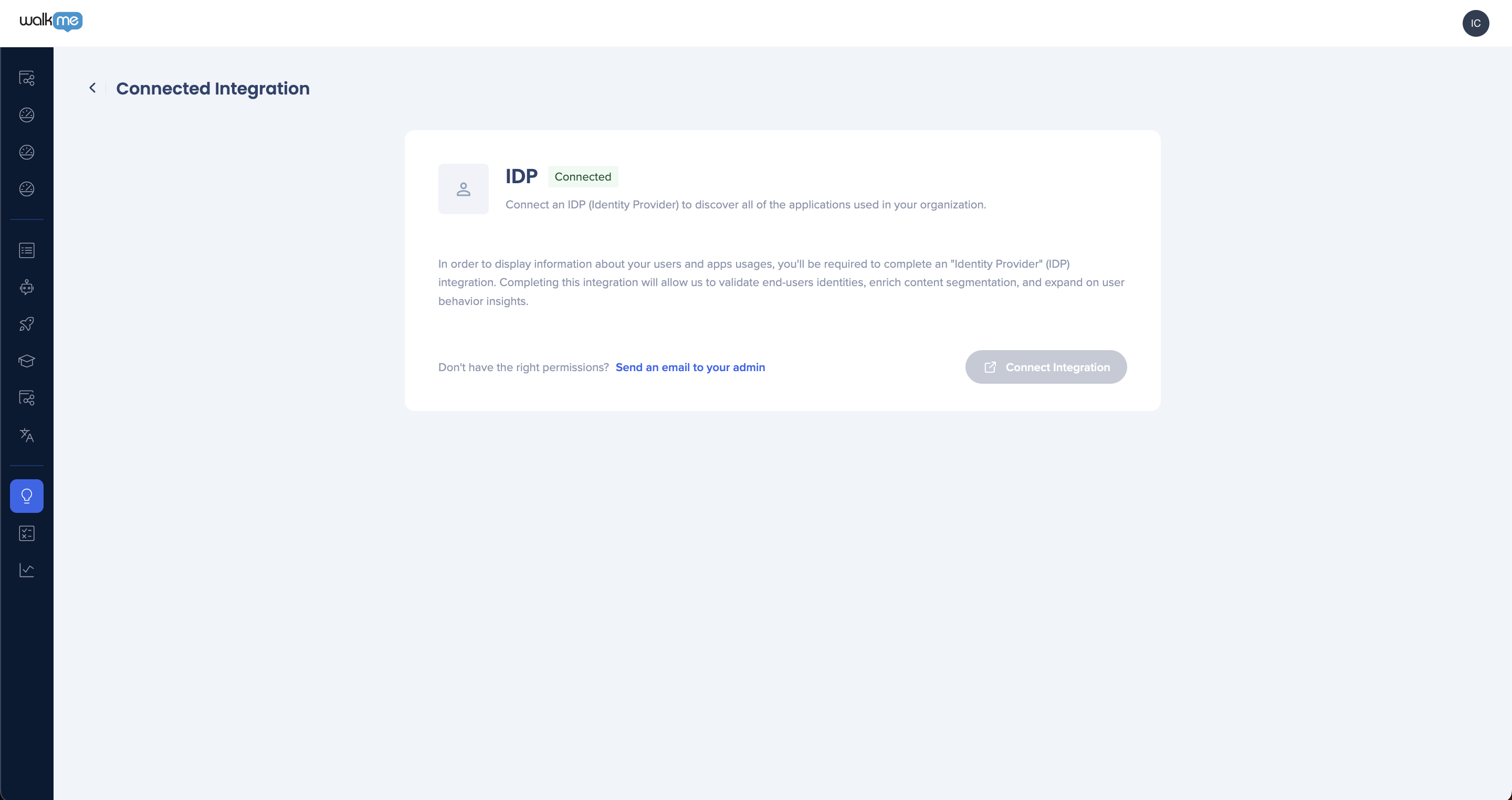
Discovery offers third-party integrations to validate end-users identities and expand on user level insights. The IDP integration can be configured via the Admin Center to authenticate users and enrich data with user attributes such as role, department, location, etc. Third-party integrations can enhance the accuracy of the data collected by Discovery and provide more insights for optimizing software usage.
Manual Integrations
Manual integrations allow you to add data to Discovery that may not be available through other integrations. You can manually upload information on end users and their roles, departments, and other details, as well as details on software licenses. This data is aggregated with data from the WalkMe Extension and other integrations to provide a more complete view of your organization's technology usage. In this section, we'll cover the two types of manual integrations: User Details and Licenses.
User Details
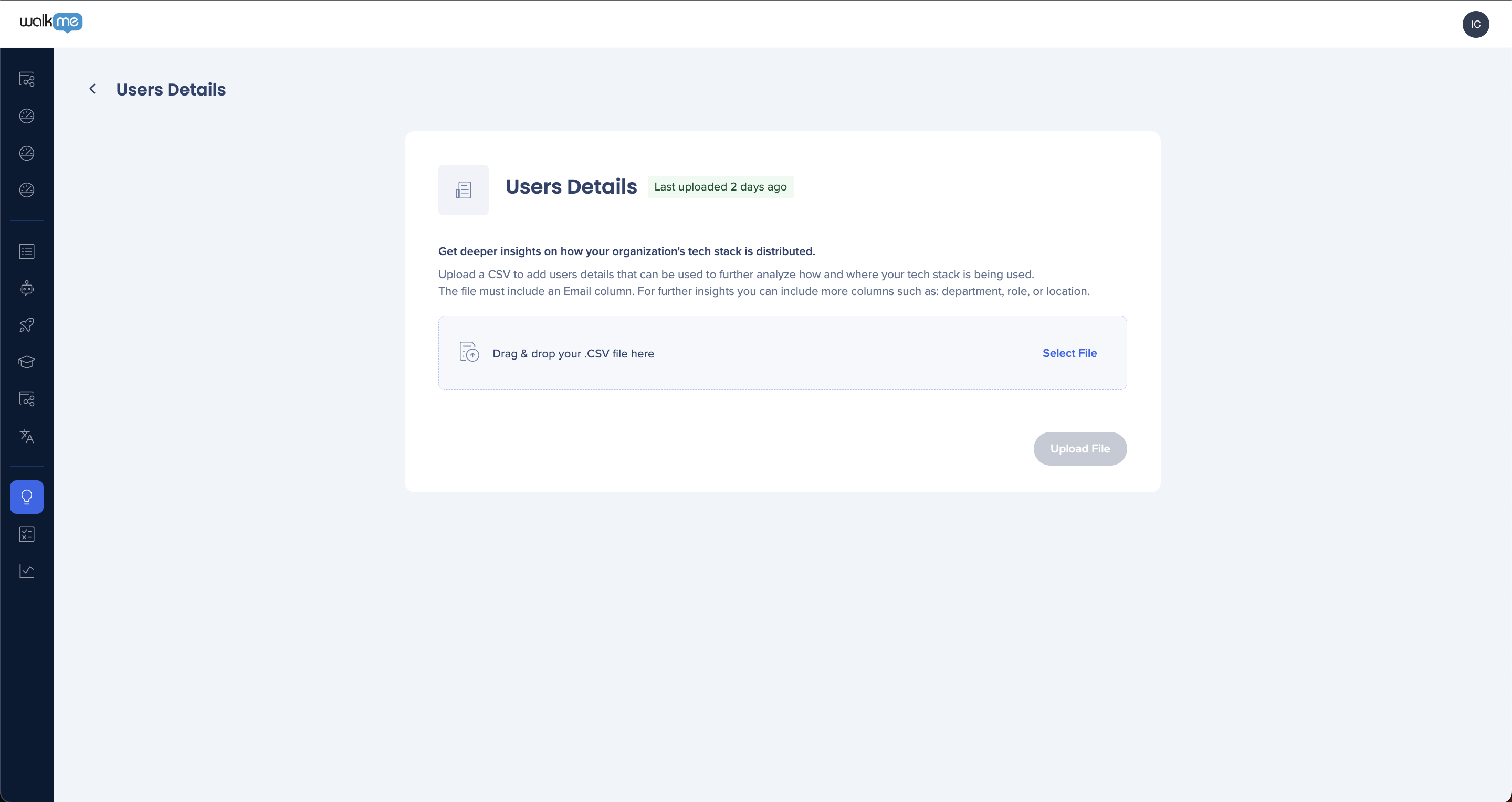
The Users Details integration allows you to upload a CSV file with user information such as email, role, title, department, etc. This information is then combined with the data collected by the Extension to provide more detailed insights into user behavior in the Users & Departments Dashboard. This integration can be helpful for organizations looking to better understand user engagement and adoption within specific departments or roles.
Licenses
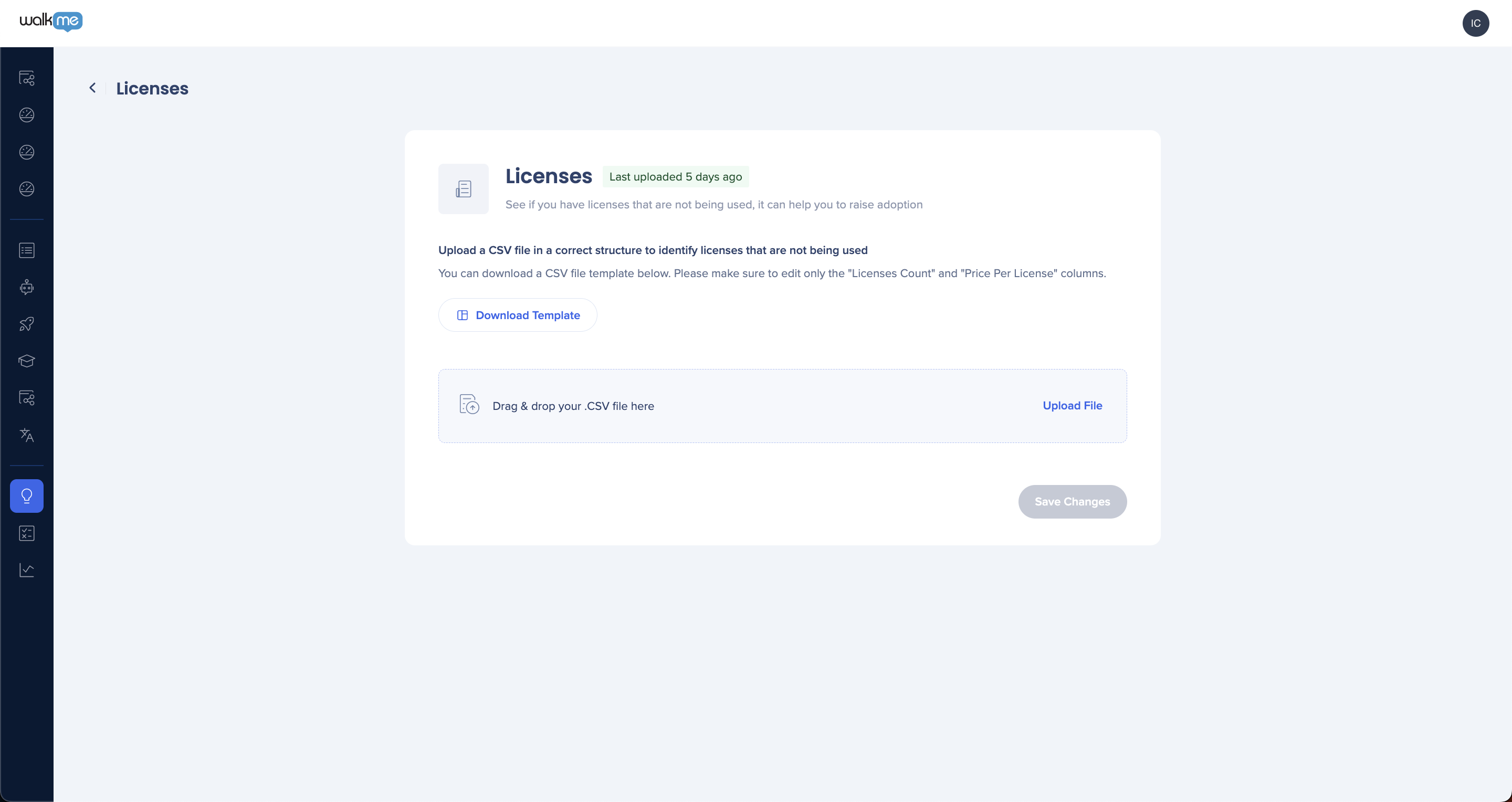
The Licenses integration lets you to upload a CSV file containing relevant app IDs, app names, license counts, and license costs. This information is then aggregated with the data collected by the Extension and displayed in the Licenses Optimization Dashboard. This integration can provide valuable insights into software usage and expenses, allowing organizations to optimize their software licenses and potentially reduce costs.
Data Collection Settings
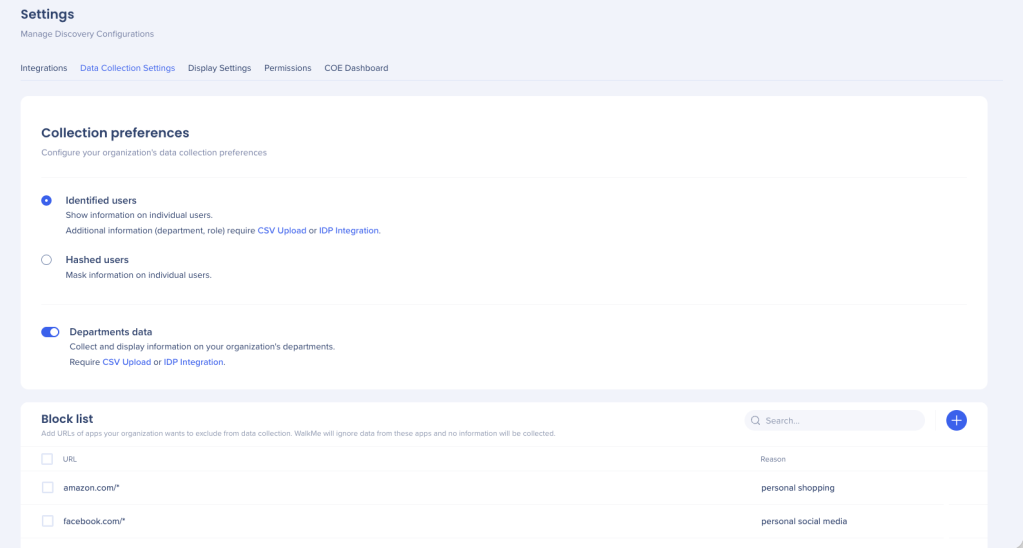
The Data collection settings tab enables you to fine-tune how you collect data for your dashboards. In this tab, you can configure settings related to identifying and displaying user details, collecting and displaying department details, and more. By customizing these settings, you can get more accurate and relevant insights from your data. Let's dive into each of these settings in more detail.
User Settings
From the User settings, you can decide how user information is collected and displayed in the dashboards. By default, user activity is hashed to keep their details hidden. However, you can choose to identify users by uploading a CSV file with employee details or by integrating with IDP. This feature enables organizations to track user behavior and identify potential savings opportunities while respecting user privacy.
Departments Data
The Departments toggle in the Data Collection settings allows you to collect and display department details for the Discovery dashboards. By enabling this feature, you can filter the Apps Dashboard by departments and view the Departments Dashboard to see how departments are utilizing software and identify potential cost-saving opportunities. Enabling this feature requires the upload of an IDP or employee list CSV.
Block list
The block list allows you to define URLs which should be excluded from Discovery's data collection. Apps can be added to the block list from the Apps dashboard by clicking the three dots menu > Add to block list. Alternatively, URLs can be inputted directly in the block list. Leaving a reason for blocking an app is optional.
Display Settings
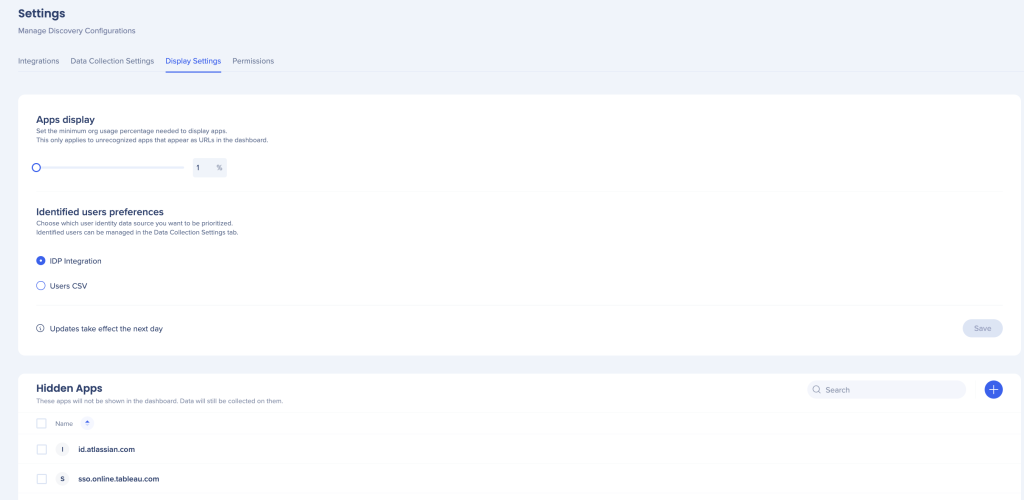
The display settings tab enables you to define what data is displayed in your dashboards. In this tab, you can configure settings related to minimum thresholds, data prioritization, and app visibility. By adjusting these settings you get a more personalized Discovery dashboard experience.
Apps display
All known applications display in the dashboard. Unknown apps appear as domains. This setting defines the minimum org usage percentage needed to display unknown apps in the dashboard. The default is 5%.
Identified users preferences
Augmenting user identification can be achieved via IDP or CSV upload. This setting allows you to choose which user identity data source to be prioritized. IDP is prioritized by default. This setting applies to all users.
Hidden Apps
As you review your dashboard you may feel that some apps are not relevant and can be removed from the dashboard. This setting allows you to hide apps while still collecting data for them. Apps can be added to the hide list from the Apps dashboard by clicking the three dots menu > Hide app. Alternatively, URLs can be inputted directly in the hide list.
Permissions
The Permission tab allows you to manage access to your organization's data by adding and removing users, as well as defining their roles and permissions. This tab is useful for teams that require different levels of access to Discovery data, such as administrators and analysts, and allows you to ensure that each user has the appropriate level of access to the data they need. In this tab, you can also view your own user information, including your role and permissions.
- For each user, choose which dashboards are accessible:
- Apps
- Licenses
- Users
- Departments
- Assign Discovery admin rights on a per-user basis, independently of the overall WalkMe admin role
Note
For new customers, the admin will be defined based on the first contact listed in Salesforce. For existing customers, upon Discovery activation all existing WalkMe admins will get Admin permissions to Discovery. Post-activation, admins must define additional permissions and/or add users from their teams.


