Brief Overview
The Survey Builder lets you create surveys directly in the WalkMe Console. You can start a survey from a blank canvas, generate one with AI based on your goals and audience, or import a survey you've already built in the Editor.
This article covers the full survey-building process: adding pages and questions, choosing from six question types, and configuring each question's settings. It also covers how to save and publish a survey, and how to distribute it to your audience by anonymous link, email, or SCIM.
WalkMe Surveys in the Console
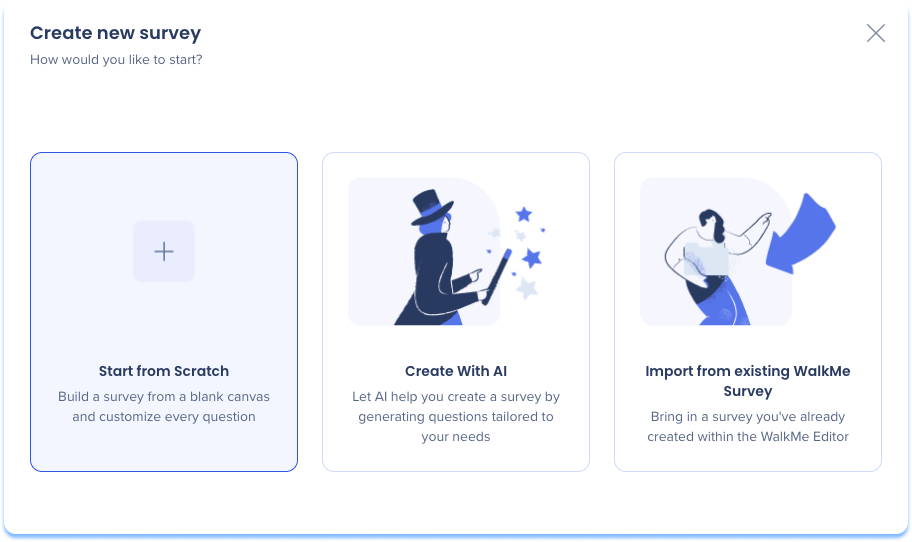
Create a Survey
There are three ways to create a survey in the Survey Builder page:
- Start from Scratch: Build a survey from a blank canvas and customize every question
- Create with AI: Generate a survey tailored to your needs
- Import from existing WalkMe Survey: Bring in a survey you already created in the WalkMe Editor
Start from scratch
- Select + Create Survey
- Select Start from Scratch
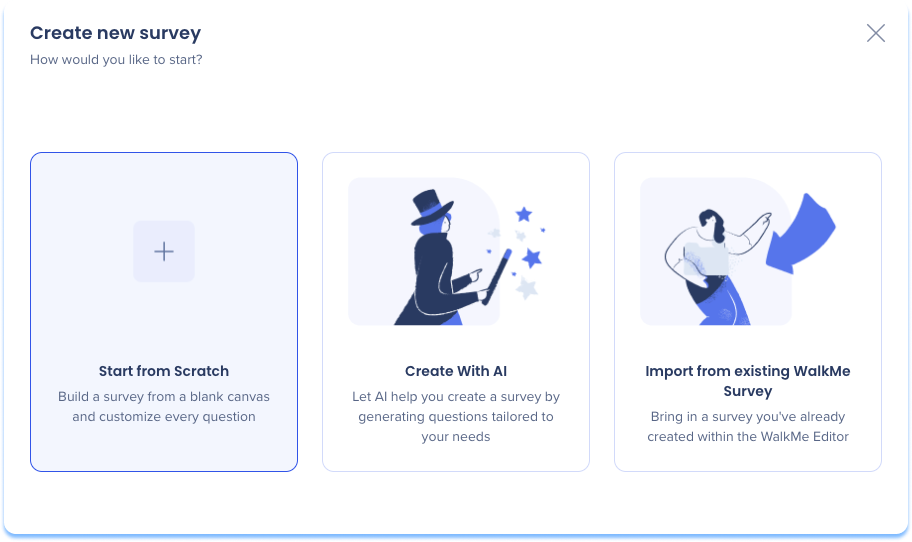
The default structure includes a welcome message, a question page, and a thank you message. Edit, add, or remove pages and questions as needed.
Create with AI
- Select + Create Survey
- Select Create with AI
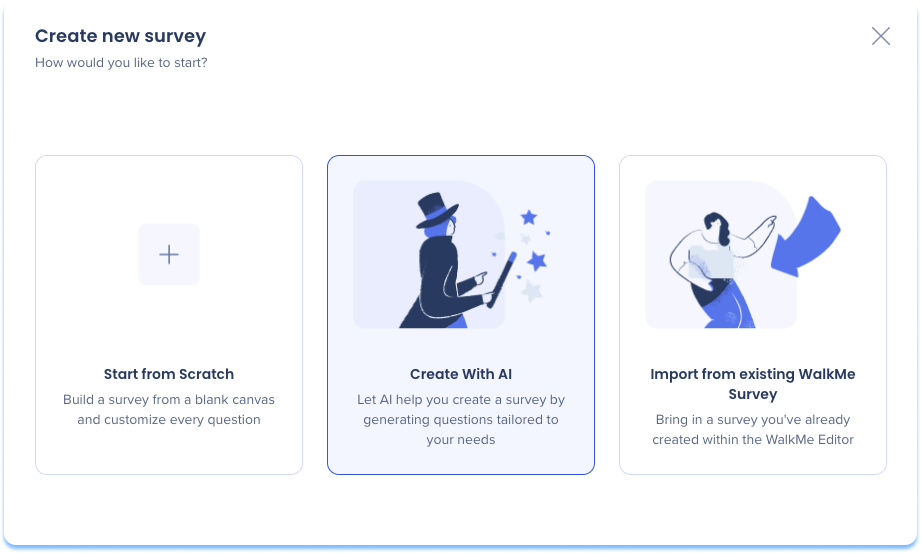
- Under Respondent Audience & Goals, define the audience and the survey's subject and goals, then select Next
- Under Review, review the generated survey and select Use this Survey
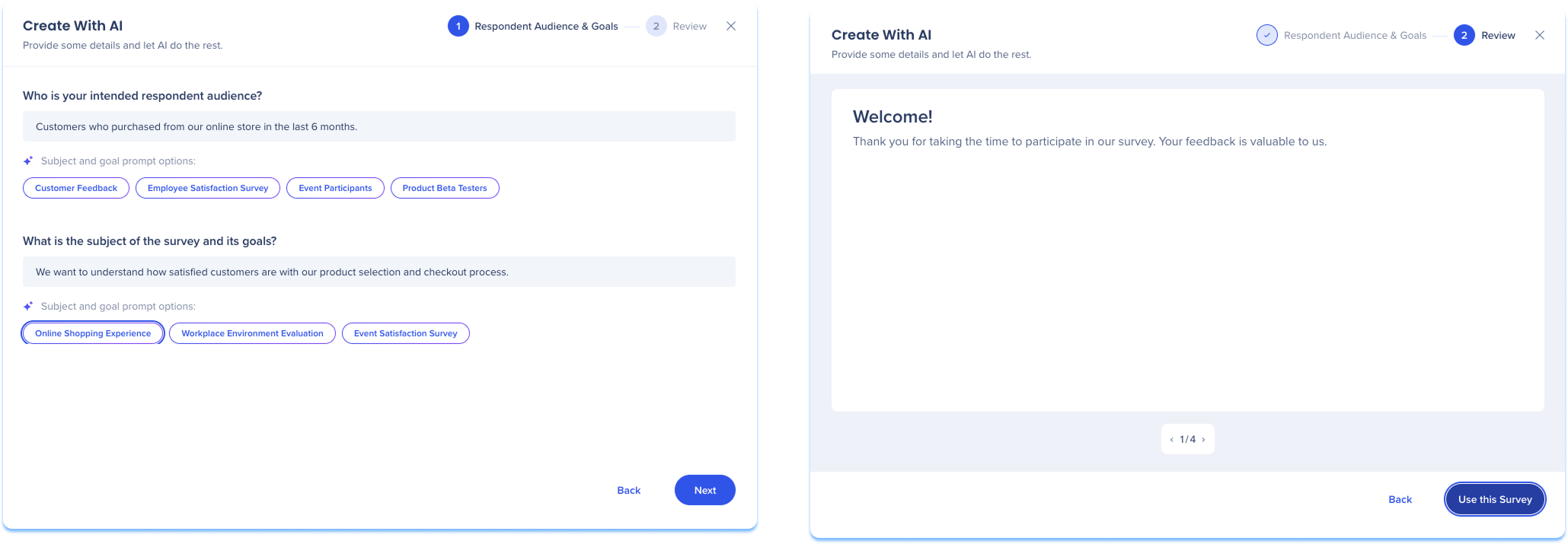
The generated survey can be edited before it's published or distributed.
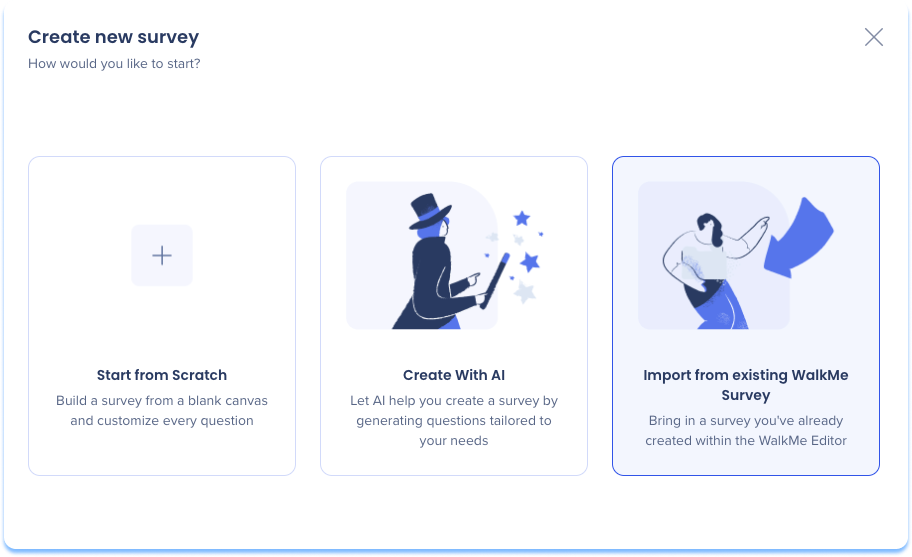
Import from existing WalkMe Survey
- Select + Create Survey
- Select Import from existing WalkMe Survey
- In the Import Survey popup, select the system and survey to import
- Select Continue to Settings
- Choose the survey structure:
- Standard: All questions display on one page
- One Question Per Page: Each question displays on its own page
- Select Import
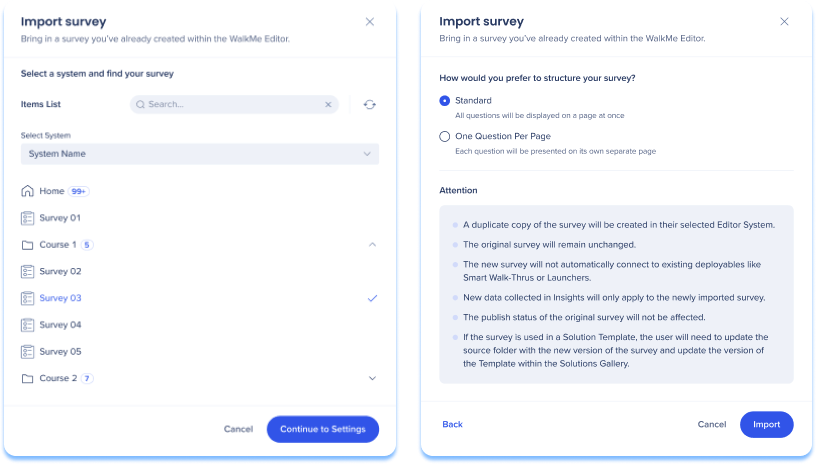
Importing duplicates the survey as a copy — the original remains unchanged.
Add and Manage Survey Content
Surveys are built from pages that contain questions or messages, which you can add, edit, and reorder as needed.
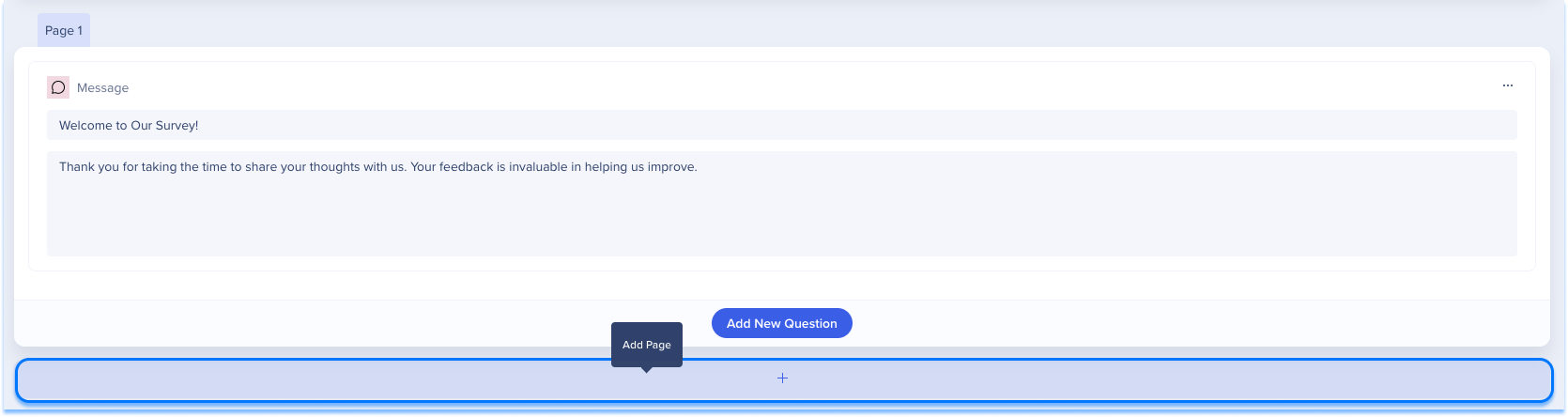
Add pages
Pages help structure your survey and control how questions are presented.
- Select Add Page
- Choose where the page appears in the survey
Question content
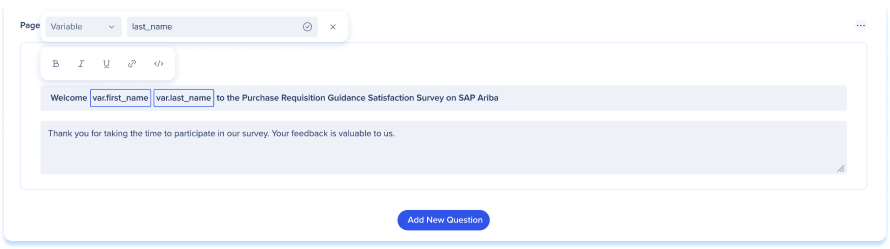
Use the rich text editor to format question titles and descriptions, including bold, italic, lists, and hyperlinks. You can also add dynamic text to personalize content using real user data.
To insert dynamic text:
- Select the Dynamic Text option in the toolbar
- Choose a data source:
- Variable: A specific variable identifier
- jQuery: A jQuery selector to pull data from the page
- Cookie: A specific cookie name
- Dynamic Text attributes: Pre-configured attributes from the attributes center
Dynamic text appears in a styled box to distinguish it from static text. Attributes are read-only within Surveys.
Dynamic Text Attributes
Question types
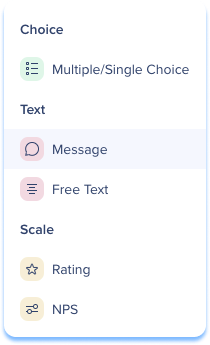
- Multiple/Single Choice: Respondents select one or more answers from a predefined list
- Message: A general message, separate from any question
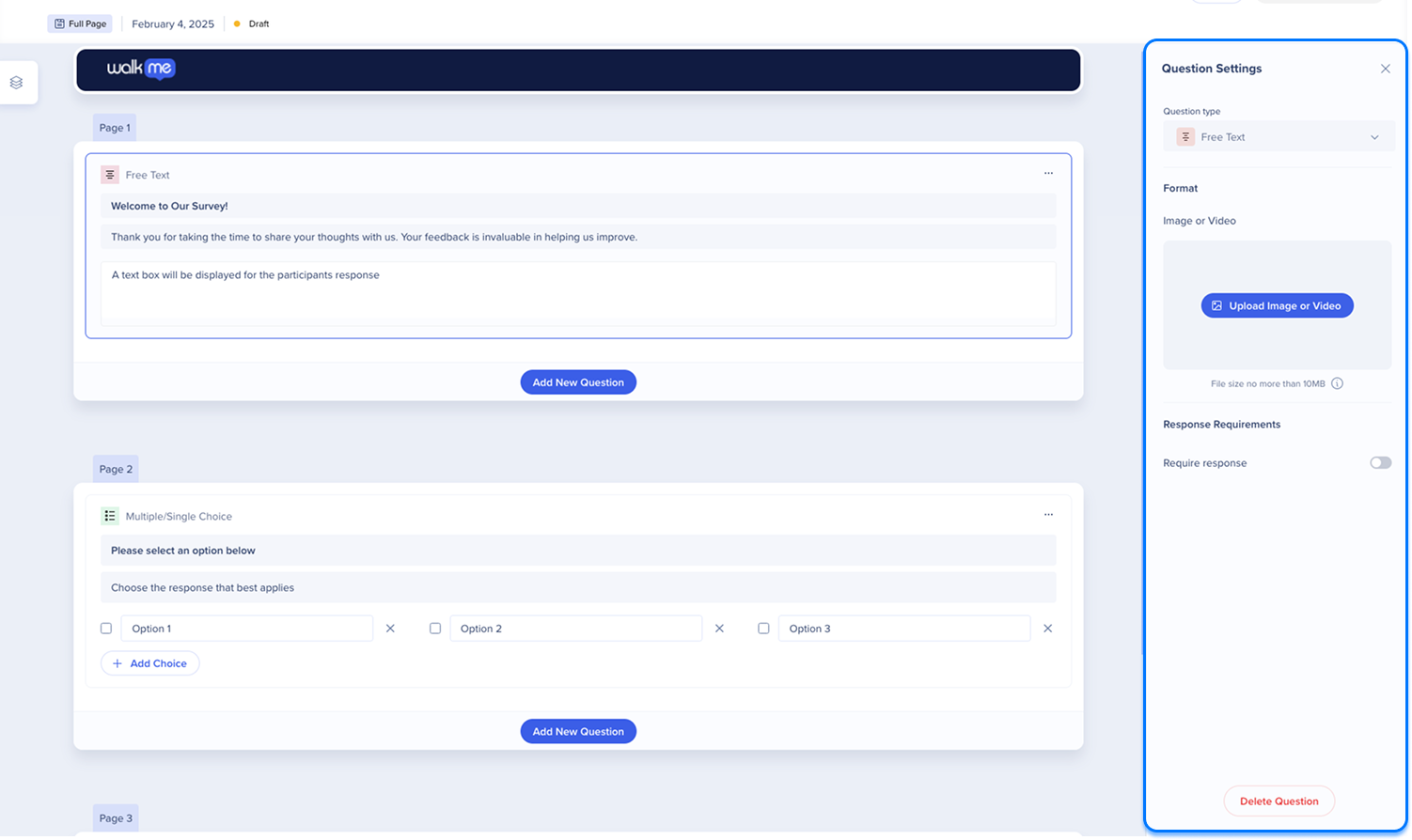
- Free text: Respondents provide an open-ended answer
- Rating: Respondents select from a scale of stars or other icons
- NPS: Respondents rate how likely they are to recommend a product or service, on a scale of 0–10
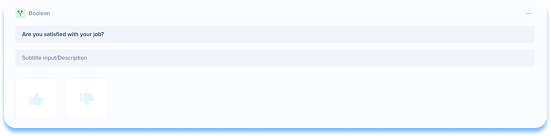
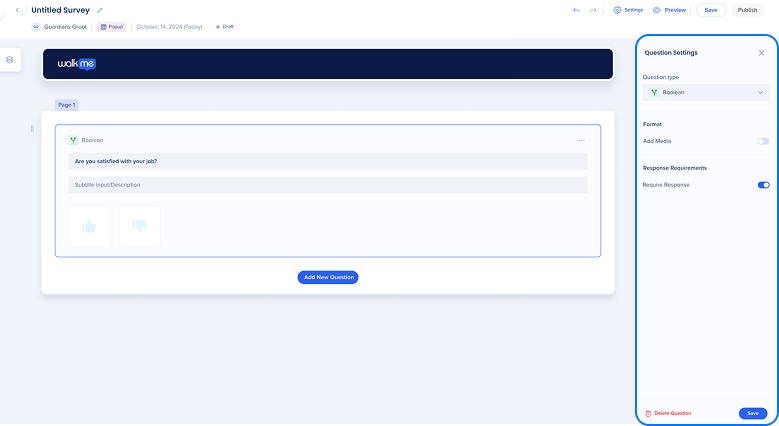
- Boolean: Respondents choose between two predefined options
WalkMe Net Promoter Score (NPS) Surveys
Add a question
To add any question type:
- Select Add New Question
- Select a question type
- Add a Title and, optionally, a Description
- Add any type-specific content:
- Multiple/Single Choice: Add answer options; mark the correct answer(s) for multiple choice; drag an option's handle to reorder it; select Add Choice for more options

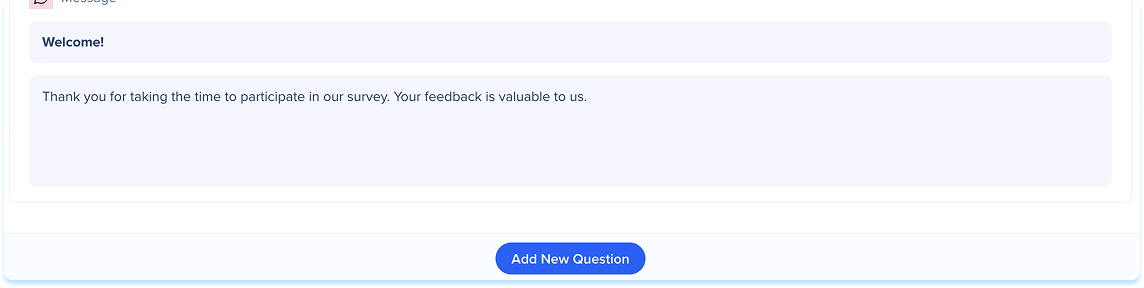
- Message: Add the Message content

- Free text: A text input field is added automatically for the respondent's answer — no additional content needed

- Rating: Add scale labels for the minimum and maximum

- NPS: Add scale labels for the low and high scores

- Boolean: No additional content needed
Question settings
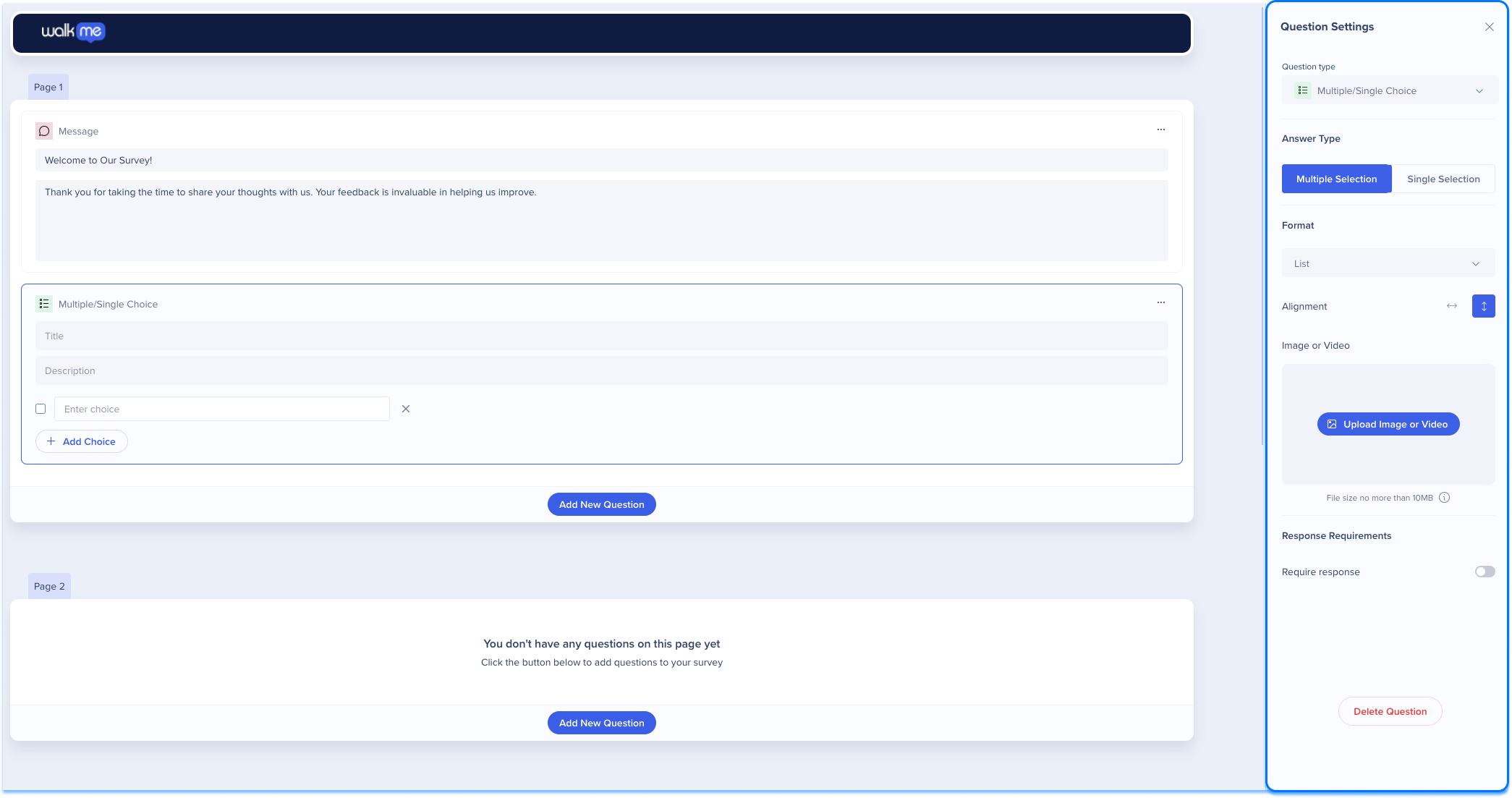
Select a question to open its Question Settings panel. The following options apply across all question types:
- Change the type using the Question Type dropdown
- Upload an image or video (requires the Assets Library, which becomes accessible after you save the survey and select a system)
- Turn on Require response to require an answer before continuing
- Select Delete Question to remove it
Assets Library
Some question types have additional settings:
- Multiple/Single Choice:
- Select the Answer Type
- Choose a Format: List or Dropdown
- Turn on Enable "Select All" option to let respondents select every value at once

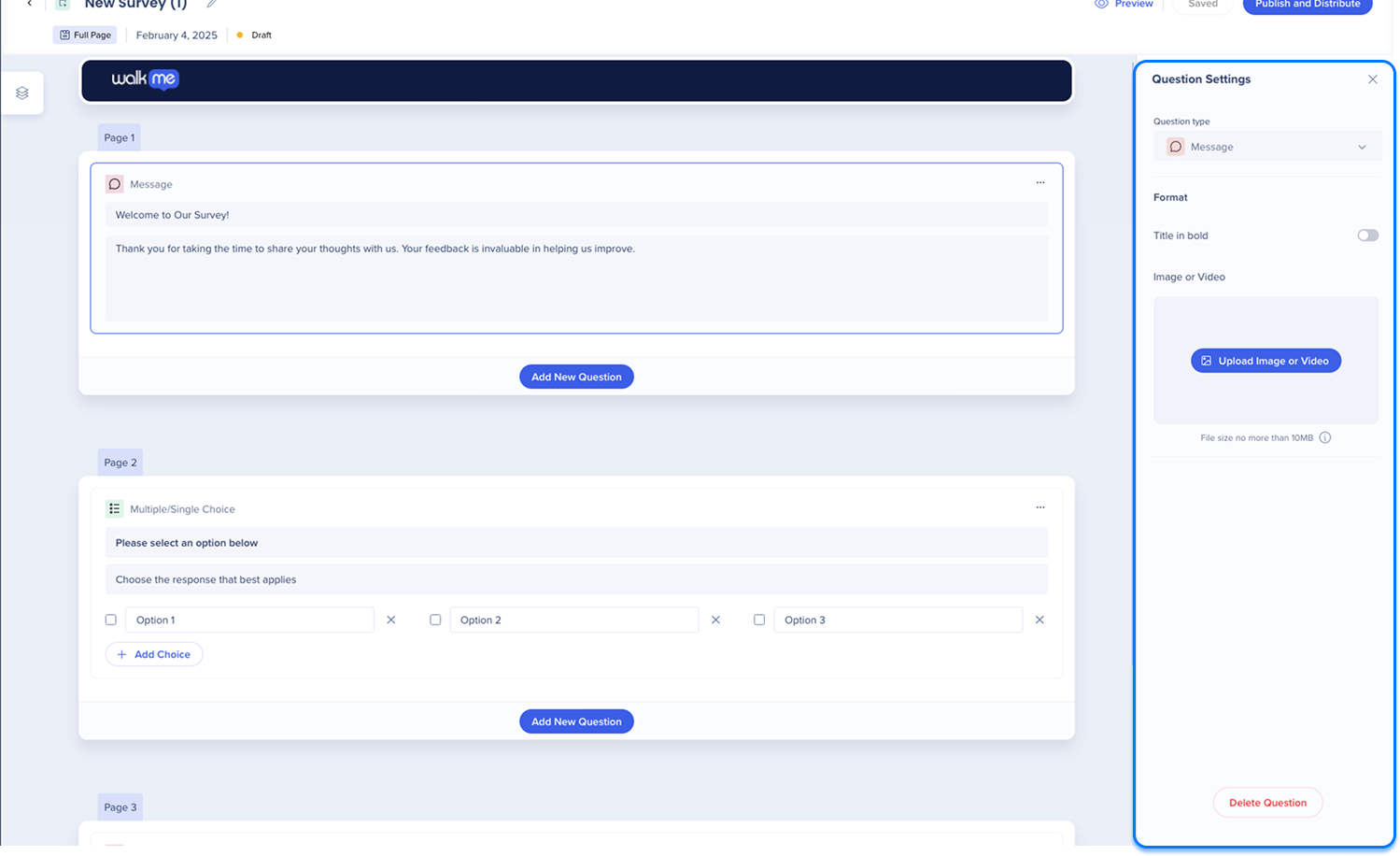
- Message:
- Turn on Title in bold to emphasize the title
- Free text: No additional settings
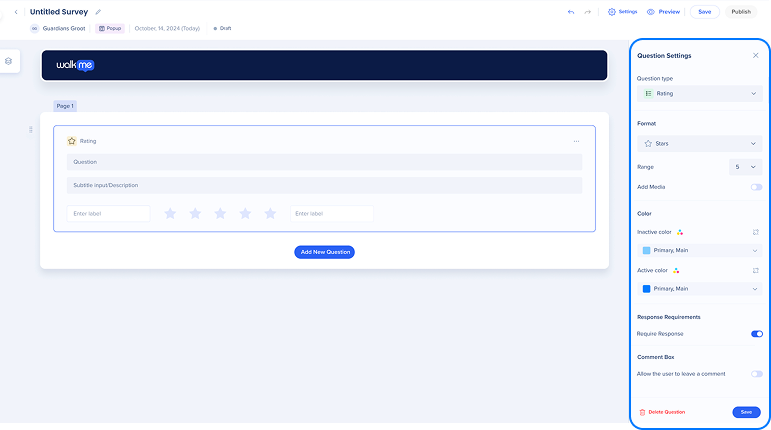
- Rating:
- Choose a Format: Stars, Hearts, Thumbs, Emoticons, or Numerical-only
- Select the Range to set the number of icons
- Set the Inactive color and Active color
- Turn on Comment Box to allow text feedback
- NPS: No additional settings

- Boolean: No additional settings
Survey Delivery and Publishing
Save
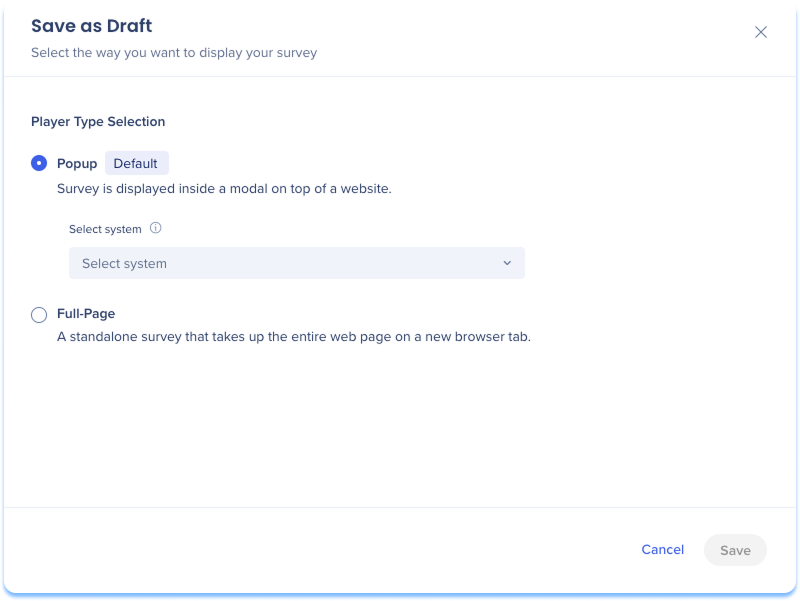
- Select Save at the top of the page
- Choose the survey type:
- Popup: Displays in a modal on top of a website (select the hosting system)
- Full Page: Displays as a standalone page in a new browser tab
- Select Save
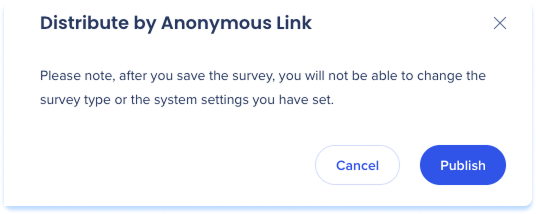
The survey type and system can't be changed after saving. Native mobile systems are supported for popup surveys.
Publish and distribute full page surveys
Full page surveys are published and distributed from the Production environment only. In Test or Success, Publish & Distribute is disabled, though you can still save changes and switch to Production later.
Select Publish & Distribute, then choose a distribution method:
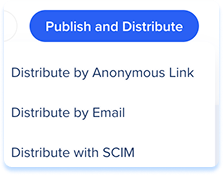
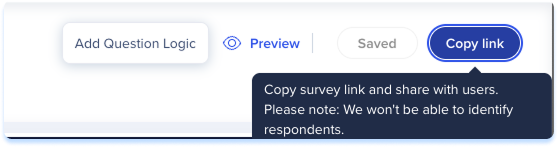
Distribute by Anonymous Link — generates a shareable, non-identifying link
- Select Distribute by Anonymous Link
- Select Publish
- Select Copy Link to share the survey
Distribute by Email — sends the survey using a contact list
- Select Distribute by Email
- Import participants:
- Upload a CSV using the downloadable template, or
- Select one or more existing user lists
- Search: Find a list using the search bar
- Name and email count: View the list's name and the total number of emails it contains
- Edit: Rename a user list
- Delete: Remove a user list from the distribution manager
- Expand: View the full list of email addresses
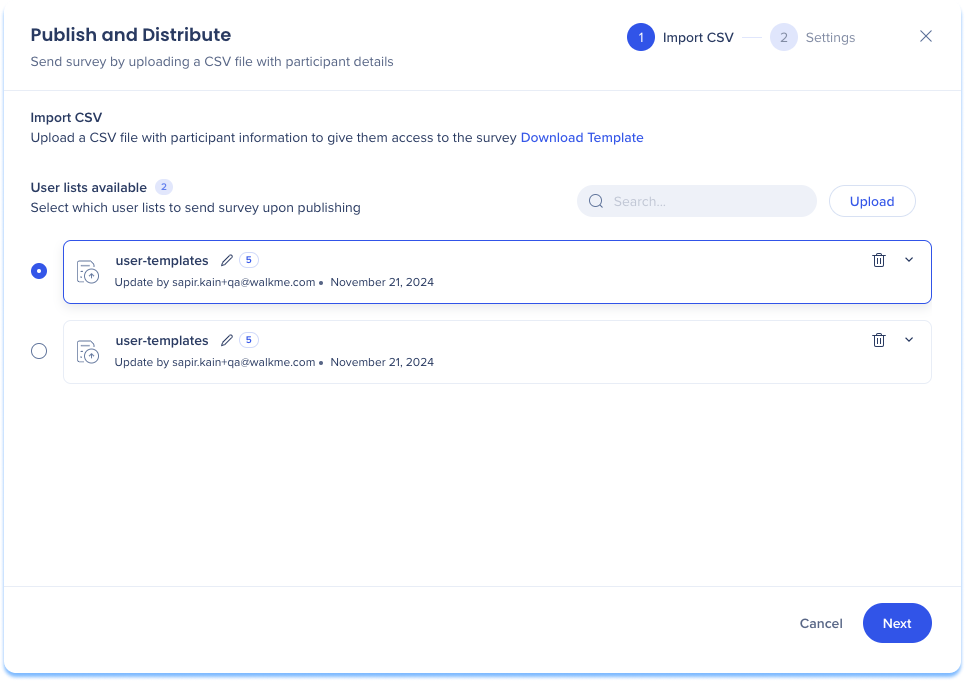
- Select Next
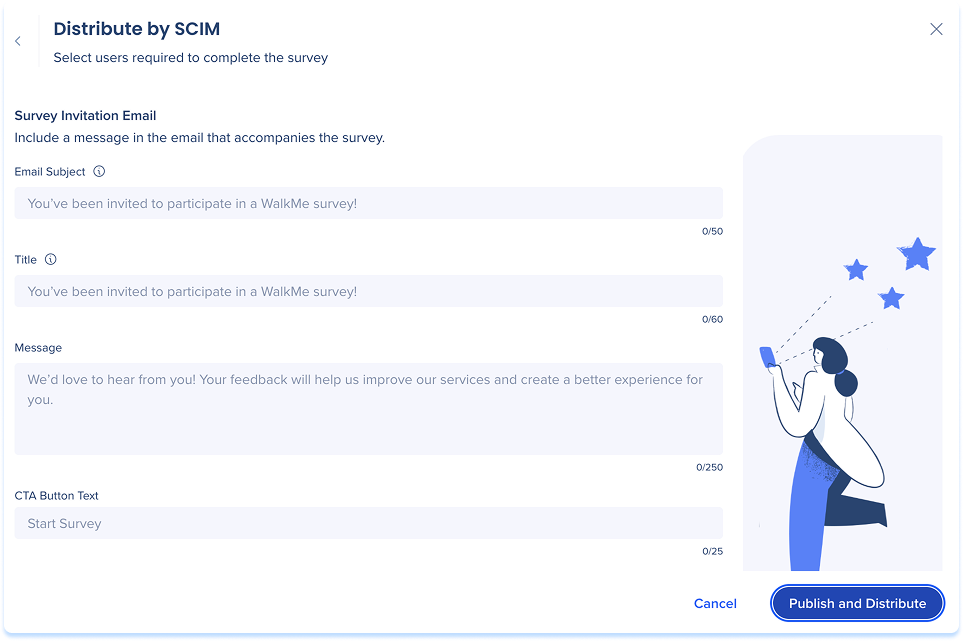
- Set the invitation email content (subject, title, message, CTA button text) and survey availability (open until archived, or a specific date range)
- Select Publish and Distribute
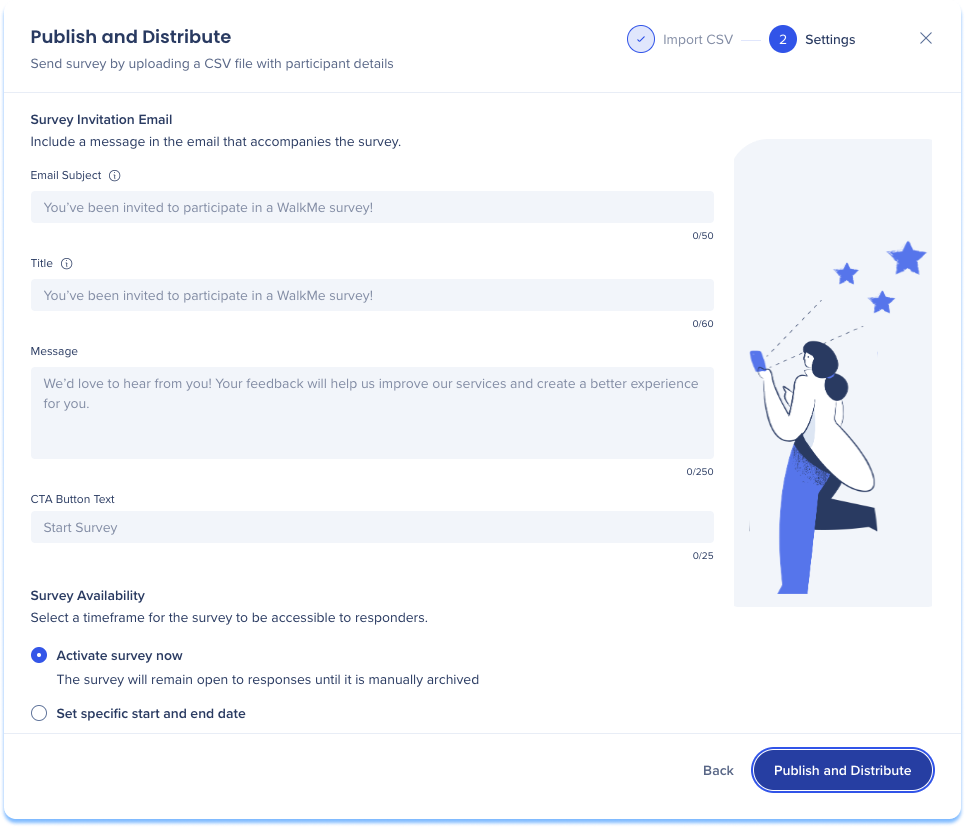
Distribute with SCIM (System for Cross-domain Identity Management) — targets a dynamic audience using identity attributes from your organization's Identity Provider (IDP), keeping the list automatically up to date. This option is disabled if SCIM isn't configured in your Admin Center.
SCIM API for WalkMe
- Select Distribute with SCIM
- Choose your audience: All users, Assign by segment, or Assign by users
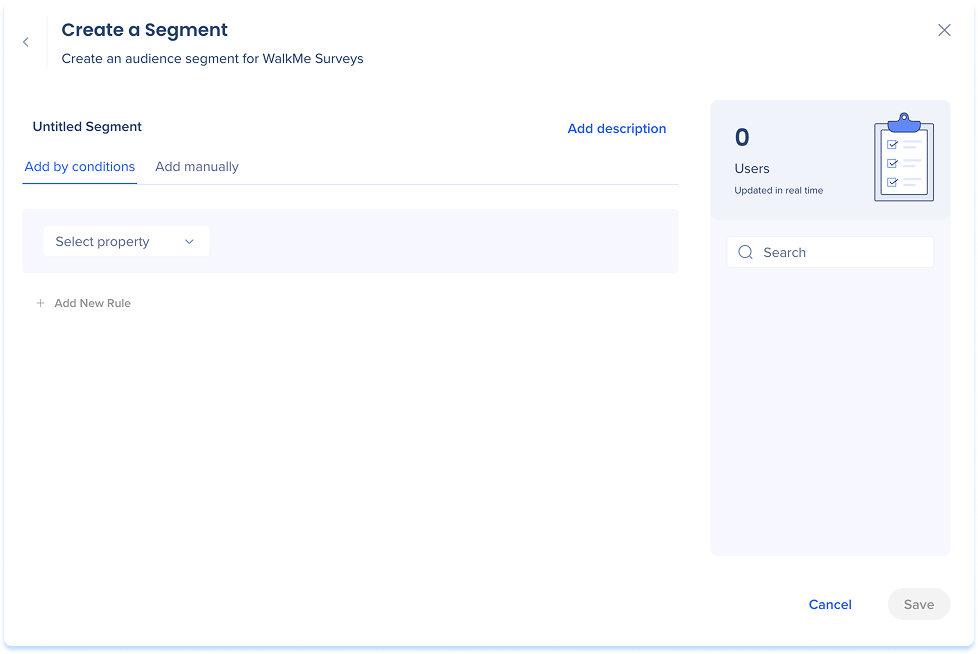
- Review the user count and preview, then select Next
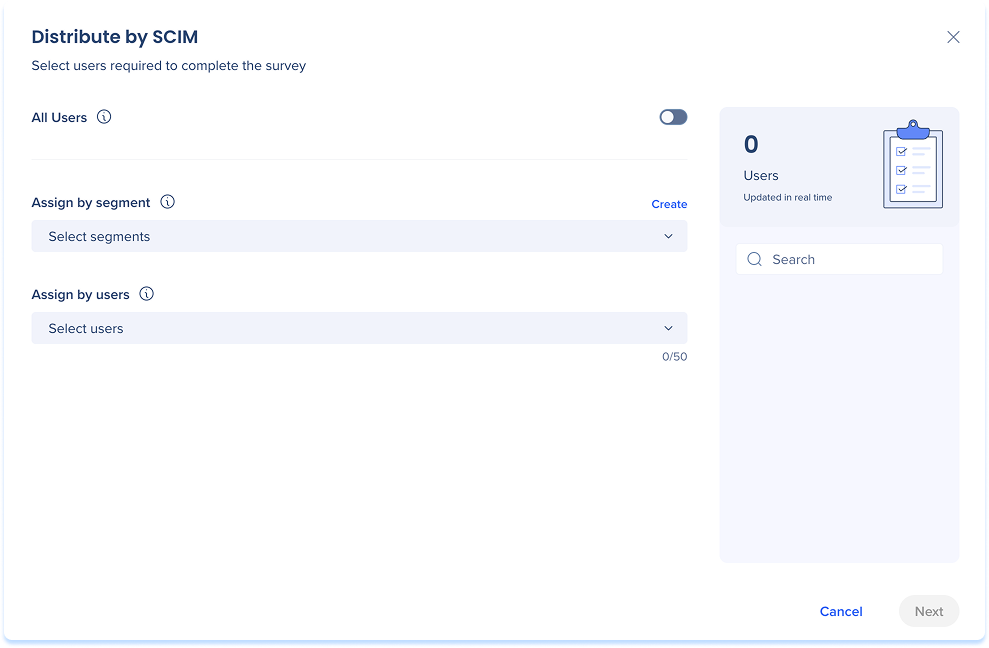
- Set the email content and survey availability, as with Distribute by Email
Condition Builder
Redistribute a published survey
A published full page survey becomes read-only, but you can redistribute it to reach more respondents.
- Open the published survey
- Select Redistribute

- Choose a method: Resend to incomplete participants or Send to a new audience

- Select Next
- For a new audience, select distribution lists or upload a CSV, then select Next

- Set the invitation email and availability, as with Distribute by Email

- Select Redistribute
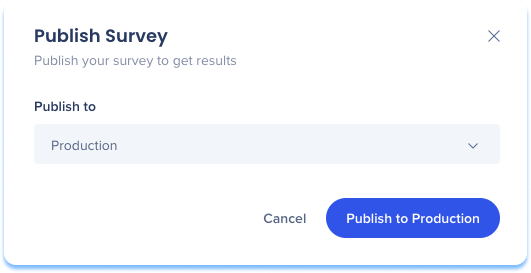
- Select Publish
- Select the environment: Production, Test, or Success
- Select Publish
Popup surveys appear in the WalkMe Editor, where survey settings and deployment logic (such as post-Smart Walk-Thru triggers and Launchers) remain configurable. The Surveys console app handles creation only — deployment logic is managed in the editor.
Technical Notes
- CSV files uploaded for email distribution are validated and saved for future use
- Adding an image or video to a question requires the Assets Library, which becomes accessible only after you save the survey and select a system
- The survey type and system can't be changed after saving
- Publish & Distribute is disabled in Test or Success environments; changes can still be saved and the survey switched to Production later


