Deleting and Archiving Content in the Editor

Last Updated August 30, 2026

Brief Overview

You can archive or delete your content in the editor following the simple steps described below.

How it Works

Archiving content

To archive content:

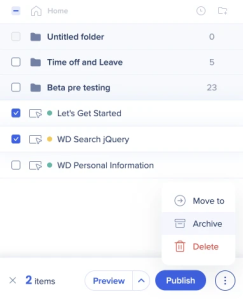
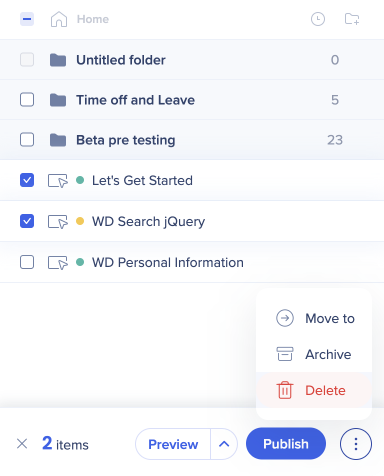
  1. Select the item/s
  2. Select the Options menu
  3. Select Archive

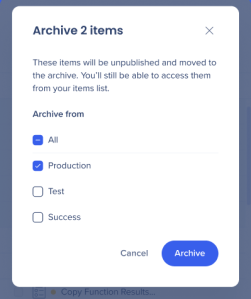
  4. Select the environment/s you'd like to archive the item/s from
  5. Select Archive

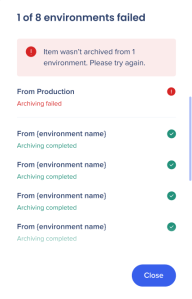
  6. If an item failed to archive from one or multiple environments, you'll see a popup indicating where the error happened
    Note

    After archiving or publishing content, it takes the settings file 15 min to cache. Sometimes you'll need to refresh twice to see changes.

Unarchiving items

To restore an archived item:

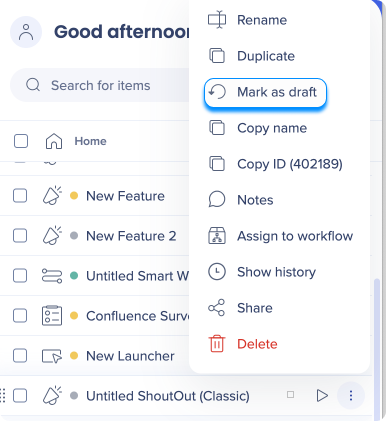
  1. Open the Options menu next to the item
  2. Select Mark as draft

Deleting content

To delete content:

  1. Select the item/s
  2. Select the Options menu
  3. Select Delete

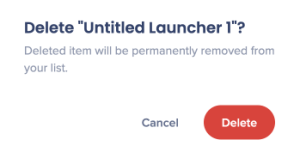
  4. You will be prompted with the summary and confirmation dialog

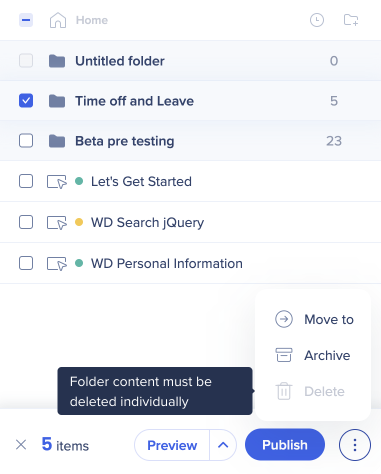
Note

Content in folders must be deleted individually and does not support bulk delete.

Was this article helpful?

Thanks for your feedback!

Be part of something bigger.

Engage with peers, ask questions, share ideas

Ask the Community
×
×