Brief Overview
Editor folders let you organize your WalkMe content in the WalkMe Editor, whether you're building alone or with a team. Instead of a flat, unorganized list of all your items, folders let you group content by process, product, use case, and more. Folders are shared across builders, so your whole team sees the same structure.

Use Cases
- Organize WalkMe items by product or service
- Group content planned for a future software update
- Focus on specific content by hiding all other folders
- Separate your work from teammates by creating a personal folder
- Group all items related to a specific process
How It Works
Folders are created in the WalkMe Editor. Once created, you can add items to a folder and use filters to view only specific content within it.
Each folder displays:
- Folder name
- Item counter — shows the number of items inside the folder
- Options menu — hover over the folder to see all available actions
You can open a folder by selecting it. Items not assigned to any folder appear at the bottom of the editor items list.
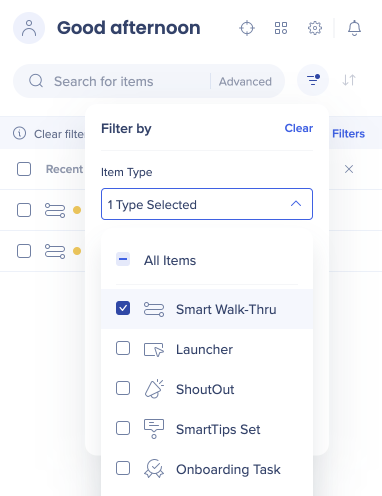
Folders appear in all item type views, but when filtering by a specific type — for example, Smart Walk-Thrus — you'll only see items of that type inside the folder. To see all items together, go to the All Items view in the editor.
Creating and Managing Folders
Creating a folder
- Select + Folder
- Type a unique folder name
- Select Continue
Tip
You can create as many folders as you need.
Moving items
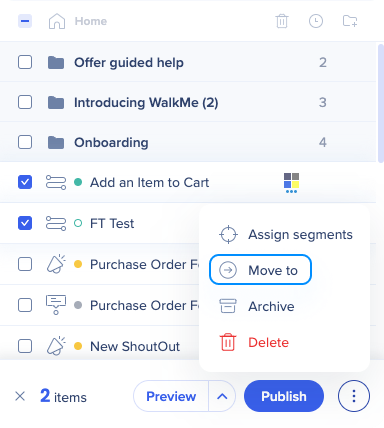
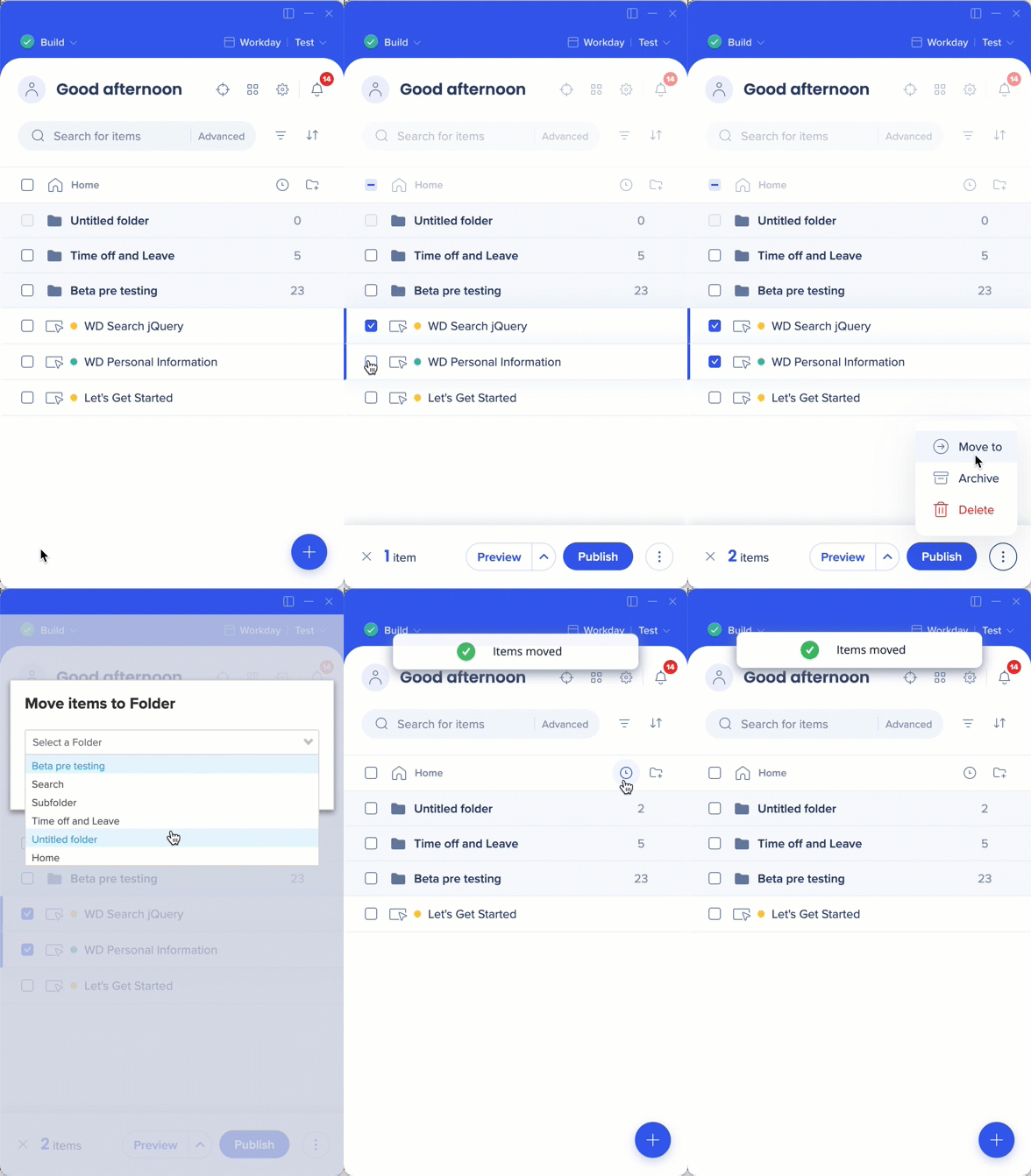
- Check the boxes next to the items you want to move
- Open the Options menu in the bottom right of the editor and select Move to folder
- Choose a folder from the dropdown — you can search to find folders faster
- Select Move
Creating a subfolder
- Open the folder where you want to create a subfolder
- Select + Folder
- Type a unique folder name
- Select Create folder
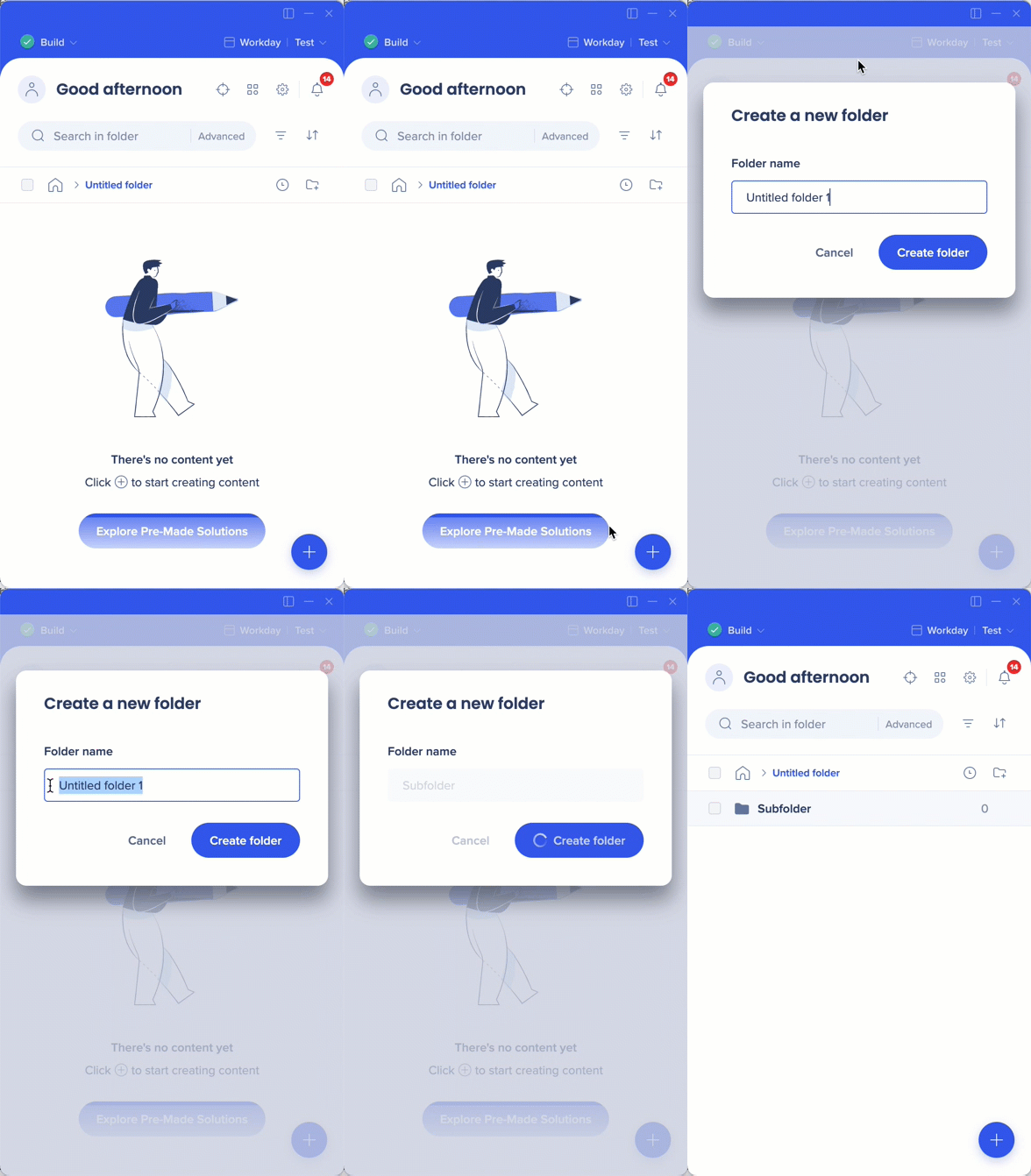
Once created, you can add items to the subfolder the same way you would a regular folder.
Searching and filtering within a folder
When you search or filter in the editor, results maintain their folder structure — you'll see each folder and the matching items inside it. The item counter updates to show the number of filtered items in each folder.
Organizing folders and items
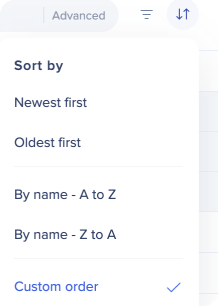
You can sort folders and items in the editor using any of these options:
- Drag and drop into a custom order
- Sort by name (ascending or descending)
- Sort by date created (ascending or descending)
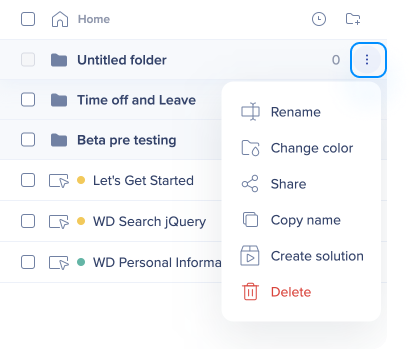
Renaming, recoloring, deleting, or sharing a folder
Hover over the folder, then open the Options menu and choose the action you want.
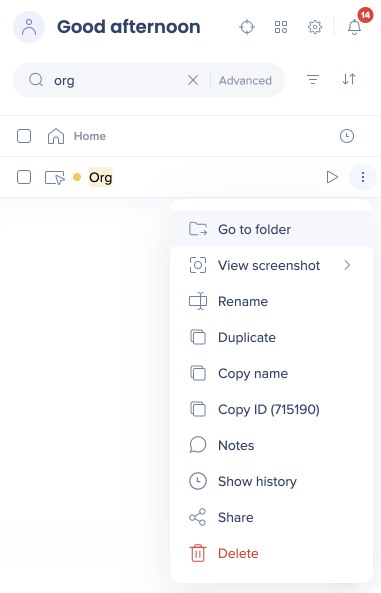
Go to folder
When searching in the editor, items inside folders and subfolders appear in the results. Select Go to folder to open the containing folder and see all items inside it.
Recent Items
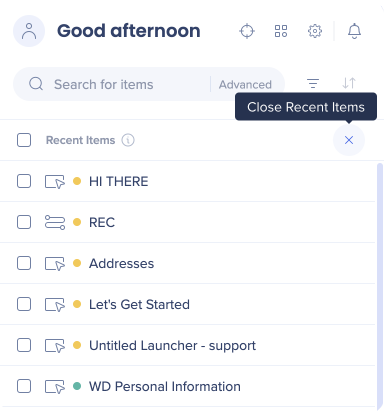
Recent Items gives you quick access to the last 20 items a builder worked on in their editor. Each builder has their own Recent Items list, and you can filter it by item type.
How to access Recent Items
- Select the Recent Items icon in the editor
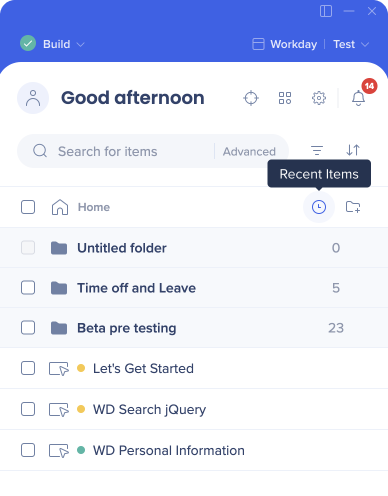
- View up to 20 of your most recently edited items
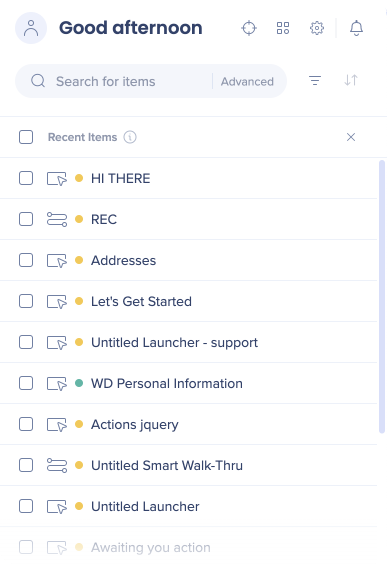
- Optionally filter by item type (optional)
Note
Close the Recent Items view before adding a new item or folder.
Technical Notes
- Folders don't appear to your users
- An item can only exist in one folder at a time
- To organize content for your users, use Categories in the Menu
Known issue
Creating an item inside a subfolder may sometimes cause it to duplicate and appear in the parent folder as well. If this happens, open a support ticket or reach out to your WalkMe contact.
Deleted items
When a folder is deleted, all content inside it moves to the bottom of the editor. To restore a deleted item, contact WalkMe Support.


