Switching Systems

Brief Overview

All WalkMe accounts are created to support multiple systems. Each system has different WalkMe content and the data from your different editor accounts will remain separate in WalkMe Insights.

System Management

Learn how to create new systems and manage existing ones:

Systems Management

This article explains how you can switch views between your different systems in all the WalkMe apps.

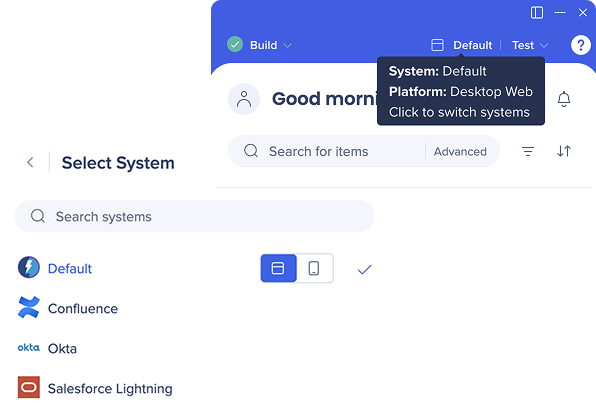
Switching Systems in the Editor

  1. Log into the editor
  2. Select the system name in the upper right corner
  3. Choose the system which you'd like to work on
    Note

    Desktop Web is the default and you may also see an option for Mobile Web if you have this enabled.

Introduction to the Editor

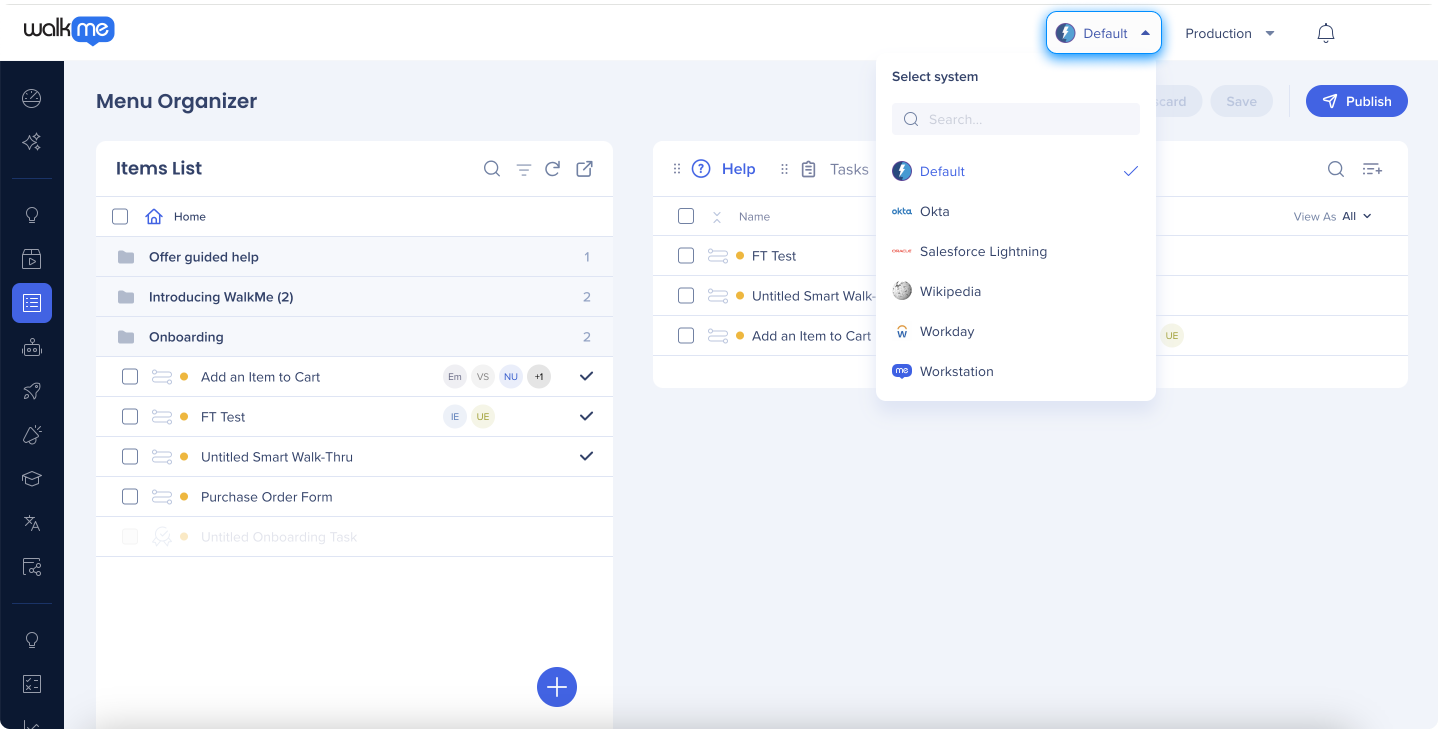
Switching Systems in Console

  1. Go to the WalkMe Console:
  2. Select the system dropdown in the upper right corner
  3. Choose the system you want to open

WalkMe Console

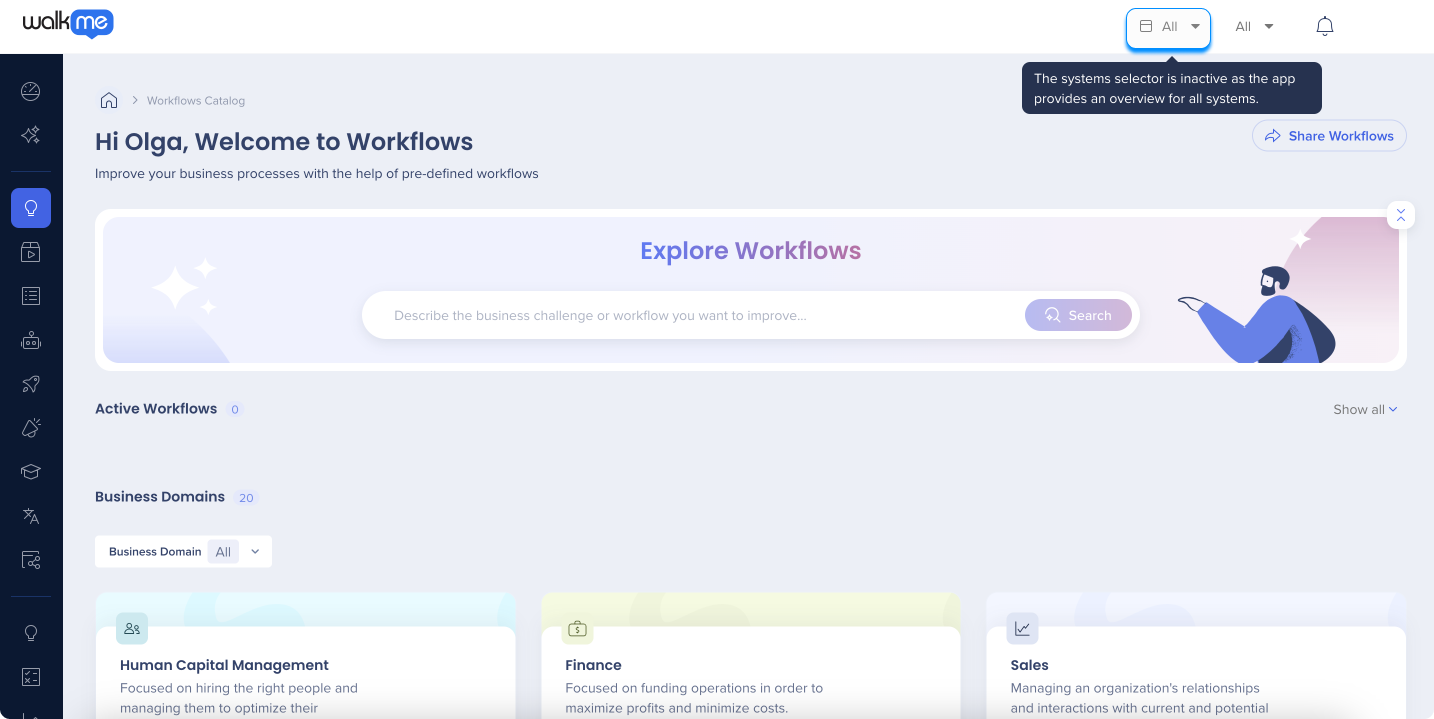
Note

The system dropdown is deactivated for apps that provide an overview of all your systems. For example, Workflows, Activity Board, and Builder Assistant.

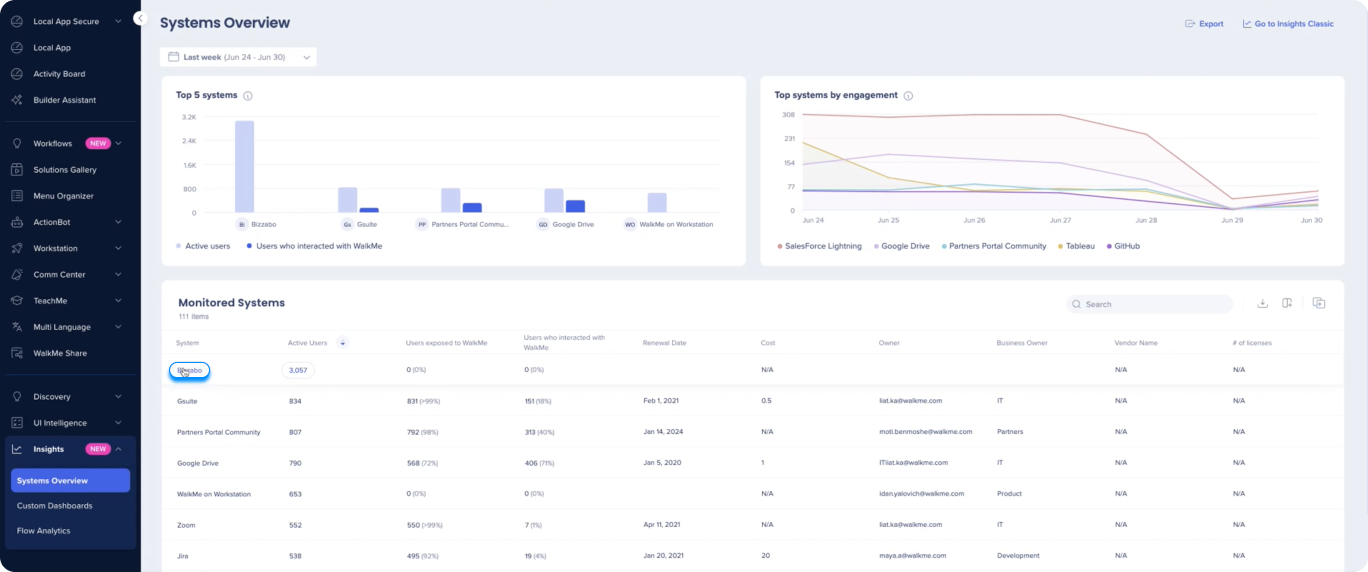
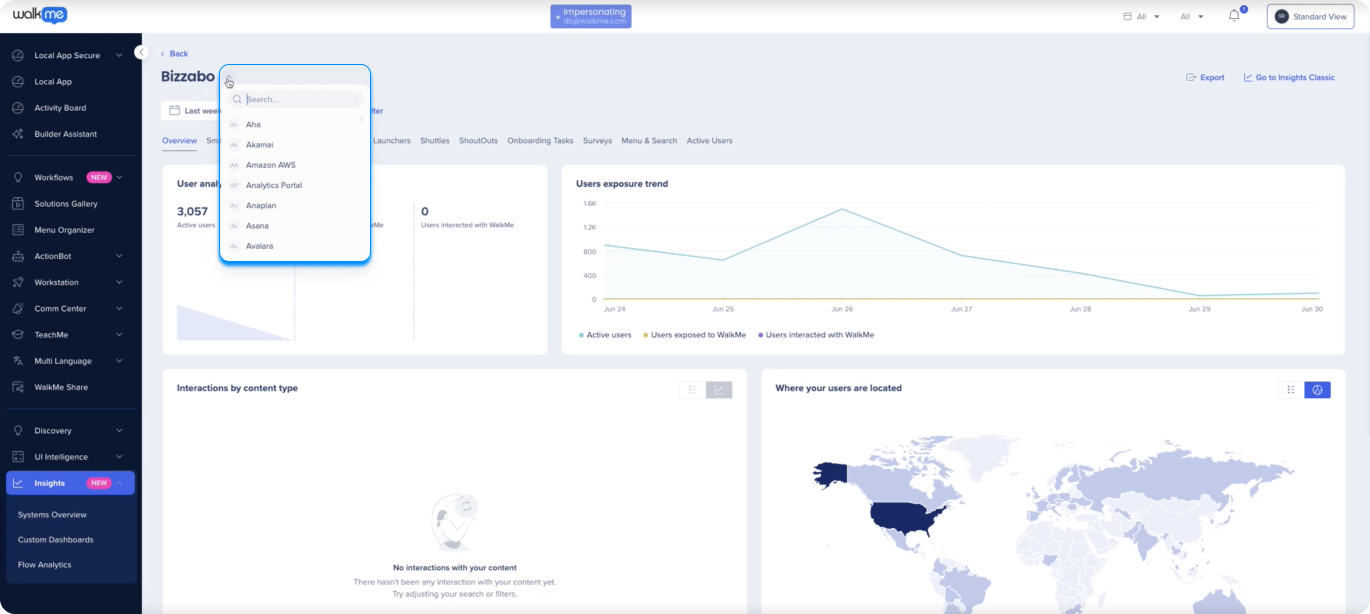
Switching Systems in Insights

  1. Open Insights in the WalkMe Console:
  2. Select a system
  3. To switch between systems, select on the system dropdown
Copying content between systems

You cannot copy content from one system to another by yourself. If you need to do it, please reach out to your CSM or to Support.

Was this article helpful?

Thanks for your feedback!

Be part of something bigger.

Engage with peers, ask questions, share ideas

Ask the Community
×