Adaptive flows make it easy to build and maintain Smart Walk-Thrus on environments that are dynamic or have frequent UI, flow, or code updates. A WalkMe builder can capture a Smart Walk-Thru normally and the adaptive flow will automatically check for any variations in the environment that might affect the flow of the Smart Walk-Thru.
If it detects a variation, it adds logic to the Smart Walk-Thru so that it runs smoothly no matter which version of the page your user is viewing.
This empowers both the user and the builder. The builder doesn't need to figure out and build for the different ways a user can approach the flow or how the site looks for different user types. The Smart Walk-Thru will work under all of these circumstances without the builder needing to manually build them as split steps in the logic of the flow. In return, the user gets a seamless experience every time they access the environment.
Adaptive flow is good for changes in:
UI: The layout and design of the page, but not necessarily the functionality of the site
Flow: Actions that an end user needs to take in order to complete a process
Code: Underlying HTML of the site that don't necessarily impact the visual design or the flow
Predefined solutions
This offering works based on predefined solutions designed and built by WalkMe's Product Experience team.
Example
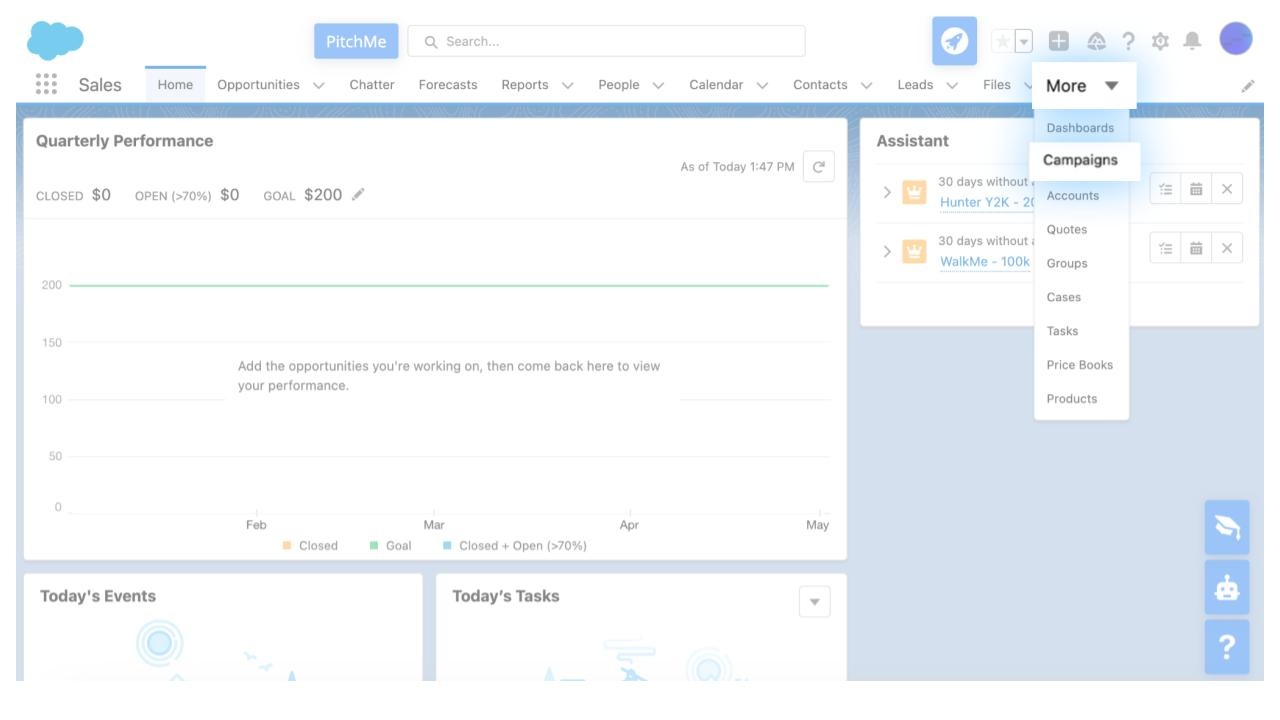
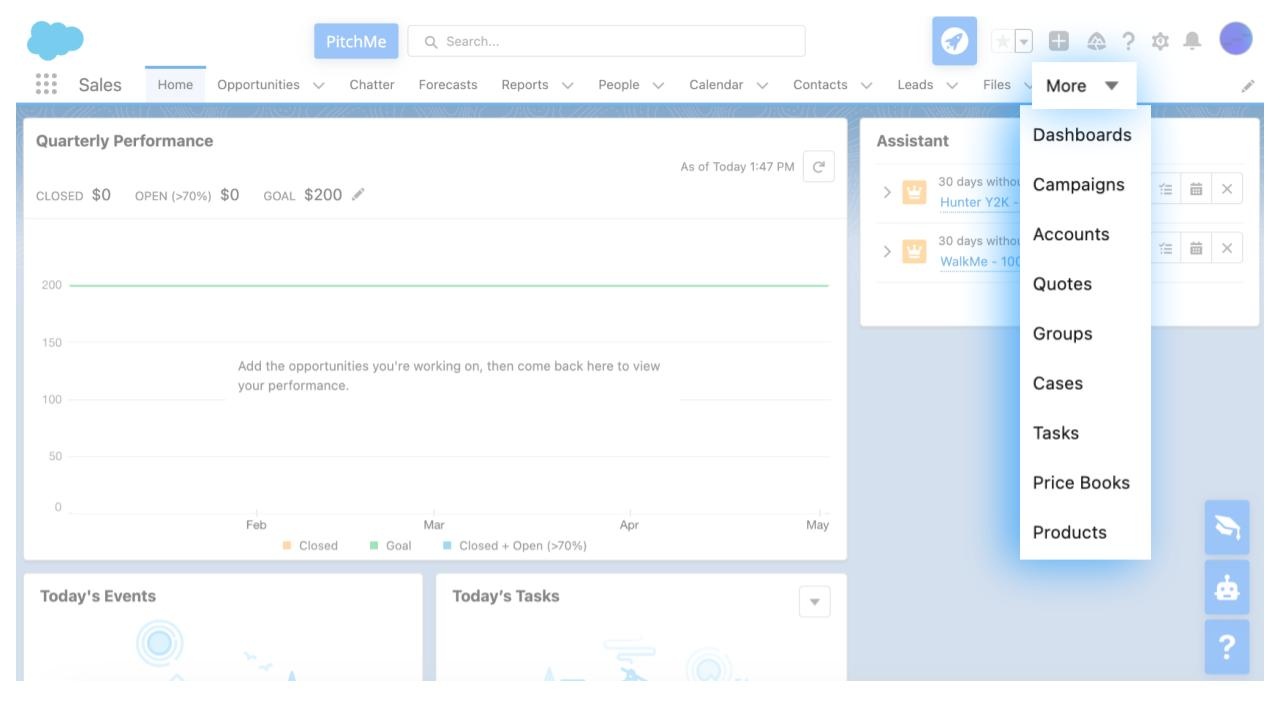
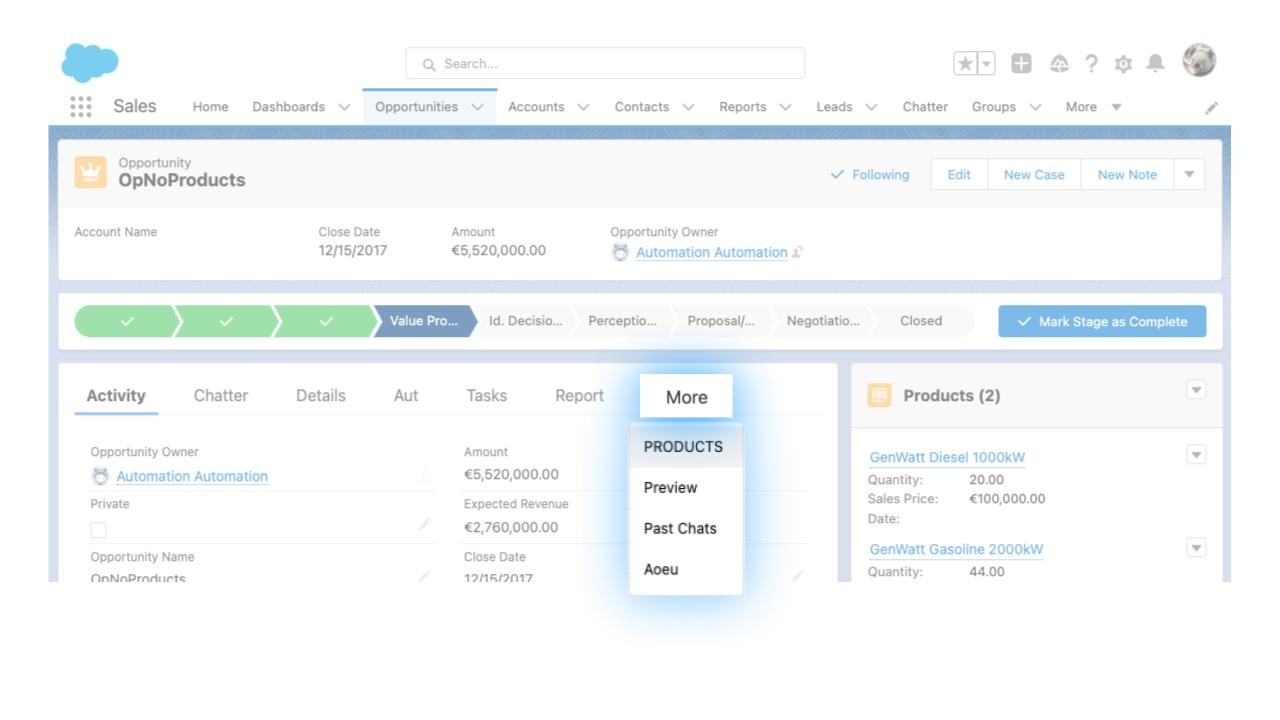
A builder creates a Smart Walk-Thru step to point to an element in the main Salesforce Lightning navigation bar. In some cases, the specific navigation option can be missing from the main navigation bar and is found under the More dropdown.
This can happen for a number of reasons on the user's side such as:
Using a narrower screen, so fewer options fit on the screen
Using a different screen resolution
Accessibility settings
The user customized their navigation bar by only displaying options that are relevant to them
Accessing a different Salesforce app (Marketing, Services, etc.) where there are different navigation options
The user has a different role, therefore seeing additional navigation options
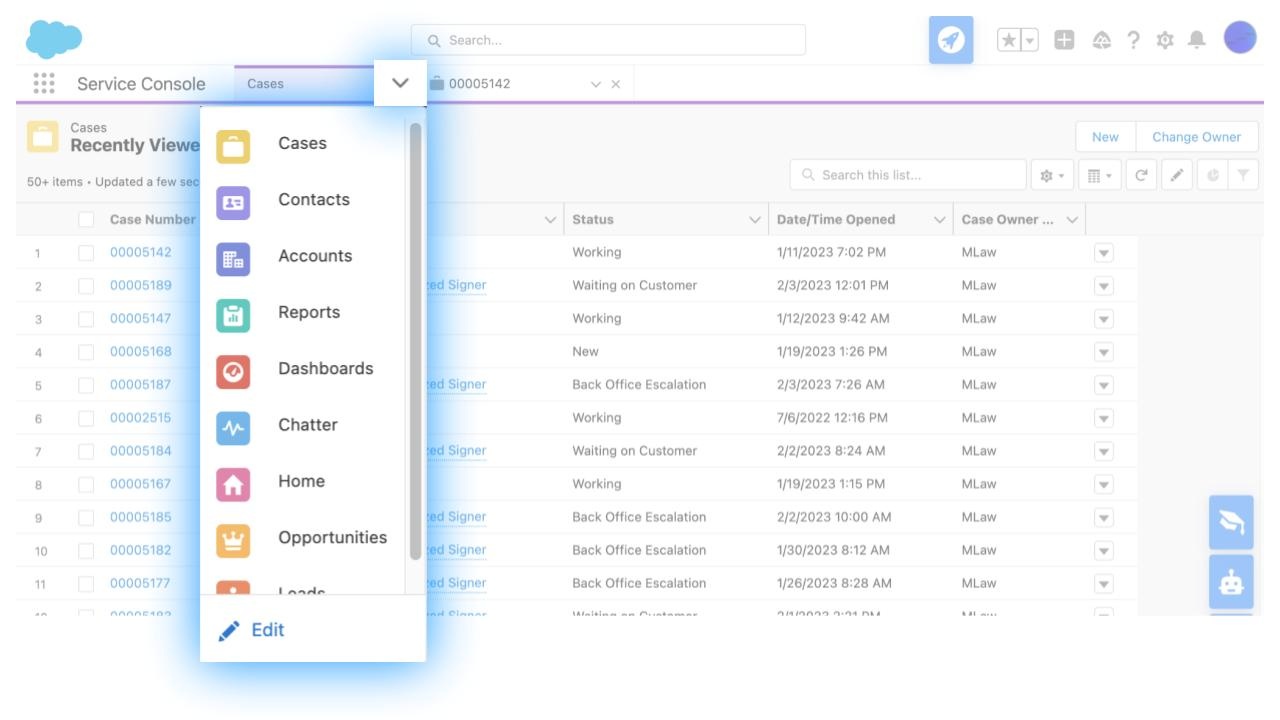
Accessing on "Console" where there's no navigation bar but rather a navigation dropdown menu
The solution until now was to use split steps to identify how the user views the screen, and try to build for all of these variations.
The adaptive flow for this use case would auto-click the More dropdown button (or the navigation dropdown in Console) if Campaigns isn't found in the navigation bar. Once the adaptive flow step runs, the Smart-WalkThru will resume as expected (in this case, will show the balloon next to Campaigns).
Use Cases
Adaptive flows exist for four use cases:
1. Salesforce Lightning navigation bar
Will add an auto-click on the More button in the main navigation bar if the selected tab option isn't visible in the navigation bar
In Lightning Console, the auto-click will be on the arrow to open the navigation dropdown
Will add an auto-click on the More button in the entity tab bar if the selected tab option isn't visible in the bar
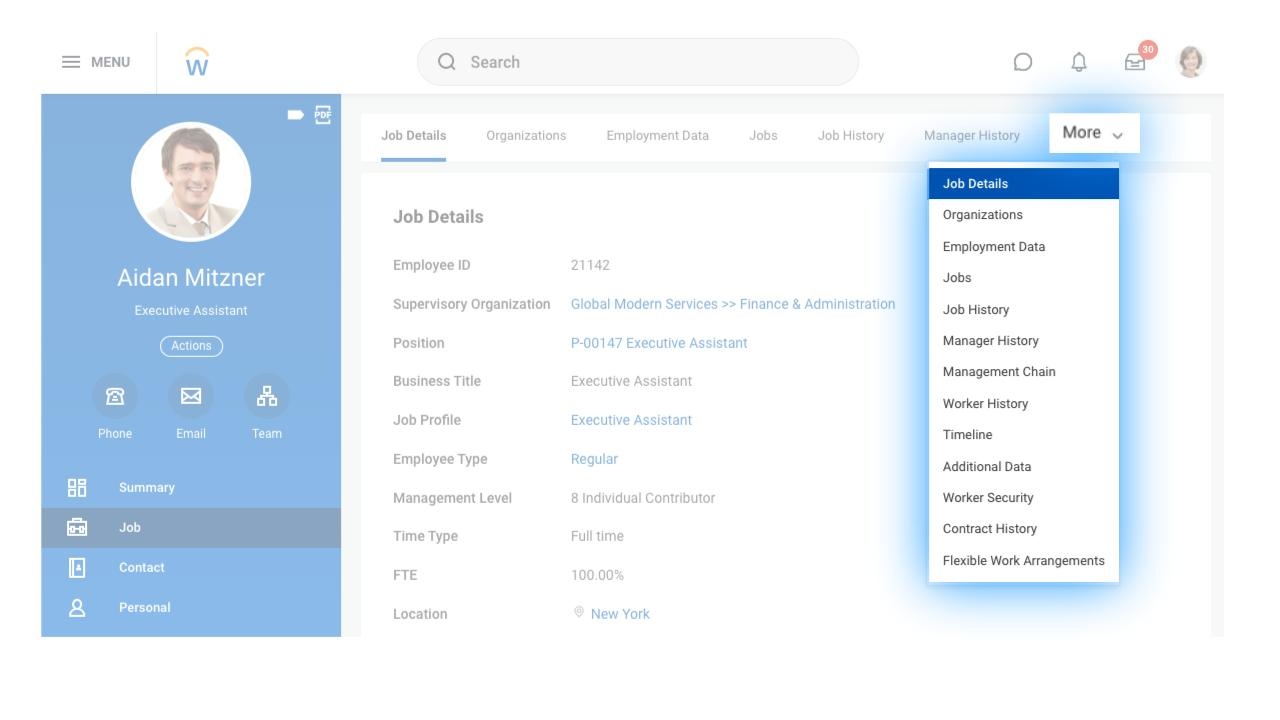
3. Workday job information bar
Will add an auto-click on the More button in the employee job information bar if the selected option option isn't visible in the bar
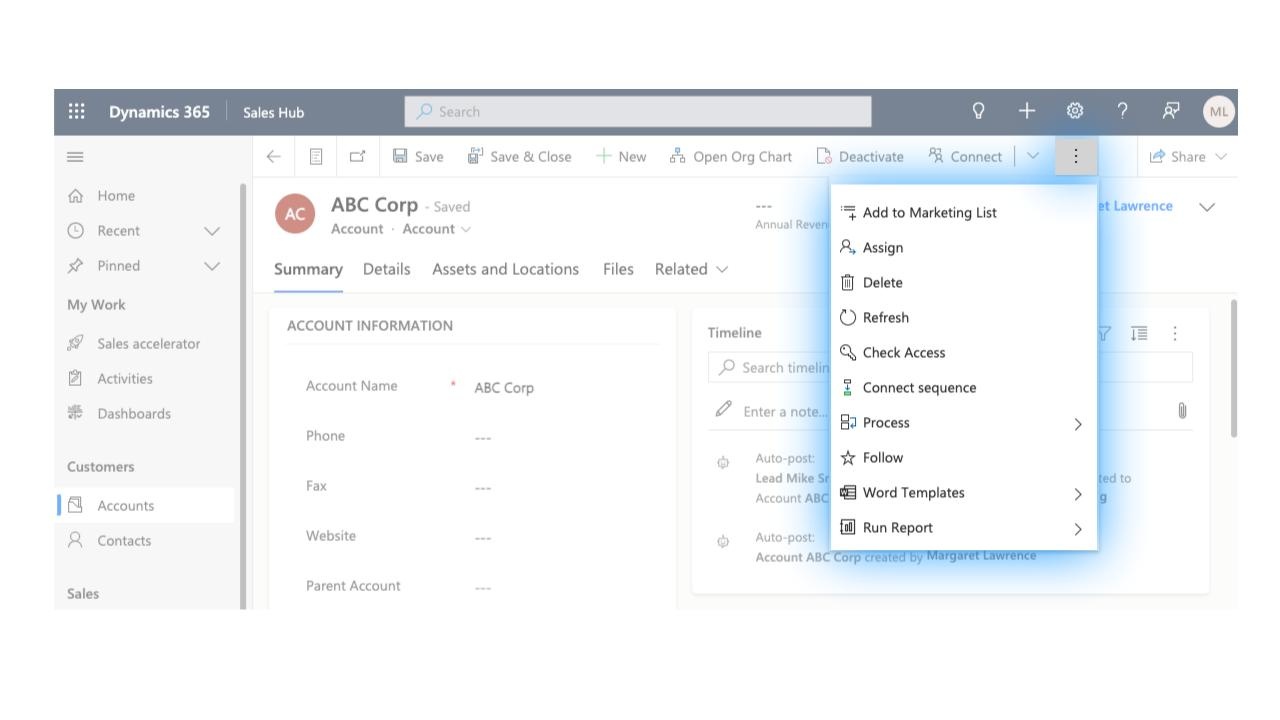
4. Microsoft Dynamics actions bar
This is relevant for the actions top bar in both the "entity list" pages (for example, Accounts), and the entity pages (Account)
Will add an auto-click on the Options menu (3 vertical dots on the top right) in the actions bar if the selected action isn't visible in the bar
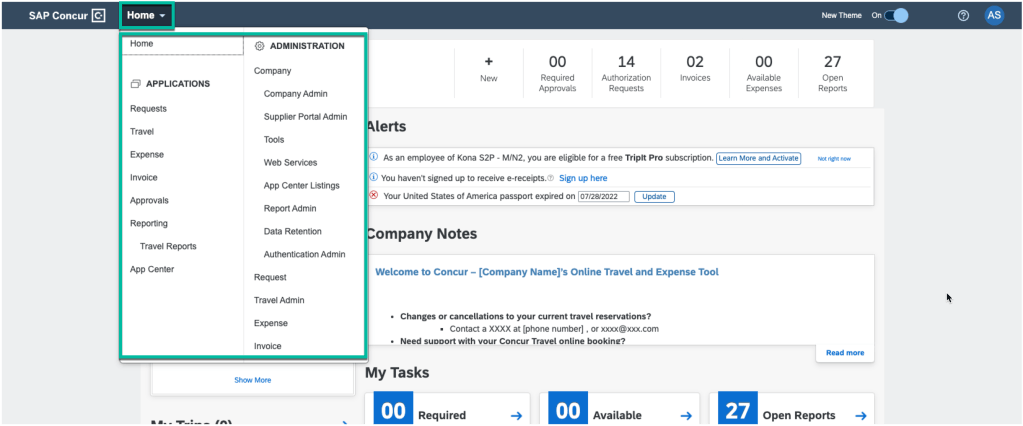
5. SAP Concur "Fiori with Horizon Visual UI" navigation
This adaptive flow will add an auto-click to open the Home navigation dropdown
Building with Adaptive Flows
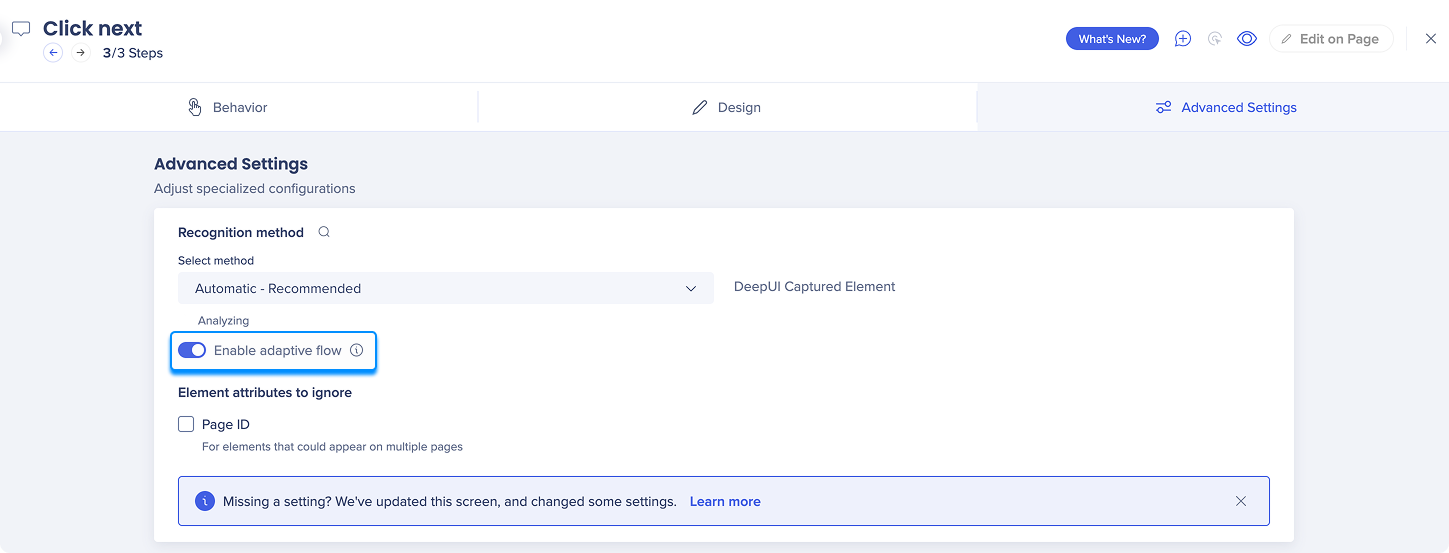
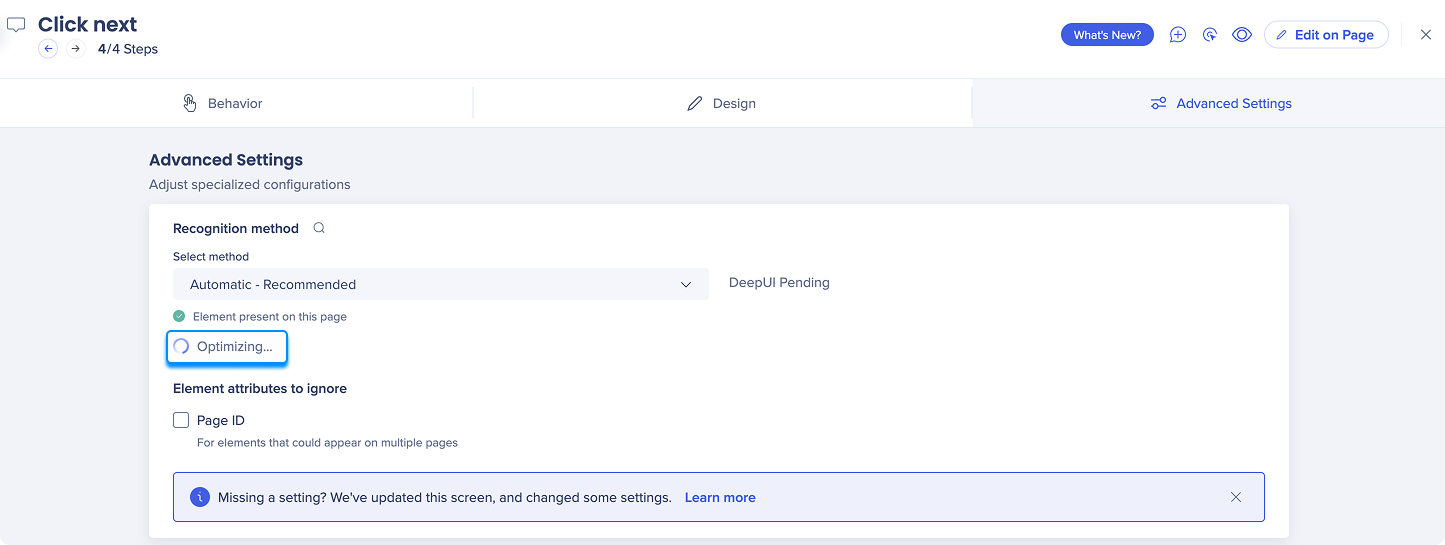
When creating a Smart Walk-Thru step on an element for which there an adaptive flow use case (the four listed above), you will initially see the Optimizing spinner in the Advanced Settings tab section. This can take a few minutes.
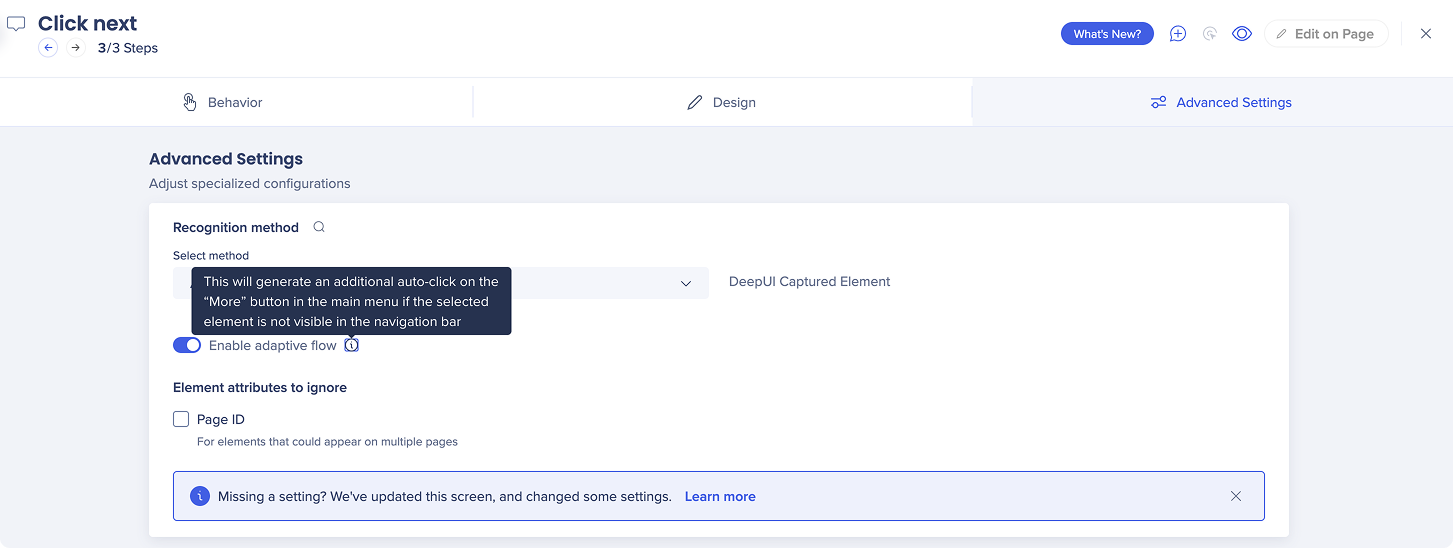
When the item is done optimizing, the Enable adaptive flow toggle will appear with a tooltip explaining what this adaptive flow does. When the toggle is disabled, the step will not play if the element isn't visible.
The trademarks and product names of Workday, Inc., including the WORKDAY® mark, are the property of Workday, Inc. WalkMe is not affiliated with Workday, Inc., nor does Workday, Inc. sponsor or endorse WalkMe, its services or its website.