Brief Overview
Use this article to find learning content and manage your activity in the portal. Learn how to search for content, apply filters, start learning, and track progress in My Learning.
How It Works
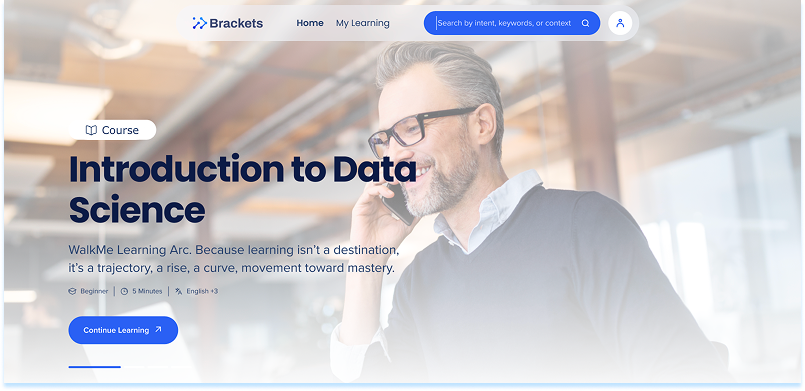
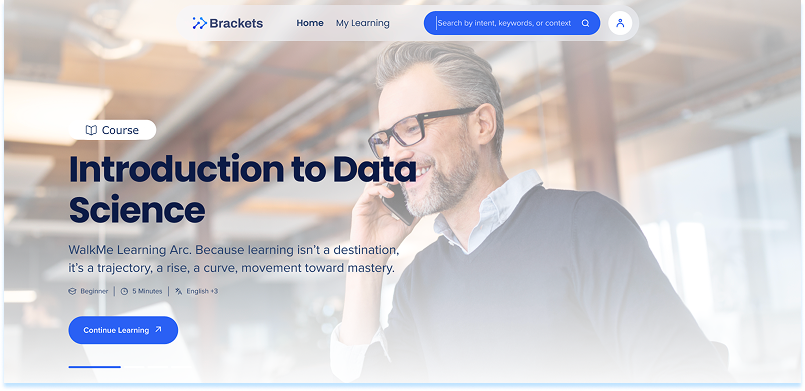
Navigation and profile menu
Search for learning
To search for content:
- Select the Search icon in the top navigation
- You are taken to the designated search page
- Enter a keyword or topic
- Review matching courses, microlearning, or learning journeys
- Select a content card to view details
Searches may include
- Standard keyword search
- AI-powered search for intent-based results
Filter learning content
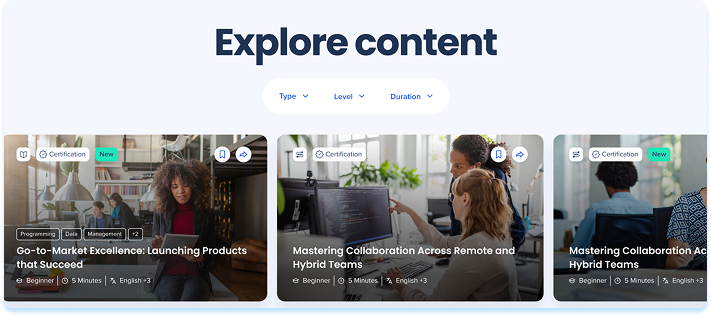
To filter content:
- Navigate to the Explore content section
- Select one or more filters:
- Type: Course, microlearning, or learning journey
- Level: Beginner, intermediate, or advanced
- Duration: Estimated completion time
- Review filtered results
- Select a content card to continue
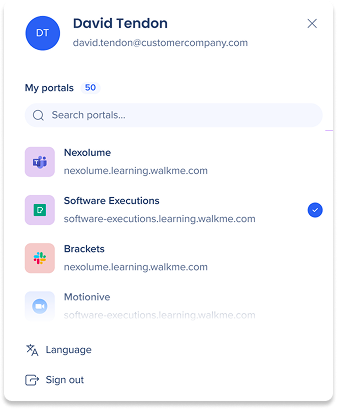
Profile menu
To access profile options:
- Select the Profile icon in the top navigation
- The profile menu opens
From the profile menu, you can:
- Switch between available portals, if you have access to more than one
- Search for a specific portal
- Change your language
- Select Sign out to log out
Content cards and content details
Learning content appears in the portal as content cards. Selecting a card opens the content details view.
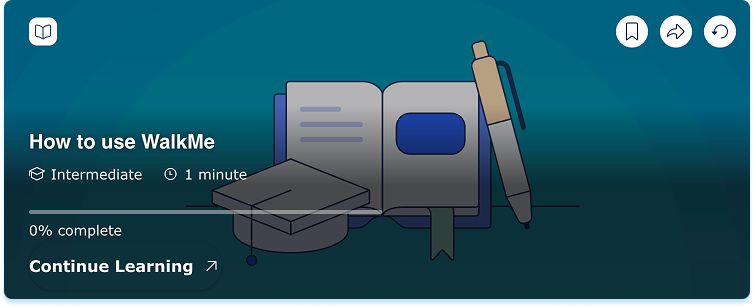
Content card
A content card provides a summary of a learning item.
Each card displays:
- Content type
- Title
- Level
- Duration
- Progress indicator
- Certification badge if applicable
Available actions:
A content card may include:
- Start Learning or Continue Learning: Begin or resume learning
- Save content: Bookmark the item
- Share: Copy a shareable link
- Reset learning progress: Reset progress for items that have already been started
Content details
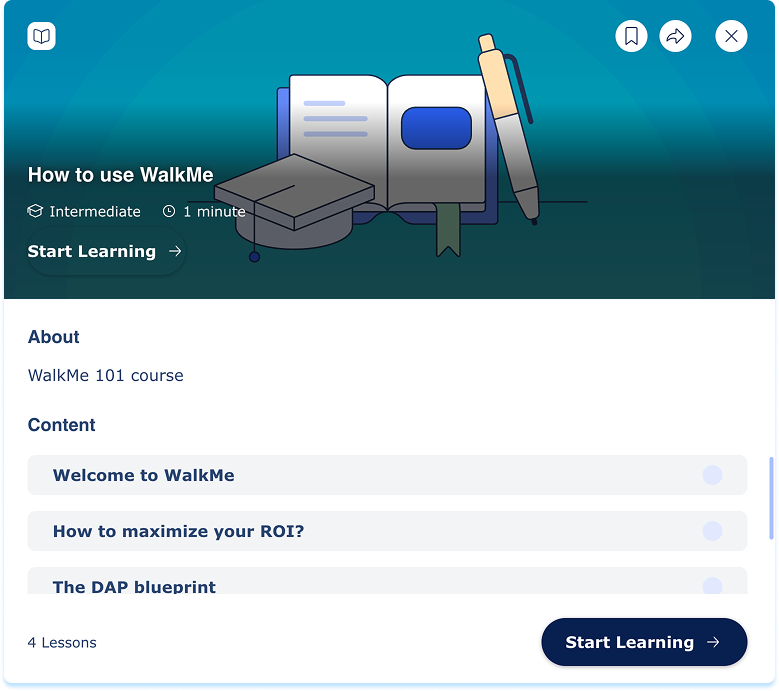
The details view provides expanded information.
The details view displays:
- Full description
- Lesson outline
- Total duration
- Level
Available actions
A content details may include action icons or buttons:
- Start Learning: Begin learning
- Save content: Bookmark the item
- Share: Copy a shareable link
Note
Selecting Start Learning or Continue Learning opens the learning workspace.
Manage learning in My Learning
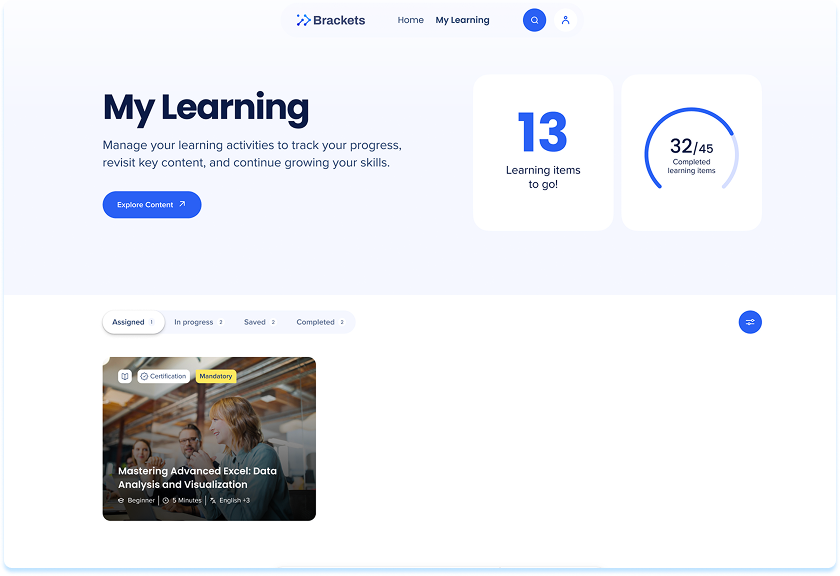
To manage learning activity:
- Select My Learning in the top navigation
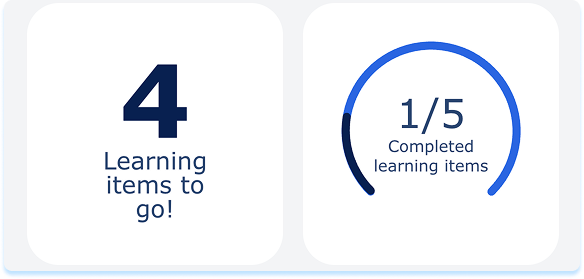
- The page includes a progress summary and four tabs
Progress summary
The summary displays:
- Learning items in progress
- Completed learning items
These values update automatically as progress changes.
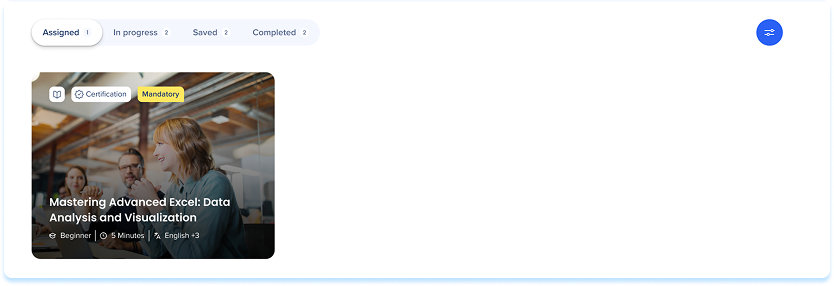
Assigned tab
The Assigned tab displays learning content assigned to the user.
To start assigned learning:
- Select the item
- Select Start Learning
-
Note
After starting:
The item moves to In progress
Upon completion, the item moves to Completed
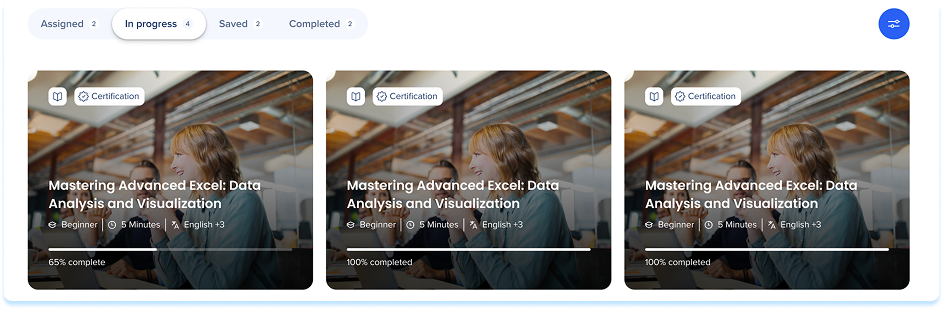
In progress tab
The In progress tab displays content that has been started but not completed.
To resume learning:
- Select the item
- Select Continue Learning
- Continue from the last saved position
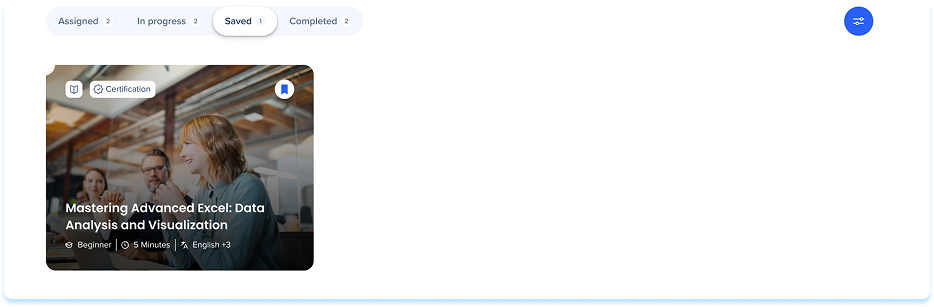
Saved tab
The Saved tab displays bookmarked content.
To start saved content:
- Select the item
- Select Start Learning
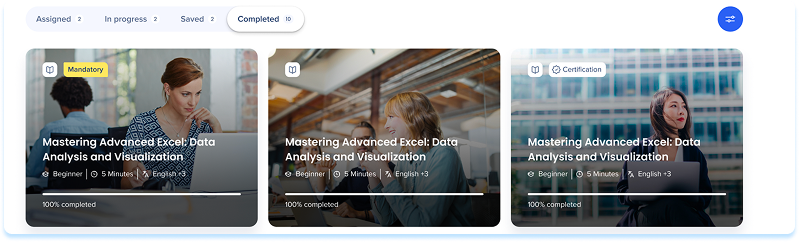
Completed tab
The Completed tab displays finished learning.
When you open a completed item, the content details view may include the following actions:
- View Certificate: If a certificate is available
- Course Page: Review the content
- Share: Copy a shareable link
- Save content: Bookmark the item