Brief Overview
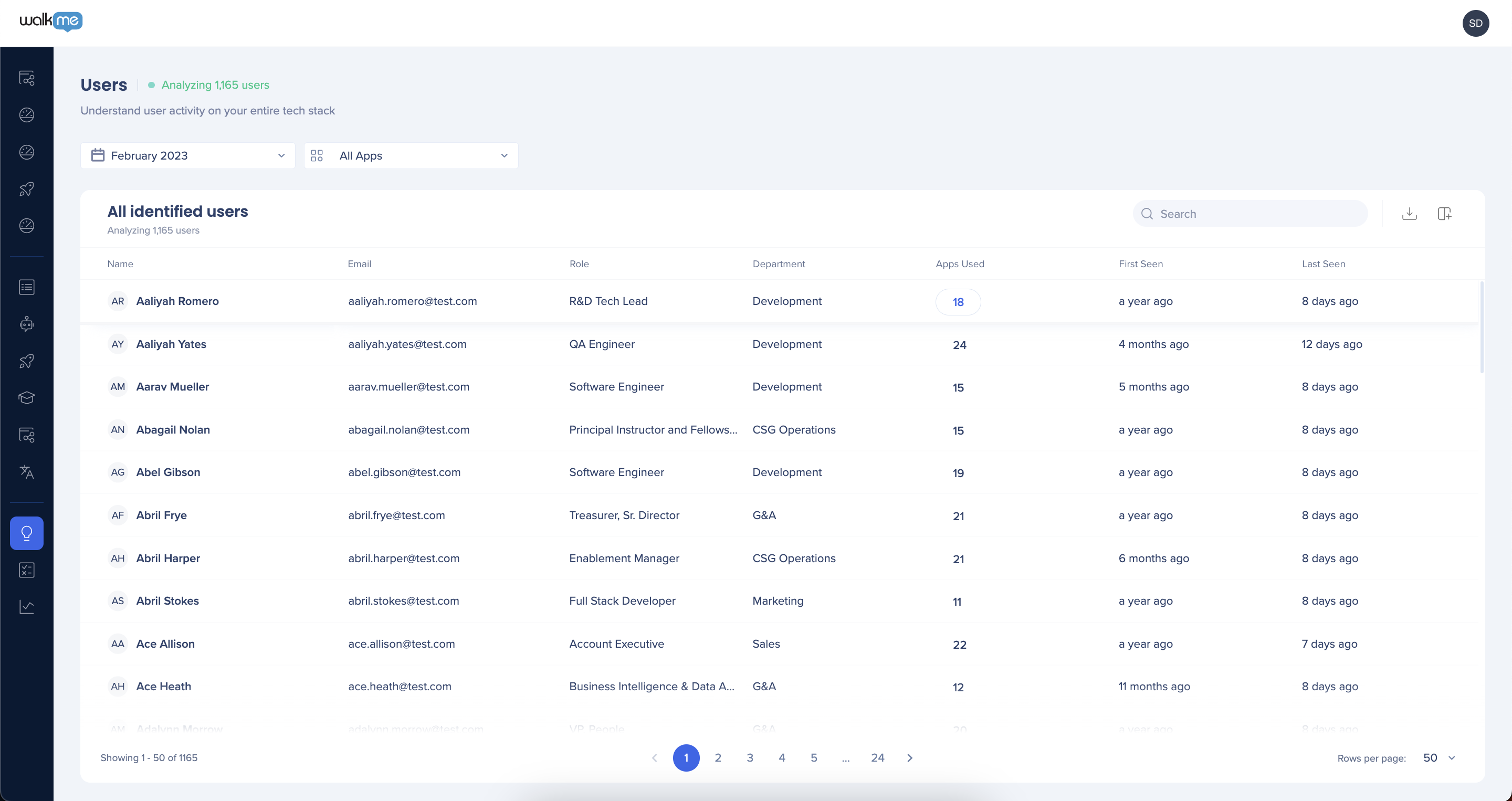
The Users dashboard gives you visibility into specific users and the apps they use. See how many apps each user uses, when they were last active overall and per app, and, if your organization shares this data, attributes like role or department.
WalkMe Discovery
How It Works
The Users dashboard has two identification modes: "Identified," which shows user identities, or "Hashed," which hides them. Its columns and actions let you filter, sort, and export user data to dig into any slice you need.
Tabs and columns
- Name: User's full name, based on available information
- Email: User's email, based on available information
- Role: User's role, based on available information
- Department: User's department, based on available information
- Apps Used: Number of apps the user used in the selected date range
- First Seen: When the user's first event was recorded
- Last Seen: When the user's last event was recorded, overall and per app
- Available for "All Apps" in any month, or for an individual app in the most recent month only
Actions
- Date Filter: Filter by calendar month
- Apps Filter: Filter by application used
- Search: Find a specific user by name
- Export Users Data: Export dashboard data to CSV or XLSX
- Manage Columns: Add or remove dashboard columns
- Sort/Filter Columns: Sort or filter columns by value
- Apps Used: Select the number of apps used for a user to view their full app list
Setup
Before you can rely on the Users dashboard, decide how you'll identify and enrich your user data: through IDP, a CSV upload, or both.
Decide how to identify and enrich user information based on whether you already have IDP configured:
- If IDP is already configured in the Admin Center, Discovery automatically uses it. No setup is needed to connect IDP to Discovery
- IDP isn't 100% reliable, so you may still see gaps in user details
- To close those gaps and maximize user coverage, upload a CSV
- If IDP isn't configured and you're deciding between IDP and a CSV upload, start with the CSV
- CSV upload guarantees coverage that IDP can't promise
- It also avoids delays waiting on your IT team to configure IDP, and avoids duplicate work if you configure IDP first and later find gaps anyway
IDP Integration
How to upload the employee details CSV
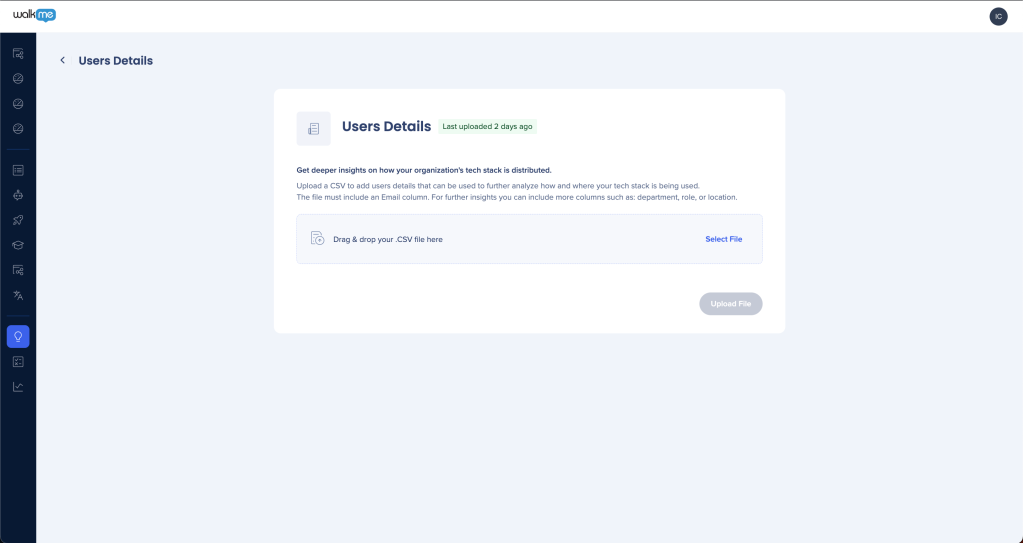
To enrich the data in the Users and Departments dashboards, upload a CSV with additional user information.
To upload a CSV:
- Open the Discovery app and go to Settings
- Select Integrations, then Manual Integrations, then Users Details
- Enter user information into the template CSV
- Email is the only mandatory field
- Upload the completed CSV
- In the WalkMe Console go to Discovery > Settings > Integrations
- Scroll to the CSV Integrations section and click View on User Details
Note
Each new upload overrides the previous CSV. To add information rather than replace it, update the existing CSV first, then re-upload it.


