Brief Overview
If you can't access your website or application's HTML, or prefer not to alter it manually, you can deploy the WalkMe extension on your users' browsers instead. This inserts the WalkMe snippet into the HTML of the relevant pages automatically.
Access
Access the Extension Installation page in the console:
- Open the WalkMe Console:
- Go to the Admin category
- Select My Account
- Select Extension Installation
Extension Installation
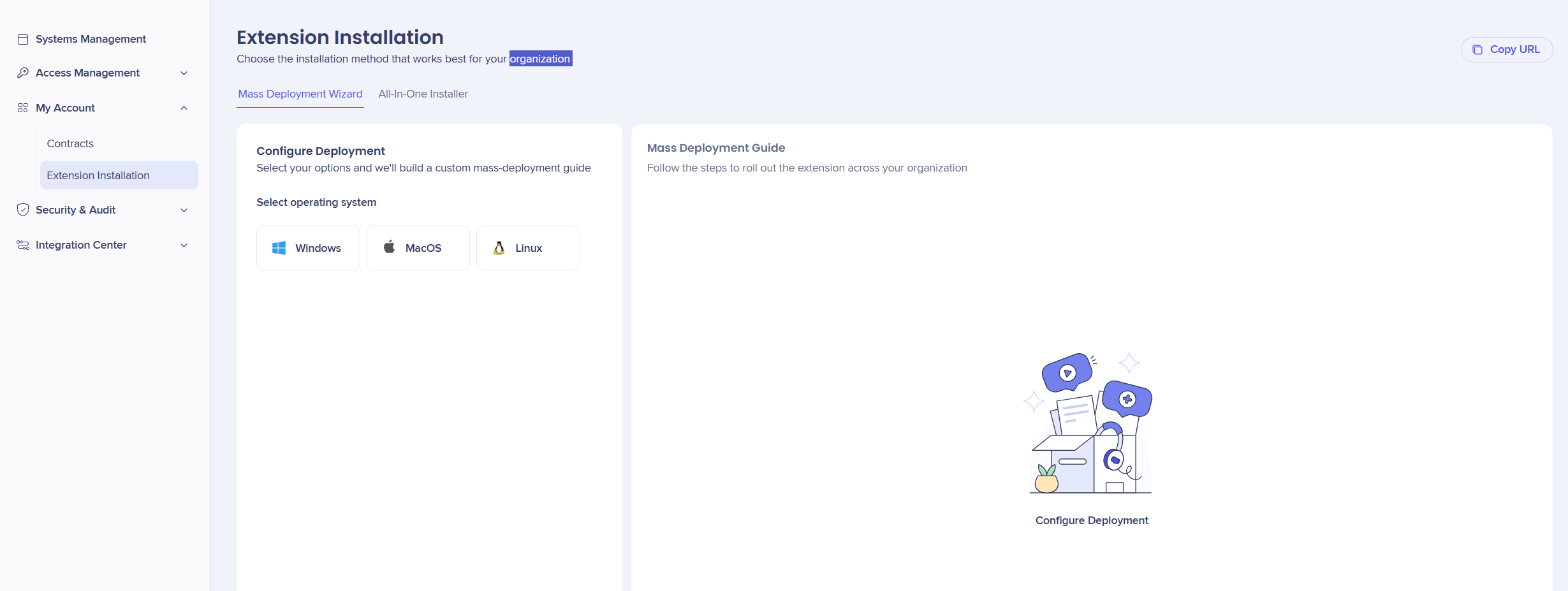
The Extension Installation page displays with 2 tabs:
- Mass Deployment Wizard
- All-in-One Installer
We recommend using the Mass Deployment Wizard for most organizations. Use the All-in-One Installer when your organization has no specific or custom method for deploying extensions or when a user wants to test the extension before the mass deployment takes place.
Note
Select Copy URL to get a shareable link for either method, and send it to your IT admins. If you can't find the configuration you're looking for, contact our support team for further assistance.
Mass Deployment Wizard
If your organization already mass-deploys extensions using a specific method, continue using that same method here.
If no extension is currently deployed in your organization, choose one of our deployment guides to mass deploy the extension.
Note
If your extension has been configured as a unique Chrome or Edge extension, you'll be asked whether to remove any WalkMe extension already installed from that browser's web store when you access the Mass Deployment Wizard.
You should choose "Remove WalkMe store extension", by doing so, no matter if the WalkMe store extension was deployed via mass deployment method or All-In-One installer, the WalkMe store extension will be removed, and the WalkMe unique extension will be installed instead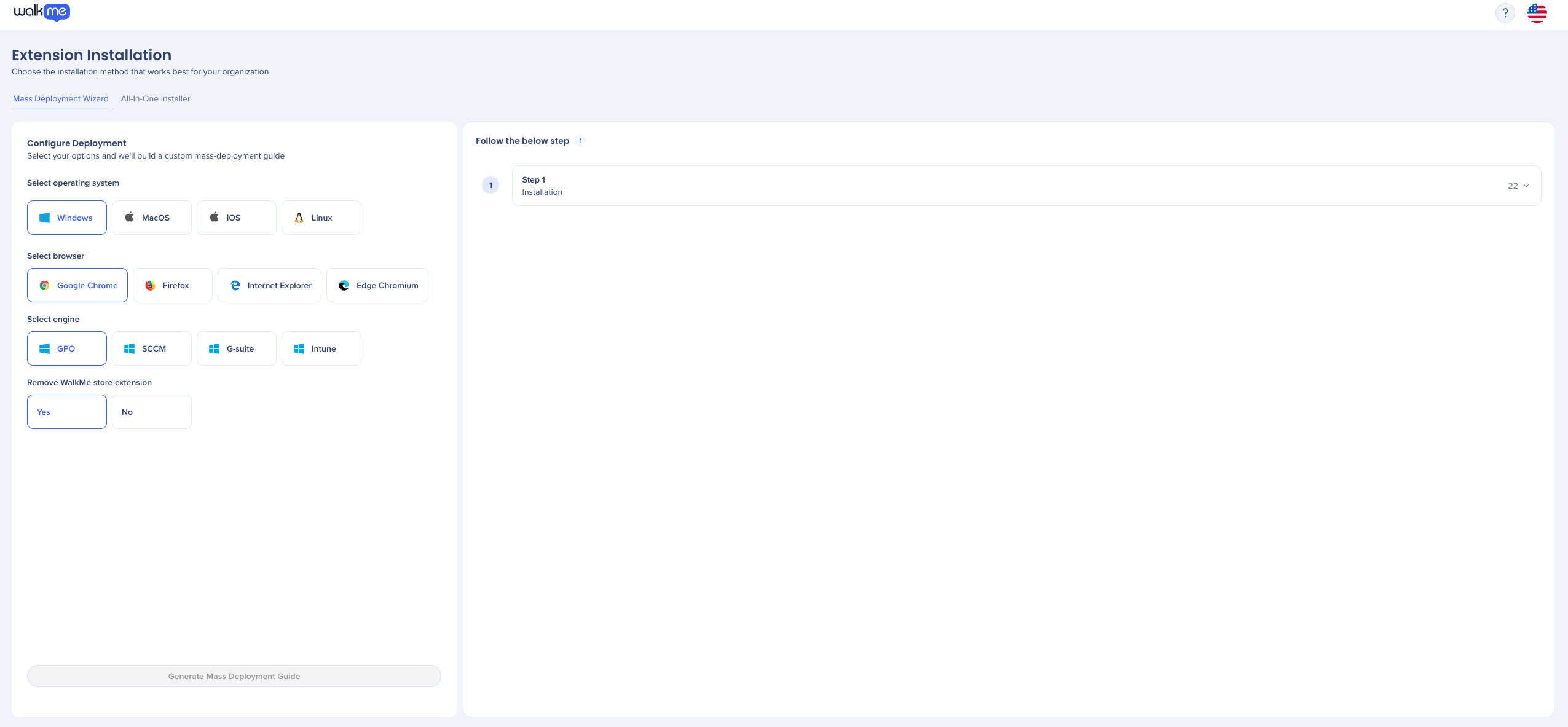
All-in-One Installer
Use the AIO Installer to deploy the extension across multiple browsers, or to install it yourself if you have admin permissions on your computer.
Note
If your organization already mass-deploys extensions using another method, use that method instead of the AIO Installer to avoid conflicts. However, if you choose installing WalkMe unique extension using All-In-One installer when WalkMe store extension is already installed using mass deployment method, you'll need to remove this installation prior the All-In-One installation of the WalkMe unique extension.
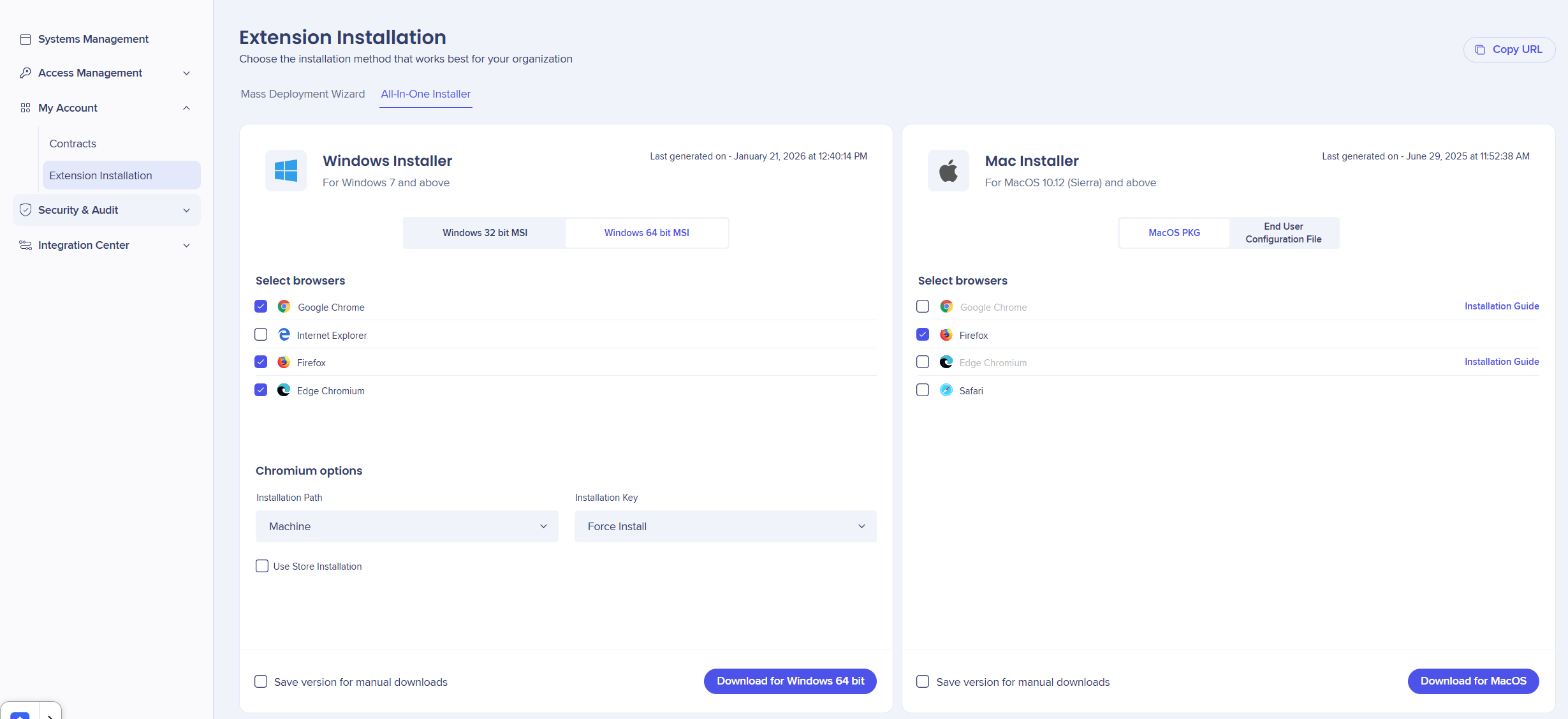
- Choose which browsers you want to install the extension on
- Select Download for your specific platform (for example, Mac or Windows)
- After downloading the extension file, find it on your computer. The file will have a specific format (for example, .msi, .pkg, .mobileconfig)
- Run the installer for your platform
Windows
- Double-click on the MSI file to start the installation
Mac (.pkg)
- Double-click the PKG file to start the installation
Mac (.mobileconfig)
- Double-click on the Installation file
- Open System Settings
- Search for Profiles
- Under Downloaded, select the mobile config file
- Select Install
Confirm the installation
- After deploying the extension, close your browser and reopen
- Select the puzzle icon from your browser toolbar and look for the WalkMe icon
Finding the icon confirms the extension installed successfully. It can take a few moments to appear, if it doesn't show up right away, wait and check again.

Note
Pin the WalkMe icon to your browser toolbar so it's easy to find later.
Use the extension
Select the extension icon, or the new menu option added to your browser's toolbar, to access the extension's features. If you have any further questions, contact us.
🎓 Digital Adoption Institute


