Brief Overview
Play and Preview are two ways to test WalkMe content directly from the editor without publishing. They serve different purposes — knowing which one to use will save you time when building and testing.
Play Mode
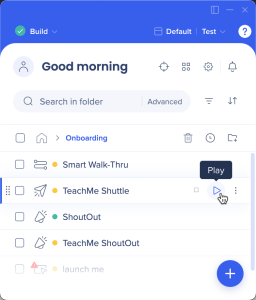
Play mode is active by default whenever the WalkMe Editor is open. It lets you quickly see how an item looks on the page without needing to publish it first.
Use Play mode when you want to:
- Check how a single item appears on the page
- Confirm a launcher is anchoring to the correct element
- Quickly preview content without worrying about segmentation or Auto Play rules
Note
Play mode doesn't take segmentation or Auto Play rules into account, so the content will appear regardless of whether those conditions are met. Only one item can be tested in Play mode at a time, and it's not recommended for testing items that are connected to other items — for example, a launcher that triggers a Smart Walk-Thru.
Preview Mode
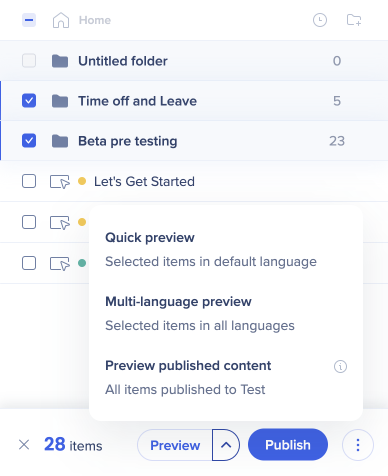
Preview mode simulates how your content will behave in a published environment. It's not active by default — select the items you want to test and select Preview to activate it.
Use Preview mode when you want to:
- Test multiple items at once
- Test segmentation or Auto Play rules
- See how content will behave exactly as it would after publishing
Note
If you're testing a launcher, ShoutOut, or any item that links to another item, you'll need to select both items for Preview. Content that has been archived in production won't appear in Preview mode.
Technical Notes
If the Play button isn't visible in your editor, make sure you're on the latest editor version.
Install the WalkMe Editor


