Brief Overview
When you capture an element in the editor for a Smart Walk-Thru step, launcher, SmartTip, or condition builder rule, WalkMe scans the page to recognize it. The Advanced Settings tab shows whether the captured element is on the current page and lets you adjust how WalkMe finds it.
Condition Builder
Use Cases
- Show a step only to users who need it
- Work with elements that come and go, like dropdowns or hover menus
- Support different user types or process paths in the same Walk-Thru
- Recognize elements on sites with dynamic IDs
How It Works
Every time WalkMe plays a step or shows a launcher or SmartTip, it scans the page for the captured element. WalkMe looks at the element's text, its position on the page, and HTML attributes like ID and class. The Advanced Settings tab lets you change which of these WalkMe relies on, and how it reacts when the element appears or disappears.
Element loading behavior
Element loading behavior controls how a WalkMe item reacts to its element on the page. Automatic is selected by default.
Tip
Keep Automatic selected unless you've tested your build and are sure a manual option fits your element better.
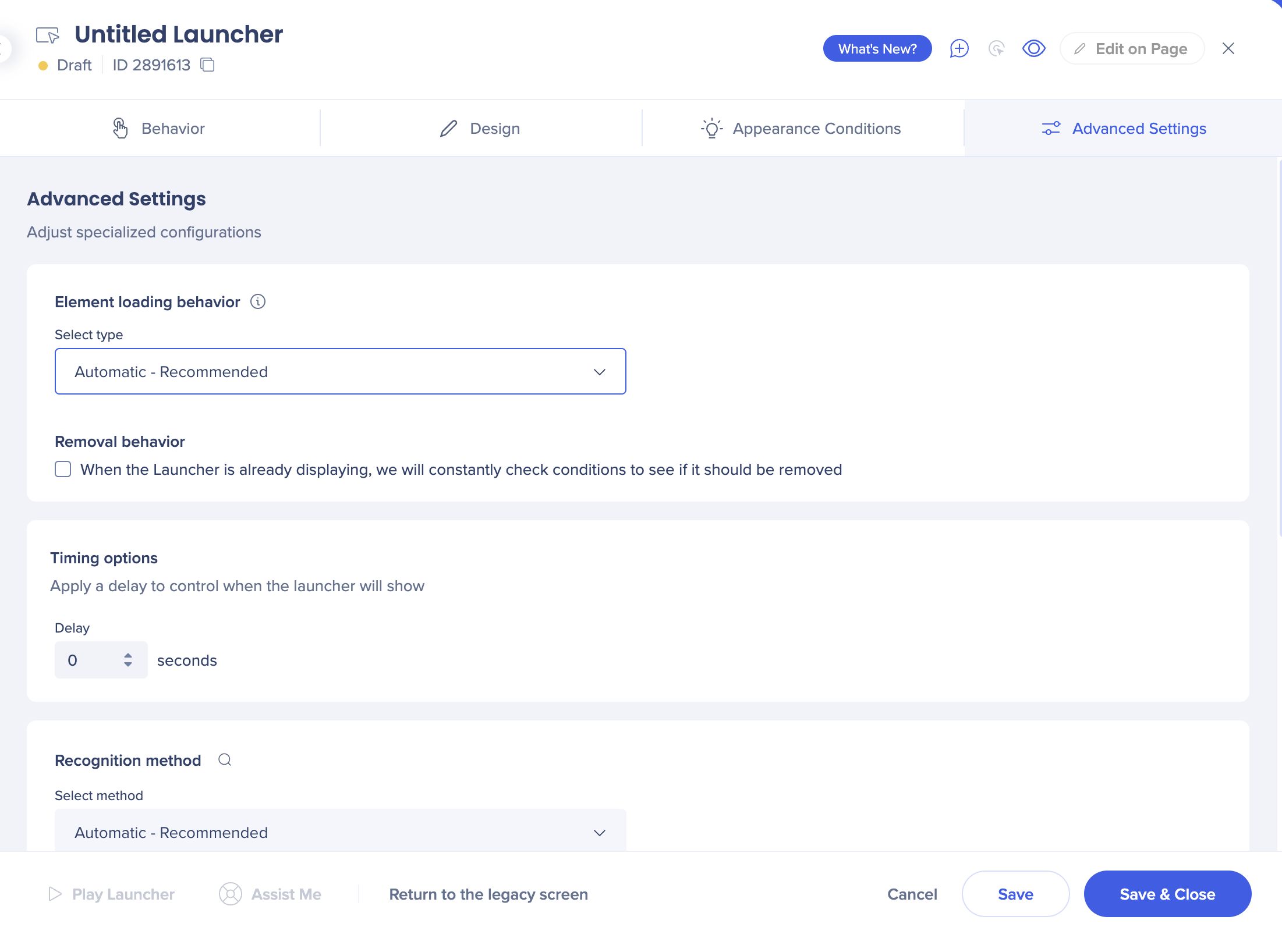
Automatic: WalkMe starts with the strongest behavior, evaluates how the element acts, and adjusts to the right setting for your case.
Manual:
- Appears on page load: WalkMe searches for the element after the page loads and shows the item when it finds it. WalkMe then stops searching. If the element disappears, the item disappears too and doesn't come back
- Appears after page load and then stays visible: The item stays visible even if its element disappears and reappears, like on a hover menu
- Appears and disappears as a result of user action: WalkMe keeps searching for the element even after it finds it. If the element disappears and reappears, the item reappears with it
Removal behavior
When the item is showing, WalkMe keeps checking its conditions to see if it should be removed.
Timing options
Add a delay to control when the item shows.
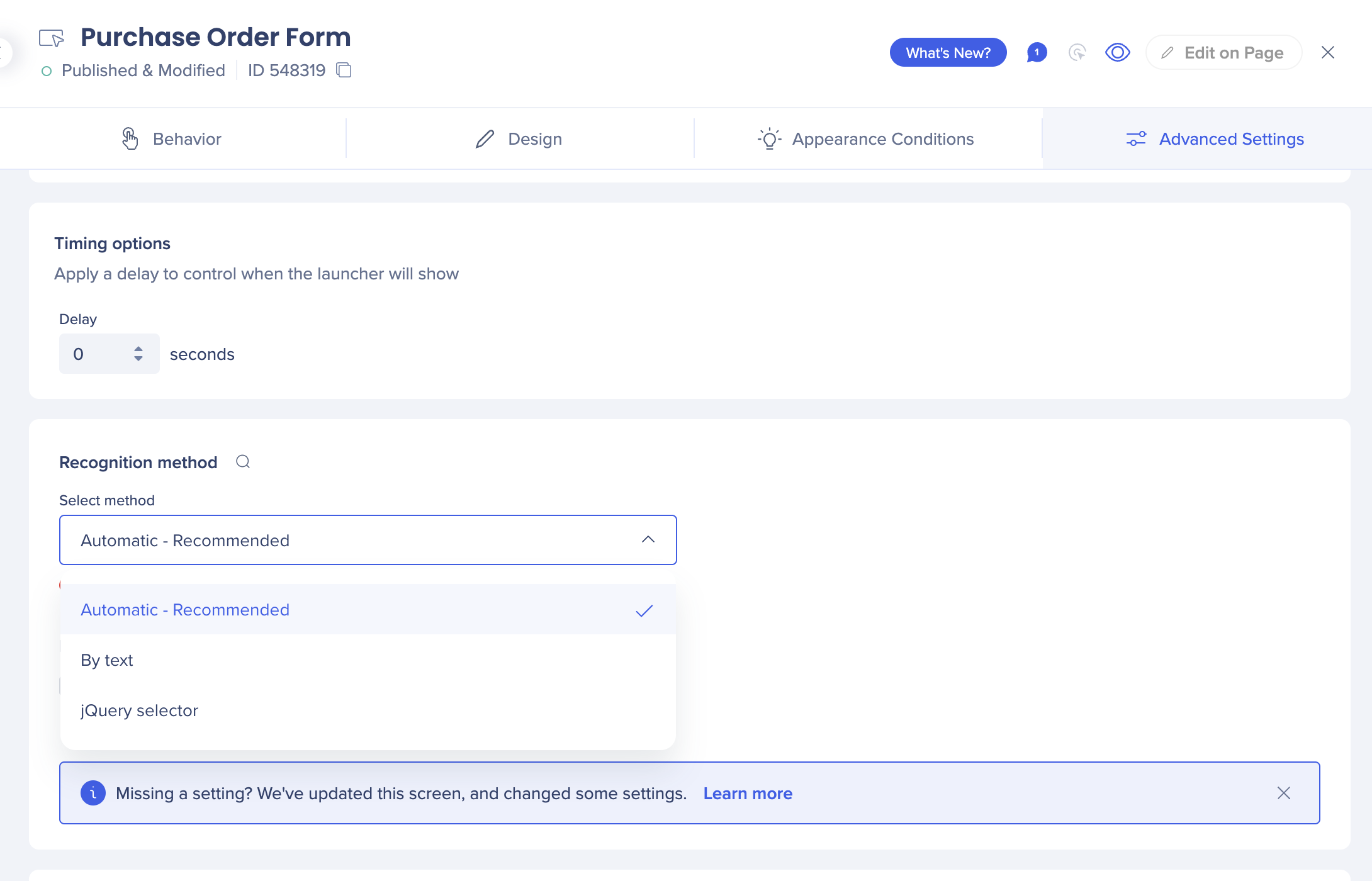
Recognition method
Choose which attributes WalkMe focuses on to recognize the element:
- Automatic (recommended): WalkMe uses its default recognition settings
- By text: WalkMe recognizes the element by the text in its HTML. The text fills in automatically, with no spaces and not case-sensitive. This only works for elements with actual text in the HTML, not images of text. When you choose By text, you can't use other recognition settings
- jQuery Selector: WalkMe uses a selector you define. This helps on sites with dynamic IDs, where the element's code changes each time the page loads, and with Multi-Language
Element attributes to ignore
Choose attributes WalkMe should ignore:
- Element ID: WalkMe ignores the element's HTML ID. Use this for elements that appear on more than one page
Note
Systems with DeepUI don't show this section.
Technical Notes
- Precision level and element grade settings are no longer available. WalkMe handles them automatically
- Use manual element loading behavior only after testing your build


