Brief Overview
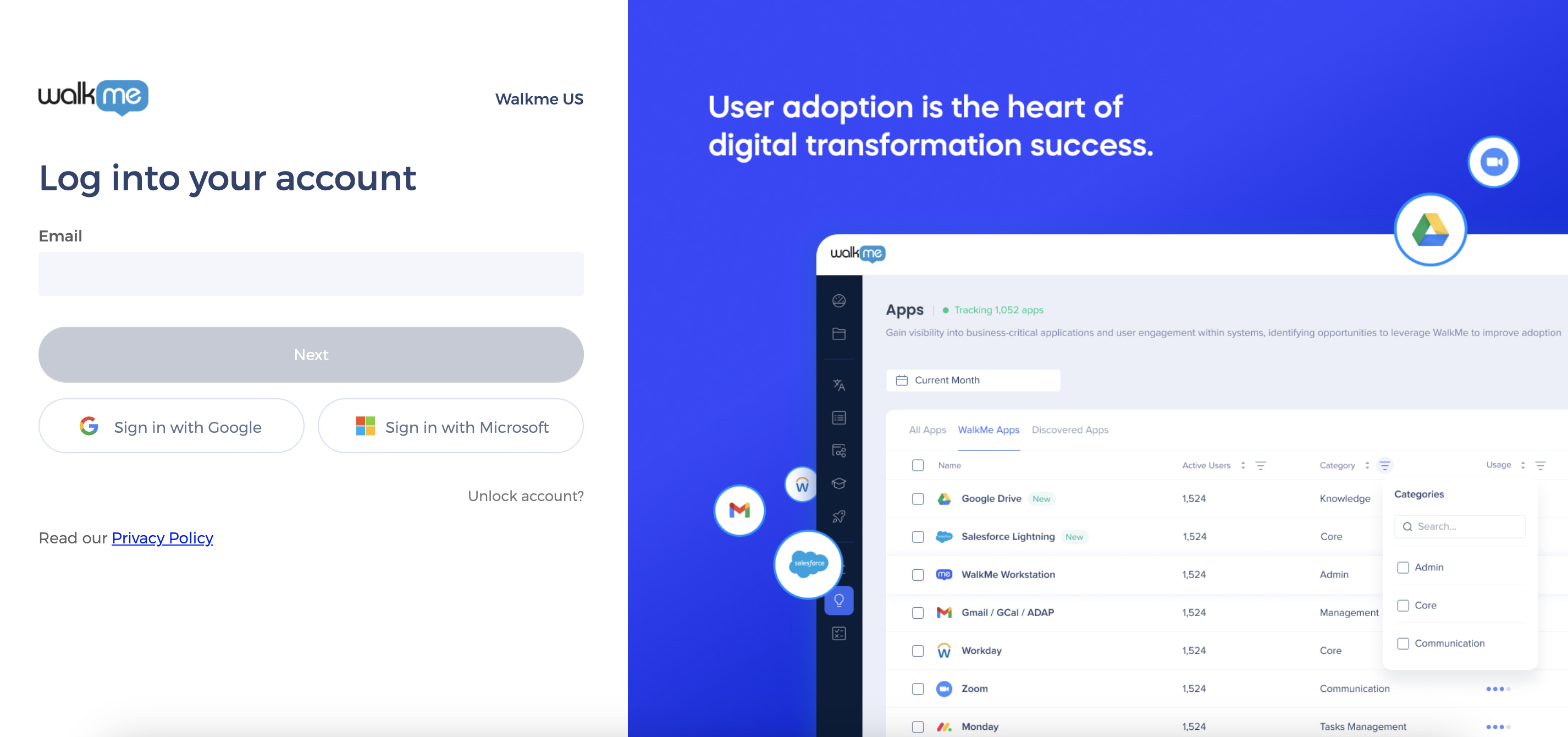
The WalkMe login page lets you access all WalkMe products using your email and password, Single Sign-On (SSO), or Social Login. This article covers how to log in, reset your password, switch to the EU data center, and manage Social Login.
Access
Select the link for your data center:
How To Log In
- Go to the WalkMe login page for your data center
- Type your email and select Next
- Complete the step for your login method:
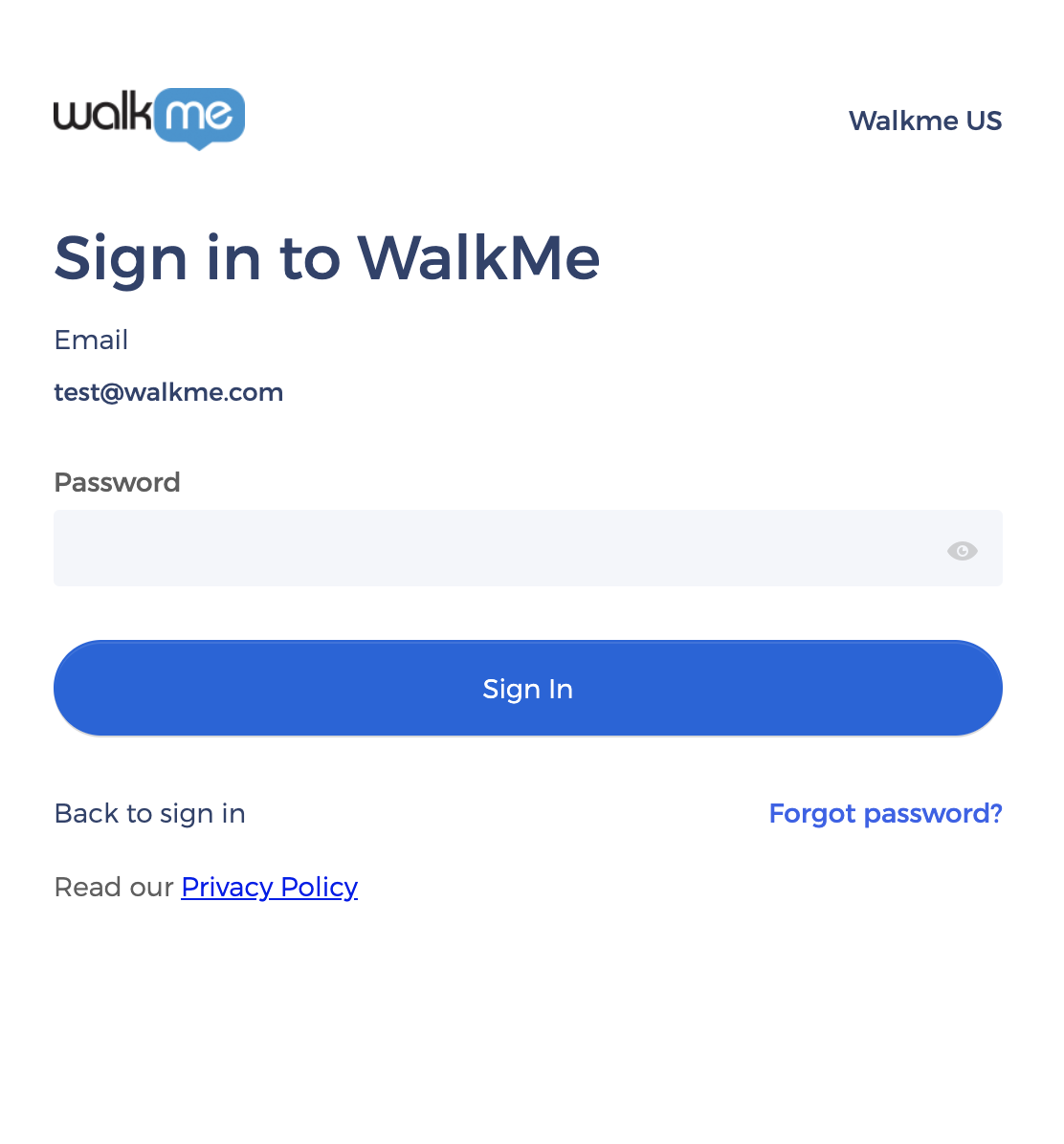
- Password: Type your password and select Sign In
- Single Sign-On (SSO): You're redirected to your organization's identity provider and logged in automatically
- Social Login: Select Sign in with Google or Sign in with Microsoft, then authenticate with your provider
Reset Password
Note
Your login method must be set to Login with password. If you use SSO, you won't get a password reset email.
- On the login page, type your email and select Next
- Select Forgot password?
- Confirm your email and select Send email verification
- Open the email from no-reply@walkme.com with the subject "Account password reset"
- Select Reset Password
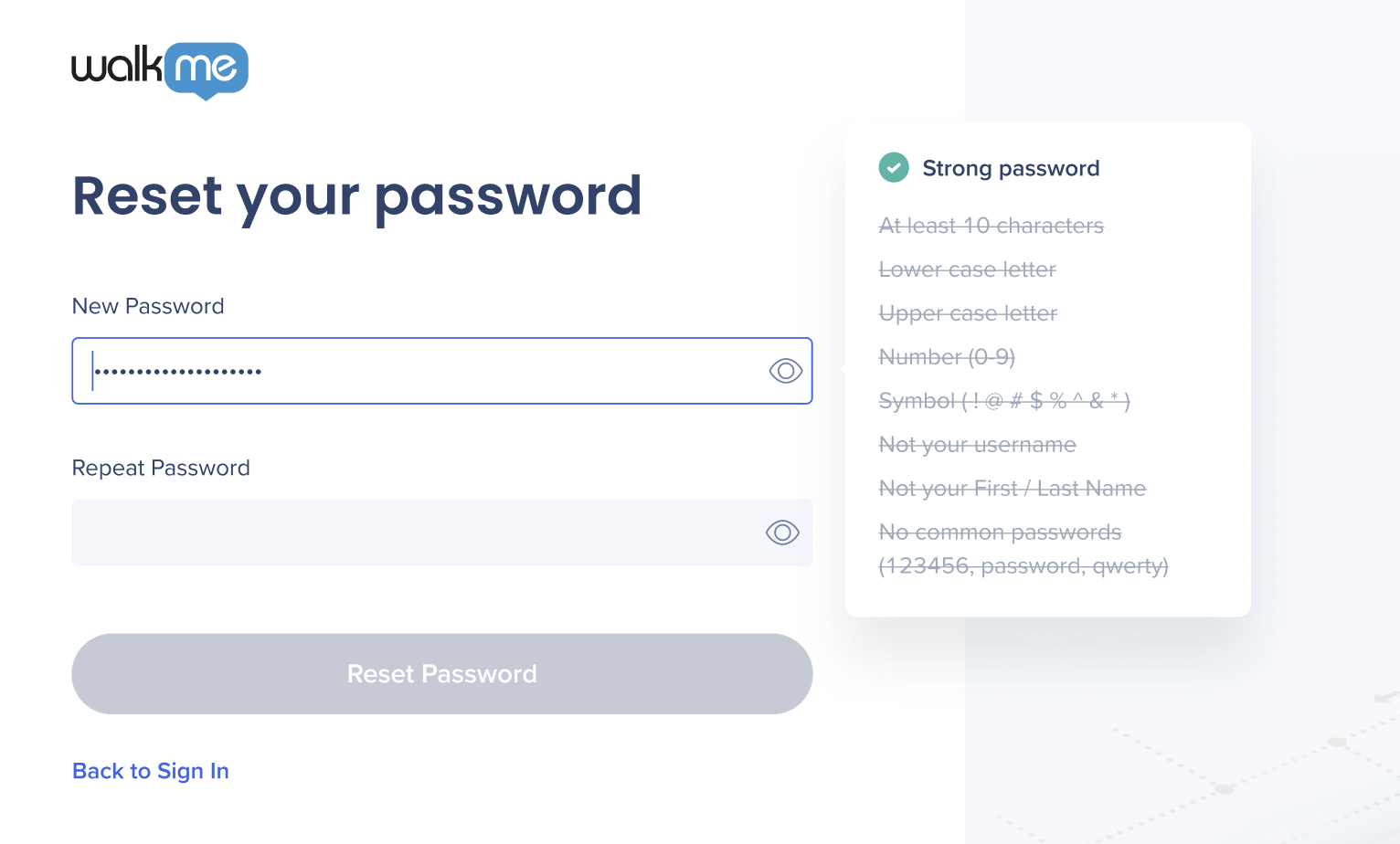
- Create a new password following the on-screen requirements and select Reset Password
Note
The reset link is valid for eight hours. After it expires, repeat the steps above to request a new email.
Switch to the EU data center
If your account is on the EU data center and you're logging in from the US login page, you need to switch data centers before logging in.
- Go to the EU Data Center login page
- Type your email and select Next
- Complete the login steps for your login method
Note
WalkMe stores your data in the region chosen during account setup. If you're not sure which region your account is on, check with your admin.
Social Login
Social Login lets you access WalkMe using existing Google or Microsoft credentials, without a separate WalkMe password. It's turned on by default for all accounts.
When Social Login is turned on:
- Users can log in with Google or Microsoft
- Users can still log in with their WalkMe email and password if applicable
Turn on Social Login
- Open the WalkMe Console:
- Go to the Admin category
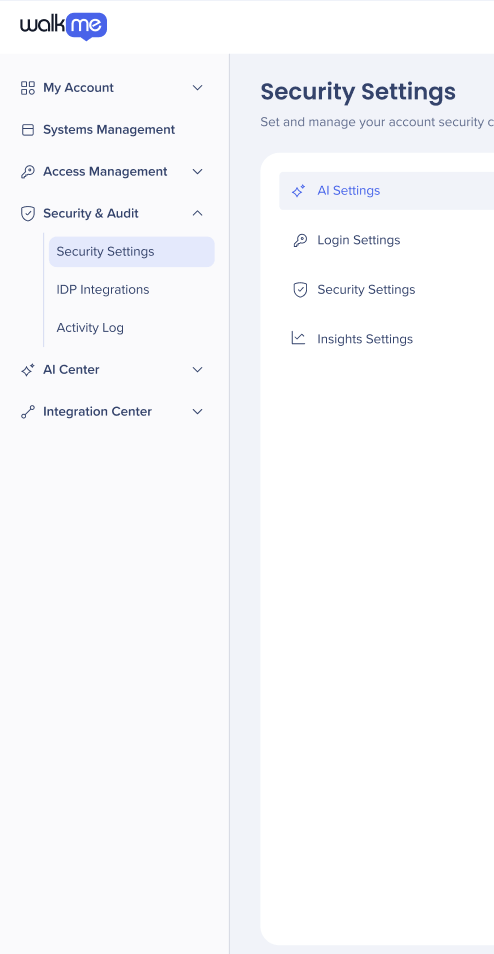
- Select Security & Audit and then Security Settings
- Choose Login Settings and then Social login
Security Settings


