Brief Overview
WalkMe provides step-by-step guidance through common processes in Workday®, helping you clarify confusing areas and improve the accuracy of your reports while saving time and money.
Because users often use Workday® sporadically, they forget how to complete these processes even after training, which increases reliance on support. Confusing fields in Workday® can also lead to costly errors or slow data entry. WalkMe solves these problems with timely, in-context support. Use the best-practice techniques in this article to get the best results.
Enabled feature
Please request access to Workday from your Customer Success Manager or WalkMe contact.
Use Cases
WalkMe supports common Workday® processes, including:
- Setting goals
- Completing performance reviews
- Creating job requisitions
How It Works
Workday® is a single-page application, meaning the URL doesn't predictably change between pages. Workday® is also updated frequently, which occasionally results in unexpected behavior. WalkMe maintains a version of our software optimized for Workday®, with special features built to support its performance. WalkMe regularly checks that your Smart Walk-Thrus are playing correctly, and if unusual behavior is found, we'll proactively work with you to resolve it.
Layout
Workday® is made up of a home page, pages, subpages, and forms. Users most commonly start a Walk-Thru from the home page, but they may also start from a worklet, each of which has its own page.
Users can begin a process from any of these locations. Start Points can be used to accommodate multiple starting points, and can be configured with the Workday®-specific rules described below.
In some cases, tasks aren't accessible from a worklet, and users must be directed to the search box to complete their task. When a user performs a search, they can use Workday®'s drop-down autofill menu to go directly to a subpage. If they instead select Search (or press Enter), they'll be taken to a search results page.
There are three primary places users start processes in Workday®:
- Home page
- Search Box
- Inbox
Tip
We recommend not using the Inbox as a starting point — it's easier to build Smart Walk-Thrus that start from the home page. A well-timed ShoutOut at the beginning or end of a quarter can help push staff to complete performance review processes right from the home page.
Conditions
WalkMe for Workday® gives you access to Workday®-specific rule types in the Condition Builder. These conditions use a variable to verify a user's location, and should be used in start points, goals, and segmentation.
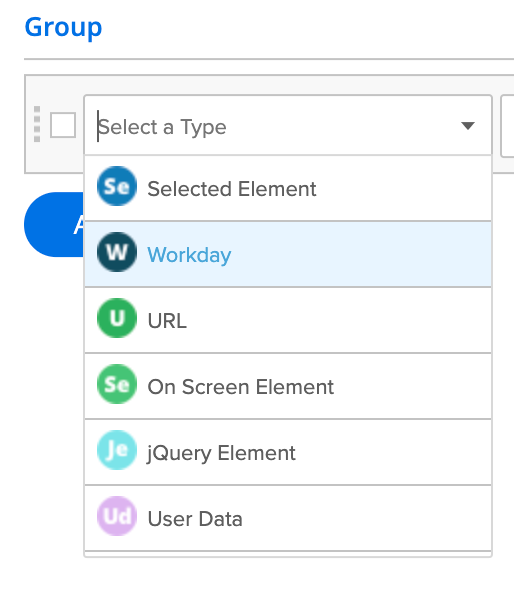
Condition Builder
Page
Also known as a worklet, this rule type detects if a user is on a page. Use the current value filler to load information about the page you're currently on. Always combine this rule with a subpage rule, and connect the two using "AND".
Subpage
From a page, you can access different subpages, and each subpage has its own unique variable. If no subpage is available, use the operator "Does not exist". Always combine this rule with a page rule, and connect the two using "AND".
WalkMe's Workday® rule type lets you determine if a user is on a form, and identify the form's name.
Note
For pages, subpages, and forms, you can select the Auto Select (magnifying glass) icon to populate the page or subpage you're currently on while building the rule.
Segmentation
Not all Workday® worklets are available to every user. For example, only managers have the "My Team" worklet, and items related to it should only appear to users who have access. WalkMe provides a variable that lets you segment your WalkMe items based on whether or not a worklet is available.
First, find the ID of the worklet. In the Condition Builder, select the User Data rule type, then select Variable. Enter walkMeWorkday.segmentation.worklets into the text box, and add the worklet ID to the end of the variable to identify the specific worklet. Then choose Exists.

Best Practices
Smart Walk-Thrus
Users are more likely to complete simple Smart Walk-Thrus, and short Smart Walk-Thrus are easier to build and maintain. Best practice is to:
- Keep it short: use fewer than 5 core steps
- Add Start Points to let your users start from any page
- Include a navigational step that lets users start from another worklet by selecting Home (this step should only appear if the user isn't on the home page)
Building simple processes in Workday® makes your Smart Walk-Thrus easier to maintain and update over time.
SmartTips are advanced tooltips that provide additional, contextual information to your users. Individual SmartTips are created within a Set — a group of SmartTips that generally appear on the same form or page. SmartTips can be used instead of, or alongside, a Walk-Thru, and are ideal for addressing problematic forms and validating entered information.
Condition builder
WalkMe's Workday®-specific rule type can identify pages and subpages using a variable. Use the current value filler to automatically fill in the page or subpage variable.
In Workday®, avoid using Identify by Text in the Precision settings — WalkMe doesn't use on-screen text to identify elements. If you need to identify text in a rule, use On Screen Element Text Is / Text Is Not instead.
Avoid error handling
Workday® includes built-in error handling, so you don't need to build your own error-handling logic into your Walk-Thrus.
Test, test, test, repeat
Test everything you build to confirm it works consistently. Play your Walk-Thru from different pages and forms to check that it doesn't mistakenly play on pages where it shouldn't.
Troubleshooting
SmartTips
If your SmartTips aren't appearing where they should on Workday®, you may need to remove some of your segmentation or display rules.
If you're only missing one or two SmartTips (not the whole set), try reselecting the elements or placing them on different nearby elements.
If your whole set isn't showing:
- Open the page where the SmartTips should appear
- Open the SmartTips display conditions
- Look for the rules that aren't showing as true, and verify that these entries are correct
- If you're placing your SmartTips somewhere that may be accessed from a worklet, the search page, or the Inbox, try removing the page variable (leave the subpage and Form variables in place if applicable)
If your SmartTips are appearing in places where they shouldn't, add segmentation or variables to narrow down where they display:
- Add a page variable if you don't already have one
- Add a subpage variable if you don't already have one
- If you can't select a subpage variable, change the operator to "does not exist"
- Add a form variable if you're using SmartTips on a form
Element selection assistance
If on-screen element selection isn't working, open a WalkMe Assistant ticket for help.
WalkMe Builder Assistant: Tickets


