Brief Overview
Once you enable Discovery's Shadow AI to gain full visibility into AI use, you can create Shadow AI Actions to configure and publish guardrails and guidance on any AI site, with no prior WalkMe knowledge or system configuration required.
Shadow AI
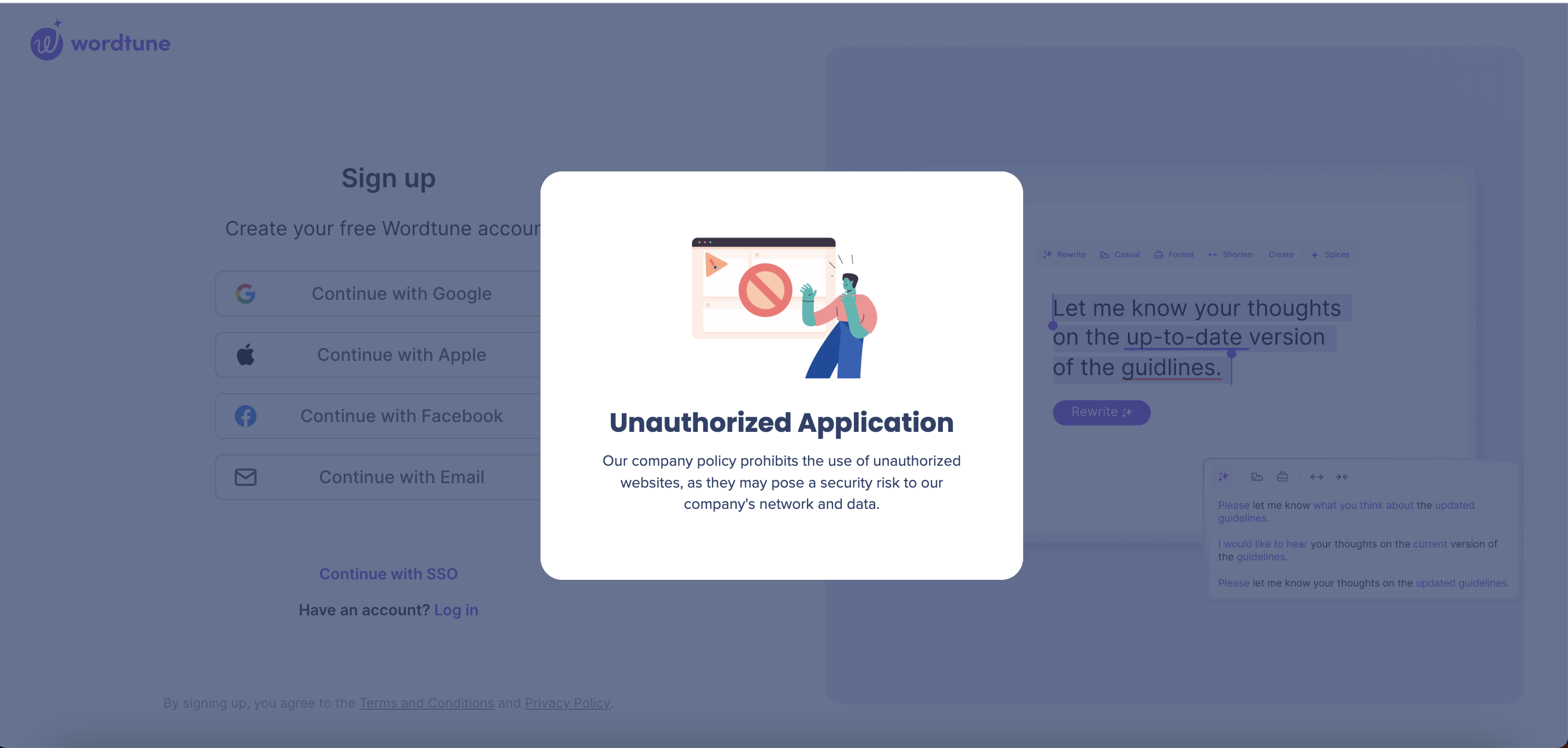
Use Cases
Explore sample Shadow AI Action solutions and templates:
- Redirect Users: Redirect employees to an approved alternate app
- Block Access: Block app access and use by employees
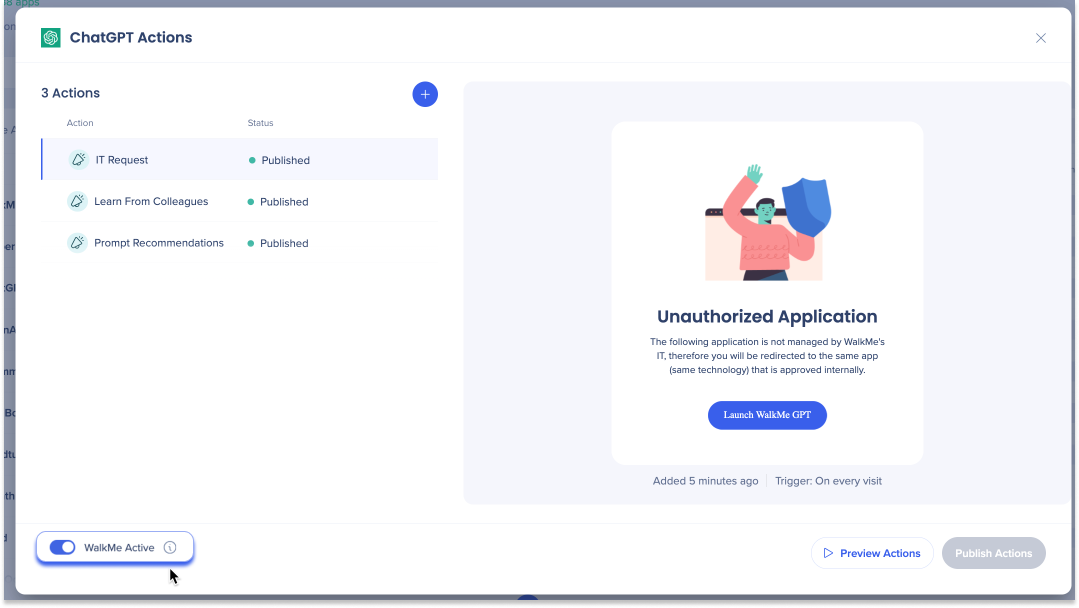
- IT Request: Set up an efficient AI app access request process
- AI Policy: Ensure employee compliance with the company's AI policy
- Employee Training: Give employees educational resources
How It Works
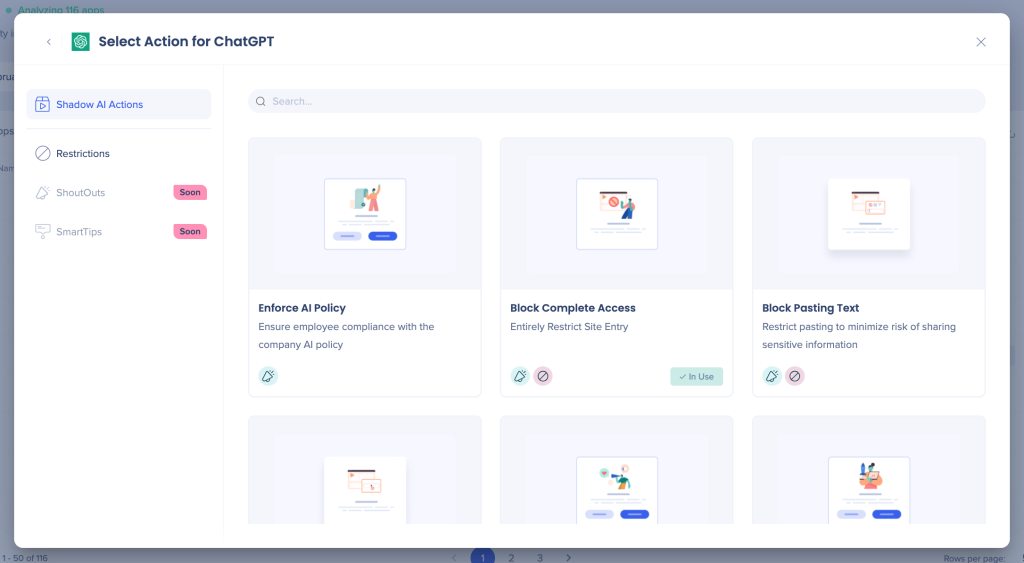
Create an Action
-
Select the + symbol in the WalkMe Actions column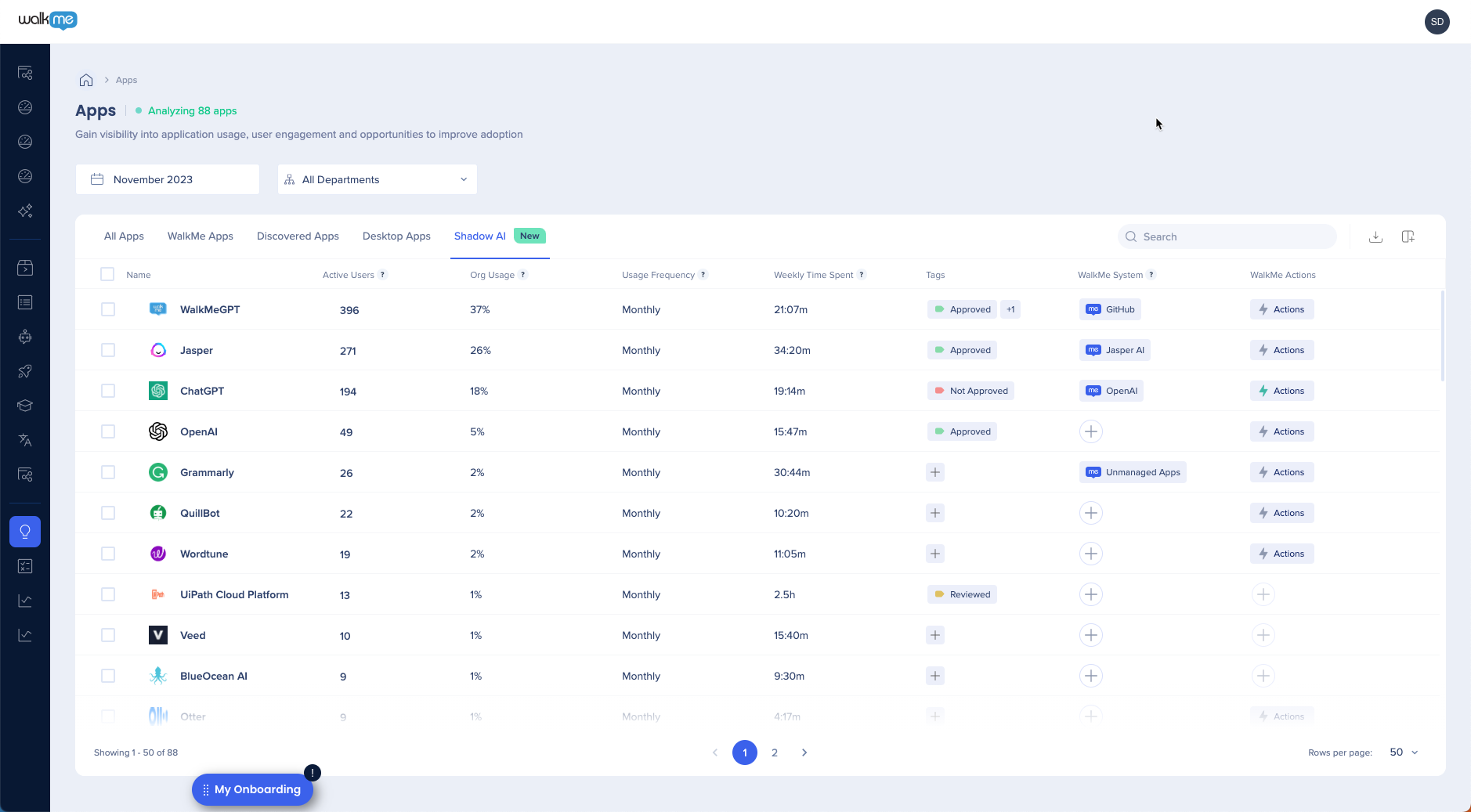
-
Search the gallery for an existing action template to customize
-
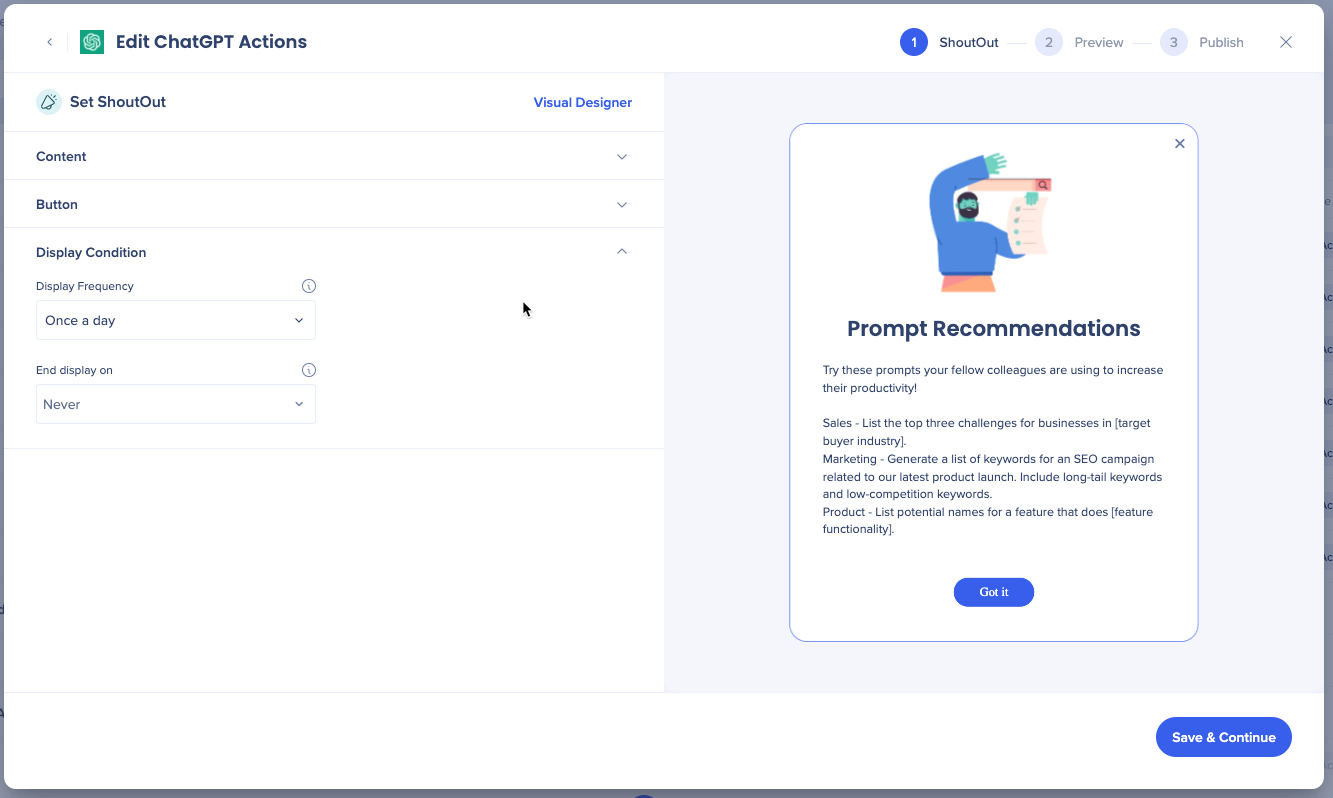
Edit your ShoutOut content and buttons for your use case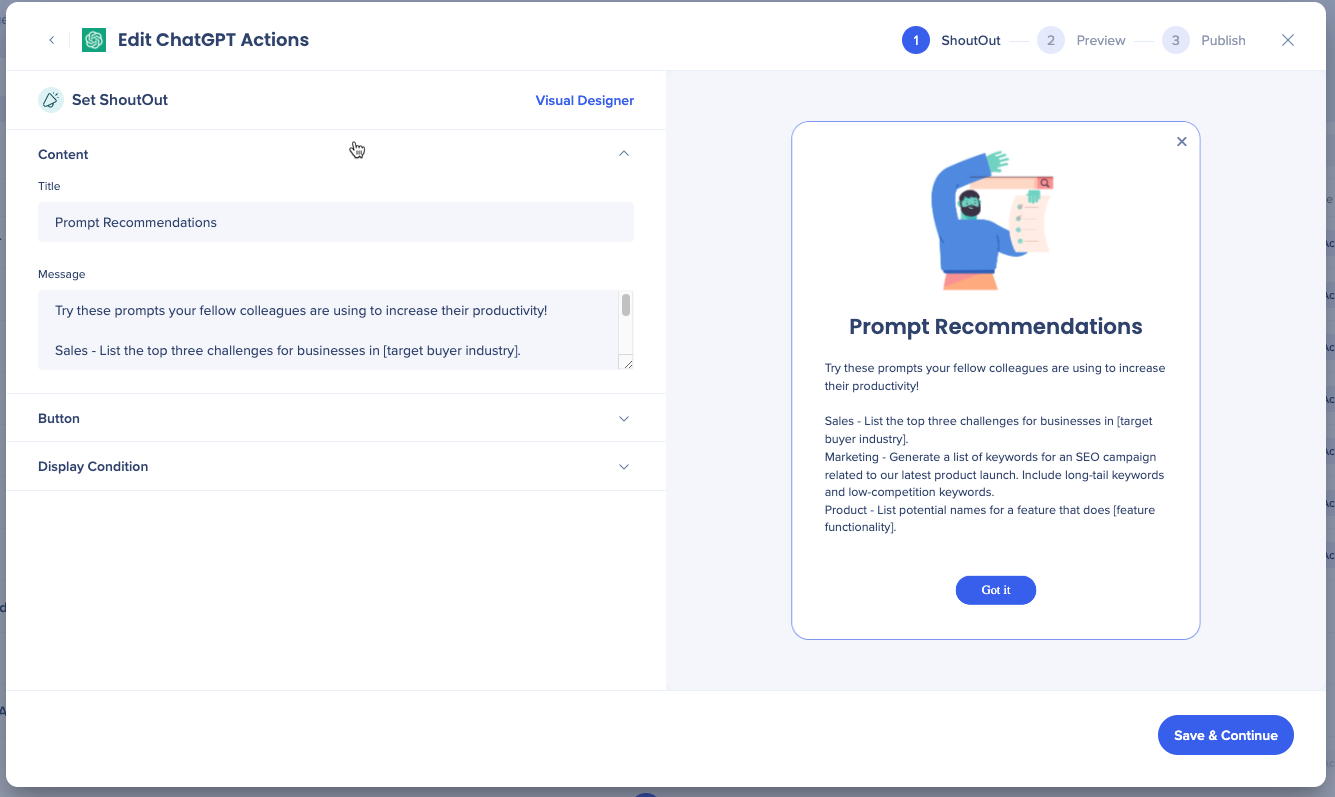
-
Select the display conditions:
-
Display Frequency: On every visit, once a day, once a week, or first visit only
-
End display on: Select the button that permanently stops the ShoutOut from being displayed to the user
- Select Save & Continue
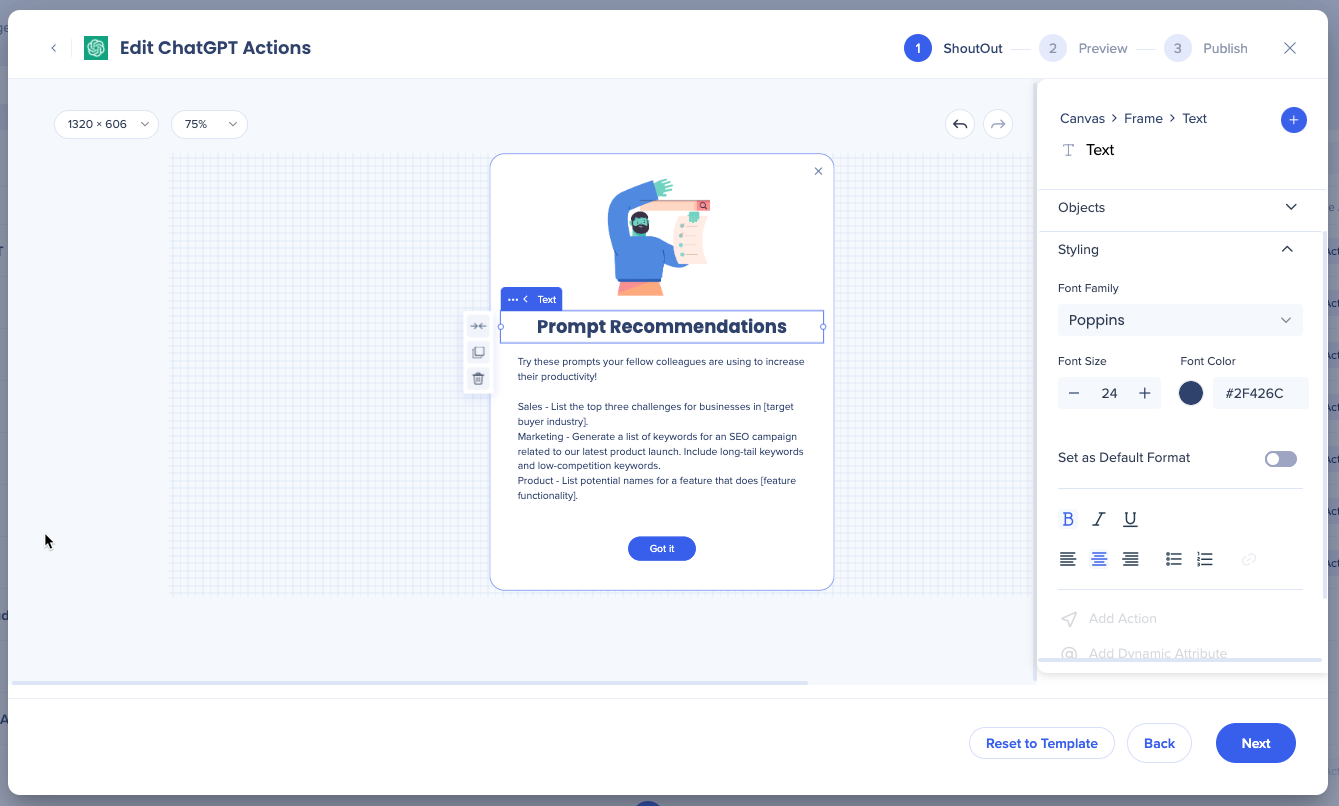
- Open the Visual Designer for advanced customization
- Select Reset to Template anytime to revert, though this discards your changes.
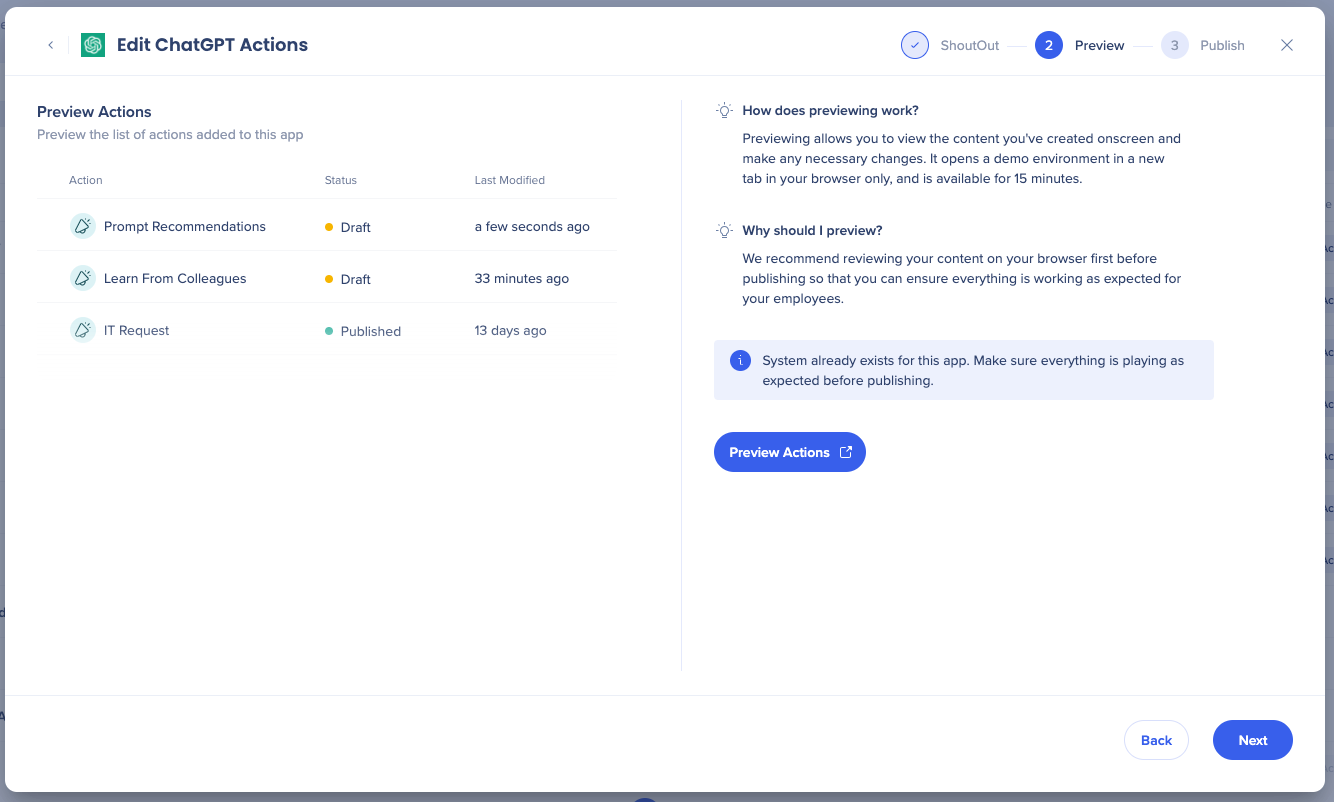
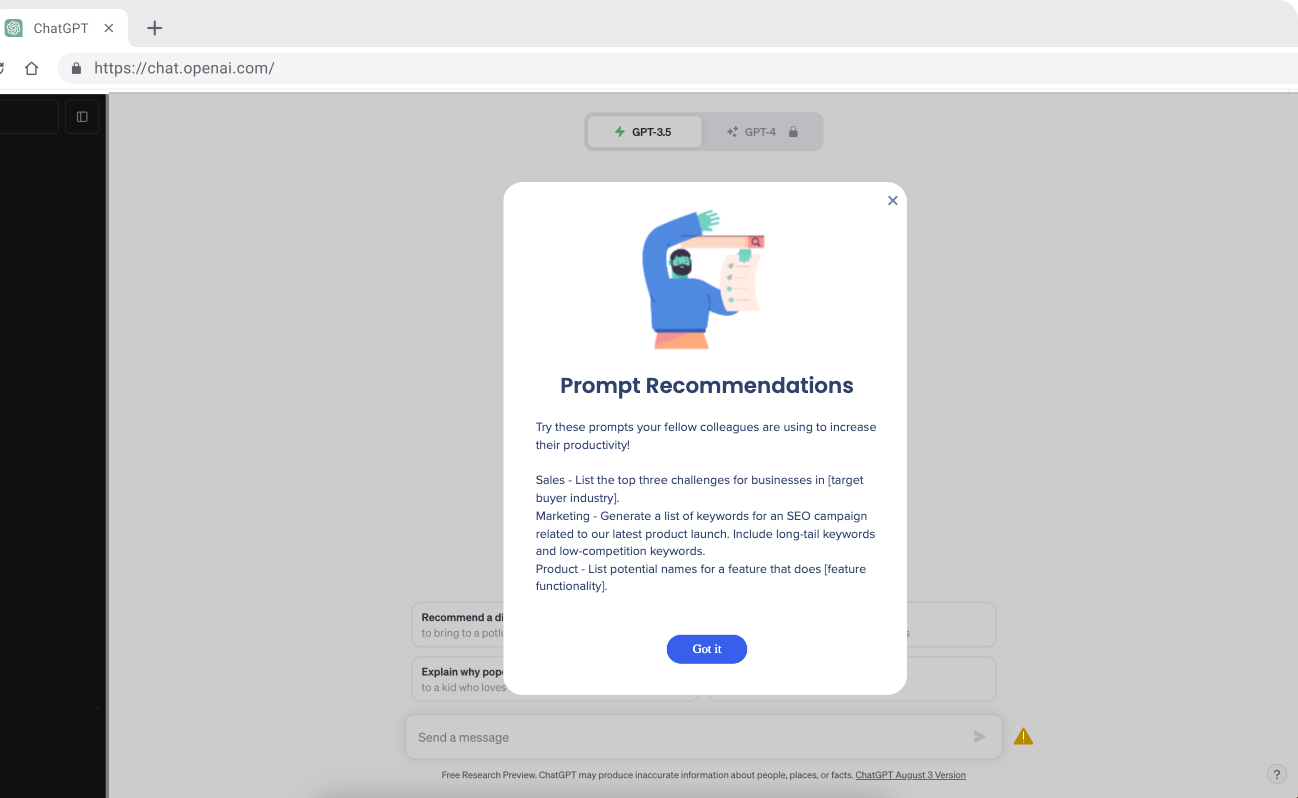
- Select Preview Actions to test your action's visual and frequency behavior
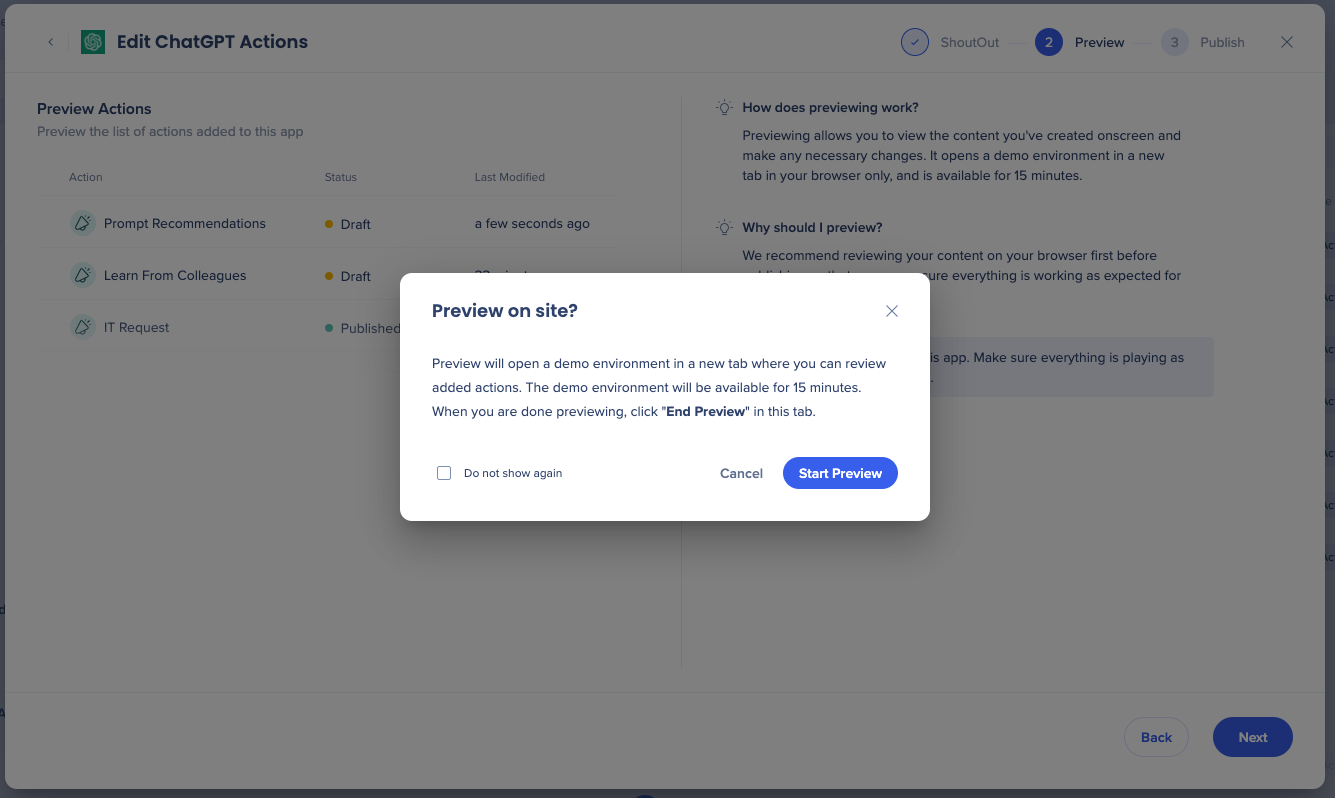
- Select Start Preview to open a demo environment in a new tab
Note
The demo environment stays open for 15 minutes. Enable popups and redirects in your browser, or the preview won't open.
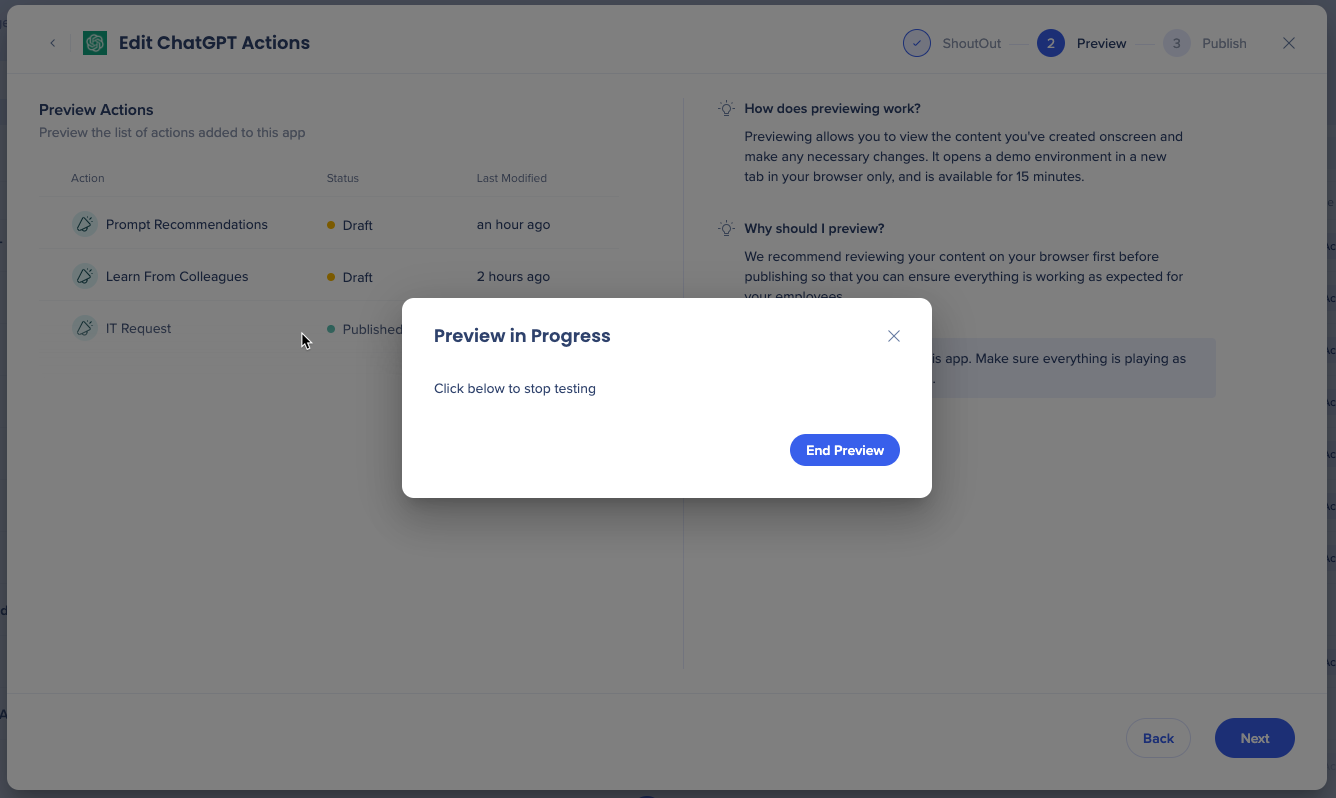
- Preview your content and confirm it works as expected
- Select End Preview, then Next
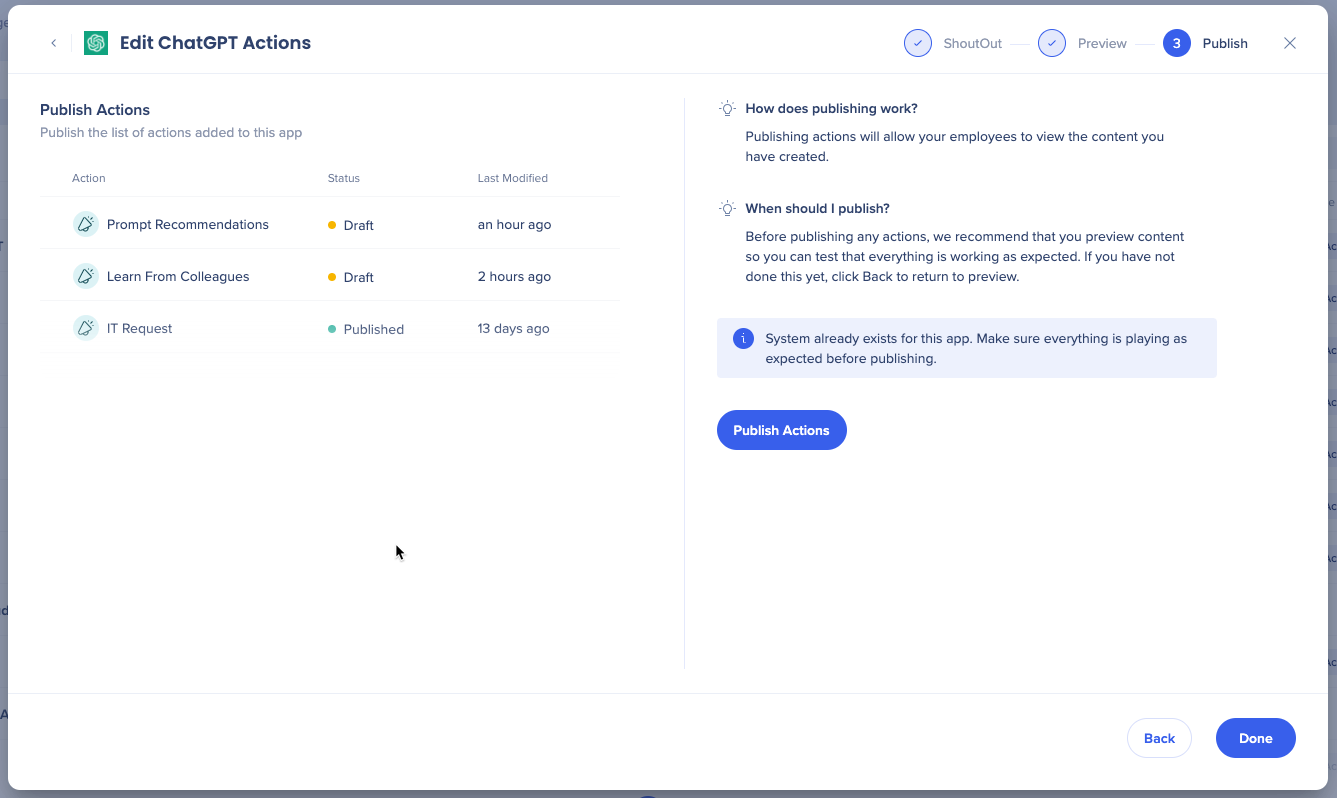
- Select Publish Actions
Manage Actions
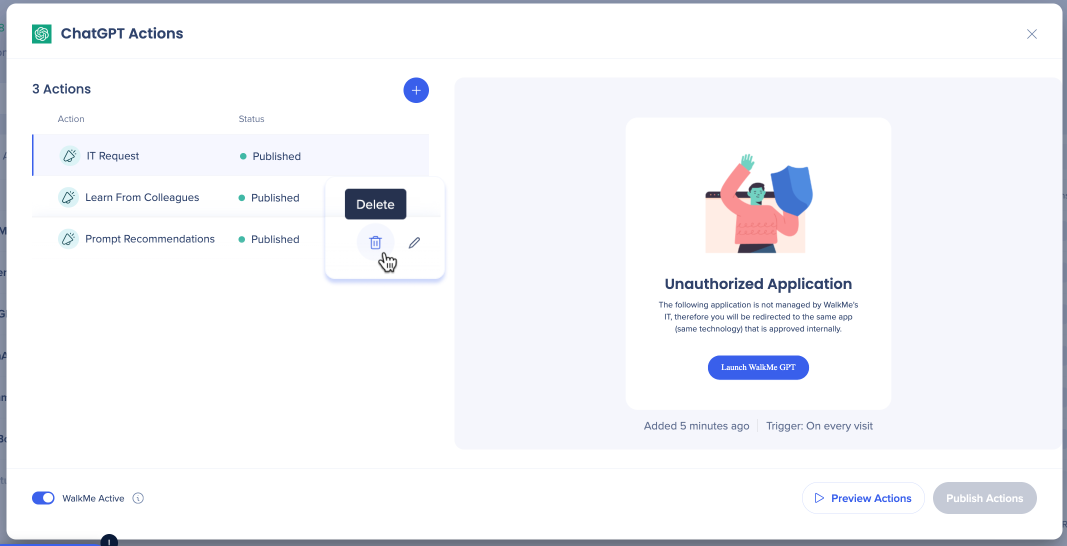
Delete an action
-
Hover over the action you want to delete
-
Select the Delete icon
WalkMe Active
Technical Notes
Limitations
- Desktop apps aren't supported
- Several AI applications have adjusted the default WalkMe CSS, which may affect how actions appear
- Apps currently affected: OpenAI, Pathlight, beautiful.ai, Dynatrace LLC, and people.ai
- Preview and Publish apply to all actions collectively, not to individual actions
Uploading images to the Visual Designer isn't currently supported
Preview limitations
System limitations
Support
- If preview isn't working:
- Enable pop-ups and redirects in your browser settings
- Close the WalkMe Editor
- Check your extension version
- Minimum version 4.0.141 for Shoutout Actions
- Minimum version 4.0.158 for Restrictions Actions
- If content is previewed on an app that requires login, you may be redirected to another URL, typically a home or login page
- In a published environment, content plays on the first URL reached that matches the app's URL definition
- Takes about 15 minutes of cache time for the extension to inject the system by default
- Immediate local publish for the user who published
- Uploading images to the Visual Designer isn't currently supported


